Automate QuickBooks customer & estimate creation from Google Sheets

Workflow preview

Workflow preview
100%
Automate QuickBooks customer & estimate creation from Google Sheets preview
Open on n8n.io

Important notice

This workflow is provided as-is. Please review and test before using in production.

1. Workflow Overview

This n8n template from Intuz provides a complete and automated solution to accelerate your sales and quoting process into Quickbooks. This workflow creates a seamless data...

Best for

  • CRM automation workflows
  • Multimodal AI automation workflows
  • advanced n8n builders looking for reusable templates

Tools used

n8n-nodes-base.set, n8n-nodes-base.quickbooks, n8n-nodes-base.if, n8n-nodes-base.noop, n8n-nodes-base.googlesheetstrigger, n8n-nodes-base.stickynote

Source and attribution

This workflow is cataloged by N8N Workflows and links back to its original n8n.io source page by Intuz .

Original n8n.io source

1.1 Workflow description

Title
Automate QuickBooks customer & estimate creation from Google Sheets
Workflow name
Automate QuickBooks customer & estimate creation from Google Sheets

This n8n template from Intuz provides a complete and automated solution to accelerate your sales and quoting process into Quickbooks.

This workflow creates a seamless data pipeline from a Google Sheet directly into QuickBooks, automating the creation of new customers and their initial sales estimates. It’s designed to save time, reduce human error, and ensure your financial records are always up-to-date.

How it works

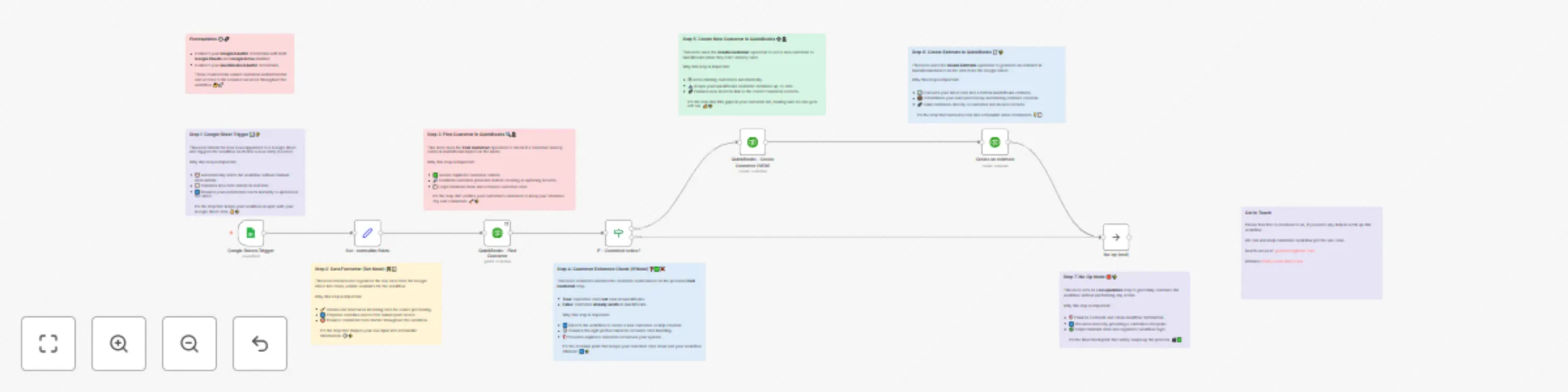
1. Trigger on New Sheet Row: The workflow starts automatically when you add a new row containing customer and estimate details to your designated Google Sheet.

2. Check for Duplicates: Before doing anything else, it takes the customer's name from the sheet and searches your QuickBooks account to see if a customer with that exact name already exists.

3. Route Based on Existence (If/Else Logic):

  • If the Customer is NEW: The workflow proceeds down the "true" path, first creating a new customer record in QuickBooks with the details from the sheet (Name, Email, Phone, Company). Immediately after, it creates a new sales estimate linked to that newly created customer.
  • If the Customer ALREADY EXISTS: The workflow follows the "false" path and stops. This is a built-in safety measure to prevent creating duplicate customer records.

4. End of Process: The workflow concludes, having either created a new customer and estimate or having intelligently stopped to avoid duplication.

Step by Step Instructions

Follow these steps carefully to get the workflow running.

1. Connect Your Credentials

  • Google: Connect your Google account using OAuth2. Ensure you have enabled permissions for both Google Sheets and Google Drive.
  • QuickBooks: Connect your QuickBooks Online account using OAuth2 credentials.

2. Prepare Your Google Sheet This is the most critical step. Create a Google Sheet and ensure the first row contains these exact column headers:

  • CustomerName
  • Email
  • Phone
  • Company Name
  • Amount

3. Configure the n8n Nodes

Google Sheets Trigger:

  • Select your Google Sheet from the Document ID dropdown.
  • Select the specific sheet from the Sheet Name dropdown.

Create an estimate (QuickBooks Node):

  • This node has a default product/service (itemId) and tax code (TaxCodeRef) set. You must update these to match the items and tax codes in your QuickBooks account. See the Customization section for more details.

4. Activate the Workflow Save the workflow and toggle the Active switch to "on". Now, every time you add a new row to your sheet, the automation will run.

Connect with us

For Custom Worflow Automation

Click here- Get Started

1.2 Logical Blocks

This catalog entry is organized from the workflow JSON. The node-level section below shows the executable blocks available for review before importing the template.

2. Block-by-Block Analysis

Block 1 - Set - normalize fields

Type / Role
n8n-nodes-base.set - set
Config choices
Version 1

Block 2 - QuickBooks - Find Customer

Type / Role
n8n-nodes-base.quickbooks - quickbooks
Config choices
Version 1

Block 3 - IF - Customer exists?

Type / Role
n8n-nodes-base.if - if
Config choices
Version 1

Block 4 - QuickBooks - Create Customer (NEW)

Type / Role
n8n-nodes-base.quickbooks - quickbooks
Config choices
Version 1

Block 5 - No-op (end)

Type / Role
n8n-nodes-base.noOp - noOp
Config choices
Version 1

Block 6 - Google Sheets Trigger

Type / Role
n8n-nodes-base.googleSheetsTrigger - googleSheetsTrigger
Config choices
Version 1

Block 7 - Sticky Note

Type / Role
n8n-nodes-base.stickyNote - stickyNote
Config choices
Version 1

Block 8 - Sticky Note1

Type / Role
n8n-nodes-base.stickyNote - stickyNote
Config choices
Version 1

Block 9 - Sticky Note2

Type / Role
n8n-nodes-base.stickyNote - stickyNote
Config choices
Version 1

Block 10 - Sticky Note3

Type / Role
n8n-nodes-base.stickyNote - stickyNote
Config choices
Version 1

Block 11 - Sticky Note4

Type / Role
n8n-nodes-base.stickyNote - stickyNote
Config choices
Version 1

Block 12 - Sticky Note5

Type / Role
n8n-nodes-base.stickyNote - stickyNote
Config choices
Version 1

Block 13 - Sticky Note6

Type / Role
n8n-nodes-base.stickyNote - stickyNote
Config choices
Version 1

Block 14 - Create an estimate

Type / Role
n8n-nodes-base.quickbooks - quickbooks
Config choices
Version 1

Block 15 - Sticky Note7

Type / Role
n8n-nodes-base.stickyNote - stickyNote
Config choices
Version 1

Block 16 - Sticky Note8

Type / Role
n8n-nodes-base.stickyNote - stickyNote
Config choices
Version 1

3. Summary Table

Workflow Automate QuickBooks customer & estimate creation from Google Sheets
Complexity advanced
Nodes 16
Categories CRM, Multimodal AI
Author Intuz
Published 12 Aug 2025

4. Reproducing the Workflow from Scratch

  1. 1. Download the workflow JSON

    Use the JSON export at /data/workflows/7273/7273.json as the source template for this automation.

  2. 2. Import the template into n8n

    Open n8n, import the downloaded JSON, and review each node before activating the workflow.

  3. 3. Configure credentials and variables

    Replace placeholder credentials, API keys, webhook URLs, account IDs, and environment-specific values with your own settings.

  4. 4. Test with sample data

    Run the workflow manually or in a staging workspace, inspect node output, and confirm downstream systems receive the expected data.

  5. 5. Activate and monitor

    Enable the workflow only after testing, then monitor executions, errors, and rate limits during the first production runs.

5. General Notes & Resources

Review imported nodes carefully before activation. This catalog entry is intended to help you inspect the workflow structure, understand required services, and find related templates faster.

Node names, credentials, schedules, webhook paths, and external service limits may need adjustment for your workspace.

Frequently asked questions

What does Automate QuickBooks customer & estimate creation from Google Sheets do?

This n8n template from Intuz provides a complete and automated solution to accelerate your sales and quoting process into Quickbooks. This workflow creates a seamless data...

What do I need before importing this workflow?

Review the workflow JSON, configure any required credentials in n8n, and test the automation in a safe workspace before using it in production.

Can I customize this workflow?

Yes. Use the block-by-block analysis and the downloadable JSON to inspect each node, then adjust credentials, prompts, schedules, filters, or destinations for your CRM, Multimodal AI use case.