Automate Glassdoor job search with Bright Data scraping & Google Sheets storage

Workflow preview

Workflow preview
100%
Automate Glassdoor job search with Bright Data scraping & Google Sheets storage preview
Open on n8n.io

Important notice

This workflow is provided as-is. Please review and test before using in production.

1. Workflow Overview

Glassdoor Job Finder: Bright Data Scraping + Keyword Based Automation A comprehensive n8n automation that scrapes Glassdoor job listings using Bright Data's web scraping service based on user de...

Best for

  • Market Research automation workflows
  • intermediate n8n builders looking for reusable templates

Tools used

n8n-nodes-base.formtrigger, n8n-nodes-base.httprequest, n8n-nodes-base.if, n8n-nodes-base.wait, n8n-nodes-base.googlesheets, n8n-nodes-base.stickynote

Source and attribution

This workflow is cataloged by N8N Workflows and links back to its original n8n.io source page by Bright Data.

Original n8n.io source

1.1 Workflow description

Title
Automate Glassdoor job search with Bright Data scraping & Google Sheets storage
Workflow name
Automate Glassdoor job search with Bright Data scraping & Google Sheets storage

🔍 Glassdoor Job Finder: Bright Data Scraping + Keyword-Based Automation

A comprehensive n8n automation that scrapes Glassdoor job listings using Bright Data's web scraping service based on user-defined keywords, location, and country parameters, then automatically stores the results in Google Sheets.

📋 Overview

This workflow provides an automated job search solution that extracts job listings from Glassdoor using form-based inputs and stores organized results in Google Sheets. Perfect for recruiters, job seekers, market research, and competitive analysis.

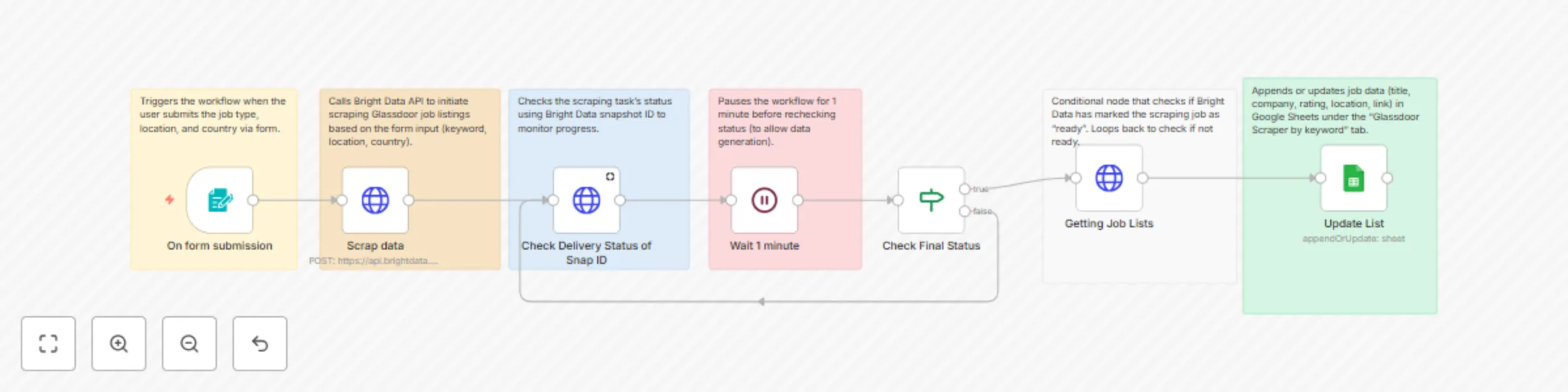
Workflow Description: Automates Glassdoor job searches using Bright Data's web scraping capabilities. Users submit keywords, location, and country via form trigger. The workflow scrapes job listings, extracts company details, ratings, and locations, then automatically stores organized results in Google Sheets for easy analysis and tracking.

✨ Key Features

  • 🎯 Form-Based Input: Simple web form for job type, location, and country
  • 🔍 Glassdoor Integration: Uses Bright Data's Glassdoor dataset for accurate job data
  • 📊 Smart Data Processing: Automatically extracts key job information
  • 📈 Google Sheets Storage: Organized data storage with automatic updates
  • 🔄 Status Monitoring: Built-in progress tracking and retry logic
  • Fast & Reliable: Professional scraping with error handling
  • 🎯 Keyword Flexibility: Search any job type with location filters
  • 📝 Structured Output: Clean, organized job listing data

🎯 What This Workflow Does

Input

  • Job Keywords: Job title or role (e.g., "Software Engineer", "Marketing Manager")
  • Location: City or region for job search
  • Country: Target country for job listings

Processing

  1. Form Submission
  2. Data Scraping via Bright Data
  3. Status Monitoring
  4. Data Extraction
  5. Data Processing
  6. Sheet Update

Output Data Points

Field Description Example
Job Title Position title from listing Senior Software Engineer
Company Name Employer name Google Inc.
Location Job location San Francisco, CA
Rating Company rating score 4.5
Job Link Direct URL to listing https://glassdoor.com/job/...

🚀 Setup Instructions

Prerequisites

  • n8n instance (self-hosted or cloud)
  • Google account with Sheets access
  • Bright Data account with Glassdoor scraping dataset access
  • 5–10 minutes for setup

Step 1: Import the Workflow

  1. Copy the JSON workflow code from the provided file
  2. In n8n: Workflows → + Add workflow → Import from JSON
  3. Paste JSON and click Import

Step 2: Configure Bright Data

  1. Set up Bright Data credentials in n8n
  2. Ensure access to dataset: gd_lpfbbndm1xnopbrcr0
  3. Update API tokens in:
    • "Scrape Job Data" node
    • "Check Delivery Status of Snap ID" node
    • "Getting Job Lists" node

Step 3: Configure Google Sheets Integration

  1. Create a new Google Sheet (e.g., "Glassdoor Job Tracker")
  2. Set up Google Sheets OAuth2 credentials in n8n
  3. Prepare columns:
    • Column A: Job Title
    • Column B: Company Name
    • Column C: Location
    • Column D: Rating
    • Column E: Job Link

Step 4: Update Workflow Settings

  1. Update "Update Job List" node with your Sheet ID and credentials
  2. Test the form trigger and webhook URL

Step 5: Test & Activate

  1. Submit test data (e.g., "Software Engineer" in "New York")
  2. Activate the workflow
  3. Verify Google Sheet updates and field extraction

📖 Usage Guide

Submitting Job Searches

  1. Navigate to your workflow's webhook URL
  2. Fill in:
    • Search Job Type
    • Location
    • Country
  3. Submit the form

Reading the Results

  • Real-time job listing data
  • Company ratings and reviews
  • Direct job posting links
  • Location-specific results
  • Processing timestamps

🔧 Customization Options

  • More Data Points: Add job descriptions, salary, company size, etc.
  • Search Parameters: Add filters for salary, experience, remote work
  • Data Processing: Add validation, deduplication, formatting

🚨 Troubleshooting

  • Bright Data connection failed: Check API credentials and dataset access
  • No job data extracted: Validate search terms and location format
  • Google Sheets permission denied: Re-authenticate and check sharing
  • Form submission failed: Check webhook URL and form config
  • Workflow execution failed: Check logs, add retry logic

Advanced Troubleshooting

  • Check execution logs in n8n
  • Test individual nodes
  • Verify data formats
  • Monitor rate limits
  • Add error handling

📊 Use Cases & Examples

  • Recruitment Pipeline: Track job postings, build talent database
  • Market Research: Analyze job trends, hiring patterns
  • Career Development: Monitor opportunities, salary trends
  • Competitive Intelligence: Track competitor hiring activity

⚙️ Advanced Configuration

  • Batch Processing: Accept multiple keywords, loop logic, delays
  • Search History: Track trends, compare results over time
  • External Tools: Integrate with CRM, Slack, databases, BI tools

📈 Performance & Limits

  • Single search: 2–5 minutes
  • Data accuracy: 95%+
  • Success rate: 90%+
  • Concurrent searches: 1–3 (depends on plan)
  • Daily capacity: 50–200 searches
  • Memory: ~50MB per execution
  • API calls: 3 Bright Data + 1 Google Sheets per search

🤝 Support & Community

  • n8n Community Forum: community.n8n.io
  • Documentation: docs.n8n.io
  • Bright Data Support: Via your dashboard
  • GitHub Issues: Report bugs and features

Contributing: Share improvements, report issues, create variations, document best practices.

Need Help? Check the full documentation or visit the n8n Community for support and workflow examples.

1.2 Logical Blocks

This catalog entry is organized from the workflow JSON. The node-level section below shows the executable blocks available for review before importing the template.

2. Block-by-Block Analysis

Block 1 - On form submission

Type / Role
n8n-nodes-base.formTrigger - formTrigger
Config choices
Version 2.2

Block 2 - Check Delivery Status of Snap ID

Type / Role
n8n-nodes-base.httpRequest - httpRequest
Config choices
Version 4.2

Block 3 - Check Final Status

Type / Role
n8n-nodes-base.if - if
Config choices
Version 2.2

Block 4 - Wait 1 minute

Type / Role
n8n-nodes-base.wait - wait
Config choices
Version 1.1

Block 5 - Scrap data

Type / Role
n8n-nodes-base.httpRequest - httpRequest
Config choices
Version 4.2

Block 6 - Getting Job Lists

Type / Role
n8n-nodes-base.httpRequest - httpRequest
Config choices
Version 4.2

Block 7 - Update List

Type / Role
n8n-nodes-base.googleSheets - googleSheets
Config choices
Version 4.6

Block 8 - Sticky Note

Type / Role
n8n-nodes-base.stickyNote - stickyNote
Config choices
Version 1

Block 9 - Sticky Note1

Type / Role
n8n-nodes-base.stickyNote - stickyNote
Config choices
Version 1

Block 10 - Sticky Note2

Type / Role
n8n-nodes-base.stickyNote - stickyNote
Config choices
Version 1

Block 11 - Sticky Note3

Type / Role
n8n-nodes-base.stickyNote - stickyNote
Config choices
Version 1

Block 12 - Sticky Note4

Type / Role
n8n-nodes-base.stickyNote - stickyNote
Config choices
Version 1

Block 13 - Sticky Note5

Type / Role
n8n-nodes-base.stickyNote - stickyNote
Config choices
Version 1

3. Summary Table

Workflow Automate Glassdoor job search with Bright Data scraping & Google Sheets storage
Complexity intermediate
Nodes 13
Categories Market Research
Author Bright Data
Published 10 Jun 2025

4. Reproducing the Workflow from Scratch

  1. 1. Download the workflow JSON

    Use the JSON export at /data/workflows/4843/4843.json as the source template for this automation.

  2. 2. Import the template into n8n

    Open n8n, import the downloaded JSON, and review each node before activating the workflow.

  3. 3. Configure credentials and variables

    Replace placeholder credentials, API keys, webhook URLs, account IDs, and environment-specific values with your own settings.

  4. 4. Test with sample data

    Run the workflow manually or in a staging workspace, inspect node output, and confirm downstream systems receive the expected data.

  5. 5. Activate and monitor

    Enable the workflow only after testing, then monitor executions, errors, and rate limits during the first production runs.

5. General Notes & Resources

Review imported nodes carefully before activation. This catalog entry is intended to help you inspect the workflow structure, understand required services, and find related templates faster.

Node names, credentials, schedules, webhook paths, and external service limits may need adjustment for your workspace.

Frequently asked questions

What does Automate Glassdoor job search with Bright Data scraping & Google Sheets storage do?

Glassdoor Job Finder: Bright Data Scraping + Keyword Based Automation A comprehensive n8n automation that scrapes Glassdoor job listings using Bright Data's web scraping service based on user de...

What do I need before importing this workflow?

Review the workflow JSON, configure any required credentials in n8n, and test the automation in a safe workspace before using it in production.

Can I customize this workflow?

Yes. Use the block-by-block analysis and the downloadable JSON to inspect each node, then adjust credentials, prompts, schedules, filters, or destinations for your Market Research use case.