Automate ETL error monitoring with AI classification, Sheets logging & Jira alerts

Workflow preview

Workflow preview
100%
Automate ETL error monitoring with AI classification, Sheets logging & Jira alerts preview
Open on n8n.io

Important notice

This workflow is provided as-is. Please review and test before using in production.

1. Workflow Overview

ETL Monitoring & Alert Automation: Jira & Slack Integration This workflow automatically processes ETL errors, extracts important details, generates a preview, creates a log URL, classifies the issu...

Best for

  • DevOps automation workflows
  • AI Summarization automation workflows
  • advanced n8n builders looking for reusable templates

Tools used

n8n-nodes-base.function, @n8n/n8n-nodes-langchain.lmchatopenai, n8n-nodes-base.code, n8n-nodes-base.jira, n8n-nodes-base.slack, n8n-nodes-base.stickynote, @n8n/n8n-nodes-langchain.agent, n8n-nodes-base.googlesheets

Source and attribution

This workflow is cataloged by N8N Workflows and links back to its original n8n.io source page by WeblineIndia.

Original n8n.io source

1.1 Workflow description

Title
Automate ETL error monitoring with AI classification, Sheets logging & Jira alerts
Workflow name
Automate ETL error monitoring with AI classification, Sheets logging & Jira alerts

ETL Monitoring & Alert Automation: Jira & Slack Integration

This workflow automatically processes ETL errors, extracts important details, generates a preview, creates a log URL, classifies the issue using AI and saves the processed data into Google Sheets. If the issue is important or needs attention, it also creates a Jira ticket automatically.

The workflow reduces manual debugging effort, improves visibility and ensures high-severity issues are escalated instantly without human intervention.

Quick Start – Implementation Steps

  1. Connect your webhook or ETL platform to trigger the workflow.
  2. Add your OpenAI, Google Sheets and Jira credentials.
  3. Enable the workflow.
  4. Send a sample error to verify Sheets logging and Jira ticket creation.
  5. Deploy and let the workflow monitor ETL pipelines automatically.

What It Does

This workflow handles ETL errors end-to-end by:

  • Extracting key information from ETL error logs.
  • Creating a short preview for quick understanding.
  • Generating a URL to open the full context log.
  • Asking AI to identify root cause and severity.
  • Parsing the AI output into clean fields.
  • Saving the processed error to Google Sheets.
  • Creating a Jira ticket for medium/high-severity issues.

This creates a complete automated system for error tracking, analysis and escalation.

Who’s It For

  • DevOps & engineering teams monitoring data pipelines.
  • ETL developers who want automated error reporting.
  • QA teams verifying daily pipeline jobs.
  • Companies using Jira for issue tracking.
  • Teams needing visibility into ETL failures without manual log inspection.

Requirements to Use This Workflow

  • n8n account or self-hosted instance.
  • ETL platform capable of sending error payloads (via webhook).
  • OpenAI API Key.
  • Google Sheets credentials.
  • Jira Cloud API credentials.
  • Optional: log storage URL (S3, Supabase, server logs).

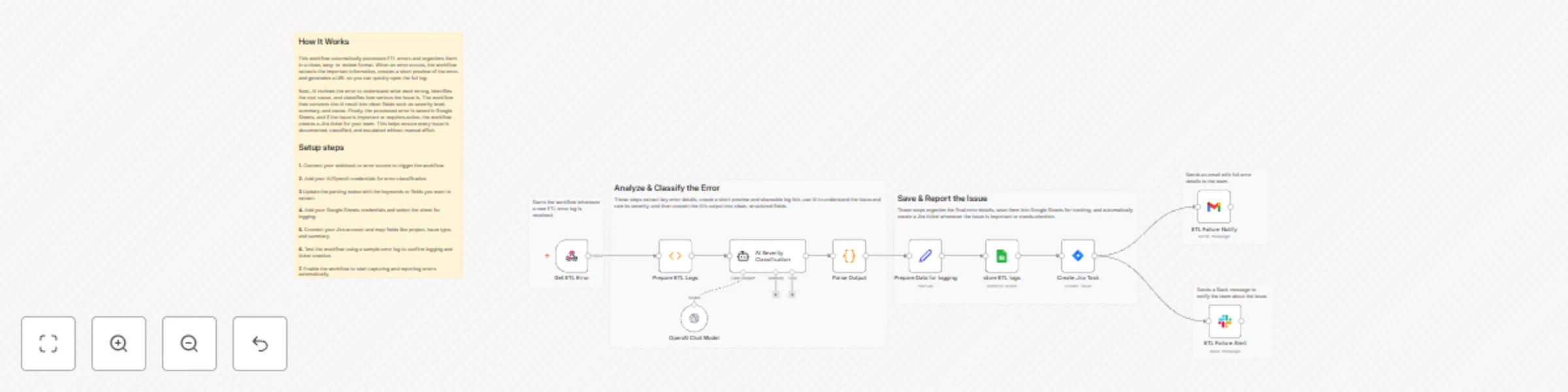
How It Works & Setup Steps

1. Get ETL Error (Webhook Trigger)

Receives ETL error payload and starts the workflow.

2. Prepare ETL Logs (Code Node)

Extracts important fields and makes a clean version of the error.Generates a direct link to open the full ETL log.

3. AI Severity Classification (OpenAI / AI Agent)

AI analyzes the issue, identifies cause and assigns severity.

4. Parse AI Output (Code Node)

Formats AI results into clean fields: severity, cause, summary, recommended action.

5. Prepare Data for Logging (Set / Edit Fields)

Combines all extracted info into one final structured record.

6. Save ETL Logs (Google Sheets Node)

Logs each processed ETL error in a spreadsheet for tracking.

7. Create Jira Ticket (Jira Node)

Automatically creates a Jira issue when severity is Medium, High or Critical.

8. ETL Failure Alert (Slack Node)

Sends a Slack message to notify the team about the issue.

9. ETL Failure Notify (Gmail Node)

Sends an email with full error details to the team.

How to Customize Nodes

ETL Log Extractor

Add/remove fields based on your ETL log structure.

AI Classification

Modify the OpenAI prompt for custom severity levels or deep-dive analysis.

Google Sheets Logging

Adjust columns for environment, job name or log ID.

Jira Fields

Customize issue type, labels, priority and assignees.

Add-Ons (Extend the Workflow)

  • Send Slack or Teams alerts for high severity issues
  • Store full logs in cloud storage (S3, Supabase, GCS)
  • Add daily/weekly error summary reports
  • Connect monitoring tools like Datadog or Grafana
  • Trigger automated remediation workflows

Use Case Examples

  1. Logging all ETL failures to Google Sheets
  2. Auto-creating Jira tickets with AI-driven severity
  3. Summarizing large logs with AI for quick analysis
  4. Centralized monitoring of multiple ETL pipelines
  5. Reducing manual debugging effort across teams

Troubleshooting Guide

Issue Possible Cause Solution
Sheets not updating Wrong Sheet ID or missing permission Reconnect and reselect the sheet
Jira ticket fails Missing required fields or invalid project key Update Jira mapping
AI output empty Invalid OpenAI key or exceeded usage Check API key or usage limits
Severity always “low” Prompt too broad Adjust AI prompt with stronger rules
Log preview empty Incorrect error field mapping Verify the structure of the ETL error JSON

Need Help?

For assistance setting up this workflow, customizing nodes or adding additional features, feel free to contact our n8n developers at WeblineIndia. We can help configure, scale or build similar automation workflows tailored to your ETL and business requirements.

1.2 Logical Blocks

This catalog entry is organized from the workflow JSON. The node-level section below shows the executable blocks available for review before importing the template.

2. Block-by-Block Analysis

Block 1 - Prepare ETL Logs

Type / Role
n8n-nodes-base.function - function
Config choices
Version 1

Block 2 - OpenAI Chat Model

Type / Role
@n8n/n8n-nodes-langchain.lmChatOpenAi - lmChatOpenAi
Config choices
Version 1.2

Block 3 - Parse Output

Type / Role
n8n-nodes-base.code - code
Config choices
Version 2

Block 4 - Create Jira Task

Type / Role
n8n-nodes-base.jira - jira
Config choices
Version 1

Block 5 - ETL Failure Alert

Type / Role
n8n-nodes-base.slack - slack
Config choices
Version 2.3

Block 6 - Sticky Note

Type / Role
n8n-nodes-base.stickyNote - stickyNote
Config choices
Version 1

Block 7 - Sticky Note1

Type / Role
n8n-nodes-base.stickyNote - stickyNote
Config choices
Version 1

Block 8 - AI Severity Classification

Type / Role
@n8n/n8n-nodes-langchain.agent - agent
Config choices
Version 3

Block 9 - Sticky Note2

Type / Role
n8n-nodes-base.stickyNote - stickyNote
Config choices
Version 1

Block 10 - Sticky Note3

Type / Role
n8n-nodes-base.stickyNote - stickyNote
Config choices
Version 1

Block 11 - store ETL logs

Type / Role
n8n-nodes-base.googleSheets - googleSheets
Config choices
Version 4.7

Block 12 - Sticky Note4

Type / Role
n8n-nodes-base.stickyNote - stickyNote
Config choices
Version 1

Block 13 - Sticky Note5

Type / Role
n8n-nodes-base.stickyNote - stickyNote
Config choices
Version 1

Block 14 - Get ETL Error

Type / Role
n8n-nodes-base.webhook - webhook
Config choices
Version 1

Block 15 - Prepare Data for logging

Type / Role
n8n-nodes-base.set - set
Config choices
Version 3.4

Block 16 - ETL Failure Notify

Type / Role
n8n-nodes-base.gmail - gmail
Config choices
Version 2.1

3. Summary Table

Workflow Automate ETL error monitoring with AI classification, Sheets logging & Jira alerts
Complexity advanced
Nodes 16
Categories DevOps, AI Summarization
Author WeblineIndia
Published 20 Nov 2025

4. Reproducing the Workflow from Scratch

  1. 1. Download the workflow JSON

    Use the JSON export at /data/workflows/11039/11039.json as the source template for this automation.

  2. 2. Import the template into n8n

    Open n8n, import the downloaded JSON, and review each node before activating the workflow.

  3. 3. Configure credentials and variables

    Replace placeholder credentials, API keys, webhook URLs, account IDs, and environment-specific values with your own settings.

  4. 4. Test with sample data

    Run the workflow manually or in a staging workspace, inspect node output, and confirm downstream systems receive the expected data.

  5. 5. Activate and monitor

    Enable the workflow only after testing, then monitor executions, errors, and rate limits during the first production runs.

5. General Notes & Resources

Review imported nodes carefully before activation. This catalog entry is intended to help you inspect the workflow structure, understand required services, and find related templates faster.

Node names, credentials, schedules, webhook paths, and external service limits may need adjustment for your workspace.

Frequently asked questions

What does Automate ETL error monitoring with AI classification, Sheets logging & Jira alerts do?

ETL Monitoring & Alert Automation: Jira & Slack Integration This workflow automatically processes ETL errors, extracts important details, generates a preview, creates a log URL, classifies the issu...

What do I need before importing this workflow?

Review the workflow JSON, configure any required credentials in n8n, and test the automation in a safe workspace before using it in production.

Can I customize this workflow?

Yes. Use the block-by-block analysis and the downloadable JSON to inspect each node, then adjust credentials, prompts, schedules, filters, or destinations for your DevOps, AI Summarization use case.