Block 1 - 1. Webhook: New Order
- Type / Role
- n8n-nodes-base.webhook - webhook
- Config choices
- Version 1


 Early Deal
This workflow is provided as-is. Please review and test before using in production.
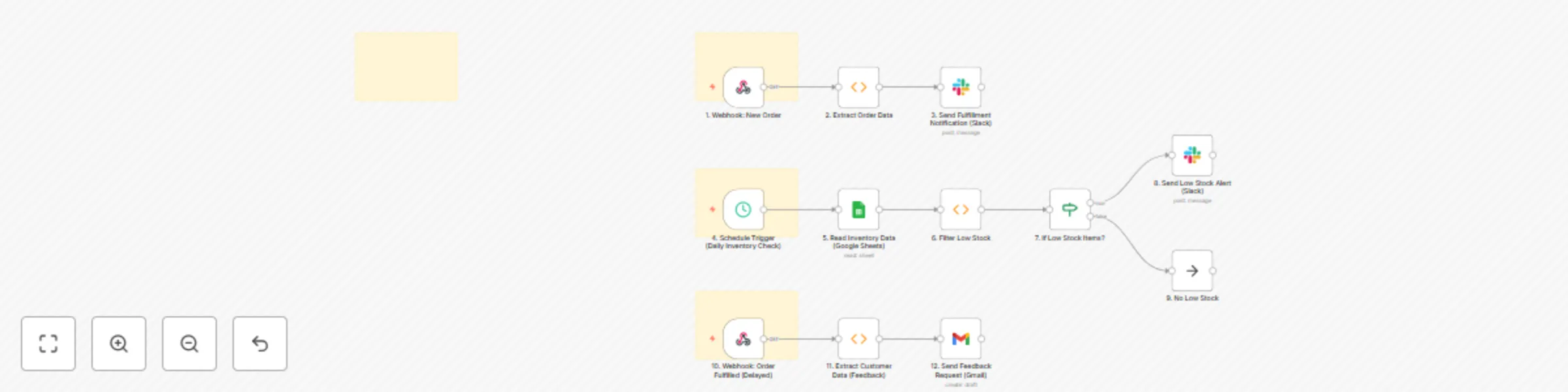
How It Works ️ This workflow acts as a central nervous system for your e commerce operations, automating three critical areas: A. Order Fulfillment Notification 1. Webhook: New Order: The workf...
n8n-nodes-base.webhook, n8n-nodes-base.function, n8n-nodes-base.slack, n8n-nodes-base.scheduletrigger, n8n-nodes-base.googlesheets, n8n-nodes-base.if, n8n-nodes-base.noop, n8n-nodes-base.gmail
This workflow is cataloged by N8N Workflows and links back to its original n8n.io source page by Marth.
Original n8n.io sourceThis workflow acts as a central nervous system for your e-commerce operations, automating three critical areas:
Follow these steps carefully to get your "E-commerce Operations Hub" workflow up and running in n8n:
Import Workflow JSON:
Configure Webhook: New Order (Branch A):
Configure Extract Order Data (Function - Branch A):
functionCode inside this node. You MUST adjust the variable assignments (e.g., orderData.id, orderData.customer?.first_name) to accurately match the exact field names sent by your e-commerce platform's new order webhook. Use the 'Test Workflow' feature in n8n (after sending a test order webhook from your platform) to inspect the incoming items[0].json.body data structure and make precise adjustments.Configure Send Fulfillment Notification (Slack - Branch A):
YOUR_SLACK_CREDENTIAL_ID with the actual ID or name of your credential from your n8n credentials.YOUR_FULFILLMENT_SLACK_CHANNEL_ID_OR_NAME with the exact ID or name of the Slack channel where your fulfillment team receives notifications (e.g., #order-fulfillment).New Order #{{ $json.orderId }}), and 'HTML' body (e.g., ={{ $json.fulfillmentMessage }}).Configure Schedule Trigger (Daily Inventory Check - Branch B):
Configure Read Inventory Data (Google Sheets - Branch B):
YOUR_GOOGLE_SHEETS_CREDENTIAL_ID with the actual ID or name of your credential.YOUR_INVENTORY_GOOGLE_SHEET_ID with the actual ID of your Google Sheet where your inventory data is stored.Inventory!A:C) correctly covers your product ID, name, and stock level columns. Crucially, ensure your Google Sheet has columns with exact names: ProductID, ProductName, and StockLevel (as numbers).Configure Filter Low Stock (Function - Branch B):
functionCode, adjust const lowStockThreshold = 10; to your desired low stock alert level.functionCode and adjust the variable assignments (e.g., product.ProductID, product.StockLevel) if your Google Sheet uses different column headers.Configure Send Low Stock Alert (Slack - Branch B):
YOUR_INVENTORY_SLACK_CHANNEL_ID_OR_NAME with the exact ID or name of the Slack channel for inventory alerts (e.g., #inventory-alerts).Low Stock Alert!), and 'HTML' body (e.g., ={{ $json.alertMessage }}).Configure Webhook: Order Fulfilled (Delayed) (Branch C):
Configure Extract Customer Data (Feedback) (Function - Branch C):
functionCode and adjust the variable assignments (e.g., fulfilledOrderData.customer?.email) to accurately match the exact field names sent by your 'Order Fulfilled' webhook.YOUR_GOOGLE_FORM_OR_SURVEY_LINK with the actual public URL of your customer feedback survey (e.g., Google Form, Typeform, SurveyMonkey).[Your Store Name] in the emailBody with your actual store name.Configure Send Feedback Request (Gmail - Branch C):
YOUR_GMAIL_CREDENTIAL_ID with the actual ID or name of your credential.[email protected] with the email address you want feedback requests to be sent from.Review and Activate:
YOUR_...) are replaced and settings are correct.This catalog entry is organized from the workflow JSON. The node-level section below shows the executable blocks available for review before importing the template.
| Workflow | Automate e-commerce orders, inventory & feedback with Slack, Sheets & Gmail |
|---|---|
| Complexity | advanced |
| Nodes | 16 |
| Categories | CRM |
| Author | Marth |
| Published | 24 Jul 2025 |
Use the JSON export at /data/workflows/6362/6362.json as the source template for this automation.
Open n8n, import the downloaded JSON, and review each node before activating the workflow.
Replace placeholder credentials, API keys, webhook URLs, account IDs, and environment-specific values with your own settings.
Run the workflow manually or in a staging workspace, inspect node output, and confirm downstream systems receive the expected data.
Enable the workflow only after testing, then monitor executions, errors, and rate limits during the first production runs.
Review imported nodes carefully before activation. This catalog entry is intended to help you inspect the workflow structure, understand required services, and find related templates faster.
Node names, credentials, schedules, webhook paths, and external service limits may need adjustment for your workspace.
How It Works ️ This workflow acts as a central nervous system for your e commerce operations, automating three critical areas: A. Order Fulfillment Notification 1. Webhook: New Order: The workf...
Review the workflow JSON, configure any required credentials in n8n, and test the automation in a safe workspace before using it in production.
Yes. Use the block-by-block analysis and the downloadable JSON to inspect each node, then adjust credentials, prompts, schedules, filters, or destinations for your CRM use case.