Block 1 - Get pending cases
- Type / Role
- n8n-nodes-base.httpRequest - httpRequest
- Config choices
- Version 4.2


 Early Deal
This workflow is provided as-is. Please review and test before using in production.
GLPI Pending Tickets Notification to Microsoft Teams Overview Automate daily notifications for pending GLPI tickets directly to Microsoft Teams. Never miss critical support cases with this workf...
n8n-nodes-base.httprequest, n8n-nodes-base.scheduletrigger, n8n-nodes-base.splitinbatches, n8n-nodes-base.noop, n8n-nodes-base.microsoftteams, n8n-nodes-base.splitout, n8n-nodes-base.aggregate, n8n-nodes-base.stickynote
This workflow is cataloged by N8N Workflows and links back to its original n8n.io source page by Luis Hernandez.
Original n8n.io sourceGLPI Pending Tickets Notification to Microsoft Teams
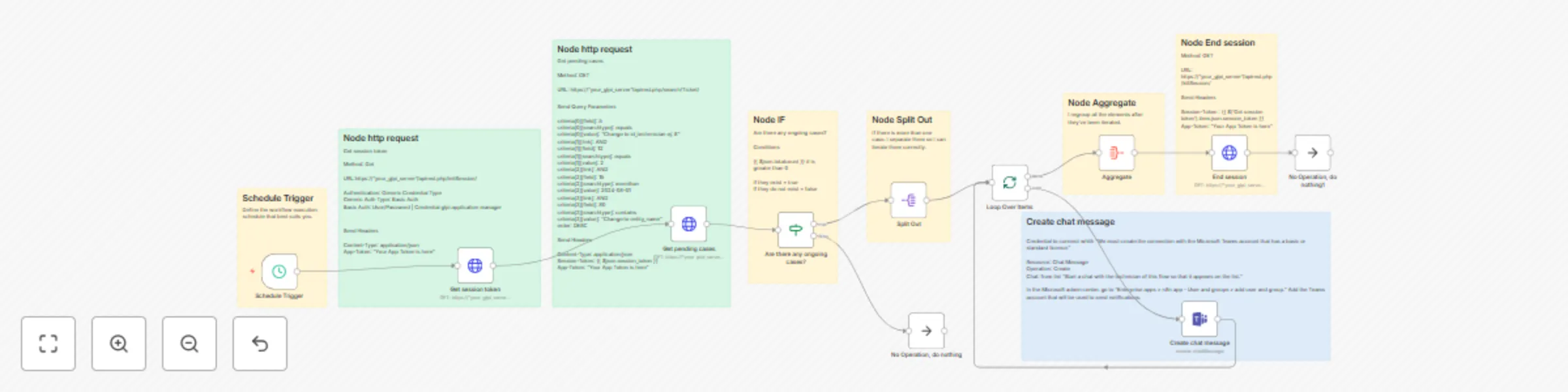
📋 Overview Automate daily notifications for pending GLPI tickets directly to Microsoft Teams. Never miss critical support cases with this workflow that monitors assigned tickets and sends personal alerts.
🔧 How It Works
Connect to GLPI - Authenticates and searches for your assigned tickets Filter Results - Finds tickets in "In Progress" status within your entity Send Notifications - Delivers formatted alerts to your Teams chat Clean Up - Properly closes GLPI session for security
📊 What Gets Monitored
Tickets assigned to specific technician (configurable) Status: "In Progress/Assigned" Entity: Your organization (customizable) Date range: Tickets after specified date
⚡ Key Benefits
Never Miss Deadlines - Daily automated reminders Personal Focus - Only your assigned tickets Time Savings - Eliminates manual checking (15-30 min daily) Rich Details - Shows ticket title, ID, and due date
⚙️ Setup Steps Time Required: ~30 minutes
Import Template - Add workflow to your n8n instance Configure GLPI - Set server URL, credentials, and app token Set Technician ID - Update to your GLPI user ID Connect Teams - Link your Microsoft Teams account Customize Filters - Adjust entity name and date range Test & Schedule - Verify notifications and set daily trigger
🎨 Easy Customization
Change technician ID for different users Adjust notification schedule (default: 8 AM daily) Modify entity filters for your organization Add multiple technicians by duplicating workflow
📋 Prerequisites
GLPI instance with API enabled GLPI user account with ticket read permissions Microsoft Teams account (basic license) n8n with Microsoft Teams integration
Perfect for support technicians who want automated reminders about their pending GLPI tickets without manual daily checks.
This catalog entry is organized from the workflow JSON. The node-level section below shows the executable blocks available for review before importing the template.
| Workflow | Automate daily GLPI pending ticket notifications to Microsoft Teams |
|---|---|
| Complexity | advanced |
| Nodes | 19 |
| Categories | Ticket Management |
| Author | Luis Hernandez |
| Published | 05 Aug 2025 |
Use the JSON export at /data/workflows/7018/7018.json as the source template for this automation.
Open n8n, import the downloaded JSON, and review each node before activating the workflow.
Replace placeholder credentials, API keys, webhook URLs, account IDs, and environment-specific values with your own settings.
Run the workflow manually or in a staging workspace, inspect node output, and confirm downstream systems receive the expected data.
Enable the workflow only after testing, then monitor executions, errors, and rate limits during the first production runs.
Review imported nodes carefully before activation. This catalog entry is intended to help you inspect the workflow structure, understand required services, and find related templates faster.
Node names, credentials, schedules, webhook paths, and external service limits may need adjustment for your workspace.
GLPI Pending Tickets Notification to Microsoft Teams Overview Automate daily notifications for pending GLPI tickets directly to Microsoft Teams. Never miss critical support cases with this workf...
Review the workflow JSON, configure any required credentials in n8n, and test the automation in a safe workspace before using it in production.
Yes. Use the block-by-block analysis and the downloadable JSON to inspect each node, then adjust credentials, prompts, schedules, filters, or destinations for your Ticket Management use case.