Block 1 - When clicking ‘Execute workflow’
- Type / Role
- n8n-nodes-base.manualTrigger - manualTrigger
- Config choices
- Version 1


 Early Deal
This workflow is provided as-is. Please review and test before using in production.
Manual Trigger Workflow starts manually to initiate the reconciliation process on demand. Fetch Invoices & Bank Statements Retrieves invoice data and bank statement data from Google Sheets fo...
n8n-nodes-base.manualtrigger, n8n-nodes-base.googlesheets, @n8n/n8n-nodes-langchain.lmchatopenai, @n8n/n8n-nodes-langchain.agent, n8n-nodes-base.merge, n8n-nodes-base.code, n8n-nodes-base.switch, n8n-nodes-base.if
This workflow is cataloged by N8N Workflows and links back to its original n8n.io source page by Chintan Prajapati.
Original n8n.io source🟢 Manual Trigger
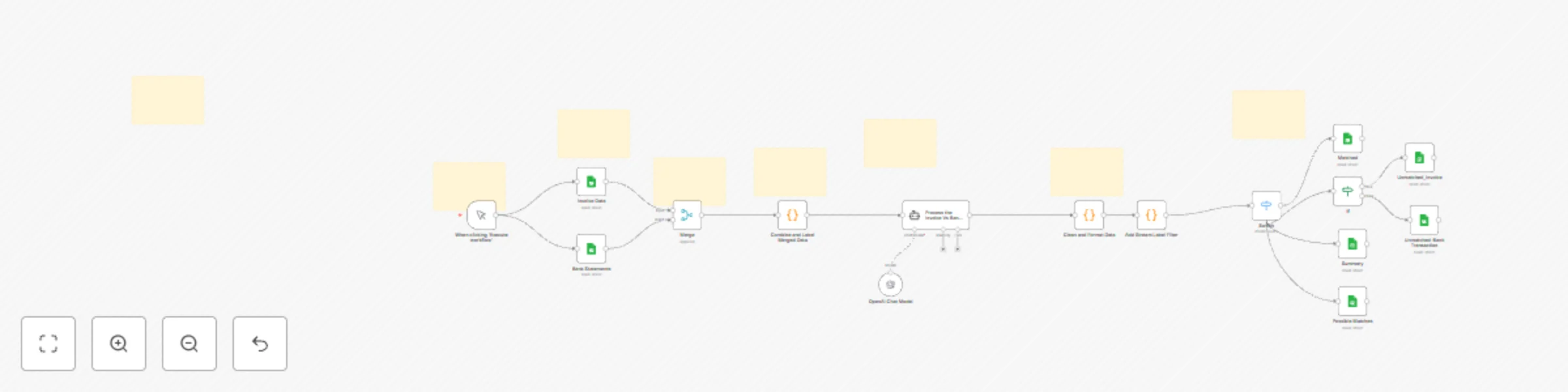
Workflow starts manually to initiate the reconciliation process on demand.
📄 Fetch Invoices & Bank Statements
Retrieves invoice data and bank statement data from Google Sheets for comparison.
🔀 Merge Data
Combines both datasets into a single structured dataset for processing.
🧩 Format Payload for AI
Function node prepares and structures the merged data into a clean JSON payload for AI analysis.
🤖 AI Reconciliation
AI Agent analyzes the invoice and bank statement data to identify matches, discrepancies, and reconciled entries.
🧮 Parse AI Output
Parses the AI response into a structured format suitable for adding back to Google Sheets.
📊 Update Sheets
Adds the reconciled data and reconciliation results into the target Google Sheet for recordkeeping.
🧾 Prerequisites
✅ OpenAI API Credentials Required for the AI Reconciliation node to process and match transactions.
Add your OpenAI API key in n8n → Credentials → OpenAI.
✅ Google Sheets Credentials Needed to read invoice and bank statement data and to write reconciled results. Add credentials in n8n → Credentials → Google Sheets.
✅ Google Sheets Setup The connected spreadsheet must contain the following tabs: Invoices – for invoice data Bank_Statement – for bank transaction data Reconciled_Data – for storing the AI-processed reconciliation output
✅ Tab Structure & Required Headers
Invoices Sheet Columns: Invoice_ID Invoice_Date Customer_Name Amount Status
Bank_Statement Sheet Columns: Transaction_ID Transaction_Date Description Debit/Credit Amount
Reconciled_Data Sheet Columns: Invoice_ID Transaction_ID Matched_Status Remarks Confidence_Score
⚙️ n8n Environment Setup
Ensure all nodes are connected correctly and the workflow has permission to access the required sheets.
Test each fetch and write operation before running the full workflow.
This catalog entry is organized from the workflow JSON. The node-level section below shows the executable blocks available for review before importing the template.
| Workflow | Automate bank statement and invoice reconciliation with GPT and Google Sheets |
|---|---|
| Complexity | advanced |
| Nodes | 24 |
| Categories | Invoice Processing, AI Summarization |
| Author | Chintan Prajapati |
| Published | 07 Nov 2025 |
Use the JSON export at /data/workflows/10581/10581.json as the source template for this automation.
Open n8n, import the downloaded JSON, and review each node before activating the workflow.
Replace placeholder credentials, API keys, webhook URLs, account IDs, and environment-specific values with your own settings.
Run the workflow manually or in a staging workspace, inspect node output, and confirm downstream systems receive the expected data.
Enable the workflow only after testing, then monitor executions, errors, and rate limits during the first production runs.
Review imported nodes carefully before activation. This catalog entry is intended to help you inspect the workflow structure, understand required services, and find related templates faster.
Node names, credentials, schedules, webhook paths, and external service limits may need adjustment for your workspace.
Manual Trigger Workflow starts manually to initiate the reconciliation process on demand. Fetch Invoices & Bank Statements Retrieves invoice data and bank statement data from Google Sheets fo...
Review the workflow JSON, configure any required credentials in n8n, and test the automation in a safe workspace before using it in production.
Yes. Use the block-by-block analysis and the downloadable JSON to inspect each node, then adjust credentials, prompts, schedules, filters, or destinations for your Invoice Processing, AI Summarization use case.