Automate AI video creation & multi-platform publishing with Gemini & Creatomate

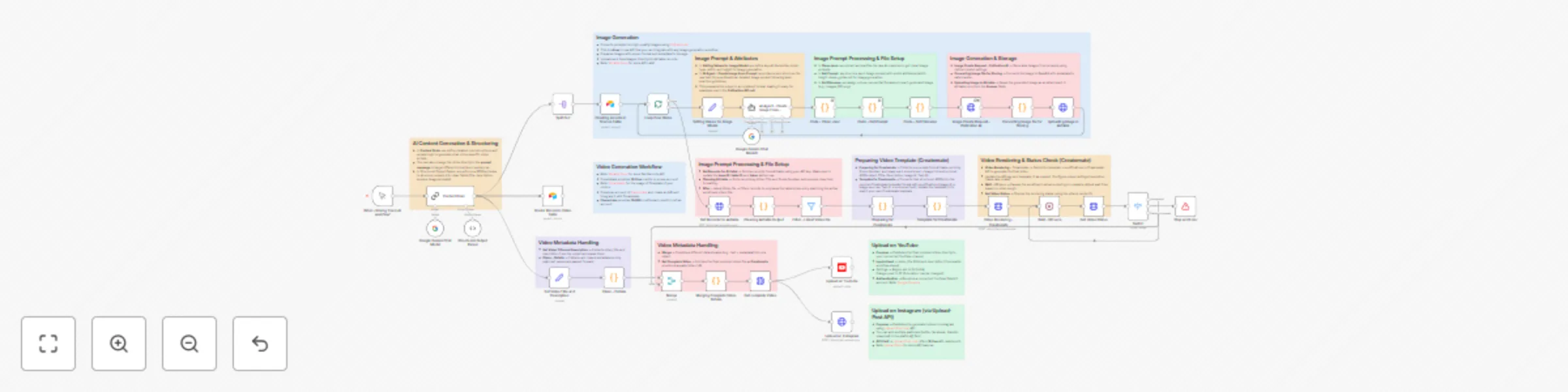
Workflow preview

Workflow preview
100%
Automate AI video creation & multi-platform publishing with Gemini & Creatomate preview
Open on n8n.io

Important notice

This workflow is provided as-is. Please review and test before using in production.

1. Workflow Overview

This n8n template from Intuz provides a complete end to end content factory to automate the entire lifecycle of creating and publishing AI driven videos. It transforms a s...

Best for

  • Content Creation automation workflows
  • Multimodal AI automation workflows
  • advanced n8n builders looking for reusable templates

Tools used

@n8n/n8n-nodes-langchain.lmchatgooglegemini, @n8n/n8n-nodes-langchain.agent, n8n-nodes-base.code, n8n-nodes-base.splitinbatches, n8n-nodes-base.splitout, @n8n/n8n-nodes-langchain.chainllm, @n8n/n8n-nodes-langchain.outputparserstructured, n8n-nodes-base.manualtrigger

Source and attribution

This workflow is cataloged by N8N Workflows and links back to its original n8n.io source page by Intuz .

Original n8n.io source

1.1 Workflow description

Title
Automate AI video creation & multi-platform publishing with Gemini & Creatomate
Workflow name
Automate AI video creation & multi-platform publishing with Gemini & Creatomate

This n8n template from Intuz provides a complete end-to-end content factory to automate the entire lifecycle of creating and publishing AI-driven videos.

It transforms a single text prompt into a fully scripted, visually rich video with AI-generated images and voiceovers, then distributes it across multiple social media platforms.

Who's this workflow for?

  • Content Creators & YouTubers
  • Social Media Managers & Agencies
  • Digital Marketers & Entrepreneurs
  • Brands looking to scale video content production

Objective

  • Generate viral video scripts with Gemini AI (via LangChain).
  • Break scripts into structured scenes(hooks, retention, CTA).
  • Create image prompts and high-quality background visuals automatically.
  • Store all scenes, prompts, images, and metadata into Airtable.
  • Handle file formatting, uploads, and naming automatically.
  • Add error handling and retry logic for smooth execution.
  • Uploading into Social Media platforms.

How it works

1. AI Script Generation: The workflow starts with a single command. A powerful Google Gemini AI model, acting as a "Content Brain," generates a complete, viral video script with a title, description, and multiple scenes.

2. Content Management in Airtable: The entire script is broken down and saved systematically into an Airtable base, which acts as the central Content Management System (CMS) for the video production pipeline.

3. AI Image Generation: The workflow loops through each scene in Airtable. It uses an AI agent to enhance the image prompts and sends them to an image generation API (like Pollinations.ai) to create a unique, high-quality image for each scene. These images are then automatically uploaded back into Airtable.

4. Automated Video Rendering: Once all images are ready, the workflow gathers the script text and the corresponding image URLs from Airtable and sends them to Creatomate. Creatomate uses a pre-defined template to assemble the final video, complete with AI-generated voiceovers for each scene.

5. Multi-Platform Publishing: After a brief wait for the video to render, the workflow retrieves the final video file and automatically publishes it across your connected social media channels, including YouTube and Instagram.

Key Requirements to Use This Template

Before you start, please ensure you have the following accounts and assets ready:

1. n8n Instance & Required Nodes:

  • An active n8n account (Cloud or self-hosted).
  • This workflow relies on the official n8n LangChain integration (@n8n/n8n-nodes-langchain). If you are using a self-hosted version of n8n, please ensure this package is installed on your instance.

2. AI & Video Accounts:

  • Google Gemini AI Account: A Google Cloud account with the Vertex AI API enabled and an API Key.
  • Creatomate Account: It's platform to generate videos. An account with Creatomate for video rendering, and your API key and a pre-designed video template ID.

3. Content & Social Media Accounts:

  • Airtable Account: An Airtable base set up to manage the video content. Using the complementary Airtable template is highly recommended.
  • YouTube Account: A YouTube channel with API access enabled via Google Cloud Console.
  • Upload-Post.com Account: An account for posting to other platforms like Instagram.

Workflow Steps

1.โ–ถ๏ธ Trigger (Manual/Auto) - Start workflow manually or via schedule.

2.๐Ÿง  Content Brain (Gemini + LangChain) - Role-trained viral strategist prompt. - Generates 6 scene scripts with: - Hook โ†’ Retention โ†’ Value โ†’ CTA. - Follows viral content rules (engagement triggers, curiosity gaps, shareable moments).

3.๐Ÿ“‘ Structured Output Parser - Enforces JSON schema: - video_id - video_title - description - scenes[] โ†’ scene_number, text, image_prompt

4.๐Ÿ“„ Airtable โ€“ Store Scenes - Each scene stored with: - Video ID, Title, Description - Scene Number & Text - Image Prompt & Generated Image link

5.๐Ÿค– AI Agent โ€“ Image Prompt Creator - Transforms scene text โ†’optimized image prompts using structured rules.

6.๐ŸŽจ Pollination AI โ€“ Image Generation - Generates vertical 9:16 visuals with parameters: - Model: flux - Resolution: 1080x1920 - Steps: 12 - Guidance Scale: 3.5 - Safety Checker: Enabled - Options: seed=42, nologo=true

7.๐Ÿ“‚ File Handling & Conversion - Assigns filenames automatically (e.g., images_001.png). - Converts binary image โ†’ base64 for Airtable storage.

8.๐Ÿ“ค Airtable Upload โ€“ Store Images - Attaches generated visuals directly into Generated Image field.

9.โšก Switch & Error Handling - Branches for: - โœ… Success โ†’ continue - โŒ Failed โ†’ stop with error message - โณ Processing โ†’ wait/retry

10.Social Media Upload - In YouTube via YouTube API from official documentation - In Instagram Via Upload Post API

Setup Instructions

1. AI Configuration:

  • In the Google Gemini Chat Model nodes, connect your Google Gemini API account.
  • In the Content Brain node, you can customize the core prompt to change the video's niche, style, or topic.

2. Airtable Setup (Crucial):

  • Connect your Airtable account in the Airtable nodes.
  • Set up your Airtable base using the provided template or ensure your base has identical table and field names. Update the Base ID and Table IDs in the Airtable nodes.
  • Airtable Schema:

3. Video Rendering Setup (Creatomate):

  • In the Video Rendering - Creatomate node, add your Creatomate API key to the header authorization.
  • In the Template for Creatomate node, replace the template_id with the ID of your own video template from your Creatomate account.

4. Social Media Connections:

  • In the Upload on YouTube node, connect your YouTube account via OAuth2.
  • In the Upload on Instagram node, replace the API key in the header authorization with your key from Upload-Post.com.

5. Execute the Workflow:

  • Click "Execute workflow" to kick off your automated video content factory.

Connect with us

For Custom Worflow Automation Click here- Get Started

1.2 Logical Blocks

This catalog entry is organized from the workflow JSON. The node-level section below shows the executable blocks available for review before importing the template.

2. Block-by-Block Analysis

Block 1 - Google Gemini Chat Model1

Type / Role
@n8n/n8n-nodes-langchain.lmChatGoogleGemini - lmChatGoogleGemini
Config choices
Version 1

Block 2 - AI Agent - Create Image From Prompt

Type / Role
@n8n/n8n-nodes-langchain.agent - agent
Config choices
Version 1.7

Block 3 - Code - Set Filename

Type / Role
n8n-nodes-base.code - code
Config choices
Version 2

Block 4 - Code - Get Prompt

Type / Role
n8n-nodes-base.code - code
Config choices
Version 2

Block 5 - Code - Clean Json

Type / Role
n8n-nodes-base.code - code
Config choices
Version 2

Block 6 - Loop Over Items

Type / Role
n8n-nodes-base.splitInBatches - splitInBatches
Config choices
Version 3

Block 7 - Split Out

Type / Role
n8n-nodes-base.splitOut - splitOut
Config choices
Version 1

Block 8 - Google Gemini Chat Model

Type / Role
@n8n/n8n-nodes-langchain.lmChatGoogleGemini - lmChatGoogleGemini
Config choices
Version 1

Block 9 - Content Brain

Type / Role
@n8n/n8n-nodes-langchain.chainLlm - chainLlm
Config choices
Version 1.7

Block 10 - Structured Output Parser

Type / Role
@n8n/n8n-nodes-langchain.outputParserStructured - outputParserStructured
Config choices
Version 1.3

Block 11 - When clicking โ€˜Execute workflowโ€™

Type / Role
n8n-nodes-base.manualTrigger - manualTrigger
Config choices
Version 1

Block 12 - Switch

Type / Role
n8n-nodes-base.switch - switch
Config choices
Version 3.2

Block 13 - Stop and Error

Type / Role
n8n-nodes-base.stopAndError - stopAndError
Config choices
Version 1

Block 14 - Merge

Type / Role
n8n-nodes-base.merge - merge
Config choices
Version 3.2

Block 15 - Sticky Note

Type / Role
n8n-nodes-base.stickyNote - stickyNote
Config choices
Version 1

Block 16 - Sticky Note2

Type / Role
n8n-nodes-base.stickyNote - stickyNote
Config choices
Version 1

Block 17 - Creating records in Scenes Table

Type / Role
n8n-nodes-base.airtable - airtable
Config choices
Version 2.1

Block 18 - Setting Values for Image Model

Type / Role
n8n-nodes-base.set - set
Config choices
Version 3.4

Block 19 - Image Create Request - Pollination AI

Type / Role
n8n-nodes-base.httpRequest - httpRequest
Config choices
Version 4.2

Block 20 - Converting Image file for Storing

Type / Role
n8n-nodes-base.code - code
Config choices
Version 2

Block 21 - Uploading Image in Airtable

Type / Role
n8n-nodes-base.httpRequest - httpRequest
Config choices
Version 4.2

Block 22 - Get Records for Airtable

Type / Role
n8n-nodes-base.httpRequest - httpRequest
Config choices
Version 4.2

Block 23 - Cleaning Airtable Output

Type / Role
n8n-nodes-base.code - code
Config choices
Version 2

Block 24 - Filter - Latest Video file

Type / Role
n8n-nodes-base.filter - filter
Config choices
Version 2.2

Showing the first 24 of 47 workflow blocks. Download the JSON for the full node graph.

3. Summary Table

Workflow Automate AI video creation & multi-platform publishing with Gemini & Creatomate
Complexity advanced
Nodes 47
Categories Content Creation, Multimodal AI
Author Intuz
Published 09 Sept 2025

4. Reproducing the Workflow from Scratch

  1. 1. Download the workflow JSON

    Use the JSON export at /data/workflows/8404/8404.json as the source template for this automation.

  2. 2. Import the template into n8n

    Open n8n, import the downloaded JSON, and review each node before activating the workflow.

  3. 3. Configure credentials and variables

    Replace placeholder credentials, API keys, webhook URLs, account IDs, and environment-specific values with your own settings.

  4. 4. Test with sample data

    Run the workflow manually or in a staging workspace, inspect node output, and confirm downstream systems receive the expected data.

  5. 5. Activate and monitor

    Enable the workflow only after testing, then monitor executions, errors, and rate limits during the first production runs.

5. General Notes & Resources

Review imported nodes carefully before activation. This catalog entry is intended to help you inspect the workflow structure, understand required services, and find related templates faster.

Node names, credentials, schedules, webhook paths, and external service limits may need adjustment for your workspace.

Frequently asked questions

What does Automate AI video creation & multi-platform publishing with Gemini & Creatomate do?

This n8n template from Intuz provides a complete end to end content factory to automate the entire lifecycle of creating and publishing AI driven videos. It transforms a s...

What do I need before importing this workflow?

Review the workflow JSON, configure any required credentials in n8n, and test the automation in a safe workspace before using it in production.

Can I customize this workflow?

Yes. Use the block-by-block analysis and the downloadable JSON to inspect each node, then adjust credentials, prompts, schedules, filters, or destinations for your Content Creation, Multimodal AI use case.