Block 1 - Sticky Note
- Type / Role
- n8n-nodes-base.stickyNote - stickyNote
- Config choices
- Version 1


 Early Deal
This workflow is provided as-is. Please review and test before using in production.
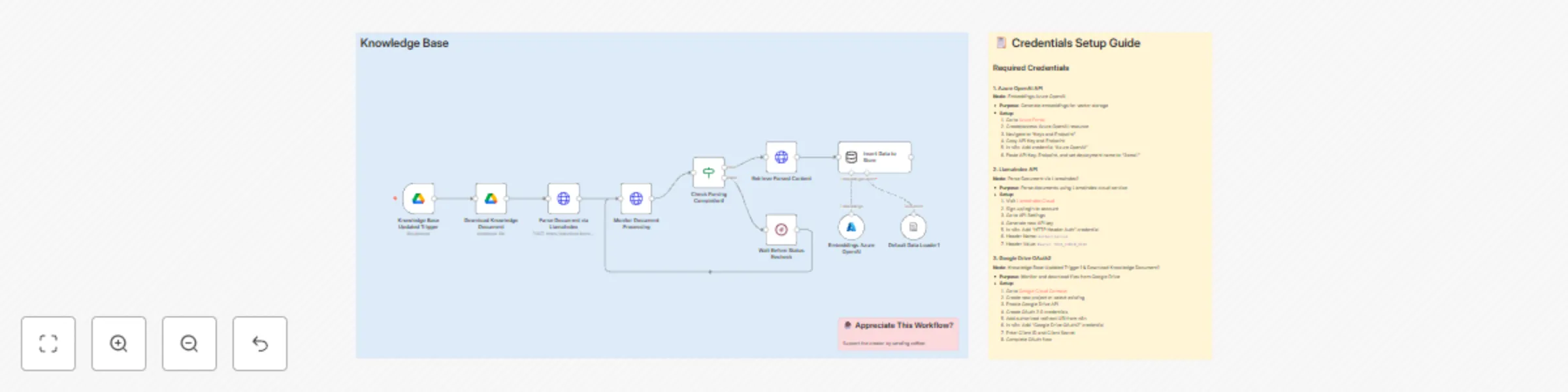
This Workflow auto ingests Google Drive documents, parses them with LlamaIndex, and stores Azure OpenAI embeddings in an in memory vector store—cutting manual update time from 30 minutes to under 2...
n8n-nodes-base.stickynote, @n8n/n8n-nodes-langchain.vectorstoreinmemory, @n8n/n8n-nodes-langchain.embeddingsazureopenai, @n8n/n8n-nodes-langchain.documentdefaultdataloader, n8n-nodes-base.if, n8n-nodes-base.googledrivetrigger, n8n-nodes-base.googledrive, n8n-nodes-base.httprequest
This workflow is cataloged by N8N Workflows and links back to its original n8n.io source page by Khairul Muhtadin.
Original n8n.io sourceThis Workflow auto-ingests Google Drive documents, parses them with LlamaIndex, and stores Azure OpenAI embeddings in an in-memory vector store—cutting manual update time from ~30 minutes to under 2 minutes per doc.
Cost Reduction: Eliminates pays monthly fee on cloud just for store knowledge
| Requirement | Type | Purpose |
|---|---|---|
| n8n instance | Essential | Execute and import the workflow — use the n8n instance |
| Google Drive OAuth2 | Essential | Watch and download documents from Google Drive |
| LlamaIndex Cloud API | Essential | Parse and convert documents to structured markdown |
| Azure OpenAI Account | Essential | Generate embeddings (deployment configured to model name "3small") |
| Persistent Vector DB (e.g., Pinecone) | Optional | Persist embeddings for production-scale search |
| Node | Purpose | Key Configuration |
|---|---|---|
| Knowledge Base Updated Trigger (Google Drive Trigger) | Triggers on file/folder changes | Set trigger type to specific file or folder; configure OAuth2 credential |
| Download Knowledge Document (Google Drive) | Downloads file binary | Operation: download; ensure OAuth2 credential is selected |
| Parse Document via LlamaIndex (HTTP Request) | Uploads file to LlamaIndex parsing endpoint | POST multipart/form-data to /parsing/upload; use HTTP Header Auth credential |
| Monitor Document Processing (HTTP Request) | Polls parsing job status | GET /parsing/job/{{jobId}}; check status field |
| Check Parsing Completion (If) | Branches on job status | Condition: {{$json.status}} equals SUCCESS |
| Retrieve Parsed Content (HTTP Request) | Fetches parsed markdown result | GET /parsing/job/{{jobId}}/result/markdown |
| Default Data Loader (LangChain) | Loads parsed markdown into document format | Use as document source for embeddings |
| Embeddings Azure OpenAI | Generates embeddings for documents | Credentials: Azure OpenAI; Model/Deployment: 3small |
| Insert Data to Store (vectorStoreInMemory) | Stores documents + embeddings | Use memory store for prototyping; switch to DB for persistence |
Basic Adjustments:
Advanced Enhancements:
Scaling option:
| Metric | Expected Performance | Optimization Tips |
|---|---|---|
| Execution time (per doc) | ~10s–2min (depends on file size & LlamaIndex processing) | Chunk large docs; run embeddings in batches |
| API calls (per doc) | 3–8 (upload, poll(s), retrieve, embedding calls) | Increase poll interval; consolidate requests |
| Error handling | Retries via Wait loop and If checks | Add exponential backoff, failure notifications, and retry limits |
| Problem | Cause | Solution |
|---|---|---|
| Authentication errors | Invalid/missing credentials | Reconfigure n8n Credentials; do not paste API keys directly into nodes |
| File not found | Incorrect fileId or permissions | Verify Drive fileId and OAuth scopes; share file with the service account if needed |
| Parsing stuck in PENDING | LlamaIndex processing delay or rate limit | Increase Wait node interval, monitor LlamaIndex dashboard, add retry limits |
| Embedding failures | Model/deployment mismatch or quota limits | Confirm Azure deployment name (3small) and subscription quotas |
Created by: khmuhtadin
Category: Knowledge Management
Tags: google-drive, llamaindex, azure-openai, embeddings, knowledge-base, vector-store
Need custom workflows? Contact us
This catalog entry is organized from the workflow JSON. The node-level section below shows the executable blocks available for review before importing the template.
| Workflow | Auto-update knowledge base with Drive, LlamaIndex & Azure OpenAI embeddings |
|---|---|
| Complexity | intermediate |
| Nodes | 13 |
| Categories | Internal Wiki, AI RAG |
| Author | Khairul Muhtadin |
| Published | 02 Oct 2025 |
Use the JSON export at /data/workflows/9174/9174.json as the source template for this automation.
Open n8n, import the downloaded JSON, and review each node before activating the workflow.
Replace placeholder credentials, API keys, webhook URLs, account IDs, and environment-specific values with your own settings.
Run the workflow manually or in a staging workspace, inspect node output, and confirm downstream systems receive the expected data.
Enable the workflow only after testing, then monitor executions, errors, and rate limits during the first production runs.
Review imported nodes carefully before activation. This catalog entry is intended to help you inspect the workflow structure, understand required services, and find related templates faster.
Node names, credentials, schedules, webhook paths, and external service limits may need adjustment for your workspace.
This Workflow auto ingests Google Drive documents, parses them with LlamaIndex, and stores Azure OpenAI embeddings in an in memory vector store—cutting manual update time from 30 minutes to under 2...
Review the workflow JSON, configure any required credentials in n8n, and test the automation in a safe workspace before using it in production.
Yes. Use the block-by-block analysis and the downloadable JSON to inspect each node, then adjust credentials, prompts, schedules, filters, or destinations for your Internal Wiki, AI RAG use case.