Auto-resolve Jira tickets with GitHub Copilot using Port Context

Workflow preview

Workflow preview
100%
Auto-resolve Jira tickets with GitHub Copilot using Port Context preview
Open on n8n.io

Important notice

This workflow is provided as-is. Please review and test before using in production.

1. Workflow Overview

Auto resolve Jira tickets with coding agents Coding agents can significantly speed up development, but crucial engineering context often gets lost in the process. This guide demonstrates how to use...

Best for

  • Ticket Management automation workflows
  • AI RAG automation workflows
  • intermediate n8n builders looking for reusable templates

Tools used

n8n-nodes-base.if, n8n-nodes-base.github, n8n-nodes-base.jira, n8n-nodes-base.jiratrigger, n8n-nodes-base.stickynote, @port-labs/n8n-nodes-portio-experimental.portapiai

Source and attribution

This workflow is cataloged by N8N Workflows and links back to its original n8n.io source page by Port IO.

Original n8n.io source

1.1 Workflow description

Title
Auto-resolve Jira tickets with GitHub Copilot using Port Context
Workflow name
Auto-resolve Jira tickets with GitHub Copilot using Port Context

Auto-resolve Jira tickets with coding agents

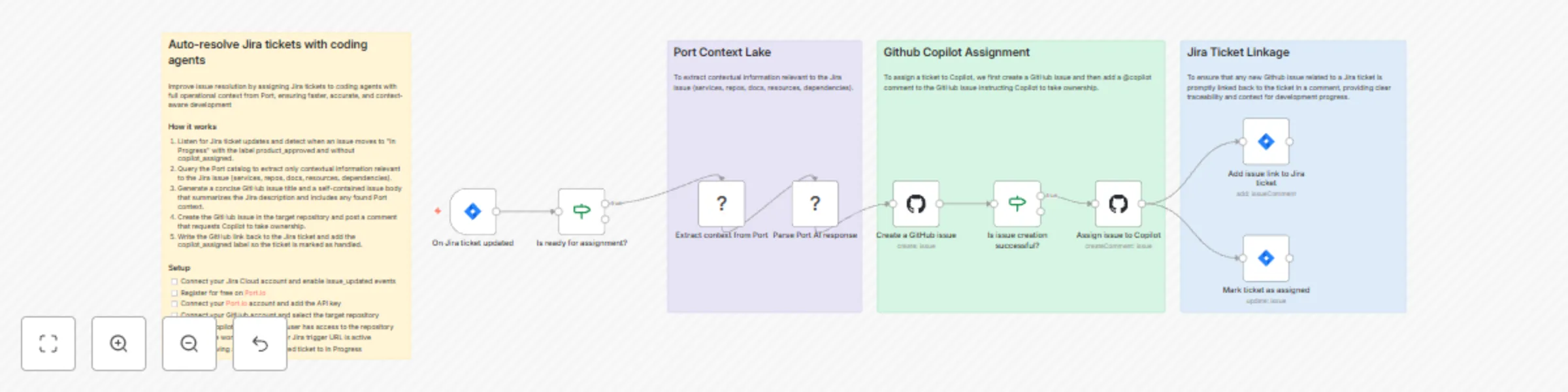
Coding agents can significantly speed up development, but crucial engineering context often gets lost in the process. This guide demonstrates how to use Port as a context lake in n8n workflows to automatically generate GitHub issues from Jira tickets with rich organizational context, ensuring that important information is preserved when assigning them to GitHub Copilot and linking pull requests back to Jira. This setup helps establish a seamless ticket-to-PR workflow, bridging the gap between Jira and GitHub while leveraging Port's comprehensive software catalog as a source of truth.

How it works

The n8n workflow orchestrates the following steps:

  • Jira trigger — The workflow listens for Jira issue updates via webhook.
  • Condition check — Verifies that the issue status is "In Progress" and has the required label (e.g., "product_approved") without the "copilot_assigned" label.
  • Port context extraction — Uses Port's n8n node to query your software catalog for relevant context about services, repositories, teams, dependencies, and documentation related to the Jira issue.
  • Parse response — Retrieves the AI-generated GitHub issue title and body from Port.
  • Create GitHub issue — Creates a new GitHub issue with the enriched context from Port.
  • Assign to Copilot — Adds a comment to the GitHub issue instructing Copilot to take ownership.
  • Add issue link to Jira ticket — Adds a comment to the Jira ticket with the GitHub issue URL, providing clear traceability.
  • Mark ticket as assigned — Updates the Jira ticket to add the "copilot_assigned" label, preventing duplicate processing.

Setup

  • Connect your Jira Cloud account and enable issue_updated events
  • Register for free on Port.io
  • Connect your Port.io account and add the API key
  • Connect your GitHub account and select the target repository
  • Ensure a Copilot bot or @copilot user has access to the repository
  • Confirm the workflow webhook or Jira trigger URL is active
  • Test by moving a product_approved ticket to In Progress.
  • You should be good to go!

Prerequisites

  • You have a Port account and have completed the onboarding process.
  • Port's GitHub app is installed in your account.
  • Port's Jira integration is installed in your account.
  • You have a working n8n instance (Cloud or self-hosted) with Port's n8n custom node installed.
  • Your GitHub organization has GitHub Copilot enabled, so Copilot can be automatically assigned to any issues created through this guide.

⚠️ This template is intended for Self-Hosted instances only.

1.2 Logical Blocks

This catalog entry is organized from the workflow JSON. The node-level section below shows the executable blocks available for review before importing the template.

2. Block-by-Block Analysis

Block 1 - Is issue creation successful?

Type / Role
n8n-nodes-base.if - if
Config choices
Version 2.2

Block 2 - Is ready for assignment?

Type / Role
n8n-nodes-base.if - if
Config choices
Version 2.2

Block 3 - Create a GitHub issue

Type / Role
n8n-nodes-base.github - github
Config choices
Version 1.1

Block 4 - Assign issue to Copilot

Type / Role
n8n-nodes-base.github - github
Config choices
Version 1.1

Block 5 - Add issue link to Jira ticket

Type / Role
n8n-nodes-base.jira - jira
Config choices
Version 1

Block 6 - Mark ticket as assigned

Type / Role
n8n-nodes-base.jira - jira
Config choices
Version 1

Block 7 - On Jira ticket updated

Type / Role
n8n-nodes-base.jiraTrigger - jiraTrigger
Config choices
Version 1.1

Block 8 - Sticky Note

Type / Role
n8n-nodes-base.stickyNote - stickyNote
Config choices
Version 1

Block 9 - Sticky Note1

Type / Role
n8n-nodes-base.stickyNote - stickyNote
Config choices
Version 1

Block 10 - Sticky Note2

Type / Role
n8n-nodes-base.stickyNote - stickyNote
Config choices
Version 1

Block 11 - Sticky Note3

Type / Role
n8n-nodes-base.stickyNote - stickyNote
Config choices
Version 1

Block 12 - Parse Port AI response

Type / Role
@port-labs/n8n-nodes-portio-experimental.portApiAi - portApiAi
Config choices
Version 1

Block 13 - Extract context from Port

Type / Role
@port-labs/n8n-nodes-portio-experimental.portApiAi - portApiAi
Config choices
Version 1

3. Summary Table

Workflow Auto-resolve Jira tickets with GitHub Copilot using Port Context
Complexity intermediate
Nodes 13
Categories Ticket Management, AI RAG
Author Port IO
Published 12 Dec 2025

4. Reproducing the Workflow from Scratch

  1. 1. Download the workflow JSON

    Use the JSON export at /data/workflows/11728/11728.json as the source template for this automation.

  2. 2. Import the template into n8n

    Open n8n, import the downloaded JSON, and review each node before activating the workflow.

  3. 3. Configure credentials and variables

    Replace placeholder credentials, API keys, webhook URLs, account IDs, and environment-specific values with your own settings.

  4. 4. Test with sample data

    Run the workflow manually or in a staging workspace, inspect node output, and confirm downstream systems receive the expected data.

  5. 5. Activate and monitor

    Enable the workflow only after testing, then monitor executions, errors, and rate limits during the first production runs.

5. General Notes & Resources

Review imported nodes carefully before activation. This catalog entry is intended to help you inspect the workflow structure, understand required services, and find related templates faster.

Node names, credentials, schedules, webhook paths, and external service limits may need adjustment for your workspace.

Frequently asked questions

What does Auto-resolve Jira tickets with GitHub Copilot using Port Context do?

Auto resolve Jira tickets with coding agents Coding agents can significantly speed up development, but crucial engineering context often gets lost in the process. This guide demonstrates how to use...

What do I need before importing this workflow?

Review the workflow JSON, configure any required credentials in n8n, and test the automation in a safe workspace before using it in production.

Can I customize this workflow?

Yes. Use the block-by-block analysis and the downloadable JSON to inspect each node, then adjust credentials, prompts, schedules, filters, or destinations for your Ticket Management, AI RAG use case.