Audit Google Drive file permissions for access control management

Workflow preview

Workflow preview
100%
Audit Google Drive file permissions for access control management preview
Open on n8n.io

Important notice

This workflow is provided as-is. Please review and test before using in production.

1. Workflow Overview

This n8n template reviews and audits recently active Google Drive files and reports on files with excessively open permissions. This shows how you can automate simple compliance tasks for access co...

Best for

  • SecOps automation workflows
  • advanced n8n builders looking for reusable templates

Tools used

n8n-nodes-base.filter, n8n-nodes-base.googlesheets, n8n-nodes-base.set, n8n-nodes-base.splitinbatches, n8n-nodes-base.noop, n8n-nodes-base.splitout, n8n-nodes-base.aggregate, n8n-nodes-base.gmail

Source and attribution

This workflow is cataloged by N8N Workflows and links back to its original n8n.io source page by Jimleuk.

Original n8n.io source

1.1 Workflow description

Title
Audit Google Drive file permissions for access control management
Workflow name
Audit Google Drive file permissions for access control management

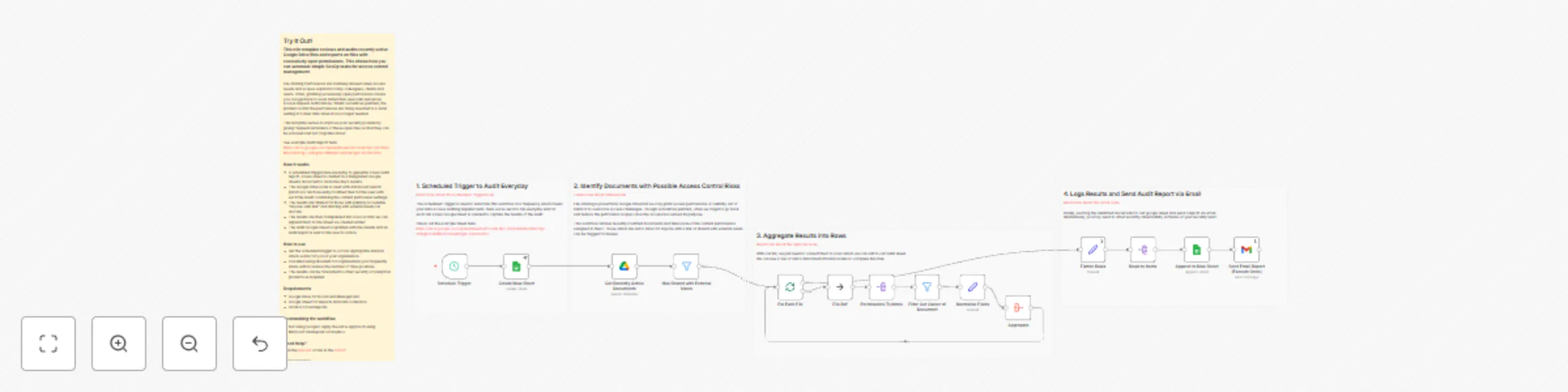
This n8n template reviews and audits recently active Google Drive files and reports on files with excessively open permissions. This shows how you can automate simple compliance tasks for access control management.

File Sharing Permissions are routinely abused when access needs and scopes expand to many colleagues, clients and users. Often, granting excessively open permissions means you can get back to work rather than deal with numerous access request notifications. Whilst sometimes justified, the problem is that the permissions are rarely reverted to a safer setting at a later date when it is no longer needed.

This template serves to improve your security posture by giving frequent reminders of these open files so that they can be actioned and not forgotten about.

See example Audit Report here: https://docs.google.com/spreadsheets/d/1V2aiLhp3_nH7EBniMn7D0kFHg7-A5NjpDZXMhb4F5UI/edit?gid=503992967

How it works

  • A scheduled trigger runs everyday to generate a new audit report. A new sheet is created in a designated Google Sheets document to store the day's results.
  • The Google Drive node is used with Advanced Search params to fetch recently modified files for the user with each file result containing the current permission settings.
  • The results are filtered for those with publicly accessible "anyone with link" and sharing with external users via domain.
  • The results are then manipulated into rows so that we can append them to the Sheet we created earlier.
  • The audit Google Sheet is updated with the results and an audit report is sent to the user to action.

How to use

  • Set the scheduled trigger to a more appropriate interval which works for you or your organisation.
  • Consider using allowlists for organisations you frequently share with to reduce the number of false positives.
  • The results can be forwarded to other security or analytical products as required.

Requirements

  • Google Drive for Document Management
  • Google Sheet for Reports and Data Collection
  • Gmail to Email Reports

Customising the workflow

  • Not using Google? Apply the same approach using Microsoft Sharepoint or Dropbox.
  • If your security policies require it, you could automate fixing the file permissions as a proactive action instead and notify the user later.

1.2 Logical Blocks

This catalog entry is organized from the workflow JSON. The node-level section below shows the executable blocks available for review before importing the template.

2. Block-by-Block Analysis

Block 1 - Has Shared with External Users

Type / Role
n8n-nodes-base.filter - filter
Config choices
Version 2.2

Block 2 - Create New Sheet

Type / Role
n8n-nodes-base.googleSheets - googleSheets
Config choices
Version 4.5

Block 3 - Normalise Fields

Type / Role
n8n-nodes-base.set - set
Config choices
Version 3.4

Block 4 - For Each File

Type / Role
n8n-nodes-base.splitInBatches - splitInBatches
Config choices
Version 3

Block 5 - File Ref

Type / Role
n8n-nodes-base.noOp - noOp
Config choices
Version 1

Block 6 - Permissions To Items

Type / Role
n8n-nodes-base.splitOut - splitOut
Config choices
Version 1

Block 7 - Aggregate

Type / Role
n8n-nodes-base.aggregate - aggregate
Config choices
Version 1

Block 8 - Flatten Rows

Type / Role
n8n-nodes-base.set - set
Config choices
Version 3.4

Block 9 - Rows to Items

Type / Role
n8n-nodes-base.splitOut - splitOut
Config choices
Version 1

Block 10 - Send Email Report (Execute Once)

Type / Role
n8n-nodes-base.gmail - gmail
Config choices
Version 2.1

Block 11 - Get Recently Active Documents

Type / Role
n8n-nodes-base.googleDrive - googleDrive
Config choices
Version 3

Block 12 - Sticky Note

Type / Role
n8n-nodes-base.stickyNote - stickyNote
Config choices
Version 1

Block 13 - Schedule Trigger

Type / Role
n8n-nodes-base.scheduleTrigger - scheduleTrigger
Config choices
Version 1.2

Block 14 - Sticky Note1

Type / Role
n8n-nodes-base.stickyNote - stickyNote
Config choices
Version 1

Block 15 - Sticky Note2

Type / Role
n8n-nodes-base.stickyNote - stickyNote
Config choices
Version 1

Block 16 - Sticky Note3

Type / Role
n8n-nodes-base.stickyNote - stickyNote
Config choices
Version 1

Block 17 - Filter Out Owner of Document

Type / Role
n8n-nodes-base.filter - filter
Config choices
Version 2.2

Block 18 - Append to New Sheet

Type / Role
n8n-nodes-base.googleSheets - googleSheets
Config choices
Version 4.5

Block 19 - Sticky Note4

Type / Role
n8n-nodes-base.stickyNote - stickyNote
Config choices
Version 1

3. Summary Table

Workflow Audit Google Drive file permissions for access control management
Complexity advanced
Nodes 19
Categories SecOps
Author Jimleuk
Published 14 Apr 2025

4. Reproducing the Workflow from Scratch

  1. 1. Download the workflow JSON

    Use the JSON export at /data/workflows/3549/3549.json as the source template for this automation.

  2. 2. Import the template into n8n

    Open n8n, import the downloaded JSON, and review each node before activating the workflow.

  3. 3. Configure credentials and variables

    Replace placeholder credentials, API keys, webhook URLs, account IDs, and environment-specific values with your own settings.

  4. 4. Test with sample data

    Run the workflow manually or in a staging workspace, inspect node output, and confirm downstream systems receive the expected data.

  5. 5. Activate and monitor

    Enable the workflow only after testing, then monitor executions, errors, and rate limits during the first production runs.

5. General Notes & Resources

Review imported nodes carefully before activation. This catalog entry is intended to help you inspect the workflow structure, understand required services, and find related templates faster.

Node names, credentials, schedules, webhook paths, and external service limits may need adjustment for your workspace.

Frequently asked questions

What does Audit Google Drive file permissions for access control management do?

This n8n template reviews and audits recently active Google Drive files and reports on files with excessively open permissions. This shows how you can automate simple compliance tasks for access co...

What do I need before importing this workflow?

Review the workflow JSON, configure any required credentials in n8n, and test the automation in a safe workspace before using it in production.

Can I customize this workflow?

Yes. Use the block-by-block analysis and the downloadable JSON to inspect each node, then adjust credentials, prompts, schedules, filters, or destinations for your SecOps use case.