Block 1 - YouTube URL Input
- Type / Role
- n8n-nodes-base.formTrigger - formTrigger
- Config choices
- Version 2


 Early Deal
Analyze YouTube video SEO and get optimization tips with Gemini AI Who is this for Content creators, YouTubers, marketing agencies, and social media managers who want to optimize their YouTube vide...
n8n-nodes-base.formtrigger, n8n-nodes-base.code, n8n-nodes-base.httprequest, @n8n/n8n-nodes-langchain.chainllm, @n8n/n8n-nodes-langchain.lmchatgooglegemini, n8n-nodes-base.googlesheets, n8n-nodes-base.slack, n8n-nodes-base.gmail
This workflow is cataloged by N8N Workflows and links back to its original n8n.io source page by Oka Hironobu.
Original n8n.io sourceContent creators, YouTubers, marketing agencies, and social media managers who want to optimize their YouTube videos for better discoverability and engagement. Perfect for teams managing multiple channels or creators who want data-driven SEO insights.
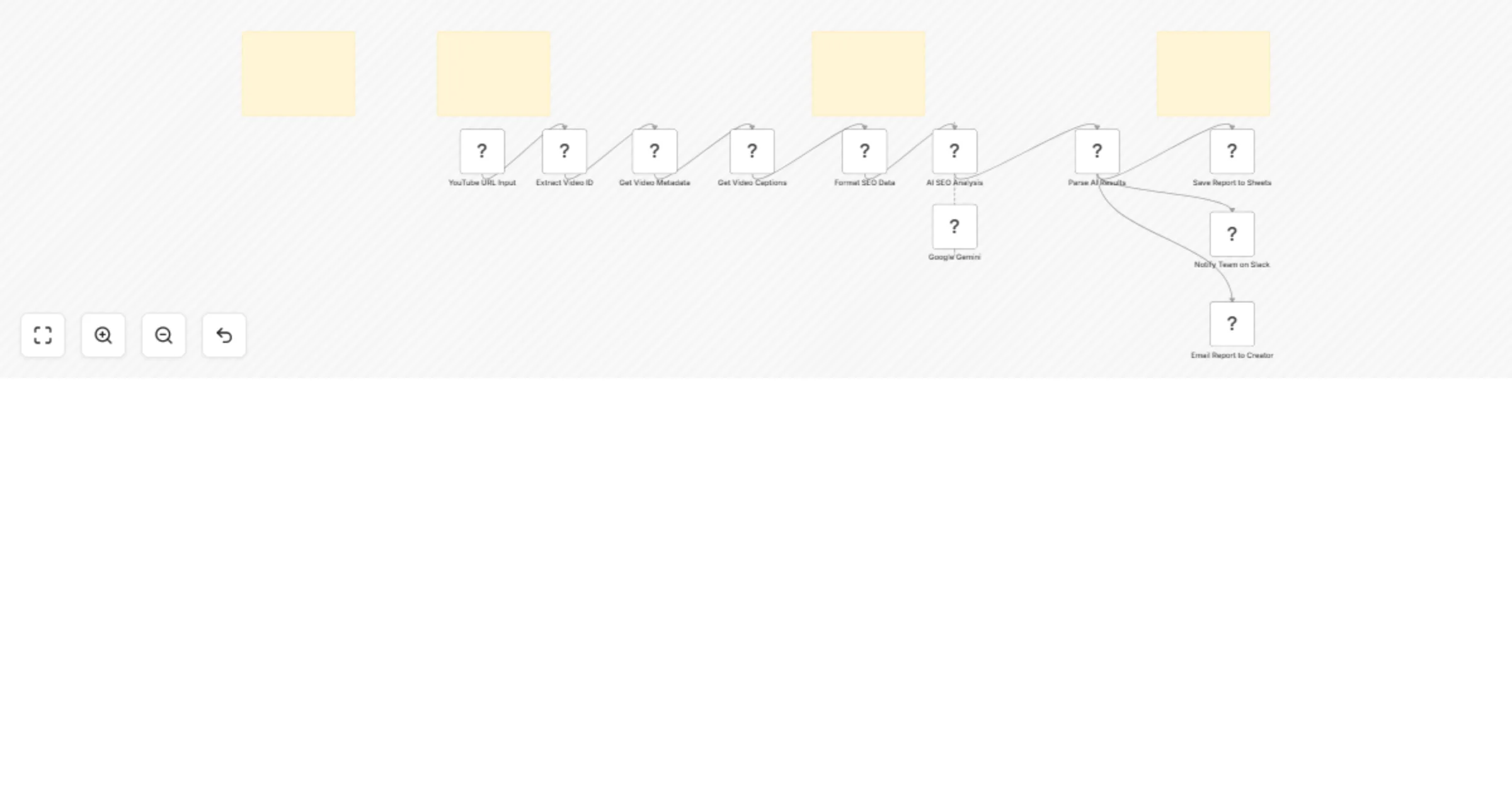
The workflow starts with a Form Trigger where users paste any YouTube video URL. A Code node extracts the video ID, then two HTTP Request nodes fetch video metadata (title, description, tags, statistics) and captions from the YouTube Data API v3. Another Code node formats this data and calculates basic SEO scores.
Google Gemini AI analyzes the current SEO status and provides specific optimization recommendations including title variations, tag strategies, description improvements, thumbnail tips, and competitive keywords. A final Code node parses the AI response and structures it for reporting.
The results are automatically saved to Google Sheets for tracking, shared with your team via Slack notification, and emailed directly to content creators with actionable insights.
Adjust the SEO scoring logic in the "Format SEO Data" node, modify the AI prompt for different analysis focuses, or change the reporting format in the email template. You can also add more output channels like Discord or Microsoft Teams.
This catalog entry is organized from the workflow JSON. The node-level section below shows the executable blocks available for review before importing the template.
| Workflow | Analyze YouTube video SEO and get optimization tips with Gemini AI, Sheets, Slack, and Gmail |
|---|---|
| Complexity | advanced |
| Nodes | 15 |
| Categories | Market Research, AI Summarization |
| Author | Oka Hironobu |
| Published | 20 Feb 2026 |
Use the JSON export at /data/workflows/13564/13564.json as the source template for this automation.
Open n8n, import the downloaded JSON, and review each node before activating the workflow.
Replace placeholder credentials, API keys, webhook URLs, account IDs, and environment-specific values with your own settings.
Run the workflow manually or in a staging workspace, inspect node output, and confirm downstream systems receive the expected data.
Enable the workflow only after testing, then monitor executions, errors, and rate limits during the first production runs.
Review imported nodes carefully before activation. This catalog entry is intended to help you inspect the workflow structure, understand required services, and find related templates faster.
Node names, credentials, schedules, webhook paths, and external service limits may need adjustment for your workspace.
Analyze YouTube video SEO and get optimization tips with Gemini AI Who is this for Content creators, YouTubers, marketing agencies, and social media managers who want to optimize their YouTube vide...
Review the workflow JSON, configure any required credentials in n8n, and test the automation in a safe workspace before using it in production.
Yes. Use the block-by-block analysis and the downloadable JSON to inspect each node, then adjust credentials, prompts, schedules, filters, or destinations for your Market Research, AI Summarization use case.