Analyze WooCommerce category sales over time with Airtable and Slack

Workflow preview

Workflow preview
100%
Analyze WooCommerce category sales over time with Airtable and Slack preview
Open on n8n.io

1. Workflow Overview

WooCommerce Product Category Sales Performance Report This workflow automatically analyzes sales data by product category, compares performance across time periods (daily, weekly or monthly), store...

Best for

  • CRM automation workflows
  • AI Summarization automation workflows
  • advanced n8n builders looking for reusable templates

Tools used

n8n-nodes-base.code, n8n-nodes-base.scheduletrigger, n8n-nodes-base.set, n8n-nodes-base.woocommerce, n8n-nodes-base.merge, n8n-nodes-base.airtable, n8n-nodes-base.slack, n8n-nodes-base.stickynote

Source and attribution

This workflow is cataloged by N8N Workflows and links back to its original n8n.io source page by WeblineIndia.

Original n8n.io source

1.1 Workflow description

Title
Analyze WooCommerce category sales over time with Airtable and Slack
Workflow name
Analyze WooCommerce category sales over time with Airtable and Slack

WooCommerce Product Category Sales Performance Report

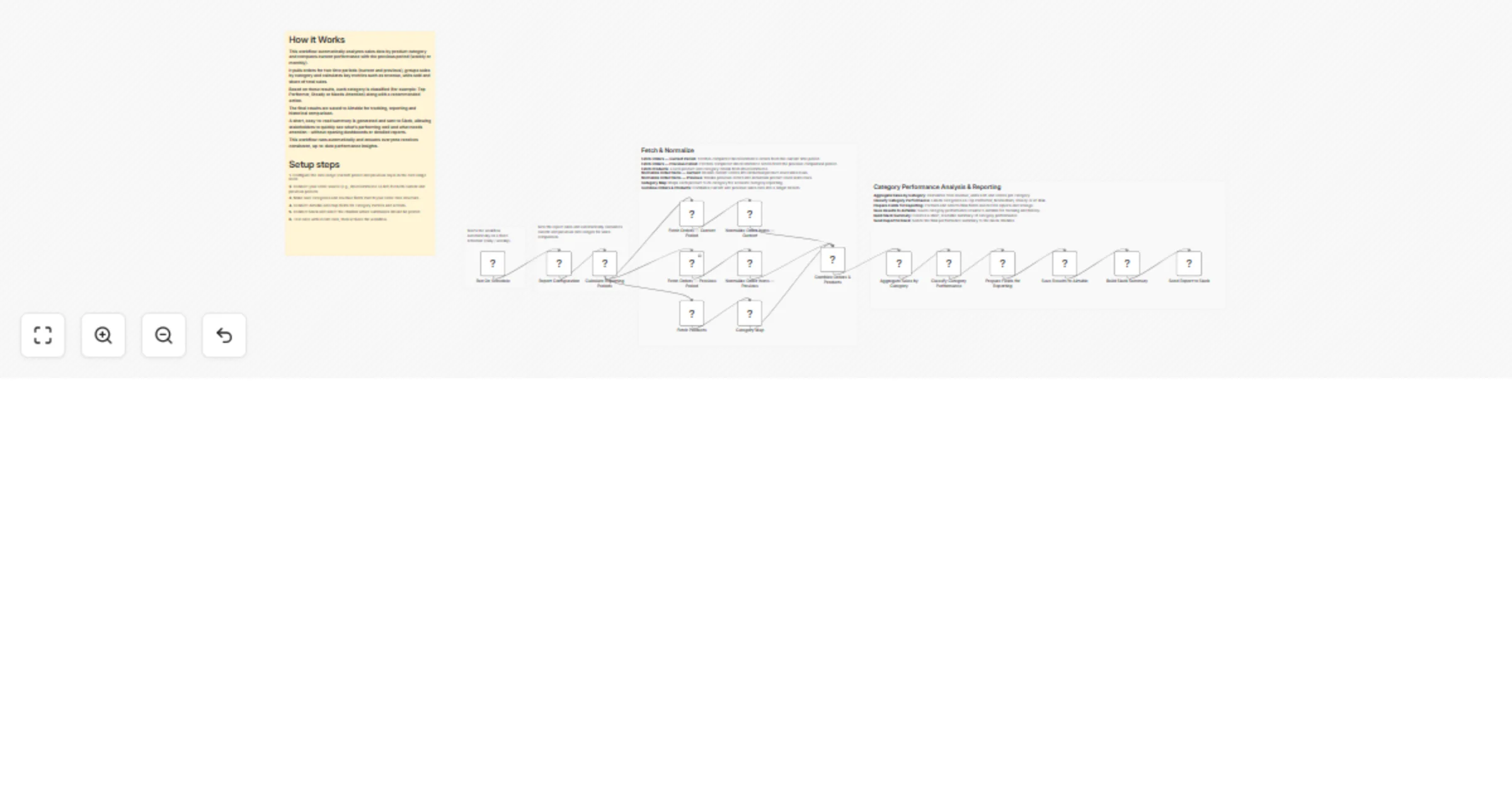
This workflow automatically analyzes sales data by product category, compares performance across time periods (daily, weekly or monthly), stores structured results in Airtable and sends a clear summary to Slack for quick decision-making.

This workflow pulls order data for two time periods (current and previous), groups sales by product category and calculates key metrics like revenue, units sold and share of total sales. Each category is then classified (Top Performer, Steady, Needs Attention, etc.) with a recommended action.

The results are saved to Airtable for tracking & history and a short, easy-to-read summary is sent to Slack so stakeholders can understand performance at a glance.

You get:

  • Automated sales comparison (daily / weekly / monthly)
  • Category-wise performance classification
  • Historical tracking in Airtable
  • One clean Slack summary — no dashboards required

Ideal for product, sales and operations teams who want fast, consistent insights without manual reporting.

Quick Start – Implementation Steps

  1. Configure the date granularity (daily, weekly or monthly).
  2. Connect your Orders data source (API, DB or platform node).
  3. Connect and configure your Airtable base & table.
  4. Connect your Slack workspace and choose a channel.
  5. Activate the workflow — reports start running automatically.

What It Does

This workflow automates category-level sales analysis:

  1. Builds current and previous date ranges dynamically.
  2. Fetches orders for both time periods.
  3. Normalizes and aggregates orders by product category.
  4. Calculates key metrics:
  • Current revenue
  • Previous revenue
  • Units sold
  • Share of total sales
  1. Classifies each category (Top Performer, Steady, At Risk, etc.).
  2. Adds a recommended business action for each category.
  3. Saves the final results to Airtable.
  4. Generates a short summary message.
  5. Sends a single Slack report to stakeholders.

This ensures consistent, repeatable insights with no manual effort.

Who’s It For

This workflow is ideal for:

  • Sales & revenue teams
  • Product managers
  • E-commerce operations teams
  • Business analysts
  • Startup founders & leadership
  • Anyone needing automated sales performance insights

Requirements to Use This Workflow

To run this workflow, you need:

  • n8n instance (cloud or self-hosted)
  • Access to orders data (API, database or platform integration)
  • Airtable base + Personal Access Token
  • Slack workspace with API permissions
  • Basic understanding of sales metrics (revenue, units, categories)

How It Works

  1. Scheduler Trigger – Workflow runs on a defined schedule.
  2. Build Date Ranges – Calculates current and previous periods.
  3. Fetch Orders (Current) – Pulls orders for the active period.
  4. Fetch Orders (Previous) – Pulls orders for comparison.
  5. Aggregate by Category – Groups sales and calculates metrics.
  6. Classify Performance – Assigns tags and actions.
  7. Save to Airtable – Stores structured results.
  8. Build Slack Summary – Creates a readable summary message.
  9. Send to Slack – Delivers insights to the team.

Setup Steps

  1. Import the provided n8n workflow JSON.
  2. Configure the Scheduler timing.
  3. Set your preferred granularity (daily / weekly / monthly).
  4. Connect and map your Orders data source.
  5. Connect Airtable and map fields:
  • Category ID / Name
  • Current Revenue
  • Previous Revenue
  • Units
  • Share
  • Tag
  • Recommended Action
  1. Connect Slack API credentials and select a channel.
  2. Activate the workflow — done!

How To Customize Nodes

Change Time Period

  • Switch between daily, weekly or monthly comparisons.
  • Adjust rolling windows for testing or analysis.

Adjust Performance Thresholds

  • Modify revenue or share thresholds.
  • Change category labels or actions.

Customize Airtable Storage

Add optional fields such as:

  • Report date
  • Growth percentage
  • Notes or owner
  • Review status

Customize Slack Summary

You may add:

  • Emojis or highlights
  • Mentions (@channel, @team)
  • Links to Airtable records
  • Separate sections for risks or wins

Add-Ons (Optional Enhancements)

You can extend this workflow to:

  • Add Teams or Email notifications
  • Track trends over multiple periods
  • Generate charts or dashboards
  • Add alerts for sudden drops or spikes
  • Include AI-based insights or explanations
  • Export reports to Google Sheets or CSV

Use Case Examples

1. Weekly Sales Review

Automatically send category performance every week.

2. Product Decision Support

Identify which categories to promote or discontinue.

3. Leadership Updates

Share clear performance summaries with management.

4. E-commerce Optimization

Spot declining categories before revenue drops.

5. Historical Analysis

Track performance trends over time in Airtable.

Troubleshooting Guide

Issue Possible Cause Solution
No Slack message Slack node not connected Verify Slack credentials
No Airtable data Field mapping mismatch Match Airtable column names
Missing current orders Date range incorrect Check UTC date logic
Empty summary No category data Verify aggregation step
Workflow not running Trigger disabled Enable Scheduler node

Need Help?

If you need help extending or customizing this workflow with adding alerts, dashboards, AI insights or scaling it for production then our n8n workflow developers at WeblineIndia can assist with advanced automation and reporting solutions.

1.2 Logical Blocks

This catalog entry is organized from the workflow JSON. The node-level section below shows the executable blocks available for review before importing the template.

2. Block-by-Block Analysis

Block 1 - Category Map

Type / Role
n8n-nodes-base.code - code
Config choices
Version 2

Block 2 - Run On Schedule

Type / Role
n8n-nodes-base.scheduleTrigger - scheduleTrigger
Config choices
Version 1.2

Block 3 - Report Configuration

Type / Role
n8n-nodes-base.set - set
Config choices
Version 3.4

Block 4 - Calculate Reporting Periods

Type / Role
n8n-nodes-base.code - code
Config choices
Version 2

Block 5 - Fetch Orders — Current Period

Type / Role
n8n-nodes-base.wooCommerce - wooCommerce
Config choices
Version 1

Block 6 - Fetch Orders — Previous Period

Type / Role
n8n-nodes-base.wooCommerce - wooCommerce
Config choices
Version 1

Block 7 - Fetch Products

Type / Role
n8n-nodes-base.wooCommerce - wooCommerce
Config choices
Version 1

Block 8 - Normalize Order Items — Current

Type / Role
n8n-nodes-base.code - code
Config choices
Version 2

Block 9 - Normalize Order Items — Previous

Type / Role
n8n-nodes-base.code - code
Config choices
Version 2

Block 10 - Combine Orders & Products

Type / Role
n8n-nodes-base.merge - merge
Config choices
Version 3.2

Block 11 - Aggregate Sales by Category

Type / Role
n8n-nodes-base.code - code
Config choices
Version 2

Block 12 - Classify Category Performance

Type / Role
n8n-nodes-base.code - code
Config choices
Version 2

Block 13 - Prepare Fields for Reporting

Type / Role
n8n-nodes-base.set - set
Config choices
Version 3.4

Block 14 - Save Results to Airtable

Type / Role
n8n-nodes-base.airtable - airtable
Config choices
Version 2.1

Block 15 - Build Slack Summary

Type / Role
n8n-nodes-base.code - code
Config choices
Version 2

Block 16 - Send Report to Slack

Type / Role
n8n-nodes-base.slack - slack
Config choices
Version 2.3

Block 17 - Sticky Note

Type / Role
n8n-nodes-base.stickyNote - stickyNote
Config choices
Version 1

Block 18 - Sticky Note1

Type / Role
n8n-nodes-base.stickyNote - stickyNote
Config choices
Version 1

Block 19 - Sticky Note2

Type / Role
n8n-nodes-base.stickyNote - stickyNote
Config choices
Version 1

Block 20 - Sticky Note3

Type / Role
n8n-nodes-base.stickyNote - stickyNote
Config choices
Version 1

Block 21 - Sticky Note4

Type / Role
n8n-nodes-base.stickyNote - stickyNote
Config choices
Version 1

3. Summary Table

Workflow Analyze WooCommerce category sales over time with Airtable and Slack
Complexity advanced
Nodes 21
Categories CRM, AI Summarization
Author WeblineIndia
Published 03 Mar 2026

4. Reproducing the Workflow from Scratch

  1. 1. Download the workflow JSON

    Use the JSON export at /data/workflows/13840/13840.json as the source template for this automation.

  2. 2. Import the template into n8n

    Open n8n, import the downloaded JSON, and review each node before activating the workflow.

  3. 3. Configure credentials and variables

    Replace placeholder credentials, API keys, webhook URLs, account IDs, and environment-specific values with your own settings.

  4. 4. Test with sample data

    Run the workflow manually or in a staging workspace, inspect node output, and confirm downstream systems receive the expected data.

  5. 5. Activate and monitor

    Enable the workflow only after testing, then monitor executions, errors, and rate limits during the first production runs.

5. General Notes & Resources

Review imported nodes carefully before activation. This catalog entry is intended to help you inspect the workflow structure, understand required services, and find related templates faster.

Node names, credentials, schedules, webhook paths, and external service limits may need adjustment for your workspace.

Frequently asked questions

What does Analyze WooCommerce category sales over time with Airtable and Slack do?

WooCommerce Product Category Sales Performance Report This workflow automatically analyzes sales data by product category, compares performance across time periods (daily, weekly or monthly), store...

What do I need before importing this workflow?

Review the workflow JSON, configure any required credentials in n8n, and test the automation in a safe workspace before using it in production.

Can I customize this workflow?

Yes. Use the block-by-block analysis and the downloadable JSON to inspect each node, then adjust credentials, prompts, schedules, filters, or destinations for your CRM, AI Summarization use case.