Analyze event feedback with sentiment analysis, Google Sheets, Slack & Email

Workflow preview

Workflow preview
100%
Analyze event feedback with sentiment analysis, Google Sheets, Slack & Email preview
Open on n8n.io

Important notice

This workflow is provided as-is. Please review and test before using in production.

1. Workflow Overview

This n8n workflow automates the collection and analysis of real time attendee feedback and engagement data during sessions or live polls. It generates actionable insights for organizers, streamlini...

Best for

  • Market Research automation workflows
  • AI Summarization automation workflows
  • intermediate n8n builders looking for reusable templates

Tools used

n8n-nodes-base.stickynote, n8n-nodes-base.webhook, n8n-nodes-base.set, n8n-nodes-base.if, n8n-nodes-base.googlesheets, n8n-nodes-base.aggregate, n8n-nodes-base.slack, n8n-nodes-base.emailsend

Source and attribution

This workflow is cataloged by N8N Workflows and links back to its original n8n.io source page by Oneclick AI Squad.

Original n8n.io source

1.1 Workflow description

Title
Analyze event feedback with sentiment analysis, Google Sheets, Slack & Email
Workflow name
Analyze event feedback with sentiment analysis, Google Sheets, Slack & Email

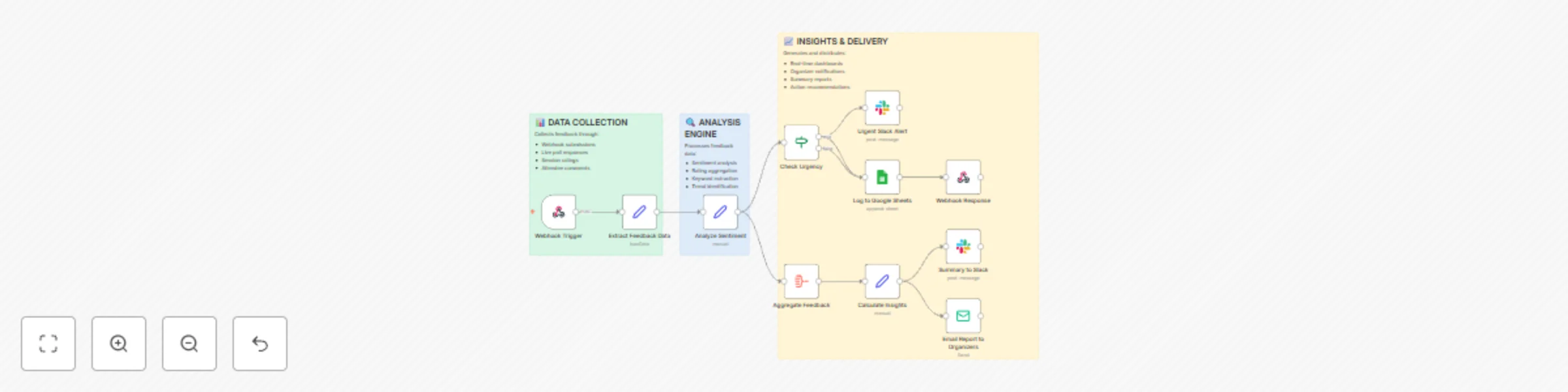
This n8n workflow automates the collection and analysis of real-time attendee feedback and engagement data during sessions or live polls. It generates actionable insights for organizers, streamlining the process of gathering, processing, and delivering feedback to enhance event management and attendee experience.

Key Features

  • Collects session feedback and live poll responses in real-time.
  • Analyzes sentiment and extracts key trends for actionable insights.
  • Delivers summarized reports and recommendations to organizers via multiple channels.
  • Supports seamless integration with external tools for data logging and communication.

Workflow Process

  • The Webhook Trigger node captures incoming feedback or poll data from attendees, initiating the workflow.
  • The Extract Feedback Data node processes the raw input to organize and prepare it for analysis.
  • The Analyze Sentiment node uses AI to evaluate feedback sentiment and identify key themes or trends.
  • The Aggregate Feedback node compiles the analyzed data into a cohesive summary.
  • The Calculate Insights node generates actionable insights and recommendations based on the aggregated data.
  • The Check Urgency node assesses the priority of the feedback for timely responses or actions.
  • The Log to Google Sheets node records the feedback and insights for future reference.
  • The Webhook Response node sends real-time updates or acknowledgments back to the source.
  • The Post to Slack node delivers summary messages to organizers via Slack.
  • The Email Report to Organizers node sends detailed reports to organizers via email.

Setup Instructions

  • Import the workflow into n8n and configure the Webhook Trigger with your event platform's API credentials.
  • Set up the AI service for sentiment analysis and insight generation with a suitable language model.
  • Configure Google Sheets integration for logging feedback data.
  • Set up Slack and email credentials for notifications and reports.
  • Test the workflow by sending sample feedback or poll responses to ensure proper data flow and analysis.
  • Monitor the output and adjust AI parameters or node settings as needed for optimal performance.

Prerequisites

  • Webhook integration with the event platform or polling system.
  • AI/LLM service for sentiment analysis and insight generation.
  • Google Sheets account for data logging.
  • Slack workspace and email service for notifications and reports.
  • Access to real-time attendee data from the event platform.

Modification Options

  • Modify the Extract Feedback Data node to include specific data fields or custom parsing rules.
  • Adjust the Analyze Sentiment node to focus on particular sentiment metrics or keywords.
  • Customize the Calculate Insights node to prioritize certain types of recommendations.
  • Add additional notification channels (e.g., Microsoft Teams) to the Post to Slack or Email Report nodes.
  • Configure the Check Urgency node to include custom urgency criteria based on event needs.

1.2 Logical Blocks

This catalog entry is organized from the workflow JSON. The node-level section below shows the executable blocks available for review before importing the template.

2. Block-by-Block Analysis

Block 1 - Sticky Note1

Type / Role
n8n-nodes-base.stickyNote - stickyNote
Config choices
Version 1

Block 2 - Sticky Note2

Type / Role
n8n-nodes-base.stickyNote - stickyNote
Config choices
Version 1

Block 3 - Sticky Note3

Type / Role
n8n-nodes-base.stickyNote - stickyNote
Config choices
Version 1

Block 4 - Webhook Trigger

Type / Role
n8n-nodes-base.webhook - webhook
Config choices
Version 1

Block 5 - Extract Feedback Data

Type / Role
n8n-nodes-base.set - set
Config choices
Version 3.3

Block 6 - Analyze Sentiment

Type / Role
n8n-nodes-base.set - set
Config choices
Version 3.3

Block 7 - Check Urgency

Type / Role
n8n-nodes-base.if - if
Config choices
Version 2

Block 8 - Log to Google Sheets

Type / Role
n8n-nodes-base.googleSheets - googleSheets
Config choices
Version 4.4

Block 9 - Aggregate Feedback

Type / Role
n8n-nodes-base.aggregate - aggregate
Config choices
Version 1

Block 10 - Calculate Insights

Type / Role
n8n-nodes-base.set - set
Config choices
Version 3.3

Block 11 - Urgent Slack Alert

Type / Role
n8n-nodes-base.slack - slack
Config choices
Version 2.1

Block 12 - Summary to Slack

Type / Role
n8n-nodes-base.slack - slack
Config choices
Version 2.1

Block 13 - Email Report to Organizers

Type / Role
n8n-nodes-base.emailSend - emailSend
Config choices
Version 2.1

Block 14 - Webhook Response

Type / Role
n8n-nodes-base.respondToWebhook - respondToWebhook
Config choices
Version 1

3. Summary Table

Workflow Analyze event feedback with sentiment analysis, Google Sheets, Slack & Email
Complexity intermediate
Nodes 14
Categories Market Research, AI Summarization
Author Oneclick AI Squad
Published 27 Oct 2025

4. Reproducing the Workflow from Scratch

  1. 1. Download the workflow JSON

    Use the JSON export at /data/workflows/10218/10218.json as the source template for this automation.

  2. 2. Import the template into n8n

    Open n8n, import the downloaded JSON, and review each node before activating the workflow.

  3. 3. Configure credentials and variables

    Replace placeholder credentials, API keys, webhook URLs, account IDs, and environment-specific values with your own settings.

  4. 4. Test with sample data

    Run the workflow manually or in a staging workspace, inspect node output, and confirm downstream systems receive the expected data.

  5. 5. Activate and monitor

    Enable the workflow only after testing, then monitor executions, errors, and rate limits during the first production runs.

5. General Notes & Resources

Review imported nodes carefully before activation. This catalog entry is intended to help you inspect the workflow structure, understand required services, and find related templates faster.

Node names, credentials, schedules, webhook paths, and external service limits may need adjustment for your workspace.

Frequently asked questions

What does Analyze event feedback with sentiment analysis, Google Sheets, Slack & Email do?

This n8n workflow automates the collection and analysis of real time attendee feedback and engagement data during sessions or live polls. It generates actionable insights for organizers, streamlini...

What do I need before importing this workflow?

Review the workflow JSON, configure any required credentials in n8n, and test the automation in a safe workspace before using it in production.

Can I customize this workflow?

Yes. Use the block-by-block analysis and the downloadable JSON to inspect each node, then adjust credentials, prompts, schedules, filters, or destinations for your Market Research, AI Summarization use case.