AI-powered feedback triage: Jotform to Trello, Airtable & Slack with Gemini

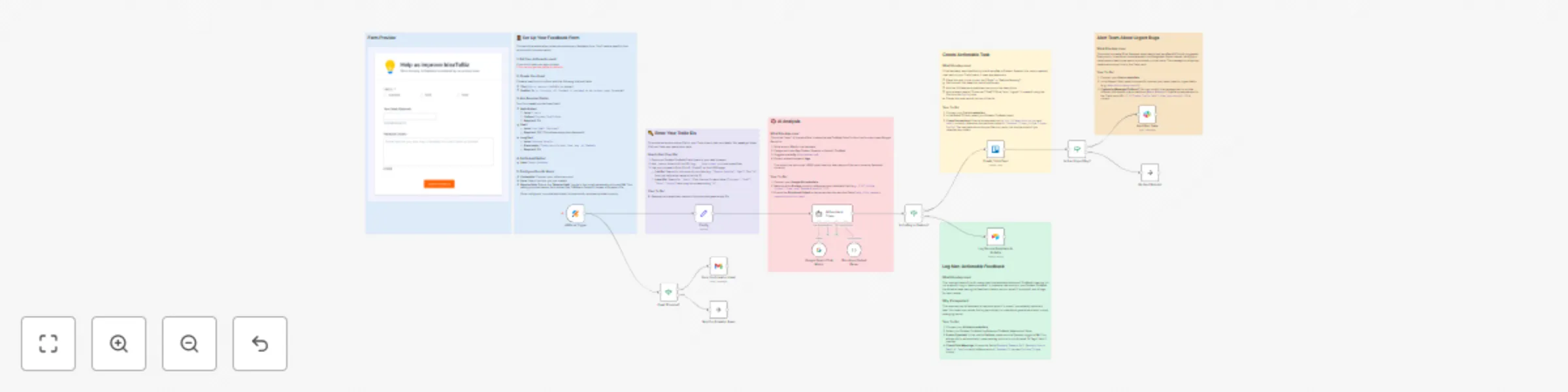
Workflow preview

Workflow preview
100%
AI-powered feedback triage: Jotform to Trello, Airtable & Slack with Gemini preview
Open on n8n.io

Important notice

This workflow is provided as-is. Please review and test before using in production.

1. Workflow Overview

Turn raw feedback into actionable product insights. This workflow collects feedback from both customers and staff via a single Jotform , uses Gemini AI to analyze and categorize it, then intelligen...

Best for

  • Market Research automation workflows
  • AI Summarization automation workflows
  • advanced n8n builders looking for reusable templates

Tools used

n8n-nodes-base.jotformtrigger, @n8n/n8n-nodes-langchain.agent, @n8n/n8n-nodes-langchain.outputparserstructured, @n8n/n8n-nodes-langchain.lmchatgooglegemini, n8n-nodes-base.if, n8n-nodes-base.trello, n8n-nodes-base.set, n8n-nodes-base.airtable

Source and attribution

This workflow is cataloged by N8N Workflows and links back to its original n8n.io source page by Atta.

Original n8n.io source

1.1 Workflow description

Title
AI-powered feedback triage: Jotform to Trello, Airtable & Slack with Gemini
Workflow name
AI-powered feedback triage: Jotform to Trello, Airtable & Slack with Gemini

Turn raw feedback into actionable product insights. This workflow collects feedback from both customers and staff via a single Jotform, uses Gemini AI to analyze and categorize it, then intelligently routes it:

  • Actionable bugs and feature requests become tasks in specific Trello lists, tagged with source and priority.
  • General feedback is logged in a structured Airtable base for later review.
  • Urgent bugs trigger instant Slack alerts for your dev team.
  • An optional confirmation email is sent via Gmail if the submitter provides their address.

Stop manually sorting feedback and ensure nothing falls through the cracks. This workflow centralizes input, automates triage, and delivers structured data directly to your product and development teams.

Features

  • Unified Feedback Collection: Uses a single Jotform for customers and staff.
  • AI-Powered Triage: Gemini AI categorizes feedback (Bug, Feature Request, General), suggests priority, and extracts keyword tags.
  • Intelligent Filtering: An IF node separates actionable tasks from general comments.
  • Automated Task Creation: Creates Trello cards in specific lists ("Bugs," "Feature Backlog") with relevant labels (Source, Urgent).
  • Structured Logging: Saves all general feedback to an Airtable base for review and trend analysis.
  • Conditional Alerts: Notifies a Slack channel only for high-priority bugs.
  • Optional Email Confirmation: Sends a thank-you email if the submitter provides their address.

Nodes Used

  • 🟣 Jotform Trigger (Jotform Trigger)
  • ✉️ Gmail (Send Confirmation Email)
  • 🧠 AI Agent (AI Feedback Triage)
  • 🃏 Trello (Create Trello Card)
  • 📣 Slack (Alert Dev Team)
  • 🗂️ Airtable (Log General Feedback to Airtable)
  • 🔧 Set, ❓ IF, 🚫 No Operation, do nothing

How to use this template

Follow these steps to configure the workflow with your accounts and specific IDs.

1. Set up Jotform, Trello, and Airtable (CRITICAL)

  • Before starting, you must create the Jotform form, Trello board, and Airtable base exactly as described in the "Required Setup" section at the end of this document.

2. Configure the Jotform Trigger Node

  • Credentials: Connect your Jotform account.
  • Form: Select your "Help us improve IdeaToBiz" form (replace the title with your company name).
  • Resolve Data: Ensure the "Resolve Data" toggle in the node's parameters is turned ON.

3. Configure the Config (Set) Node

  • This node stores your Trello IDs. You must replace the placeholder values.
  • Find Your IDs: Open your Trello board, add .json to the URL, and press Enter. Search the JSON page for your List names ("Bugs," "Feature Backlog") and Label names ("Customer," "Staff," "Other," "Urgent") to find their corresponding "id" values.
  • Action: Paste your unique IDs into the value fields in this node.

4. Configure the Email Provided? (IF) and Send Confirmation Email (Gmail) Nodes

  • IF Node: No configuration needed.
  • Gmail Node:
    • Credentials: Connect your Gmail (or other email service) account.
    • Customize: Edit the Subject and Body to match your company's voice.

5. Configure the AI Feedback Triage Node

  • Credentials: Connect your Google AI (Gemini) credentials.
  • Check Prompt: Ensure the prompt correctly references your feedback field (e.g., {{ $('Jotform Trigger').item.json['Feedback Details'] }}).
  • Check Schema: Ensure the "Structured Output" JSON schema matches the required fields (task_title, category, suggested_priority, tags).

6. Configure the Is it a Bug or Feature? (IF) Node

  • No configuration needed. This node filters based on the AI output.

7. Configure the Create Trello Card Node

  • Credentials: Connect your Trello credentials.
  • Board ID: Select your Product Feedback board.
  • Check Expressions: Verify that the expressions for List ID and Labels correctly pull the IDs from your Config node and data from the AI Feedback Triage and Jotform Trigger nodes. The template should be pre-filled, but double-check node names if you renamed them.

8. Configure the Is it an Urgent Bug? (IF) Node

  • No configuration needed. This checks the AI output before alerting Slack.

9. Configure the Alert Dev Team (Slack) Node

  • Credentials: Connect your Slack credentials.
  • Channel: Select the channel for urgent bug alerts (e.g., #dev-alerts).
  • Customize: Edit the message text if desired. Ensure the Trello card URL expression ({{ $('Create Trello Card').item.json.shortUrl }}) is correct.

10. Configure the Log General Feedback to Airtable Node

  • Credentials: Connect your Airtable credentials.
  • Base ID: Select your Product Feedback Log base.
  • Table ID: Select your Feedback Submissions table.
  • Enable Typecast: In the node's Options, ensure the Typecast toggle is ON. This is crucial for allowing n8n to create new tag options in Airtable.
  • Check Field Mappings: Verify that the field mappings correctly reference the AI Feedback Triage and Jotform Trigger nodes.

11. Activate Your Workflow!

  • Once all credentials and IDs are configured, save and activate your workflow.

How to Adapt the Template

  • Change Task Destination: Replace the Trello node with ClickUp, Asana, Jira, or another task manager. You'll need to adapt the field mappings.
  • Change Logging Destination: Replace the Airtable node with Google Sheets, Notion, or send logs via Email or Discord.
  • Adjust AI Prompt: Modify the prompt in the AI Feedback Triage node to change how feedback is categorized, prioritized, or tagged.
  • Modify Filtering Logic: Change the conditions in the Is it a Bug or Feature? IF node (e.g., maybe you also want "UI/UX Issue" to go to Trello).
  • Refine Alerting: Change the conditions in the Is it an Urgent Bug? IF node or send alerts for different categories (e.g., alert the design team for UI issues).

Required Setup

Jotform Form Setup
  1. Create Account: If needed, sign up at Jotform.
  2. Create Form: Build a form titled "Help us improve IdeaToBiz" (or similar).
  3. Add Fields:
    • Radio Button: Label I am a..., Options Customer, Staff, Other (Required: ON).
    • Email: Label Your Email (Optional) (Required: OFF).
    • Long Text: Label Feedback Details (Required: ON).
    • Submit Button: Label Submit Feedback.
Trello Board Setup
  1. Create Board: Create a new Trello board named Product Feedback.
  2. Create Lists (Columns): Add at least these two lists:
    • Feature Backlog
    • Bugs
  3. Create Labels: Go to Menu -> More -> Labels and create:
    • Urgent (Red recommended)
    • Customer (Blue recommended)
    • Staff (Green recommended)
    • Other (Grey recommended)
Airtable Base Setup
  1. Create Base: Create a new Airtable base named Product Feedback Log.
  2. Create Table: Name the table Feedback Submissions.
  3. Configure Fields:
    • Rename the primary field (Name) to Feedback Summary (Type: Single line text).
    • Rename Notes to Full Feedback (Type: Long text).
    • Delete Assignee.
    • Rename Status to Source (Type: Single select, Options: Customer, Staff, Other).
    • Add Email field (Type: Email).
    • Add AI Tags field (Type: Multiple select).
    • Add Submitted At field (Type: Created time).

1.2 Logical Blocks

This catalog entry is organized from the workflow JSON. The node-level section below shows the executable blocks available for review before importing the template.

2. Block-by-Block Analysis

Block 1 - JotForm Trigger

Type / Role
n8n-nodes-base.jotFormTrigger - jotFormTrigger
Config choices
Version 1

Block 2 - AI Feedback Triage

Type / Role
@n8n/n8n-nodes-langchain.agent - agent
Config choices
Version 2.2

Block 3 - Structured Output Parser

Type / Role
@n8n/n8n-nodes-langchain.outputParserStructured - outputParserStructured
Config choices
Version 1.3

Block 4 - Google Gemini Chat Model

Type / Role
@n8n/n8n-nodes-langchain.lmChatGoogleGemini - lmChatGoogleGemini
Config choices
Version 1

Block 5 - Is it a Bug or Feature?

Type / Role
n8n-nodes-base.if - if
Config choices
Version 2.2

Block 6 - Create Trello Card

Type / Role
n8n-nodes-base.trello - trello
Config choices
Version 1

Block 7 - Config

Type / Role
n8n-nodes-base.set - set
Config choices
Version 3.4

Block 8 - Log General Feedback to Airtable

Type / Role
n8n-nodes-base.airtable - airtable
Config choices
Version 2.1

Block 9 - Is it an Urgent Bug?

Type / Role
n8n-nodes-base.if - if
Config choices
Version 2.2

Block 10 - Alert Dev Team

Type / Role
n8n-nodes-base.slack - slack
Config choices
Version 2.3

Block 11 - No Alert Needed

Type / Role
n8n-nodes-base.noOp - noOp
Config choices
Version 1

Block 12 - Email Provided?

Type / Role
n8n-nodes-base.if - if
Config choices
Version 2.2

Block 13 - Send Confirmation Email

Type / Role
n8n-nodes-base.gmail - gmail
Config choices
Version 2.1

Block 14 - Skip Confirmation Email

Type / Role
n8n-nodes-base.noOp - noOp
Config choices
Version 1

Block 15 - Sticky Note

Type / Role
n8n-nodes-base.stickyNote - stickyNote
Config choices
Version 1

Block 16 - Sticky Note3

Type / Role
n8n-nodes-base.stickyNote - stickyNote
Config choices
Version 1

Block 17 - Sticky Note1

Type / Role
n8n-nodes-base.stickyNote - stickyNote
Config choices
Version 1

Block 18 - Sticky Note2

Type / Role
n8n-nodes-base.stickyNote - stickyNote
Config choices
Version 1

Block 19 - Sticky Note4

Type / Role
n8n-nodes-base.stickyNote - stickyNote
Config choices
Version 1

Block 20 - Sticky Note5

Type / Role
n8n-nodes-base.stickyNote - stickyNote
Config choices
Version 1

Block 21 - Sticky Note6

Type / Role
n8n-nodes-base.stickyNote - stickyNote
Config choices
Version 1

3. Summary Table

Workflow AI-powered feedback triage: Jotform to Trello, Airtable & Slack with Gemini
Complexity advanced
Nodes 21
Categories Market Research, AI Summarization
Author Atta
Published 21 Oct 2025

4. Reproducing the Workflow from Scratch

  1. 1. Download the workflow JSON

    Use the JSON export at /data/workflows/9999/9999.json as the source template for this automation.

  2. 2. Import the template into n8n

    Open n8n, import the downloaded JSON, and review each node before activating the workflow.

  3. 3. Configure credentials and variables

    Replace placeholder credentials, API keys, webhook URLs, account IDs, and environment-specific values with your own settings.

  4. 4. Test with sample data

    Run the workflow manually or in a staging workspace, inspect node output, and confirm downstream systems receive the expected data.

  5. 5. Activate and monitor

    Enable the workflow only after testing, then monitor executions, errors, and rate limits during the first production runs.

5. General Notes & Resources

Review imported nodes carefully before activation. This catalog entry is intended to help you inspect the workflow structure, understand required services, and find related templates faster.

Node names, credentials, schedules, webhook paths, and external service limits may need adjustment for your workspace.

Frequently asked questions

What does AI-powered feedback triage: Jotform to Trello, Airtable & Slack with Gemini do?

Turn raw feedback into actionable product insights. This workflow collects feedback from both customers and staff via a single Jotform , uses Gemini AI to analyze and categorize it, then intelligen...

What do I need before importing this workflow?

Review the workflow JSON, configure any required credentials in n8n, and test the automation in a safe workspace before using it in production.

Can I customize this workflow?

Yes. Use the block-by-block analysis and the downloadable JSON to inspect each node, then adjust credentials, prompts, schedules, filters, or destinations for your Market Research, AI Summarization use case.