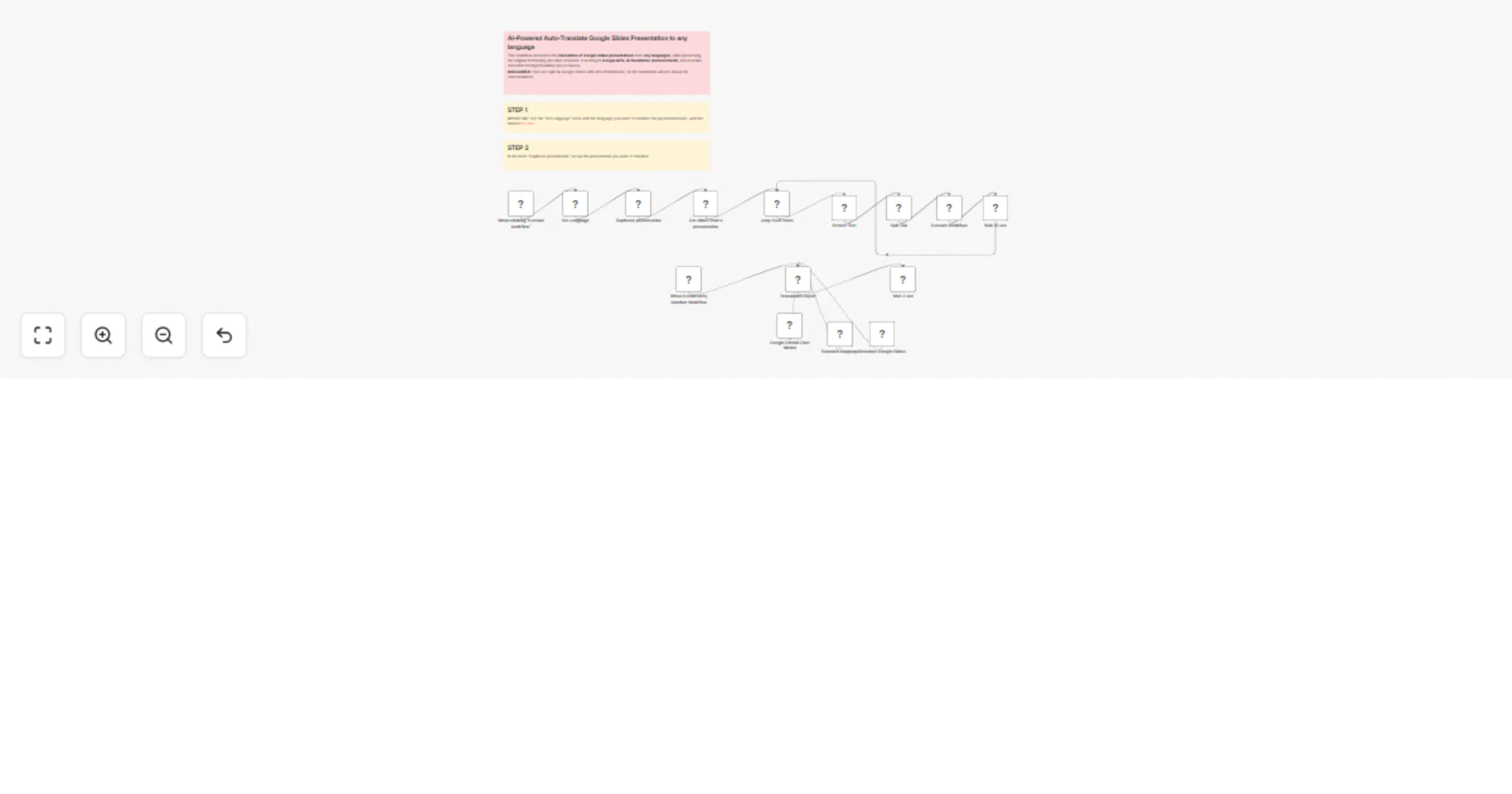
AI-powered auto-translate Google Slides presentation to any language with Gemini

Workflow preview

Workflow preview
100%
AI-powered auto-translate Google Slides presentation to any language with Gemini preview
Open on n8n.io

Important notice

This workflow is provided as-is. Please review and test before using in production.

1. Workflow Overview

️ This workflow automates the translation of Google Slides presentations from any languages , while preserving the original formatting and slide structure. It leverages Google APIs , AI trans...

Best for

  • Document Extraction automation workflows
  • Multimodal AI automation workflows
  • advanced n8n builders looking for reusable templates

Tools used

n8n-nodes-base.manualtrigger, n8n-nodes-base.googleslides, @n8n/n8n-nodes-langchain.lmchatgooglegemini, n8n-nodes-base.googleslidestool, n8n-nodes-base.splitout, n8n-nodes-base.executeworkflow, n8n-nodes-base.executeworkflowtrigger, n8n-nodes-base.googledrive

Source and attribution

This workflow is cataloged by N8N Workflows and links back to its original n8n.io source page by Davide.

Original n8n.io source

1.1 Workflow description

Title
AI-powered auto-translate Google Slides presentation to any language with Gemini
Workflow name
AI-powered auto-translate Google Slides presentation to any language with Gemini

💬🗂️🤖 This workflow automates the translation of Google Slides presentations from any languages, while preserving the original formatting and slide structure. It leverages Google APIs, AI translation (Gemini/PaLM), and modular execution for high flexibility and accuracy.

DISCLAIMER: texts are split by Google Slides APIs into small blocks, so the translation will not always be contextualized.


Key Benefits

  • ⚡ Time-Saving: Automates a typically manual and error-prone task of translating slides.
  • 🌍 AI-Powered Accuracy: Uses Google Gemini to provide context-aware translations while respecting defined rules.
  • 🔒 Safe & Non-Destructive: The original presentation is never modified — a new copy is always created.
  • 🎯 Precision: Skips irrelevant text (e.g., emails, URLs, names) to avoid mistranslation.
  • 🔁 Modular & Scalable: Uses subworkflows and batching, ideal for presentations with many slides.
  • 🎨 Layout Preservation: Keeps the original design and formatting intact.

How it Works

  1. Initialization:

    • The workflow starts with a manual trigger ("When clicking ‘Execute workflow’").
    • Set the language to translate (IMPORTANT format ISO-639)
    • It duplicates a specified Google Slides presentation ("Duplicate presentation") to create a new copy for translation, preserving the original.
  2. Slide Processing:

    • The workflow retrieves slides from the copied presentation ("Get slides from a presentation") and processes them in batches ("Loop Over Items").
    • For each slide, text content is extracted ("Extract Text") using a custom JavaScript snippet, which identifies and collects text elements while retaining the slide's objectId.
  3. Translation:

    • The extracted texts are passed to a LangChain agent ("Translation expert"), which translates the content from Italian to English. The agent follows strict guidelines (e.g., skipping URLs, brand names, etc.).
    • The translated text is sent to the "Translate Google Slides" node, which replaces the original text in the presentation using the slide's objectId for targeting.
  4. Execution Flow:

    • The workflow includes delays ("Wait 10 sec" and "Wait 3 sec") to manage API rate limits and ensure smooth execution.
    • The process repeats for each batch of slides until all content is translated.

Set Up Steps

  1. Prerequisites:

    • Ensure access to the source Google Slides presentation (specified by fileId in "Duplicate presentation").
    • Set up Google OAuth2 credentials for Google Drive and Slides (nodes reference credentials like "Google Slides account").
    • Configure the Google Gemini (PaLM) API credentials for the translation agent.
  2. Configuration:

    • Update the fileId in the "Duplicate presentation" node to point to your source presentation.
    • Adjust the translation guidelines in the "Translation expert" node if needed (e.g., language pairs or exclusion rules).
    • Modify batch sizes or wait times (e.g., "Wait 10 sec") based on API constraints.
  3. Execution:

    • Run the workflow manually or trigger it via the "Execute Workflow" node from another workflow.
    • Monitor progress in n8n’s execution log, as each slide is processed and translated sequentially.
  4. Output:

    • The translated presentation is saved as a new file in Google Drive, with the filename including a timestamp (e.g., NAME_PRESENTATION_{lang}_{timestamp}).

Note: The workflow is currently inactive ("active": false); enable it after configuration.


Need help customizing?

Contact me for consulting and support or add me on Linkedin.

1.2 Logical Blocks

This catalog entry is organized from the workflow JSON. The node-level section below shows the executable blocks available for review before importing the template.

2. Block-by-Block Analysis

Block 1 - When clicking ‘Execute workflow’

Type / Role
n8n-nodes-base.manualTrigger - manualTrigger
Config choices
Version 1

Block 2 - Get slides from a presentation

Type / Role
n8n-nodes-base.googleSlides - googleSlides
Config choices
Version 2

Block 3 - Google Gemini Chat Model

Type / Role
@n8n/n8n-nodes-langchain.lmChatGoogleGemini - lmChatGoogleGemini
Config choices
Version 1

Block 4 - Translate Google Slides

Type / Role
n8n-nodes-base.googleSlidesTool - googleSlidesTool
Config choices
Version 2

Block 5 - Split Out

Type / Role
n8n-nodes-base.splitOut - splitOut
Config choices
Version 1

Block 6 - Execute Workflow

Type / Role
n8n-nodes-base.executeWorkflow - executeWorkflow
Config choices
Version 1.2

Block 7 - When Executed by Another Workflow

Type / Role
n8n-nodes-base.executeWorkflowTrigger - executeWorkflowTrigger
Config choices
Version 1.1

Block 8 - Duplicate presentation

Type / Role
n8n-nodes-base.googleDrive - googleDrive
Config choices
Version 3

Block 9 - Loop Over Items

Type / Role
n8n-nodes-base.splitInBatches - splitInBatches
Config choices
Version 3

Block 10 - Extract Text

Type / Role
n8n-nodes-base.code - code
Config choices
Version 2

Block 11 - Wait 10 sec

Type / Role
n8n-nodes-base.wait - wait
Config choices
Version 1.1

Block 12 - Wait 3 sec

Type / Role
n8n-nodes-base.wait - wait
Config choices
Version 1.1

Block 13 - Translation expert

Type / Role
@n8n/n8n-nodes-langchain.agent - agent
Config choices
Version 2.1

Block 14 - Set Language

Type / Role
n8n-nodes-base.set - set
Config choices
Version 3.4

Block 15 - Translate language

Type / Role
n8n-nodes-base.googleTranslateTool - googleTranslateTool
Config choices
Version 2

Block 16 - Sticky Note

Type / Role
n8n-nodes-base.stickyNote - stickyNote
Config choices
Version 1

Block 17 - Sticky Note1

Type / Role
n8n-nodes-base.stickyNote - stickyNote
Config choices
Version 1

Block 18 - Sticky Note2

Type / Role
n8n-nodes-base.stickyNote - stickyNote
Config choices
Version 1

3. Summary Table

Workflow AI-powered auto-translate Google Slides presentation to any language with Gemini
Complexity advanced
Nodes 18
Categories Document Extraction, Multimodal AI
Author Davide
Published 24 Jul 2025

4. Reproducing the Workflow from Scratch

  1. 1. Download the workflow JSON

    Use the JSON export at /data/workflows/6372/6372.json as the source template for this automation.

  2. 2. Import the template into n8n

    Open n8n, import the downloaded JSON, and review each node before activating the workflow.

  3. 3. Configure credentials and variables

    Replace placeholder credentials, API keys, webhook URLs, account IDs, and environment-specific values with your own settings.

  4. 4. Test with sample data

    Run the workflow manually or in a staging workspace, inspect node output, and confirm downstream systems receive the expected data.

  5. 5. Activate and monitor

    Enable the workflow only after testing, then monitor executions, errors, and rate limits during the first production runs.

5. General Notes & Resources

Review imported nodes carefully before activation. This catalog entry is intended to help you inspect the workflow structure, understand required services, and find related templates faster.

Node names, credentials, schedules, webhook paths, and external service limits may need adjustment for your workspace.

Frequently asked questions

What does AI-powered auto-translate Google Slides presentation to any language with Gemini do?

️ This workflow automates the translation of Google Slides presentations from any languages , while preserving the original formatting and slide structure. It leverages Google APIs , AI trans...

What do I need before importing this workflow?

Review the workflow JSON, configure any required credentials in n8n, and test the automation in a safe workspace before using it in production.

Can I customize this workflow?

Yes. Use the block-by-block analysis and the downloadable JSON to inspect each node, then adjust credentials, prompts, schedules, filters, or destinations for your Document Extraction, Multimodal AI use case.