Personal Productivity Workflows
552 workflows found
Workflow preview: Build a Telegram AI assistant with MemMachine, OpenAI, and voice support
Free advanced

Build a Telegram AI assistant with MemMachine, OpenAI, and voice support

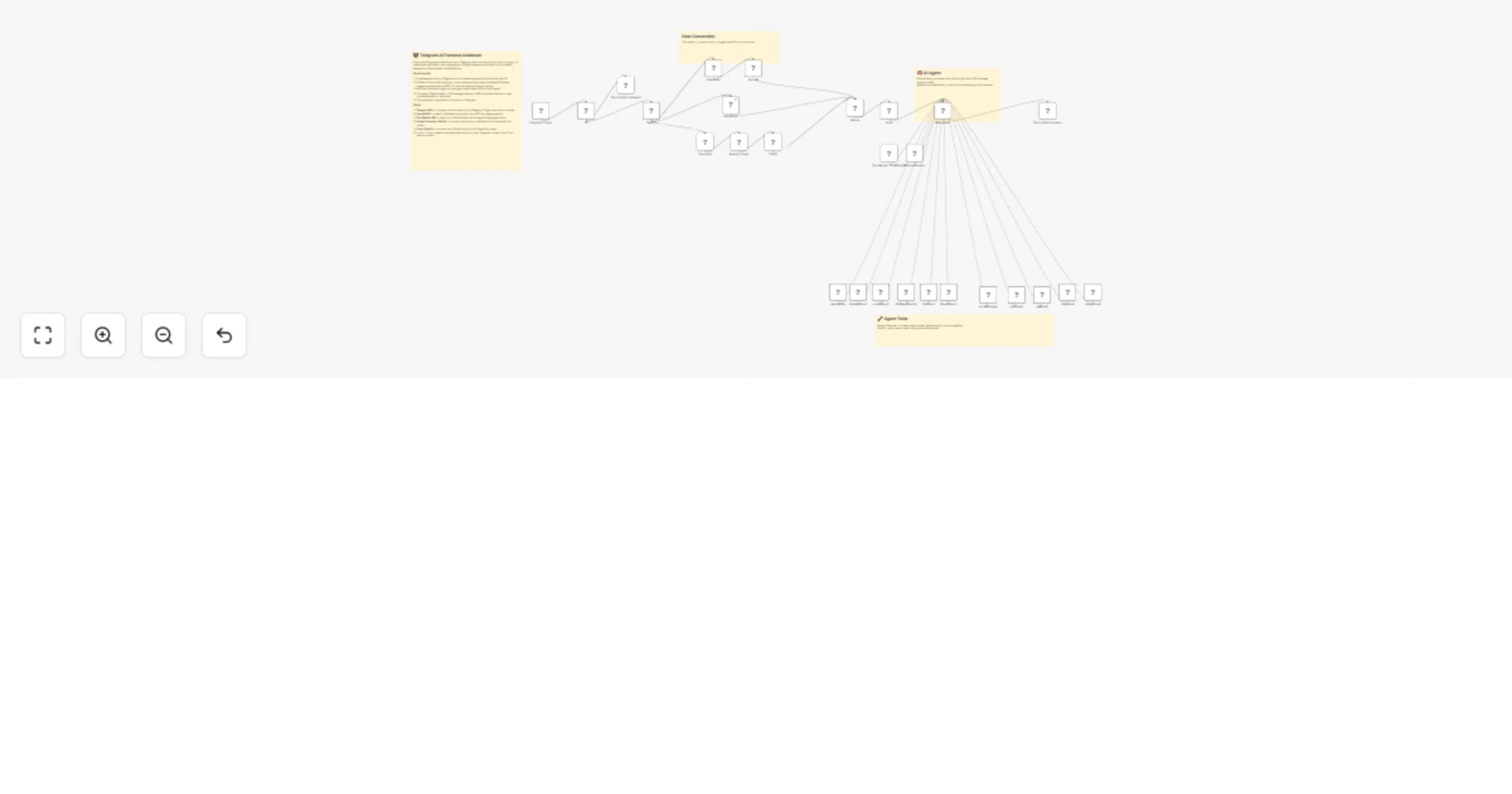
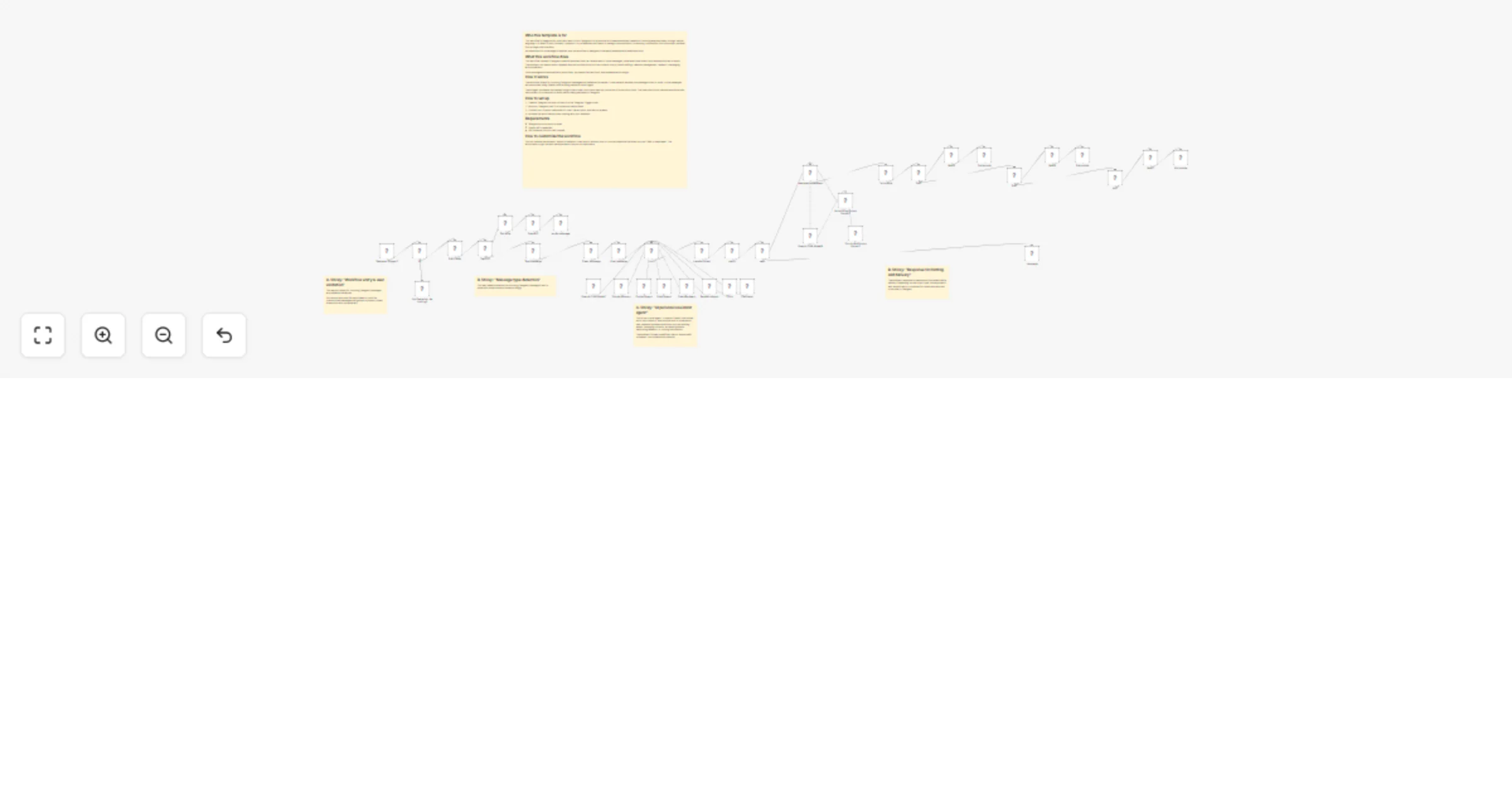
# Build a Telegram assistant with MemMachine and voice support An AI assistant that NEVER forgets using MemMachine for persistent cross-session memory, with voice transcription support and productivity tools. **⚠️ Important Deployment Note:** This workflow is designed for **self-hosted n8n** instances. If you're using n8n Cloud, you'll need to deploy MemMachine to a cloud server and update the HTTP Request URLs in nodes 4, 5, and 9. ## What This Template Does This workflow creates an intelligent personal assistant that maintains perfect memory across all conversations, whether you message today or weeks from now. It supports both text and voice messages, automatically transcribes voice using OpenAI Whisper, and provides tools for Gmail, Google Sheets, and Google Calendar. ## Key Features - 🧠 **Perfect Memory** - Remembers every conversation using MemMachine - 🎤 **Voice Transcription** - Supports voice messages via OpenAI Whisper - 📧 **Gmail Integration** - Send and read emails - 📊 **Google Sheets** - Read and write spreadsheet data - 📅 **Google Calendar** - Create and manage events - 🔧 **MCP Tools** - Extensible tool architecture - 💬 **Smart Context** - References past conversations naturally ## Real-World Example **Day 1 - Text Message:** - User: "Send an email to [email protected] about the Q1 report" - AI: *Uses Gmail tool* "Email sent to John about the Q1 report!" **Day 3 - Voice Message:** - 🎤 User: "What did I ask you to do for John?" - AI: "On January 5th, you asked me to email John about the Q1 report, which I sent." **Day 7 - Text Message:** - User: "Follow up with John" - AI: "I'll send a follow-up email to [email protected] about the Q1 report that we discussed on Jan 5th." The AI remembers who John is, what you discussed, and when it happened - all without you having to repeat yourself! ## How It Works ### Message Flow **For Text Messages:** 1. Telegram Trigger receives message 2. Extract user data and message text 3. Store message in MemMachine 4. Search conversation history (last 30 memories) 5. AI processes with full context + tools 6. Store AI response for future reference 7. Send reply to user **For Voice Messages:** 1. Telegram Trigger receives voice message 2. Download voice file 3. OpenAI Whisper transcribes to text 4. Extract transcribed text and user data 5. Store in MemMachine (same as text flow) 6. Process with AI + tools 7. Send reply to user ## Requirements ### Services & Credentials - **MemMachine** - Open-source memory system (self-hosted via Docker) - **Telegram Bot Token** - From @BotFather - **OpenAI API Key** - For AI responses and voice transcription - **Gmail OAuth** - For email integration (optional) - **Google Sheets OAuth** - For spreadsheet access (optional) - **Google Calendar OAuth** - For calendar management (optional) ### Installation ## MemMachine Setup ```bash # Clone and start MemMachine git clone https://github.com/MemMachine/MemMachine cd MemMachine docker-compose up -d # Verify it's running curl http://localhost:8080/health ``` ## Workflow Configuration ### Deployment Options This workflow supports two deployment scenarios: **Option 1: Self-Hosted n8n (Recommended)** - Both n8n and MemMachine run locally - Best for: Personal use, development, testing - Setup: 1. Run MemMachine: `docker-compose up -d` 2. Use `http://host.docker.internal:8080` in HTTP Request nodes (if n8n in Docker) 3. Or use `http://localhost:8080` (if n8n installed directly) **Option 2: n8n Cloud** - n8n hosted by n8n.io, MemMachine on your cloud server - Best for: Production, team collaboration - Setup: 1. Deploy MemMachine to cloud (DigitalOcean, AWS, GCP, etc.) 2. Expose MemMachine via HTTPS with SSL certificate 3. Update HTTP Request URLs in nodes 4, 5, 9 to: `https://your-memmachine-domain.com` 4. Ensure firewall allows n8n Cloud IP addresses ### Configuration Steps 1. **Import this template** into your n8n instance 2. **Update MemMachine URLs** (nodes 4, 5, 9): - **Self-hosted n8n in Docker**: `http://host.docker.internal:8080` - **Self-hosted n8n (direct install)**: `http://localhost:8080` - **n8n Cloud**: `https://your-memmachine-domain.com` 3. **Set Organization IDs** (nodes 4, 5, 9): - Change `your-org-id` to your organization name - Change `your-project-id` to your project name 4. **Add Credentials:** - Telegram Bot Token (node 1) - OpenAI API Key (nodes 4, 7) - Gmail OAuth (Gmail Tool node) - Google Sheets OAuth (Sheets Tool node) - Google Calendar OAuth (Calendar Tool node) ## Use Cases ### Personal Productivity - "Remind me what I worked on last week" - "Schedule a meeting with the team next Tuesday" - "Email Sarah about the proposal" ### Customer Support - AI remembers customer history - References past conversations - Provides contextual support ### Task Management - Track tasks across days/weeks - Remember project details - Follow up on action items ### Email Automation - "Send that email to John" (remembers John's email) - "What emails did I send yesterday?" - "Draft an email to the team" ### Calendar Management - "What's on my calendar tomorrow?" - "Schedule a meeting with Alex at 3pm" - "Cancel my 2pm meeting" ## Customization Guide ### Extend Memory Capacity In **Node 5 (Search Memory)**, adjust: ```json "top_k": 30 // Increase for more context (costs more tokens) ``` ### Modify AI Personality In **Node 7 (AI Agent)**, edit the system prompt to: - Change tone/style - Add domain-specific knowledge - Include company policies - Set behavioral guidelines ### Add More Tools Connect additional n8n tool nodes to the AI Agent: - Notion integration - Slack notifications - Trello/Asana tasks - Database queries - Custom API tools ### Multi-Channel Memory Create similar workflows for: - WhatsApp (same MemMachine instance) - SMS via Twilio (same memory database) - Web chat widget (shared context) All channels can share the same memory by using consistent `customer_email` identifiers! ## Memory Architecture ### Storage Structure Every message is stored with: ```json { "content": "message text", "producer": "[email protected]", "role": "user" or "assistant", "metadata": { "customer_email": "[email protected]", "channel": "telegram", "username": "john_doe", "timestamp": "2026-01-07T12:00:00Z" } } ``` ### Retrieval & Formatting 1. **Search** - Finds relevant memories by customer email 2. **Sort** - Orders chronologically (oldest to newest) 3. **Format** - Presents last 20 messages to AI 4. **Context** - AI uses history to inform responses ## Cost Estimate - **MemMachine**: Free (self-hosted via Docker) - **OpenAI API**: - Text responses: ~$0.001 per message (GPT-4o-mini) - Voice transcription: ~$0.006 per minute (Whisper) - **n8n**: Free (self-hosted) or $20/month (cloud) - **Google APIs**: Free tier available **Monthly estimate for 1,000 messages (mix of text/voice):** - OpenAI: $5-15 - Google APIs: $0 (within free tier) - Total: $5-15/month ## Troubleshooting ### Deployment Issues **n8n Cloud: Can't connect to MemMachine** - Ensure MemMachine is publicly accessible via HTTPS - Check firewall rules allow n8n Cloud IPs - Verify SSL certificate is valid - Test endpoint: `curl https://your-domain.com/health` **Self-Hosted: Can't connect to MemMachine** - Check Docker is running: `docker ps` - Verify URL matches your setup - Test endpoint: `curl http://localhost:8080/health` ### Voice not transcribing - Verify OpenAI API key is valid - Check API key has Whisper access - Test with short voice message first ### AI not remembering - Verify `org_id` and `project_id` match in nodes 4, 5, 9 - Check `customer_email` is consistent - Review node 5 output (are memories retrieved?) ### Tools not working - Verify OAuth credentials are valid - Check required API scopes/permissions - Test tools individually first ## Advanced Features ### Cloud Deployment Guide (For n8n Cloud Users) If you're using n8n Cloud, follow these steps to deploy MemMachine: **1. Choose a Cloud Provider** - DigitalOcean (Droplet: $6/month) - AWS (EC2 t3.micro) - Google Cloud (e2-micro) - Render.com (easiest, free tier available) **2. Deploy MemMachine** For DigitalOcean/AWS/GCP: ```bash # SSH into your server ssh root@your-server-ip # Install Docker curl -fsSL https://get.docker.com -o get-docker.sh sh get-docker.sh # Clone and start MemMachine git clone https://github.com/MemMachine/MemMachine cd MemMachine docker-compose up -d ``` **3. Configure HTTPS (Required for n8n Cloud)** ```bash # Install Caddy for automatic HTTPS apt install caddy # Create Caddyfile cat > /etc/caddy/Caddyfile << 'CADDYEND' your-domain.com { reverse_proxy localhost:8080 } CADDYEND # Start Caddy systemctl start caddy ``` **4. Update Workflow** - In nodes 4, 5, 9, change URL to: `https://your-domain.com` - Remove the `/api/v2/memories` part is already in the path **5. Security Best Practices** - Use environment variables for org_id and project_id - Enable firewall: `ufw allow 80,443/tcp` - Regular backups of MemMachine data - Monitor server resources ### Semantic Memory MemMachine automatically extracts semantic facts from conversations for better recall of important information. ### Chronological Context Memories are sorted by timestamp, not relevance, to maintain natural conversation flow. ### Cross-Session Persistence Unlike session-based chatbots, this assistant remembers across days, weeks, or months. ### Multi-Modal Input Seamlessly handles both text and voice, storing transcriptions alongside text messages. ## Template Information **Author:** David Olusola **Version:** 1.0.0 **Created:** January 2026 ## Support & Resources - **MemMachine Documentation**: https://github.com/MemMachine/MemMachine - **n8n Community**: https://community.n8n.io - **OpenAI Whisper**: https://platform.openai.com/docs/guides/speech-to-text ## Contributing Found a bug or have an improvement? Contribute to the template or share your modifications with the n8n community! --- **Start building your perfect-memory AI assistant today!** 🚀

D
David Olusola
Personal Productivity
8 Jan 2026
4
0
Workflow preview: Adjust morning alarms based on weather and train delays using Google Gemini
Free advanced

Adjust morning alarms based on weather and train delays using Google Gemini

**Description:** An intelligent alarm system that wakes you up early only when necessary. 🛡️🤖 This workflow monitors your local weather and train status every morning at 5:00 AM. It uses Google Gemini to analyze the situation. If there is heavy rain or a train delay, it sends an emergency alert immediately (and can trigger smart home devices). If everything is normal, it waits until your usual wake-up time to send a calm briefing. ## Key Features: AI Context Awareness: Uses Gemini to intelligently judge "Emergency" situations based on weather descriptions and news headlines. Dynamic Notification: Emergency Mode: Immediate Email alert + Optional SwitchBot trigger (e.g., turn on lights). Normal Mode: Delays notification until your scheduled wake-up time (90 mins later). Targeted Monitoring: Searches specific train lines via Google News RSS. ## How it works: Trigger: Runs daily at 5:00 AM. Fetch: Gets weather from OpenWeatherMap and train news from Google News RSS. Judge: Gemini analyzes the data. Action: Routes the notification based on the status (Emergency/Normal). ## Setup Requirements: Credentials: OpenWeatherMap API, Google Gemini API, Gmail. Config: Open the "1. Configuration" node to set your Location, Train Line, and Email.

N
NODA shuichi
Personal Productivity
6 Jan 2026
1
0
Workflow preview: Track meal nutrition from meal photos with LINE, Google Gemini and Google Sheets
Free advanced

Track meal nutrition from meal photos with LINE, Google Gemini and Google Sheets

# AI Meal Nutrition Tracker with LINE and Google Sheets ## Who's it for This workflow is designed for health-conscious individuals, fitness enthusiasts, and anyone who wants to track their daily food intake without manual calorie counting. It is best suited for users who want a simple, AI-powered meal logging system that analyzes food photos one at a time and provides instant nutritional feedback via LINE. ## What it does This workflow processes a single meal photo sent via LINE, analyzes it using Google Gemini AI to identify foods and estimate nutritional content, and stores the data in Google Sheets for tracking. The workflow focuses on simplicity and encouragement: it receives a meal image, performs AI-based food recognition, estimates calories and macronutrients, calculates a health score, provides personalized advice, and replies with a detailed nutritional breakdown on LINE. ## How it works 1. A single meal photo is sent to the LINE bot. 2. The workflow is triggered via a LINE webhook. 3. The image file is downloaded and sent to Google Gemini AI for food analysis. 4. The AI identifies foods and estimates nutritional values (calories, protein, carbs, fat, fiber). 5. A health score (1-10) is calculated with personalized improvement tips. 6. The data is appended to Google Sheets for meal history tracking. 7. The image is uploaded to Google Drive for reference. 8. A formatted nutritional report with advice is sent back as a LINE reply. This workflow is intentionally designed to handle **one image per execution**. ## Requirements To use this workflow, you will need: - A LINE Messaging API account - A Google Gemini API key - A Google account with access to Google Sheets and Google Drive - A Google Sheets document with the following column names: - Date - Time - Meal Type - Food Items - Calories - Protein (g) - Carbs (g) - Fat (g) - Fiber (g) - Health Score - Advice - Image URL ## Important limitations - This workflow **does not support multiple images sent in a single message**. - Sending images in quick succession may trigger multiple executions and lead to unexpected results. - Only the first image in an event payload is processed. - Nutritional values are **AI estimates** based on visual analysis and typical serving sizes. - Accuracy depends on image quality, lighting, and food visibility. - This tool should **not replace professional dietary advice**. These limitations are intentional to keep the workflow simple and easy to understand. ## How to set up 1. Create a LINE Messaging API channel and obtain a Channel Access Token. 2. Generate a Google Gemini API key. 3. Update the Config node with your LINE token, Google Sheets ID, Google Drive folder ID, and daily calorie goal. 4. Configure credentials for LINE, Google Gemini, Google Sheets, and Google Drive. 5. Register the n8n webhook URL in your LINE channel settings. 6. Activate the workflow in n8n and test it with a single meal photo. ## How to customize - Modify the AI prompt in the "Analyze Meal with AI" node to support different languages or dietary frameworks (keto, vegan, etc.). - Adjust the daily calorie goal in the Config node to match individual needs. - Add additional nutritional fields such as sodium, sugar, or vitamins. - Replace Google Sheets with a fitness app API or database. - Integrate with other services to send daily/weekly nutrition summaries. --- **Note:** This workflow was tested using real meal photos sent individually via the LINE Messaging API. Nutritional estimates are approximations and may vary from actual values. For accurate dietary tracking, consult a registered dietitian.

O
Oka Hironobu
Personal Productivity
2 Jan 2026
35
0
Workflow preview: Find jobs on Indeed via Telegram using BrowserAct and Gemini
Free advanced

Find jobs on Indeed via Telegram using BrowserAct and Gemini

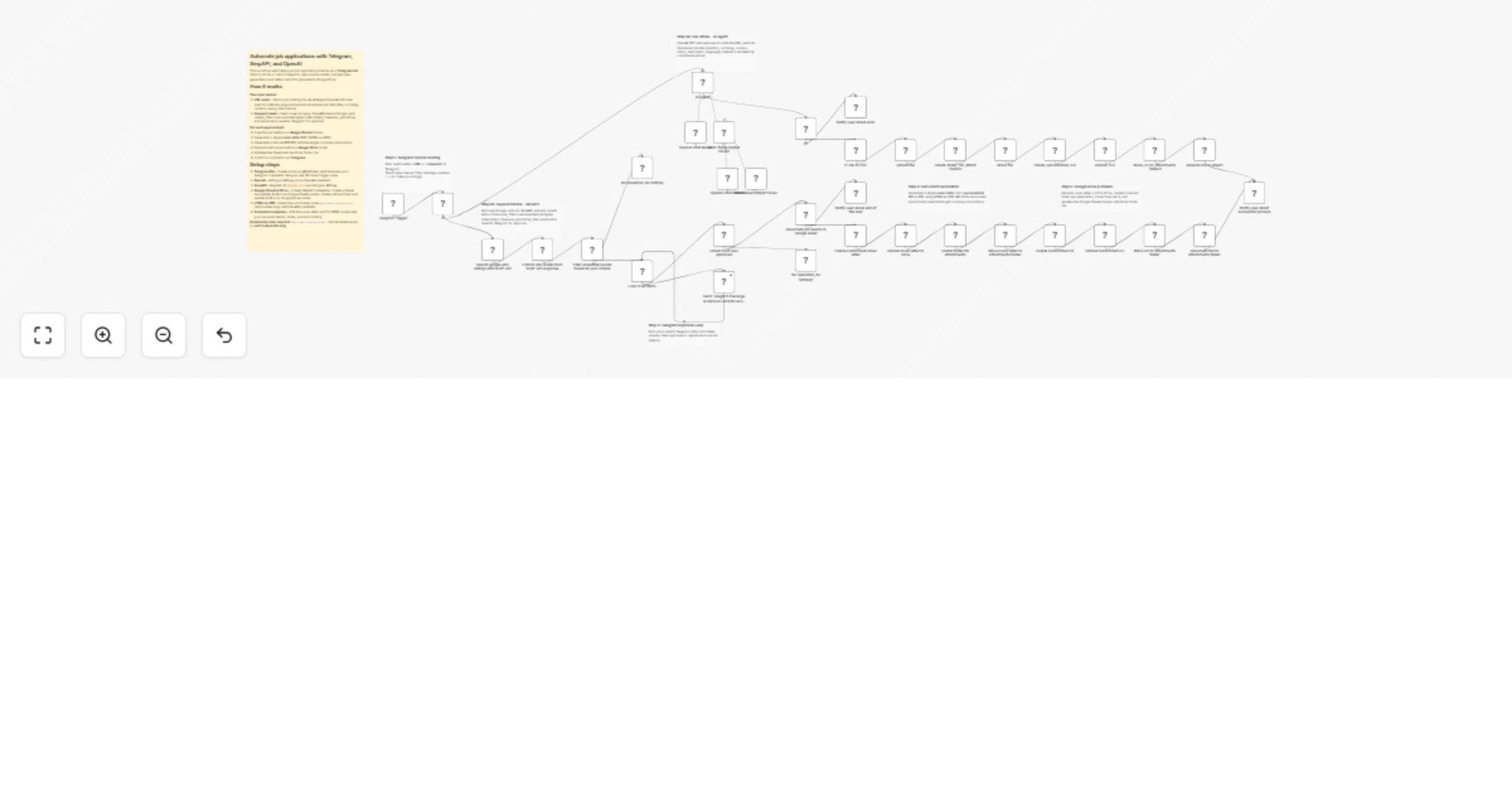
# Find specific jobs on Indeed using Telegram, BrowserAct & Gemini This workflow transforms your Telegram bot into an intelligent job hunting assistant. Simply tell the bot what you are looking for (e.g., "Marketing Manager in Austin"), and it will automatically scrape real-time job listings from Indeed, format them into a clean, easy-to-read list, and send them directly to your chat. ## Target Audience Job seekers, recruiters, and career coaches who want to automate the job search process. ## How it works 1. **Receive Request**: You send a message to your Telegram bot describing the job you want (e.g., "I need a Python developer job in London"). 2. **Extract Parameters**: An **AI Agent** analyzes your message to extract the key details: `Job Role` and `Location`. If you don't specify a location, it defaults to a preset value (e.g., "Brooklyn"). 3. **Scrape Indeed**: **BrowserAct** executes a background task to search Indeed.com using your specific criteria and extracts relevant job data (Title, Company, Pay, Link). 4. **Format Data**: A second **AI Agent** processes the raw job list. It cleans up the text, adds emojis for readability, and formats the output into Telegram-friendly HTML. 5. **Deliver Alerts**: The workflow splits the formatted list into individual messages (to respect character limits) and sends them to your **Telegram** chat. ## How to set up 1. **Configure Credentials**: Connect your **Telegram**, **BrowserAct**, **Google Gemini**, and **OpenRouter** accounts in n8n. 2. **Prepare BrowserAct**: Ensure the **Indeed Smart Job Scout** template is saved in your BrowserAct account. 3. **Configure Telegram**: Create a bot via BotFather and add the API token to your Telegram credentials. 4. **Activate**: Turn on the workflow. 5. **Test**: Send a message like "Find marketing jobs in Chicago" to your bot. ## Requirements * **BrowserAct** account with the **Indeed Smart Job Scout** template. * **Telegram** account (Bot Token). * **Google Gemini** account. * **OpenRouter** account (or compatible LLM credentials). ## How to customize the workflow 1. **Change Default Location**: Edit the system prompt in the **Analyze user Input** agent to change the fallback location from "Brooklyn" to your preferred city. 2. **Filter Results**: Add logic to the **Generate response** agent to filter out jobs with low ratings or missing salary info. 3. **Add More Boards**: Update the BrowserAct template to scrape LinkedIn or Glassdoor in addition to Indeed. ## Need Help? * [How to Find Your BrowserAct API Key & Workflow ID](https://www.youtube.com/watch?v=pDjoZWEsZlE) * [How to Connect n8n to BrowserAct](https://www.youtube.com/watch?v=RoYMdJaRdcQ) * [How to Use & Customize BrowserAct Templates](https://www.youtube.com/watch?v=CPZHFUASncY) --- ### Workflow Guidance and Showcase Video * #### [Indeed Smart Job Scout: The Ultimate n8n Workflow for Job Channels](https://youtu.be/X8GQS8nF9j0)

M
Madame AI Team | Kai
Personal Productivity
1 Jan 2026
0
0
Workflow preview: Create a daily visual journal from Discord chats with GPT-4, DALL-E and Notion
Free advanced

Create a daily visual journal from Discord chats with GPT-4, DALL-E and Notion

I wanted a journal but never had the discipline to write one. Most of my day happens in Discord anyway, so I built this to do it for me. Every night, it reads my Discord channel, asks GPT-4 to write a short reflection, generates an image that captures the vibe of the day, and saves everything to Notion. I wake up with a diary entry I didn't have to write. **How it works** 1. Runs daily at whatever time you set 2. Grabs messages from a Discord channel (last 100) 3. Filters to today's messages only 4. GPT-4 writes a title, summary, mood, and tags 5. DALL-E generates an image based on the day's themes 6. Uploads image to Cloudinary (Notion needs a public URL) 7. Creates a Notion page with everything formatted nicely **Setup** - Discord Bot credentials (read message history permission) - OpenAI API key - Free Cloudinary account for image hosting - Notion integration connected to your database **Notion database properties needed** - Title (title) - Date (date) - Summary (text) - Mood (select): 😊 Great, 😌 Good, 😐 Neutral, 😔 Low, 🔥 Productive - Message Count (number) Takes about 15 minutes to set up. I use Gallery view in Notion with the AI image as cover - looks pretty cool after a few weeks.

V
Victor Manuel Lagunas Franco
Personal Productivity
1 Jan 2026
7
0
Workflow preview: Find high-quality remote jobs with OpenAI, Decodo, and Google Sheets
Free advanced

Find high-quality remote jobs with OpenAI, Decodo, and Google Sheets

## What this workflow does This workflow automates the discovery, evaluation, and notification of job opportunities based on a candidate’s professional profile. It fetches remote job listings, compares each role against a structured candidate profile stored in Google Sheets, and uses AI to evaluate real alignment in terms of skills, seniority, salary, industry, and role complexity. Only the most relevant opportunities are kept, stored in Google Sheets, and delivered via email as a Top 5 shortlist. [Decodo – Web Scraper for n8n](https://visit.decodo.com/raqXGD) ## How to configure (quick setup) 1. Define the candidate profile in Google Sheets (skills, salary expectations, preferences). ![image.png](fileId:3866) 2. Configure credentials (Google Sheets, Gmail, decodo, AI provider). 3. Set the matching threshold (e.g. skill match ≥ 90%). 4. Run the workflow manually or on a schedule. ### Output Structured job match results in Google Sheets Automated email with the Top 5 best-matched job opportunities ![image.png](fileId:3867)

K
Kevin Meneses
Personal Productivity
30 Dec 2025
30
0
Workflow preview: Handle Gmail reply-based scheduling with Google Calendar and GPT-4o-mini
Free advanced

Handle Gmail reply-based scheduling with Google Calendar and GPT-4o-mini

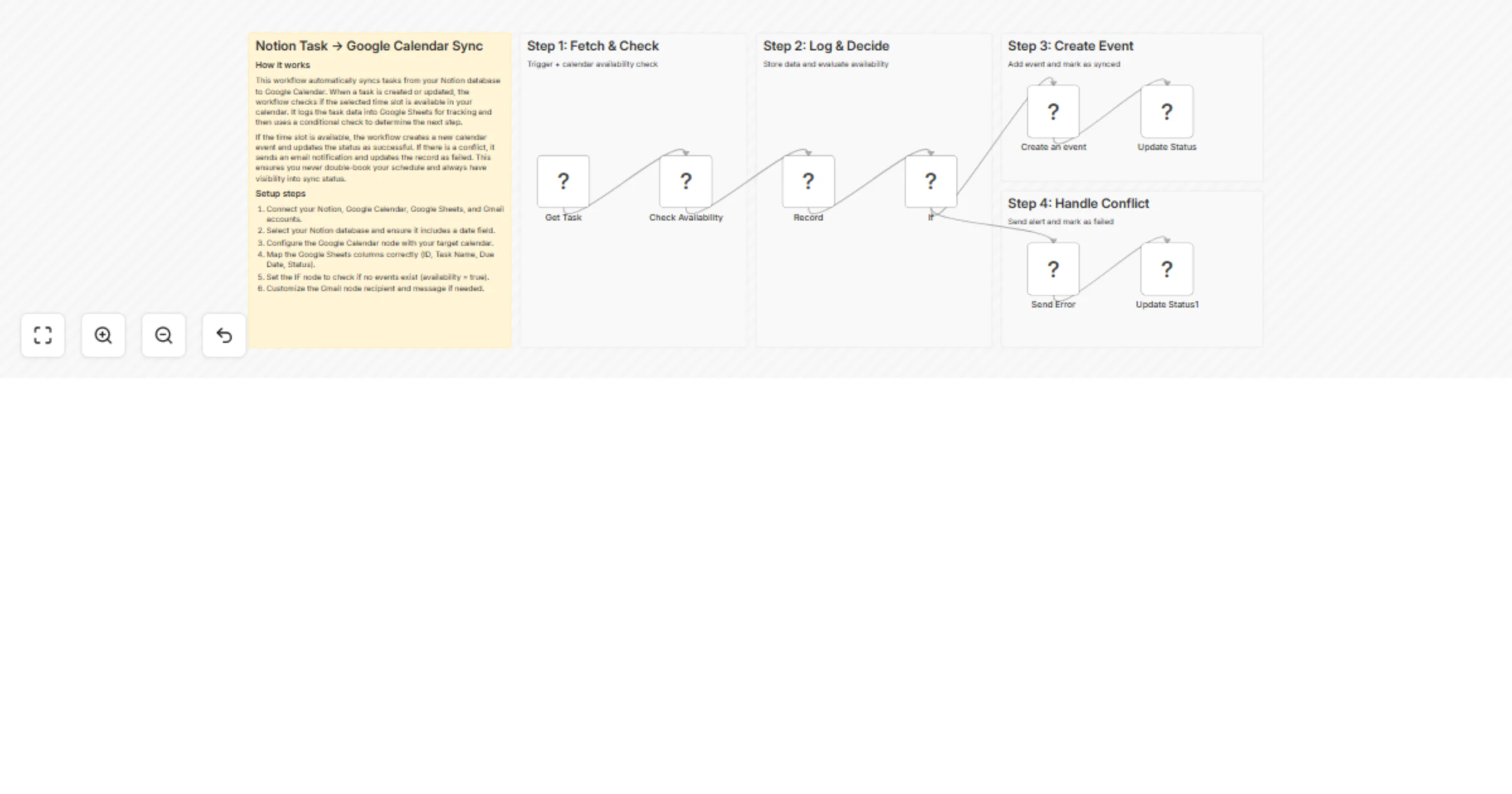
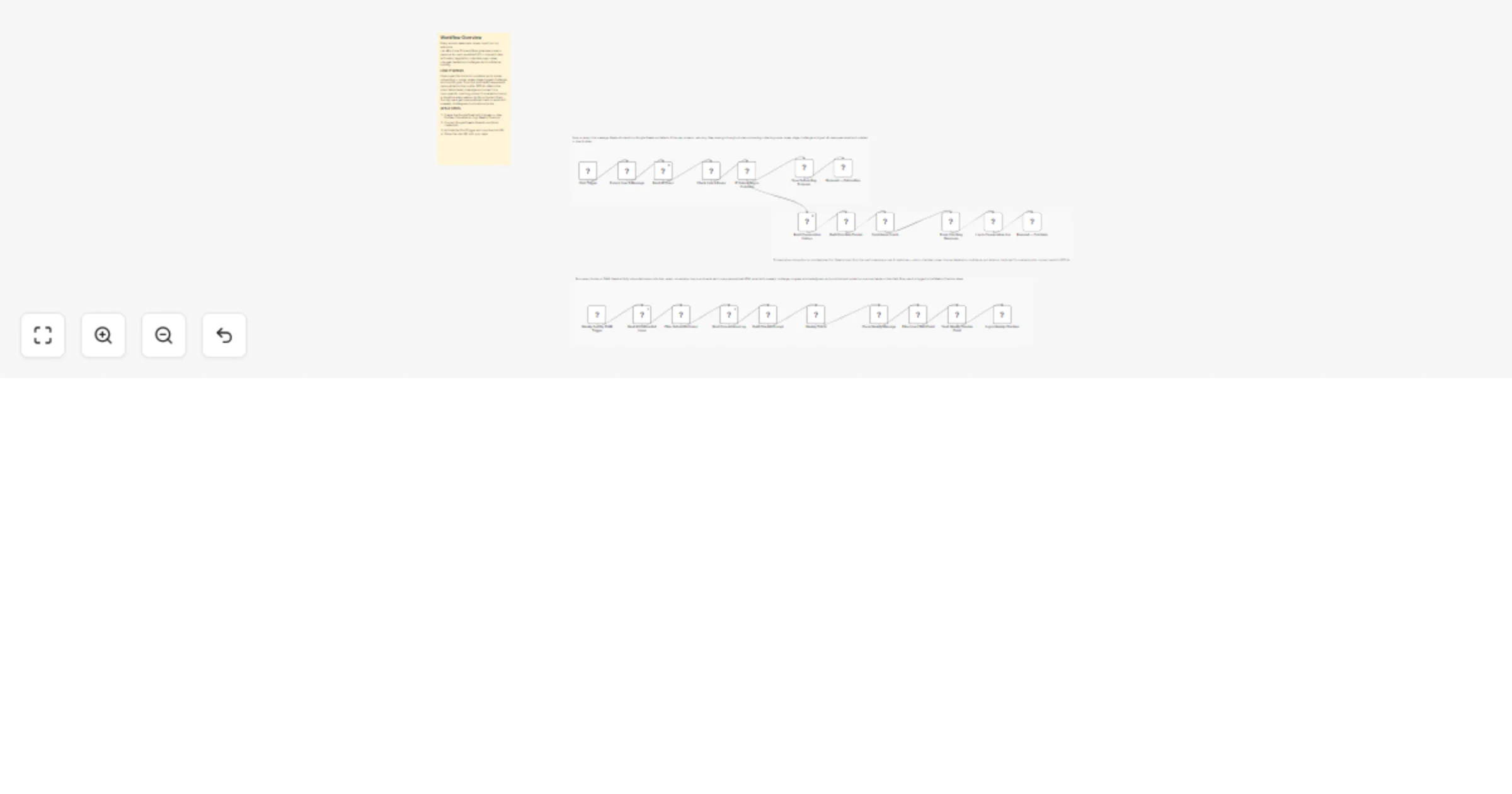
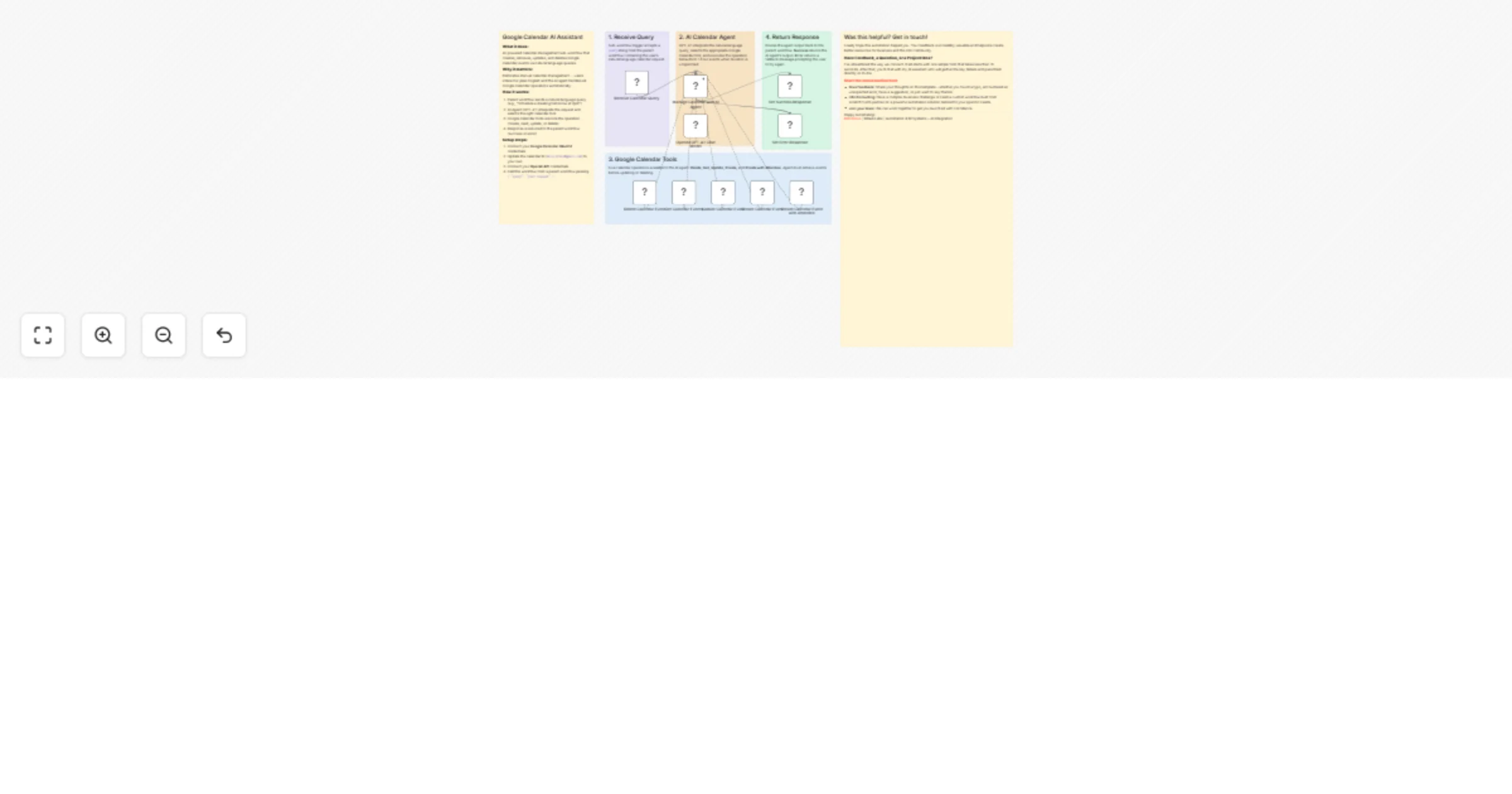
Reply Handling (Optional Extension) This optional workflow handles email replies after availability options have been sent. It extends the main scheduling flow by enabling two-way, email-based confirmation. What this extension does Listens for user replies via Gmail Normalizes free-text replies into structured data Detects whether the user confirmed a proposed slot or requested alternatives Automatically creates a Google Calendar event on confirmation Sends a confirmation or follow-up email accordingly Why this matters Most scheduling automations stop after sending availability. This extension closes the loop by turning email replies into real actions — without requiring booking links or manual follow-ups. Typical reply examples 1 → Confirms the suggested time and creates the calendar event 2 → Requests alternative time slots and continues the scheduling flow When to use this Email-first scheduling (no Calendly / booking pages) High-touch or human-like scheduling flows Sales calls, interviews, consultations, internal meetings

k
kota
Personal Productivity
26 Dec 2025
23
0
Workflow preview: Google Calendar automated notifications with email, SMS & analytics dashboard
Free advanced

Google Calendar automated notifications with email, SMS & analytics dashboard

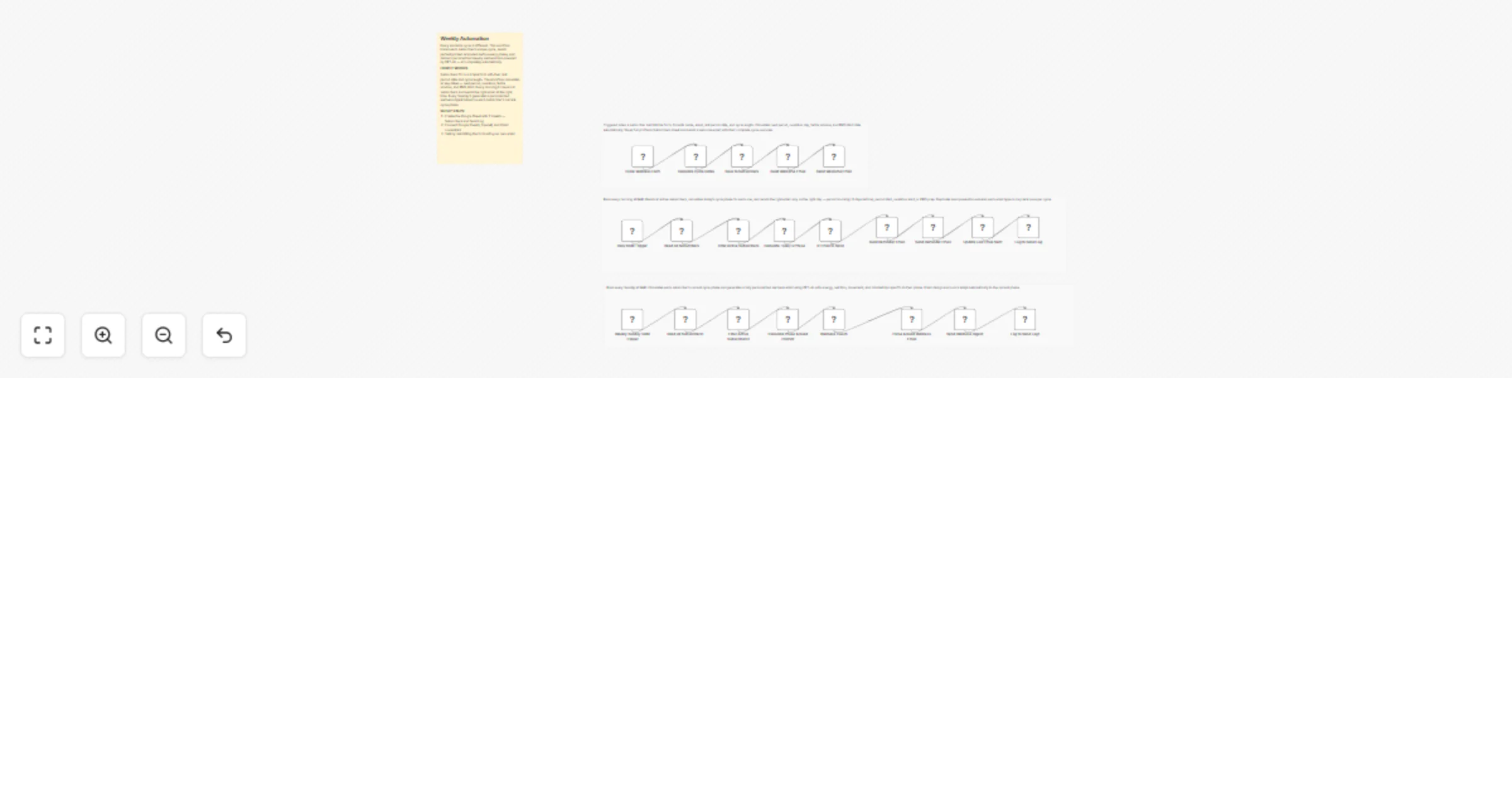
Automatically turn your Google Calendar into a fully-automated notification system with email alerts, SMS reminders, and a live performance dashboard - all powered by n8n. This automation helps you never miss an event, while giving you clear visibility into what notifications were sent, when, and how reliably they ran. **What This Automation Does** This solution is built as 4 connected workflows that run on a schedule and work together: **1. Daily Email Summary (Morning)** Every morning, the workflow: - Reads today’s events from Google Calendar - Formats them into a clean email - Sends a daily schedule summary via Mailchimp or SendGrid **2. Daily SMS Summary** Shortly after, it: Sends a concise SMS overview of today’s meetings using Twilio **3. 15-Minute Event Reminders** Before each event: - Sends an individual SMS reminder - Skips all-day events automatically **4. Weekly Schedule Preview** Every Sunday: - Sends a week-ahead summary so you can plan in advance **Live Reporting & Dashboard** All workflow activity is logged automatically into Google Sheets, which powers a real-time analytics dashboard showing: - Number of notifications sent - Success vs failure rates - Daily and weekly execution stats - Visual charts powered by Chart.js - No manual tracking needed, everything updates automatically. **How the Workflow Is Structured** The automation is grouped into 3 clear sections: **Section 1: Calendar Data Collection** - Pulls events from Google Calendar - Filters relevant meetings - Prepares clean event data **Section 2: Notifications & Messaging** - Formats emails and SMS messages - Sends reminders and summaries - Handles scheduling logic **Section 3: Logging & Reporting** - Saves every execution to Google Sheets - Updates daily stats automatically - Feeds the live dashboard **SUPPORT & FEEDBACK** Questions or issues? Connect with me on [LinkedIn](https://www.linkedin.com/in/gilbert-onyebuchi/) Want to see it in action? Try the live report demo: [Click here](https://sites.google.com/view/template-n8n/test-products/calendar-analytics)

G
Gilbert Onyebuchi
Personal Productivity
24 Dec 2025
62
0
Workflow preview: Sync Google Calendar events to Google Sheets with Slack notifications
Free advanced

Sync Google Calendar events to Google Sheets with Slack notifications

Sync your Google Calendar events with Google Sheets and get daily Slack summaries with meeting statistics. FEATURES: Real-time sync of new and updated events Auto-categorization (Meeting, 1:1, Interview, Demo, Focus Time) Platform detection (Google Meet, Zoom, Teams) Daily statistics dashboard Cancellation tracking Optional email notifications to attendees FLOWS: New Event: Log to Sheets + Slack notification + Optional email Updated Event: Update Sheets + Slack notification Canceled Event: Log cancellation + Slack alert Daily Summary (8AM): Meeting time stats + Schedule to Slack SETUP: Connect Google account with Calendar access Create Google Sheet with 3 tabs: Events: ID, Synced At, Title, Category, Date, Day, Start Time, End Time, Duration, Platform, Attendees, Status, Meeting Link Cancellations: ID, Canceled At, Title, Original Date, Original Time, Affected Attendees Statistics: Date, Total Events, Meeting Time, Minutes, Busy %, Status, Virtual, In-Person Replace YOUR_DOCUMENT_ID in all Sheets nodes Connect Slack (#calendar, #errors channels) Optional: Connect Gmail for attendee notifications DAILY STATISTICS: Total events count Time spent in meetings Busy percentage of work day Virtual vs in-person breakdown Full day schedule IDEAL FOR: Anyone wanting to track their calendar, analyze meeting patterns, or get daily schedule summaries on Slack.

M
Manu
Personal Productivity
24 Dec 2025
17
0
Workflow preview: AI-powered productivity coach using Google Calendar, Todoist, Slack and Sheets
Free advanced

AI-powered productivity coach using Google Calendar, Todoist, Slack and Sheets

# Analyze productivity metrics from Google Calendar and Todoist to Slack This workflow acts as an automated personal productivity coach. It aggregates data from your daily tools (Google Calendar, Todoist, and Slack) to provide AI-driven insights into your work habits. It runs daily to log metrics to Google Sheets and sends a summary to Slack. Additionally, every Friday, it generates a comprehensive strategic weekly review. ## Who is this for? - **Remote Workers & Freelancers** who want to track their focus time and meeting load. - **Productivity Enthusiasts** looking to automate their "Quantified Self" data collection. - **Managers** who want a high-level overview of their weekly throughput and communication volume without manual tracking. ## What it does 1. **Daily Trigger:** Runs automatically every weekday morning (default: 8 AM). 2. **Data Collection:** - Fetches today's meetings from **Google Calendar**. - Retrieves high-priority and overdue tasks from **Todoist**. - Analyzes recent message activity from **Slack**. 3. **AI Analysis:** Uses **OpenAI** to analyze the data, identifying focus blocks and potential overload risks. 4. **Logging:** Saves raw metrics (meeting hours, task counts, message volume) to a **Google Sheet** for historical tracking. 5. **Reporting:** - Sends a "Daily Productivity Summary" to Slack with actionable advice. - On Fridays, it pulls the last 7 days of data from Google Sheets to generate and send a **Weekly Strategic Report** to Slack. ## Requirements - **n8n** (Self-hosted or Cloud) - **Google Cloud Console** project with Calendar and Sheets APIs enabled. - **Todoist** account. - **Slack** workspace. - **OpenAI** API Key (GPT-4 is recommended for better analysis). ## How to set up 1. **Configure Credentials:** Set up your credentials in n8n for Google (OAuth2), Todoist, Slack, and OpenAI. 2. **Prepare Google Sheet:** - Create a new Google Sheet. - Create the following header columns in the first row: `date`, `meetingHours`, `tasksCount`, `slackMessages`. 3. **Update Nodes:** - **Log Daily Metrics** node: Select your Spreadsheet and Sheet name. - **Fetch Last 7 Days Data** node: Select the same Spreadsheet. - **Slack** nodes: Select the channel where you want to receive reports. 4. **Activate:** Toggle the workflow to **Active**. ## How to customize - **Adjust Schedule:** Change the *Schedule Daily Execution* node to fit your preferred reporting time. - **Modify AI Persona:** Edit the system prompt in the *AI Analysis* node to change the tone of the report (e.g., make it more strict or more encouraging). - **Add Data Sources:** You can easily chain additional nodes (like GitHub or Jira) into the *Aggregate Data* code node to include coding or project management metrics.

s
satoshi
Personal Productivity
22 Dec 2025
40
0
Workflow preview: Track & alert public transport delays using ScrapeGraphAI, Teams and Todoist
Free advanced

Track & alert public transport delays using ScrapeGraphAI, Teams and Todoist

# Public Transport Delay Tracker with Microsoft Teams and Todoist **⚠️ COMMUNITY TEMPLATE DISCLAIMER: This is a community-contributed template that uses ScrapeGraphAI (a community node). Please ensure you have the ScrapeGraphAI community node installed in your n8n instance before using this template.** This workflow continuously monitors public-transportation websites and apps for real-time schedule changes and delays, then posts an alert to a Microsoft Teams channel and creates a follow-up task in Todoist. It is ideal for commuters or travel coordinators who need instant, actionable updates about transit disruptions. ## Pre-conditions/Requirements ### Prerequisites - An n8n instance (self-hosted or n8n cloud) - ScrapeGraphAI community node installed - Microsoft Teams account with permission to create an Incoming Webhook - Todoist account with at least one project - Access to target transit authority websites or APIs ### Required Credentials - **ScrapeGraphAI API Key** – Enables scraping of transit data - **Microsoft Teams Webhook URL** – Sends messages to a specific channel - **Todoist API Token** – Creates follow-up tasks - *(Optional)* Transit API key if you are using a protected data source ### Specific Setup Requirements | Resource | What you need | |--------------------------|---------------------------------------------------------------| | Teams Channel | Create a channel → Add “Incoming Webhook” → copy the URL | | Todoist Project | Create “Transit Alerts” project and note its Project ID | | Transit URLs/APIs | Confirm the URLs/pages contain the schedule & delay elements | ## How it works This workflow continuously monitors public-transportation websites and apps for real-time schedule changes and delays, then posts an alert to a Microsoft Teams channel and creates a follow-up task in Todoist. It is ideal for commuters or travel coordinators who need instant, actionable updates about transit disruptions. ## Key Steps: - **Webhook (Trigger)**: Starts the workflow on a schedule or via HTTP call. - **Set Node**: Defines target transit URLs and parsing rules. - **ScrapeGraphAI Node**: Scrapes live schedule and delay data. - **Code Node**: Normalizes scraped data, converts times, and flags delays. - **IF Node**: Determines if a delay exceeds the user-defined threshold. - **Microsoft Teams Node**: Sends formatted alert message to the selected Teams channel. - **Todoist Node**: Creates a “Check alternate route” task with due date equal to the delayed departure time. - **Sticky Note Node**: Holds a blueprint-level explanation for future editors. ## Set up steps **Setup Time: 15–20 minutes** 1. **Install community node**: In n8n, go to “Manage Nodes” → “Install” → search for “ScrapeGraphAI” → install and restart n8n. 2. **Create Teams webhook**: In Microsoft Teams, open target channel → “Connectors” → “Incoming Webhook” → give it a name/icon → copy the URL. 3. **Create Todoist API token**: Todoist → Settings → Integrations → copy your personal API token. 4. **Add credentials in n8n**: Settings → Credentials → create new for ScrapeGraphAI, Microsoft Teams, and Todoist. 5. **Import workflow template**: File → Import Workflow JSON → select this template. 6. **Configure Set node**: Replace example transit URLs with those of your local transit authority. 7. **Adjust delay threshold**: In the Code node, edit `const MAX_DELAY_MINUTES = 5;` as needed. 8. **Activate workflow**: Toggle “Active”. Monitor executions to ensure messages and tasks are created. ## Node Descriptions ### Core Workflow Nodes: - **Webhook** – Triggers workflow on schedule or external HTTP request. - **Set** – Supplies list of URLs and scraping selectors. - **ScrapeGraphAI** – Scrapes timetable, status, and delay indicators. - **Code** – Parses results, converts to minutes, and builds payloads. - **IF** – Compares delay duration to threshold. - **Microsoft Teams** – Posts formatted adaptive-card-style message. - **Todoist** – Adds a task with priority and due date. - **Sticky Note** – Internal documentation inside the workflow canvas. ### Data Flow: 1. **Webhook** → **Set** → **ScrapeGraphAI** → **Code** → **IF** a. **IF (true branch)** → **Microsoft Teams** → **Todoist** b. **IF (false branch)** → (workflow ends) ## Customization Examples ### Change alert message formatting ```javascript // In the Code node const message = `⚠️ Delay Alert: Route: ${item.route} Expected: ${item.scheduled} New Time: ${item.newTime} Delay: ${item.delay} min Link: ${item.url}`; return [{ json: { message } }]; ``` ### Post to multiple Teams channels ```javascript // Duplicate the Microsoft Teams node and reference a different credential items.forEach(item => { item.json.webhookUrl = $node["Set"].json["secondaryChannelWebhook"]; }); return items; ``` ## Data Output Format The workflow outputs structured JSON data: ```json { "route": "Blue Line", "scheduled": "2024-12-01T14:25:00Z", "newTime": "2024-12-01T14:45:00Z", "delay": 20, "status": "Delayed", "url": "https://transit.example.com/blue-line/status" } ``` ## Troubleshooting ### Common Issues 1. **Scraping returns empty data** – Verify CSS selectors/XPath in the Set node and ensure the target site hasn’t changed its markup. 2. **Teams message not sent** – Check that the stored webhook URL is correct and the connector is still active. 3. **Todoist task duplicated** – Add a unique key (e.g., route + timestamp) to avoid inserting duplicates. ### Performance Tips - Limit the number of URLs per execution when monitoring many routes. - Cache previous scrape results to avoid hitting site rate limits. **Pro Tips:** - Use n8n’s built-in Cron instead of Webhook if you only need periodic polling. - Add a SplitInBatches node after scraping to process large route lists incrementally. - Enable execution logging to an external database for detailed audit trails.

v
vinci-king-01
Personal Productivity
22 Dec 2025
11
0
Workflow preview: AI expense tracker: Telegram voice/photo/text to sheets
Free advanced

AI expense tracker: Telegram voice/photo/text to sheets

## Why I built this? (The Problem) Most expense tracker apps (like Money Lover, Spendee, or Wallet) have a common friction point: **Data Entry**. You have to unlock your phone, find the app, wait for it to load, navigate menus, and manually select categories. It’s tedious, so we often forget to log small expenses. I wanted a solution that lives where I already spend my time: **Telegram**. This workflow allows you to log expenses in seconds—just by **sending a text**, a **voice note while driving**, or **a photo of a receipt**. No UI navigation required. ### Comparison: This Workflow vs. Traditional Apps |Feature|Traditional Expense Apps|This n8n Workflow| |-|-|-| |**Data Ownership**|Data is locked in their proprietary database.|**100% Yours**. It lives in your Google Sheet. You can export, pivot, or connect it to Looker Studio.| |**Input Speed**|Slow. Requires multiple taps/clicks.|**Instant**. Send a text/voice/photo to a Telegram bot.| |**Flexibility**|Rigid categories & logic.|**Infinite**. You can customize the AI prompt, categories, and currency logic.| |**Cost**|Often requires monthly subscriptions for premium features.|**Low Cost**. Runs on your n8n instance + Gemini Flash API (which is currently free/very cheap).| |**UI/UX**|Beautiful, pre-built mobile dashboards.|**Raw Data**. You view data in Google Sheets (though you can build a dashboard there)| ## Key Features - **Multi-Modal Input:** Just send what you have. -- ***Text***: "Lunch 50k, Taxi 30k" (Splits into 2 rows). -- ***Voice***: Speak naturally, AI transcribes and extracts data. -- ***Photo***: OCRs receipts and parses details. - **Global Currency Support:** Uses Gemini AI to intelligently detect currency. You can set a default currency (e.g., USD, VND) in the Config node. - **Smart Extraction & Categorization:** -- *Automatically splits* multiple items in one message (e.g., "Lunch 20k and Grab 50k" → 2 separate rows). -- *AI automatically* assigns *categories* (Food, Transport, Bills, etc.) based on the item name. - **Budget Management:** Use the command `/add budget 500` to instantly top up your monthly budget. - **"Quiet" Reporting:** Instead of spamming you after every message, the system waits for **30 minutes of inactivity** before sending a daily summary report (Debounce logic). ## Setup Instructions **1. Prerequisites** - **Google Sheet:** You **MUST** make a copy of this template: **[[Google Sheet Template here]](https://docs.google.com/spreadsheets/d/1bVdxslvMkTA1DDQv6kQ5j-COC8ZOH8AfEWmn31Rq6l4/edit?usp=sharing)** - **n8n Data Table:** This workflow requires a Data Table named `ReportTokens` for the reporting feature. Please read the setup guide below. **[Setup Guide: AI Expense Tracker](https://heavenly-slash-181.notion.site/Setup-Guide-AI-Expense-Tracker-2d1bb04db1cf80c6ad88cc15e83a7c47?source=copy_link)** **2. Configure the Workflow** - **Credentials:** Connect **Telegram**, **Google Sheets**, and **Google Gemini (PaLM)**. - **Config Node:** Open the `CONFIG - User Settings` node and update these fields. -- `spreadsheet_id`: The ID of your copied Google Sheet -- `sheet_gid_dashboard`: The ID of your sheet Dashboard -- `sheet_gid_budget`: he ID of your sheet Budget_Topups -- `currency_code`: Your currency code (e.g., USD, EUR, VND). -- `currency_symbol`: Your currency symbol (e.g., $, €, ₫). -- `locale`: Your locale for number formatting (e.g., en-US, vi-VN). - **Data Table**: Create a table in n8n with columns: `chat_id`, `report_token`, `updated_at` (All type: String). Link this table to the relevant nodes in the workflow. **3. Usage** - **Log Expense**: Send *"Coffee $5"* or a photo. - **Add Budget**: Send command `/add budget 1000` ## Need Help or Want to Customize This? Contact me for consulting and support: **Email**: [email protected]

C
Cuong Nguyen
Personal Productivity
22 Dec 2025
341
0
Workflow preview: Movie release calendar: Add TMDB films to Google Calendar via Telegram Bot
Free intermediate

Movie release calendar: Add TMDB films to Google Calendar via Telegram Bot

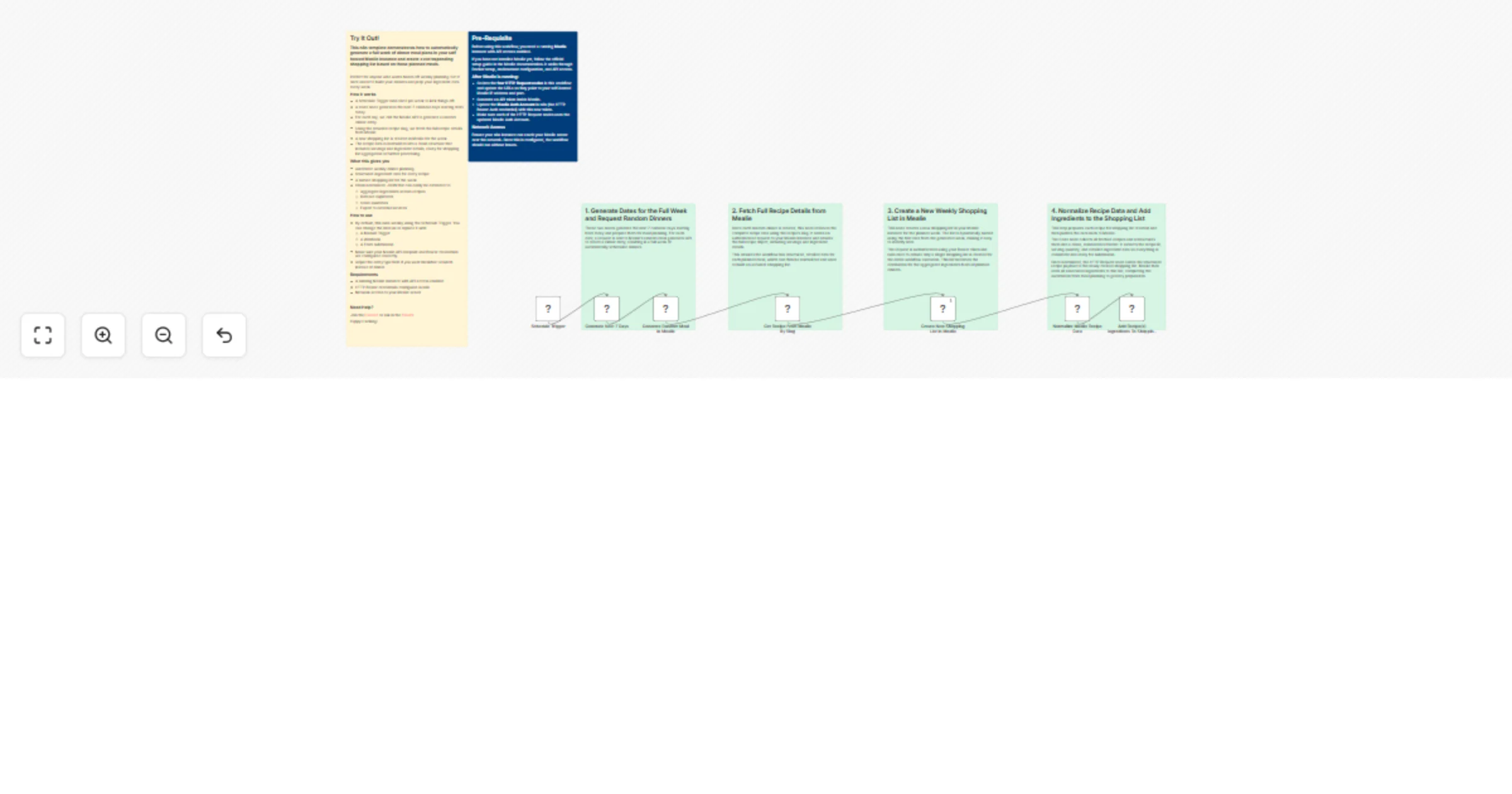
## Add Upcoming Movies from TMDB to Your Google Calendar Via Telegram This n8n template demonstrates how to automatically fetch upcoming movie releases from TMDB and let users add selected movies to their Google Calendar directly from Telegram. ## How it works 1. On a daily schedule, the workflow queries the TMDB API for upcoming movie releases. 2. Each movie is checked against an n8n data table to avoid duplicates. 3. New movies are stored in the data table for tracking. 4. Movie details are sent to a Telegram chat with an inline “Add to calendar” button. 5. When the button is pressed, the workflow retrieves the movie data from the table. 6. A calendar event is created in Google Calendar using the movie’s release date. ## Use cases - Tracking upcoming movie releases - Personal or shared release calendars - Telegram-based reminders for entertainment events - Automating calendar updates from public APIs ## Requirements - TMDB API access token - Telegram bot token and user ID - Google Calendar OAuth credentials - One n8n data table for storing movie metadata

A
Anton Bezman
Personal Productivity
22 Dec 2025
72
0
Workflow preview: Manage Notion to-do tasks via Telegram with voice messages & OpenAI
Free advanced

Manage Notion to-do tasks via Telegram with voice messages & OpenAI

# Your Own Personal Assistant This workflow turns a Telegram bot into a simple Notion To-Do assistant. Send a message in Telegram (text or voice). If it’s a voice message, the workflow downloads the audio and uses OpenAI to transcribe it into text. Then an AI agent (“Tard”) uses the latest message + a short memory of the recent chat to understand what you want and perform the right action in Notion (search your pages or create a new task/page in your To-Do list). The result is sent back to you in Telegram in a clean, readable format. > Email and Calendar nodes are included for future expansion but are disabled by default. The assistant is designed to work with Notion only.

w
weblane
Personal Productivity
15 Dec 2025
97
0
Workflow preview: Automate personalized assignment reminders for students with Canvas
Free advanced

Automate personalized assignment reminders for students with Canvas

## Canvas: Send students their pending assignments ### How it works 1. Trigger the workflow and set the Canvas base URL and target course name. 2. Fetch all instructor courses and locate the course ID that matches the name. 3. Retrieve enrolled students and their unsubmitted submissions for the course, handling paginated results. 4. Merge student records with submission data, convert due dates to local time, and build a per-student summary. 5. Send a Canvas conversation to each student with a personalized list of pending assignments and links. ### Setup - [ ] Connect Canvas API credentials (Bearer and header auth used by the workflow). - [ ] Enter your Canvas base URL (e.g. https://your_educational_institution.instructure.com). - [ ] Set the exact course name to check for pending work. - [ ] Confirm the teacher account can view students and send conversations. - [ ] Run the workflow manually to verify output and delivery. - [ ] Edit the message subject or body template if you need different wording.

A
Alysson Neves
Personal Productivity
12 Dec 2025
102
0
Workflow preview: Sync tasks between Notion and Todoist in both directions with Redis
Free advanced

Sync tasks between Notion and Todoist in both directions with Redis

# Purpose This solution enables you to manage all your Notion and Todoist tasks from different workspaces as well as your calendar events in a single place. This is 2 way sync with partial support for recurring # How it works - The realtime sync consists of two workflows, both triggered by a registered webhook from either Notion or Todoist. - To avoid overwrites by lately arriving webhook calls, every time the current task is retrieved from both sides. - Redis is used to prevent from endless loops, since an update in one system triggers another webhook call again. Using the ID of the task, the trigger is being locked down for 80 seconds. - Depending on the detected changes, the other side is updated accordingly .Generally Notion is treaded as the main source. Using an "Obsolete" Status, it is guaranteed, that tasks never get deleted entirely by accident. - The Todoist ID is stored in the Notion task, so they stay linked together - An additional full sync workflow daily fixes inconsistencies, if any of them occurred, since webhooks cannot be trusted entirely. - Since Todoist requires a more complex setup, a tiny workflow helps with activating the webhook. - Another tiny workflow helps generating a global config, which is used by all workflows for mapping purposes. # Mapping (Notion >> Todoist) - Name: Task Name - Priority: Priority (1: do first, 2: urgent, 3: important, 4: unset) - Due: Date - Status: Section (Done: completed, Obsolete: deleted) - <page_link>: Description (read-only) - Todoist ID: <task_id> # Current limitations - Changes on the same task cannot be made simultaneously in both systems within a 15-20 second time frame. - Subtasks are not linked automatically to their parent yet. - Tasks names do not support URL’s yet. ## Credentials Follow the video: - Setup credentials for Notion (access token), Todoist (access token) and Redis. ### Todoist - Follow this video to get Todoist to obtain API Token. [Todoist Credentials.mp4](attachment:c9b434dc-98e8-44b9-b74f-a459395ef6a2:Todoist_Credentials.mp4) ### Notion - Follow this video to get Notion Integration Secret. []() ### Redis - Follow this video to get Redis []() # Setup *The setup involves quite a lot of steps, yet many of them can be automated for business internal purposes.* Just follow the video or do the following steps: - Setup credentials for Notion (access token), Todoist (access token) and Redis - you can also create empty credentials and populate these later during further setup - Clone this workflow by clicking the "Use workflow" button and then choosing your n8n instance - otherwise you need to map the credentials of many nodes. - Follow the instructions described within the bundle of sticky notes on the top left of the workflow # How to use - You can apply changes (create, update, delete) to tasks both in Notion and Todoist which then get synced over within a couple of seconds (this is handled by the differential realtime sync) - The daily running full sync, resolves possible discrepancies in Todoist. This workflow incorporates ideas and techniques inspired by Mario (https://n8n.io/creators/octionic/) whose expertise with specific nodes helped shape parts of this automation. Significant enhancements and customizations have been made to deliver a unique and improved solution.

Y
Yuvraj Singh
Personal Productivity
12 Dec 2025
0
0
Workflow preview: Create AI diary entries from LINE photos with OpenAI Vision and Google Drive
Free advanced

Create AI diary entries from LINE photos with OpenAI Vision and Google Drive

**Overview** This workflow turns photos sent to a LINE bot into tiny AI-generated diary entries and saves everything neatly in Google Drive. Each time a user sends an image, the workflow creates a timestamped photo file and a matching text file with a short diary sentence, stored inside a year/month folder structure (KidsDiary/YYYY/MM). It’s a simple way to keep a lightweight visual diary for kids or daily life without manual typing. LINE Photo to AI Diary with Goo… **Who this is for** Parents who want to archive kids’ photos with a short daily comment People who often send photos to LINE and want them auto-organized in Drive Anyone who prefers a low-friction, “take a photo and forget” style diary **How it works** Trigger: A LINE Webhook receives an image message from the user. Extract metadata: The workflow extracts the messageId and replyToken. Download image: It calls the LINE content API to fetch the image as binary. AI diary text: OpenAI Vision generates a one-sentence, diary-style caption (about 50 Japanese characters). Folder structure: A KidsDiary/YYYY/MM folder is created (or reused) in Google Drive. Save files: The photo is saved as YYYY-MM-DD_HHmmss.jpg and the diary text as YYYY-MM-DD_HHmmss_diary.txt in the same folder. Confirm on LINE: The bot replies to the user that the photo and diary have been saved. **How to set up** Connect your LINE Messaging API credentials in the HTTP Request nodes. Connect your Google Drive credential in the Google Drive nodes and choose a root folder. Make sure the webhook URL is correctly registered in the LINE Developers console. **Customization ideas** Change the AI prompt to adjust tone (e.g., more playful, more sentimental). Localize the diary language or add an English translation. Add a second branch to post the saved diary entry to Slack, Notion, or email. Organize Google Drive folders by child’s name instead of only by date.

S
SOLOVIEVA ANNA
Personal Productivity
3 Dec 2025
23
0
Workflow preview: Smart break recommendation system using Google Calendar, weather data, and GPT-4 to Slack
Free advanced

Smart break recommendation system using Google Calendar, weather data, and GPT-4 to Slack

Who is this for This workflow is perfect for busy professionals, consultants, and anyone who frequently travels between meetings. If you want to make the most of your free time between appointments and discover great nearby spots without manual searching, this template is for you. What it does This workflow automatically monitors your Google Calendar and identifies gaps between appointments. When it detects sufficient free time (configurable, default 30+ minutes), it calculates travel time to your next destination, checks the weather, and uses AI to recommend the top 3 spots to visit during your break. Recommendations are weather-aware: indoor spots like cafés in malls or stations for rainy days, and outdoor terraces or open-air venues for nice weather. How it works Schedule Trigger - Runs every 30 minutes to check your calendar Fetch Data - Gets your next calendar event and user preferences from Notion Calculate Gap Time - Determines available free time by subtracting travel time (via Google Maps) from time until your next appointment Weather Check - Gets current weather at your destination using OpenWeatherMap Smart Routing - Routes to indoor or outdoor spot search based on weather conditions AI Recommendations - GPT-4.1-mini analyzes spots and generates personalized top 3 recommendations Slack Notification - Sends a friendly message with recommendations to your Slack channel Set up steps Configure API Keys - Add your Google Maps, Google Places, and OpenWeatherMap API keys in the "Set Configuration" node Connect Google Calendar - Set up OAuth connection and select your calendar Set up Notion - Create a database for user preferences and add the database ID Connect Slack - Set up OAuth and specify your notification channel Connect OpenAI - Add your OpenAI API credentials Customize - Adjust currentLocation and minGapTimeMinutes to your needs Requirements Google Cloud account with Maps and Places APIs enabled OpenWeatherMap API key (free tier available) Notion account with a preferences database Slack workspace with bot permissions OpenAI API key How to customize Change trigger frequency: Modify the Schedule Trigger interval Adjust minimum gap time: Change minGapTimeMinutes in the configuration node Modify search radius: Edit the radius parameter in the Places API calls (default: 1000m) Customize spot types: Modify the type and keyword parameters in the HTTP Request nodes Change AI model: Switch to a different OpenAI model in the AI node Localize language: Update the AI prompt to generate responses in your preferred language

長谷 真宏
Personal Productivity
2 Dec 2025
15
0
Workflow preview: Convert Gmail emails to Telegram voice messages with GPT-5 and Inworld TTS
Free intermediate

Convert Gmail emails to Telegram voice messages with GPT-5 and Inworld TTS

## **Who’s it for** For makers, founders, and productivity nerds who want to **listen to their inbox** instead of reading it. No servers, no hosting — all done with **n8n**, a **Telegram bot**, and **AI/ML API** (LLM + TTS). ## **What it does / How it works** This workflow listens for **new Gmail emails**, extracts the sender, subject, date, and snippet, generates a **2–3 sentence natural summary** using GPT-5 via AI/ML API, then converts the text into a **lifelike voice message** using **Inworld TTS-1-Max**. The final audio file is downloaded and instantly delivered to your Telegram via a bot. A separate auxiliary flow captures your **Telegram chat_id** once, stores it in a Data Table, and the main flow reuses it every time — no hardcoding required. High-level flow: 1. Gmail Trigger detects new incoming email 2. Code node builds a clean `emailData` block 3. AI/ML API (GPT-5) generates a natural spoken summary 4. AI/ML API (Inworld TTS-1-Max) converts summary → voice 5. Audio file is downloaded 6. Voice message is sent to the same Telegram chat ## **Requirements** * A working n8n instance (self-hosted or cloud) * Gmail OAuth2 credentials * Telegram bot token from **@BotFather** * AI/ML API key * Base URL: `https://api.aimlapi.com/v1` * Supports GPT-5 and Inworld TTS-1-Max ## **Set up steps** * Create a Telegram bot via **@BotFather** and add Telegram API credentials in n8n * Create an **AI/ML API** credential using your API key * Add Gmail OAuth2 credentials for inbox access * Import the workflow JSON * Open nodes and attach the correct credentials (no hardcoded tokens inside nodes) * Run the Telegram Trigger once and send any message to your bot — this saves your `chat_id` * Activate your workflow and receive your first voice-summary ## **How to customize** * Replace GPT-5 with another LLM from AI/ML API (same schema) * Change prompt style: tone, structure, language, or verbosity * Add language selection or multi-voice support * Add filters (e.g., only important emails, only starred emails) * Log all activity to Google Sheets or a database * Add IF conditions: voice only during certain hours, weekday vs weekend rules * Add rate-limits or user allowlists * Change the voice model for different notification styles: corporate, friendly, narrator

A
AI/ML API | D1m7asis
Personal Productivity
1 Dec 2025
43
0
Workflow preview: Track expenses automatically with Telegram Bot using GPT-4o, OCR and voice recognition
Free advanced

Track expenses automatically with Telegram Bot using GPT-4o, OCR and voice recognition

# Personal Expense Tracker Bot 💰 AI-powered Telegram bot for effortless expense tracking. Send receipts, voice messages, or text - the bot automatically extracts and categorizes your expenses. ## ✨ Key Features - **📸 Receipt & Invoice OCR** - Send photos of receipts or PDF invoices, AI extracts expense data automatically - **🎤 Voice Messages** - Speak your expenses naturally, audio is transcribed and processed - **💬 Natural Language** - Just type "spent 50 on groceries" or any text format - **🌍 Multilingual** - Processes documents in any language (EN, DE, PT, etc.) - **📊 Smart Statistics** - Get monthly totals, category breakdowns, multi-month comparisons - **🔒 Private & Secure** - Single-user authorization, only you can access your data - **⚡ Zero Confirmation** - Expenses are added instantly, no annoying "confirm?" prompts ## 🎯 How It Works 1. **Send expense data** via Telegram: - Photo of receipt - PDF invoice - Voice message - Text message 2. **AI processes automatically**: - Extracts amount, date, vendor - Categorizes expense - Stores in organized format 3. **Query your expenses**: - "Show my expenses for November" - "How much did I spend on groceries?" - "Compare last 3 months" ## 📋 Expense Categories Groceries, Transportation, Housing, Utilities, Healthcare, Entertainment, Dining Out, Clothing, Education, Subscriptions, Personal Care, Gifts, Travel, Sports, Other ## 🔧 Setup Requirements ### 1. Telegram Bot Create a Telegram bot via [@BotFather](https://t.me/botfather) and get your API token. Configure credentials for nodes: - Input, WelcomeMessage, - GetAudioFile, GetAttachedFile, GetAttachedPhoto - ReplyText, NotAuthorizedMessage, DeleteProcessing ### 2. OpenRouter API Get API key from [OpenRouter](https://openrouter.ai/) for AI processing. Configure credentials for: - Gpt4o (main processing) - Sonnet45 (expense assistant) ### 3. Ainoflow API Get API key from [Ainoflow](https://www.ainoflow.io/signup) for storage and OCR. Configure Bearer credentials for: - GetConfig, SaveConfig - ExtractFileText, ExtractImageText - TranscribeRecording - JsonStorageMcp (MCP tool) ## 🏗️ Workflow Architecture | Section | Description | |---------|-------------| | **Message Trigger** | Receives all Telegram messages | | **Bot Privacy** | Locks bot to first user, rejects unauthorized access | | **Chat Message / Audio** | Routes text and voice messages to AI | | **Document / Photo** | Extracts text from files via OCR and forwards to AI | | **Root Agent** | Routes messages to Expense Assistant, validates responses | | **Expense Assistant** | Core logic: stores expenses, calculates statistics | | **Result / Reply** | Sends formatted response back to Telegram | | **Cleanup / Reset** | Manual trigger to delete all data (⚠️ use with caution) | ## 💬 Usage Examples ### Adding Expenses ``` 📸 [Send receipt photo] → Added: 45.50 EUR - Groceries (Lidl) 🎤 "Bought coffee for five euros" → Added: 5.00 EUR - Dining Out (coffee) 💬 "50 uber" → Added: 50.00 EUR - Transportation (uber) ``` ### Querying Expenses ``` "Show my expenses" → November 2025: 1,250.50 EUR (23 expenses) Top: Groceries 450€, Transportation 280€, Dining 220€ "How much on entertainment this month?" → Entertainment: 85.00 EUR (3 expenses) "Compare October and November" → Oct: 980€ | Nov: 1,250€ (+27%) ``` ## 📦 Data Storage Expenses are stored in JSON format organized by month (YYYY-MM): ```json { "id": "uuid", "amount": 45.50, "currency": "EUR", "category": "Groceries", "description": "Store name", "date": "2025-11-10T14:30:00Z", "created_at": "2025-11-10T14:35:22Z" } ``` ## ⚠️ Important Notes - **First user locks the bot** - Run `/start` to claim ownership - **Default currency is EUR** - AI auto-detects other currencies - **Cleanup deletes ALL data** - Use manual trigger with caution - **No confirmation for adding** - Only delete operations ask for confirmation ## 🛠️ Customization - Change default currency in agent prompts - Add/modify expense categories in ExpenseAssistant - Extend Root Agent with additional assistants - Adjust AI models (swap GPT-4o/Sonnet as needed) ## 📚 Related Resources - [Create Telegram Bot](https://blog.n8n.io/create-telegram-bot/) - [OpenRouter Credentials](https://docs.n8n.io/integrations/builtin/credentials/openrouter/) - [Ainoflow Platform](https://www.ainoflow.io/) ## 💼 Need Customization? Want to adapt this template for your specific needs? Custom integrations, additional features, or enterprise deployment? **Contact us at [Ainova Systems](https://ainovasystems.com/)** - We build AI automation solutions for businesses. --- **Tags:** `telegram`, `expense-tracker`, `ai-agent`, `ocr`, `voice-to-text`, `openrouter`, `mcp-tools`, `personal-finance`

D
Dmitrij Zykovic
Personal Productivity
30 Nov 2025
799
0
Workflow preview: Automate job applications with AI resume tailoring using GPT-4o, LinkedIn & Gmail
Free advanced

Automate job applications with AI resume tailoring using GPT-4o, LinkedIn & Gmail

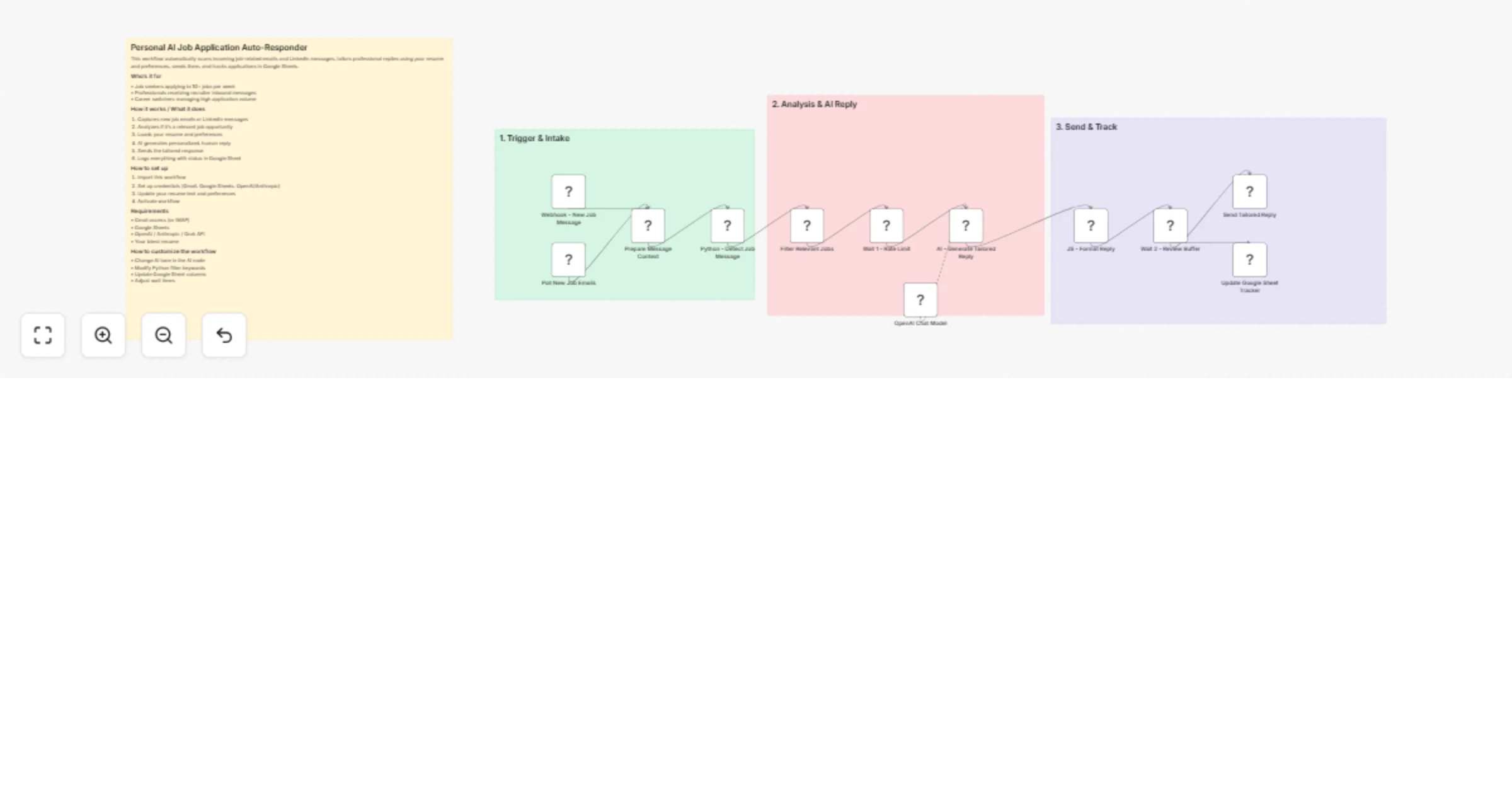
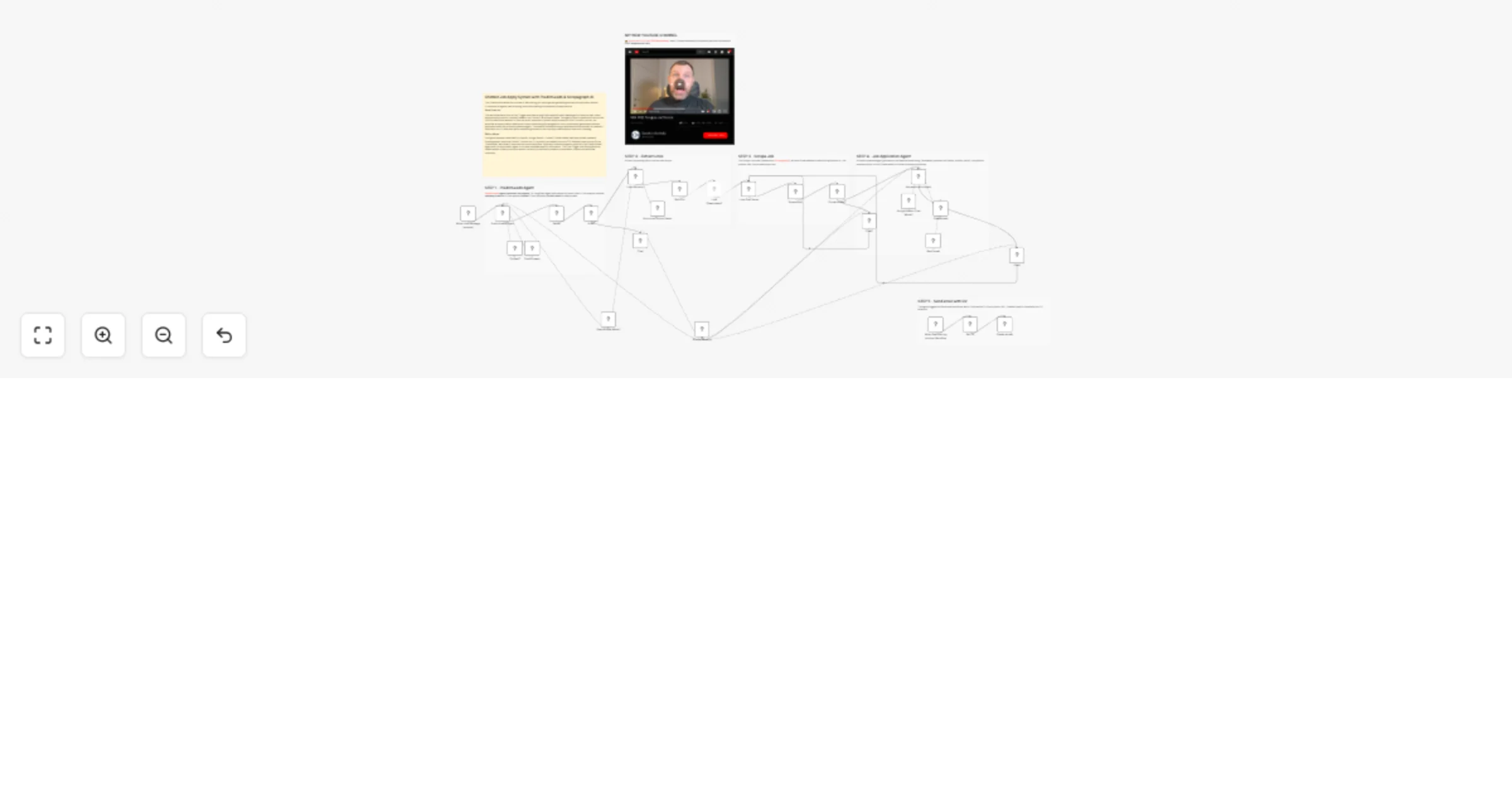
## Overview Stop applying manually. This workflow acts as your personal AI recruiter, automating the end-to-end process of finding high-quality jobs, tailoring your resume, and preparing personalized outreach emails to decision-makers. ## What this workflow does * **Scrapes Real-Time Jobs:** Uses Apify to pull live job listings from LinkedIn based on your specific keywords (e.g., "AI Automation"). * **Smart Filtering:** Uses GPT-4o-mini to analyze job descriptions against your skills and automatically discards roles that aren't a good fit. * **Hyper-Personalized Resume:** Uses GPT-4o to rewrite your "Master Resume" specifically for the target job description. * **Document Generation:** Creates a new Google Doc with the tailored resume and automatically sets sharing permissions. * **Decision Maker Enrichment:** Uses Anymail Finder to locate the verified email address of the Company CEO or Hiring Manager. * **Cold Email Draft:** Generates a personalized pitch in Gmail (Drafts folder) with the link to your custom resume attached. ## Setup Requirements To run this workflow, you will need to set up credentials in n8n for the following services. Please ensure you use n8n credentials and do not hardcode API keys into the HTTP nodes: * **Google Drive & Docs:** To read your master resume and create new application files. * **Apify Account:** To run the LinkedIn Job Scraper actor. * **OpenAI API Key:** For logic (GPT-4o-mini) and writing (GPT-4o). * **Anymail Finder API:** To find contact email addresses. * **Gmail:** To create the draft emails. ## How to use 1. **Upload Resume:** Paste your "Master Resume" text into the first Google Docs node or connect your existing file. 2. **Configure Credentials:** Add your API keys in the n8n credentials section for all services listed above. 3. **Set Search Criteria:** Update the JSON body in the Apify node with your desired LinkedIn job search URL. 4. **Run:** Execute the workflow and watch your drafts folder fill up with ready-to-send applications.

W
Websensepro
Personal Productivity
25 Nov 2025
1013
0
Workflow preview: Analyze food ingredients from Telegram photos using Gemini and Airtable
Free advanced

Analyze food ingredients from Telegram photos using Gemini and Airtable

## Analyze food ingredients from Telegram photos using Gemini and Airtable ## ![telegram_demo.png](fileId:3437) ### 🛡️ Personal Ingredient Bodyguard ### Turn your Telegram bot into an intelligent food safety scanner. This workflow analyzes photos of ingredient labels sent via Telegram, extracts the text using AI, and cross-references it against your personal database of "Good" and "Bad" ingredients in Airtable. It solves the problem of manually reading tiny, complex labels for allergies or dietary restrictions. Whether you are Vegan, Halal, allergic to nuts, or just avoiding specific additives, this workflow acts as a strict, personalized bodyguard for your diet. It even features a customizable "Persona" (like a Sarcastic Bodyguard) to make safety checks fun. ## 🎯 Who is it for? * People with specific dietary restrictions (Vegan, Gluten-free, Keto). * Individuals with food allergies (Nuts, Dairy, Shellfish). * Special dietary observers (Halal, Kosher). * Health-conscious shoppers avoiding specific additives (e.g., E120, Aspartame). ## 🚀 How it works 1. **Trigger:** You send a photo of a product label to your Telegram Bot. 2. **Fetch Rules:** The workflow retrieves your active "Watchlist" (Ingredients to avoid/prefer) and "Persona" settings from Airtable. 3. **Vision & Logic:** It uses an AI Vision model to extract text from the image (OCR) and Google Gemini to analyze the text against your strict veto rules (e.g., "Safe" only if ZERO bad items are found). 4. **Response:** The bot replies instantly on Telegram with a Safe/Unsafe verdict, highlighting detected ingredients using HTML formatting. 5. **Log:** The result is saved back to Airtable for your records. ![Screenshot 20251123 142943.png](fileId:3434) ## ⚙️ How to set up This workflow relies on a specific Airtable structure to function as the "Brain." 1. **Set up Airtable** * Sign up for Airtable: [**Click here**](https://airtable.com/invite/r/Isr7G94S) * **Copy the required Base:** [**Click here to copy the "Ingredients Brain" base**](https://airtable.com/appwuO8h6qLVULY20/shrYVCqWgPtFDPz0q) * Connect Airtable to n8n (5-min guide): [**Watch Tutorial**](https://www.youtube.com/watch?v=xFFfkBeI2rQ) 2. **Set up Telegram** * Message `@BotFather` on Telegram to create a new bot and get your API Token. * Add your Telegram credentials in n8n. 3. **Configure AI** * Add your Google Gemini API credentials. * **Note on OCR:** This template is configured to use a local LLM for OCR to save costs (via the OpenAI-compatible node). If you do not have a local model running, simply swap the "OpenAI Chat Model" node for a standard GPT-4o or Gemini Vision node. ## 📋 Requirements * **n8n** (Cloud or Self-hosted) * **Airtable** account (Free tier works) * **Telegram** account * **Google Gemini** API Key * **Local LLM** (Optional, for free OCR) OR **OpenAI/Gemini** Key (for standard Cloud Vision) ## 🎨 How to customize * **Change the Persona:** Go to the "Preferences" table in Airtable to change the bot's personality (e.g., "Helpful Nutritionist") and output language. ![Screenshot 20251123 142925.png](fileId:3433) * **Update Ingredients:** Add or remove items in the "Watchlist" table. Mark them as "Good Stuff" or "Bad Stuff" and set Status to "Active". ![Screenshot 20251123 142905.png](fileId:3435) * **Adjust Sensitivity:** The AI prompt in the "AI Agent" node is set to strict "Veto" mode (Bad overrides Good). You can modify the system prompt to change this logic. ## ⚠️ Disclaimer **This tool is for informational purposes only.** 1. **Not Medical Advice:** Do not rely on this for life-threatening allergies. 2. **AI Limitations:** OCR can misread text, and AI can hallucinate. 3. **Verify:** Always double-check the physical product label. *Use at your own risk.*

E
Ehsan
Personal Productivity
23 Nov 2025
121
0
Workflow preview: Generate personalized BP meal plans with Gemini, Google Search, and QuickChart
Free advanced

Generate personalized BP meal plans with Gemini, Google Search, and QuickChart

**Description:** Transform your health data into actionable meal plans with an Advanced AI Chain. 🥗🤖 This workflow goes beyond a simple prompt. It orchestrates a chain of Google Gemini agents to manage your blood pressure. It acts as a personal health assistant that analyzes your data, strategizes a diet plan, and finds real-world recipes. ## Key Features: Dual AI Logic: Uses Gemini (1.5-flash) in two stages—first to decide the search strategy based on BP status (High/Normal), and second to synthesize a 5-day meal plan. Real Recipe Search: Automatically searches Google for recipes that match the AI's dietary strategy (e.g., "Low sodium dinner"). Visual Tracking: Generates a blood pressure trend chart using QuickChart.io and attaches it to the email report. Organized Layout: Nodes are clearly grouped into sections (Data Collection, AI Strategy, Execution, Synthesis) for easy customization. ## How it works: Analyze: Fetches last 7 days of BP data from Google Sheets. Decide: AI determines the best search keywords (e.g., "Dash diet recipes") based on your average BP. Execute: Searches for recipes and generates a chart simultaneously. Synthesize: AI combines the recipes and health stats into a weekly plan. Deliver: Emails the plan and chart to you. ## Setup Requirements: Google Sheets: Create headers: date, systolic, diastolic. Google Gemini API Key Google Custom Search API Key & Engine ID Gmail

N
NODA shuichi
Personal Productivity
23 Nov 2025
9
0
Workflow preview: Create weather-aware morning alarms with Spotify, Gemini AI and OpenMeteo
Free advanced

Create weather-aware morning alarms with Spotify, Gemini AI and OpenMeteo

**Description:** More than an alarm. A smart morning experience that adapts to the weather. 🎸☔️☀️ This workflow demonstrates how to upgrade a simple automation into a smart, context-aware system. By integrating OpenMeteo (Weather API), Google Gemini (AI), and Spotify, it creates a personalized DJ experience for your morning. ## Why is this "Advanced"? Context Awareness: It doesn't just play music; it checks the weather (via OpenMeteo API) to understand the user's environment. AI Persona: Gemini acts as a live DJ, generating commentary that connects the specific Led Zeppelin track to the current weather conditions (e.g., "It's rainy, perfect for 'The Rain Song'"). Data Logging: It logs every wake-up session (Song, Time, Weather) to Google Sheets, creating a personal music history database. Robust Error Handling: Includes logic to detect offline speakers and send fallback alerts. ## How it works: Check Context: Fetches real-time weather data for your location and checks your Spotify speaker status. Select Music: Picks a random track from Led Zeppelin's top hits. Generate: Gemini generates a unique "Good Morning" script combining the song title and the weather. Action: Plays the music, logs the data to Google Sheets, and emails you the AI's greeting with album art. ## Setup Requirements: Spotify Premium Google Gemini API Key Google Sheets: Create a sheet named History with headers: date, time, weather, temperature, song, artist. Gmail

N
NODA shuichi
Personal Productivity
23 Nov 2025
25
0