File Management Workflows
194 workflows found
Workflow preview: Publish Zoom class recordings to Google Classroom automatically
Free advanced

Publish Zoom class recordings to Google Classroom automatically

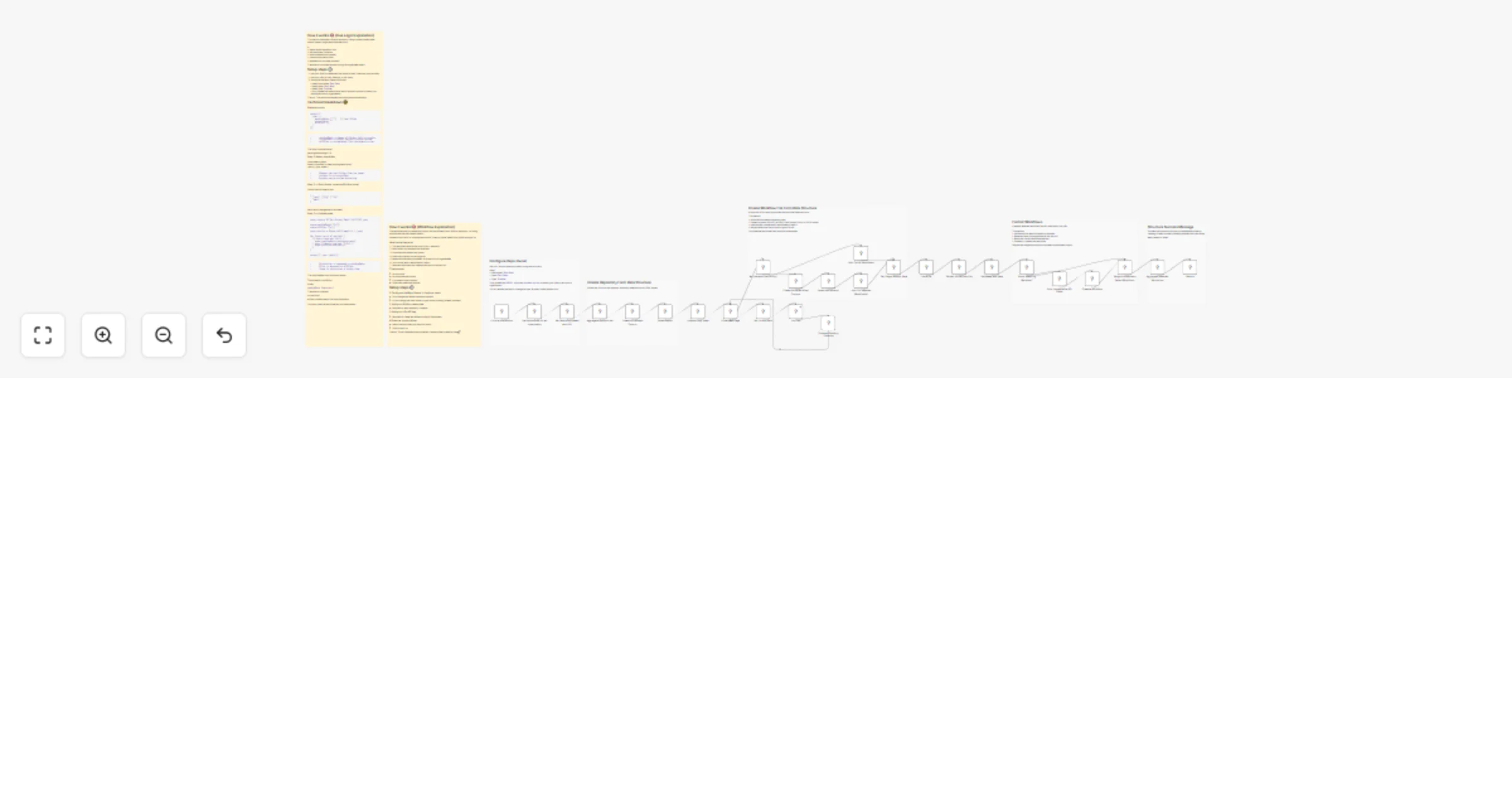
## About This flow is ideal for online schools that use Zoom to teach classes and Google Classroom for storing materials and homework. It listens for Zoom webhooks that come after each recorded call is uploaded to Zoom Cloud (you'll need Zoom paid plan). When new meeting comes, it filters out calls that last less than 30 mins. After duration check, it checks if there is a Google Class that matches the call name. Your call must be named exactly as the Google Class you want the call to be uploaded to. If the class is found, it will extract the Class ID. This flow assumes that you have a specific topic used for storing class recordings and materials, so it will look for this topic and upload the material. If topic is not found, you'll get an email. ## Requirements You'll need a: - Zoom paid plan that supports Zoom Cloud - Google cloud console to set up Classroom API and Gmail API - OpenAI API key or any other provider

M
Max
File Management
11 Jan 2026
7
0
Workflow preview: Template-based Google Drive folder generation with Forms and Apps Script
Free intermediate

Template-based Google Drive folder generation with Forms and Apps Script

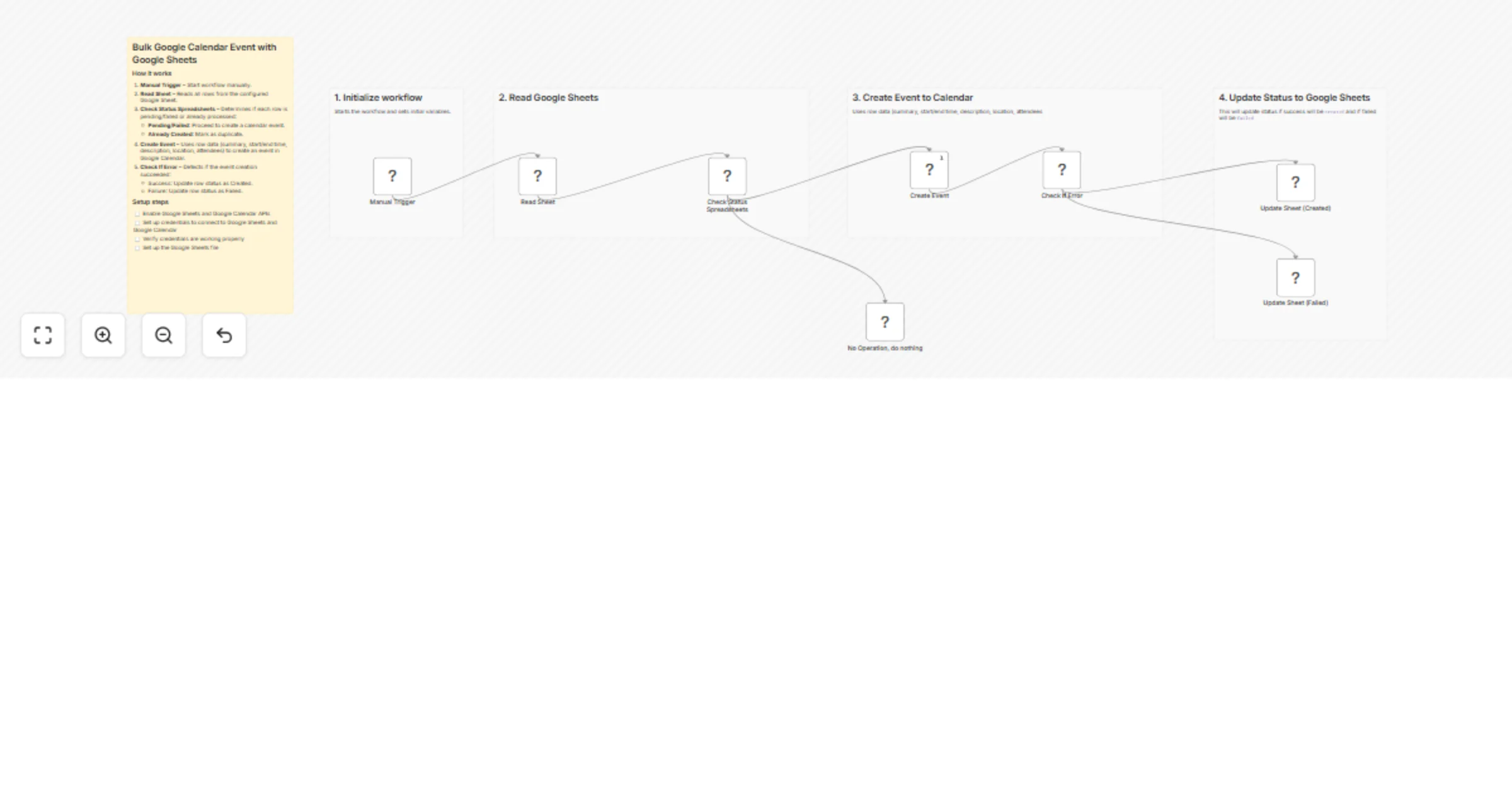
### Overview Stop manually creating folder structures for every new client or project. This workflow provides a simple form where users enter a name, and automatically duplicates your template folder structure in Google Drive—replacing all placeholders with the submitted name. ### What This Workflow Does 1. Displays a form where users enter a name (client, project, event, etc.) 2. Creates a new main folder in Google Drive 3. Calls Google Apps Script to duplicate your entire template structure 4. Replaces all `{{NAME}}` placeholders in files and folder names ### Key Features - **Simple form interface** — No technical knowledge required to use - **Recursive duplication** — Copies all subfolders and files - **Smart placeholders** — Automatically replaces `{{NAME}}` everywhere - **Production-ready** — Works immediately after setup ### Prerequisites - Google Drive account with OAuth2 credentials in n8n - Google Apps Script deployment (code below) - Template folder in Drive using `{{NAME}}` as placeholder ### Setup **Step 1: Create your template folder** ``` 📁 {{NAME}} - Project Files ├── 📁 01. {{NAME}} - Documents ├── 📁 02. {{NAME}} - Assets ├── 📁 03. Deliverables └── 📄 {{NAME}} - Brief.gdoc ``` **Step 2: Deploy Apps Script** 1. Go to [script.google.com](https://script.google.com) 2. Create new project → Paste code below 3. Deploy → New deployment → Web app 4. Execute as: `Me` | Access: `Anyone` 5. Copy the deployment URL **Step 3: Configure workflow** Replace these placeholders: - `DESTINATION_PARENT_FOLDER_ID` — Where new folders are created - `YOUR_APPS_SCRIPT_URL` — URL from Step 2 - `YOUR_TEMPLATE_FOLDER_ID` — Folder to duplicate **Step 4: Test** Activate workflow → Open form URL → Submit a name → Check Drive! --- ### Apps Script Code ```javascript function doPost(e) { try { var params = e.parameter; var templateFolderId = params.templateFolderId; var name = params.name; var destinationFolderId = params.destinationFolderId; if (!templateFolderId || !name) { return jsonResponse({ success: false, error: 'Missing required parameters: templateFolderId and name are required' }); } var templateFolder = DriveApp.getFolderById(templateFolderId); if (destinationFolderId) { var destinationFolder = DriveApp.getFolderById(destinationFolderId); copyContentsRecursively(templateFolder, destinationFolder, name); return jsonResponse({ success: true, id: destinationFolder.getId(), url: destinationFolder.getUrl(), name: destinationFolder.getName(), mode: 'copied_to_existing', timestamp: new Date().toISOString() }); } else { var parentFolder = templateFolder.getParents().next(); var newFolderName = replacePlaceholders(templateFolder.getName(), name); var newFolder = parentFolder.createFolder(newFolderName); copyContentsRecursively(templateFolder, newFolder, name); return jsonResponse({ success: true, id: newFolder.getId(), url: newFolder.getUrl(), name: newFolder.getName(), mode: 'created_new', timestamp: new Date().toISOString() }); } } catch (error) { return jsonResponse({ success: false, error: error.toString() }); } } function replacePlaceholders(text, name) { var result = text; result = result.replace(/\{\{NAME\}\}/g, name); result = result.replace(/\{\{name\}\}/g, name.toLowerCase()); result = result.replace(/\{\{Name\}\}/g, name); return result; } function copyContentsRecursively(sourceFolder, destinationFolder, name) { var files = sourceFolder.getFiles(); while (files.hasNext()) { try { var file = files.next(); var newFileName = replacePlaceholders(file.getName(), name); file.makeCopy(newFileName, destinationFolder); Utilities.sleep(150); } catch (error) { Logger.log('Error copying file: ' + error.toString()); } } var subfolders = sourceFolder.getFolders(); while (subfolders.hasNext()) { try { var subfolder = subfolders.next(); var newSubfolderName = replacePlaceholders(subfolder.getName(), name); var newSubfolder = destinationFolder.createFolder(newSubfolderName); Utilities.sleep(200); copyContentsRecursively(subfolder, newSubfolder, name); } catch (error) { Logger.log('Error copying subfolder: ' + error.toString()); } } } function jsonResponse(data) { return ContentService .createTextOutput(JSON.stringify(data)) .setMimeType(ContentService.MimeType.JSON); } ``` --- ### Use Cases - **Agencies** — Client folder structure on new signup - **Freelancers** — Project folders from intake form - **HR Teams** — Employee onboarding folders - **Schools** — Student portfolio folders - **Event Planners** — Event documentation folders ### Notes - Apps Script may take +60 seconds for large structures - Timeout is set to 5 minutes for complex templates - Your Google account needs edit access to template and destination folders

A
Antonio Gasso
File Management
11 Dec 2025
73
0
Workflow preview: Learn how to use binary data in n8n (video included)
Free advanced

Learn how to use binary data in n8n (video included)

This template and YouTube video goes over 8 different examples of how we can utilize Binary data within n8n. We start with brining in Binary data with Google Drive, FTP, or Form submission. After we jump into how to extract Binary Data, Analyze an image, convert files, and use base64. This lesson also covers the recent update with grabbing binary data in later nodes. YouTube video: https://youtu.be/0Vefm8vXFxE

R
Ryan Nolan
File Management
26 Nov 2025
483
0
Workflow preview: Automate real estate client folder creation with Google Sheets and Drive
Free intermediate

Automate real estate client folder creation with Google Sheets and Drive

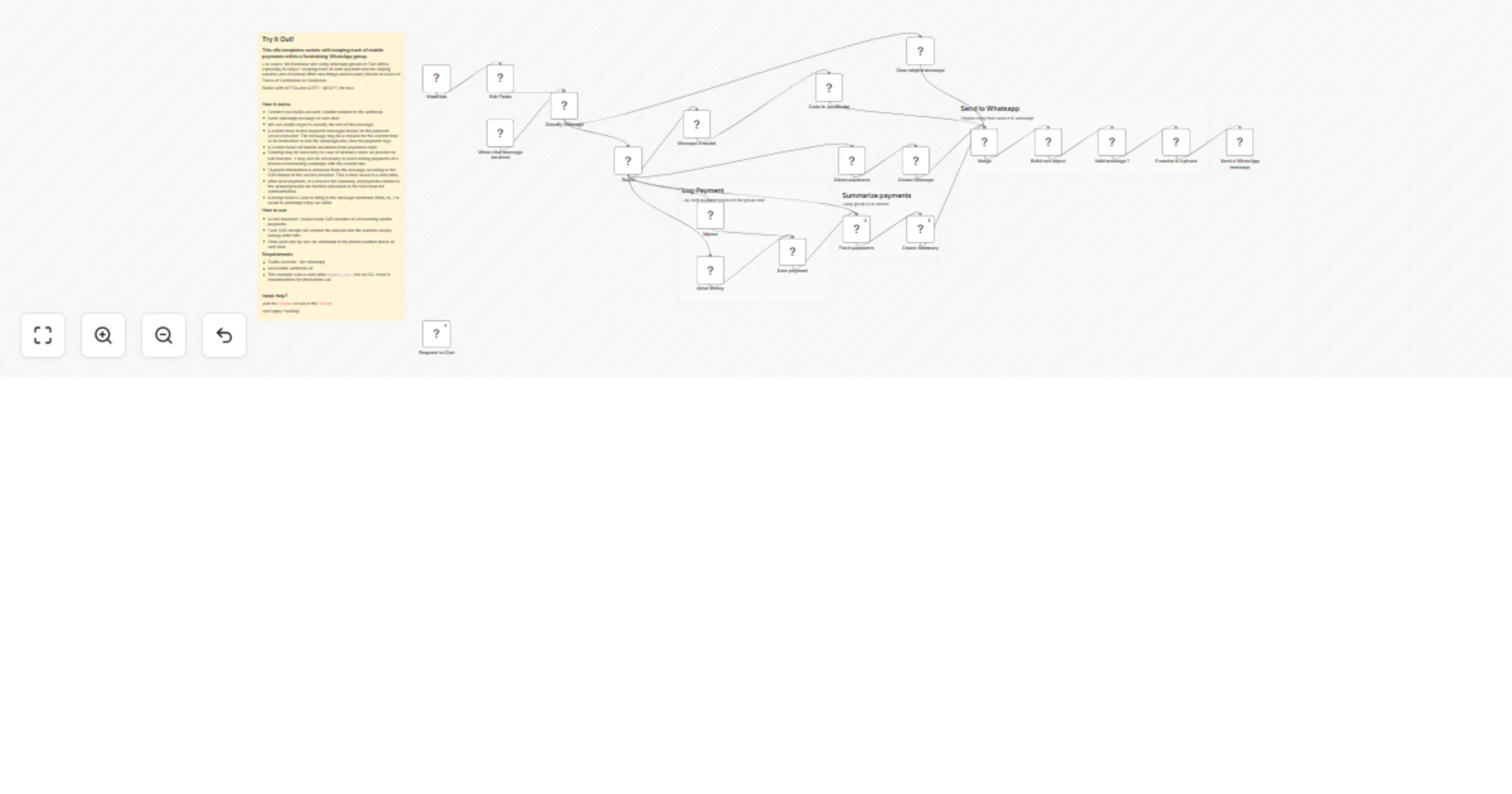
## What this workflow does This workflow automates backend setup tasks for real estate client portals. When a new property transaction is added to your Google Sheets database with a buyer email but no document folder assigned, the workflow automatically creates a dedicated Google Drive folder, updates the spreadsheet with the folder URL, and adds an initial task prompting the client to upload documents. This automation eliminates manual folder creation and task assignment, ensuring every new transaction has its documentation infrastructure ready from day one. Your clients can access their dedicated folder directly from the portal, keeping all property-related documents organized and accessible in one place. ## Key benefits - **Eliminate manual setup**: No more creating folders and tasks individually for each transaction - **Consistent client experience**: Every buyer gets the same professional onboarding process - **Organized documentation**: Each transaction has its own Google Drive folder automatically shared with the client - **Time savings**: Focus on closing deals instead of administrative setup ## Setup requirements **Important:** You must make a copy of the [reference Google Sheets spreadsheet](https://docs.google.com/spreadsheets/d/1UJPaBd_qHsNgInA2mrYaq7wgXLHzFw9jcTUoSpTxMDk/edit?usp=sharing) to your own Google account before using this workflow. Your spreadsheet needs at minimum two tabs: - **Transactions tab**: Columns for ID, Buyer Email, Documents URL, Property Address, and Status - **Tasks tab**: Columns for Transaction ID, Task Name, Task Description, and Status ## Configuration steps 1. Authenticate your Google Sheets and Google Drive accounts in n8n 2. Update the Google Sheets trigger node to point to your copied spreadsheet 3. Set the parent folder ID in the "Create Client Documents Folder" node (where transaction folders should be created) 4. Customize the initial task name and description in the "Add Initial Upload Task" node 5. Verify all sheet names match your spreadsheet tabs The workflow triggers every minute checking for new transactions that meet the criteria (has buyer email, missing documents URL).

M
Milan Vasarhelyi - SmoothWork
File Management
24 Nov 2025
190
0
Workflow preview: Automate image portfolio organization with GPT-4o Vision, Google Drive and Notion
Free advanced

Automate image portfolio organization with GPT-4o Vision, Google Drive and Notion

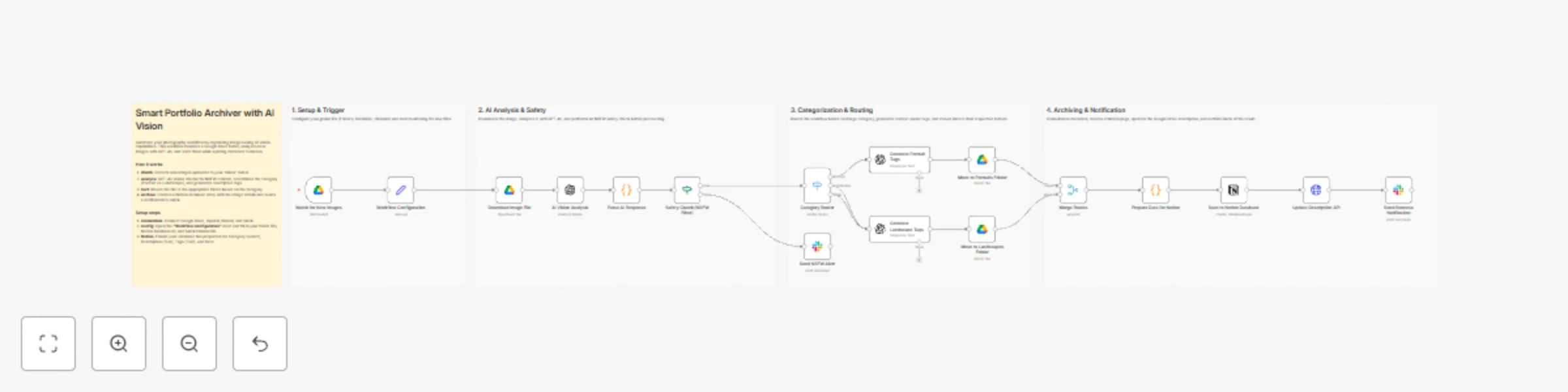
## Overview This template is ideal for photographers, graphic designers, and creative professionals who manage large volumes of visual assets. It is also perfect for Digital Asset Managers looking for a customizable, automated solution to organize files without manual tagging. ## What it does When a new image is uploaded to a designated "Inbox" folder in Google Drive, the workflow performs the following actions: - **AI Analysis**: Uses GPT-4o to analyze the image content, generating a description, extracting dominant colors, and determining the category (e.g., Portrait vs. Landscape). - **Safety Check**: Runs an AI-based NSFW filter. If inappropriate content is detected, the process stops, and a warning is sent to Slack. - **Smart Sorting**: Automatically moves the file into the correct subfolder based on its category. - **Contextual Tagging**: Generates specific tags (e.g., "smile, natural light" for portraits) and updates the file metadata. - **Archiving**: Creates a comprehensive entry in a Notion Database with the image link, tags, and description. - **Notification**: Sends a success alert to Slack with a summary of the archived asset. ## How to set up This workflow is designed to be plug-and-play using a central configuration node. 1. **Credentials**: Connect your Google Drive, OpenAI, Notion, and Slack accounts in n8n. 2. **Set Variables**: Open the node named **"Workflow Configuration"**. Replace the placeholder IDs with your actual Folder IDs (for Inbox, Portraits, and Landscapes), Notion Database ID, and Slack Channel ID. 3. **Prepare Notion**: Create a Database in Notion with the following properties: - Category (Select) - Description (Rich Text) - Image URL (URL) - Tags (Rich Text) - Date (Date) ## Requirements - **n8n Version**: 1.0 or later. - **OpenAI API**: Access to the **gpt-4o** model is recommended for accurate vision analysis. - **Google Drive**: A specific folder structure (Inbox, Portraits, Landscapes). - **Notion**: A dedicated database for the portfolio. - **Slack**: A channel for notifications. ## How to customize - **Add Categories**: You can expand the "Category Router" (Switch node) to include more specific genres like "Architecture," "Macro," or "Street," and add corresponding paths. - **Adjust Prompts**: Modify the system prompts in the AI nodes to change the language of the output or the style of the generated tags. - **Change Output**: Connect to Airtable or Excel instead of Notion if you prefer a different database system.

Y
Yoshino Haruki
File Management
23 Nov 2025
216
0
Workflow preview: 🗜️ Automate image compression in Google Drive with Tinify API and email reports
Free advanced

🗜️ Automate image compression in Google Drive with Tinify API and email reports

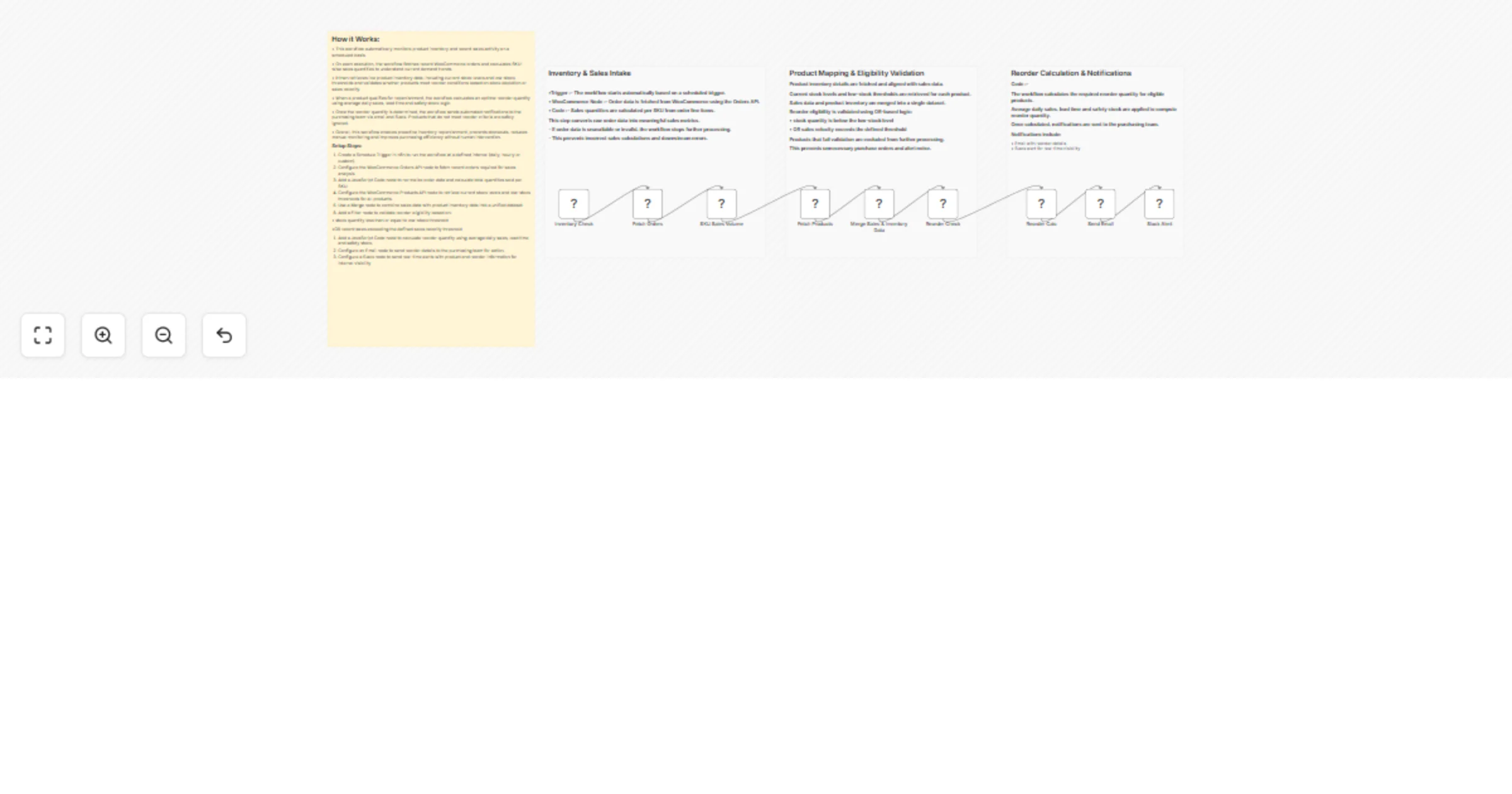
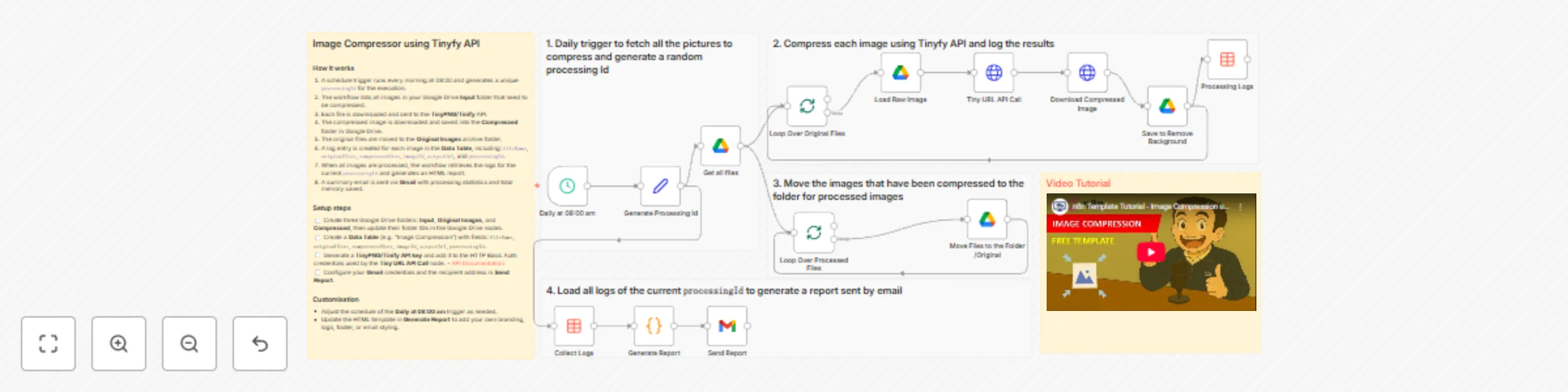
*Tags: Image Compression, Tinify API, TinyPNG, SEO Optimisation, E-commerce, Marketing* ### Context Hi! I’m [Samir Saci](https://samirsaci.com), Supply Chain Engineer, Data Scientist based in Paris, and founder of [LogiGreen](https://logi-green.com). I built this workflow for an agency specialising in e-commerce to automate the daily compression of their images stored in a Google Drive folder. [![Workflow Overview](https://www.samirsaci.com/content/images/size/w1600/2025/11/image-23.png)](https://youtu.be/qXQVcaJgwrA) This is particularly useful when managing large libraries of product photos, website assets or marketing visuals that need to stay lightweight for **SEO**, **website performance** or **storage optimisation**. > Test this workflow with the free tier of the API! 📬 For business inquiries, you can find me on [LinkedIn](https://www.linkedin.com/in/samir-saci) ### Who is this template for? This template is designed for: - **E-commerce managers** who need to keep product images optimised - **Marketing teams** handling large volumes of visuals - **Website owners** wanting automatic image compression for SEO - **Anyone using Google Drive** to store images that gradually become too heavy ### What does this workflow do? This workflow acts as an **automated image compressor and reporting system** using Tinify, Google Drive, and Gmail. 1. Runs **every day at 08:00** using a Schedule Trigger 2. Fetches all images from the Google Drive **Input** folder 3. Downloads each file and sends it to the **Tinify API** for compression 4. Downloads the optimised image and saves it to the **Compressed** folder 5. Moves the original file to the **Original Images** archive 6. Logs: `fileName`, `originalSize`, `compressedSize`, `imageId`, `outputUrl` and `processingId` into a **Data Table** 7. After processing, it retrieves all logs for the current batch 8. Generates a clean HTML report summarising the compression results 9. Sends the report via **Gmail**, including total space saved Here is an example from my personal folder: [![Folder Image](https://www.samirsaci.com/content/images/2025/11/image-25.png)](https://youtu.be/qXQVcaJgwrA) Here is the report generated for these images: [![Email Screenshot](https://www.samirsaci.com/content/images/2025/11/image-24.png)](https://youtu.be/qXQVcaJgwrA) *P.S.: You can customise the report to match your company branding or visual identity.* ### 🎥 Tutorial A complete tutorial (with explanations of every node) is available on YouTube: [![Tutorial + Demo](https://www.samirsaci.com/content/images/2025/11/temp-12.png)](https://youtu.be/qXQVcaJgwrA) ### Next Steps Before running the workflow, follow the sticky notes and configure the following: - Get your Tinify API key for the free tier here: [Get your key](https://tinypng.com/developers/reference) - Replace Google Drive folder IDs in: **Input**, **Compressed**, and **Original Images** - Replace the **Data Table** reference with your own (fields required: `fileName`, `originalSize`, `compressedSize`, `imageId`, `outputUrl`, `processingId`) - Add your **Tinify API key** in the HTTP Basic Auth credentials - Set up your **Gmail** credentials and recipient email - (Optional) Customise the **HTML report** in the `Generate Report` Code node - (Optional) Adjust the **daily schedule** to your preferred time *Submitted: 18 November 2025* *Template designed with n8n version 1.116.2*

S
Samir Saci
File Management
19 Nov 2025
103
0
Workflow preview: Automatic PDF compression with iLovePDF for Google Drive files
Free advanced

Automatic PDF compression with iLovePDF for Google Drive files

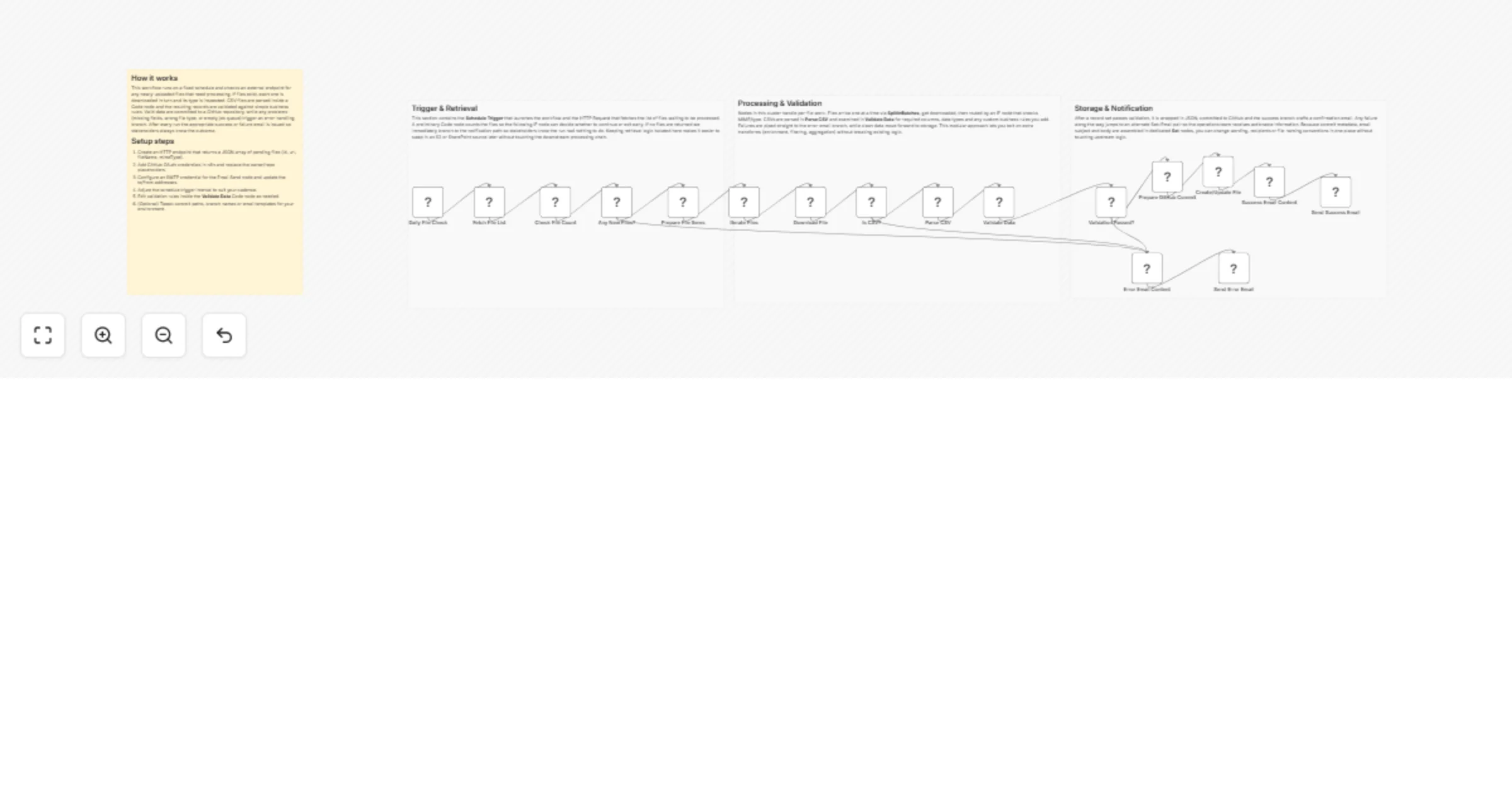
### Watch Google Drive folder and use iLovePDF Compress Tool to save it in another Google Drive folder This n8n template shows how to upload a file in your Google Drive desired folder, compress it with the iLovePDF tool and move the compressed file to another folder. ### Good to know This is just an example of using it for you to know how the flow should start to work without issues. After the "combine" step, you can change it according your needs but **always maintaining the four main steps of ILoveAPI's request workflow: start, upload, process and download** (e.g., an step for sending an email with the compressed file instead of moving it to another folder) Use cases are many: With this template you can monitor a 'to-process' folder for large documents, automatically compress them for better storage efficiency, and move them to an archive folder, all without manual intervention. Then you can explore adapting it to have the functionalities that go best with you! ### How it works **1. Google Drive Trigger:** The workflow starts when a new file is added to a specific Google Drive folder (the source folder). **2. Authentication:** The Public Key is sent to the iLoveAPI authentication server to get a time-sensitive **Bearer Token**. **3. Start Task:** A new `compress` task is initiated with the iLoveAPI server, returning a **Task ID** and **Server Address**. **4. Download/Upload:** The file is downloaded from Google Drive and then immediately uploaded to the dedicated iLoveAPI Server using the Task ID. **5. Process:** The main compression is executed by sending the Task ID, the `server_filename`, and the original file name to the iLoveAPI `/process` endpoint. **6. Download Compressed File:** Download the compressed file's binary data from the iLoveAPI `/download` endpoint. **7. Save Compressed File:** The compressed PDF is uploaded to the designated Google Drive folder (the destination folder). **8. Move Original File:** The original file in the source folder is moved to a separate location (e.g., an 'Archived' folder) to prevent the workflow from processing it again ### How to use * **Credentials:** Set up your Google Drive and iLoveAPI credentials in n8n workflow. * **iLoveAPI Public Key:** Paste your iLoveAPI public key into the **Send your iLoveAPI public key to their server** node's body for authentication, and then in the **Get task from iLoveAPI server** node's body. * **Source/Destination Folders:** In the **Upload your file to Google Drive** (Trigger) and **Save compressed file in your Google Drive** (Action) nodes, select your desired source and destination folders, respectively. ### Requirements * **Google Drive** account/credentials (for file monitoring and storage) -see the docs provided in the node if needed. * **iLoveAPI** account/API key (for the compression service). * An **n8n** instance (cloud or self-hosted). Need Help? See the [iLoveAPI documentation](https://www.iloveapi.com/docs/api-reference#introduction)

i
ilovepdf
File Management
12 Nov 2025
88
0
Workflow preview: Automated document sync between SharePoint and Google Drive with Supabase
Free advanced

Automated document sync between SharePoint and Google Drive with Supabase

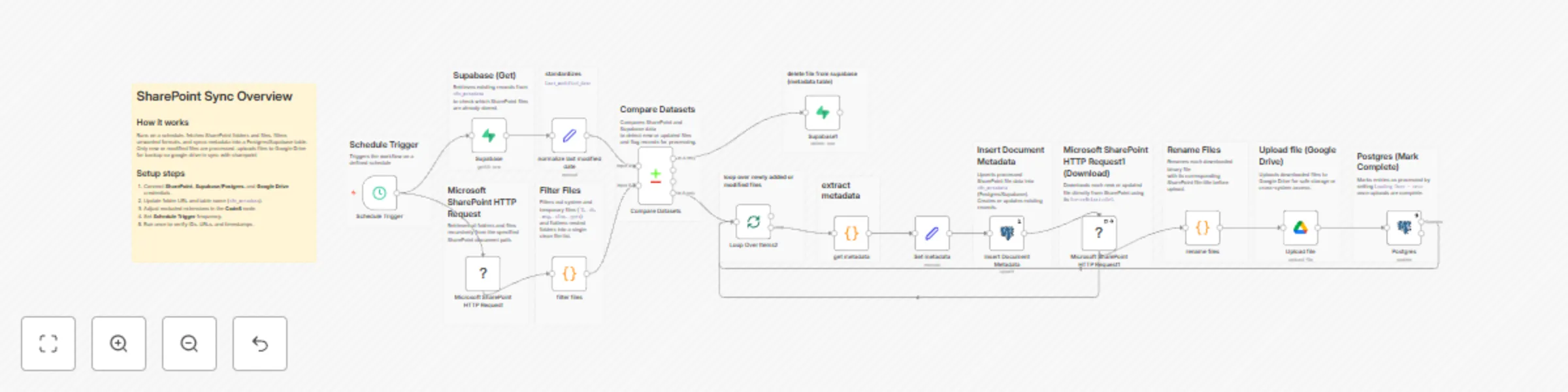
# SharePoint → Supabase → Google Drive Sync Workflow ## Overview This workflow is a **multi-system document synchronization pipeline** built in **n8n**, designed to automatically sync and back up files between **Microsoft SharePoint**, **Supabase/Postgres**, and **Google Drive**. It runs on a **scheduled trigger**, compares SharePoint file metadata against your Supabase table, **downloads new or updated files**, **uploads them to Google Drive**, and marks records as completed — keeping your databases and storage systems perfectly in sync. --- ## Workflow Structure - **Data Source:** SharePoint REST API for recursive folder and file discovery. - **Processing Layer:** n8n logic for filtering, comparison, and metadata normalization. - **Destination Systems:** Supabase/Postgres for metadata, Google Drive for file backup. --- ## SharePoint Sync Flow (Frontend Flow) - **Trigger:** `Schedule Trigger` Runs at fixed intervals (customizable) to start synchronization. - **Fetch Files:** `Microsoft SharePoint HTTP Request` Recursively retrieves folders and files using SharePoint’s REST API: `/GetFolderByServerRelativeUrl(...)?$expand=Files,Folders,Folders/Files,Folders/Folders/Folders/Files` - **Filter Files:** `filter files` A **Code node** that flattens nested folders and filters unwanted file types: - Excludes system or temporary files (`~$`) - Excludes extensions: `.db`, `.msg`, `.xlsx`, `.xlsm`, `.pptx` - **Normalize Metadata:** `normalize last modified date` Ensures consistent `Last_modified_date` format for accurate comparison. - **Fetch Existing Records:** `Supabase (Get)` Retrieves current entries from `n8n_metadata` to compare against SharePoint files. - **Compare Datasets:** `Compare Datasets` Detects **new or modified** files based on `UniqueId`, `Last_modified_date`, and `Exists`. Routes only changed entries forward for processing. --- ## File Processing Engine (Backend Flow) - **Loop:** `Loop Over Items2` Iterates through each new or updated file detected. - **Build Metadata:** `get metadata` and `Set metadata` Constructs final metadata fields: - `file_id`, `file_title`, `file_url`, `file_type`, `foldername`, `last_modified_date` Generates `fileUrl` using `UniqueId` and `ServerRelativeUrl` if missing. - **Upsert Metadata:** `Insert Document Metadata` Inserts or updates file records in Supabase/Postgres (`n8n_metadata` table). Operation: `upsert` with `id` as the primary matching key. - **Download File:** `Microsoft SharePoint HTTP Request1` Fetches the binary file directly from SharePoint using its `ServerRelativeUrl`. - **Rename File:** `rename files` Renames each downloaded binary file to its original `file_title` before upload. - **Upload File:** `Upload file` Uploads the renamed file to **Google Drive** (`My Drive` → `root` folder). - **Mark Complete:** `Postgres` Updates the Supabase/Postgres record setting `Loading Done = true`. - **Optional Cleanup:** `Supabase1` Deletes obsolete or invalid metadata entries when required. --- ## Integrations Used | Service | Purpose | Credential | |----------|----------|-------------| | **Microsoft SharePoint** | File retrieval and download | `microsoftSharePointOAuth2Api` | | **Supabase / Postgres** | Metadata storage and synchronization | `Supabase account 6 ayan` | | **Google Drive** | File backup and redundancy | `Google Drive account 6 rn dbt` | | **n8n Core** | Flow control, dataset comparison, batch looping | Native | --- ## System Prompt Summary > “You are a SharePoint document synchronization workflow. Fetch all files, compare them to database entries, and only process new or modified files. Download files, rename correctly, upload to Google Drive, and mark as completed in Supabase.” Workflow rule summary: > “Maintain data integrity, prevent duplicates, handle retries gracefully, and continue on errors. Skip excluded file types and ensure reliable backups between all connected systems.” --- ## Key Features - Scheduled automatic sync across SharePoint, Supabase, and Google Drive - Intelligent comparison to detect only new or modified files - Idempotent upsert for consistent metadata updates - Configurable file exclusion filters - Safe rename + upload pipeline for clean backups - Error-tolerant and fully automated operation --- ## Summary > A reliable, **SharePoint-to-Google Drive synchronization workflow** built with **n8n**, integrating **Supabase/Postgres** for metadata management. It automates file fetching, filtering, downloading, uploading, and marking as completed — ensuring your data stays mirrored across platforms. Perfect for enterprises managing **document automation**, **backup systems**, or **cross-cloud data synchronization**. --- #### Need Help or More Workflows? Want to customize this workflow for your organization? Our team at Digital Biz Tech can extend it for enterprise-scale document automation, RAGs and social media automation. We can help you set it up for free — from connecting credentials to deploying it live. Contact: [[email protected]](mailto:[email protected]) Website: [https://www.digitalbiz.tech](https://www.digitalbiz.tech) LinkedIn: [https://www.linkedin.com/company/digital-biz-tech/](https://www.linkedin.com/company/digital-biz-tech/) You can also DM us on LinkedIn for any help. ---

D
DIGITAL BIZ TECH
File Management
12 Nov 2025
94
0
Workflow preview: Telegram to Google Drive: auto upload & track videos with Gemini AI assistant
Free advanced

Telegram to Google Drive: auto upload & track videos with Gemini AI assistant

🚀 Overview This workflow automates video uploads from Telegram directly to Google Drive, complete with smart file renaming, Google Sheets logging, and AI assistance via Google Gemini. It’s perfect for creators, educators, or organizations that want to streamline video submissions and file management. ⚙️ How It Works 1. Telegram Trigger -> Start the workflow when a user sends a video file to your Telegram bot. 2. Switch Node -> Detects file type or command and routes the flow accordingly. 3. Get File -> Downloads the Telegram video file. 4. Upload to Google Drive -> Automatically uploads the video to your chosen Drive folder. 5. Smart Rename -> The file name is auto-formatted using dynamic logic (date, username, or custom tags). 6. Google Sheets Logging -> Appends or updates upload data (e.g., filename, sender, timestamp) for easy tracking. 7. AI Agent Integration -> Uses Google Gemini AI connected to Data Vidio memory to analyze or respond intelligently to user queries. 8. Telegram Notification -> Sends confirmation or status messages back to Telegram. 🧠 Highlights - Seamlessly integrates Telegram → Google Drive → Google Sheets → Gemini AI - Supports file update or append mode - Auto-rename logic via the Code node - Works with custom memory tools for smarter AI responses - Easy to clone and adapt, just connect your own credentials 🪄 Ideal Use Cases - Video assignment submissions for schools or academies - Media upload management for marketing teams - Automated video archiving and AI-assisted review - Personal Telegram-to-Drive backup assistant 🧩 Setup Tips 1. Copy and use the provided Google Sheet template (SheetTemplate) 2. Configure your Telegram Bot token, Google Drive, and Sheets credentials 3. Update the AI Agent node with your Gemini API key and connect the Data Vidio sheet 4. Test with a sample Telegram video before full automation

A
AbSa~
File Management
11 Nov 2025
220
0
Workflow preview: Upload large files to Dropbox with chunking & web UI progress tracking
Free advanced

Upload large files to Dropbox with chunking & web UI progress tracking

# Dropbox Large File Upload System ## How It Works This workflow enables uploading large files (300MB+) to Dropbox through a web interface with real-time progress tracking. It bypasses Dropbox's 150MB single-request limit by breaking files into 8MB chunks and uploading them sequentially using Dropbox's upload session API. **Upload Flow:** 1. **User accesses page** - Visits `/webhook/upload-page` and sees HTML form with file picker and folder path input 2. **Selects file** - Chooses file and clicks "Upload to Dropbox" button 3. **JavaScript initiates session** - Calls `/webhook/start-session` → Dropbox creates upload session → Returns `sessionId` 4. **Chunk upload loop** - JavaScript splits file into 8MB chunks and for each chunk: - Calls `/webhook/append-chunk` with sessionId, offset, and chunk binary data - Dropbox appends chunk to session - Progress bar updates (e.g., 25%, 50%, 75%) 5. **Finalize upload** - After all chunks uploaded, calls `/webhook/finish-session` with final offset and target path 6. **File committed** - Dropbox commits all chunks into complete file at specified path (e.g., `/Uploads/video.mp4`) **Why chunking?** Dropbox API has a 150MB limit for single `upload` requests. The upload session API (`upload_session/start`, `append_v2`, `finish`) allows unlimited file sizes by chunking. **Technical Architecture:** - Four webhook endpoints handle different stages (serve UI, start, append, finish) - All chunk data sent as `multipart/form-data` with binary blobs - Dropbox API requires cursor metadata (session_id, offset) in `Dropbox-API-Arg` header - `autorename: true` prevents file overwrites ## Setup Steps **Time estimate: ~20-25 minutes (first time)** 1. **Create Dropbox app** - Go to [Dropbox App Console](https://www.dropbox.com/developers/apps): - Click "Create app" - Choose "Scoped access" API - Select "Full Dropbox" access type - Name your app (e.g., "n8n File Uploader") - Under Permissions tab, enable: `files.content.write` - Copy App Key and App Secret 2. **Configure n8n OAuth2 credentials** - In n8n: - Create new "Dropbox OAuth2 API" credential - Paste App Key and App Secret - Set OAuth Redirect URL to your n8n instance (e.g., `https://your-n8n.com/rest/oauth2-credential/callback`) - Complete OAuth flow to get access token 3. **Connect credentials to HTTP nodes** - Add your Dropbox OAuth2 credential to these three nodes: - "Dropbox Start Session" - "Dropbox Append Chunk" - "Dropbox Finish Session" 4. **Activate workflow** - Click "Active" toggle to generate production webhook URLs 5. **Customize default folder (optional)** - In "Respond with HTML" node: - Find line: `<input type="text" id="dropboxFolder" value="/Uploads/" ...` - Change `/Uploads/` to your preferred default path 6. **Get upload page URL** - Copy the production webhook URL from "Serve Upload Page" node (e.g., `https://your-n8n.com/webhook/upload-page`) 7. **Test upload** - Visit the URL, select a small file first (~50MB), choose folder path, click Upload ## Important Notes **File Size Limits:** - Standard Dropbox API: 150MB max per request - This workflow: Unlimited (tested with 300MB+ files) - Chunk size: 8MB (configurable in HTML JavaScript `CHUNK_SIZE` variable) **Upload Behavior:** - Files with same name are auto-renamed (e.g., `video.mp4` → `video (1).mp4`) due to `autorename: true` - Upload is synchronous - browser must stay open until complete - If upload fails mid-process, partial chunks remain in Dropbox session (expire after 24 hours) **Security Considerations:** - Webhook URLs are public - anyone with URL can upload to your Dropbox - Add authentication if needed (HTTP Basic Auth on webhook nodes) - Consider rate limiting for production use **Dropbox API Quotas:** - Free accounts: 2GB storage, 150GB bandwidth/day - Plus accounts: 2TB storage, unlimited bandwidth - Upload sessions expire after 4 hours of inactivity **Progress Tracking:** - Real-time progress bar shows percentage (0-100%) - Status messages: "Starting upload...", "✓ Upload complete!", "✗ Upload failed: [error]" - Final response includes file path, size, and Dropbox file ID **Troubleshooting:** - If chunks fail: Check Dropbox OAuth token hasn't expired (refresh if needed) - If session not found: Ensure sessionId is passed correctly between steps - If finish fails: Verify target path exists and app has write permissions - If page doesn't load: Activate workflow first to generate webhook URLs **Performance:** - 8MB chunks = ~37 requests for 300MB file - Upload speed depends on internet connection and Dropbox API rate limits - Typical: 2-5 minutes for 300MB file on good connection **Pro tip:** Test with a small file (10-20MB) first to verify credentials and flow, then try larger files. Monitor n8n execution list to see each webhook call and troubleshoot any failures. For production, consider adding error handling and retry logic in the JavaScript.

A
Anthony
File Management
11 Nov 2025
26
0
Workflow preview: Automatic Microsoft Outlook attachment storage to OneDrive with Excel logging
Free intermediate

Automatic Microsoft Outlook attachment storage to OneDrive with Excel logging

# 📥 Save Email Attachments to OneDrive & Log Them in Excel This workflow watches your Outlook inbox, automatically downloads file attachments (for example invoices), saves them into a specific OneDrive folder, and logs each file name into an Excel table. Optionally, it also posts a Microsoft Teams message to let you know that a new attachment has been processed. --- ## ✨ What this workflow does - Monitors a Microsoft Outlook mailbox for new emails. - Fetches **all attachments** from each incoming message. - Processes attachments one by one so every file is handled cleanly. - Downloads each attachment as binary data. - Uploads the file into a OneDrive folder (looked up by name). - Appends a new row with the filename to an Excel table for tracking. - Sends a Teams chat notification once an attachment has been uploaded (optional). --- ## 🧑‍💼 Who this is for This workflow is ideal for: - Finance / accounting teams who receive invoices by email and want them stored centrally. - Anyone who wants an **“email → OneDrive → Excel log”** pipeline without manual downloading and renaming. - n8n users who work in a Microsoft 365 environment (Outlook, OneDrive, Excel, Teams). --- ## ✅ Requirements Before you run the workflow, you’ll need: - A **Microsoft Outlook** account with permissions to read emails and attachments. - A **OneDrive / SharePoint** drive with a target folder (the example uses a folder whose name matches the search in the `Get Folder ID` node, e.g. `Testn8n`). - An **Excel workbook** stored in OneDrive with: - A worksheet and table already created. - A column named `Filename` (or adjust the `Set Filename` + Excel node to match your column name). - n8n credentials set up for: - Microsoft Outlook - Microsoft OneDrive - Microsoft Excel - Microsoft Teams (optional but used in this template) --- ## 🛠️ Setup steps 1. **Import the workflow JSON** into your n8n instance. 2. **Configure credentials**: - Set your Outlook, OneDrive, Excel, and Teams credentials on the respective nodes. 3. **Adjust the mail trigger** (`On Mail Received`): - Optionally add filters (subject, sender, folder) if you only want to process invoices or a specific mailbox/folder. 4. **Set the OneDrive folder search** (`Get Folder ID`): - Update the `query` parameter to the exact name of the folder where attachments should be stored. 5. **Point the Excel node to your workbook** (`Append to Excel Log`): - Use the dropdowns to select your workbook, worksheet and table. - Ensure there’s a `Filename` column (or rename the field in `Set Filename` to match your actual column). 6. **Activate the workflow**: - Once active, every new email that hits the trigger will have its attachments stored in OneDrive and logged in Excel. --- ## 🔗 Integrations used - **Microsoft Outlook** – trigger on incoming emails and download attachments. - **Microsoft OneDrive** – search for folders and upload files. - **Microsoft Excel** – append rows to a table in a workbook. - **Microsoft Teams** – send notifications when attachments are processed.

p
plemeo
File Management
7 Nov 2025
160
0
Workflow preview: Gmail attachment manager with Google Drive upload and smart filtering
Free advanced

Gmail attachment manager with Google Drive upload and smart filtering

# This n8n template allows you to automatically upload all attached files from incoming emails to Google Drive with optional filters on sender, receiver and file types This template is built to be customized for your specific needs. This template has the core logic and n8n node specific references sorted to work with dynamic file names throughout the workflow. ## Use cases * Store invoices in Google Drive * Save recurring reports in Google Drive * Post recurring reports to another n8n workflow for further processing * Archive files to Google Drive by email * Save all files received by a client in a dedicated Google Drive folder ## Good to know * The workflow is designed to not use custom code, preferring built-in nodes in n8n ## How it works * Trigger on incoming emails with attachments * (Optional) filter on sender/recipient * Splits all attachments of the email into separate items * (Optional) filter attachment based on file type * (Optional) treat attachments with different file types through different paths * Upload attachment to Google Drive * Mark the email read and archive it after all attachments has been processed * Notify in Slack how many attachments was processed in the execution ## How to use * Configure Google credentials (1,2,6) * Configure Slack credentials (7) * Configure or disable sender/receiver filter (3) * Configure or disable file type filter (4) * Configure or disable file type paths (5) * Configure destination folder (6) * Build on this to fit your use case ## Note: there's a [similar template](https://n8n.io/workflows/2966-upload-multiple-attachments-from-gmail-to-google-drive-without-a-code-node/) with the same basics but with less ready-made modifications and no loop that allows us to archive the email and notify to Slack when done.

O
Ossian Madisson
File Management
30 Oct 2025
501
0
Workflow preview: Upload files to Dropbox and generate direct download links
Free advanced

Upload files to Dropbox and generate direct download links

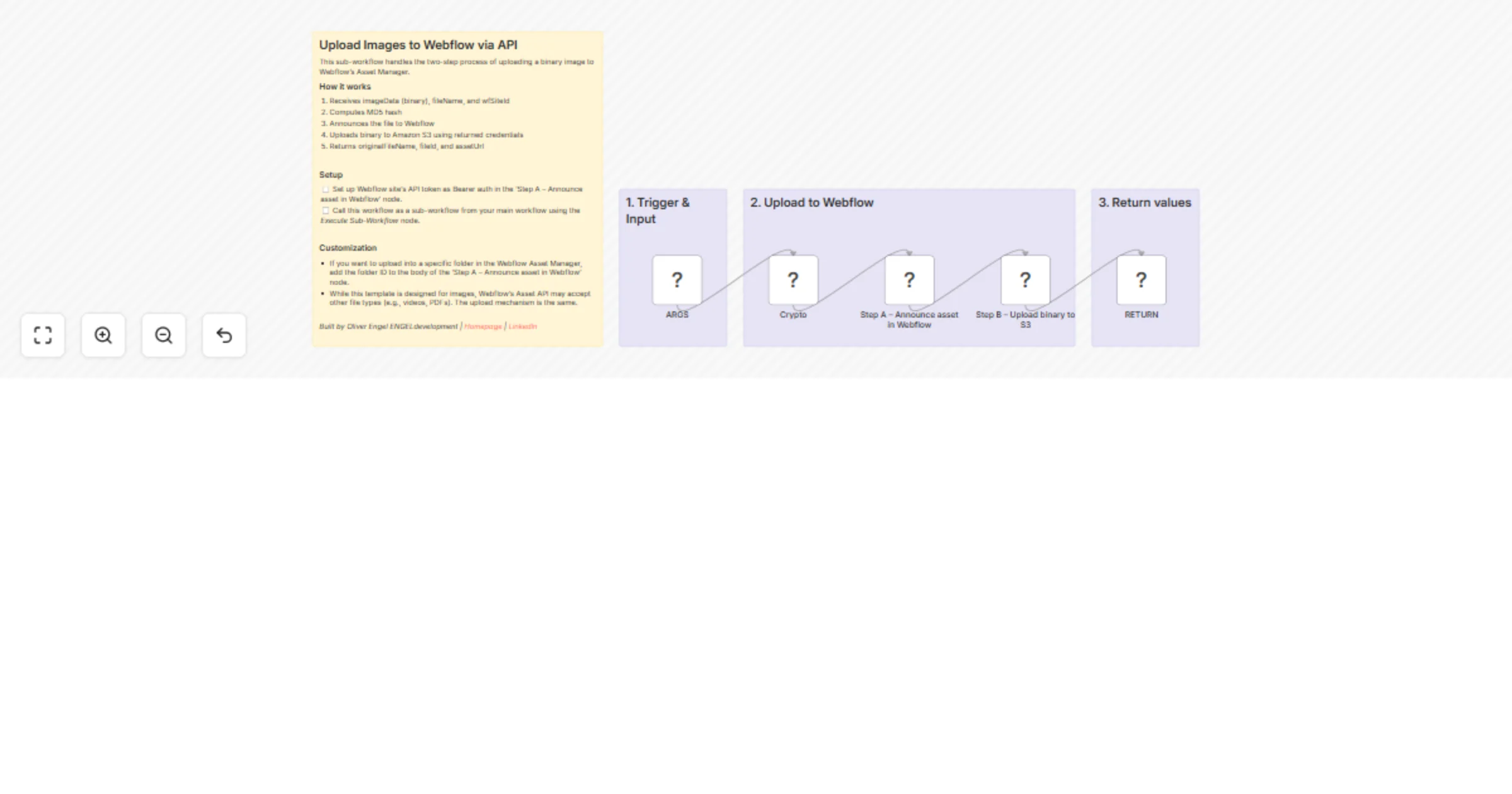
**How It Works** This sub-workflow uploads files to Dropbox and returns a direct download link: Upload file - Receives file from parent workflow and uploads to Dropbox Check for existing link - Queries Dropbox API to see if a shared link already exists for this file Create or reuse link - If no link exists, creates a new public shared link; otherwise uses existing one Convert to direct link - Transforms Dropbox's standard sharing URL (dropbox.com) into a direct download URL (dl.dropboxusercontent.com) Return URL - Outputs the final direct download link for use in other workflows **Important:** File names must be unique, or you'll get links to old files with the same name. **Setup Steps Time estimate: ~25-30 minutes (first time)** **Create Dropbox app** - Register at https://www.dropbox.com/developers/apps and get App Key + App Secret. Grant "Files and folders" + "Collaboration" permissions Configure OAuth2 credentials - Add Dropbox OAuth2 credentials in n8n (2 places: "Upload a file" and "List Shared Links" nodes). Set redirect URI to your n8n instance Create data table - Make a table called "cred-Dropbox" with columns: id (value: 1) and token (your access token) Set up token refresh - Deploy the companion "Dropbox Token Refresher" workflow (referenced but not included as its a paid workflow) to auto-refresh tokens Customize upload path - Update the path in "Upload a file" node (currently /Automate/N8N/host/) Test with form - Use the included test workflow to verify everything works Pro tip: Generate your first access token manually in the Dropbox app console to test uploads before setting up auto-refresh.

A
Anthony
File Management
30 Oct 2025
346
0
Workflow preview: Bilibili video downloader with Google Drive upload & email notification
Free advanced

Bilibili video downloader with Google Drive upload & email notification

## Bilibili Video Downloader with Google Drive Upload & Email Notification Automate downloading of **Bilibili videos** via the [Bilibili Video Downloader API (RapidAPI)](https://rapidapi.com/skdeveloper/api/bilibili-video-downloader), upload them to **Google Drive**, and notify users by email — all using **n8n workflow automation**. --- ## 🧠 **Workflow Overview** This **n8n automation** allows users to: 1. Submit a Bilibili video URL. 2. Fetch download info from the [Bilibili Video Downloader API (RapidAPI)](https://rapidapi.com/skdeveloper/api/bilibili-video-downloader). 3. Automatically download and upload the video to **Google Drive**. 4. Share the file and send an **email notification** to the user. --- ## ⚙️ **Node-by-Node Explanation** | Node | Function | | ---------------------------------------------- | ---------------------------------------------------------------------------------------------------------------------------------------------------------------- | | **On form submission** | Triggers when a user submits the Bilibili video URL through the form. | | **Fetch Bilibili Video Info from API** | Sends the video URL to the [Bilibili Video Downloader API (RapidAPI)](https://rapidapi.com/skdeveloper/api/bilibili-video-downloader) to retrieve download info. | | **Check API Response Status** | Validates that the API returned a 200 success status before proceeding. | | **Download Video File** | Downloads the actual video from the provided resource URL. | | **Upload Video to Google Drive** | Uploads the downloaded video file to the user’s connected Google Drive. | | **Google Drive Set Permission** | Sets sharing permissions to make the uploaded video publicly accessible. | | **Success Notification Email with Drive Link** | Sends the Google Drive link to the user via email upon successful upload. | | **Processing Delay** | Adds a delay before executing error handling if something fails. | | **Failure Notification Email** | Sends an error notification to the user if download/upload fails. | --- ## 🧩 **How to Configure Google Drive in n8n** 1. In n8n, open **Credentials → New → Google Drive**. 2. Choose **OAuth2** authentication. 3. Follow the on-screen instructions to connect your Google account. 4. Use the newly created credential in both **Upload Video** and **Set Permission** nodes. 5. Test the connection to ensure access to your Drive. --- ## 🔑 **How to Obtain Your RapidAPI Key** To use the [Bilibili Video Downloader API (RapidAPI)](https://rapidapi.com/skdeveloper/api/bilibili-video-downloader): 1. Visit [bilibili videodownloade](https://rapidapi.com/skdeveloper/api/bilibili-video-downloader). 2. Click **Subscribe to Test** (you can choose free or paid plans). 3. Copy your **x-rapidapi-key** from the “Endpoints” section. 4. Paste the key into your n8n **Fetch Bilibili Video Info from API** node header. Example header: ```json { "x-rapidapi-host": "bilibili-video-downloader.p.rapidapi.com", "x-rapidapi-key": "your-rapidapi-key-here" } ``` --- ## 💡 **Use Case** This automation is ideal for: * Content creators archiving Bilibili videos. * Researchers collecting media resources. * Teams that need centralized video storage in **Google Drive**. * Automated content management workflows. --- ## 🚀 **Benefits** ✅ **No manual downloads** – fully automated. ✅ **Secure cloud storage** via Google Drive. ✅ **Instant user notification** on success or failure. ✅ **Scalable** for multiple users or URLs. ✅ **Powered by the reliable [Bilibili Video Downloader API (RapidAPI)](https://rapidapi.com/skdeveloper/api/bilibili-video-downloader).** --- ## 👥 **Who Is This For** * **n8n developers** wanting to explore advanced workflow automations. * **Content managers** handling large volumes of Bilibili content. * **Digital archivists** storing video data in Google Drive. * **Educators** sharing Bilibili educational videos securely. --- ## 🏁 **Summary** With this **n8n workflow**, you can seamlessly integrate the [Bilibili Video Downloader API (RapidAPI)](https://rapidapi.com/skdeveloper/api/bilibili-video-downloader) into your automation stack — enabling effortless video downloading, Google Drive uploading, and user notifications in one unified system.

S
Sk developer
File Management
29 Oct 2025
365
0
Workflow preview: Automatic Notion database backup to Google Drive with Telegram notifications
Free advanced

Automatic Notion database backup to Google Drive with Telegram notifications

## 🔍 Workflow Overview ## What This Workflow Does This workflow automatically saves copies of all your Notion databases to Google Drive. It's like creating a safety backup of your important Notion information, similar to saving important documents in a filing cabinet. **Target Audience:** Anyone who uses Notion and wants to protect their data by creating automatic backups to Google Drive. --- ## Prerequisites (What You Need Before Starting) ### Required Accounts 1. **Notion Account** - Where your databases are stored 2. **Google Account** - For Google Drive storage 3. **Telegram Account** - To receive backup notifications (free messaging app) ### Required Software - **n8n Community Edition v2.0.0** installed on your computer or server - **Web browser** (Chrome, Firefox, Safari, or Edge) --- ## Step-by-Step Configuration Guide ### PART 1: Setting Up Notion Access #### Step 1: Create a Notion Integration #### Step 2: Share Your Databases with the integration --- ### PART 2: Setting Up Google Drive Access #### Step 1: Create a Google Drive Folder #### Step 2: Connect Google Drive to n8n --- ### PART 3: Setting Up Telegram Notifications #### Step 1: Create a Telegram Bot #### Step 2: Get Your Chat ID #### Step 3: Connect Telegram to n8n --- ### PART 4: Installing the Workflow in n8n #### Step 1: Import the Workflow #### Step 2: Configure Credentials 1. **For Notion nodes** (Get All Databases, Get Database Pages) 2. **For Google Drive nodes** (Create Backup Folder, Upload Backup File, etc.) 3. **For Telegram node** (Send Telegram Notification) #### Step 3: Configure the Workflow Settings --- ### PART 5: Testing Your Workflow #### Step 1: Run a Test #### Step 2: Verify the Backup #### If Something Goes Wrong - **Red X marks on nodes**: Check that all credentials are properly connected - **"Not found" errors**: Make sure you shared your Notion databases with the integration - **No Telegram message**: Verify your Chat ID is correct - **No files in Google Drive**: Check your Folder ID is correct

P
Prueba
File Management
28 Oct 2025
33
0
Workflow preview: Download Threads videos & log results in Google Sheets
Free advanced

Download Threads videos & log results in Google Sheets

## Threads Video Downloader & Google Drive Logger Automate downloading **Threads videos** from URLs, upload them to **Google Drive**, and log results in **Google Sheets** using n8n. **API Source:** [Threads Downloader on RapidAPI](https://rapidapi.com/skdeveloper/api/threads-downloader1) --- ## Workflow Explanation | Node | Explanation | | ---------------------------------------- | -------------------------------------------------------------------------------------------------------------------------------- | | **On form submission** | Trigger workflow when a user submits a Threads URL via a form. | | **Fetch Threads Video Data** | Sends the submitted URL to [Threads Downloader API](https://rapidapi.com/skdeveloper/api/threads-downloader1) to get video info. | | **Check If Video Exists** | Checks if the API returned a valid downloadable video URL. | | **Download Threads Video File** | Downloads the video from the API-provided URL. | | **Upload Video to Google Drive** | Uploads the downloaded video to a designated Google Drive folder. | | **Set Google Drive Sharing Permissions** | Sets sharing permissions so the uploaded video is accessible via a link. | | **Log Success to Google Sheets** | Records the original URL and Google Drive link in Google Sheets for successful downloads. | | **Wait Before Logging Failure** | Adds a pause before logging failed downloads to avoid timing issues. | | **Log Failed Download to Google Sheets** | Logs URLs with “N/A” for videos that failed to download. | --- ## How to Obtain a RapidAPI Key 1. Go to [Threads Downloader API on RapidAPI](https://rapidapi.com/skdeveloper/api/threads-downloader1). 2. Sign up or log in to RapidAPI. 3. Subscribe to the API (free or paid plan). 4. Copy the **X-RapidAPI-Key** from your dashboard and paste it into the n8n HTTP Request node. ✅ Note: Keep your API key private. --- ## How to Configure Google Drive & Google Sheets ### Google Drive 1. Go to Google Drive and create a folder for videos. 2. In n8n, create Google Drive OAuth2 credentials and connect your account. 3. Configure the **Upload Video** node to target your folder. ### Google Sheets 1. Create a spreadsheet with columns: `URL` | `Drive_URL`. 2. Create Google API credentials in n8n (service account or OAuth2). 3. Map the nodes to log successful or failed downloads. --- ## Google Sheet Column Table Example | URL | Drive_URL | | -------------------------------------------------------------------- | ------------------------------------------------------------------------------------ | | [https://www.threads.net/p/abc123](https://www.threads.net/p/abc123) | [https://drive.google.com/file/d/xyz/view](https://drive.google.com/file/d/xyz/view) | | [https://www.threads.net/p/def456](https://www.threads.net/p/def456) | N/A | --- ## Use Case & Benefits * **Use Case:** Automate downloading Threads videos for marketing, content archiving, or research. * **Benefits:** * Saves time with automated downloads. * Centralized storage in Google Drive. * Keeps a clear log in Google Sheets. * Works with multiple Threads URLs without manual effort.

S
Sk developer
File Management
25 Oct 2025
273
0
Workflow preview: Automatically save Kindle handwritten notes to Google Drive with DeepSeek AI
Free intermediate

Automatically save Kindle handwritten notes to Google Drive with DeepSeek AI

### Summary: This n8n workflow addresses the manual and cumbersome process of **exporting handwritten notes from Kindle devices, such as the Kindle Scribe**. It is designed to automate the extraction of the note's PDF download link from an email and subsequently save the file to your Google Drive. ### The Problem Kindle devices that support handwritten notes (e.g., Kindle Scribe) allow users to export a notebook as a PDF file. However, there is no centralized repository or automated export function. The current process requires the user to: 1. Manually request an export for each file on the device. 2. Receive an auto-generated email containing a temporary, unique download URL (rather than the attachment itself). 3. This manual process represents a significant vendor lock-in challenge and a poor user experience. ### How This Workflow Solves It This template automates the following steps: 1. Email Ingestion: Monitors your Gmail account for the specific export email from Amazon. 2. Link Extraction: Utilizes an LLM service (like DeepSeek, or any other suitable large language model) to accurately parse the email content and extract the unique PDF download URL. 3. PDF Retrieval & Storage: Executes a request to the extracted URL to download the PDF file and then uploads it directly to your Google Drive. ### Prerequisites To implement and run this workflow, you will need: 1. Kindle Device: A Kindle model that supports handwritten notes and PDF export (e.g., Kindle Scribe). 2. Gmail Account: The account configured on your Kindle device to receive the export emails. 3. LLM Account: Access to an LLM API (e.g., DeepSeek, OpenAI, etc.) to perform the necessary text extraction. 4. Google Drive Credentials: Configured n8n credentials for your Google Drive account. *This workflow is designed for easy and quick setup, providing a reliable, automated solution for backing up your valuable handwritten notes.*

G
Gene Ishchuk
File Management
18 Oct 2025
173
0
Workflow preview: Extract and upload files from zip archives to Google Drive
Free intermediate

Extract and upload files from zip archives to Google Drive

# Extract and Upload Files from Zip to Google Drive ## How it works This workflow automatically extracts all files from an uploaded zip archive and uploads each file individually to Google Drive. **Flow:** 1. User submits a zip file via form 2. Zip file is temporarily saved to disk (workaround for compression node limitation) 3. Zip file is read back and decompressed 4. Split Out node separates each file into individual items 5. Each file is uploaded to Google Drive with its original filename **Key features:** - Handles zip files with any number of files dynamically - Preserves original filenames from inside the zip - No hardcoded file counts - works with 1 or 100 files ## Set up steps 1. **Connect Google Drive**: Add your Google Drive OAuth2 credentials to the "Upload to Google Drive" node 2. **Select destination folder**: In the Google Drive node, choose which folder to upload files to (default is root) 3. **Update temp path** (optional): Change the temporary file path in "Read/Write Files from Disk" node if needed (default: `c:/temp_n8n.zip`) ## Requirements - Google Drive account and OAuth2 credentials - Write access to local filesystem for temporary zip storage ## Tags automation, file processing, google drive, zip extraction, file upload

D
David Soden
File Management
17 Oct 2025
194
0
Workflow preview: Convert multiple binary files to base64 JSON arrays with no custom code
Free intermediate

Convert multiple binary files to base64 JSON arrays with no custom code

## No-Code: Convert Multiple Binary Files to Base64 ### Introduction This template provides a robust, purely **no-code** solution for a common integration challenge: converting multiple binary files contained within a single n8n item (e.g., after unzipping an archive) into a structured JSON array of Base64 encoded strings. ### Purpose Many external APIs, especially those handling batch file uploads or complex data structures, require files to be submitted as a single JSON payload. This payload typically needs an array containing two elements for each file: the reconstructed file path/name and the Base64 encoded content. This template automatically handles the file isolation, encoding, path reconstruction, and final JSON aggregation, replacing the need for complex custom JavaScript Code nodes. ### Configuration Steps 1. **Input**: Connect your binary data source (e.g., an **HTTP Request** followed by a **Compression** node) to the first node in this template. 2. **Split Out**: This node automatically separates the multiple binary files into individual items. 3. **Extract From File**: This node uses the dynamic expression `{{ $binary.keys()[0] }}` to ensure the correct binary file is targeted and converted to Base64. 4. **Set**: This node uses a conditional expression to reconstruct the full `path` (including the directory, if present) for each file. 5. **Aggregate**: The final node merges all individual items into a single, clean JSON item containing a top-level `files` array, ready for your final API call. For a detailed walkthrough, including the explanation behind the dynamic expressions and why this is superior to the custom code solution, check out the full blog post: [The No-Code Evolution: Base64 Encoding Multiple Files in n8n (Part 2)](https://n8nplaybook.com/post/2025/10/no-code-base64-encoding-in-n8n).

V
Viktor Klepikovskyi
File Management
11 Oct 2025
306
0
Workflow preview: Process & catalog dress images with GPT-4o, Cloudinary, and Google Sheets
Free advanced

Process & catalog dress images with GPT-4o, Cloudinary, and Google Sheets

## Description  Automate dress image handling end-to-end: search files, download them, upload to Cloudinary, invoke Azure OpenAI (GPT-4o), parse structured output, and append rows to a sheet. Gain a repeatable, low-touch process for product media and metadata logging. ✨ ## What This Template Does  - Searches files and folders from your connected storage. 🔎 - Loops over each item to process them individually. 🔁 - Downloads each file for processing. ⬇ - Uploads image frames to Cloudinary via REST POST. ☁️ - Sends content to Azure OpenAI Chat Model and parses structured output. 🤖 - Appends rows to a sheet (two destinations supported) for logging. 📄 - Merges inputs where needed to streamline final outputs. 🔗 ## Key Benefits  - Saves time by automating multi-step media handling. ⏱ - Ensures consistent uploads and logs for every file. ✅ - Adds AI-powered processing via Azure OpenAI when needed. 🧠 - Keeps records up to date with automatic sheet appends. 📈 - Modular flow that’s easy to adapt to your source/destination. 🧩 ## Features  - File and folder search node for flexible intake. 📂 - Item-by-item loop for reliable, scalable processing. 🔁 - Cloudinary image upload via HTTP POST endpoint. ☁ - Azure OpenAI Chat Model invocation. 🤖 - Structured Output Parser for clean, machine-readable results. 🧾 - Dual sheet append capability for separate logs. ➕ ## Requirements  - An n8n instance (cloud or self-hosted). 🧭 - Cloudinary account with an accessible upload endpoint. ☁️ - Azure OpenAI access with a deployed Chat Model (GPT-4o). 🔐 - A connected spreadsheet integration in n8n for appending rows. 📄 - Access to your file storage where the search and download occur. 📂 ## Target Audience  - E-commerce and catalog teams managing product media. 🛍️ - Ops teams standardizing uploads and record-keeping. 🧰 - No-code/low-code builders organizing image pipelines. 🧱 - Agencies maintaining client product image workflows. 🏷️ ## Step-by-Step Setup Instructions - Connect your file storage credential for Search/Download nodes. 🔌 - Configure Cloudinary upload endpoint and credentials in n8n. ☁️ - Add Azure OpenAI credentials and set your GPT-4o deployment details. 🤖 - Connect your sheet credential(s) and select target sheet(s). 📄 - Import the workflow, assign credentials to each node, and replace placeholders. ✅ - Run once to test; then enable scheduling or triggers as needed. 🚀

R
Rahul Joshi
File Management
6 Oct 2025
36
0
Workflow preview: Batch ID photo converter & enhancer with Google Drive & Nano Banana API
Free advanced

Batch ID photo converter & enhancer with Google Drive & Nano Banana API

## Overview This n8n workflow automatically converts and enhances multiple photos into professional ID-style portraits using Gemini AI (Nano Banana). It processes images in batch from Google Drive, applies professional ID photo standards (proper framing, neutral background, professional attire), and outputs the enhanced photos back to Google Drive. **Input:** Google Drive folder with photos **Output:** Professional ID-style portraits in Google Drive output folder The workflow uses a simple form interface where users provide Google Drive folder URLs and an optional custom prompt. It automatically fetches all images from the input folder, processes each through the Defapi API with Google's **nano-banana** model, monitors generation status, and uploads finished photos to the output folder. Perfect for HR departments, recruitment agencies, or anyone needing professional ID photos in bulk. ## Prerequisites - A Defapi account and API key (Bearer token configured in n8n credentials): Sign up at [Defapi.org](https://defapi.org) - An active n8n instance with Google Drive integration - Google Drive account with two **public** folders: - **Input folder**: Contains photos to be processed (must be set to public/anyone with the link) - **Output folder**: Where enhanced photos will be saved (must be set to public/anyone with the link) - Photos with clear faces (headshots or upper body shots work best) ## Setup Instructions ### 1. Prepare Google Drive Folders - Create two Google Drive folders: - One for input photos (e.g., `https://drive.google.com/drive/folders/xxxxxxx`) - One for output photos (e.g., `https://drive.google.com/drive/folders/yyyyyy`) - **Important**: Make both folders **public** (set sharing to "Anyone with the link can view") - Right-click folder → Share → Change "Restricted" to "Anyone with the link" - Upload photos to the input folder (supported formats: `.jpg`, `.jpeg`, `.png`, `.webp`) ### 2. Configure n8n Credentials - **Defapi API**: Add HTTP Bearer Auth credential with your Defapi API token (credential name: "Defapi account") - **Google Drive**: Connect your Google Drive OAuth2 account (credential name: "Google Drive account"). See https://docs.n8n.io/integrations/builtin/credentials/google/oauth-generic/ ### 3. Run the Workflow - Execute the workflow in n8n - Access the form submission URL - Fill in the form: - **Google Drive - Input Folder URL**: Paste your input folder URL - **Google Drive - Output Folder URL**: Paste your output folder URL - **Prompt** (optional): Customize the AI generation prompt or leave blank to use the default ### 4. Monitor Progress The workflow will: - Fetch all images from the input folder - Process each image through the AI model - Wait for generation to complete (checks every 10 seconds) - Download and upload enhanced photos to the output folder ## Workflow Structure The workflow consists of the following nodes: 1. **On form submission** (Form Trigger) - Collects Google Drive folder URLs and optional prompt 2. **Search files and folders** (Google Drive) - Retrieves all files from the input folder 3. **Code in JavaScript** (Code Node) - Prepares image data and prompt for API request 4. **Send Image Generation Request to Defapi.org API** (HTTP Request) - Submits generation request for each image 5. **Wait for Image Processing Completion** (Wait Node) - Waits 10 seconds before checking status 6. **Obtain the generated status** (HTTP Request) - Polls API for completion status 7. **Check if Image Generation is Complete** (IF Node) - Checks if status is not "pending" 8. **Format and Display Image Results** (Set Node) - Formats result with markdown and image URL 9. **HTTP Request** (HTTP Request) - Downloads the generated image file 10. **Upload file** (Google Drive) - Uploads the enhanced photo to the output folder ## Default Prompt The workflow uses this professional ID photo generation prompt by default: ``` Create a professional portrait suitable for ID documentation with proper spacing and composition. Framing: Include the full head, complete shoulder area, and upper torso. Maintain generous margins around the subject without excessive cropping. Outfit: Transform the existing attire into light business-casual clothing appropriate for the individual's demographics and modern style standards. Ensure the replacement garment appears natural, properly tailored, and complements the subject's overall presentation (such as professional shirt, refined blouse, contemporary blazer, or sophisticated layered separates). Pose & Gaze: Position shoulders square to the camera, maintaining perfect frontal alignment. Direct the gaze straight ahead into the lens at identical eye height, avoiding any angular deviation in vertical or horizontal planes. Expression: Display a professional neutral demeanor or subtle closed-lip smile that conveys confidence and authenticity. Background: Utilize a solid, consistent light gray photographic background (color code: #d9d9d9) without any pattern, texture, or tonal variation. Lighting & Quality: Apply balanced studio-quality illumination eliminating harsh contrast or reflective artifacts. Deliver maximum resolution imagery with precise focus and accurate natural skin color reproduction. ``` ## Customization Tips for Different ID Photo Types Based on the default prompt structure, here are specific customization points for different use cases: ### 1. **Passport & Visa Photos** **Key Requirements**: Most countries require white or light-colored backgrounds, neutral expression, no smile. **Prompt Modifications**: - **Background**: Change to `Plain white background (#ffffff)` or `Light cream background (#f5f5f5)` - **Expression**: Change to `Completely neutral expression, no smile, mouth closed, serious but not tense` - **Framing**: Add `Head size should be 70-80% of the frame height. Top of head to chin should be prominent` - **Outfit**: Change to `Replace with dark formal suit jacket and white collared shirt` or `Navy blue blazer with light shirt` - **Additional**: Add `No glasses glare, ears must be visible, no hair covering the face` ### 2. **Corporate Employee ID / Work Badge** **Key Requirements**: Professional but approachable, company-appropriate attire. **Prompt Modifications**: - **Background**: Use company color or standard `#e6f2ff` (light blue), `#f0f0f0` (light gray) - **Expression**: Keep `Soft closed-mouth smile — confident and approachable` - **Outfit**: Change to specific dress code: - Corporate: `Dark business suit with tie for men, blazer with blouse for women` - Tech/Startup: `Smart casual polo shirt or button-down shirt without tie` - Creative: `Clean, professional casual clothing that reflects company culture` - **Framing**: Use default or add `Upper chest visible with company badge area clear` ### 3. **University/School Student ID** **Key Requirements**: Friendly, youthful, appropriate for educational setting. **Prompt Modifications**: - **Background**: Use school colors or `Light blue (#e3f2fd)`, `Soft gray (#f5f5f5)` - **Expression**: Change to `Friendly natural smile or pleasant neutral expression` - **Outfit**: Change to `Replace with clean casual clothing — collared shirt, polo, or neat sweater. No logos or graphics` - **Framing**: Keep default - **Additional**: Add `Youthful, fresh appearance suitable for educational environment` ### 4. **Driver's License / Government ID** **Key Requirements**: Strict standards, neutral expression, specific background colors. **Prompt Modifications**: - **Background**: Check local requirements — often `White (#ffffff)`, `Light gray (#d9d9d9)`, or `Light blue (#e6f2ff)` - **Expression**: Change to `Neutral expression, no smile, mouth closed, eyes fully open` - **Outfit**: Use `Replace with everyday casual or business casual clothing — collared shirt or neat top` - **Framing**: Add `Head centered, face taking up 70-80% of frame, ears visible` - **Additional**: Add `No glasses (or non-reflective lenses), no headwear except religious purposes, natural hair` ### 5. **Professional LinkedIn / Resume Photo** **Key Requirements**: Polished, confident, approachable. **Prompt Modifications**: - **Background**: Use `Soft gray (#d9d9d9)` or `Professional blue gradient (#e3f2fd to #bbdefb)` - **Expression**: Keep `Confident, warm smile — professional yet approachable` - **Outfit**: Change to: - Executive: `Premium business suit, crisp white shirt, tie optional` - Professional: `Tailored blazer over collared shirt or elegant blouse` - Creative: `Smart business casual with modern, well-fitted clothing` - **Framing**: Change to `Show head, full shoulders, and upper chest. Slightly more relaxed framing than strict ID photo` - **Lighting**: Add `Soft professional lighting with slight catchlight in eyes to appear engaging` ### 6. **Medical/Healthcare Professional Badge** **Key Requirements**: Clean, trustworthy, professional medical appearance. **Prompt Modifications**: - **Background**: Use `Clinical white (#ffffff)` or `Soft medical blue (#e3f2fd)` - **Expression**: Change to `Calm, reassuring expression with gentle smile` - **Outfit**: Change to `Replace with clean white lab coat over professional attire` or `Medical scrubs in appropriate color (navy, ceil blue, or teal)` - **Additional**: Add `Hair neatly pulled back if long, clean professional appearance, no flashy jewelry` ### 7. **Gym/Fitness Membership Card** **Key Requirements**: Casual, recognizable, suitable for athletic environment. **Prompt Modifications**: - **Background**: Use `Bright white (#ffffff)` or gym brand color - **Expression**: Change to `Natural friendly smile or neutral athletic expression` - **Outfit**: Change to `Replace with athletic wear — sports polo, performance t-shirt, or athletic jacket in solid colors` - **Framing**: Keep default - **Additional**: Add `Casual athletic appearance, hair neat` ### General Customization Parameters **Background Color Options**: - White: `#ffffff` (passport, visa, formal government IDs) - Light gray: `#d9d9d9` (default, versatile for most purposes) - Light blue: `#e6f2ff` (corporate, professional) - Cream: `#f5f5dc` (warm professional) - Soft blue-gray: `#eceff1` (modern corporate) **Expression Variations**: - **Strict Neutral**: "Completely neutral expression, no smile, mouth closed, serious but relaxed" - **Soft Smile**: "Very soft closed-mouth smile — confident and natural" (default) - **Friendly Smile**: "Warm natural smile with slight teeth showing — approachable and professional" - **Calm Professional**: "Calm, composed expression with slight pleasant demeanor" **Clothing Formality Levels**: - **Formal**: "Dark suit, white dress shirt, tie for men / tailored suit or blazer with professional blouse for women" - **Business Casual** (default): "Light business-casual outfit — clean shirt/blouse, lightweight blazer, or smart layers" - **Smart Casual**: "Collared shirt, polo, or neat sweater in solid professional colors" - **Casual**: "Clean, neat casual top — solid color t-shirt, casual button-down, or simple blouse" **Framing Adjustments**: - **Tight Crop**: "Head and shoulders only, face fills 80% of frame" (passport style) - **Standard Crop** (default): "Entire head, full shoulders, and upper chest with balanced space" - **Relaxed Crop**: "Head, shoulders, and chest visible, with more background space for professional portraits"

p
panyanyany
File Management
3 Oct 2025
621
0
Workflow preview: Scheduled monitoring of new & modified files across Google Drive folders
Free advanced

Scheduled monitoring of new & modified files across Google Drive folders

# This n8n template allows you to, on a schedule, list all files that have been modified since the last execution in a Google Drive folder and in all its subfolders While Google Drive is accessible and easy to use, file listings via API are limited to either all files in the entire Drive or all files in a specific folder. This also means that the n8n triggers for Google Drive are limited to changes to a specific file or folder. This template is built to replace the built-in trigger nodes in the situations when you need to trigger on new or changed files in a folder or any of its subfolders. ## Use cases * Trigger a RAG pipeline to update with new or updated documents * Push newly uploaded or updated documents into CMS, project management tool or other external platform * Log changes to build an audit trail * Trigger a backup job or sync process only for files that have changed since the last run, saving bandwidth and processing time. * Notify team or client about new documents * Can also be run without the scheduling part to perform a one-time iteration of all files ## Good to know * Works well if you attach a loop node to the "output node" to run additional actions on the files * The workflow is designed to use a minimal amount of custom code, preferring built-in nodes in n8n * Does not identify file removals ## How it works * Recursively executes a subworkflow for each folder in the main folder * Each subworkflow execution sends a list of all files in the folder to an "output node" that checks if the files was created or modified since the last execution * When all subworkflows have been executed, the files in the main folder are sent to the "output node" * A persistent variable (time of trigger node activation) is set for timestamp comparison on the next execution (**this is only set on non-manually triggered active workflow executions**) ## How to use * Set schedule interval in the trigger node (default every 60min) * Add Google Drive credentials to the four Google Drive nodes * Define your main/root folder in the two nodes inside the red box * Connect your workflow to process the files after the node in the yellow box, please note that there will be "one output" per folder

O
Ossian Madisson
File Management
3 Oct 2025
658
0
Workflow preview: Create professional image watermarks with JSONCut API
Free intermediate

Create professional image watermarks with JSONCut API

Example generated with this workflow: ![imagecmg9sbi0q0020prjy8sh10blf.png](fileId:2756) Simply upload a image and a watermark file, and the workflow will automatically combine them into a professional watermarked image. Use cases include adding logos to content, branding product photos, or protecting images with copyright marks. ## Good to know - Completely free solution with no ongoing costs or subscriptions - Processing typically takes 5-15 seconds depending on image size - The workflow uses a polling mechanism to check job completion every 3 seconds - Supports standard image formats (PNG, JPG, etc.) - No credit card required to get started ## How it works 1. The Form Trigger creates a user-friendly upload interface for two files: main image and watermark 2. Both images are uploaded simultaneously to the API's file storage via parallel HTTP requests 3. The uploaded file URLs are aggregated and used to create an image composition job 4. The workflow polls the API every 3 seconds to check job completion status 5. Once completed, the final watermarked image is downloaded and returned as a file download The watermark is automatically positioned in the bottom-right corner with 50% opacity, but this can be easily customized. ## How to use The form trigger provides a clean interface, but you can replace this with other triggers like webhooks or manual triggers if needed. The workflow handles all file processing automatically and returns the result as a downloadable file. ## Requirements - Free account at [jsoncut.com](https://jsoncut.com) - API key with full access (generated at [app.jsoncut.com](https://app.jsoncut.com)) - HTTP Header Auth credential configured in n8n with header name `x-api-key` ## Setup steps 1. Sign up for a free account at [jsoncut.com](https://jsoncut.com) 2. Navigate to your dashboard at [app.jsoncut.com](https://app.jsoncut.com) → API Keys and create a new key with full access ![dashboardapikey.png](fileId:2758) 3. In n8n, create an HTTP Header Auth credential named "JsonCut API Key" 4. Set the header name to `x-api-key` and the value to your API key ![n8nauth.png](fileId:2757) 5. Apply this credential to all HTTP Request nodes in the workflow ## Customising this workflow The watermark positioning, size, and opacity can be easily adjusted by modifying the JSON body in the "Create Job" node. You can change: - Position coordinates (x, y values from 0 to 1) - Watermark dimensions (width, height in pixels) - Transparency (opacity from 0.1 to 1.0) - Output image dimensions - Fit options (cover, contain, fill) For more advanced image generation examples and configuration options, check out the [documentation](https://docs.jsoncut.com) and [image generation examples](https://docs.jsoncut.com/docs/image-generation/examples). For bulk processing, you could extend this workflow to handle multiple images or integrate it with cloud storage/database services.

8
8Automator
Content Creation
3 Oct 2025
303
0
Workflow preview: Import E.ON W1000 energy meter data to Home Assistant with Spook integration
Free advanced

Import E.ON W1000 energy meter data to Home Assistant with Spook integration

### UPDATES: * 2025-12-03 fix JS code in `calculate hourly sum` node ## E.ON W1000 → n8n → Home Assistant (Spook) “Integration” This workflow processes emails from the E.ON portal containing 15-minute `+A` `-A` (import/export) data and daily `1.8.0` `2.8.0` meter readings. It extracts the required columns from the attached XLSX file, groups the 15-minute values by hour, then: * updates the Spook/Recorder statistics under the IDs `sensor.grid_energy_import` and `sensor.grid_energy_export`, and * sets the current meter readings for the entities `input_number.grid_import_meter` and `input_number.grid_export_meter`. > **You may need to modify the workflow if there are changes in how E.ON sends scheduled exports. If the exported data format changes, please report it on [Github](https://github.com/Netesfiu/EON-W1000-n8n)!** ## Requirements * n8n (cloud or self-hosted) * HACS addon available here: [Rbillon59/home-assistant-addons](https://github.com/Rbillon59/home-assistant-addons) * [Official n8n Docker Compose template](https://docs.n8n.io/hosting/installation/server-setups/docker-compose/#6-create-docker-compose-file) * Simplified n8n Docker Compose template available on [Github](https://github.com/Netesfiu/EON-W1000-n8n/blob/main/n8n-docker-compose.yaml) * (For Gmail) Gmail API authentication (OAuth2) **read-only** email access to the account receiving the messages * Setup guide available [here](https://docs.n8n.io/integrations/builtin/credentials/google/oauth-single-service/) * (For IMAP) IMAP provider credentials * Home Assistant access via **Long-Lived Access Token** or API key * Setup guide available [here](https://docs.n8n.io/integrations/builtin/credentials/homeassistant/) * Spook integration * Documentation and installation guide available [here](https://spook.boo) ## E.ON Portal Setup 1. Create a scheduled export on the E.ON portal with the following parameters: * Under the *Remote Meter Reading* menu, click on the `+ new scheduled export setting` button. * `Specify POD identifier(s)`: choose one of the PODs you want to query. * `Specify meter variables`: select the following: * `+A Active Power Consumption` * `-A Active Power Feed-In` * `DP_1-1:1.8.0*0 Active Power Consumption Daily Reading` * `DP_1-1:2.8.0*0 Active Power Feed-In Daily Reading` * `Export sending frequency`: daily * `Days of historical data to include`: recommended 7 days to backfill missed data. * `Email subject`: by default, use `[EON-W1000]`. If processing multiple PODs with the workflow, give each a unique identifier. ## Home Assistant Preparation 1. Create the following `input_number` entities in `configuration.yaml` or via Helpers: [![Helpers](https://my.home-assistant.io/badges/helpers.svg)](https://my.home-assistant.io/redirect/helpers/) ```yaml input_number: grid_import_meter: name: grid_import_meter mode: box initial: 0 min: 0 max: 9999999999 step: 0.001 unit_of_measurement: kWh grid_export_meter: name: grid_export_meter mode: box initial: 0 min: 0 max: 9999999999 step: 0.001 unit_of_measurement: kWh ``` > If you name the entities differently, make sure to reflect these changes in the workflow. 2. Create the following `template_sensor` entities in `configuration.yaml` or via Helpers: [![Segéd entitások](https://my.home-assistant.io/badges/helpers.svg)](https://my.home-assistant.io/redirect/helpers/) ```yaml input_number: grid_import_meter: name: grid_import_meter mode: box initial: 0 min: 0 max: 9999999999 step: 0.001 unit_of_measurement: kWh grid_export_meter: name: grid_export_meter mode: box initial: 0 min: 0 max: 9999999999 step: 0.001 unit_of_measurement: kWh ``` >If you name the entities differently, make sure to reflect these changes in the workflow. 2. create the following `template_sensor` entities in config.yaml or via Helpers: [![Segéd entitások](https://my.home-assistant.io/badges/helpers.svg)](https://my.home-assistant.io/redirect/helpers/) ```yaml template: - sensor: - name: "grid_energy_import" state: "{{ states('input_number.grid_import_meter') | float(0) }}" unit_of_measurement: "kWh" device_class: energy state_class: total_increasing - name: "grid_energy_export" state: "{{ states('input_number.grid_export_meter') | float(0) }}" unit_of_measurement: "kWh" device_class: energy state_class: total_increasing ``` > If you name the entities differently, make sure to reflect these changes in the workflow. ## n8n import and authentication 1. **importing the workflow** * In n8n → *Workflows* → *Import from File/Clipboard* → paste the JSON. * Select the downloaded JSON and paste it into a new workflow using Ctrl+V. 2. **Set up n8n Credentials** The credentials must be configured in the Home Assistant and Gmail nodes. The setup process is described in the **Requirements** section.

A
András Farkas
File Management
27 Sep 2025
190
0