L

[email protected]

9
Workflows

Workflows by [email protected]

Workflow preview: Automate Chinese language teaching posts on Facebook with Gemini & Recraft.ai
Free advanced

Automate Chinese language teaching posts on Facebook with Gemini & Recraft.ai

### Workflow Overview This workflow automates the process of creating and publishing engaging Facebook posts that teach Chinese words to a Thai-speaking audience. It integrates multiple AI models, APIs, and tools to generate content, create visuals, and publish posts seamlessly. Below is a detailed breakdown of the workflow: ### Who Is This Template For? - Social Media Managers: Teams managing Facebook pages and looking for automated, engaging content creation. - Content Creators: Professionals who want to streamline the process of generating educational and visually appealing posts. - Language Enthusiasts: Individuals or organizations teaching languages (e.g., Chinese) to a Thai-speaking audience. ### What Problem Does This Workflow Solve? Creating engaging social media content manually can be time-consuming and inconsistent. This workflow solves that by: - Automating the generation of educational posts in Thai with Chinese vocabulary. - Creating visually appealing images tailored to the post's theme. - Publishing posts directly to Facebook using the Pages API. ## What This Workflow Does 1. **Input Handling** The workflow starts with an input word (e.g., received via chat or fetched from a Google Sheet). The input is split into two variables (word and input) to ensure data persistence throughout the workflow. 2. **Generate Text Content** An AI model (OpenRouter Chat Model) generates a structured Facebook post in Thai, including: - Engaging hook - Core vocabulary (Chinese word, Pinyin, and Thai meaning) - Real-world usage examples - Pro-tip or fun fact - Call-to-action for engagement - Relevant hashtags 3. **Describe Image Concept** Another AI model creates a brief description of the visual theme for the post. This description is used as input for generating an image. 4. **Generate Image** The workflow uses Recraft.ai to generate an image based on the description. The image is styled consistently using predefined themes (e.g., digital illustration). 5. **Publish Post** The generated text and image are published to Facebook using the Pages API. The post includes: The educational content as the caption. The generated image as the visual element. ## Setup Guide ### Pre-Requisites Access to the following APIs: - OpenRouter.ai: For generating text content and image descriptions. - Recraft.ai: For generating images. - Facebook Graph API: For publishing posts. ### Step-by-Step Setup 1. Configure Input Source: Replace the chat input node with your preferred source (e.g., Google Sheet, email, or manual input). Set Up OpenRouter.ai: 2. Configure the credentials for OpenRouter.ai in the respective nodes (OpenRouter Chat Model and OpenRouter Chat Model1). 3. Set Up Recraft.ai: Add your API key for Recraft.ai in the Generate Image (Recraft.ai) node. 4. Configure Facebook Graph API: Set up the Facebook Graph API credentials with the required permissions (pages_manage_posts, pages_read_engagement, etc.). 5. Update the page_id and graphApiVersion in the Facebook Graph API node. 6. Test the Workflow: Run the workflow manually to verify that it generates content, creates images, publishes posts, and logs details correctly. ### How to Customize This Workflow to Your Needs - Change Input Source: Replace the chat input with a Google Sheet, email, or database query. - Modify Content Style: Adjust the AI prompts to suit your audience (e.g., professional tone, casual language). - Use Different Image Styles: Experiment with other styles/themes in Recraft.ai for the generated images. - Expand Use Cases: Adapt the workflow to other social media platforms (e.g., Instagram, LinkedIn) by modifying the API calls. #### Why Use This Template? - Efficiency: Automates repetitive tasks like content creation and image generation. Consistency: Ensures posts follow a consistent format and style. - Engagement: Creates visually appealing and interactive content to boost audience engagement. - Scalability: Easily adaptable for different topics, languages, or platforms. Additional Resources

l
[email protected]
Multimodal AI
18 Aug 2025
345
0
Workflow preview: Automated gold price threshold alerts via LINE with web scraping
Free intermediate

Automated gold price threshold alerts via LINE with web scraping

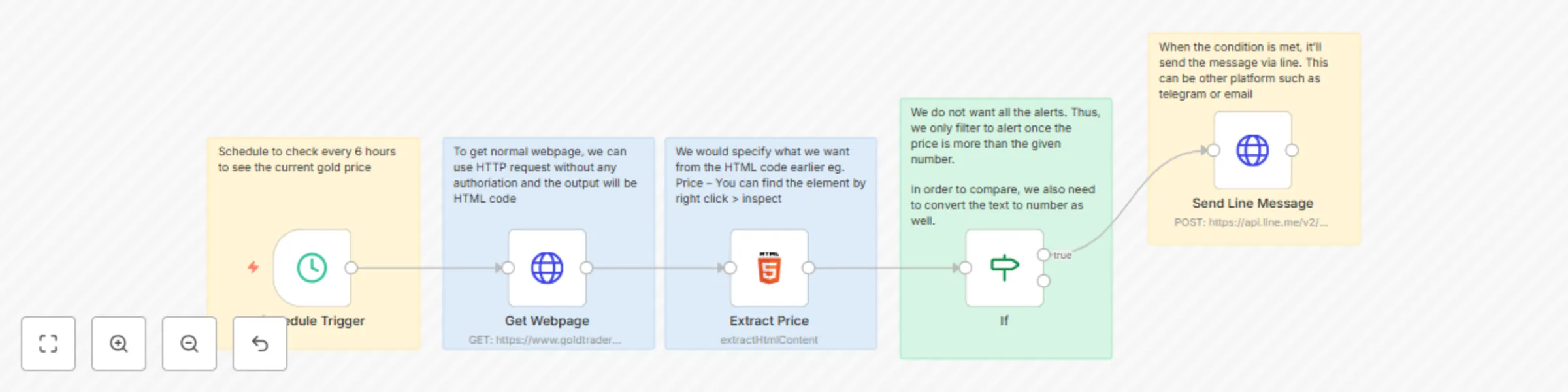
## Gold Price Alert This workflow template, "Gold Price Alert," is designed to monitor gold prices at regular intervals and send real-time notifications via LINE when the price exceeds a specified threshold. By leveraging the power of web scraping and automated alerts, this template ensures you stay informed about significant changes in gold prices without manual intervention. Whether you're an investor, trader, or simply someone interested in tracking gold prices, this workflow provides a reliable and customizable solution for staying updated. ## Who Is This Template For? - Investors & Traders: Who want to monitor gold prices and receive alerts when the price reaches a specific threshold. - Financial Analysts: Looking for automated tools to track commodity prices. Businesses: Operating in industries where gold prices impact operations or profitability. - Automation Enthusiasts: Seeking to build workflows that combine web scraping, data processing, and messaging platforms. ## What Problem Does This Workflow Solve? Tracking gold prices manually can be time-consuming and prone to oversight, especially if you’re monitoring multiple sources or need alerts for specific thresholds. ## This workflow solves that problem by: - Automatically checking gold prices every 6 hours using a schedule trigger. - Extracting the latest price from a trusted source (e.g., Gold Traders Association ). - Sending instant notifications via LINE when the price exceeds a predefined threshold (e.g., 52,300 THB). - Reducing the need for constant manual checks while ensuring timely updates. ## What This Workflow Does 1) Scheduled Trigger: The workflow is triggered every 6 hours to check the current gold price. 2) Fetch Webpage Content: It retrieves the HTML content of the webpage displaying the latest gold prices. 3) Extract Price Data: Using CSS selectors, the workflow extracts the relevant price data (e.g., buying price) from the HTML content. 4) Filter Prices: The extracted price is converted into a numeric format and compared against a predefined threshold (e.g., 52,300 THB). Alerts are only sent if the price exceeds this value. 5) Send Notification via LINE: If the condition is met, the workflow sends a notification to your LINE account with the current gold price. ## Setup Guide Pre-Requisites - Access to the LINE Developers Console to configure your API Access Token - Basic knowledge of HTML and CSS selectors for extracting data from webpages. - Familiarity with n8n workflows and JSON formatting. Step-by-Step Setup 1) Configure the Schedule Trigger: Set the interval to 6 hours or adjust it based on your preference. 2) Set Up Webpage Fetching: Update the URL in the HTTP Request node to point to the webpage containing the gold price data. 3) Extract Price Data: Use the HTML Extractor node to specify the CSS selector for the price element (e.g., #DetailPlace_uc_goldprices1_lblBLBuy). 4) Set Price Threshold: Modify the threshold value in the If node to match your desired alert level (e.g., 52,300 THB). 5) Configure LINE Push API: Replace the placeholder to field in the Send Line Message node with your LINE user ID to ensure notifications are sent to the correct account. Test the Workflow: - Run the workflow manually to verify that it fetches the price, evaluates the condition, and sends notifications correctly. ## How to Customize This Workflow to Your Needs - Change the Interval: Adjust the schedule trigger to check prices more or less frequently (e.g., hourly or daily). - Monitor Multiple Prices: Extend the workflow to extract and compare additional price points (e.g., selling price, international rates). - Integrate Other Platforms: Replace the LINE notification with integrations for Telegram, email, or SMS. - Expand Use Cases: Adapt the workflow to track other commodities or financial indicators by modifying the webpage URL and CSS selectors. ## Why Use This Template? - Real-Time Alerts: Stay informed about significant changes in gold prices without manual intervention. - Customizable Thresholds: Set your own price thresholds to receive alerts tailored to your needs. - Easy Integration: Seamlessly integrates with LINE for quick setup and minimal maintenance. - Scalable: Easily extend the workflow to monitor multiple data points or integrate with other platforms.

l
[email protected]
Crypto Trading
22 Jul 2025
1066
0
Workflow preview: LINE messages with GPT: Save notes, namecard data and tasks
Free advanced

LINE messages with GPT: Save notes, namecard data and tasks

This workflow template, "Personal Assistant to Note Messages and Extract Namecard Information" is designed to streamline the processing of incoming messages on the LINE messaging platform. It integrates with powerful tools like Microsoft Teams , Microsoft To Do , OneDrive , and OpenRouter.ai to handle tasks such as saving notes, extracting namecard information, and organizing images. Whether you’re managing personal productivity or automating workflows for teams, this template offers a versatile and customizable solution. By leveraging this workflow, you can automate repetitive tasks, improve collaboration, and enhance efficiency in handling LINE messages. ## Who Is This Template For? This template is ideal for: - Professionals: Who want to save important messages, extract data from namecards, or organize images automatically. - Teams: Looking to integrate LINE messages into tools like Microsoft Teams and Microsoft To Do for better collaboration. - Developers: Seeking to build intelligent workflows that process text, images, and other inputs from LINE. - Business Owners: Who need to manage customer interactions, follow-ups, and task tracking efficiently. ## What Problem Does This Workflow Solve? Managing incoming messages on LINE can be time-consuming, especially when dealing with diverse input types like text, images, and namecards. This workflow solves that problem by: - Automatically identifying and routing different message types (text, images, namecards) to appropriate actions. - Extracting structured data from namecards and saving it for follow-up tasks. - Uploading images to OneDrive and saving text messages to Microsoft Teams or Microsoft To Do for easy access. - Sending real-time feedback to users via LINE to confirm that their messages have been processed. ## What This Workflow Does - Receive Messages via LINE Webhook: The workflow is triggered whenever a user sends a message (text, image, or other types) to the LINE bot. - Display Loading Animation: A loading animation is displayed to reassure the user that their request is being processed. Route Input Types: The workflow uses a Switch node to determine the type of input: - Text Starting with "T": Adds the message as a task in Microsoft To Do. - Plain Text: Saves the message in Microsoft Teams under a designated channel (e.g., "Notes"). - Images: Identifies whether the image is a namecard, handwritten note, or other content, then processes accordingly. - Unsupported formats trigger a polite response indicating the limitation. Process Namecards: **Images ** If the image is identified as a namecard, the workflow extracts structured data (e.g., name, email, phone number) using OpenRouter.ai and saves it to Microsoft To Do for follow-up tasks. Save Images to OneDrive: Images are uploaded to OneDrive, renamed based on their unique message ID, and linked in Microsoft Teams for reference. **Send Feedback via LINE:** The workflow replies to the user with confirmation messages, such as "[ Task Created ]" or "[ Message Saved ]." ## Setup Guide **Pre-Requisites** - Access to the LINE Developers Console to configure your webhook and bot. - Accounts for Microsoft Teams , Microsoft To Do, and OneDrive with API access. - An OpenRouter.ai account with credentials to access models like GPT-4o. - Basic knowledge of APIs, webhooks, and JSON formatting. **Step-by-Step Setup** 1) Configure the LINE Webhook: - Go to the LINE Developers Console and set up a webhook to receive incoming messages. - Copy the Webhook URL from the Line Webhook node and paste it into the LINE Console. - Remove any "test" configurations when moving to production. 2) Set Up Microsoft Integrations: - Connect your Microsoft Teams, Microsoft To Do, and OneDrive accounts to the respective nodes in the workflow. 3) Set Up OpenRouter.ai: - Create an account on OpenRouter.ai and obtain your API credentials. - Connect your credentials to the OpenRouter nodes in the workflow. **Test the Workflow:** - Simulate sending text, images, and namecards to the LINE bot to verify that all actions are processed correctly. ## How to Customize This Workflow to Your Needs - Add More Actions: Extend the workflow to handle additional input types or integrate with other tools. - Enhance Image Processing: Use advanced OCR tools to improve text extraction from complex images. - Customize Feedback Messages: Modify the reply format to include emojis, links, or other formatting options. - Expand Use Cases: Adapt the workflow for specific industries, such as sales or customer support, by tailoring the actions to relevant tasks. **Why Use This Template?** - Versatile Automation: Handles multiple input types (text, images, namecards) with ease. - Seamless Integration: Connects LINE messages to popular productivity tools like Microsoft Teams and To Do. - Structured Data Extraction: Extracts and organizes data from namecards, saving time and effort. - Real-Time Feedback: Keeps users informed about the status of their requests with instant notifications.

l
[email protected]
Personal Productivity
3 Apr 2025
2307
0
Workflow preview: Chinese translator via Line x OpenRouter (Text & Image)
Free advanced

Chinese translator via Line x OpenRouter (Text & Image)

This workflow template, "Chinese Translator via Line x OpenRouter (Text & Image)" is designed to provide seamless Chinese translation services directly within the LINE messaging platform. By integrating with OpenRouter.ai and advanced language models like Qwen, this workflow translates text or images containing Chinese characters into pinyin and English translations, making it an invaluable tool for language learners, travelers, and businesses operating in multilingual environments. ## This template is ideal for: - Language Learners: Who want to practice Chinese by receiving instant translations of text or images. - Travelers: Looking for quick translations of Chinese signs, menus, or documents while abroad. - Educators: Teaching Chinese language courses and needing tools to assist students with translations. - Businesses: Operating in multilingual markets and requiring efficient communication tools. - Automation Enthusiasts: Seeking to build intelligent chatbots that can handle language translation tasks. ## What Problem Does This Workflow Solve? Translating Chinese text or images into English and pinyin can be challenging, especially for beginners or those without access to reliable translation tools. This workflow solves that problem by: - Automatically detecting and translating text or images containing Chinese characters. Providing accurate translations in both pinyin and English for better comprehension. - Supporting multiple input formats (text, images) to cater to diverse user needs. Sending replies directly to users via the LINE messaging platform , ensuring accessibility and ease of use. ## What This Workflow Does 1) **Receive Messages via LINE Webhook** The workflow is triggered when a user sends a message (text, image, or other types) to the LINE bot. 2) **Display Loading Animation** A loading animation is displayed to reassure the user that their request is being processed. 3) **Route Input Types** The workflow uses a Switch node to determine the type of input (text, image, or unsupported formats). - If the input is text , it is sent to the OpenRouter.ai API for translation. - If the input is an image , the workflow extracts the image content, converts it to base64, and sends it to the API for translation. - Unsupported formats trigger a polite response indicating the limitation. 4) **Translate Content Using OpenRouter.ai** The workflow leverages Qwen models from OpenRouter.ai to generate translations: - For text inputs, it provides Chinese characters , pinyin , and English translations . - For images, it extracts and translates using the qwen-VL model which can take images 5) **Reply with Translations** The translated content is formatted and sent back to the user via the LINE Reply API. ## Setup Guide **Pre-Requisites** - Access to the LINE Developers Console to configure your webhook and channel access token. - An OpenRouter.ai account with credentials to access Qwen models. - Basic knowledge of APIs, webhooks, and JSON formatting. **Step-by-Step Setup** 1) Configure the LINE Webhook: Go to the LINE Developers Console and set up a webhook to receive incoming messages. Copy the Webhook URL from the Line Webhook node and paste it into the LINE Console. Remove any "test" configurations when moving to production. 2) Set Up OpenRouter.ai: Create an account on OpenRouter.ai and obtain your API credentials. Connect your credentials to the OpenRouter nodes in the workflow. 3) Test the Workflow: Simulate sending text or images to the LINE bot to verify that translations are processed and replied correctly. ## How to Customize This Workflow to Your Needs - Add More Languages: Extend the workflow to support additional languages by modifying the API calls. - Enhance Image Processing: Integrate more advanced OCR tools to improve text extraction from complex images. - Customize Responses: Modify the reply format to include additional details, such as grammar explanations or cultural context. - Expand Use Cases: Adapt the workflow for specific industries, such as tourism or e-commerce, by tailoring the translations to relevant vocabulary. ## Why Use This Template? - Real-Time Translation: Provides instant translations of text and images, improving user experience and accessibility. - Multimodal Support: Handles both text and image inputs, catering to diverse user needs. - Scalable: Easily integrate into existing systems or scale to support multiple users and workflows. - Customizable: Tailor the workflow to suit your specific audience or industry requirements.

l
[email protected]
Personal Productivity
19 Mar 2025
1037
0
Workflow preview: Chinese translator via Line x OpenRouter
Free intermediate

Chinese translator via Line x OpenRouter

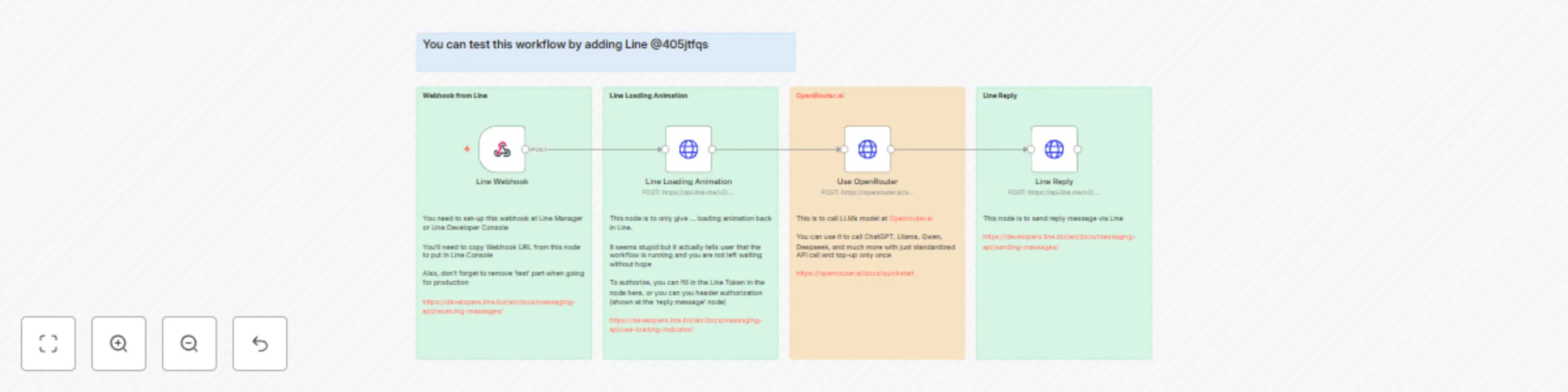
The Chinese Translator workflow automates the translation of text into Chinese characters, pinyin, and English translations via Line Messaging API. This workflow leverages OpenRouter.ai to call advanced language models such as Qwen for accurate translations and ensures smooth user interaction by providing loading animations and timely replies. ## Purpose This workflow aims to - Provide users with real-time translations of input text into Chinese characters, pinyin, and English - Deliver seamless user experience through interactive features like loading animations and quick reply messages - Enable easy integration with Line Messaging API for scalable deployment ## Key Features - Real-Time Translation : Translates user-inputted text instantly using OpenRouter.ai's standardized API. - Comprehensive Output : Delivers Chinese characters, pinyin, and English translations for each word or phrase. - Interactive User Experience : Incorporates loading animations to inform users that the workflow is processing their request. - Line Integration : Utilizes Line Webhooks and Reply APIs to facilitate communication between users and the translation service. ## Data Flow 1. **Receiving Input** Node: Line Webhook Captures incoming messages from Line users. Extracts the text content and reply token from the webhook payload. 2. **Loading Animation** Node: Line Loading Animation Sends a loading animation back to the user, indicating that the workflow is processing the request. Enhances user experience by providing immediate feedback. 3. **Translation Processing** Node: Use OpenRouter Sends the extracted text to OpenRouter.ai's API, utilizing the Qwen model for translation. Requests Chinese characters, pinyin, and English translations for the input text. 4. **Sending Response** Node: Line Reply Formats the translation results into a readable text message. Sends the translated text back to the user via Line's Reply API. ## Setup Instructions **Prerequisites** - Line Developer Account : Create a Line channel to obtain necessary credentials for webhooks and messaging. - OpenRouter.ai Account : Set up an account and configure access to utilize their language models. **Steps to Configure** - Set Up Line Webhook : Navigate to the Line Developers Console and create a new webhook URL. Copy the generated webhook URL and paste it into the Line Webhook node in n8n. - Configure OpenRouter.ai : Obtain API credentials from OpenRouter.ai and integrate them into the Use OpenRouter node within the workflow. - Adjust Workflow Settings : Ensure the timezone is set to Asia/Bangkok . Verify that all nodes are correctly connected and configured with appropriate credentials. ## Intended Audience This workflow is ideal for: - Language Learners : Seeking quick translations and pronunciation guides for Chinese language studies. - Travelers : Looking to communicate effectively while traveling in Chinese-speaking regions. - Businesses : Aiming to provide multilingual support to customers and clients. ## Benefits - Enhanced Learning : Provides comprehensive translations, including pinyin, aiding in language acquisition. - User-Friendly Interface : Real-time loading animations and prompt replies ensure a smooth user experience. - Scalable Deployment : Easily integrates with Line's extensive user base for widespread accessibility.

l
[email protected]
Personal Productivity
18 Mar 2025
1121
0
Workflow preview: Send n8n error reports to LINE
Free intermediate

Send n8n error reports to LINE

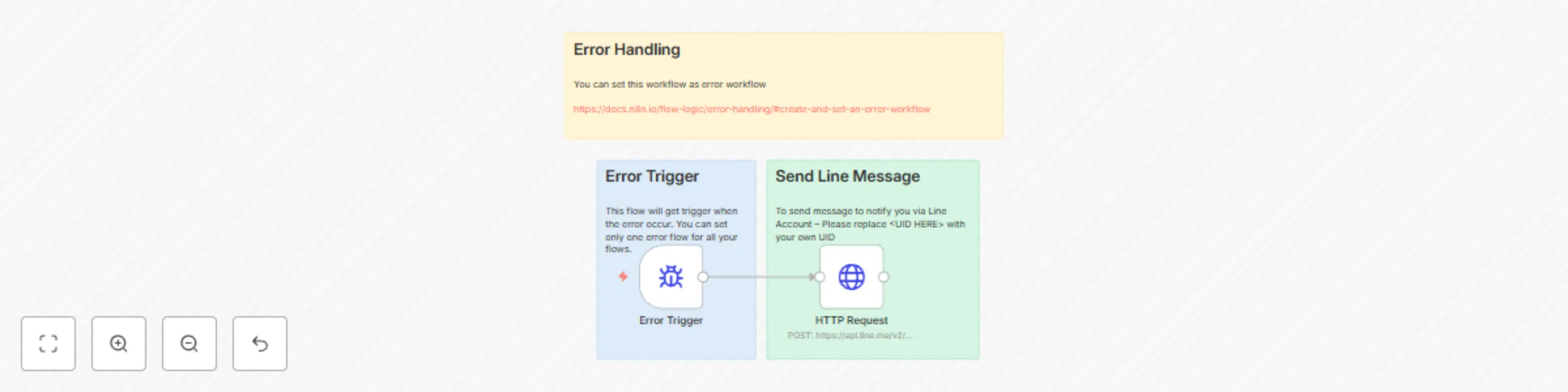
This workflow template, "n8n Error Report to LINE," is designed to streamline error handling by sending real-time notifications to your LINE account whenever an error occurs in any of your n8n workflows. By integrating with the LINE Messaging API , this template ensures you stay informed about workflow failures, allowing you to take immediate action and minimize downtime. Whether you're a developer managing multiple workflows or a business owner relying on automation, this template provides a simple yet powerful way to monitor and resolve errors efficiently. ## Who Is This Template For? **Developers:** Who manage complex n8n workflows and need real-time error notifications. **DevOps Teams**: Looking to enhance monitoring and incident response for automated systems. **Business Owners**: Who rely on n8n workflows for critical operations and want to ensure reliability. **Automation Enthusiasts**: Seeking tools to simplify error tracking and improve workflow performance. ## What Problem Does This Workflow Solve? When automating processes with n8n, errors can occur due to various reasons such as misconfigurations, API changes, or unexpected inputs. Without proper error handling, these issues may go unnoticed, leading to delays or disruptions. This workflow solves that problem by: 1) Automatically detecting errors in your n8n workflows. 2) Sending instant notifications to your LINE account with details about the failed workflow, including its name and execution URL. Allowing you to quickly identify and resolve issues, ensuring smooth operation of your automated systems. ## What This Workflow Does 1) Error Trigger: The workflow is triggered automatically whenever an error occurs in any n8n workflow configured to use this error-handling flow. 2) Send Notification via LINE: Using the LINE Push API , the workflow sends a message to your LINE account with key details about the error, such as the workflow name and execution URL. You can also customize the notification message to include additional information or format it to suit your preferences. ## Setup Guide **Pre-Requisites** - Access to the LINE Developers Console with a registered bot and access to the Push API. [https://developers.line.biz/console/](https://developers.line.biz/console/) [API Reference]( https://developers.line.biz/en/reference/messaging-api/#send-narrowcast-message) - Basic knowledge of n8n workflows and JSON formatting. - An active n8n instance where you can configure error workflows. **Step-by-Step Setup** - Configure the Error Trigger: Set this workflow as the default error workflow in your n8n instance. [https://docs.n8n.io/flow-logic/error-handling/](https://docs.n8n.io/flow-logic/error-handling/) - Set Up LINE Push API: Replace <UID HERE> in the HTTP Request node with your LINE user ID to ensure notifications are sent to the correct account.

l
[email protected]
DevOps
12 Mar 2025
592
0
Workflow preview: AI-powered gratitude reminder workflow for LINE
Free intermediate

AI-powered gratitude reminder workflow for LINE

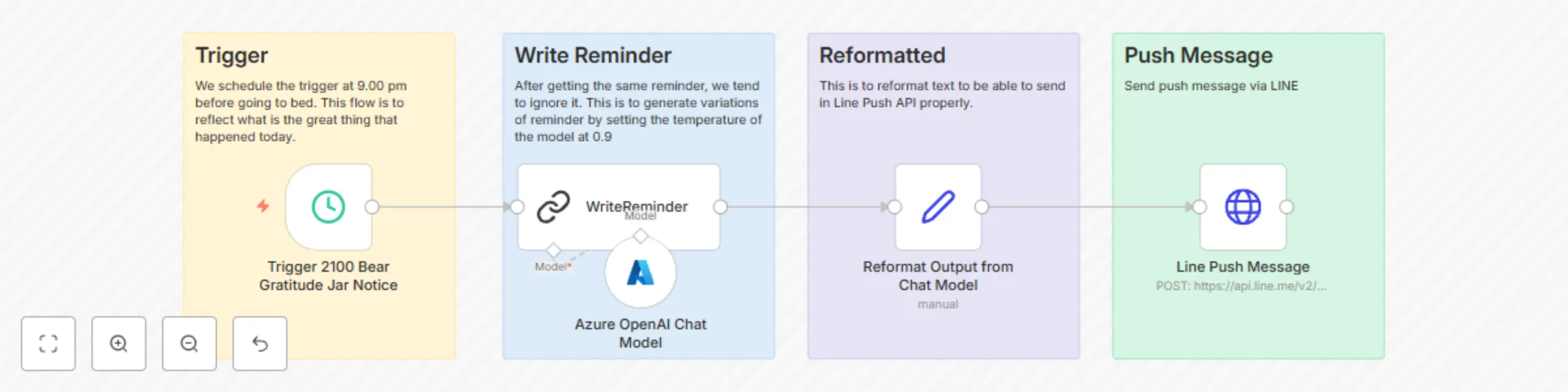
This workflow template, "Daily Gratitude Reminder Bot for LINE," is designed to help users cultivate a habit of gratitude by sending personalized, AI-generated reminders every evening at 9:00 PM. Using Azure OpenAI , the bot generates varied and engaging messages to prompt users to reflect on the positive aspects of their day. The reminders are then sent directly to users via the LINE messaging platform , ensuring a seamless and impactful experience. Whether you're a developer, counselor, or business owner, this template offers a customizable and scalable solution for promoting mental wellness and fostering a culture of gratitude. profile Qwen2.5-Max 2:56 pm Here’s a polished and detailed description for your "Daily Gratitude Reminder Bot for LINE" template, following the submission guidelines provided. This description is structured to meet all the requirements, including SEO optimization, clarity, and user convenience. Daily Gratitude Reminder Bot for LINE This workflow template, "Daily Gratitude Reminder Bot for LINE," is designed to help users cultivate a habit of gratitude by sending personalized, AI-generated reminders every evening at 9:00 PM. Using Azure OpenAI , the bot generates varied and engaging messages to prompt users to reflect on the positive aspects of their day. The reminders are then sent directly to users via the LINE messaging platform , ensuring a seamless and impactful experience. Whether you're a developer, counselor, or business owner, this template offers a customizable and scalable solution for promoting mental wellness and fostering a culture of gratitude. ## Who Is This Template For? **Developers** who want to integrate AI-powered workflows into messaging platforms like LINE. **Counselors & Therapists** looking to encourage mindfulness and emotional well-being among their clients. **Businesses & Organizations** focused on employee wellness or customer engagement through positive reinforcement. **Educators & Nonprofits** seeking tools to promote mental health awareness and self-care practices. ## What Problem Does This Workflow Solve? Gratitude journaling has been proven to improve mental health, reduce stress, and increase overall happiness. However, many people struggle to maintain the habit due to busy schedules or forgetfulness. This workflow solves that problem by automating daily reminders to reflect on positive experiences, making it easier for users to build and sustain a gratitude practice. ## What This Workflow Does 1. Scheduled Trigger: The workflow is triggered every evening at 9:00 PM using a schedule node. 2. AI-Powered Message Generation: An Azure OpenAI Chat Model generates a unique and engaging reminder message with a temperature setting of 0.9 to ensure variety and creativity. 3. Message Formatting: The generated message is reformatted to comply with the LINE Push API requirements, ensuring smooth delivery. 4. Push Notification via LINE: The formatted message is sent to the user via the LINE Push API , delivering the reminder directly to their chat. ## Setup Guide **Pre-Requisites** - Access to an Azure OpenAI account with credentials. - A LINE Developers Console account with access to the Push API. - Basic knowledge of n8n workflows and JSON formatting. ## How to Customize This Workflow to Your Needs - Change the Time: Adjust the schedule trigger to send reminders at a different time. Modify the Prompt: Edit the AI model's input prompt to generate messages tailored to your audience (e.g., focus on work achievements or personal growth). - Expand Recipients: Update the LINE Push API node to send reminders to multiple users or groups. - Integrate Additional Features: Add nodes to log user responses or track engagement metrics. Why Use This Template? - Promotes Mental Wellness: Encourages users to reflect on positive experiences, improving emotional well-being. - Highly Customizable: Easily adapt the workflow to suit different audiences and use cases. - Scalable: Send reminders to one user or thousands, making it suitable for both personal and organizational use. - AI-Powered Creativity: Avoid repetitive messages by leveraging AI to generate fresh and engaging content.

l
[email protected]
Personal Productivity
28 Feb 2025
909
0
Workflow preview: Get daily exercise plan with Flex Message via LINE
Free advanced

Get daily exercise plan with Flex Message via LINE

The YogiAI workflow automates sending daily yoga pose reminders and related information via Line Push Messages . This automation leverages data from a Google Sheets database containing yoga pose details such as names, image URLs, and links to ensure users receive personalized and engaging content every day. **Purpose** - Provide users with daily yoga pose suggestions tailored to their practice. - Deliver visually appealing and informative content through Line's Flex Messages, including images and clickable links. - Log user interactions and preferences back into Google Sheets to refine future recommendations. **Key Features** 1. Automated Daily Reminders : Sends a curated list of yoga poses at a scheduled time (21:30 Bangkok time). 2. Dynamic Content Generation : Uses AI to rewrite and format messages in a user-friendly manner, complete with emojis and clear instructions. 3. Integration with Google Sheets : Pulls data from a predefined Google Sheet and logs interactions for continuous improvement. 4. Customizable Messaging : Ensures JSON outputs are properly formatted for Line’s Flex Message API, allowing for interactive and visually rich content. **Data Source** Google Sheets Structure The workflow relies on a Google Sheet structured as follows: PoseName : The name of the yoga pose. uri : The image URL representing the pose. url : A clickable link directing users to more information about the pose. Sample Data Layout Supine Angle https://example.com/SupineAngle-tn146.png https://example.com/pose/SupineAngle Warrior II https://example.com/WarriorII-tn146.png https://example.com/pose/WarriorII *Note : Ensure that you update the Google Sheet with your own data. Refer to this sample sheet for reference. * **Scheduled Trigger** The workflow is triggered daily at 21:30 (9:30 PM) Bangkok Time (Asia/Bangkok) . This ensures timely delivery of reminders to users, keeping them engaged with their yoga practice. **Workflow Process** 1. **Data Retrieval** Node: Get PoseName Fetches yoga pose details from the specified range in the Google Sheet. 2. **Content Generation** Node: WritePosesToday Utilizes Azure OpenAI to craft user-friendly text, complete with emojis and clear instructions. Node: RewritePosesToday Formats the AI-generated text specifically for Line messaging, ensuring compatibility and visual appeal. 3. **JSON Formatting** Node: WriteJSONflex Generates JSON structures required for Line’s Flex Messages, enabling carousel displays of yoga pose images and links. Node: Fix JSON Ensures all JSON outputs are correctly formatted before being sent via Line. 4. **Message Delivery** Node: Line Push with Flex Bubble Sends the final message, including both text and Flex Message carousels, directly to users via Line Push Messages. 5. **Logging Interactions** Nodes: YogaLog & YogaLog2 Logs each interaction back into Google Sheets to track which poses were sent and how often they appear, refining future recommendations. **Setup Prerequisites** *Google Sheets Account* : Set up a Google Sheet with the required structure and populate it with your yoga pose data. *Line Developer Account* : Create a Line channel to obtain necessary credentials for sending push messages. *Azure OpenAI Account* : Configure access to Azure OpenAI services for generating and formatting content. **Intended Audience** This workflow is ideal for: - Yoga Instructors : Seeking to engage students with daily pose suggestions. - Fitness Enthusiasts : Looking to maintain consistency in their yoga practice. - Content Creators : Interested in automating personalized and visually appealing content distribution.

l
[email protected]
Social Media
23 Feb 2025
2430
0
Workflow preview: Build your own counseling chatbot on LINE to support mental health conversations
Free intermediate

Build your own counseling chatbot on LINE to support mental health conversations

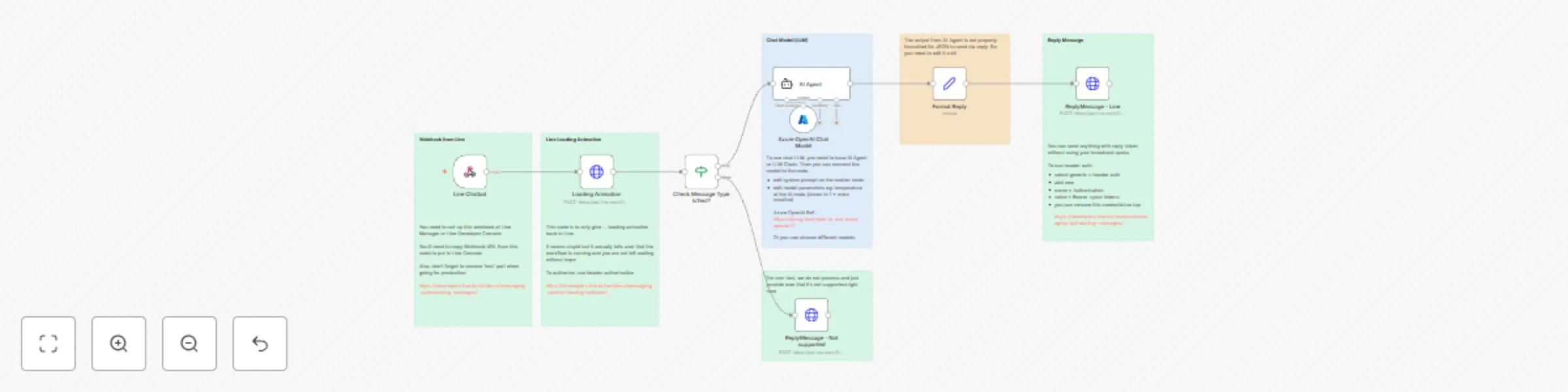
Are you looking to create a counseling chatbot that provides emotional support and mental health guidance through the LINE messaging platform ? This guide will walk you through connecting LINE with powerful AI language models like GPT-4 to build a chatbot that supports users in navigating their emotions, offering 24/7 conversational therapy and accessible mental health resources . By leveraging LINE's webhook integration and Azure OpenAI , this template allows you to design a chatbot that is both empathetic and efficient, ensuring users receive timely and professional responses. Whether you're a developer, counselor, or business owner, this guide will help you create a customizable counseling chatbot tailored to your audience's needs. ## Who Is This Template For? **Developers** who want to integrate AI-powered chatbots into the LINE platform for mental health applications. **Counselors & Therapists** looking to expand their reach and provide automated emotional support to clients outside of traditional sessions. **Businesses & Organizations** focused on improving mental health accessibility and offering innovative solutions to their users. **Educators & Nonprofits** seeking tools to provide free or low-cost counseling services to underserved communities. ## How this work? - Line Webhook to receive new message - Send loading animation in Line - Check if the input is text or not - Send the text as prompt in chat model (GPT 4o) - Reply the message to user (you'll need 'edit field' to format it before reply) ## Pre-Requisites - You have access to the LINE Developers Console. - An Azure OpenAI account with necessary credentials. ## Set-up 1. To receive messages from LINE, configure your webhook: - Set up a webhook in LINE Developer Console. - Copy the Webhook URL from the Line Chatbot node and paste it into the LINE Console. - Ensure to remove any 'test' part when moving to production. 2. The loading animation reassures users that the system is processing their request. - Authorize using header authorization 3. Message Handling - Use the Check Message Type IsText? node to verify if the incoming message is text. If the message type is text, proceed with ChatGPT processing; otherwise, send a reply indicating non-text inputs are not supported. 4. AI Agent Configuration - Define the system message within the AI Agent node to guide the conversation based on desired interaction principles. - Connect the Azure OpenAI Chat Model to the AI Agent. 5. Formatting Responses - Ensure responses are properly formatted before sending them back to the user. 6. Reply Message - Use the ReplyMessage - Line node to send the formatted response. - Ensure proper header authorization using Bearer tokens.

l
[email protected]
Support Chatbot
22 Feb 2025
6612
0