J

Joey D’Anna

4
Workflows

Workflows by Joey D’Anna

Workflow preview: Retrieve a Monday.com row and all data in a single node
Free advanced

Retrieve a Monday.com row and all data in a single node

This workflow is a building block designed to be called from other workflows via an **Execute workflow** node. When called from another workflow, and given the JSON input of a "**pulse**" field with the ID to pull from monday, this workflow will return: - The items name and ID - All column data, indexable by the column name - All column data, indexable by the column's ID string - All board relation columns, with their data and column values - All subitems, with their data and column values For example: ![image.png](fileId:736) ++Prerequisites++ - A monday.com account and credential - A workflow that needs to get detailed data from a monday.com row - The pulse id of the monday.com row to retreive data from. ++Setup++ - Import the workflow - Configure all monday nodes with your credentials and save the workflow - Copy the workflow ID from it's URL - In a different workflow, add an **Edit Fields** node, to output the field "**pulse**", with the monday item you want to retrieve. - Feed the **Edit Fields** node with your pulse into an **Execute workflow** node, and paste the workflow ID from above into it - This "pulse" field will tell the workflow what pulse to retreive. This can be populated by an expression in your workflow - There is an example of the **Edit Fields** and **Execute Workflow** nodes in the template

J
Joey D’Anna
Project Management
8 Feb 2024
3944
0

Workflow preview: Nightly n8n backup to Dropbox
Free advanced

Nightly n8n backup to Dropbox

This template will create a nightly backup of all your n8n workflows to a Dropbox folder. Each night, the previous night's backups are moved into an "old" folder, and renamed with the date they were taken. Backups over a specified age are deleted. (this is disabled by default for safety until you manually enable and verify it with your own setup) Prerequisites - Dropbox account and credentials - A destination folder for backups Setup - Update all dropbox nodes with your credential - Edit the **Schedule Trigger** node with the desired time to run the backup - Edit the **DESTINATION FOLDER** node to specify the path in dropbox to upload to. This should be a folder and *include* the trailing / - If you want to automatically purge old backups - Edit the **PURGE DAYS** node to specify the age to purge - Enable the **PURGE DAYS** node, and the 3 subsequent nodes - Enable the workflow to run on the specified schedule

J
Joey D’Anna
DevOps
31 Jan 2024
7096
0
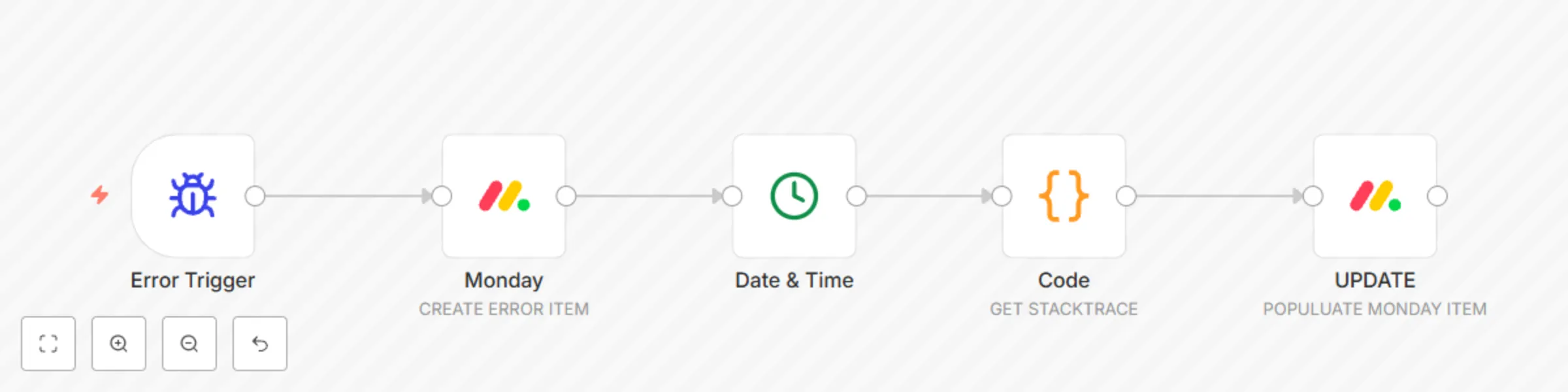
Workflow preview: Send n8n automation errors to a Monday.com board
Free intermediate

Send n8n automation errors to a Monday.com board

This template is an error handler that will log n8n workflow errors to a Monday.com board for troubleshooting and tracking. Prerequisites - Monday account and Monday credential - Create a board on Monday for error logging, with the following columns and types: - Timestamp (text) - Error Message (text) - Stack Trace (long text) - Determine the column IDs using Monday's [instructions](https://support.monday.com/hc/en-us/articles/360000225709-Board-item-column-and-automation-or-integration-ID-s) Setup - Edit the Monday nodes to use your credential - Edit the node labeled **CREATE ERROR ITEM** to point to your error log board and group name - Edit the column IDs in the "Column Values" field of the **UPDATE** node to match the IDs of the fields on your error log board - To trigger error logging, select this automation as the error workflow on any automation - For more detailed logging, add **Stop and Error** nodes in your workflow to send specific error messages to your board.

J
Joey D’Anna
DevOps
31 Jan 2024
1642
0

Workflow preview: Monday.com useful utilities
Free intermediate

Monday.com useful utilities

This template is a set of building blocks to access Monday.com in ways not supported by the official Monday node. Prerequisites - Monday account and Monday credentials. Included are setups to: - Find a column value by the column's name (instead of a numerical index which can change when board structure is changed) - Find a column value by the column's ID (again, instead of using a numerical index) - Pull a board relation column, and get all the related pulses - Pull an items subitems and split them out - Upload a file to an item's files field Setup - Create a Monday.com credential - Update the nodes in the template to use your credential - Copy/Paste the nodes you need from this template into any other workflow - To retreive a column by name: - Route a Monday.com node that gets an item to the **COLUMN BY NAME** node - Edit the **COLUMN BY NAME** node, and enter the name in the first line of code. - To retreive a column by its ID: - Follow Monday.com's [instructions](https://support.monday.com/hc/en-us/articles/360000225709-Board-item-column-and-automation-or-integration-ID-s) to locate the column's ID - Route a Monday.com node that gets an item to the **COLUMN BY ID** node -Edit the **COLUMN BY ID** node, and enter the ID in the first line of code. - To retreive all linked pulses from a Board Relation column: - Route a Monday.com node that gets an item to the **GET BOARD RELATION** node - Edit the **GET BOARD RELATION** node to specify the column name. - All linked pulses will be retrieved by the subsequent **PULL LINKEDPULSE** node - To pull all subitems from an item: - Route a Monday.com node that gets an item to the **PULL SUBITEMS** node - All subitems will be retrieved by the subsequent **GET EACH SUBITEM** node - To upload a File: - Repalce the **Convert to File** node with whatever node you are using to output your binary file data - Enable the **MONDAY UPLOAD** node - If the destination column is named anything other then the default of "file" - edit the **MONDAY UPLOAD** node and change column_id:"file" in the first Value field to match the name of your file column

J
Joey D’Anna
Project Management
30 Jan 2024
3418
0