P

Pawan

3
Workflows

Workflows by Pawan

Workflow preview: Automated UPSC current affairs digest from The Hindu to Google Sheets with Gemini AI
Free advanced

Automated UPSC current affairs digest from The Hindu to Google Sheets with Gemini AI

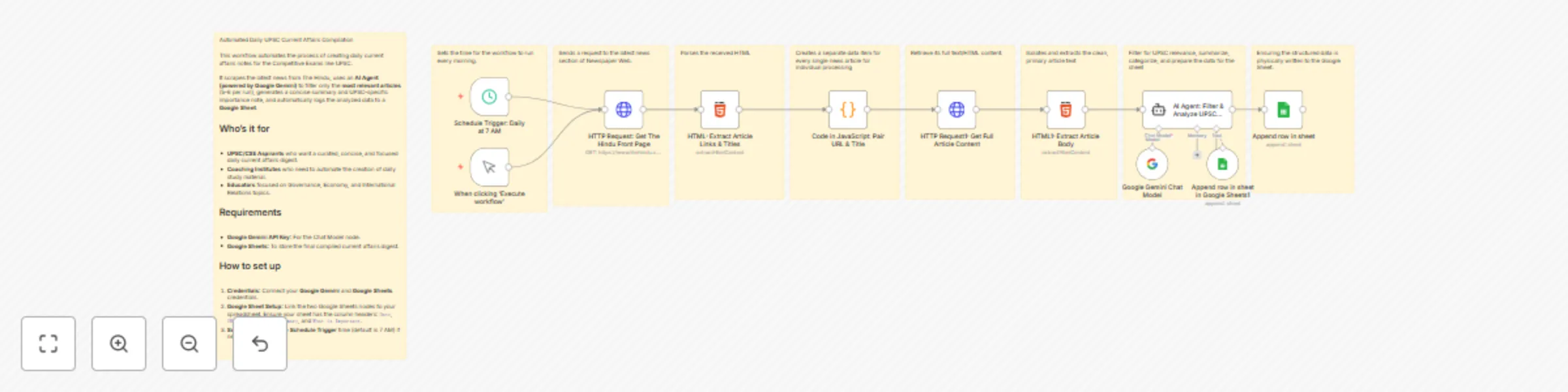
This template sets up a scheduled automation that scrapes the latest news from The Hindu website, uses a Google Gemini AI Agent to filter and analyze the content for relevance to the **Competitive Exams like UPSC Civil Services Examination (CSE) syllabus**, and compiles a structured daily digest directly into a Google Sheet. It **saves hours of manual reading and note-taking** by providing concise summaries, subject categorization, and explicit UPSC importance notes. ## Who’s it for This workflow is essential for: 1. **UPSC/CSE Aspirants** who require a curated, focused, and systematic daily current affairs digest. 2. **Coaching Institutes** aiming to instantly generate structured, high-quality study material for their students. 3. **Educators and Content Creators** focused on Governance, Economy, International Relations, and Science & Technology. ## How it works / What it does This workflow runs automatically every morning (scheduled for 7 AM by default) to generate a ready-to-study current affairs document. 1. **Scraping**: The Schedule Trigger fires an HTTP Request to fetch the latest news links from The Hindu's front page. 2. **Data Curation:** The HTML and Code in JavaScript nodes work together to extract and pair every article URL with its title. 3. **Content Retrieval:** For each identified link, a second HTTP Request node fetches the entire article body. 4. **AI Analysis and Filtering:** The AI Agent uses a detailed prompt and the Google Gemini Chat Model to perform two critical tasks: 1. **Filter:** It filters out all irrelevant articles (e.g., sports results, local crime) to keep only the 5-6 most important UPSC-relevant pieces (Polity, Economy, IR, etc.). 6. **Analyze:** For the selected articles, it generates a **Brief Summary**, identifies the Main Subject, and clearly articulates Why it is Important for the UPSC Exam. 7. **Storage:** The AI Agent calls the integrated Google Sheets Tool to **automatically append** the structured, analyzed data into your designated Google Sheet, creating your daily ready-made notes. ## Requirements To deploy this workflow, you need: 1. **n8n Account:** (Cloud or self-hosted). 2. **Google Gemini API Key:** For connecting the Google Gemini Chat Model and powering the AI Agent. 3. **Google Sheets Credentials:** For reading/writing the final compiled digest. 4. **Target Google Sheet:** A spreadsheet with the following columns: Date, URL, Subject, Brief Summary, and What is Important. ## How to set up - **Credentials Setup:** Connect your Google Gemini and Google Sheets accounts via the n8n Credentials Manager. - **Google Sheet Linking:** In the **Append row in sheet and Append row in sheet in Google Sheets1 nodes**, replace the **placeholder IDs and GIDs** with the actual ID and sheet name of your dedicated UPSC notes spreadsheet. - **Scheduling:** Adjust the time in the **Schedule Trigger: Daily at 7 AM node** if you want the daily analysis to run at a different hour. - **AI Customization (Optional):** You can refine the System Message in the **AI Agent: Filter & Analyze UPSC News node** to focus the analysis on specific exam phases (e.g., Prelims only) or adjust the priority of subjects.

P
Pawan
Market Research
19 Oct 2025
82
0
Workflow preview: Create a factual learning assistant with RAG, Gemini, Telegram & MongoDB
Free advanced

Create a factual learning assistant with RAG, Gemini, Telegram & MongoDB

## Who's it for? This template is perfect for educational institutions, coaching centers (like UPSC, GMAT, or specialized technical training), internal corporate knowledge bases, and SaaS companies that need to provide instant, accurate, and source-grounded answers based on proprietary documents. It's designed for users who want to leverage Google Gemini's powerful reasoning but ensure its answers are strictly factual and based only on their verified knowledge repository. ## How it works / What it does This workflow establishes a Retrieval-Augmented Generation (RAG) pipeline to build a secure, fact-based AI Agent. It operates in two main phases: ### 1. Knowledge Ingestion: When a new document (e.g., a PDF, lecture notes, or policy manual) is uploaded via a form or Google Drive, the Embeddings Google Gemini node converts the content into numerical vectors. These vectors are then stored in a secure MongoDB Atlas Vector Store, creating a private knowledge base. ### 2. AI Query & Response: A user asks a question via Telegram. The AI Agent uses the question to perform a semantic search on the MongoDB Vector Store, retrieving the most relevant, source-specific passages. It then feeds this retrieved context to the Google Gemini Chat Model to generate a precise, factual answer, which is sent back to the user on Telegram. This process ensures the agent never **"hallucinates"** or uses general internet knowledge, making the responses **accurate and trustworthy**. ## Requirements To use this template, you will need the following accounts and credentials: 1. **n8n Account** 2. **Google Gemini API Key:** For generating vector embeddings and powering the AI Agent. 3. **MongoDB Atlas Cluster:** A free-tier cluster is sufficient, configured with a Vector Search index. 4. **Telegram Bot:** A bot created via BotFather and a Chat ID where the bot will listen for and send messages. 5. **Google Drive Credentials** (if using the Google Drive ingestion path). ## How to set up - **Set up MongoDB Atlas:** Create a free cluster and a database. Create a Vector Search Index on your collection to enable efficient searching. - **Configure Ingestion Path:** - **Set up the Webhook trigger** for your "On form submission" or connect your Google Drive credentials. - Configure the **Embeddings Google Gemini node** with your API Key. - Connect the **MongoDB Atlas Vector Store node** with your database credentials, collection name, and index name. - **Configure Chat Path:** - Set up the **Telegram Trigger** with your Bot Token to listen for incoming messages. - Configure the **Google Gemini Chat Model** with your API Key. - Connect the MongoDB Atlas Vector Store 1 node as a Tool within the AI Agent. Ensure it points to the same vector store as the ingestion path. - **Final Step:** Configure the Send a text message node with your **Telegram Bot Token and the Chat ID**. ## How to customize the workflow - **Change Knowledge Source:** Replace the Google Drive nodes with nodes for Notion, SharePoint, Zendesk, or another document source. - **Change Chat Platform:** Replace the Telegram nodes with a Slack, Discord, or WhatsApp Cloud trigger and response node. - **Refine the Agent's Persona:** Open the AI Agent node and edit the System Instruction to give the bot a specific role (e.g., "You are a senior UPSC coach. Answer questions politely and cite sources."). ## 💡 Example Use Case - An **UPSC/JEE/NEET** coaching uploads NCERT summaries and previous year notes to Google Drive. - Students ask questions in the Telegram group — the bot instantly replies with **contextually accurate answers** from the uploaded materials. - The same agent can generate **daily quizzes or concise notes** from this curated content automatically.

P
Pawan
Internal Wiki
14 Oct 2025
345
0
Workflow preview: Generate & post unique MCQ polls to Telegram with Gemini AI and Google Sheets
Free advanced

Generate & post unique MCQ polls to Telegram with Gemini AI and Google Sheets

This template provides a complete, **two-part automation system** for exam preparation providers, educators, or content creators to automatically generate unique Multiple-Choice Questions (MCQs) on a specific syllabus, save them to Google Sheets, and publish them as Telegram polls—all on a schedule and driven by Google's Gemini Chat Model. ## How it Works / What it Does This template consists of two interconnected workflows: ### **Workflow 1:** Quiz Generation & Storage 1. A Schedule Trigger starts the quiz generation process periodically. 2. The AI Agent (powered by the Gemini Chat Model) generates a new MCQ based on a specific syllabus or topic (configured in the agent's prompt). 3. The workflow reads all existing quiz data from a Google Sheet (your quiz database). 4. The AI Agent receives the existing quiz data as memory to intelligently check the newly generated question against the existing ones, ensuring the new MCQ is unique and avoids duplication. 5. The new, unique MCQ is added or updated as a new row in the Google Sheet. ### **Workflow 2:** Quiz Posting & Status Update 1. A Google Sheets Trigger listens for new rows (the new unique MCQ) being added or updated in the sheet. 2. It reads the newly added quiz data. 3. A Check New Quiz Added node verifies the data is ready to be posted. 4. The validated quiz is posted to your specified Telegram chat as an interactive poll. 5. The workflow immediately updates the corresponding row in the Google Sheet, marking the quiz as "Posted" to prevent accidental reposting. 6. Finally, it triggers the start of Workflow 1 again to generate the next unique quiz, creating a continuous loop of content creation and publishing. ## Requirements - To set up this template, you will need: - n8n Account: A running n8n instance (cloud or self-hosted). - Google Account: For the Google Sheets Trigger/Nodes and the Google Gemini Chat Model (via the Google services/credentials). - Telegram Account: A Telegram Bot Token and the Chat ID where the polls will be posted. ## How to Set Up 1. This template is designed to be plug-and-play after connecting your credentials. 2. Connect Google Gemini Chat Model: Authenticate the Google Gemini Chat Model node using your Google account and ensure you have access to the Gemini model API. 3. Configure Google Sheets Nodes: Connect to your Google Sheet where the quizzes are stored. Make sure the sheet has columns for the quiz question, options, answer, and a "Status" column (e.g., Posted or New). 4. Configure Telegram Node: Set up the Send Telegram Poll node with your Bot Token and the target Chat ID. 5. Customize AI Agent: Update the AI Agent's prompt with the specific syllabus, topic, and format instructions for your desired MCQs. ## How to Customize the Workflow - Posting Schedule: Adjust the Schedule Trigger in Workflow 1 to control how often new quizzes are generated (e.g., daily, every hour). - Difficulty/Format: Modify the AI Agent's prompt to control the difficulty level, number of options, or required answer explanation for the MCQs. - Destination: Easily replace the Send Telegram Poll node with other social media nodes (like X/Twitter, Slack, or Discord) to post your MCQs on different platforms.

P
Pawan
Content Creation
5 Oct 2025
225
0