E

Elegant Biztech

5
Workflows

Workflows by Elegant Biztech

Workflow preview: Automated QuickBooks sales anomaly detector with professional email alerts
Free advanced

Automated QuickBooks sales anomaly detector with professional email alerts

# 📈 Is Your Business Flying Blind Day-to-Day? Get QuickBooks Sales Alerts That Matter. What if you could spot a major sales problem—or a winning campaign—the very next morning, instead of weeks later? Imagine receiving a beautiful, data-rich alert directly in your inbox the moment your sales deviate from the norm. This workflow transforms n8n into an intelligent financial watchdog for your QuickBooks Online data. **Stop waiting for month-end reports. Start making next-day decisions.** *This production-ready workflow was crafted with precision by the automation experts at [**Elegant Biztech**](https://www.elegantbiztech.com/). We specialize in creating powerful, bespoke automation solutions that drive business intelligence and efficiency. For custom workflow development or inquiries, please contact us at [**[email protected]**](mailto:[email protected]).* ![Screenshot 20251108 at 12.09.12 PM.png](fileId:3245) *** ## 🎯 Who is This Workflow For? This tool is designed for anyone who needs a real-time pulse on their business's financial health. If you find yourself in one of these roles, this workflow is for you: * 💼 **Business Owners & Executives:** Maintain a high-level overview of your company's daily performance without getting lost in spreadsheets. Make proactive, strategic decisions with confidence. * 📈 **Sales & Marketing Leaders:** Get immediate, next-day feedback on your campaigns and promotions. Did that flash sale work? You'll know tomorrow, not next month. * 📊 **Finance & Operations Managers:** Proactively detect financial irregularities, potential issues with payment channels, or significant data entry errors before they snowball. * 👨‍💼 **Account Managers & Consultants:** Effortlessly monitor the financial health of your clients' accounts, providing exceptional, proactive service that sets you apart. *** ## 🌟 Key Features * **Daily Automated Execution:** Runs on a schedule every morning to analyze the previous day's performance. * **Intelligent Benchmarking:** Calculates a rolling 30-day average to create a dynamic and reliable performance benchmark. * **Complete Revenue Picture:** Gathers data from both **Paid Invoices** and **Sales Receipts** in QuickBooks Online to ensure total accuracy. * **Fully Configurable Threshold:** You have complete control over what constitutes an "anomaly." The default is a +/- 40% deviation, but it can be changed to any value. * **Premium Dark-Mode Email Alert:** Delivers a stunning, mobile-responsive HTML email that uses dynamic colors and icons to visually represent a sales spike (green) or drop (amber). * **Robust Error Handling:** The workflow is designed to run smoothly even on days with zero sales, preventing crashes and ensuring reliability. *** ## 🛠️ Prerequisites To use this workflow, you will need active credentials for the following services: 1. **QuickBooks Online:** To connect to your company's financial data. 2. **Email (SMTP):** To send the final alert. This can be a generic SMTP provider, Gmail, Microsoft 365, etc. *** ## ⚙️ Step-by-Step Setup Guide Getting this powerful detector running is a simple 3-step process. ### Step 1: Connect Your Credentials This is the most important step. You only need to configure two types of credentials. * #### **(A) QuickBooks Online Account** 1. Find the first QuickBooks node, named **`Fetch_30Day_Invoices`**. 2. In the parameters panel on the right, locate the **"Credentials"** field. 3. Select your existing QuickBooks credential or create a new one. 4. Once configured, ensure you select this **same credential** for the other three QuickBooks nodes (`Fetch_30Day_Sales_Receipts`, `Fetch_Yesterday_Invoices`, and `Fetch_Yesterday_Sales_Receipts`). * #### **(B) Email Account** 1. Navigate to the final node in the workflow, named **`Send_Alert_Email`**. 2. In its "Credentials" field, select or create your SMTP/Email account credential. ### Step 2: Configure the Workflow Parameters * #### **(A) Set the Anomaly Threshold** 1. Click on the **`Check_If_Anomaly`** (IF) node. 2. In the parameters, you will see `Value 2` is set to `{{ 40 }}`. This represents a +/- 40% deviation. 3. **Action:** Change this number to make the alert more or less sensitive to your needs. * #### **(B) Configure the Email Recipient** 1. Click on the final node, **`Send_Alert_Email`**. 2. Update the **`To Email`** field with the email address (or a comma-separated list of addresses) where alerts should be sent. 3. Update the **`From Email`** to your desired sending address. ![Screenshot 20251104 at 11.52.46 AM.png](fileId:3159) ![Screenshot 20251104 at 11.53.06 AM.png](fileId:3158) ### Step 3: Activate Your Workflow * Click the **"Active"** toggle in the top-right corner of your n8n canvas. Congratulations! Your automated Sales Anomaly Detector is now live and will keep you informed every morning. *** ## 🎨 Customization & Final Notes * **Schedule:** The `Run_Every_Morning` node is set to trigger at 7 AM daily. You can easily adjust this to any time or frequency you prefer. * **Email Design:** The HTML code in the `Send_Alert_Email` node is fully accessible. Feel free to modify the colors, text, or add your company logo to the footer to fully personalize it. * **Creator:** This workflow was designed and built by **Elegant Biztech**. We are passionate about leveraging automation to unlock business potential. Visit us at [**elegantbiztech.com**](https://www.elegantbiztech.com/).

E
Elegant Biztech
CRM
4 Nov 2025
13
0
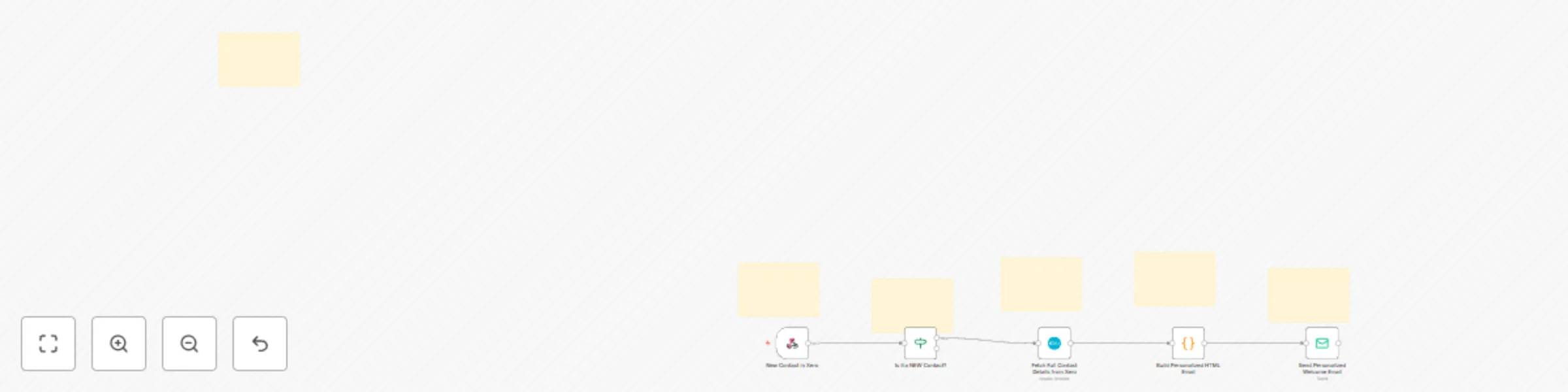
Workflow preview: Send personalized HTML welcome emails to new Xero contacts via SMTP
Free intermediate

Send personalized HTML welcome emails to new Xero contacts via SMTP

# Automated HTML Welcome Email for New Xero Contacts Crafted with ❤️ by the automation experts at **[Elegant BizTech](https://www.elegantbiztech.com/)**. ## Summary This workflow automatically sends a beautiful, personalized HTML welcome email to a new contact the moment they are created in your Xero account. ## Description First impressions matter. When you add a new client or customer to Xero, the opportunity to welcome them warmly and professionally is often missed. Manually sending welcome emails is time-consuming and inconsistent. This workflow solves that problem by instantly triggering a customizable email that not only welcomes your new contact but also confirms the key details you have on file, building trust and starting the relationship on a high note. ## What it does * **Triggers** when a new contact is created in Xero. * **Filters** to ensure it only runs for *new* contacts, not updates. * **Fetches** the full contact details (Name, Address, Phone) from Xero for personalization. * **Builds** a beautifully formatted HTML email using the contact's data. * **Sends** the final, personalized email to the new contact via your preferred SMTP service. ## **Setup Guide** Follow these steps carefully to configure this workflow for your own use. ### **IMPORTANT: Handling Xero Webhook Signatures** > Xero webhooks require a signature verification that the standard n8n Webhook node cannot perform directly. To solve this, this workflow is designed to be used with a simple proxy application. > **You must first set up a small Express.js (or similar) application on your own server/VPS.** > 1. This app receives the webhook from Xero and verifies the signature. > 2. Once verified, it forwards the clean JSON payload to the n8n Webhook URL. > The first node in this workflow, `Start: New Contact in Xero`, contains the URL where your proxy app should send the data. ### **Step 1: Credentials** This workflow requires two sets of credentials. * **(Node: `Fetch Full Contact Details from Xero`) Xero Account:** 1. Select the `Fetch Full Contact Details from Xero` node. 2. In the `Credential for Xero API` field, select your existing credential or click `Create New` to connect your Xero account to n8n. * **(Node: `Send Personalized Welcome Email`) SMTP Account:** 1. Select the `Send Personalized Welcome Email` node. 2. In the `Credential for SMTP` field, select your existing credential or click `Create New` to connect your email provider (e.g., Gmail, Outlook, SendGrid) to n8n. ### **Step 2: Customize Your Email Template** This is where you make the email your own! 1. Select the **`Build Personalized HTML Email`** (Code) node. 2. Inside the code editor, you'll need to update the following placeholders: * **Line 35:** Change `https://yourdomain.com/images/logo.png` to the direct URL of your company's logo. * **Line 47:** Change `https://yourdomain.com/` to the link you want the main call-to-action button to go to (e.g., your website or a client portal). * **Line 53:** Change `[email protected]` to your company's support email address. * **Line 54:** Change `[Your Company Name]` to your actual company name. ### **Step 3: Activate Your Workflow** 1. Click the **`Active`** toggle in the top-right corner of the n8n canvas. 2. Save the workflow. Now, go to your Xero account, create a new contact, and watch the magic happen! A beautiful, personalized email will be sent automatically. --- ### Need Help or More Advanced Workflows? At **Elegant BizTech**, we specialize in creating powerful, custom automations that streamline your business processes. * **Visit our website:** [https://www.elegantbiztech.com/](https://www.elegantbiztech.com/) * **Contact us for a consultation:** [[email protected]](mailto:[email protected])

E
Elegant Biztech
Social Media
19 Aug 2025
50
0

Workflow preview: Custom branded QuickBooks invoices to PDF & email
Free advanced

Custom branded QuickBooks invoices to PDF & email

# Automated QuickBooks Invoice to Custom PDF & Email Tired of the standard, boring invoices from QuickBooks Online? This workflow completely automates the process of creating beautiful, custom-branded PDF invoices and emailing them directly to your clients, saving you time and elevating your brand's professionalism. The moment you create an invoice in QuickBooks, this workflow triggers, fetches all the necessary data, and generates a lavish, multi-page-aware PDF invoice complete with your company logo and signature. *** ## Key Features * **Fully Automated:** Runs instantly when a new invoice is created in QuickBooks. * **Custom Branding:** Automatically fetches your company logo and signature from a URL to place on the invoice. * **Modern & Professional Design:** Uses a premium, multi-column HTML template that is clean, easy to read, and far superior to the default QBO templates. * **Multi-Page Ready:** If an invoice has many line items, the template will intelligently create multiple pages and add a "Page X of Y" footer automatically. * **Smart Layout:** The totals and summary block are designed to never break across pages, ensuring a professional look no matter the length. * **Automatic Emailing:** The final PDF is attached to a beautifully formatted email and sent directly to the customer's email address on file. ## Prerequisites Before you start, you will need a few things: * A running **n8n instance**. * A **QuickBooks Online** account with API access. * A running **Gotenberg** instance. This is a powerful, open-source tool for converting HTML to PDF. This workflow is designed to connect to its API. You can learn more about it [here](https://gotenberg.dev/). * Publicly accessible URLs for your **company logo** and **signature image** (e.g., hosted on your website or a service like Imgur). ## Setup Guide Follow these steps carefully to configure the workflow for your own use. Nodes that need your attention are marked with a `[!!]` prefix. ### Step 1: Configure the QuickBooks Webhook The workflow starts with a webhook. You need to tell QuickBooks to send information to this webhook. 1. Open the `[!!] Listen for New QuickBooks Invoice` node. 2. You will see a **Webhook URL**. Copy the **Production URL**. 3. Go to your QuickBooks Developer dashboard, select your app, and navigate to the **Webhooks** section. 4. Paste the n8n URL into the Endpoint URL field and select the **Invoice** event to subscribe to. ### Step 2: Connect Your QuickBooks Account 1. Open the `[!!] Get Invoice Data from QuickBooks` node. 2. In the "Credentials" field, select your existing QuickBooks Online credentials or create a new set. ### Step 3: Add Your Branding 1. Open the `[!!] Fetch Company Logo Image` node. In the **URL** field, replace the placeholder with the public URL of your company's logo. 2. Open the `[!!] Fetch Company Signature Image` node. In the **URL** field, replace the placeholder with the public URL of your signature image. ### Step 4: Update the PDF Generation Service 1. Open the `[!!] Generate PDF via Gotenberg` node. 2. In the **URL** field, replace the placeholder `http://YourGotenBergInstanceURL/...` with the real URL of your running Gotenberg instance. ### Step 5: Configure Your Email 1. Open the `[!!] Email PDF Invoice to Customer` node. 2. In the "Credentials" field, select your SMTP or email service credentials. 3. Customize the **From Email** and **Subject** fields. You can also edit the beautiful HTML email body to match your company's tone of voice. ### Step 6: Activate Your Workflow You're all set! Save the workflow and activate it using the toggle at the top-right of the screen. Now, when you create a new invoice in QuickBooks, this automation will handle the rest. *** ### A Note from the Creator Thank you for using this workflow! I believe that professional and automated invoicing is a cornerstone of a great business. This tool was designed to save you time and help you put your best foot forward with every client interaction. If you have any questions or need assistance, feel free to reach out. * **Website:** [https://www.elegantbiztech.com/](https://www.elegantbiztech.com/) * **Email:** [[email protected]](mailto:[email protected])

E
Elegant Biztech
Invoice Processing
6 Aug 2025
339
0

Workflow preview: Automated payment reminders with grouped QuickBooks invoices via email
Free intermediate

Automated payment reminders with grouped QuickBooks invoices via email

# Automated QuickBooks Payment Reminders with Dynamic Invoice Tables This workflow provides a powerful solution for businesses using QuickBooks Online to automate their payment reminder process. It solves the time-consuming and manual task of chasing late payments by creating a fully automated system that ensures every customer with an outstanding balance receives a timely, professional, and consolidated reminder email. The workflow periodically fetches all unpaid invoices from your QuickBooks account. Its core strength lies in its ability to group multiple outstanding invoices for a single customer into one email, presenting them in a clean, easy-to-read table. This improves clarity for your customers, reduces email clutter, and significantly increases the likelihood of prompt payment. This template was crafted with care by the team at **Prompt-Wizards** to help you streamline your finances and build stronger customer relationships through smart automation. ## How the Workflow Operates 1. **Scheduler:** The workflow initiates on a customizable schedule (e.g., every day at 9 AM). 2. **Get Unpaid Invoices:** It fetches all invoices from your QuickBooks account that have an outstanding balance greater than zero and were created within a specified date range. 3. **Get Customer Wise Invoice list:** This Code node intelligently processes the list of invoices and groups them by customer name, preparing the data for email generation. 4. **Invoice Template:** This Code node dynamically generates a beautiful, responsive HTML email for each customer, complete with a personalized greeting, an invoice table, and the total amount due. 5. **Send Reminder Email:** The final node sends the uniquely crafted email to the customer's billing address on file. ## Prerequisites Before you begin, please ensure you have the following: * An active n8n instance. * A QuickBooks Online account with API access. * An email service (e.g., SMTP, Gmail, Outlook) connected to n8n as credentials. ## Step-by-Step Setup Guide Follow these instructions carefully to configure the workflow for your business in under 5 minutes. ### 1. Connect Your QuickBooks Account You must authenticate your QuickBooks account to allow n8n to fetch invoice data. * Select the **`Get Unpaid Invoices`** node. * In the **Credentials** section on the right, either select your existing QuickBooks account from the dropdown or click **Create New** to connect your account. * *(Optional)*: In the **Options** section of this node, you can adjust the `TxnDate` filter. It is pre-set to look at invoices from the last 90 days. You can change this date range to suit your needs. ### 2. Personalize the Email Template Personalize the email to match your brand and include your payment information. 1. Open the **`Invoice Template`** node. 2. Inside the code editor, find and replace these two placeholder values: * **Your Payment Link:** On **line 115**, find `href="https://your-payment-portal-link.com"` and replace the placeholder URL with a link to your actual payment portal or website. * **Your Company Details:** On **line 120**, find `<p>Your Company Name | ...` and replace the placeholder text with your real company name and address in the email footer. ### 3. Configure Your Email Account You must connect the email account you want to send reminders from. * Select the **`Send Reminder Email`** node. * In the **Credentials** section, select your email account (e.g., Gmail, Outlook) or create a new connection. * The `To Address`, `Subject`, and `HTML` fields are already configured with expressions to work automatically. **No changes are needed here!** ### 4. Activate the Workflow 1. Open the **`Scheduler`** node to set the schedule for how often you want the workflow to run. 2. **Save** the workflow using the button at the top. 3. Click the **Active** toggle at the top right of the screen. Your automated payment reminder system is now live!!! For questions or to explore more custom solutions, visit us at [Elegant Biztech](https://www.elegantbiztech.com/) or contact us at [[email protected]](mailto:[email protected]).

E
Elegant Biztech
Invoice Processing
4 Aug 2025
227
0
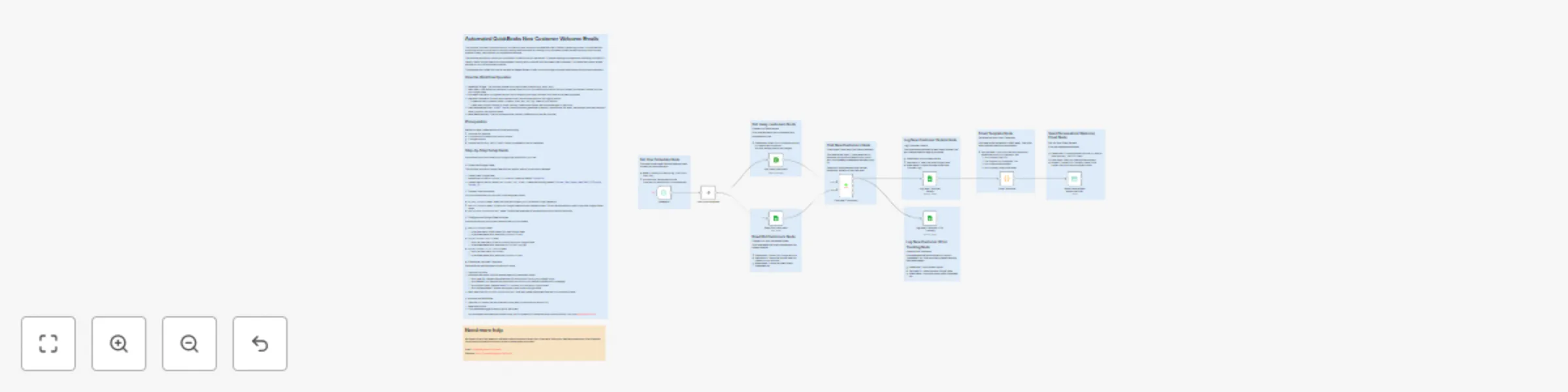
Workflow preview: QuickBooks customer welcome emails with Google Sheets tracking
Free advanced

QuickBooks customer welcome emails with Google Sheets tracking

# Automated QuickBooks New Customer Welcome Emails This workflow provides a robust solution for QuickBooks users looking to automate their new customer onboarding process. It solves the time-consuming and error-prone task of manually sending welcome emails by creating a fully automated system that ensures every new customer receives a timely, personalized, and professional welcome. The workflow periodically checks your QuickBooks Online account for new entries. To prevent sending duplicate emails to existing customers, it cleverly uses a Google Sheet as a simple database, tracking every customer who has already been contacted. This makes the process reliable and safe to run on an automated schedule. This template was crafted with care by the team at **Elegant Biztech** to help you build stronger customer relationships through smart automation. ## How the Workflow Operates 1. **Scheduled Trigger:** The workflow initiates on a customizable schedule (e.g., every hour). 2. **Fetch Data:** It simultaneously fetches all customer data from your QuickBooks account and the list of already-processed customer IDs from your Google Sheet. 3. **Find New Customers:** It compares the two lists to isolate only the new customers who have not yet been processed. 4. **Log New Customers:** For each new customer found, the workflow performs two logging actions: * It appends their full details (Name, Company, Email, etc.) to a "log" sheet for your records. * It adds their unique Customer ID to the "tracking" sheet to ensure they are not emailed again in the future. 5. **Craft Personalized Email:** A `Email Template` node dynamically generates a beautiful, responsive HTML email, personalized with the customer's name, company, and location details. 6. **Send Welcome Email:** The final node sends the uniquely crafted email to the new customer. ## Prerequisites Before you begin, please ensure you have the following: * An active n8n instance. * A QuickBooks Online account with API access. * A Google account. * An email service (e.g., SMTP, Gmail, Outlook) connected to n8n as credentials. ## Step-by-Step Setup Guide Follow these instructions carefully to configure the workflow for your use. ### 1. Create the Google Sheet This workflow requires a Google Sheet with two specific tabs to function as its database. 1. Create a new Google Sheet. 2. Rename the first tab to **`Processed IDs`**. In cell **A1**, create the header: `CustomerIds`. 3. Create a second tab and name it **`New Customer Logs`**. In row 1, create the following headers: `Customer_Name`, `Company_Name`, `Email_ID`, `Phone_No`, `Customer_ID`. ### 2. Connect Your Accounts You must authenticate your accounts in the designated nodes. * **`Get many Customers` node:** Select this node and connect your QuickBooks Online credentials. * **`Read Old Customers` node:** Connect your Google Sheets account credentials here. This will be automatically used by the other Google Sheets nodes. * **`Send Personalized Welcome Email` node:** Connect the credentials for the email account you wish to send from. ### 3. Configure the Google Sheets Nodes Point the workflow to the correct sheet and tabs you just created. * **`Read Old Customers` node:** * In the **Document ID** field, select your new Google Sheet. * In the **Sheet Name** field, select the **`Processed IDs`** tab. * **`Log New Customer Details` node:** * Verify the **Document ID** field is correctly set to your Google Sheet. * In the **Sheet Name** field, select the **`New Customer Logs`** tab. * **`Log New Customer ID for Tracking` node:** * Verify the **Document ID** is correct. * In the **Sheet Name** field, select the **`Processed IDs`** tab. ### 4. Customize the Email Template Personalize the welcome email to match your brand. 1. Open the **`Code`** node. 2. Inside the code editor, find and replace these four placeholder values: * **Your Logo URL:** Replace the placeholder link with a public URL to your company's logo. * **Your Website Link:** Replace the placeholder with a link to your website's dashboard or homepage. * **Your Support Email:** Replace the `mailto:` link with your company's support email. * **Your Company Name:** Update the company name in the copyright footer. 3. Next, select the **`Send Personalized Welcome Email`** node and update the **Subject** field with your company's name. ### 5. Activate the Workflow 1. Open the **`Scheduler`** node to set the schedule for how often you want the workflow to run. 2. **Save** the workflow. 3. Click the **Active** toggle at the top right of the screen. Your automated welcome email system is now live! For questions or to explore more custom solutions, visit us at [elegantbiztech.com](https://www.elegantbiztech.com).

E
Elegant Biztech
Social Media
30 Jul 2025
161
0