Itunu
Workflows by Itunu
Send validated outreach emails with Gmail & Google Sheets anti-spam controls
# 📧 Automated Initial Outreach Emails with Safety Controls  This n8n workflow sends **personalized outreach emails automatically** while enforcing strict safety rules such as email validation, spam checks, daily limits, and human-like delays. It is designed to help beginners send emails **safely, consistently, and at scale** without damaging sender reputation. --- ## What This Workflow Does On a daily schedule, this workflow: 1. Pulls contacts from Google Sheets 2. Cleans and validates email addresses 3. Blocks spam, invalid, or risky emails 4. Checks if an email was already sent 5. Enforces daily sending limits (weekdays only) 6. Adds random human-like delays 7. Generates personalized subject lines and openings 8. Sends emails via Gmail 9. Updates Google Sheets with send status --- ## Who This Is For This workflow is useful if you: - Send cold or semi-cold outreach emails - Apply to jobs at scale with personalization - Run sales, hiring, or networking campaigns - Want safety controls to avoid spam flags - Are learning n8n with a real-world workflow No advanced n8n knowledge is required. --- ## Required Services You will need: - **Google Sheets** (contact source + status tracking) - **Gmail** (sending emails) - **Google Drive** (for attachments like CVs) - **n8n** (self-hosted or cloud) --- ## Sheet Structure (Recommended) ### Contacts Sheet Required columns: - EMAIL - Name - EMAIL VERIFIED - EMAIL SMTP VERIFIED - EMAIL SUGGESTION - EMAIL TYPE - SENT - SENT DATE ### Email Status Columns Updated automatically by the workflow: - SENT - DATE SENT - EMAIL TYPE --- ## Setup Instructions ### 1. Connect Google Sheets - Update the Google Sheets nodes to point to your own spreadsheet - Ensure column names match the workflow ### Sample Data for Sheets | EMAIL | Name | EMAIL VERIFIED | EMAIL SMTP VERIFIED | EMAIL SUGGESTION | EMAIL TYPE | SENT | DATE SENT | |--------------------------|-------------|----------------|---------------------|-------------------------|------------|------|-----------| | [email protected] | Alex Morgan | REACHABLE | VALID | SAFE TO SEND | INITIAL | YES | 2025-01-12 | | [email protected] | — | CATCH-ALL | UNKNOWN | SEND WITH CAUTION | INITIAL | NO | — | | [email protected] | Sarah Lane | REACHABLE | VALID | SAFE TO SEND | INITIAL | YES | 2025-01-13 | | [email protected] | — | UNKNOWN | NOT VERIFIED | VERIFY BEFORE SENDING | INITIAL | NO | — | | [email protected] | Michael T. | REACHABLE | VALID | SAFE TO SEND | FOLLOW-UP | YES | 2025-01-14 | - `EMAIL` is required for sending. - `SENT` and `DATE SENT` are updated after a successful email send. - `EMAIL VERIFIED` reflects high-level verification results. - `EMAIL SMTP VERIFIED` indicates server-level validation when available. - `EMAIL SUGGESTION` is generated by the workflow’s safety logic. - `SENT` and `DATE SENT` are updated only after a successful send. - Rows without a name are invalid for outreach. - Additional rows can be added freely. ### 2. Connect Gmail - Add your Gmail credentials - Confirm daily sending limits match your account limits ### 3. (Optional) Connect Google Drive - Used to attach files (e.g., Decks, CVs, Presentations,etc) ### 4. Review Safety Settings - Daily email limit is enforced in code - Weekends are automatically blocked - Spam and invalid emails are skipped ### 5. Activate the Workflow - Enable the workflow - Emails will start sending automatically at the scheduled time ### Email Sample  --- ## Safety Features Explained This workflow includes built-in protections: - ✅ Email format validation - ✅ Blocked domains and keywords - ✅ Spam flag checks - ✅ Duplicate send prevention - ✅ Daily quota enforcement - ✅ Weekend blocking - ✅ Random delays between sends These safeguards help maintain a healthy sender reputation. --- ## Customization Ideas You can extend this workflow to: - Add follow-up (retarget) emails - Integrate email verification APIs - Log sends into a database (NocoDB, Postgres, etc) - Add Slack notifications - Support multiple Gmail accounts - Personalize content further with AI --- ## Important Notes - Review Gmail sending limits before scaling - Test with a small contact list first - Do not remove safety checks unless you understand the risks --- ## License This workflow is shared for educational and practical use. You are free to modify and adapt it for your own projects. --- ## Author Built and shared by **Itunu Ola** n8n automation builder focused on safe, production-ready workflows.
Discover, enrich & store cryptocurrency data with CoinMarketCap API
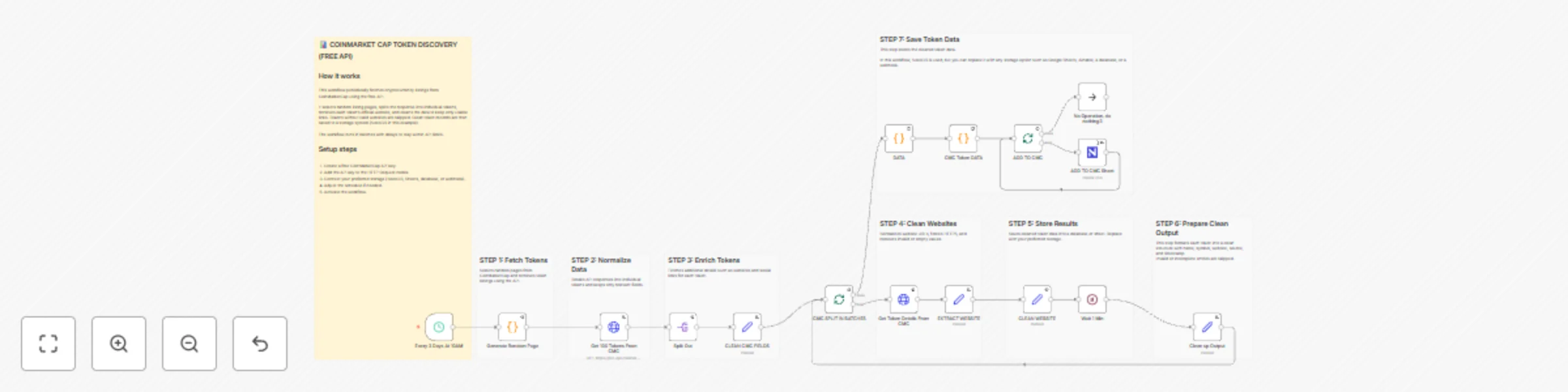
# CoinMarketCap Token Discovery (Free API) Automatically discover cryptocurrency tokens from CoinMarketCap, clean the data, enrich it with official websites, and store the results in your preferred database or sheet. This workflow is designed to be **safe for free API usage**, **easy to understand**, and **ready for extension**. --- ## What This Workflow Does This workflow runs on a schedule and: 1. Randomly selects pages from CoinMarketCap listings 2. Fetches token data using the free CoinMarketCap API 3. Cleans and normalizes token fields 4. Enriches each token with official website data 5. Processes tokens in safe batches with delays 6. Outputs clean, structured token records 7. Optionally saves results to a database or sheet --- ## Who This Is For This workflow is useful if you are: - Doing crypto research or market discovery - Building token datasets - Running crypto outreach or lead generation - Learning how to work with APIs in n8n - Looking for a clean, real-world n8n example No advanced n8n knowledge is required. --- ## Setup Instructions (Required) Follow these steps before running the workflow: ### 1. Get a CoinMarketCap API Key - Create a free account on CoinMarketCap - Generate an API key from your dashboard ### 2. Add Your API Key - Open the **HTTP Request** nodes - Add your API key to the request headers: ```text X-CMC_PRO_API_KEY = YOUR_API_KEY ``` ### 3. Connect Storage Replace the storage node with your preferred option: - Google Sheets - Airtable - PostgreSQL - Webhook Add your own credentials before running the workflow. --- ### 4. Activate the Workflow - Enable the workflow - Let it run automatically based on the schedule --- ## How the Workflow Is Structured - **Trigger:** Runs every few days to avoid API limits - **Random Page Generator:** Prevents bias toward only top tokens - **Batch Processing:** Controls memory and request volume - **Delay Logic:** Keeps the workflow stable and API-friendly - **Cleaning Steps:** Removes messy or invalid data - **Final Output:** Clean, simple token records ready for use --- ## Output Example Each valid token produces a clean record like: - Token name - Symbol (ticker) - Official website - Source (CoinMarketCap) - Timestamp Invalid or incomplete entries are automatically skipped. --- ## Customization Ideas You can easily extend this workflow to: - Add social media scraping - Track new tokens over time - Trigger alerts for specific tokens - Combine with other crypto APIs - Feed data into outreach or analytics pipelines --- ## Important Notes - This workflow uses **CoinMarketCap’s free API tier** - Do not remove batch limits or delays unless you upgrade your API plan - Replace sample storage with your own before production use --- ## License This workflow is provided for educational and practical use. You are free to modify and adapt it for your own projects. --- ## Author Built and shared by **Itunu Ola** n8n automation builder focused on practical, production-ready workflows.
Automate bounce email management for lead generation with Gmail and NocoDB
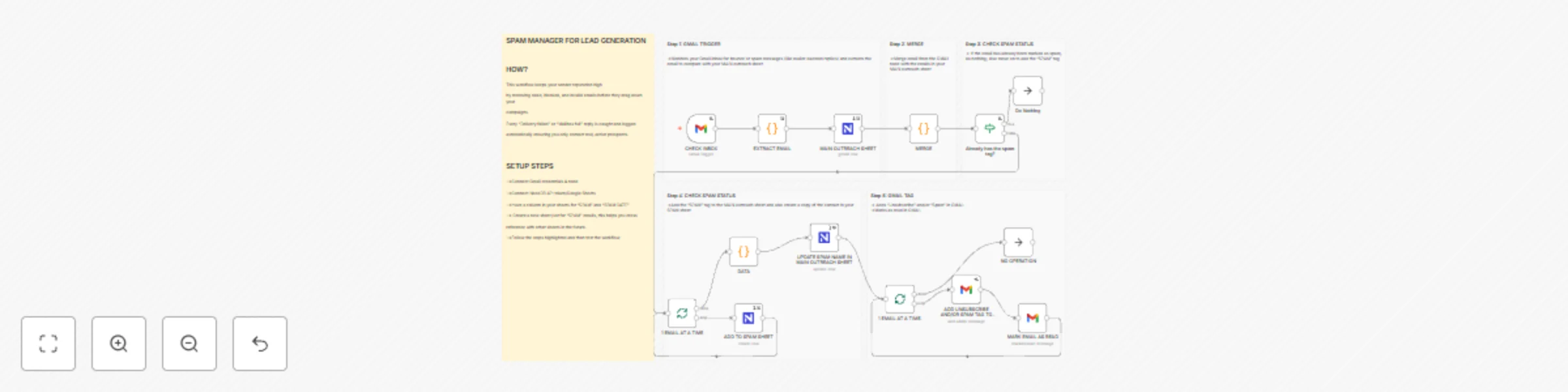
# 📬 SPAM MANAGER FOR LEAD GENERATION Automatically identifies and manages spam replies from your outreach inbox; such as “Delivery failed” or “There was a problem with your delivery” which comes from "[email protected]" for Gmail. This is to remove these messages to keep your email lists clean and improve domain reputation. --- ## 🎯 Who it’s for This workflow is designed for **lead generation managers, outreach specialists, and freelancers** who send cold or automated emails at scale. It helps you **automatically filter and manage bounce or spam responses** without manually combing through your inbox, ensuring your sender domain stays healthy and your lead lists remain accurate. --- ## ⚙️ How it works 1. **Trigger:** Watches your Gmail inbox for replies from system senders like `[email protected]`. 2. **Extract Email:** Pulls out the email address from each bounce or spam message. 3. **Merge:** Compares the extracted address with your **main lead sheet**. 4. **Update Sheet:** - If the email exists in your main sheet, it updates that record’s **SPAM field** to `"YES"`. - Otherwise, it adds the address to a dedicated **Unsubscribe or Bad Emails table**. 5. **Mark as Read:** Tags and marks the email as processed in Gmail for better visibility. --- ## 🧩 Requirements To run this workflow, you’ll need: - **Gmail Credentials** → For reading and tagging emails. - **NocoDB API Token** → For reading and updating your lead list and spam records.(You can use Sheets, Airtable or any other DB you use). Both can be securely added through the **n8n Credentials Manager**. --- ## 🧠 How to Customize - **Sender Filter:** Change the Gmail Trigger to include other mailer domains or error messages. - **Data Storage:** Replace NocoDB with Google Sheets or Airtable. - **Tagging:** Adjust or remove the Gmail label used for spam-marked messages. - **Message Matching:** Edit the `MERGE` code node to fit your column names (e.g., `Email`, `Address`, etc.). --- ## 💡 Why this workflow matters By automating spam and bounce handling, you: - Keep your **lead database clean and current** - Reduce bounce rates and spam flags - Improve your **email deliverability and sender score** - Save time spent manually checking failed emails --- ## 🪄 Quick Setup Tips - Add your Gmail and DB credentials under the **Credentials tab**. - Update the DB project and table IDs in relevant nodes. - Test with a few known bounce messages to verify connection and matching. - Optional: Add a “SPAM” tag in Gmail for quick inbox filtering. "UNSUBSCRIBE" is used in this workflow. --- ## 🧾 Workflow Info **Workflow Name:** SPAM MANAGER FOR LEAD GENERATION **Category:** Email & Data Hygiene **Version:** 1.0 **Created for:** Outreach and CRM Automation --- **Author:** Itunu **Portfolio:** [Itunu’s Automation Portfolio](https://github.com/E2nuu/itunu-automation-portfolio)
Automatic Gmail unsubscribe detection with AI and Google Sheets contact management
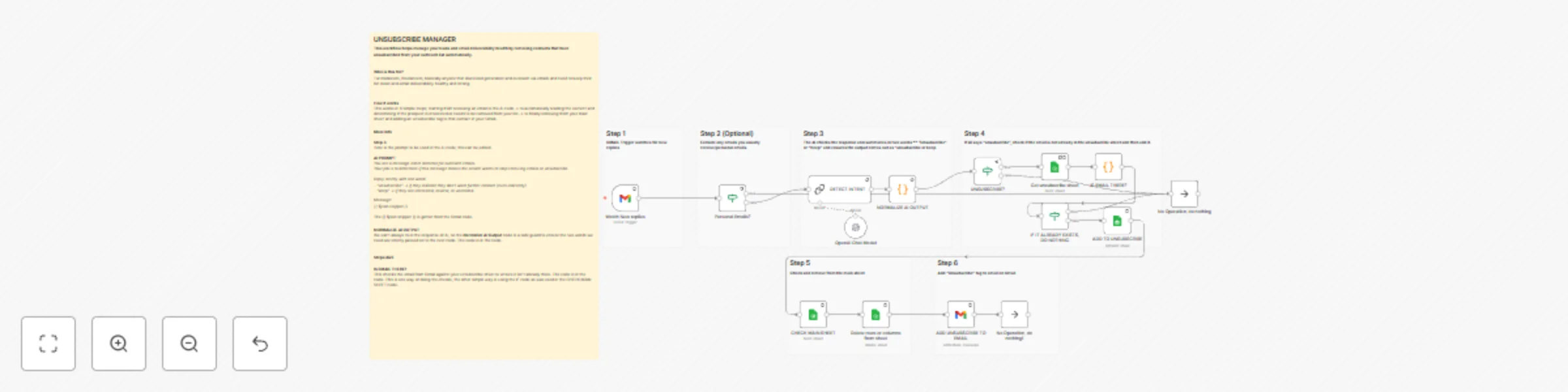
# Automatically detect unsubscribe replies in your outreach emails and clean your Google Sheets contact list; keeping your domain reputation and deliverability strong. --- ## 🎯 Who it’s for This template is designed for **freelancers, lead generation specialists, and outreach managers**; particularly those running email outreach campaigns for clients or personal lead-gen projects. If you send cold emails, manage multiple lead lists, or handle outreach at scale, this workflow helps you automatically manage unsubscribe requests to maintain healthy email deliverability and protect your domain reputation. --- ## ⚙️ How it works 1. **Trigger:** The workflow starts when a new reply is received in your Gmail inbox. 2. **Intent Detection:** The email text is analyzed using **OpenAI** to detect unsubscribe intent (“unsubscribe”, “remove me”, “opt out”, etc.). 3. **Normalization & Filtering:** A **Code node** verifies the AI output for accuracy and ensures the result is standardized as either `"unsubscribe"` or `"keep"`. 4. **Check & Update Sheets:** - If the contact requested removal, the workflow checks your **Unsubscribe Sheet** to see if they’re already listed. - If not, the contact is added to the **Unsubscribe Sheet** and simultaneously removed from your **Main Outreach Sheet**. 5. **Optional Gmail Label:** Adds an **“Unsubscribe”** tag in Gmail for quick visual tracking (optional customization). --- ## 🧩 Requirements To run this workflow, you’ll need: - **Gmail Credentials** → for reading incoming replies and applying labels. - **Google Sheets Credentials** → to manage both the “Main” and “Unsubscribe” spreadsheets. - **OpenAI API Key** → used for detecting unsubscribe intent from message text. All credentials can be added through the **n8n Credentials Manager**. --- ## 🧠 How to Customize - **Polling Time:** Adjust how often the Gmail Trigger checks for new replies (default: every 5 minutes). - **Sheets:** Replace the linked Google Sheets IDs with your own. You can change sheet names and columns freely. - **Intent Rules:** Modify the Code node to include additional unsubscribe phrases or alternate keywords. - **Optional Gmail Tagging:** Enable or disable tagging for unsubscribed messages. - **Secondary Validation:** Enable the second “If” check after the OpenAI node to double-confirm unsubscribe intent before moving contacts. --- ## 💡 Why this workflow matters By automatically managing unsubscribe requests, you: - Respect recipients’ opt-out preferences - Reduce spam complaints - Protect your **domain reputation** and **increase deliverability** - Save hours of manual list cleaning This is a must-have automation for anyone running **cold email outreach**, especially freelancers managing multiple client inboxes. --- ## 🪄 Quick Setup Tips - Replace all `"Gmail account"` and `"Google Service Account account"` credential references with your actual credentials. - Ensure your sheet has an **EMAIL** column for lookup. - Test with a few mock replies before activating for production. - Optional: Add a **time-based trigger** to run the sheet cleanup periodically.