D

Daniel Ng

13
Workflows

Workflows by Daniel Ng

Workflow preview: Automate SEO-Optimized blog creation with GPT-4o, Perplexity AI & multi-language support
Free advanced

Automate SEO-Optimized blog creation with GPT-4o, Perplexity AI & multi-language support

## **WordPress Blog Automation Pro v2.1 – with DEEPER RESEARCH – Advanced Content Automation** This advanced, dual-workflow system automates the entire lifecycle of creating in-depth, SEO-optimized blog posts. It transforms a simple topic from a Google Sheet into a fully researched, well-structured, and image-rich article published directly on your WordPress site, with all assets securely backed up to Google Drive. It leverages AI for multi-layered research, content generation, and image creation, streamlining your content pipeline. This version 2.1 is an upgrade from the [WordPress Auto-Blogging Pro v2 \- with DEEPER RESEARCH \- Advanced Content Automation](https://n8n.io/workflows/3852-multi-level-wordpress-blog-generator-with-perplexityai-research-and-openai-content/). For more powerful n8n templates, visit our website at [aiautomationpro.org](https://aiautomationpro.org/). ![AIAutomationProWordPressBlogAutomationDeeperResearchv2.11.jpeg](fileId:2259)![AIAutomationProWordPressBlogAutomationDeeperResearchv2.12.jpeg](fileId:2264)![AIAutomationProWordPressBlogAutomationDeeperResearchv2.13.jpeg](fileId:2258)![AIAutomationProWordPressBlogAutomationDeeperResearchv2.14.jpeg](fileId:2263)![AIAutomationProWordPressBlogAutomationDeeperResearchv2.15.jpeg](fileId:2262)![AIAutomationProWordPressBlogAutomationDeeperResearchv2.16.jpeg](fileId:2261)![AIAutomationProWordPressBlogAutomationDeeperResearchv2.17.jpeg](fileId:2260) ## **What's new in version 2.1** Version 2.1 introduces several upgrades for efficiency and simplicity: 1. **Re-architecture of the core AI logic:** The initial AI research agent is now more powerful. It not only provides a general overview but also proactively defines and returns the complete chapter structure for the article in a single step. This integration results in a more coherent and logically structured article from the very beginning. 2. **Multi-Language Support:** The workflow is now designed to support content creation in multiple languages, allowing you to scale your content strategy globally. 3. **Simplified Architecture with Native Perplexity Node:** Thanks to updates in n8n's Perplexity node, the separate "Research Tool" sub-workflow has been eliminated. All research calls are now made directly within the Main Flow. This simplifies the template's structure from three workflows down to two, making it easier to set up, manage, and debug. 4. **Enhanced AI Reliability:** The new version uses Structured Output Parsers within the LangChain framework. This ensures the AI's responses are always in a clean, predictable JSON format, drastically reducing errors and making the entire automation more resilient. ## **What problem is this workflow solving? / Use cases** Standard content automation often struggles with producing truly in-depth, comprehensive content. This workflow addresses that challenge by: * **Automating Multi-Level Research:** Optionally eliminates the manual effort required to deeply research topics, ensuring content is thorough and well-supported. * **Generating Long-Form Content:** Enables the creation of detailed articles, comprehensive reports, or even initial e-book drafts automatically. * **Scaling Content Production:** Efficiently handles lists of topics from Google Sheets, processing them sequentially for reliable, automated content creation over time. * **Enhancing SEO Automatically:** Integrates best practices like sitemap-based internal linking, external source linking, automatic categorization, and tag generation. * **Streamlining Complex Tasks:** Combines research, writing, image generation, SEO optimization, publishing, and comprehensive backups into a single, automated system. ## **Who is this for?** This advanced workflow is designed for demanding users who require robust, comprehensive content automation: * Content Marketers & Strategists * SEO Professionals * Niche Site Builders & Affiliates * Agencies * Researchers & Analysts * Power Users of previous versions ready to upgrade to a more powerful and streamlined architecture. ## **Unique Features** * **Conditional Deeper Research:** Choose per-topic whether to activate multi-level research for maximum depth or use standard chapter-level research. * **Multi-Language Content Generation**: Define your desired output language in the Airtable settings to create content for different global audiences. * **Centralized Control Interface:** Google Sheets acts as the primary interface for bulk input, parameter setting, and status monitoring. * **Dual Trigger Options:** Use Google Sheets for batch processing lists of topics or n8n’s Native Form for single, ad-hoc topic submission. * **Latest AI Image Models:** Optimized for high-quality images using OpenAI’s latest models, with easy node setup to switch to alternatives. * **Multiple-Image Generation:** Generates and adds unique AI images for each chapter, as well as a featured image for the article. * **Automatic Categorization:** The AI intelligently assigns your post to the most relevant existing categories on your WordPress site. * **AI-Powered Tag Generation:** The workflow automatically generates a list of relevant SEO tags for your article to improve discoverability. * **Batch Topic Processing:** Handles multiple topic inputs efficiently via the Trigger Flow loop, processing them sequentially with status tracking. * **Advanced External & Internal Linking:** Automatically inserts relevant internal links by analyzing your sitemap and includes external source links from its research. * **Direct WordPress Integration:** Streamlines publication by automatically sending finalized content, metadata, tags, images, and categories to your WordPress site. * **Comprehensive Backup System:** Saves final content in multiple formats and locations: Markdown to Google Docs, Images to Google Drive, Final URLs and details to Google Sheets. * **Rate-Limit Aware:** Includes configurable Wait nodes to prevent API errors during intensive processing. * **Native Perplexity Integration:** Simplifies online research with n8n's built-in Perplexity node. ## **How this workflow works** This template utilizes two interconnected n8n flows, orchestrated primarily via Google Sheets. 1. **Trigger Flow (Scheduler & Dispatcher):** Activates on a schedule or via a form. It reads rows from a Google Sheet where the Status is 'To Do' and executes the Main Flow for each topic, one by one. 2. **Main Flow (Content Generation Engine):** * **Setup:** Receives parameters from the Trigger Flow and updates the topic's status to 'In Progress'. * **Research & Planning:** Gathers internal links from your sitemap and performs initial online research using the native Perplexity node. A LangChain-based AI agent then outlines the entire article. * **Conditional Content Creation:** Based on the Have Deeper Research flag, it either performs multi-level research or standard chapter-level research. * **Image Generation & Upload:** Generates and uploads a featured image and images for each chapter to WordPress and Google Drive. * **Publishing & Backup:** Assembles the final article, converts it to HTML, publishes it to WordPress with all SEO metadata, and saves comprehensive backups to Google Sheets and Google Docs. * **Finalize:** Updates the topic's Status to 'Done' in the Google Sheet. ## **Requirements** * n8n Instance * OpenAI API Key * Perplexity API Key * WordPress Website (REST API enabled, with an Application Password) * Google Account (for Sheets, Drive, and Docs) ## **Setup Step-by-Step** 1. **Import Workflows:** Download and import the two .json files (**Trigger Flow** and **Main Flow**). 2. **Configure Google Sheet:** Find the link to the Google Sheet template in the automated email you received after your order confirmation. You must make your own copy of this sheet. Do not request access to the original link. The sheet has two tabs: Create Topic and Final Blogs. Ensure the column headers in your copy match those used in the workflow nodes. 3. **Create Google Drive Folder:** In your Google Drive, create a new folder where all your content backups (documents and images) will be stored. Copy the Folder ID from the URL (it's the string of letters and numbers at the end). 4. **Link Flows:** In the **Trigger Flow**, open the "Execute Workflow" node and select your imported **Main Flow** from the dropdown menu. 5. **Configure Credentials:** In n8n, add credentials for OpenAI, Perplexity, WordPress, and Google. 6. **Connect Workflow Nodes:** Open both workflows and assign the correct credential to each relevant node. Update the "Google Sheets" nodes with your Sheet ID and the "Google Drive" nodes with the Folder ID you created in step 3\. 7. **Initial Test Run:** Add a test topic to your sheet, manually trigger the workflow, and verify the process completes successfully. 8. **Activate Workflow:** Toggle the "Active" switch ON for the **Trigger Flow**. The Main Flow should remain inactive as it is triggered by the other flow. 9. **Finalize SEO in WordPress:** The workflow saves the generated SEO meta title and meta description to the Final Blogs tab in your Google Sheet. After the post is created in WordPress (as a draft), you must **manually copy these values** from the sheet and paste them into your SEO plugin's fields (e.g., Yoast, Rank Math) on the WordPress post editor. ## **How to customize the workflow** * **Adjust the Schedule:** Change the interval in the "Schedule Trigger" node of the Trigger Flow to control how often it checks for new topics. * **Change Language:** To generate content in a different language, open the **Main Flow**, go to the **Global Configuration** node, and update the language field to your desired language (e.g., "Spanish", "French", "German"). * **Refine AI Prompts:** Modify the prompts in the OpenAI nodes within the "Main Flow" to fine-tune the writing style, tone, and structure of your articles. * **Change Image Style:** Edit the prompts in the "Generate Image" section to alter the style of the generated images to match your brand. * **Customize Post Status:** Change the default publishing status in the "WordPress" node from "draft" to "publish" if you want to post directly without a final review.

D
Daniel Ng
Content Creation
28 Aug 2025
100
0
Workflow preview: WordPress blog automation with Airtable interface, human review & AI research v2
Free advanced

WordPress blog automation with Airtable interface, human review & AI research v2

## **WordPress Blog Automation with human-in-the-loop and deeper research in Airtable v2** Take full control of your AI-powered content creation with this advanced human-in-the-loop workflow. Designed for power users who demand both automation and editorial oversight, this template transforms Airtable into a command center for producing deeply researched, long-form articles and publishing them directly to WordPress. This system elevates content creation by introducing a hierarchical structure of chapters and subchapters, allowing you to build comprehensive articles, guides, or even e-books with unparalleled detail. From initial research to final publication, you guide the AI at every critical step \- from content structure to the final visuals \- ensuring the final output is high-quality, brand-aligned, and perfectly structured. This version v2 is a major upgrade from the [HUMAN-IN-THE-LOOP Content Automation Pro with Deep Research & Airtable for Power Users \- Collaborative AI for WordPress Blog Automation](https://n8n.io/workflows/3725-wordpress-content-automation-machine-with-human-in-the-loop-and-deep-research/). For more powerful n8n templates, visit our website at [aiautomationpro.org](https://aiautomationpro.org/). ![AIAutomationProWordPressBlogContentAutomationHumanintheloop1.jpeg](fileId:2256)![AIAutomationProWordPressBlogContentAutomationHumanintheloop2.jpeg](fileId:2255)![AIAutomationProWordPressBlogContentAutomationHumanintheloop3.jpeg](fileId:2253)![AIAutomationProWordPressBlogContentAutomationHumanintheloop4.jpeg](fileId:2257)![AIAutomationProWordPressBlogContentAutomationHumanintheloop5.jpeg](fileId:2254) --- ## **What's New in V2: Deeper Research & More Control** This version introduces significant upgrades for creating more authoritative and well-structured content: * **Conditional Deeper Research**: The workflow now generates both **chapters and subchapters**, allowing you to create more detailed, long-form articles with a clear, logical flow. * **Granular Research and Writing**: The AI performs research and writes content at the **subchapter level**, resulting in more in-depth and comprehensive articles before automatically compiling them into full chapters. * **Manual Image Override**: Gain full control over your article's visuals. You can now manually upload your own images for both the featured image and individual chapters, overriding the AI-generated suggestions. * **Multi-Language Support**: You can now define a target language in the Airtable settings, enabling the AI to generate content for different global audiences. * **Dynamic WordPress Categorization & Tagging**: The AI intelligently assigns your post to the most relevant existing WordPress categories and generates a list of relevant tags, improving on-site organization and SEO. * **Simplified Architecture with Native Perplexity Node:** Thanks to updates in n8n's Perplexity node, the separate "Research Tool" sub-workflow has been eliminated. All research calls are now made directly within the Main Flow. This simplifies the template's structure from three workflows down to two, making it easier to set up, manage, and debug. --- ## **What it does** Fully automated content generation tools often lack the nuance, accuracy, and strategic control necessary for truly impactful content. This workflow solves that critical gap by integrating powerful AI capabilities into a structured, human-supervised content creation process. It automates the most repetitive tasks \- like research gathering and chapter ideation \- while embedding essential human review points at critical junctures. Instead of simply providing a topic and receiving a finished article of uncertain quality, you actively guide the process step-by-step. This approach makes it perfect for creating high-quality, deeply researched, and brand-aligned blog posts for WordPress more efficiently, without ever sacrificing editorial control. --- ## **Who is this for?** This workflow template is meticulously designed for individuals and teams who seek a powerful blend of AI-driven efficiency and human-controlled quality assurance: * **Content Creators & Bloggers:** Who want to leverage AI for drafting and research but maintain full editorial control. * **Marketing Teams:** Looking to scale content production while ensuring brand voice and quality consistency. * **SEO Specialists:** Needing to produce well-researched, structured, and SEO-optimized content regularly. * **Agencies:** Managing content creation for multiple clients with a structured, repeatable process. * **Anyone who prefers a "human-in-the-loop" approach** over fully automated "black box" content generators. --- ## **How it works** This template automates the WordPress content creation process using Airtable as the central hub and leveraging AI for research and copywriting. The system is composed of four interconnected processes within a single workflow, each triggered by specific changes in Airtable. ### **Content Creation Process in Airtable** The entire journey from idea to published post is managed within your Airtable base. 1. **Configure Settings:** Define global parameters (website details, target audience, writing style, language, max word count, numbers of chapters and subchapters, etc.) in the “Settings” table. 2. **Create Topics:** Add a new blog post idea and trigger the first process. 3. **Generate Chapters:** The workflow performs online research and generates potential **chapters and subchapters** based on your topic. 4. **Select Chapters to Write:** Review the suggested chapters and trigger the content generation phase. 5. **Generate Content:** The second process researches each **subchapter** and generates draft content for your review and modification. 6. **Select Chapter Content:** Approve the content for each chapter. 7. **Select Chapter Images**: After content is approved, the workflow generates AI images for each chapter. In Airtable, you can review these images and choose to either keep them or manually upload your own for each chapter before triggering the final assembly. 8. **Finalize Post:** The next process aggregates the content and images, generates the featured image (which you can also manually override in this step), creates the title and SEO metadata, and places the compiled information in the “Finalize Post” table. 9. **Publish & Backup Post:** The final process publishes the post to your website and creates a backup record with the live URL. ### **n8n Workflow Functions** The automation is handled by four separate triggers within the main workflow: * **Flow 1 (Topic Initiation & Chapter/Subchapter Generation):** Fetches settings, performs initial research, and uses AI to generate chapter and subchapter outlines. * **Flow 2 (Content Generation & Internal Linking):** Gathers internal links, performs deep research **per subchapter**, and uses AI to write draft content. * **Flow 3 (Post Assembly & Image Generation):** Aggregates text, uses AI for metadata and image prompts, generates chapter images (with manual override), converts content to HTML, and saves the compiled post to Airtable. * **Flow 4 (WordPress Publishing & Backup):** Fetches finalized data, uploads the selected images, creates the WordPress post with dynamically assigned categories, and creates a backup record. --- ## **Unique Features** * **Human-in-the-Loop Design:** Guarantees quality through mandatory user review and approval stages within Airtable. * **Airtable as Control Center:** Utilizes Airtable as an intuitive interface to manage the entire content lifecycle. * **Manual Image Override**: Maintain complete visual control by manually uploading your own featured and chapter images, overriding the AI-generated options at any stage. * **Conditional Deeper Research:** Choose on a per-topic basis whether to generate simple chapters or a more detailed structure with chapters and subchapters for maximum depth. * **Multi-Language Content Generation**: Define your desired output language in the Airtable settings to create content for different global audiences. * **Multiple-Image Generation:** Generates and adds unique AI images for each chapter, as well as a featured image for the article. * **Automatic Categorization:** The AI intelligently assigns your post to the most relevant existing categories on your WordPress site. * **AI-Powered Tag Generation:** The workflow automatically generates a list of relevant SEO tags for your article to improve discoverability. * **Advanced Internal & External Linking:** Automatically inserts relevant internal links by analyzing your sitemap and includes external source links from its research. * **Direct WordPress Integration:** Streamlines publication by automatically sending finalized content, metadata, tags, images, and categories to your WordPress site. * **Rate-Limit Aware:** Includes configurable Wait nodes to prevent API errors during intensive processing. * **Native Perplexity Integration:** Simplifies online research with n8n's built-in Perplexity node. --- ## **Requirements** * **Airtable Account:** A [free Airtable account](https://airtable.com/invite/r/2iOynfoh) is sufficient to start. * **WordPress Website:** Requires an Application Password with permissions to create posts and upload media. Must have the REST API enabled. * **OpenAI API Key:** For text and image generation. * **Perplexity API Key:** Or an API key for your chosen online research tool. * **Google Drive:** for the backup feature. --- ## **Setup Step-by-Step** 1. **Import n8n Workflow:** Import the workflow JSON file into your n8n instance. 2. **Get Airtable Base:** Duplicate the companion Airtable Base template. Find the link to the Airtable Base template in the automated email you received after order confirmation. Do not request access to the Airtable base linked in the n8n template itself, as this is a live production base. 3. **Configure Credentials:** Add credentials in n8n for Airtable, WordPress, OpenAI, Perplexity, and Google Drive. 4. **Connect Workflow Nodes:** Assign the correct credentials to every relevant node in the workflow. 5. **Configure Airtable Nodes:** This step is critical. Warning: When you connect your own Airtable base to a node, n8n will automatically erase all pre-configured field mappings. To prevent losing these settings, you must copy them before connecting your base. Here are two recommended methods. Method 1 \- Side-by-Side Comparison: Import the template twice into n8n. Keep one workflow open as a reference, and customize the other. This allows you to easily copy and paste the field mappings from the original to your version after connecting your base. Method 2 \- Text Editor Method: Before connecting your base, open each Airtable node individually, copy its field settings into a text editor for safekeeping, connect your base, and then paste the settings back into the correct fields. 6. **Populate Airtable Settings:** Fill in your details in the "Settings" table of your Airtable base. 7. **Activate Workflow:** Toggle the "Active" switch ON for the workflow in n8n. 8. **Start Creating:** Go to the "Create Topics" table in Airtable to begin. Go through all the tables in Airtable from left to right to complete all the steps of the content creation process and get the final blog post at the end. 9. **Finalize SEO in WordPress:** The workflow saves the generated SEO meta title and meta description to the Backup Post table in your Google Sheet. After the post is created in WordPress (as a draft), you must **manually copy these values** from the table and paste them into your SEO plugin's fields (e.g., Yoast, Rank Math) on the WordPress post editor. --- ## **Tips for Pros** * **AI Models:** The workflow is optimized for OpenAI's GPT-4o. You can swap in alternatives, but performance may vary. Perplexity's "sonar" model is used for research due to its speed and cost-effectiveness. * **AI Prompts:** Modify prompts in the AI nodes to refine tone, style, or formatting. * **Integrations:** Replace research tools, image generators, or modify the final step to publish to a different CMS. * **Error Handling:** For production reliability, connect an "Error Handling" workflow in n8n to catch failures and send notifications. --- ## **Important Considerations** * **API Rate Limits:** The included **Wait** nodes help mitigate API rate limits, but may need adjustment based on your usage and API plans. * **Testing Costs:** API calls to AI models are not free. Monitor your usage and costs on your provider's billing dashboard. * **Sequential Processing:** The workflow processes one topic at a time to ensure stability.

D
Daniel Ng
Content Creation
28 Aug 2025
102
0
Workflow preview: Multi-language Telegram RAG chatbot with supervisor AI & automated Google Drive pipeline
Free advanced

Multi-language Telegram RAG chatbot with supervisor AI & automated Google Drive pipeline

## **N8N Hybrid RAG Chatbot with Multiple AI Agents** One of the most powerful system in the market, this template creates a sophisticated, multi-agent hybrid RAG (Retrieval-Augmented Generation) chatbot that can handle diverse user queries by routing them to a “Supervisor AI agent”. The Supervisor agent will then send the request to “Expert AI agents”, agents specializing in specific domains. In addition, this system automates data ingestion from various sources (including websites and Google Drive), processes and stores the information in a vector database, and interacts with users through Telegram in multiple languages. For more powerful n8n templates, visit our website at [aiautomationpro.org](https://aiautomationpro.org/). ![Hybrid_RAG_Chatbot.png](fileId:1801) ![3phase RAG Chatbot.png](fileId:1802) ![Workflows_Diagram.png](fileId:1803) ![Hybrid_RAG_Chatbot_n8n_template_multi_agent.jpeg](fileId:1799)![Hybrid_RAG_Chatbot_n8n_template_overview.jpeg](fileId:1800) ### **Who’s it for?** This template is ideal for: * **Developers and Businesses** looking to build a powerful, knowledge-based chatbot for customer support, internal knowledge management, or lead generation. * **AI Enthusiasts** who want to explore advanced concepts like multi-agent systems, RAG, and automated data pipelines. * **n8n Users** who want to build a scalable and customizable AI solution that integrates multiple services. ### **Key Features** * **Multi-Agent Architecture:** Utilizes a supervisor agent to route queries to specialized agents for different domains (e.g., Products, News, Academy). * **Automated Data Ingestion:** Automatically scrapes data from websites and syncs new or updated files from Google Drive. * **Retrieval-Augmented Generation (RAG):** Enriches the chatbot's knowledge by retrieving relevant information from a Supabase vector store and a Postgres database. * **Telegram Integration:** Provides a seamless, multi-language chat interface for users to interact with the bot. * **Dynamic Data Handling:** Automatically processes and embeds data from various sources like Google Docs, PDFs, and Word documents. * **Data Management:** Keeps the knowledge base up-to-date by automatically handling document creation, updates, and deletions. ### **How it works** The workflow is divided into three main parts: data ingestion, data management, and the chat interface. 1. **Data Ingestion & Processing:** * **Web Scraping:** The workflow fetches URLs from a Google Sheet, scrapes the content using Crawl4ai, cleans it with an AI agent, and saves it to a Google Doc. * **Google Drive Sync:** It monitors specific Google Drive folders for new or updated files (Google Docs, PDFs, Word documents). * **Embedding & Storage:** The content from these sources is then chunked, converted into vector embeddings using OpenAI, and stored in a Supabase vector database for efficient retrieval. 2. **Data Deletion:** * A scheduled trigger periodically checks a Google Sheet for records marked as "deleted." * It then removes the corresponding data from the Supabase vector store and deletes the file from Google Drive to ensure the chatbot's knowledge remains current. 3. **Chat Interface & Logic (Telegram):** * **User Input:** The chatbot receives user messages via a Telegram trigger. * **Language Detection:** It first detects the language of the query and translates it to English if necessary. * **Supervisor Agent:** A central "Supervisor" AI agent analyzes the user's query. * **Agent Routing:** Based on the query, the Supervisor delegates the task to the most appropriate specialized agent: * **News AI Agent:** Handles questions about current events. * **Product AI Agent:** Answers queries about product details from a Postgres database. * **Academy AI Agent:** Responds to questions about courses and educational content. * **Response Generation:** The selected agent processes the query, retrieves the necessary information using RAG, generates a response, and translates it back to the user's original language before sending it via Telegram. ### **Requirements** To use this template, you will need accounts and credentials for the following services: * n8n * OpenAI * Supabase (for vector storage) * Google Workspace (Google Drive, Google Sheets, Google Docs) * Telegram Bot * Postgres Database * Crawl4AI ### **Step-by-step Setup** 1. **Configure Credentials:** Add your API keys and credentials for all the required services (OpenAI, Supabase, Google, Telegram, Postgres) in the n8n Credentials section. 2. **Set up Google Drive:** Create two folders in your Google Drive: one for documents scraped from websites and another for manual document uploads. Note the folder IDs. 3. **Set up Google Sheets:** * Clone the Google Sheet template, or create a Google Sheet with two tabs: Website Links and Manual Documents. * In the Website Links tab, add columns for Link, Category Code, Is Scraped, and Is Deleted. * In the Manual Documents tab, add columns for Document ID, Title, Category Code, and Is Deleted. 4. **Set up Supabase:** * Create a new project in Supabase. * Run the provided SQL script to create the documents table for vector storage. 5. **Set up Postgres:** * Set up a Postgres database (in Supabase). * Run the provided SQL script to create the products table to store product details. 6. **Configure the Main Workflow:** * Open the AIAutomationPro Ultimate RAG Chatbot main workflow. * Update the Google Drive, Google Sheets, Supabase, and Postgres nodes with your specific Folder IDs, Sheet Names, and table names. * Link the three sub-workflows (News AI Agent, Product AI Agent, Academy AI Agent) in the corresponding Workflow Tool nodes. 7. **Activate Workflows:** Activate the main workflow and all three sub-flow workflows. 8. **Start Chatting:** Send a message to your Telegram bot to start interacting with your new RAG chatbot. ### **How to Customize the Workflow** * **Add More Agents:** You can create new sub-workflows with specialized agents for different topics (e.g., a "Finance AI Agent"). Simply add a new Workflow Tool node in the main flow and update the Supervisor Agent's system prompt to include the new agent's capabilities. * **Change Data Sources:** Modify the data ingestion part of the workflow to pull data from other sources like Notion, HubSpot, or a CRM by adding the relevant n8n nodes. * **Adjust the AI Model:** You can switch to a different LLM by replacing the OpenAI Chat Model nodes. * **Modify Prompts:** Fine-tune the system prompts in the Agent nodes to alter the personality, instructions, or output format of the chatbot and its specialized agents.

D
Daniel Ng
Support Chatbot
19 Jul 2025
385
0
Workflow preview: Centralized n8n error management system with automated email alerts via Gmail
Free advanced

Centralized n8n error management system with automated email alerts via Gmail

## **Advanced n8n Error Handling: Automated Email Alerts & Global Error Workflow Configuration** In any automated environment, n8n workflows, while powerful, can sometimes encounter unexpected issues or fail during execution. Without a dedicated error handling strategy, these failures might go unnoticed, leading to incomplete processes, data inconsistencies, or critical operational disruptions. Manually monitoring every workflow execution or sifting through logs for error details is inefficient and can significantly delay crucial fixes. This is where a centralized, automated error management system becomes essential to maintain reliability and quickly address any problems. The "**Advanced n8n Error Handling: Automated Email Alerts & Global Error Workflow Configuration**" template provides a robust solution to proactively manage and respond to errors within your n8n instance. For more powerful n8n templates, visit our website or contact us at [**AI Automation Pro**](https://aiautomationpro.org/). We help your business build custom AI workflow automation and apps. ## Highlight features * **Automated Email Notifications:** Sends detailed HTML emails via Gmail for both execution and trigger failures, ensuring you're promptly informed. * **Centralized Error Management:** Acts as a single, dedicated workflow to catch and process errors from multiple other n8n workflows. * **Proactive Global Error Handler Configuration:** A scheduled task automatically scans and updates other active n8n workflows to use this workflow as their default error handler, ensuring consistent error management. * **Comprehensive Error Reporting:** Notification emails are rich with information, including error messages, stack traces, the last executed node, direct links to failed executions, and detailed trigger failure context. * **Dynamic Email Content:** The subject line and body of the notification email are dynamically adjusted based on whether the failure was an execution error or a trigger failure. * **Highly Customizable:** Offers flexibility to modify email content (HTML), change the notification channel (e.g., Slack, other email providers), and adjust the logic for updating other workflows' error handlers. * **Scheduled Operation:** The global configuration part runs on a user-definable schedule (e.g., daily, hourly) for proactive and automated error handling setup across your n8n instance. ## Who is this for? This workflow is designed for n8n users and administrators who want to: * Establish a resilient and centralized error handling mechanism across their n8n instance. * Receive immediate and detailed email notifications for any workflow failures. * Automate the process of assigning a default error handling workflow to all their active n8n workflows. * Save time on manually configuring error handlers for each individual workflow and ensure comprehensive error coverage. ## What problem is this workflow solving? / use case In an n8n environment with multiple workflows, errors can occur without immediate visibility. This can lead to: * Unnoticed failures, potentially causing data loss or incomplete automated processes. * Time-consuming diagnosis of issues due to a lack of readily available, detailed error information. * Inefficiency and oversight from manually setting an error workflow for every new or existing workflow. This template tackles these issues by providing a proactive error management system. It not only alerts you to failures with comprehensive details but also ensures that your other workflows are automatically configured to use this centralized handler. ## What this workflow does This workflow operates in two distinct yet complementary parts: **1\. Scheduled Global Error Handler Configuration:** * **Trigger:** Initiates based on a configurable schedule (e.g., daily, hourly). * **Identify Self:** Retrieves its own workflow ID to use as the designated error handler. * **Scan Workflows:** Fetches a list of all other workflows within your n8n instance. * **Conditional Update Logic:** For each active workflow found, it checks if: * An error workflow (`errorWorkflow` setting) is not currently set, OR * The currently set `errorWorkflow` is different from this central error handling workflow. * The workflow is active. * **Apply Default Handler:** If the above conditions are met, it automatically updates the target workflow's settings. This sets the current workflow as its default error handler, ensuring that any future errors in those workflows are routed here. The `callerPolicy` setting is also removed during this update. **2\. Error Notification via Email:** * **Trigger:** Activates whenever an error occurs in any n8n workflow that has this workflow designated as its `errorWorkflow`. * **Gather Error Context:** Collects vital information about the failure, such as: * The base URL of your n8n instance. * Specific details of the workflow that failed (name, ID). * The nature of the error: whether it's an "execution error" (occurring mid-workflow) or a "trigger failure" (occurring at the start). * **Format Detailed Error Message:** Constructs a comprehensive HTML email tailored to the error type: * **For Execution Errors:** The email includes a direct link to the failed execution's page, the timestamp of the error, the name of the last node that successfully executed, the error message, and the full error stack trace. * **For Trigger Failures:** The email includes the timestamp, operational mode, error message, error name and description, relevant context data, details about the cause (message, name, code, status), and the stack trace. * **Send Email Notification:** Dispatches the formatted HTML email using Gmail to a predefined recipient. The email subject line dynamically indicates the name of the failing workflow and the type of error, providing a quick overview. ## Setup 1. **Import Workflow:** Import the JSON file into your n8n instance. 2. **Configure Credentials:** * **n8n API Access:** * Locate the nodes: "N8n Get Error Handler", "N8n Get All Workflows", and "N8n Update Workflow". * For each, select or create new n8n API credentials. These credentials must have permissions to read all workflows (`workflows.read`) and update workflows (`workflows.update`). * **Gmail Access:** * Locate the "Gmail Send Notification" node. * Select or create new Gmail OAuth2 credentials to authorize n8n to send emails on your behalf. 3. **Set Email Recipient and Sender Details:** * Navigate to the "Settings" node, which is connected directly after the "Error Trigger" node. * Modify the value for the `Email Receiver` variable to the email address where error notifications should be sent. * Optionally, update the `Email Sender Name` variable. 4. **Configure Schedule (Optional):** * Select the "Schedule Trigger" node. * Adjust the "Trigger Interval" (e.g., Every Day, Every Hour) according to how frequently you want the workflow to scan and update the error handler settings for other workflows in your n8n instance. 5. **Activate Workflow:** Ensure this workflow is toggled to "Active". Once active, its scheduled component will begin operating, and it will be ready to process and notify on errors from other linked workflows. 6. **Manual Configuration (Optional):** While this workflow automates the assignment, you can also manually set this workflow as the `errorWorkflow` in the settings of any critical existing workflows for immediate protection. ## How to customize this workflow to your needs * **Email Content & Formatting:** Modify the HTML content within the "HTML For Execution Error" and "HTML For Trigger Error" nodes to alter the appearance, structure, or information included in the notification emails. * **Alternative Notification Channels:** Replace the "Gmail Send Notification" node with a different email service node (e.g., Microsoft Outlook, SendGrid) or integrate other notification platforms like Slack, Microsoft Teams, or Discord. Remember to adjust the input data mappings for the new node. * **Refine Global Update Logic:** Adjust the conditions within the "If No Default Error Handler Set" node if you need more granular control over which workflows are automatically updated (e.g., filter by workflow tags, names, or explicitly exclude certain workflows). * **Enrich Error Data:** Insert additional nodes after the "Error Trigger" but before the "Settings" node if you need to fetch more context about the error or the workflow that failed (e.g., look up related information from a database or API). * **Advanced Notification Routing:** Implement more complex logic prior to sending notifications. For example, you could use a Switch node to route error alerts to different email addresses or channels based on the name of the failing workflow or the severity of the error. * **Handling of `callerPolicy`:** The "Set Data" node is configured to remove the `callerPolicy` setting from workflows it updates. If your workflows rely on this setting, you may need to modify or remove this part of the "Set Data" node's code. * **Adjust Scheduled Task:** Change the frequency or timing of the "Schedule Trigger" to better suit your operational needs for the global error handler update.

D
Daniel Ng
DevOps
30 May 2025
2911
0
Workflow preview: Restore and recover n8n credentials from Google Drive backups with duplication protection
Free intermediate

Restore and recover n8n credentials from Google Drive backups with duplication protection

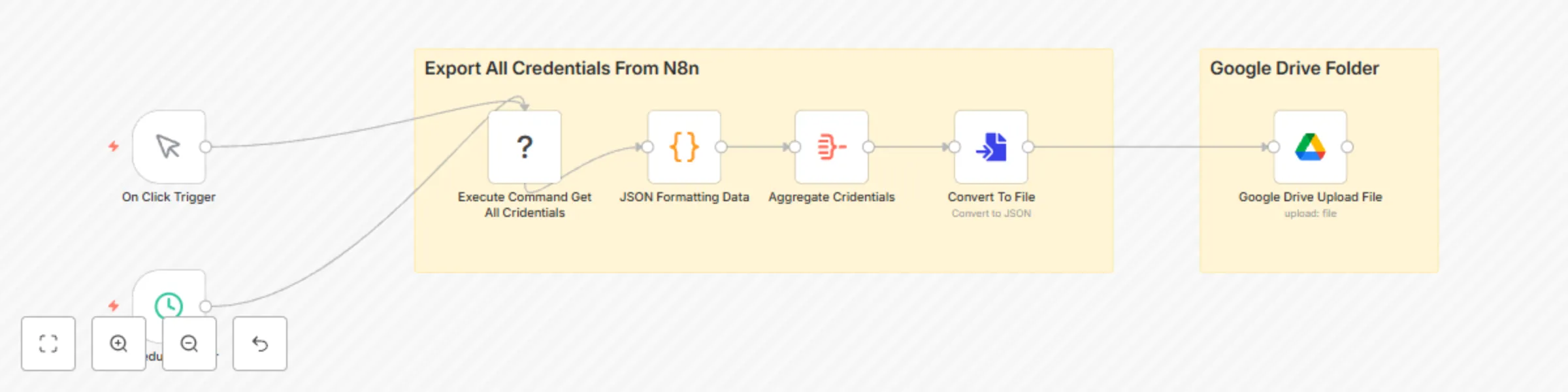
**This n8n workflow template uses community nodes and is only compatible with the self-hosted version of n8n.** ## **Restore n8n Credentials from Google Drive Backup** This template enables you to **restore your n8n credentials from a backup file in Google Drive**. It's an essential companion to a credential backup workflow, ensuring you can recover your setup in case of data loss, instance migration, or disaster recovery. The workflow **intelligently checks for existing credentials to prevent accidental overwrites of credentials** with the same name that are already present. This workflow is manually triggered. We recommend you use this restore workflow in conjunction with a backup solution like our ["Auto Backup Credentials to Google Drive" template](https://aiautomationpro.org/products/n8n-auto-backup-credentials-to-google-drive/). For more powerful n8n templates, visit our website or contact us at [**AI Automation Pro**](https://aiautomationpro.org/). We help your business build custom AI workflow automation and apps. ### Who is this for? This workflow is for n8n administrators and users who have backed up their n8n credentials to Google Drive (e.g., using a companion backup template) and need to restore them to the same or a different n8n instance. It's crucial for those managing self-hosted instances. ### What problem is this workflow solving? / use case If an n8n instance becomes corrupted, needs to be migrated, or if credentials are accidentally deleted, a manual re-creation of all credentials can be extremely time-consuming and error-prone. This workflow automates the restoration process from a known backup, saving significant time and ensuring accuracy. It's particularly useful for: * Disaster recovery. * Migrating n8n instances. * Quickly setting up a new n8n instance with existing credentials. ### What this workflow does The workflow is manually triggered and performs the following operations: 1. **Fetch Current Credentials:** * An "On Click Trigger" starts the process. * It executes the command `npx n8n export:credentials --all --decrypted` via the "Execute Command Get All Credentials" node to get a list of all credentials currently in your n8n instance. * This list is then processed by "JSON Formatting Data" and "Aggregate Credentials" nodes to extract just the names of existing credentials for comparison. 2. **Download Backup File from Google Drive:** * The "Google Drive Get Credentials File" node searches your Google Drive for the `n8n_backup_credentials.json` file. * The "Google Drive Download File" node then downloads the found file. 3. **Process Backup Data:** * The "Convert Files To JSON" (an Extract From File node) converts the downloaded file content, expected to be JSON, into a usable JSON object. * "Split Out" nodes then process this data to handle individual credential entries from the backup file. 4. **Loop and Restore Credentials:** * The "Loop Over Items" (a SplitInBatches node) iterates through each credential from the backup file. * **Duplicate Check:** For each credential, an "IF" node ("Check For Skipped Credentials") checks two conditions using an OR combinator: * If the credential name from the backup (`$('Loop Over Items').item.json.name`) is empty. * If a credential with the same name already exists in the current n8n instance (by checking against the list from the "Aggregate Credentials" node). * **Conditional Restore:** If the credential name is NOT empty AND it does NOT already exist (i.e., the conditions in the IF node are false), the workflow proceeds to the "Restore N8n Credentials" node (an n8n API node). This node uses the `name`, `type`, and `data` for each new credential from the backup file to create it in the n8n instance. Credentials with empty names or those already present are skipped as they take the true path of the IF node, which loops back. * A "Wait" node introduces a 1-second delay after each restoration attempt, to prevent API rate limiting before looping to the next item. ### Step-by-step setup 1. **n8n Instance Environment (for current credentials check):** * The n8n instance must have access to `npx` and `n8n-cli` for the "Execute Command Get All Credentials" node to function. 2. **Google Drive Credentials:** * Configure the "Google Drive Get Credentials File" and "Google Drive Download File" nodes with your Google OAuth2 credentials. 3. **n8n API Credentials:** * Configure the "Restore N8n Credentials" node with your n8n API credentials. This API key needs permissions to manage credentials. 4. **Backup File Name:** * The workflow is configured to search for a file named `n8n_backup_credentials.json` in the "Google Drive Get Credentials File" node. If your backup file has a different name or you want to specify a path, update the "Query String" parameter in this node. ### How to customize this workflow to your needs * **Backup File Location/Query:** Modify the "Google Drive Get Credentials File" node parameters if your backup file is in a specific folder, has a different naming convention, or if you want more specific query logic. * **Overwrite Logic:** The current workflow skips existing credentials by name. If you need to update/overwrite existing credentials, you would need to modify the logic in the "Check For Skipped Credentials" (IF) node and potentially use an "update" operation in the "n8n" API node if available for credentials (note: updates often require the credential ID, which might not be in the backup file). * **Notifications:** Add notification steps (e.g., Email, Slack) to report on the success or failure of the restoration process, and to list which credentials were restored or skipped. * **Selective Restore:** To restore only specific credentials, you could add a filter step after "Split Out1" or modify the IF condition in "Check For Skipped Credentials" to check for particular credential names or types from the backup file. * **Error Handling:** Implement more robust error handling for API errors (e.g., from the n8n API node or Google Drive nodes), file not found issues, or problems during command execution. ### Important Note on Credential Security * **Decrypted Backup File:** This workflow assumes the `n8n_backup_credentials.json` file contains decrypted credential data, typically created by a companion backup workflow. * **Execution Environment:** The "Execute Command Get All Credentials" node requires `npx n8n-cli` access on the server running n8n.

D
Daniel Ng
DevOps
30 May 2025
1616
0
Workflow preview: Automated n8n credential backups to Google Drive with scheduled execution
Free intermediate

Automated n8n credential backups to Google Drive with scheduled execution

**This n8n workflow template uses community nodes and is only compatible with the self-hosted version of n8n.** ## **Auto Backup n8n Credentials to Google Drive** This workflow automates the backup of all your n8n credentials. It can be triggered manually for on-demand backups or will run automatically on a schedule (default to daily execution). It executes a command to export decrypted credentials, formats them into a JSON file, and then uploads this file to a specified Google Drive folder. This process is essential for creating secure backups of your sensitive credential data, facilitating instance recovery or migration. We recommend you use this backup workflow in conjunction with a restore solution like our ["Restore Credentials from Google Drive Backups" template](https://aiautomationpro.org/products/n8n-restore-credentials-from-google-drive-backups/). For more powerful n8n templates, visit our website or contact us at [**AI Automation Pro**](https://aiautomationpro.org/). We help your business build custom AI workflow automation and apps. ### Who is this for? This workflow is designed for n8n administrators and users who require a reliable method to back up their n8n credentials. It is particularly beneficial for those managing self-hosted n8n instances, where direct server access allows for command-line operations. ### What problem is this workflow solving? / use case Managing and backing up n8n credentials manually can be a tedious task, susceptible to errors and often overlooked. This workflow solves the problem by providing an automated, secure, and consistent way to back up all credential data. The primary use case is to ensure that a recovery point for credentials exists, safeguarding against data loss, assisting in instance migrations, or for general disaster recovery preparedness, ideally on a regular, automated basis. ### What this workflow does The workflow proceeds through the following steps: 1. **Triggers:** The workflow includes two types of triggers: * **Manual Trigger:** An "On Click Trigger" allows for on-demand execution whenever needed. * **Scheduled Trigger:** A "Schedule Trigger" is included, designed for automated daily backups. 2. **Export Credentials:** An "Execute Command" node runs the shell command `npx n8n export:credentials --all --decrypted`. This command exports all credentials from the n8n instance in a decrypted JSON format. 3. **Format JSON Data:** The output from the command is processed by a "Code" node ("JSON Formatting Data"). This node extracts, parses, and formats the JSON to ensure it is well-structured. 4. **Aggregate Credentials:** An "Aggregate" node ("Aggregate Cridentials") combines individual credential entries into a single JSON array. 5. **Convert to File:** The "Convert To File" node transforms the aggregated JSON array into a binary file, preparing it as `n8n_backup_credentials.json`. 6. **Upload to Google Drive:** The "Google Drive Upload File" node uploads the generated JSON file to a specified folder in Google Drive. ### Step-by-step setup To use this workflow, you'll need to configure a few things: 1. **n8n Instance Environment:** * The n8n instance must have access to the `npx` command and the `n8n-cli` package. * The "Execute Command" node must be able to run shell commands on the server where n8n is hosted. 2. **Google Drive Credentials:** * In the "Google Drive Upload File" node, select or create your Google Drive OAuth2 API credentials. 3. **Google Drive Folder ID:** * Update the `folderId` parameter in the "Google Drive Upload File" node with the ID of your desired Google Drive folder. 4. **File Name (Optional):** * The backup file will be named `n8n_backup_credentials.json`. You can customize this in the "Google Drive Upload File" node. 5. **Configure Schedule Trigger:** * The workflow includes a "Schedule Trigger". Review its configuration to ensure it runs daily at your preferred time. ### How to customize this workflow to your needs * **Adjust Schedule:** Fine-tune the "Schedule Trigger" for different intervals (e.g., weekly, hourly) or specific days/times as per your requirements. * **Notifications:** Add notification nodes (e.g., Slack, Email, Discord) after the "Google Drive Upload File" node to receive alerts upon successful backup or in case of failures. * **Enhanced Error Handling:** Incorporate error handling branches using "Error Trigger" nodes or conditional logic to manage potential failures. * **Client-Side Encryption (Advanced):** If your security policy requires the backup file itself to be encrypted at rest in Google Drive, you can add a step *before* uploading. Insert a "Code" node or use an "Execute Command" node with an encryption utility (like GPG) to encrypt the `n8n_backup_credentials.json` file. Remember that you would then need a corresponding decryption process. * **Dynamic File Naming:** Modify the "Google Drive Upload File" node to include a timestamp in the filename (e.g., `n8n_backup_credentials_{{$now.toFormat('yyyyMMddHHmmss')}}.json`) to keep multiple versions of backups. ### Important Note on Credential Security To simplify the setup and use of this backup workflow, the exported credentials are stored in the resulting JSON file in a **decrypted state**. This means the backup file itself is not further encrypted by this workflow. Consequently, it is **critically important** to: * Ensure the Google Drive account used for backups is highly secure (e.g., strong password, two-factor authentication). * Restrict access to the Google Drive folder where these backups are stored to only authorized personnel.

D
Daniel Ng
DevOps
30 May 2025
1924
0
Workflow preview: Restore n8n workflows from Google Drive backups
Free intermediate

Restore n8n workflows from Google Drive backups

## **Restore All n8n Workflows from Google Drive Backups** Restoring multiple n8n workflows manually, especially when **migrating your n8n instance to another host or server, can be an incredibly daunting and time-consuming task. Imagine having to individually export and then manually import hundreds of workflows; it's a recipe for errors and significant downtime.** This workflow provides a streamlined way to restore all your n8n workflows from backup JSON files stored in a designated Google Drive folder. It's an essential tool for disaster recovery, migrating workflows to a new n8n instance, or recovering from accidental deletions, ideally used in conjunction with a backup solution like our ["Auto Backup Workflows To Google Drive" template](https://aiautomationpro.org/products/n8n-auto-backup-workflows-to-google-drive/). For more powerful n8n templates, visit our website or contact us at [**AI Automation Pro**](https://aiautomationpro.org/). We help your business build custom AI workflow automation and apps. ### Who is this for? This template is intended for: * **n8n Users and Administrators:** Who have previously backed up their n8n workflows as JSON files to Google Drive. * **Anyone needing to recover their n8n setup:** Whether due to system failure, data corruption, accidental deletions, or during an instance migration. ### What problem is this workflow solving? / use case Restoring multiple n8n workflows manually can be a slow and error-prone process. This workflow solves that by: * **Automating Bulk Restore:** Quickly re-imports all workflows from a specified Google Drive backup folder, drastically cutting down on manual effort. * **Disaster Recovery:** Enables rapid recovery of your automation environment, minimizing downtime after a system failure or data corruption. * **Simplified Instance Migration:** Makes the process of transferring your entire workflow suite to a new n8n server significantly more manageable and less error-prone compared to manual imports. * **Data Integrity:** Helps restore workflows to a known good state from your backups, ensuring consistency after a recovery or migration. ### What this workflow does 1. **Manual Trigger:** You initiate the workflow manually whenever a restore operation is needed. 2. **List Backup Files:** The workflow accesses a *specific Google Drive folder* (which you must configure) and lists all the files within it. It assumes these are your n8n workflow JSON backup files. 3. **Iterate and Process:** It then loops through each file found in the Google Drive folder: * **Download Workflow:** Downloads the individual workflow JSON file from Google Drive. * **Extract Content:** Parses the downloaded file to extract the JSON data representing the workflow. * **Import to n8n:** Uses the n8n API to create a new workflow (or update an existing one if an ID match is found) in your current n8n instance using the extracted JSON data. * **Wait Step:** Pauses for 3 seconds after attempting to create each workflow to help manage system load and avoid potential API rate-limiting issues. ## Step-by-step setup 1. **Import Template:** Upload the provided JSON file into your n8n instance. 2. **Configure Credentials:** * **Google Drive Nodes:** You will need to create or select existing Google Drive OAuth2 API credentials for these nodes. * **n8n Node:** Configure your n8n API credentials to allow the workflow to create/update workflows in your instance. 3. **Specify Google Drive Backup Folder (CRITICAL):** * Open the **"Google Drive Get All Workflows"** node. * Locate the **"Filter"** section, and within it, the **"Folder ID"** parameter. The default value is a placeholder URL. * **You MUST change this URL to the direct URL of the Google Drive folder that contains your n8n workflow .json backup files.** This would typically be one of the hourly folders (e.g., `n8n_backup_YYYY-MM-DD_HH`) created by the companion backup workflow. 4. **Activate Workflow:** Although manually triggered, the workflow needs to be active in your n8n instance to be runnable. ### How to customize this workflow to your needs * **Selective Restore:** * **Option 1 (Manual):** Before running the workflow, manually move only the specific workflow JSON files you want to restore into the source Google Drive folder configured in the "Google Drive Get All Workflows" node. * **Option 2 (Automated Filter):** Insert an "Edit Fields" or "Filter" node after the "Google Drive Get All Workflows" node to programmatically select which files (e.g., based on filename patterns) should proceed to the "Loop Over Items" node for restoration. * **Adjust Wait Time:** The "Wait" node is set to 3 seconds. You can increase this if you have a very large number of workflows or if your n8n instance requires more time between API calls. Conversely, for smaller batches on powerful instances, you might decrease it. * **Error Handling:** For enhanced robustness, consider adding error handling branches (e.g., using "Error Trigger" nodes or "Continue on Fail" settings within nodes) to log or send notifications if a specific workflow fails to import. ### Important Considerations * **Workflow Overwriting/Updating:** If a workflow with the same `id` as one in a backup JSON file already exists in your n8n instance, this restore process will typically **update/overwrite** that existing workflow with the version from the backup. If the `id` from the backup file does not correspond to any existing workflow, a new workflow will be created. * **Idempotency:** Running this workflow multiple times on the exact same backup folder will cause the workflow to re-process all files. This means workflows will be updated/overwritten again if they exist, or created if they don't. Ensure this is the intended behavior. * **Companion Backup Workflow:** This restore workflow is ideally paired with backups created by a process like our "Auto Backup Workflows To Google Drive" template, which saves workflows in the expected JSON format. * **Test Safely:** It's highly recommended to test this workflow on a non-production or development n8n instance first, especially when restoring a large number of critical workflows or if you're unsure about the overwrite behavior in your specific n8n setup. * **Source Folder Content:** Ensure the specified Google Drive folder *only* contains n8n workflow JSON files that you intend to restore. Other file types may cause errors in the "Extract from File" node.

D
Daniel Ng
DevOps
30 May 2025
985
0
Workflow preview: Scheduled workflow backups from n8n to Google Drive with auto cleanup
Free advanced

Scheduled workflow backups from n8n to Google Drive with auto cleanup

## **Auto Backup n8n Workflows to Google Drive** Imagine the sinking feeling: hours, weeks, or even months of meticulous work building your n8n workflows, suddenly gone. A server crash, an accidental deletion, data corruption, or an unexpected platform issue – and all your automated processes vanish. Without a reliable backup system, you're facing a complete rebuild from scratch, a scenario that's not just frustrating but can be catastrophic for business operations. Furthermore, consider the daunting task of migrating your n8n instance to a new host or server. Manually exporting each workflow, one by one, then painstakingly importing them into the new environment is not only incredibly time-consuming, especially if you have tens or hundreds of workflows, but also highly prone to errors and omissions. You need a systematic, automated solution. This workflow provides a robust solution for **automatically backing up all your n8n workflows to Google Drive on schedule** (default to every hour). It creates a uniquely named folder for each backup instance, incorporating the date and hour, and then systematically uploads each workflow as an individual JSON file. To manage storage space, the workflow also includes a cleanup mechanism that **deletes backup folders older than a user-defined retention period** (defaulting to 7 days). Ideally, this backup workflow should be used in conjunction with a restore solution like our ["Restore Workflows from Google Drive Backups" template](https://aiautomationpro.org/products/n8n-restore-workflows-from-google-drive-backups/). For more powerful n8n templates, visit our website or contact us at [**AI Automation Pro**](https://aiautomationpro.org/). We help your business build custom AI workflow automation and apps. ### Feature highlights * Triggers on schedule (default to hourly). * Creates a \`n8n\_backup\_YYYY-MM-DD\_HH\` folder in Google Drive. * Fetches all n8n workflows. * Saves each workflow as a JSON file to the new folder. * Deletes backup folders older than the 'Coverage Period' (default to 7 days). ### Who is this for? This template is designed for: * **n8n Administrators and Developers:** Who need a reliable, automated system to safeguard their workflows against accidental loss, corruption, or system issues. * **Proactive n8n Users:** Who want to maintain a version history of their workflows, enabling easy rollback to previous configurations if necessary. * **Organizations:** Seeking to implement disaster recovery and data integrity practices for their n8n automation infrastructure. ### What problem is this workflow solving? / use case This workflow directly addresses these critical risks and challenges by: * **Automating Backups:** Eliminates the manual effort and inconsistency of ad-hoc backups, ensuring your workflows are regularly and reliably saved. * **Preventing Data Loss:** Safeguards your valuable automation assets against unforeseen disasters by creating secure, versioned copies in Google Drive. * **Facilitating Migration & Recovery:** Provides the foundational backups needed for a smoother, more systematic migration or a full disaster recovery, allowing you to restore your operations efficiently. * **Version Control:** By storing scheduled backups (defaulting to hourly), it allows you to access and restore previous versions of your workflows, offering an undo capability for significant changes or corruptions. * **Storage Management:** Automatically removes old backups based on a configurable retention period, preventing excessive use of Google Drive storage while keeping a relevant history. ### What this workflow does 1. **Scheduled Trigger:** Runs automatically every hour. 2. **Timestamping:** Fetches the current date and hour to create a unique name for the backup folder. 3. **Folder Creation:** Creates a new folder in a specified Google Drive location. The folder is named in the format: `n8n_backup_YYYY-MM-DD_HH`. 4. **Workflow Retrieval:** Connects to your n8n instance via its API and fetches a list of all existing workflows. 5. **Individual Backup:** Processes each workflow one by one: * Converts the workflow data to a binary JSON file. * Uploads the JSON file (named after the workflow) to the hourly backup folder in Google Drive. * Includes a short wait step between uploads to respect potential API rate limits. 6. **Old Backup Deletion:** * Calculates a cut-off date based on the "Coverage Period" set in the "Settings" node (e.g., 7 days prior to the current date). * Searches Google Drive for backup folders (matching the naming convention) that are older than this cut-off date. * Deletes these identified old backup folders to free up storage space. ### Step-by-step setup 1. **Import Template:** Upload the provided JSON file into your n8n instance. 2. **Configure Credentials:** * **Google Drive Nodes:** You will need to create or select existing Google Drive OAuth2 API credentials for these nodes. * **n8n Node:** `n8n` (node that fetches workflows) Configure n8n API credentials to allow the workflow to access your instance's workflow data. 3. **Specify Google Drive Backup Location:** * Open the **"Google Drive Backup Folder Every Hour"** node. * Under the "Drive ID" parameter: select it from the list or provide its ID. * Under the "Folder ID" parameter: select or input the ID of the **parent folder** in Google Drive where you want the `n8n_backup_YYYY-MM-DD_HH` folders to be created (e.g., a general "n8n\_Backups" folder). 4. **Set Backup Retention Period:** * Open the **"Settings"** node. * Modify the value for "Coverage Period" (default is `7`). This number represents the number of days backups should be kept before being deleted. 5. **Activate Workflow:** Toggle the "Active" switch for the workflow in your n8n dashboard. ### How to customize this workflow to your needs * **Backup Frequency:** Adjust the "Rule" in the **"Schedule Trigger"** node to change the backup interval (e.g., daily, specific times). * **Folder/File Naming:** Modify the expressions in the "Parameters" tab of the **"Google Drive Backup Folder Every Hour"** node (for folder name) or the **"Google Drive Upload Workflows"** node (for file name) if you require a different naming convention. * **Targeted Backups:** To back up only specific workflows, insert a "Filter" node after the **"n8n"** node to filter workflows based on criteria like name, tags, or ID before they reach the "Move Binary Data" node. * **Wait Time:** The **"Wait"** node is set to 3 seconds between uploads. If you have a very large number of workflows or encounter rate limiting, you might adjust this duration. * **Error Workflow:** The workflow is pre-configured with an "Error Workflow" setting. Ensure this error workflow exists in your n8n instance, or update the setting to point to your preferred error handling workflow. This can be used to send notifications on failure. ### Important Considerations * **Resource Usage:** While the workflow includes a wait step between individual workflow uploads to minimize load, backing up an extremely large number of workflows could still consume resources on your n8n instance and make many API calls to Google Drive. Monitor performance if you have thousands of workflows. * **Testing Restore Process**: Regularly test restoring a few workflows from your Google Drive backups using the companion "Restore All n8n Workflows from Google Drive" template or a manual import. This verifies the integrity of your backups and ensures you can recover when needed. * **Workflow Modifications**: If you modify this backup workflow (e.g., change the folder naming convention), ensure your restore process or workflow is also updated to match these changes.

D
Daniel Ng
DevOps
30 May 2025
1139
0
Workflow preview: Multi-level WordPress blog generator with PerplexityAI research & OpenAI content
Free advanced

Multi-level WordPress blog generator with PerplexityAI research & OpenAI content

## **WordPress Auto-Blogging Pro v2 \- with DEEPER RESEARCH \- Advanced Content Automation** **(This version is an upgrade from v1: [WordPress Auto-Blogging Pro \- with DEEP RESEARCH \- Content Automation Machine v1](https://n8n.io/workflows/3041-wordpress-auto-blogging-pro-with-deep-research-content-automation-machine/))** Take your content automation to unprecedented depths\! This v2 template enhances the acclaimed "WordPress Auto-Blogging Pro \- with DEEP RESEARCH" by introducing **Deeper Research**, a multi-level research capability designed to generate exceptionally comprehensive, long-form content like detailed articles, reports, and even e-books. If you need more than just standard blog posts and crave truly authoritative, data-driven content generated automatically, this workflow is built for you. It optionally goes beyond simple topic research by breaking down subjects into sub-topics, and then *further* into sub-sub-topics, conducting real-time online research (powered by the Research Tool Sub-Flow using PerplexityAI) at each stage. This ensures unparalleled depth and coverage, perfect for tackling complex subjects. Combined with enhanced automation features for batch processing, categorization, tagging, linking, and image generation (using OpenAI's latest image model `gpt-image-1` accessed via API), this is the ultimate engine for serious content automation on WordPress. It operates using a **three-flow system**: a Trigger Flow acts as a scheduler and dispatcher, a powerful Main Flow executes the complex content generation process, and a dedicated Research Tool Sub-Flow handles interactions with PerplexityAI. Visit [AI Automation Pro’s website](https://aiautomationpro.org/) for more powerful n8n templates. ![AI_Automation_Pro_WordPress_Blog_Automation_Deeper_Research_v2_1.jpeg](fileId:1254)![AI_Automation_Pro_WordPress_Blog_Automation_Deeper_Research_v2_2_1.jpeg](fileId:1260)![AI_Automation_Pro_WordPress_Blog_Automation_Deeper_Research_v2_2.jpeg](fileId:1255)![AI_Automation_Pro_WordPress_Blog_Automation_Deeper_Research_v2_3.jpeg](fileId:1258)![AI_Automation_Pro_WordPress_Blog_Automation_Deeper_Research_v2_4.jpeg](fileId:1263) ### **What problem is this workflow solving? / Use cases** Standard content automation often struggles with producing truly in-depth, comprehensive content on complex or rapidly evolving topics. This workflow addresses that challenge by: * **Automating Multi-Level Research:** Optionally eliminates the manual effort required to deeply research topics, sub-topics, and sub-sub-topics, ensuring content is thorough and well-supported when needed. * **Generating Long-Form Content:** Enables the creation of detailed articles, comprehensive reports, or even initial e-book drafts automatically. * **Scaling Content Production:** Efficiently handles lists of topics from Google Sheets, processing them sequentially for reliable, automated content creation over time. * **Enhancing SEO Automatically:** Integrates best practices like sitemap-based internal linking, external source linking, automatic categorization, tag generation/management, and Table of Contents generation (with “Deeper Research” articles). * **Streamlining Complex Tasks:** Combines research (basic or deep), writing, image generation, SEO optimization, publishing, and comprehensive backup (Google Docs, Drive, Sheets) into a single, automated system. Ideal use cases include creating cornerstone content, detailed guides, industry reports, niche site authority building, and automating the production of deeply researched articles where maximum depth is required. ### **Who is this for?** This advanced workflow is designed for demanding users who require robust, comprehensive content automation: * **Content Marketers & Strategists:** Needing to produce authoritative, long-form content at scale, with options for varying research depth. * **SEO Professionals:** Aiming to build topical authority with well-researched, structured, and highly optimized content featuring strong internal/external linking. * **Niche Site Builders & Affiliates:** Seeking to dominate specific topics with comprehensive guides and articles. * **Agencies:** Managing large-scale content production for clients requiring in-depth material. * **Researchers & Analysts:** Looking to automate the drafting of reports or summaries based on online data. * **Power Users of v1:** Ready to upgrade to the next level of research depth, flexibility, and automation features. ### **Unique Features** This v2 workflow introduces significant upgrades and retains the best features of v1: ![AI_Automation_Pro_WordPress_Blog_Automation_Deeper_Research_v2_5_2.jpeg](fileId:1261)![AI_Automation_Pro_WordPress_Blog_Automation_Deeper_Research_v2_6.jpeg](fileId:1259)![AI_Automation_Pro_WordPress_Blog_Automation_Deeper_Research_v2_7.jpeg](fileId:1257) * **Conditional Deeper Research:** Choose per-topic whether to activate multi-level research (topic \-\> sub-topic \-\> sub-sub-topic) for maximum depth or use standard chapter-level research. * **Modular Three-Flow Architecture:** Robust system with a Trigger Flow for scheduling, a Main Flow for generation, and a dedicated Research Tool Sub-Flow. * **Table of Contents Generation:** Automatically creates a ToC for improved readability and SEO on long articles. * **Latest AI Image Models:** Optimized for high-quality images using OpenAI's latest model (`gpt-image-1` via API), with easy node setup to switch to alternatives. * **Automatic Categorization & Tag Management:** AI assigns posts to the most relevant existing WordPress category and creates/assigns relevant tags. * **Dual Trigger Options:** Use Google Sheets for batch processing lists of topics or n8n's Native Form for single, ad-hoc topic submission. * **Batch Topic Processing:** Handles multiple topic inputs efficiently via the Trigger Flow loop, processing them sequentially with status tracking. * **Advanced External & Internal Linking:** Automatically inserts relevant internal links (from sitemap) and external source links (from research). * **Comprehensive Backup System:** Saves final content in multiple formats and locations: Markdown to Google Docs, Images to Google Drive, Final URLs and details to Google Sheets. * **Centralized Control Interface:** Google Sheets acts as the primary interface for bulk input, parameter setting (like `Have Deeper Research`), and status monitoring. * **Direct WordPress Integration:** Seamlessly publishes content, metadata, tags, categories, and images. * **Rate-Limit Aware:** Includes configurable Wait nodes to prevent API errors during intensive processing. * **Robust Error Catching:** Uses 'If' nodes to validate AI outputs and ensure smooth data flow. ### **How this workflow works** ![AI_Automation_Pro_WordPress_Blog_Automation_Deeper_Research_v2_8.jpeg](fileId:1256) This template utilizes three interconnected n8n flows: a Trigger Flow, a Main Flow, and a Research Tool Sub-Flow, orchestrated primarily via Google Sheets. #### **1\. Trigger Flow (Scheduler & Dispatcher):** * **Trigger:** Activates via a Schedule (e.g., every 10 minutes) to check for new tasks OR via a direct n8n Form submission. * **Select Topics:** Reads rows from a specific Google Sheet (e.g., `Deeper Research - Create Topics` \-\> `Create Topic` sheet) where the `Status` column is 'To Do'. * **Loop & Dispatch:** Processes each 'To Do' topic one by one. For each topic, it executes the **Main Flow**, passing the topic details and parameters. * **Wait:** Pauses for a configurable duration (default: 1 hour) after each topic's processing is initiated by the Sub-Workflow, helping manage API limits and pacing. #### **2\. Main Flow (Content Generation Engine):** * **Trigger:** Starts when called by the Trigger Flow. * **Setup:** Receives topic parameters (Topic, Audience, Style, Word Count, `Have Deeper Research` flag, etc.) from the Trigger Flow. Updates the topic's `Status` to 'In Progress' in the Google Sheet. * **Internal Link Gathering:** Fetches your website's sitemap XML, parses it, and extracts a set number (e.g., up to 50\) of internal URLs for later use. * **Initial Research & Planning:** Executes the **Research Tool Sub-Flow** to perform initial online research on the main topic. An AI Agent ("Blog Planner") then uses this research to outline the entire article: Title, Subtitle, Introduction, Slug, Meta Description, Tags, Chapter outlines, and prompts for chapter/featured images. * **Conditional Content Creation (Based on `Have Deeper Research` flag):** * **If YES:** Executes the *Deeper Research* path: Loops through planned chapters \-\> Executes **Research Tool Sub-Flow** for Chapter Research \-\> AI splits chapter into subchapters \-\> Loops through subchapters \-\> Executes **Research Tool Sub-Flow** for Subchapter Research \-\> AI ("Subchapter Copywriter") writes detailed content for each subchapter \-\> Aggregates subchapters back into the main chapter content. * **If NO:** Executes the *Standard Research* path: Loops through planned chapters \-\> Executes **Research Tool Sub-Flow** for Main Chapter Research \-\> AI ("Chapter Copywriter") writes content for each chapter. * **Image Generation & Upload:** Generates images (using OpenAI's `gpt-image-1` or equivalent via HTTP Request) for each main chapter and a featured image. Resizes images and uploads them to both your WordPress Media Library and a specified Google Drive folder. * **Tag Management:** Checks if the AI-generated tags exist in WordPress. Creates new tags if necessary and retrieves the IDs for all relevant tags. * **Article Assembly:** Combines Introduction, finalized chapter content (from either research path), Conclusion, CTA, etc., into a complete article structured in Markdown format (using a Code node). * **HTML Conversion:** Converts the final Markdown content to HTML suitable for WordPress. * **Backup \- Google Docs:** Saves the final Markdown version of the article as a new document in a specified Google Drive folder. **Note:** saving to Google Docs only works on "My Drive" and will NOT work on a Shared Drive due to Google Drive API restrictions. * **Publish to WordPress:** Creates a new post on your WordPress site with the Title, HTML content, Slug, assigned Category (auto-detected or default), Tag IDs, and sets the generated Featured Image. Also sets the Meta Description and Post Excerpt. * **Backup \- Google Sheets:** Saves the final details (Published URL, Markdown, HTML, Tags, Meta info, Slug, Excerpt, etc.) to a dedicated sheet (e.g., `Final Blogs`) within your main Google Sheet workbook. * **Final Status Update:** Updates the topic's `Status` to 'Done' in the original `Create Topic` sheet. #### **3\. Research Tool Sub-Flow (PerplexityAI Interaction):** * **Trigger:** Starts when called by the Main Flow. * **Setup:** Receives parameters like the research query, model (`sonar` or `sonar-deep-research`), system message, and max tokens. * **API Call:** Makes a POST request to the PerplexityAI API with the provided parameters and authentication. * **Response Handling:** Extracts the content from the API response. * **Output:** Returns the research content back to the calling Main Flow. ### **Requirements** * **n8n Instance**. * **OpenAI API Key:** Or equivalent credentials for a powerful text generation model (default to GPT-4o) and an image generation model (like `gpt-image-1`, compatible with OpenAI node or direct HTTP Request). * **Perplexity API Key:** Or equivalent for an online research tool API (used via HTTP Request node in the Research Tool Sub-Flow). * **WordPress Website:** REST API enabled, with an Application Password granting permissions to create/edit posts, upload media, manage categories, and manage tags. Needs an accessible `post-sitemap.xml`. * **Google Account:** For Google Sheets (trigger, control parameters, status tracking, backup), Google Drive (image/text backup), and Google Docs (Markdown backup). ### **Setup Step-by-Step** 1. **Import Workflows:** Download the three `.json` files (**Trigger Flow**, **Main Flow**, **Research Tool Sub-Flow**) and import them into your n8n instance. Name them clearly (e.g., "WP Deeper Research \- Trigger Flow", "WP Deeper Research \- Main Flow", "WP Deeper Research \- Research Tool Sub-Flow"). 2. **Configure Google Sheet:** * Clone or create a Google Sheet workbook (e.g., `Deeper Research - Create Topics`). * Ensure two sheets within it: `Create Topic` and `Final Blogs`. * Set up required columns in `Create Topic` (e.g., `Topic`, `Status`, `Have Deeper Research`, `Audience`, `Style`, etc. \- **match these exactly** to the names used in the workflow nodes). * Set up columns in `Final Blogs` for backup (e.g., `Topic Name`, `Final URL`, `Markdown`, `HTML`, etc. \- match workflow nodes). * Update all Google Sheets nodes in the Trigger Flow and Main Flow to point to the correct Workbook Name, Sheet Name, and ensure column names match. 3. **Link Flows:** * In the **Trigger Flow**, locate the "Execute Workflow" node (e.g., "Execute Workflow \- Create A Topic"). Edit this node and select the imported **Main Flow** from the dropdown. * In the **Main Flow**, locate all "Execute Workflow" nodes that perform research. Edit these nodes and select the imported **Research Tool Sub-Flow** from the dropdown. 4. **Configure Credentials:** In n8n, add credentials for: OpenAI, PerplexityAI, WordPress (using Application Password), Google (ensure Sheets, Drive, Docs permissions). 5. **Connect Workflow Nodes:** Open all three workflows. Go through each node requiring authentication (OpenAI, Perplexity HTTP Request, WordPress, Google Sheets, Google Drive, Google Docs) and assign the correct credential. Pay close attention to HTTP Request nodes, ensuring API keys are correctly placed. 6. **Configure Triggers:** In the Trigger Flow, configure the Schedule Trigger interval (default 10 mins) or the n8n Form Trigger fields as needed. Ensure only one trigger is active unless you intend both. 7. **Customize Inputs & Parameters:** Review key nodes: * Trigger Flow: Adjust Wait time if needed. * Main Flow: Verify Website URL (for sitemap), AI prompts (Planner, Copywriters), default Category ID, internal link limit, image sizes. * Research Tool Sub-Flow: Review default model (`sonar`), system message, max tokens if needed. 8. **Test Connections:** Perform test runs on individual nodes within each workflow (e.g., read Google Sheet, call Perplexity via Research Tool Sub-Flow, connect to WordPress) to verify credentials and configurations. 9. **Initial Test Run:** Add one test topic to your `Create Topic` sheet (set `Status` to 'To Do', specify 'Yes' or 'No' for `Have Deeper Research`). Manually trigger the Trigger Flow once (or wait for the schedule). Verify the process completes and check outputs (WordPress post, Google Drive folder, Google Doc, `Final Blogs` sheet, `Create Topic` status update). 10. **Activate Workflows:** Toggle the "Active" switch ON for the **Trigger Flow** in your n8n instance. The Sub-Workflows should *remain inactive* as they are triggered by other flows. 11. **Start Automating:** Add content topics to the `Create Topic` sheet (set Status='To Do'), and the scheduled Trigger Flow will pick them up. ### **Tips for Pros** * **Control Research Depth:** Use the `Have Deeper Research` column ('Yes'/'No') in your Google Sheet to control the level of research per topic, optimizing for cost and complexity where needed. * **AI Model Selection:** Experiment with different models in the AI/Image nodes. An alternative to OpenAI’s image model is Flux.1, which can yield superior images. For research, test Perplexity's `sonar-deep-research` model (by passing it as a parameter to the Research Tool Sub-Flow if needed) if the standard `sonar` isn't deep enough. * **Wait Times:** Adjust the Trigger Flow's "Wait" node duration based on your API plan limits, the typical runtime of the Main Flow, and desired posting frequency. * **Prompt Engineering:** Refine the prompts within the Main Flow's AI nodes (Blog Planner, Chapter/Subchapter Copywriters, Image Prompts) and the Research Tool Sub-Flow's system message to fine-tune the output style, tone, structure, and image relevance. * **Sitemap Accessibility:** Ensure your `post-sitemap.xml` is publicly accessible and correctly formatted for the parsing node to work reliably for internal linking. ### **Important Considerations** * **API Costs:** Deep research (especially the sub-sub-topic level) and generating multiple high-quality images per post can consume significant API credits. Monitor your costs closely. Use the `Have Deeper Research` flag wisely. * **API Rate Limits:** Even with Wait nodes, high volume can hit API rate limits. Be aware of your plan limits (OpenAI, Perplexity) and adjust workflow timing (schedule interval, wait time) accordingly. * **Sub-Workflow Runtime:** The Main Flow can take a considerable amount of time to run, especially with Deeper Research enabled. Factor this into scheduling and expectations. * **Tool Dependencies:** The workflow relies heavily on the specific functionalities and APIs of OpenAI, Perplexity, Google Workspace, and WordPress. Changes in these platforms might require workflow adjustments. * **Initial Setup Complexity:** Due to the advanced features, three-flow structure, and multiple integrations, the initial setup requires careful configuration of credentials, node settings (especially Google Sheets names/columns), and workflow linking. Test thoroughly. * For inquiries about this template, please contact [AI Automation Pro](https://aiautomationpro.org/contact/). ![AI_Automation_Pro_WordPress_Blog_Automation_Deeper_Research_v2_10.jpeg](fileId:1262)

D
Daniel Ng
Content Creation
4 May 2025
1238
0
Workflow preview: WordPress content automation machine with HUMAN-IN-THE-LOOP & DEEP RESEARCH
Free advanced

WordPress content automation machine with HUMAN-IN-THE-LOOP & DEEP RESEARCH

## **HUMAN-IN-THE-LOOP Content Automation Pro with Deep Research & Airtable for Power Users \- Collaborative AI for WordPress Blog Automation** **The BEST n8n Content Automation workflow** in the market is getting even better, now enabling you to have full control over the entire process. It’s time to unlock the power of true **collaborative creation with GenAI\!** **Want to leverage AI automation but don't want to give up full control over the whole content creation process?** Get the best of both worlds \- get **“Human-in-the-Loop”** with this supreme n8n workflow template\! This template blends the **power of AI** with the crucial oversight of **human expertise and intervention**, all managed through a central, streamlined Airtable interface. Say goodbye to generic content and hello to high-quality, deeply researched articles published directly to your WordPress site with full control. Check out [my Youtube channel](https://www.youtube.com/@nminhduc/) for a full walkthrough. ![Human_in_the_loop_content_automation_pro_with_deep_research_airtable_0.jpeg](fileId:1187) ![Human_in_the_loop_content_automation_pro_with_deep_research_airtable_13.jpeg](fileId:1182) ![Human_in_the_loop_content_automation_pro_with_deep_research_airtable_2.jpeg](fileId:1184)![Human_in_the_loop_content_automation_pro_with_deep_research_airtable_3.jpeg](fileId:1181) ![Human_in_the_loop_content_automation_pro_with_deep_research_airtable_4.jpeg](fileId:1186) ### **What problem is this workflow solving? / Use cases** Fully automated content generation tools often lack the nuance, accuracy, and strategic control necessary for truly impactful content. This workflow solves that critical gap by integrating powerful AI capabilities into a structured, human-supervised content creation process managed via a simple interface. It automates the most repetitive and time-consuming tasks – like research gathering, chapter ideations, domain copywriting – while strategically embedding essential human review points at critical junctures. Instead of simply providing a topic and receiving a finished article of uncertain quality, you actively guide the process step-by-step within an interface. You review, refine, and approve AI suggestions for chapters and content before finalizing and publishing. This approach makes it perfect for creating high-quality, deeply researched, and brand-aligned blog posts for WordPress more efficiently, without ever sacrificing essential editorial control. ### **Who is this for?** This workflow template is meticulously designed for individuals and teams deeply involved in content creation who seek a powerful blend of AI-driven efficiency and essential human-controlled quality assurance: * **Content Creators & Bloggers:** Who want to leverage AI for drafting and research but maintain full editorial control. * **Marketing Teams:** Looking to scale content production efficiently while ensuring brand voice and quality consistency. * **SEO Specialists:** Needing to produce well-researched, structured, and SEO-optimized content regularly. * **Agencies:** Managing content creation for multiple clients with a structured, repeatable process. * **Anyone who prefers a "human-in-the-loop" approach** over fully automated "black box" content generators. ### **How this workflow works** This template automates significant portions of the WordPress content creation process, utilizing Airtable as the central hub for management and user interaction, while leveraging AI for research and copywriting. The system is composed of four interconnected n8n flows, each handling a distinct stage of the content lifecycle. In addition, there is a sub-workflow dedicated to the research tool (Perplexity). ![Human_in_the_loop_content_automation_pro_with_deep_research_airtable_12.jpeg](fileId:1185) #### **Content Creation Process in Airtable** The entire journey from idea to published post is managed within your Airtable base, offering transparency and control. Progress through each tab sequentially to complete the content creation process and produce a high-quality article that fulfills your requirements. 1. **Configure Settings (“Settings” Table):** Define global parameters (website details, target audience, writing style, category IDs, about us, CTA etc.) in the “Settings” table. These serve as default inputs for the AI. 2. **Create Topics (“Create Topics“ Table):** Add a record to the “Create Topics” table for each new blog post idea. Mark the topic as ready by setting its 'Status' field to “To Do” **and** ticking the 'Execute Flow' checkbox to initiate the first flow. 3. **Generate Chapters (“Generate Chapters“ Table):** The first flow calls to the sub-workflow to do online research and generates potential chapter outlines based on your topic and settings, saving them to the “Generate Chapters” table. 4. **Select Chapters to Write (“Select Chapters“ Table):** Review the suggested chapters in the “Select Chapters“ Table. Select the chapters you want to proceed with by setting their 'Status' to “To Do” **and** ticking the 'Execute Flow' checkbox. 5. **Generate Content for selected Chapters (“Generate Content“ Table):** The second flow calls to the sub-workflow to research each selected chapter and generates draft content, saving it to the “Generate Content” table, where you have the opportunity to review and modify if necessary. 6. **Select Chapter Content (“Select Content“ Table):** Review and edit the AI-generated text directly in Airtable. Approve the content for each chapter. Once all necessary content is approved, trigger the third flow for the final assembly by setting the status to “To Do” **and** ticking the 'Execute Flow' checkbox. 7. **Finalize Post (“Finalize Post“ Table):** The third flow aggregates the approved content, generates the title, SEO metadata, tags, chapter images and featured image, placing all compiled information in the “Finalize Post” table for your final review. When the final article is ready to be published on your website, mark the status as "To Do" and check the "Ready to Publish" box to activate the fourth and final flow. 8. **Publish & Backup Post (“Backup Post“ Table):** the fourth flow publishes the post to the website and creates a backup record in the “Backup Post” table, archiving key details including the live URL of the published article. #### #### **n8n Workflow Functions (JSON Files)** The automation is handled by four separate n8n flows, each triggered by specific changes in Airtable: 1. **Flow 1** (Topic Initiation & Chapter Generation): * **Trigger:** Monitors the “Create Topics” table; activates when a record's 'Status' is "To Do" AND 'Execute Flow' checkbox is ticked. * **Action:** Fetches settings from Settings. Performs initial research (e.g., via Perplexity). Uses AI to generate chapter outlines. Saves suggestions as new records in the “Generate Chapters” table. 2. **Flow 2** (Content Generation & Internal Linking): * **Trigger:** Monitors the “Select Chapters” table; activates when a record's 'Status' is "To Do" AND 'Execute Flow' checkbox is ticked. * **Action:** Fetches chapter details and settings. Gathers internal links (e.g., by parsing sitemap). Performs online/ deep research per chapter. Uses AI to write draft content, incorporating research and links. Saves drafts into corresponding records in the “Generate Content” table. 3. **Flow 3** (Post Assembly & Image Generation): * **Trigger:** Monitors the “Select Content” table; activates when all content for a topic is approved and final assembly is triggered when a record's 'Status' is "To Do" AND 'Execute Flow' checkbox is ticked. * **Action:** Fetches all content from the “Generate Content” table. Aggregates text. Uses AI for title, SEO metadata, tags, and image prompts. Generates chapter images and a featured cover image (e.g., via AI image model DALL-E). Converts content to HTML. Saves compiled data and image info into the “Finalize Post” table. 4. **Flow 4** (WordPress Publishing & Backup): * **Trigger:** Monitors the “Finalize Post” table; activates when a record is marked Status' is "To Do" AND ‘Post to Website’ checkbox is ticked. * **Action:** Fetches finalized data. Uploads images to WordPress. Creates WordPress post (status set to “published” by default) with content, metadata, tags, and image. Creates a record in the “Backup Post” table, with a link to the post on the website. This modular approach ensures each stage is handled distinctly, orchestrated via updates on Airtable interface. ### **Unique Features** * **Human-in-the-Loop Design:** Guarantees quality and relevance through mandatory user review and approval stages within Airtable for chapters, content, and the final post. * **Collaborative AI Partnership:** Leverages AI as a powerful assistant for research, structuring, and drafting, significantly boosting productivity while relying on human expertise for refinement and final judgment. * **Airtable as Interface & Control Center:** Utilizes Airtable as an intuitive interface and central database to manage the entire content lifecycle, offering clear progress tracking and facilitating team collaboration. * **Deep Research Integration:** Incorporates external research tools (like Perplexity) to ensure content is based on fresh, up-to-date information, crucial for accuracy and authority. * **Modular n8n Structure:** Simplifies complexity by dividing the process into four manageable, interconnected flows plus one sub-flows, making the system easier to understand, troubleshoot, and customize. * **Rate-limit Aware:** Includes built-in Wait nodes and logic designed to mitigate API rate limit issues from AI and research tools, enhancing workflow reliability during intensive use. * **Multiple-Image Generation:** Generates and adds images for each chapter, as well as a featured image for the article. * **Direct WordPress Integration:** Streamlines publication by automatically sending finalized, formatted content, metadata, tags, and the featured image directly to your WordPress site. * **Internal Linking:** Embeds internal website links strategically within each chapter and throughout the article, boosting SEO and enhancing user navigation. * **Integrated Backup:** Provides data security by automatically archiving key post details in Airtable and optionally saving text and image files to Google Drive. ### **Future Features** * **“Deeper Research”:** Plans for multi-level research capabilities to enable the creation of even more comprehensive reports or e-book length content. * **Content Sample:** Provide content samples for the AI to learn from and mimic in terms of writing style and guidelines. * **Category-Specific Styling:** Aiming to allow users to define styles per category for the AI to learn and imitate, ensuring greater brand consistency. * **Advanced Link Insertion:** Developing more sophisticated strategies for inserting relevant internal and external links, including automatic source citation and dynamic internal link density adjustments. #### **Requirements** 1. **Airtable Account:** [create a Airtable account](https://airtable.com/invite/r/2iOynfoh) for free. 2. **WordPress Website:** Requires an Application Password with permissions to create posts and upload media. Must have the REST API enabled. 3. **OpenAI API Key:** Or a key from another compatible AI provider for text and image generation (DALL-E is the default for images). 4. **Perplexity API Key:** Or an API key for your chosen online research tool. 5. **Google Drive:** for the optional backup feature to Google Drive. ### **Setup Step-by-Step** 1. **Import n8n Workflows:** Download the .json workflow files and import them into your n8n instance. There is one main/ “month” workflow and one sub/ “child” workflow. Name the workflows to your needs. 2. **Get Airtable Base:** Duplicate the companion Airtable Base template. 3. **Configure Credentials:** Add new credentials in n8n for Airtable, WordPress (use Application Password), OpenAI API, PerplexityAI API, and Google (for Drive backup). 4. **Connect Workflow Nodes:** Open each workflow in n8n and assign the correct credential to every node that requires authentication (Airtable, WordPress, AI, HTTP Request, Google nodes). 5. **Link the main workflow to the sub-workflow:** Access the Research Tool nodes and establish a connection between the main workflow to sub-workflow. 6. **Configure Airtable Nodes:** Update **all** Airtable nodes across **all** workflows. **Verify** that all 'Table' and 'Field' names in the nodes **exactly match** your duplicated base. 7. **Populate Airtable Settings:** Fill in your specific details in the Settings table of your Airtable base (Website URL, Audience, Style, Category IDs, CTA, etc.). 8. **Test Connections:** Run manual executions on key nodes within each flow to ensure connections and basic configurations are correct before activating. 9. **Activate Workflow:** Toggle the "Active" switch ON for the main/ “mother” workflow in your n8n list. No need to activate the sub/ “child” workflow. 10. **Start Creating:** Go to the Create Topics table in Airtable, add a new topic, go through the process and get amazed by AI magic\! ### **Airtable Database Explanation** Airtable is the central hub, acting as the database, user interface, and trigger mechanism for this workflow. ![Human_in_the_loop_content_automation_pro_with_deep_research_airtable_1.jpeg](fileId:1183) * **Structure:** The base uses linked tables to manage the process: * Settings: Global configurations. * Create Topics: Initiates new content pieces. * Generate Chapters: Stores AI-generated chapter outlines for review. * Select Chapters: Facilitates user selection of chapters to write. * Generate Content: Stores AI-generated draft content for selected chapters. * Select Content: Manages user approval of drafted content before final assembly. * Finalize Post: Holds the compiled post (text, metadata, image info) for final review and publish trigger. * Backup Post: Archives data (including live URL) of successfully published posts. * **Workflow Interaction:** * User updates trigger fields in Airtable (e.g., sets Status='To Do' & Execute Flow=true). * n8n Airtable Trigger nodes detect these specific changes. * The corresponding n8n flow runs, fetching data from Airtable. * AI and other tools process data and generate outputs. * Results are written back to the appropriate Airtable tables/fields. * User reviews results in Airtable and triggers the next stage via status AND checkbox updates. * **Setup:** Using the **exact** duplicated Airtable base template is mandatory, as n8n workflows expect specific table and field names. ### **Tips for Pros** * **AI Prompts:** Modify prompts in the AI nodes to refine tone, style, format, or incorporate specific instructions. * **AI Models:** the workflow is optimized for OpenAI's GPT-4o model due to its consistent performance. While you can replace the AI models in the nodes with alternatives (if you have the credentials for them), keep in mind that the workflow may not function. * **AI Research Model:** PerplexityAI is the tool of choice for research. The "sonar" model is the default for research in this workflow due to its speed and cost-effectiveness. However, you are welcome to explore Perplexity's other models, such as the "sonar-deep-research" model, which is specifically designed for in-depth research. * **AI Image Model:** The default AI model for image generation is OpenAI’s Dall-E. However, the outputs of this model are not impressive. While OpenAI's 4o multimodal is expected to be available via API soon, better/ superior image quality can be achieved in the meantime by using alternative AI image models (such as FLUX.1). * **Airtable Base:** Add or modify fields/tables to match your specific tracking needs, but remember to update corresponding n8n nodes accordingly. * **3rd-party Integrations:** Replace research tools, image generators, or modify the final step to publish to a different CMS or add post-publication steps like social sharing. * **Error Handling:** For production reliability, incorporate an “Error Handling” workflow in n8n for this automation to catch failures and send notifications ### **Important Considerations** * **API Rate Limits:** AI and research tools have usage limits. High volume processing might cause errors. The included **Wait** nodes help, but may need adjustment based on your API plans. * **Testing Costs:** API calls to AI models aren't free. To ensure the workflow runs correctly, start testing with OpenAI's GPT-4o. Once you've confirmed functionality, explore using other AI models which may be cheaper to keep costs down. Be aware that the workflow may not be as reliable with models other than GPT-4o. Keep an eye on your API provider's billing dashboard to monitor usage and costs. * **Sequential Processing:** The workflow processes one topic fully at a time to ensure stability and manage API limits. For fully automated, parallel processing from a list, consider the alternative template: [**“\[n8n\] Content Automation Pro – with DEEP RESEARCH – WordPress Blog Automation”**](https://n8n.io/workflows/3041-wordpress-auto-blogging-pro-with-deep-research-content-automation-machine/). ![Human_in_the_loop_content_automation_pro_with_deep_research_airtable_11.jpeg](fileId:1188)

D
Daniel Ng
Content Creation
27 Apr 2025
1707
0
Workflow preview: Auto invoice & receipt OCR to Google Sheets – Drive, Gmail, & Telegram triggers
Free advanced

Auto invoice & receipt OCR to Google Sheets – Drive, Gmail, & Telegram triggers

### **The Best Invoice & Receipt OCR Automation - FREE (for a limited time)** **Automatically process invoices and receipts** using **Gemini OCR**, extracting data directly into **Google Sheets** from multiple sources including **Google Drive, Gmail**, and **Telegram**. This powerful workflow ensures your bookkeeping is always accurate, organized, and efficient, significantly reducing manual effort and potential errors. ![Automate_invoice_OCR_to_Google_Sheets_Gemini_n8n_workflow_template_screenshot_2.jpeg](fileId:1150) ### **Who is this for?** This workflow is ideal for busy **entrepreneurs, startup founders, freelancers, small business owners, bookkeepers, and accountants** who aim to eliminate manual, repetitive, and error-prone bookkeeping tasks. Whether you regularly manage expenses from physical paper receipts, digital invoices, or email attachments, this workflow will dramatically streamline your bookkeeping processes and save you significant time and effort each month. ### **What problem is this workflow solving?** Manual data entry of invoices and receipts is notoriously tedious, incredibly time-consuming, and highly susceptible to human error. Mistakes in bookkeeping can lead to financial inaccuracies, compliance issues, and wasted resources. By automating the extraction of invoice data, this workflow streamlines your financial management process, significantly improves accuracy, reduces operational overhead, and allows you to redirect valuable resources and attention toward strategic, revenue-generating business activities. ### **What this workflow does** This template provides a powerful, automated solution for invoice and receipt data extraction using Google's Gemini API for OCR (Optical Character Recognition) via direct HTTP requests. 1. **Main Flow (Google Drive Trigger):** The main workflow triggers (*Google Drive Trigger New Files*) whenever a new file (PDF or image) is added to a designated Google Drive folder. It uses a *SplitInBatches node (Loop Over Items)* to process incoming files one by one. For each file, it: * Downloads the file (*Google Drive Get Receipt*). * Converts it to base64 (*Move file to base64 string*). * Sends the file data and a detailed prompt to the Gemini API (*gemini-2.0-flash* model specified in the *Prompt* node, sent via the *Gemini API HTTP Request* node). The prompt requests structured JSON output with specific fields and formatting (like comma decimal separators, no currency symbols, and a dedicated currency field). * Parses the JSON response (*JSON to string*, *Parse string* nodes). * Appends the extracted data (Invoice Date, Category, Sender, Currency, etc.), along with the original filename and a link to the file, to a specified Google Sheet (*Add to Google Sheets*). * Includes *Wait* nodes to help manage potential rate limits. 2. **Supplementary flow 1 (Gmail Trigger):** An additional trigger (*Gmail Trigger*) monitors your Gmail account for emails with a specific label. When a matching email with attachments arrives: * It loops through emails and attachments. * It renames the attachment using the format `YYYY-MM-DD_SenderUsername` (e.g., `2025-04-19_some.sender`) using the *Create File Name* node. * It saves the renamed attachment to the designated Google Drive folder (*Google Drive Save Files*), which then triggers the core OCR process above. 3. **Supplementary Trigger 2 (Telegram Trigger):** Another optional trigger (*Telegram Trigger Image*) allows you to forward photos of physical receipts to your configured Telegram bot: * It renames the image file using the format `YYYY-MM-DD_Telegram` (e.g., `2025-04-19_Telegram`) via the *Create File Name For Telegram* node. * It saves the renamed image to the designated Google Drive folder (*Google Save Files 2*), also triggering the core OCR process. ### **Setup** 1. **Credentials:** Add the following credentials in n8n, using the names specified in the template or your own: * *Google OAuth2*: For Google Drive, Google Sheets, Gmail. * *Telegram*: For the Telegram bot trigger * *Gemini API Key*: Obtain a free API key from [Google AI Studio](https://aistudio.google.com/). You will need to paste this key directly into the Query Parameters of the *Gemini API (HTTP Request)* node in the workflow. 2. **Google Drive:** Create a specific folder in your Google Drive where all invoices/receipts will be stored *and* processed from. Update the target Folder in the *Google Drive Trigger New Files*, *Google Drive Save Files*, and *Google Save Files 2* nodes to use your designated folder. 3. **Google Sheets:** Create a new Google Sheet, or clone [this Sheet template](https://docs.google.com/spreadsheets/d/1HX12aLkBrFjKSvtMlhFbDQkvn8MQrhZQVkkxpXY5c0M/edit?usp=sharing). Ensure it has columns matching the desired output fields (see default list below, including *Currency*). Update the target Spreadsheet and Sheet Name in the *Add to Google Sheets* node to point to your sheet. 4. **Gmail (Optional):** Create a label in Gmail (e.g., `"receipts"`). Update the Label filter in the *Gmail Trigger* node to use the label you created. Consider setting up filters in Gmail to automatically apply this label to relevant emails. 5. **Telegram (Optional):** Configure the *Telegram Trigger Image* node with your bot credentials. 6. **Gemini API Node:** Open the *Gemini API (HTTP Request)* node. In the `"Query Parameters"` section, replace the placeholder API key with your actual Gemini API Key. Verify the URL uses the correct model name by referencing the *Prompt* node's model value (`gemini-2.0-flash` by default). 7. **Customize Prompt:** Open the *Prompt (Set)* node. * Crucially, change the first line `"My company is Sisu Digital..."` to reflect your company or remove it if not needed. * Review the list of categories and the specific formatting instructions (e.g., `comma for decimals`, `no currency symbols`, `date format`, `"N/A" for notes`) to ensure they match your requirements. You can adjust these details here. 8. **Activate Workflow:** Test each trigger path (Drive upload, labeled Gmail, Telegram photo) with sample files/emails/messages, then activate the workflow. ### **How to customize this workflow to your needs** * **Gemini Prompt/Model:** Modify the prompt text, the list of categories, or the detailed formatting instructions within the *Prompt (Set)* node. You can also change the model value in the *Prompt* node to use a different Gemini model (ensure the model supports the API endpoint used in the *HTTP Request* node). * **Extracted Fields:** Modify the prompt in the *Prompt* node to extract different fields or change formatting. Update the parsing logic in the *Parse string* node if needed, and ensure your Google Sheet columns match in the *Add to Google Sheets* node. The default extracted fields (based on the updated prompt) are: * **Invoice Date:** (DD/MM/YYYY) * **Category:** (From predefined list) * **Sender:** (Issuing company) * **Description:** (Brief details) * **Amount (0% VAT):** (Net amount, comma decimal, no currency symbol) * **VAT %:** (Rate number, comma decimal, no % sign, "0,0" if none) * **Total:** (Gross amount, comma decimal, no currency symbol) * **Currency:** (Uppercase abbreviation, e.g., "EUR", "USD") * **Note:** (Relevant notes, or "N/A") * ***(Added by workflow):*** **File Name**, **File URL** * **Triggers & Targets:** Enable/disable or modify the *Gmail* and *Telegram* triggers. Select your desired *Google Drive folder*, *Google Sheet*, and *Gmail label* directly within the respective nodes. * **File Naming:** Adjust the Javascript code in the *Create File Name* (for Gmail) or *Create File Name For Telegram* nodes to change the renaming pattern. Current formats: `YYYY-MM-DD_SenderUsername` (Gmail), `YYYY-MM-DD_Telegram` (Telegram). * **Configuration Method:** Update configuration like folders, sheets, and labels directly within the relevant nodes. For easier management of multiple settings, consider adding a central `'Set'` node at the beginning of the workflow to define these values and use expressions to reference them in other nodes. ### **Important Considerations** * **AI Accuracy:** AI models can make mistakes. Always review the data extracted into Google Sheets for accuracy, especially with specific formatting like decimal separators. This workflow automates heavily but requires final verification. * **Gemini API Usage:** This template uses the *Gemini API* via *HTTP Request*. Be mindful of Google's API rate limits, usage policies, and potential costs associated with the model used (`gemini-2.0-flash` by default), especially if you change it. Monitor Google's terms. * **Loops and Waits:** The workflow uses *SplitInBatches* and *Wait* nodes to process items individually and pause execution, which helps prevent hitting API rate limits but processes files sequentially rather than in parallel. ### **Support Disclaimer** * This workflow is provided as-is for your convenience. Use it responsibly, and feel free to build upon it for your unique needs\! * This workflow has been thoroughly tested and is confirmed to be working flawlessly at the time of release. However, setup complexity or unexpected errors may occur depending on your environment, customizations, or API changes. * Please note that I cannot offer personalized support or troubleshooting for this template (without a fee\!). If you encounter an issue, feel free to send me a message describing the problem. If the issue is determined to be a genuine bug within the shared template, I will do my best to fix it and update the workflow. Otherwise, the issue is likely due to a setup misconfiguration or modification on your side. In those cases, I recommend using *ChatGPT* or referring to *n8n documentation* to debug the problem.

D
Daniel Ng
Invoice Processing
20 Apr 2025
4544
0
Workflow preview: WordPress auto-blogging pro - with deep research - content automation machine
Free advanced

WordPress auto-blogging pro - with deep research - content automation machine

The **best content automation template** in the market is now even better—with “**deep research” on time-sensitive topics**\! Unlike most n8n content automation templates that are mainly for “demo purposes,” this advanced n8n workflow is for the real PROs. It conducts **in-depth research on the latest information about a topic**, then automatically creates and publishes **SEO-optimized blog posts** to your WordPress website. In addition, it generates **a unique image for each chapter and a featured image for the overall article**, and it collects internal website links—**seamlessly inserting links** throughout each chapter and the entire article. Furthermore, it **backs up all content and images** to a designated folder in your Google Drive. This integrated approach not only creates high-quality, comprehensive content for readers but also enhances on-page SEO, improves navigation, and streamlines your content creation process—saving you time while ensuring your work is securely stored. This is a complimentary variation of the n8n WordPress Auto-Blogging Pro for SEO topics. That one specializes in auto-blogging content about established topics that do not need up-to-date information while this one takes it further by incorporating online research into the workflow. Both make up the perfect combo to run your blog on autopilot\! ![WordPress_Auto_Blog_Automation_Deep_Research_v1_1.jpeg](fileId:972) ![WordPress_Auto_Blog_Automation_Deep_Research_v1_2.jpeg](fileId:970) ![WordPress_Auto_Blog_Automation_Deep_Research_v1_3.jpeg](fileId:971) --- ## How It Works 1. **Trigger:** It activates upon adding a new row to a Google Sheet. Users can control many customizable parameters, such as key topic, number of subtopics, target audience, length, and style. 2. **Initial Research:** The workflow initiates preliminary research on the topic to gather insights for the content planning phase. 3. **Structure Planning:** Based on the initial research, it plans a detailed structure for the entire article and breaks the article into subtopics strongly tied to the main topic. 4. **In-Depth Research & Writing:** For each subtopic, it conducts further research to gather the most up-to-date, relevant information, then uses that research to write each chapter in depth. 5. **Image Generation:** It generates and adds images for each chapter, as well as a featured image for the article. 6. **Internal Linking:** The system gathers internal website links and strategically embeds them within each chapter and throughout the article, boosting SEO and enhancing user navigation. 7. **Final Assembly & Publishing:** All texts, images, and links are combined into one comprehensive article, which is then published directly to your WordPress website. You can also choose to post it as a draft for final review. 8. **Auto Backup to Drive:** Get peace of mind knowing all content (blog post and images) is automatically saved to Google Drive, organized in a folder named after the blog post title. --- ## Unique Features 1. **Deep Research:** The workflow leverages advanced, real-time research to gather the latest information about a topic. It breaks down the key topic into subtopics and conducts in-depth research on each one, ensuring the most comprehensive and current knowledge. 2. **Full Automation:** Designed to be 100% automated, the workflow runs without manual intervention once imported and configured. 3. **Simple Activation:** It is easily triggered through the Google Sheets interface—simply add a new row to a Google Sheet. 4. **Customization Options:** Offers a wide array of options, including topic, category, target audience, word count, number of chapters, length of introduction and conclusion, and writing style. It also allows for the inclusion of calls-to-action (CTAs) and company/product introductions. 5. **Advanced Loop in Loop:** Clever looping is used to write each chapter and generate images, ensuring optimal results. “Wait” nodes are added where appropriate to avoid API call rate limits. 6. **Automatic Content Saving:** After the blog post is created, all content and images are automatically saved to Google Drive, preventing data loss. The folder is named after the blog post title. 7. **SEO-Optimized Content:** It is designed to create SEO-optimized content using seed keywords. 8. **Internal Link Limit:** The workflow limits the number of internal links to 20 by default. 9. **Error Catch:** “If” nodes are strategically used to ensure that the output from AI nodes strictly meets the JSON schema, ensuring a smooth flow of data without interruption. And many more big and small improvements. --- ## Requirements Please make sure you have these requirements ready to ensure smooth deployment of this n8n workflow template: 1. **OpenAI API** or equivalent for text and image generation 2. **PerplexityAI API** or equivalent for online research 3. A **WordPress** website (other website platforms will not work\!) 4. Google Sheets for triggering the workflow, or a trigger of your choice 5. Google Drive and Google Docs for auto backup --- ## Set Up Steps 1. **Install the Workflow Template:** Import the JSON files into your n8n instance. There are 2 files: one for the main workflow and one for the research tool (PerplexityAI). 2. **Connect the Workflow with Your Accounts:** Link your accounts for OpenAI API, PerplexityAI API, Google Drive, Google Sheets, Google Docs, and WordPress website. 3. **Configure the Google Sheet:** Ensure your Google Sheet is set up to trigger the workflow upon adding a new row and that the input data is correctly formatted. 4. **Customize the Inputs:** Adjust parameters like topic, target audience, and writing style to match your specific content needs. Optimize prompts for the best results. 5. **Test the Workflow:** Use low-cost AI models and image settings initially to ensure everything runs smoothly. 6. **Tailor Further as Needed:** Modify workflow elements to perfectly align with your needs and content strategy. --- ## Tips for PROs 1. **Image Generation:** The default AI model for image generation is OpenAI’s Dall-E. However, the outputs of this model are not impressive. Consider using FLUX.1 for better image quality. 2. **Research:** PerplexityAI is the tool of choice for research. The default model used in this workflow is “sonar” due to its fast speed and low cost. Feel free to experiment with its other models, including the “sonar-deep-research” model, which is dedicated to deep research. 3. **Triggering:** Triggering with a new row on Google Sheets is limited and unreliable. Consider setting an auto trigger with a daily schedule at a specific time. You can even put the whole workflow in a loop to process multiple rows one-by-one from Google Sheets. 4. **Human in the Loop:** It is possible to incorporate a human review process. For example, after the article is posted to WordPress as a draft, a human can review the draft. Only after approval will the post be published, and a final copy of the post will be saved to the shared Drive folder.

D
Daniel Ng
Content Creation
28 Feb 2025
4326
0
Workflow preview: WordPress auto-blogging pro - content automation machine for SEO topics
Free advanced

WordPress auto-blogging pro - content automation machine for SEO topics

The best content automation in the market! This advanced workflow not only creates and publishes **SEO-optimized blog posts** to your **WordPress website** but also **backs up all content and images** to a designated folder in your Google Drive. In addition, It generates **a unique image for each chapter and a featured image for the overall article**, and it automatically collects internal website links—seamlessly inserting them throughout each chapter and the entire article. This integrated approach enhances on-page SEO, improves navigation, and streamlines your content creation process, saving you time while ensuring your work is securely stored. ![Screenshot 20250216 at 8.40.00 PM.png](fileId:944) ![Screenshot 20250217 at 12.48.42 AM.png](fileId:945) ## How it works 1. Triggers upon adding a new row to a Google Sheets. 2. Generates a full blog post by writing content based on customizable parameters such as topic, target audience, length, style, and seed keyword. 3. Generates and adds images for each chapter as well as a featured image for the article. 4. Gathers internal website links and strategically embeds them within each chapter and throughout the article, boosting SEO and enhancing user navigation. 5. Publishes the blog post directly to your WordPress website. 6. Saves all content (blog post and images) to Google Drive, organizing them in a folder named after the blog post title. ## Unique features 1. **Full Automation:** The workflow is designed to be 100% automated. Once imported and configured, it can run without manual intervention. 2. **Simple Activation:** It can be easily triggered through the Google Spreadsheets interface. You simply add a new row to a Google Sheet. 3. **Customization Options:** Offers a wide array of customization options, including topic, category, target audience, word count, number of chapters, length of introduction and conclusion, and writing style. It also allows for the inclusion of calls-to-action (CTAs) and company/product introductions. 4. **Automatic Content Saving:** After writing a blog post, all content and images are automatically saved to Google Drive, preventing data loss. The folder is even named after the title of the blog post. 5. **SEO-Optimized Content:** It's designed to create content optimized for SEO using seed keywords. 6. **AI Model Flexibility:** It’s super easy to switch between different AI models through the Open Router node. 7. **Rate Limit Handling:** Includes "Wait" nodes to avoid rate limits. 8. **Internal Link Limit:** Limits the number of internal links to 20 by default. ## Set up steps 1. **Install the workflow template:** Import the JSON file into your n8n instance. 2. **Connect the workflow to your accounts**: This includes linking your WordPress website, Google Drive, and AI models (such as OpenAI GPT-4o). 3. **Configure the Google Sheet**: Ensure your Google Sheet is set up to trigger the workflow upon adding a new row and that the input data is correctly formatted. 4. **Customize the workflow**: Adjust parameters like topic, target audience, and writing style to match your specific content needs. Optimize prompts for best results. 5. **Test the workflow**: Use low-cost AI models and image settings initially to ensure everything runs smoothly. 6. **Tailor Further as Needed:** Modify workflow elements to align perfectly with your needs and content strategy.

D
Daniel Ng
Content Creation
17 Feb 2025
5159
0