A

Aashit Sharma

7
Workflows

Workflows by Aashit Sharma

Workflow preview: Generate brand marketing shorts with GPT-4, FAL AI & ElevenLabs for social media
Free advanced

Generate brand marketing shorts with GPT-4, FAL AI & ElevenLabs for social media

# AI‑Powered Branded Marketing Videos & Shorts (SSO-Optimized for n8n) --- ## 🧠 About This Flow This advanced automation template allows marketing teams, content creators, and branding specialists to automatically generate and publish high-quality, visually captivating **branded short videos** across **YouTube, Instagram, and TikTok** — with zero manual effort. The system uses **AI-powered prompt generation**, **media rendering**, and **multi-platform publishing**, combining: - 🧠 GPT-4 via OpenRouter – to generate story-rich prompts - 🎨 Image creation via FAL AI - 🎞️ Video generation via Kling (FAL AI) - 🔊 Audio generation via ElevenLabs - 🛠️ Video compilation via Creatomate - 🌐 Hosting via Blotato - 🚀 Publishing via platform-specific authenticated endpoints - 📊 Logging via Google Sheets All credentials and settings are **SSO-enabled or environment variable driven**, making it easy to reuse across teams and environments. --- ## 🚀 How It Works ### 1. Trigger & Content Fetch - Triggered on schedule or manually. - Fetches the **next unpublished row** from a Google Sheet. - Columns include: `Brand`, `Title`, `Caption`, `Status`. ### 2. AI-Powered Prompt Generation - Uses **GPT-4 via OpenRouter** to generate: - `image_prompt` - `video_prompt` - `audio_prompt` ### 3. Media Generation - **Image:** FAL Flux-Pro + polling - **Audio:** ElevenLabs (5s ambient loop) - **Video:** Kling via FAL (looped 5s animation) ### 4. Final Video Rendering - Uses **Creatomate** to assemble assets into a final short. ### 5. Hosting & Upload - Hosted via **Blotato** with a public URL returned. ### 6. Platform Publishing Auto-publishes to: - **YouTube (unlisted)** - **Instagram Reels** - **TikTok (public)** ### 7. Logging Updates Google Sheet with: - Final video link - Status = Published - Platform-specific IDs --- ## 🧩 Setup Instructions ### Step 1: Clone or Import the Template - From your n8n dashboard: **Import from File** → paste the JSON. ### Step 2: Add Environment Variables ```env GSHEET_ID=your_sheet_id_here CREATOMATE_TEMPLATE_ID=your_template_id CREATOMATE_API_KEY=sk_live_... BLOTATO_API_KEY=bt_... YOUTUBE_ACCOUNT_ID=... INSTAGRAM_ACCOUNT_ID=... TIKTOK_ACCOUNT_ID=... ``` ### Step 3: Create OAuth Credentials | Name | Platform | Usage | |------|----------|-------| | `Google-Marketing` | Google | Sheets + YouTube | | `Meta-Marketing` | Instagram/Facebook | Reels | | `TikTok-Marketing` | TikTok | Posting | ### Step 4: Google Sheet Setup Use [this template](https://docs.google.com/spreadsheets/d/12Wg8llo34LtTYFbklteEZb8NewiQdyDLYPuxxZFfsgM/edit?usp=sharing). Columns: - `Brand`, `Title`, `Caption`, `Status`, `VideoLink`, `YouTubeID`, `InstagramID`, `TikTokID` ### Step 5: Sub-Workflows Enable: - `Poll-Until-Image-Ready` - `Poll-Until-Video-Ready` ### Step 6: Run the Workflow - Manually - Scheduled - Triggered by external app --- ## ✅ Best Practices | Tip | Description | |-----|-------------| | Use sub-workflows | Clean separation for logic | | Use env vars | Safer & cleaner setup | | Preview locally | Run once with test brand | | Log failures | Add error notifications | --- ## 💡 Customization Ideas - Add Slack notifications - Add overlays via Creatomate - Replace GPT with Claude/Mistral - Publish to more platforms - Use Airtable/Notion instead of Google Sheets --- ## 🏁 Final Output Brand like `Nike` produces: 1. Image of a shoe-shaped building 2. Video of joggers & motion 3. Lo-fi audio 4. Rendered short 5. Posted on all platforms 6. Sheet updated with URLs + IDs --- ## 🔗 Tags `#marketing` `#ai` `#video-automation` `#youtube` `#instagram` `#tiktok` `#shorts` `#branded-content` `#sso-ready` `#n8n-template`

A
Aashit Sharma
Content Creation
2 Jul 2025
230
0
Workflow preview: Generate & optimize brand stories with Ollama LLMs and Google Sheets
Free intermediate

Generate & optimize brand stories with Ollama LLMs and Google Sheets

## Overview This n8n automation template allows marketers, branding teams, and creative professionals to auto-generate, evaluate, and iteratively optimize brand stories using Ollama-hosted LLMs and LangChain agents. Each story is refined until it meets quality criteria and is then saved to Google Sheets for publishing or reuse. ⚠️ Note: This template uses community nodes and requires a self-hosted n8n instance with LangChain and Ollama integrations. ## What the Workflow Does Receives a chat-triggered brand story request Guides the user to generate a structured brand story Evaluates the story for tone, uniqueness, quote inclusion, and emoji removal Loops through optimization until the story is finalized Saves the final story to Google Sheets ## Target Users Startup founders Brand consultants Social media strategists Marketers building bios, taglines, intros ## Step-by-Step Setup Instructions Setup Prerequisites Install self-hosted n8n with LangChain and Ollama nodes Load phi4-mini and qwen3:4b models into your local Ollama instance Create a Google Sheet with a sheet named BrandStories and columns: Name Final Story Timestamp Trigger Configuration Set up the Chat Trigger node (@n8n/n8n-nodes-langchain.chatTrigger) with webhook ID: fab30ad7-8a5a-4477-be98-1aa43b92b052 Customize Prompts Update the Brand Storytelling Agent prompt to reflect your brand tone or story format Optionally refine the Evaluator Agent criteria (e.g., enforce industry tone) Google Sheets Setup Use your Google Sheets OAuth2 credentials Map fields to Name, Final Story, and Timestamp columns Run the Flow On new chat input, the system auto-generates a brand story It loops between Evaluator and Optimizer agents until the output is labeled "Finished" Final output is saved to your Google Sheet ## Flowchart (mermaid) mermaid Copy Edit flowchart TD A[Chat Trigger: New Message] --> B[Brand Storytelling Agent] B --> C[Set Bio Variable] C --> D[Evaluator Agent] D --> E{Is Output "Finished?"} E -- Yes --> F[Save Brand Story to Sheets] E -- No --> G[Optimizer Agent] G --> H[Update Bio Variable] H --> D ## Credentials Used Google Sheets OAuth2 for storage Ollama API (local models phi4-mini and qwen3:4b)

A
Aashit Sharma
Content Creation
8 Jun 2025
216
0
Workflow preview: 🌐 Firecrawl website content extractor
Free intermediate

🌐 Firecrawl website content extractor

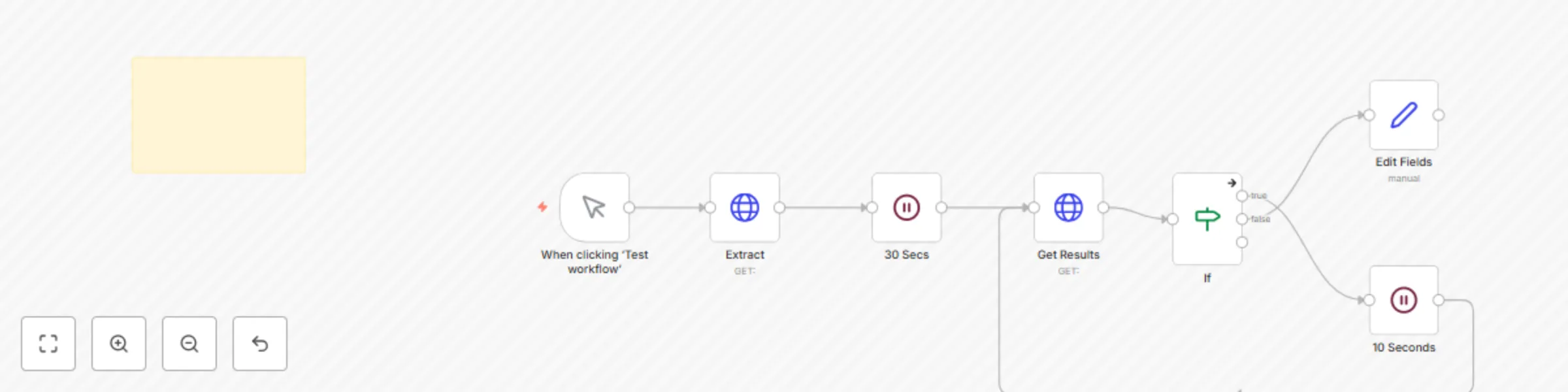
# 🌐 Firecrawl Website Content Extractor (n8n Workflow) This n8n automation workflow uses **Firecrawl API** to extract structured data (e.g., quotes and authors) from web pages — such as [Quotes to Scrape](https://quotes.toscrape.com/) — and handles retries in case of delayed extraction. --- ## 🔁 Workflow Overview ### 🎯 Purpose: - Crawl and extract **structured web data** using Firecrawl - Wait for asynchronous scraping to complete - Retrieve and validate results - Support retries if content is not ready --- ## 🔧 Step-by-Step Node Breakdown ### 1. 🧪 **Manual Trigger** - Node: `When clicking ‘Test workflow’` - Used to **manually test** or execute the workflow during setup or debugging. --- ### 2. 📤 **Firecrawl Extract API Request** - Node: `Extract` - Sends a `POST` request to `https://api.firecrawl.dev/v1/extract` - Payload includes: - `urls`: List of pages to crawl (`https://quotes.toscrape.com/*`) - `prompt`: "Extract all quotes and their corresponding authors from the website." - `schema`: JSON schema defining expected structure (`quotes[]`, each with `text` and `author`) > 📌 Uses an **HTTP Header Auth** credential for Firecrawl API --- ### 3. ⏱️ **Wait for 30 Seconds** - Node: `30 Secs` - Gives Firecrawl time to finish processing in the background - Prevents hitting the API before results are ready --- ### 4. 📥 **Get Results** - Node: `Get Results` - Performs a `GET` request to the status URL using `{{ $('Extract').item.json.id }}` to retrieve extraction results. --- ### 5. ✅❌ **Condition Check** - Node: `If` - Checks if the `data` array is empty (i.e., no results yet) - If **data is empty**: - Waits **10 more seconds** and retries - If **data is available**: - Passes data to the next step (e.g., processing or storage) --- ### 6. 🔁 **Retry Delay** - Node: `10 Seconds` - Waits briefly before sending another `GET` request to Firecrawl --- ### 7. 🛠️ **Edit Fields (Optional Output Formatting)** - Node: `Edit Fields` - Placeholder to structure or format the extracted results (quotes and authors) --- ## 🧾 Sticky Note: Firecrawl Setup Guide Included as an embedded reference: - 🔗 [10% Firecrawl Discount](https://firecrawl.link/nateherk) - 🧰 Instructions to: - Add Firecrawl API credentials in **n8n** - Use Firecrawl Community Node for **self-hosted** instances - Set up the schema and prompt for targeted data extraction --- ## ✅ Key Features - 🔌 API-based crawling with schema-structured output - ⏱️ Smart waiting + retry mechanism - 🧠 AI prompt integration for intelligent data parsing - ⚙️ Flexible for different URLs, prompts, and schemas --- ## 📦 Sample Output Schema ```json { "quotes": [ { "text": "The world as we have created it is a process of our thinking. It cannot be changed without changing our thinking.", "author": "Albert Einstein" }, { "text": "It is our choices, Harry, that show what we truly are, far more than our abilities.", "author": "J.K. Rowling" } ] }

A
Aashit Sharma
Market Research
8 Jun 2025
674
0
Workflow preview: Extract invoice data from PDFs with AI - Google Sheets  Email alerts
Free intermediate

Extract invoice data from PDFs with AI - Google Sheets Email alerts

Built by Setidure Technologies This smart n8n automation extracts invoice details from PDF files uploaded to Google Drive using AI, logs them to a Google Sheet, and notifies the billing team via email — all without manual intervention. ⚠️ Note: This workflow requires a self-hosted n8n instance with LangChain, LLM, and Google integrations configured. 📦 What This Workflow Does Monitors a Google Drive folder for new invoice uploads Extracts text and parses key invoice details using LLM via LangChain Logs extracted data into a Google Sheet (Invoice Database) Generates a summary email using GPT-4O-MINI (Greenie) Sends the email to the billing team via Gmail ✅ Prerequisites A Google Drive folder to monitor for PDF uploads A Google Sheet named Invoice Database with the following columns: Invoice Number, Client Name, Client Email, Client Address, Client Phone, Invoice Date, Due Date, Total Amount Service account or OAuth credentials for: Google Drive Google Sheets Gmail LangChain + Ollama integration for LLM responses 🔧 Step-by-Step Setup Instructions Clone this workflow into your self-hosted n8n instance Set up credentials: Google Drive (for folder trigger) Google Sheets (for data logging) Gmail (for sending email) Ollama (local LLM) or any connected LangChain provider Configure the trigger node to watch your specific Invoice Uploads folder Update the Google Sheet node with your Invoice Database sheet URL and column mapping Test with a sample invoice to validate the AI extraction and email generation 🔄 Workflow Steps ## Step 1: Trigger on New File in Google Drive Node Name: Watch for New Invoices Type: Google Drive Trigger Event: fileCreated Triggers when a new PDF file is uploaded to a designated folder ## Step 2: Download the Uploaded File Node Name: Download Invoice PDF Type: Download Binary Downloads the invoice file from Google Drive ## Step 3: Extract Raw Text from PDF Node Name: Extract PDF Text Type: Extract from File Extracts unstructured text content from the downloaded PDF ## Step 4: Parse Invoice Fields Using AI Node Name: Parse Invoice Data with LLM Type: LangChain Agent LLM is prompted to extract: Invoice Number Client Name, Email, Address, Phone Invoice Date, Due Date, Total Amount Fields not found are skipped ## Step 5: Log Extracted Data to Google Sheet Node Name: Log to Invoice Database Type: Google Sheets Appends a new row with the extracted fields to the Invoice Database spreadsheet ## Step 6: Create Email Notification via LLM Node Name: Generate Billing Email Summary Type: LangChain Agent (GPT-4O-MINI) Prompt instructs AI to: Act as “Greenie” from Green Grass Corp Inform billing that a new invoice was processed Confirm logging into the Invoice Database ## Step 7: Send the Email to Billing Team Node Name: Email Billing Team Type: Gmail Send To: [email protected] Subject and body injected from LLM output ## Step 8: End Workflow Gracefully Node Name: End Type: No Operation Used to cleanly terminate the flow ## 🧠 Example Output (Email) Subject: New Invoice Logged – Client: ABC Corp Hi Billing Team, A new invoice has been received and processed automatically. The following details have been extracted and logged into the Invoice Database: - Invoice Number: INV-1024 - Client: ABC Corp - Amount: $1,450 - Due Date: July 15, 2025 Please review the [Invoice Database](https://docs.google.com/spreadsheets/d/14FtgVUjy0tw4EQOB2T8wuCYOe6CELtt3UTjn-GsuDWY/edit?gid=0#gid=0) for full details. Regards, Greenie Green Grass Corp

A
Aashit Sharma
Invoice Processing
8 Jun 2025
1165
0
Workflow preview: AI-powered interview preparation system using local LLM for campus placements
Free advanced

AI-powered interview preparation system using local LLM for campus placements

## Overview An AI-powered, end-to-end interview preparation and mentoring automation system for campus placements. It enables placement cells to generate hyper-personalized 4-page interview preparation PDFs for shortlisted students, by combining job descriptions (JDs), candidate data, and LLMs via LangChain and Ollama. Note: This template requires self-hosted n8n to run community nodes like LangChain and Ollama. ## What This Workflow Does Accepts a CSV of shortlisted students and a JD via form upload Analyzes student profile vs JD using Ollama LLM via LangChain Generates personalized interview preparation PDFs Sends the PDF to each student via email Logs all data in Google Sheets and prevents duplicate processing ## Workflow Preview 📷 Please add a workflow screenshot here showing the main nodes and flow ## Step-by-Step Flow ## 1. Form Submission CSV of shortlisted students + JD + company name is submitted via HTTP Request form trigger. ## 2. Data Parsing and Google Sheet Logging CSV parsed → structured rows added to Google Sheet named with company + batch. ## 3. Candidate Filtering Only students with N8N_Agent = Not Generated are selected to avoid reprocessing. ## 4. AI-Powered Report Generation LangChain agent (via Ollama + Gemini Search Tool) generates a 4-page Markdown report: Page 1: Profile Summary, Skill Gap Analysis, Company Insights Page 2: 15–20 Personalized Interview Questions Page 3: 5 Group Discussion Topics + Strategy Page 4: Custom Preparation Plan + Suggested Resources ## 5. PDF Creation Markdown → Stylish PDF via APITemplate.io ## 6. Email Delivery Each student receives a personalized email with the attached report. ## 7. Google Sheet Status Update Marks the student’s row as “Generated” in N8N_Agent column. ## Prerequisites Self-hosted n8n with Community Nodes enabled Local or Docker-hosted Ollama with LLaMA3.2 or equivalent model Activated LangChain and Gemini Search Tool nodes APITemplate.io API Key Connected Google Sheets account SMTP setup or Gmail node for email delivery ## Customization Tips Replace the LLM prompt in the LangChain node with your own tone/style Modify the PDF template on APITemplate.io to reflect your institution branding Update the email copy for formal or informal tones Add new filters (e.g., minimum CGPA, branch) for student selection

A
Aashit Sharma
Document Extraction
8 Jun 2025
255
0
Workflow preview: Gmail customer support auto-responder with Ollama LLM and Pinecone RAG
Free intermediate

Gmail customer support auto-responder with Ollama LLM and Pinecone RAG

# Gmail Customer Support Auto-Responder with Ollama LLM and Pinecone RAG **Built by Setidure Technologies** Automate intelligent, friendly replies to customer queries using AI, vector search, and Gmail — all without human effort. --- ## Overview This is a ready-to-deploy smart customer support automation template for businesses that want to reply to emails instantly and accurately with the warmth of a human agent. It uses **Gmail**, **LangChain agents**, **Ollama-hosted LLMs**, and **Pinecone vector search** to craft contextual, brand-aligned replies at scale. > **Note:** This template uses community nodes and requires a **self-hosted n8n instance**. --- ## What the Workflow Does ### 1. Triggers on Incoming Emails - Uses Gmail Trigger node to listen for new messages - Activates every minute to ensure fast responses ### 2. Classifies Email Intent - A LangChain Text Classifier detects whether the email is a Customer Support query - Non-relevant emails are skipped ### 3. Generates AI Response - An AI Agent powered by Ollama generates the email reply - Follows a predefined tone: "Mr. Aashit Sharma from Setidure Technologies" - Written in a warm, human tone with natural phrasing ### 4. Retrieves FAQ-Based Knowledge - Connects to Pinecone vector database for real-time FAQ retrieval - Enhances responses with specific, accurate product or policy information ### 5. Labels Email in Gmail - Automatically tags emails with labels like `Handled` or `Auto-Replied` for easy tracking ### 6. Sends Email Reply - Sends the generated response back to the customer - Includes personal sign-off and clean formatting --- ## Tech Stack Used - Gmail Trigger & Send Nodes - LangChain AI Agent & Classifier - Ollama LLMs (e.g., phi4, llama3) - Pinecone Vector Store - Custom Prompts for Brand Persona - Local Embeddings using Ollama --- ## Key Features - Fully automated — no human action needed - Local LLMs ensure data privacy - Real-time answers powered by vector search - Brand-personality aligned tone - Organized inbox with Gmail labels --- ## Best For - Startups scaling support with limited staff - SaaS companies or e-commerce businesses - Privacy-conscious enterprises using local LLMs - Teams building branded auto-communication workflows --- ## Customization Tips - Modify AI prompt to reflect your brand's voice and tone - Expand classifier for more email categories - Replace Gmail output with Slack, Notion, or your CRM - Update Pinecone FAQ index to match evolving support content ---

A
Aashit Sharma
Ticket Management
8 Jun 2025
583
0
Workflow preview: Generate AI-powered LinkedIn posts with Ollama, image creation, and Gmail delivery
Free advanced

Generate AI-powered LinkedIn posts with Ollama, image creation, and Gmail delivery

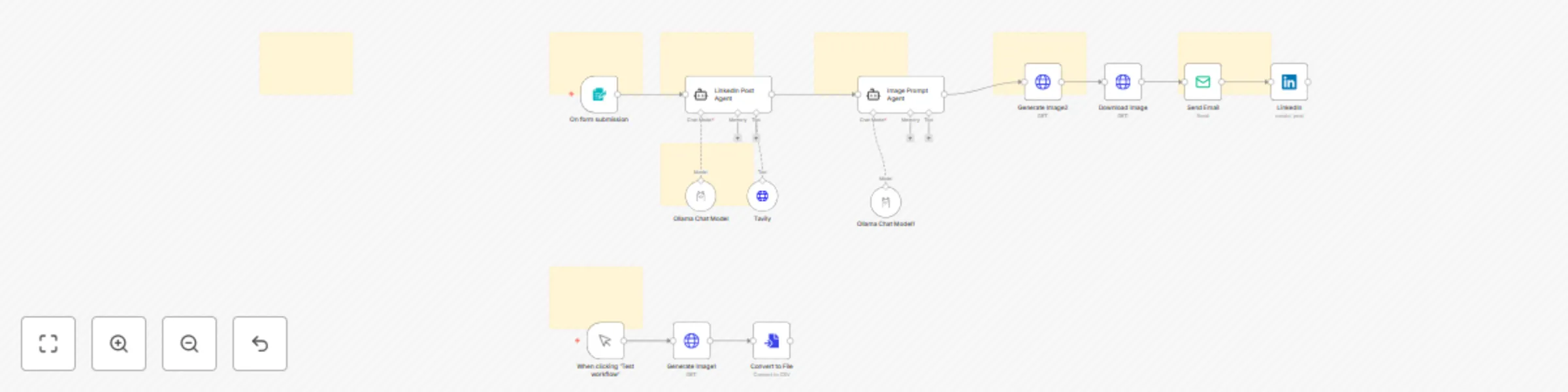
This automation flow is designed to generate professional, research-backed LinkedIn posts based on a user-submitted topic and audience, enhance it with a visually aligned image prompt, and then automatically send the post and image via Gmail and/or publish it to LinkedIn. ⚙️ How It Works (Step-by-Step): 1. 📝 Form Submission (Input Trigger) A user fills out a form with: Email Topic of the Post Target Audience This form submission acts as the entry point of the workflow (Form Trigger node). 2. 🤖 LinkedIn Post Generation Agent An AI agent is triggered that: Uses Tavily API to fetch real-time web search content related to the topic. Processes the topic and audience data using an Ollama Chat Model. Generates a well-structured LinkedIn post that includes: Hook Educational insight Professional tone Source citations Hashtags and call to action 3. 🎨 Image Prompt Agent The generated post is passed to a second agent that: Extracts the core message. Converts it into a graphic prompt using a different Ollama LLM. The prompt is written to be used by an image-generation model like DALL·E or Gemma/GPT-based image tools. 4. 🖼️ Image Generation The image prompt is passed to a local image generation endpoint (localhost:8098) or OpenAI (api.openai.com) to generate a visual asset. The base64 image is converted into a file. 5. 📩 Email Dispatch The post text and the generated image are then sent to the user’s email address via the Gmail node. The email includes: The full LinkedIn post The auto-generated image as an attachment 6. 🔗 LinkedIn Publishing (Optional) If OAuth is enabled, the post can also be published directly to LinkedIn using the LinkedIn node. 🛠️ Tools Used: n8n: Orchestration platform OpenRouter & Ollama: Local/hosted LLMs for post and prompt generation Tavily API: Real-time web search OpenAI or Local Endpoint: Image generation from text SMTP (Gmail): For sending emails LinkedIn API: For automated posting 📦 Key Features: End-to-end automation from form to email/post Uses real-time research for accuracy Creative visual generation with professional branding intent Works locally or with cloud APIs Modular: Can switch tools or endpoints (OpenAI ↔ Localhost, Ollama ↔ OpenRouter) 🚀 Ideal Use Cases: Marketing teams needing fast content turnaround Personal branding assistants Founders, freelancers, and executives sharing thought leadership University or organization-wide communication systems

A
Aashit Sharma
Content Creation
5 Jun 2025
5530
0