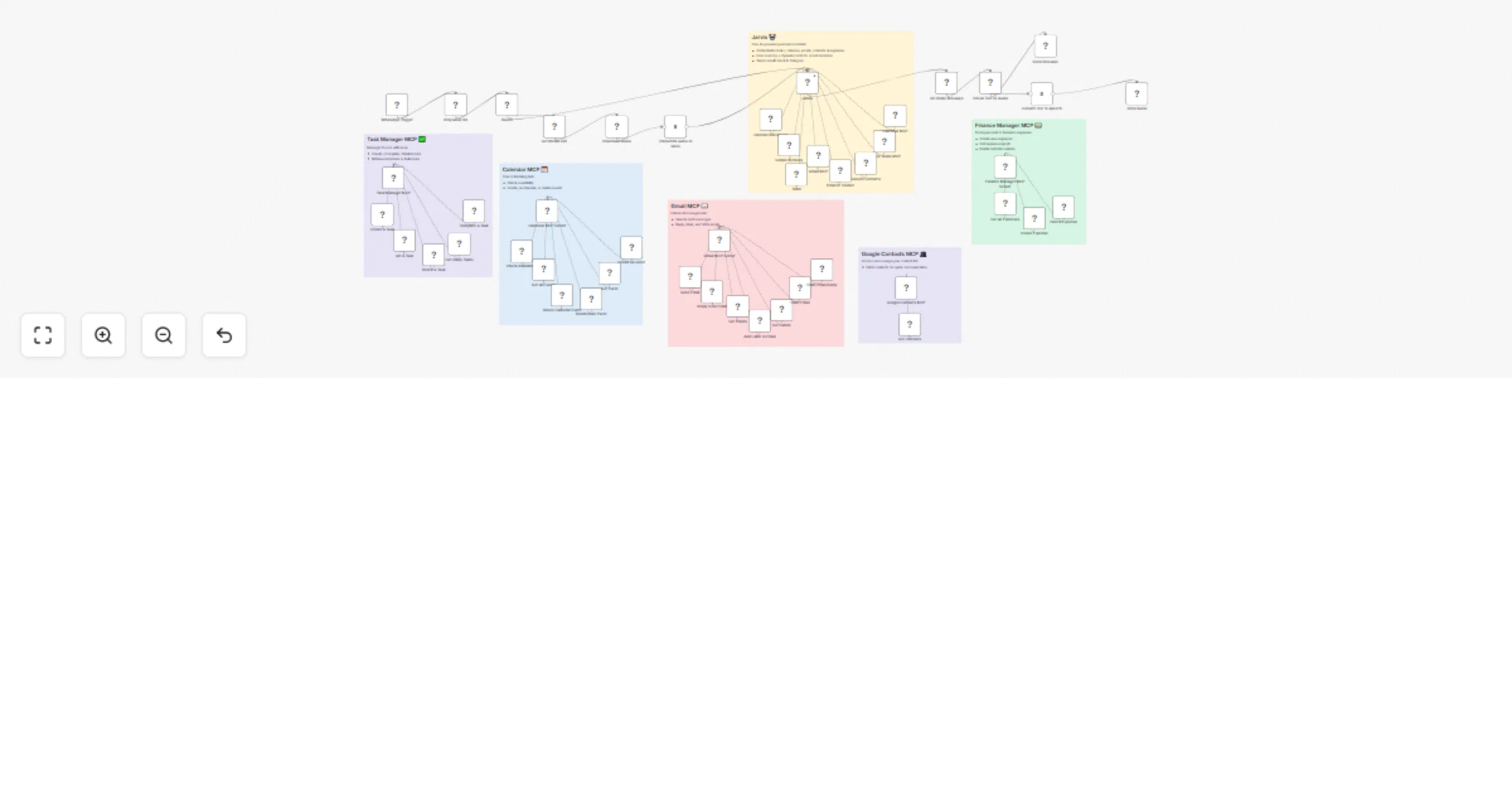
WhatsApp productivity assistant with OpenAI, Gmail, Calendar, Tasks & Expense tracking

Workflow preview

Workflow preview
100%
WhatsApp productivity assistant with OpenAI, Gmail, Calendar, Tasks & Expense tracking preview
Open on n8n.io

Important notice

This workflow is provided as-is. Please review and test before using in production.

1. Workflow Overview

Who's it for This template is designed for anyone who wants to use WhatsApp as a personal AI assistant hub . If you often juggle tasks, emails, calendars, and expenses across multiple tools, this w...

Best for

  • Personal Productivity automation workflows
  • AI Chatbot automation workflows
  • advanced n8n builders looking for reusable templates

Tools used

@n8n/n8n-nodes-langchain.lmchatopenai, @n8n/n8n-nodes-langchain.memorybufferwindow, @n8n/n8n-nodes-langchain.mcpclienttool, @n8n/n8n-nodes-langchain.mcptrigger, n8n-nodes-base.gmailtool, n8n-nodes-base.googlecalendartool, n8n-nodes-base.googletaskstool, n8n-nodes-base.switch

Source and attribution

This workflow is cataloged by N8N Workflows and links back to its original n8n.io source page by Jitesh Dugar.

Original n8n.io source

1.1 Workflow description

Title
WhatsApp productivity assistant with OpenAI, Gmail, Calendar, Tasks & Expense tracking
Workflow name
WhatsApp productivity assistant with OpenAI, Gmail, Calendar, Tasks & Expense tracking

Who's it for

This template is designed for anyone who wants to use WhatsApp as a personal AI assistant hub. If you often juggle tasks, emails, calendars, and expenses across multiple tools, this workflow consolidates everything into one seamless AI-powered agent accessible right from your most-used messaging app.

What it does

Jarvis listens to your WhatsApp messages (text or audio) and processes them with OpenAI. Based on your request, it can:

  • βœ… Manage tasks (create, complete, or delete)
  • πŸ“… Handle calendar events (schedule, reschedule, or check availability)
  • πŸ“§ Send, draft, or fetch emails with Gmail
  • πŸ‘₯ Retrieve Google Contacts
  • πŸ’΅ Log and track expenses
  • 🎀 Process voice notes and respond intelligently

All responses are returned directly to WhatsApp, giving you a unified command center that works on any device.

How to set up

  1. Clone this template into your n8n workspace.
  2. Set up a WhatsApp Business API account (via Meta Business Suite or providers like Twilio, 360dialog, or MessageBird).
  3. Configure the WhatsApp webhook to connect to your n8n instance.
  4. Connect your Google accounts (Gmail, Calendar, Contacts, etc.).
  5. Add your OpenAI API key in the Credentials section.
  6. Test by sending a WhatsApp message like:
    • "Create a meeting tomorrow at 3pm"
    • "Add expense $50 for lunch"
    • "Draft a reply to that email from Steve"
    • "What's on my calendar this week?"

Requirements

  • n8n instance (cloud or self-hosted with public webhook URL)
  • WhatsApp Business API credentials (not regular WhatsApp)
  • Gmail, Google Calendar, and Google Contacts credentials (optional based on features)
  • OpenAI API key
  • ElevenLabs API Key (optional, for advanced audio note processing)

How to customize

  • Swap email providers by replacing the Gmail MCP node with Outlook, Exchange, or IMAP/SMTP.
  • Add more integrations like Notion, Slack, Todoist, or your CRM.
  • Adjust AI personality by modifying the system prompt in the OpenAI node.
  • Control context memory to determine how much conversation history Jarvis remembers.
  • Add automation rules like auto-categorizing expenses or auto-scheduling recurring meetings.
  • Multi-language support by configuring OpenAI to respond in different languages.

Key advantages of WhatsApp version

  • 🌍 Universal access - WhatsApp works everywhere, including international numbers
  • πŸ“± Cross-platform - Seamlessly works on mobile, web, and desktop
  • πŸ”’ End-to-end encryption for sensitive task and email data
  • πŸ‘₯ Familiar interface - No need to learn a new app
  • βœ… Read receipts - Know when Jarvis has processed your request

With this template, you can transform WhatsApp into your all-in-one AI productivity assistant, simplifying workflows and saving hours every weekβ€”all from the app you're already using daily.

1.2 Logical Blocks

This catalog entry is organized from the workflow JSON. The node-level section below shows the executable blocks available for review before importing the template.

2. Block-by-Block Analysis

Block 1 - OpenAI Chat Model

Type / Role
@n8n/n8n-nodes-langchain.lmChatOpenAi - lmChatOpenAi
Config choices
Version 1.2

Block 2 - Simple Memory

Type / Role
@n8n/n8n-nodes-langchain.memoryBufferWindow - memoryBufferWindow
Config choices
Version 1.3

Block 3 - Gmail MCP

Type / Role
@n8n/n8n-nodes-langchain.mcpClientTool - mcpClientTool
Config choices
Version 1.1

Block 4 - Google Tasks MCP

Type / Role
@n8n/n8n-nodes-langchain.mcpClientTool - mcpClientTool
Config choices
Version 1.1

Block 5 - Gmail MCP Server

Type / Role
@n8n/n8n-nodes-langchain.mcpTrigger - mcpTrigger
Config choices
Version 1

Block 6 - Send Email

Type / Role
n8n-nodes-base.gmailTool - gmailTool
Config choices
Version 2.1

Block 7 - Reply to an Email

Type / Role
n8n-nodes-base.gmailTool - gmailTool
Config choices
Version 2.1

Block 8 - Get Emails

Type / Role
n8n-nodes-base.gmailTool - gmailTool
Config choices
Version 2.1

Block 9 - Add Label to Email

Type / Role
n8n-nodes-base.gmailTool - gmailTool
Config choices
Version 2.1

Block 10 - Get Labels

Type / Role
n8n-nodes-base.gmailTool - gmailTool
Config choices
Version 2.1

Block 11 - Draft Email

Type / Role
n8n-nodes-base.gmailTool - gmailTool
Config choices
Version 2.1

Block 12 - Draft Email Reply

Type / Role
n8n-nodes-base.gmailTool - gmailTool
Config choices
Version 2.1

Block 13 - Check Availability

Type / Role
n8n-nodes-base.googleCalendarTool - googleCalendarTool
Config choices
Version 1.3

Block 14 - Get all Events

Type / Role
n8n-nodes-base.googleCalendarTool - googleCalendarTool
Config choices
Version 1.3

Block 15 - Delete Calendar Event

Type / Role
n8n-nodes-base.googleCalendarTool - googleCalendarTool
Config choices
Version 1.3

Block 16 - Reschedule Event

Type / Role
n8n-nodes-base.googleCalendarTool - googleCalendarTool
Config choices
Version 1.3

Block 17 - Get Event

Type / Role
n8n-nodes-base.googleCalendarTool - googleCalendarTool
Config choices
Version 1.3

Block 18 - Create an event

Type / Role
n8n-nodes-base.googleCalendarTool - googleCalendarTool
Config choices
Version 1.3

Block 19 - Calendar MCP Server

Type / Role
@n8n/n8n-nodes-langchain.mcpTrigger - mcpTrigger
Config choices
Version 1

Block 20 - Calendar MCP

Type / Role
@n8n/n8n-nodes-langchain.mcpClientTool - mcpClientTool
Config choices
Version 1.1

Block 21 - Complete a Task

Type / Role
n8n-nodes-base.googleTasksTool - googleTasksTool
Config choices
Version 1

Block 22 - Task Manager MCP

Type / Role
@n8n/n8n-nodes-langchain.mcpTrigger - mcpTrigger
Config choices
Version 2

Block 23 - Switch

Type / Role
n8n-nodes-base.switch - switch
Config choices
Version 3.2

Block 24 - Transcribe audio or video

Type / Role
@elevenlabs/n8n-nodes-elevenlabs.elevenLabs - elevenLabs
Config choices
Version 1

Showing the first 24 of 53 workflow blocks. Download the JSON for the full node graph.

3. Summary Table

Workflow WhatsApp productivity assistant with OpenAI, Gmail, Calendar, Tasks & Expense tracking
Complexity advanced
Nodes 53
Categories Personal Productivity, AI Chatbot
Author Jitesh Dugar
Published 06 Oct 2025

4. Reproducing the Workflow from Scratch

  1. 1. Download the workflow JSON

    Use the JSON export at /data/workflows/9295/9295.json as the source template for this automation.

  2. 2. Import the template into n8n

    Open n8n, import the downloaded JSON, and review each node before activating the workflow.

  3. 3. Configure credentials and variables

    Replace placeholder credentials, API keys, webhook URLs, account IDs, and environment-specific values with your own settings.

  4. 4. Test with sample data

    Run the workflow manually or in a staging workspace, inspect node output, and confirm downstream systems receive the expected data.

  5. 5. Activate and monitor

    Enable the workflow only after testing, then monitor executions, errors, and rate limits during the first production runs.

5. General Notes & Resources

Review imported nodes carefully before activation. This catalog entry is intended to help you inspect the workflow structure, understand required services, and find related templates faster.

Node names, credentials, schedules, webhook paths, and external service limits may need adjustment for your workspace.

Frequently asked questions

What does WhatsApp productivity assistant with OpenAI, Gmail, Calendar, Tasks & Expense tracking do?

Who's it for This template is designed for anyone who wants to use WhatsApp as a personal AI assistant hub . If you often juggle tasks, emails, calendars, and expenses across multiple tools, this w...

What do I need before importing this workflow?

Review the workflow JSON, configure any required credentials in n8n, and test the automation in a safe workspace before using it in production.

Can I customize this workflow?

Yes. Use the block-by-block analysis and the downloadable JSON to inspect each node, then adjust credentials, prompts, schedules, filters, or destinations for your Personal Productivity, AI Chatbot use case.