Block 1 - When clicking ‘Execute workflow’
- Type / Role
- n8n-nodes-base.manualTrigger - manualTrigger
- Config choices
- Version 1


 Early Deal
How it works Expected Image Download The expected image’s Dropbox URL is passed directly into an HTTP Request node, which downloads the image as binary data. Actual Image Extraction The HTML node e...
n8n-nodes-base.manualtrigger, n8n-nodes-base.gmail, n8n-nodes-base.code, n8n-nodes-base.httprequest, n8n-nodes-base.merge, n8n-nodes-base.stickynote, n8n-nodes-base.googlesheets
This workflow is cataloged by N8N Workflows and links back to its original n8n.io source page by Sasikala Jayamani.
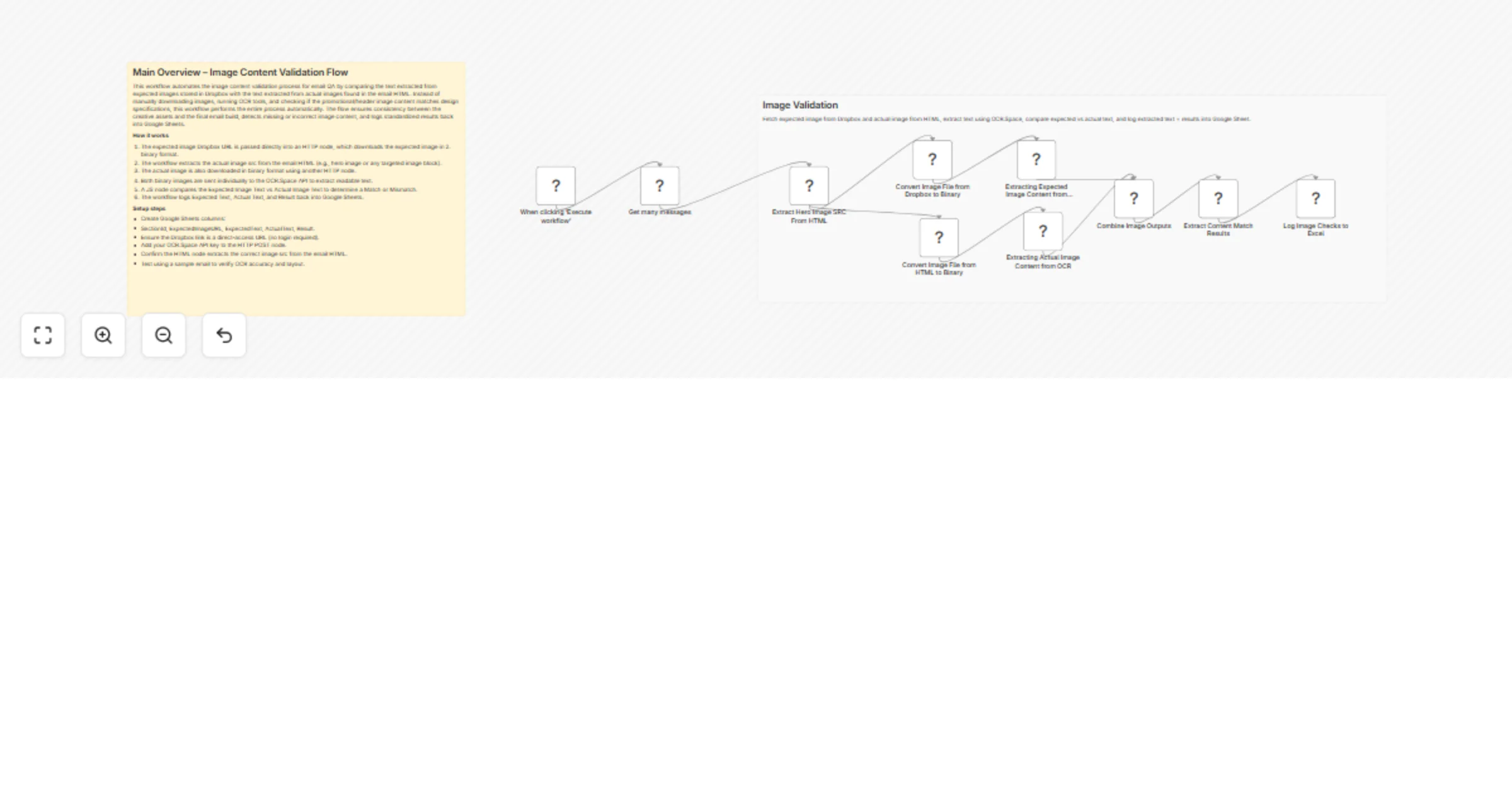
Original n8n.io sourceExpected Image Download The expected image’s Dropbox URL is passed directly into an HTTP Request node, which downloads the image as binary data.
Actual Image Extraction The HTML node extracts the src of the image from the email (e.g., hero image or other targeted image sections). This src is passed into another HTTP node to download the actual email image in binary format.
OCR Processing Both binary images are sent separately to OCR.Space API via POST requests. OCR returns extracted text for each image.
Comparison A JS node compares the Expected Image Text vs Actual Image Text. If the texts match, the result is marked Match; otherwise Mismatch.
Write Back to Google Sheets The workflow writes ExpectedText, ActualText, and Result back into the Google Sheet, creating a clear audit trail for validation.
1. Google Sheets Create a sheet with the following columns:
SectionId ExpectedImageURL ExpectedText ActualText (output) Result (output)
Add the expected text that should appear inside each image.
2. Email HTML Source Use one of the following:
Gmail node — fetches the email HTML via unread or filtered messages HTTP Request / binary file input — if HTML is being pulled from storage or a URL Ensure the HTML extraction node can find the image src correctly
3. Expected Image (Dropbox URL)
Paste the public Dropbox URL directly into the Google Sheet This URL is fed into an HTTP Download node The resulting binary is used for OCR extraction
4. OCR Setup
Add your OCR.Space API key in the HTTP POST node Set the request body to include:
apikey the binary property of the image desired OCR settings (language, text extraction mode)
5. Merge & Compare
Use a Merge node to align:
ExpectedImageURL + ExpectedText ActualImageSrc OCR outputs
6. In the Code node:
Normalize both texts Compare and assign Match or Mismatch
7. Write Output Use a Google Sheets Append/Update node to write:
ActualText Result
back into the corresponding row, using SectionId or ExpectedImageURL as the matching key.
This catalog entry is organized from the workflow JSON. The node-level section below shows the executable blocks available for review before importing the template.
| Workflow | Validate email hero images with Gmail, Dropbox, OCR.Space and Google Sheets |
|---|---|
| Complexity | intermediate |
| Nodes | 12 |
| Categories | Document Extraction, AI Summarization |
| Author | Sasikala Jayamani |
| Published | 25 Feb 2026 |
Use the JSON export at /data/workflows/13679/13679.json as the source template for this automation.
Open n8n, import the downloaded JSON, and review each node before activating the workflow.
Replace placeholder credentials, API keys, webhook URLs, account IDs, and environment-specific values with your own settings.
Run the workflow manually or in a staging workspace, inspect node output, and confirm downstream systems receive the expected data.
Enable the workflow only after testing, then monitor executions, errors, and rate limits during the first production runs.
Review imported nodes carefully before activation. This catalog entry is intended to help you inspect the workflow structure, understand required services, and find related templates faster.
Node names, credentials, schedules, webhook paths, and external service limits may need adjustment for your workspace.
How it works Expected Image Download The expected image’s Dropbox URL is passed directly into an HTTP Request node, which downloads the image as binary data. Actual Image Extraction The HTML node e...
Review the workflow JSON, configure any required credentials in n8n, and test the automation in a safe workspace before using it in production.
Yes. Use the block-by-block analysis and the downloadable JSON to inspect each node, then adjust credentials, prompts, schedules, filters, or destinations for your Document Extraction, AI Summarization use case.