Turn book PDFs into audio with OpenAI and Google Drive

Workflow preview

Workflow preview
100%
Turn book PDFs into audio with OpenAI and Google Drive preview
Open on n8n.io

1. Workflow Overview

Book2Audio Pro Workflow brief Book2Audio Pro turns an uploaded book PDF into organized audio files. The workflow starts with a file upload form, extracts the book text, uses AI to detect the chapte...

Best for

  • Content Creation automation workflows
  • Multimodal AI automation workflows
  • advanced n8n builders looking for reusable templates

Tools used

n8n-nodes-base.splitinbatches, n8n-nodes-base.googledrive, n8n-nodes-base.merge, n8n-nodes-base.formtrigger, n8n-nodes-base.extractfromfile, n8n-nodes-base.code, @n8n/n8n-nodes-langchain.openai, n8n-nodes-base.stickynote

Source and attribution

This workflow is cataloged by N8N Workflows and links back to its original n8n.io source page by Pratyush Kumar Jha.

Original n8n.io source

1.1 Workflow description

Title
Turn book PDFs into audio with OpenAI and Google Drive
Workflow name
Turn book PDFs into audio with OpenAI and Google Drive

Book2Audio Pro

Workflow brief

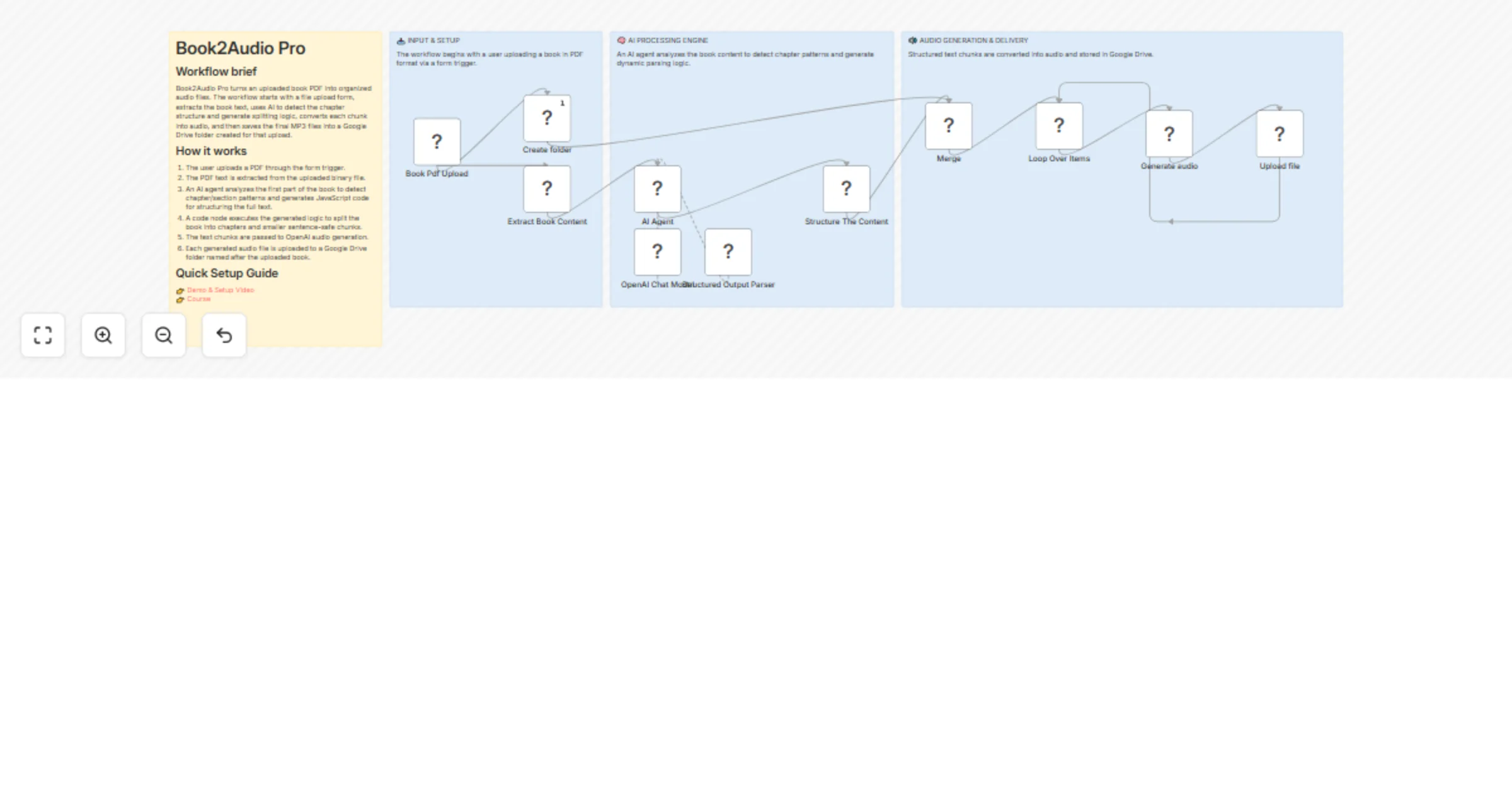
Book2Audio Pro turns an uploaded book PDF into organized audio files. The workflow starts with a file upload form, extracts the book text, uses AI to detect the chapter structure and generate splitting logic, converts each chunk into audio, and then saves the final MP3 files into a Google Drive folder created for that upload.

How it works

  1. The user uploads a PDF through the form trigger.
  2. The PDF text is extracted from the uploaded binary file.
  3. An AI agent analyzes the first part of the book to detect chapter/section patterns and generates JavaScript code for structuring the full text.
  4. A code node executes the generated logic to split the book into chapters and smaller sentence-safe chunks.
  5. The text chunks are passed to OpenAI audio generation.
  6. Each generated audio file is uploaded to a Google Drive folder named after the uploaded book.

Quick Setup Guide

πŸ‘‰ Demo & Setup Video πŸ‘‰ Course

Nodes of interest

  • Book Pdf Upload β€” Form trigger for uploading the book PDF.
  • Extract Book Content β€” Extracts text from the uploaded PDF.
  • AI Agent β€” Detects chapter patterns and generates parsing logic.
  • Structured Output Parser β€” Enforces a clean AI response format.
  • Structure The Content β€” Runs the generated code to split the book into chunks.
  • Generate audio β€” Converts text chunks into audio using OpenAI.
  • Create folder β€” Creates a Google Drive folder for the book.
  • Loop Over Items β€” Processes each chunk one by one.
  • Upload file β€” Uploads the final MP3 files to Google Drive.
  • Merge β€” Combines the folder metadata with the processed content.

What you’ll need

Credentials

  • Google Drive OAuth2 credentials for creating folders and uploading MP3 files.
  • OpenAI API credentials for:
  • the chat model used by the AI agent
  • audio generation

Input requirements

  • A valid PDF book file
  • A book with reasonably detectable chapter or section markers for best results

Recommended settings & best practices

  • Keep audio chunks under 3900 characters to avoid request limits and improve generation quality.
  • Split on sentence boundaries to prevent unnatural audio cuts.
  • Use a consistent chapter pattern in source books whenever possible, such as Chapter 1, CHAPTER I, or Part One.
  • Make sure the binary property name matches the uploaded file field exactly.
  • Keep the workflow idempotent by creating a separate Drive folder per upload.
  • Test with a short PDF first to confirm extraction, parsing, and audio output are working correctly.
  • If books have unusual formatting, improve the AI prompt so it can detect more chapter styles reliably.

Customization ideas

  • Add voice selection for different narration styles.
  • Add language detection and generate audio in the original language.
  • Add chapter-level naming for cleaner MP3 filenames.
  • Add file naming rules based on book title, chapter number, and part number.
  • Add error handling for scanned PDFs or extraction failures.
  • Add a status notification after upload completion.
  • Save chapter metadata in Google Sheets or a database.
  • Support multiple output formats, such as MP3 and WAV.

Tags

book-to-audio, pdf-to-speech, openai, google-drive, n8n, text-to-audio, automation, ai-workflow, audiobook, document-processing

1.2 Logical Blocks

This catalog entry is organized from the workflow JSON. The node-level section below shows the executable blocks available for review before importing the template.

2. Block-by-Block Analysis

Block 1 - Loop Over Items

Type / Role
n8n-nodes-base.splitInBatches - splitInBatches
Config choices
Version 3

Block 2 - Upload file

Type / Role
n8n-nodes-base.googleDrive - googleDrive
Config choices
Version 3

Block 3 - Create folder

Type / Role
n8n-nodes-base.googleDrive - googleDrive
Config choices
Version 3

Block 4 - Merge

Type / Role
n8n-nodes-base.merge - merge
Config choices
Version 3.2

Block 5 - Book Pdf Upload

Type / Role
n8n-nodes-base.formTrigger - formTrigger
Config choices
Version 2.3

Block 6 - Extract Book Content

Type / Role
n8n-nodes-base.extractFromFile - extractFromFile
Config choices
Version 1

Block 7 - Structure The Content

Type / Role
n8n-nodes-base.code - code
Config choices
Version 2

Block 8 - Generate audio

Type / Role
@n8n/n8n-nodes-langchain.openAi - openAi
Config choices
Version 1.8

Block 9 - Sticky Note

Type / Role
n8n-nodes-base.stickyNote - stickyNote
Config choices
Version 1

Block 10 - AI Agent

Type / Role
@n8n/n8n-nodes-langchain.agent - agent
Config choices
Version 3.1

Block 11 - OpenAI Chat Model

Type / Role
@n8n/n8n-nodes-langchain.lmChatOpenAi - lmChatOpenAi
Config choices
Version 1.3

Block 12 - Structured Output Parser

Type / Role
@n8n/n8n-nodes-langchain.outputParserStructured - outputParserStructured
Config choices
Version 1.3

Block 13 - Sticky Note1

Type / Role
n8n-nodes-base.stickyNote - stickyNote
Config choices
Version 1

Block 14 - Sticky Note2

Type / Role
n8n-nodes-base.stickyNote - stickyNote
Config choices
Version 1

Block 15 - Sticky Note3

Type / Role
n8n-nodes-base.stickyNote - stickyNote
Config choices
Version 1

3. Summary Table

Workflow Turn book PDFs into audio with OpenAI and Google Drive
Complexity advanced
Nodes 15
Categories Content Creation, Multimodal AI
Author Pratyush Kumar Jha
Published 01 Apr 2026

4. Reproducing the Workflow from Scratch

  1. 1. Download the workflow JSON

    Use the JSON export at /data/workflows/14574/14574.json as the source template for this automation.

  2. 2. Import the template into n8n

    Open n8n, import the downloaded JSON, and review each node before activating the workflow.

  3. 3. Configure credentials and variables

    Replace placeholder credentials, API keys, webhook URLs, account IDs, and environment-specific values with your own settings.

  4. 4. Test with sample data

    Run the workflow manually or in a staging workspace, inspect node output, and confirm downstream systems receive the expected data.

  5. 5. Activate and monitor

    Enable the workflow only after testing, then monitor executions, errors, and rate limits during the first production runs.

5. General Notes & Resources

Review imported nodes carefully before activation. This catalog entry is intended to help you inspect the workflow structure, understand required services, and find related templates faster.

Node names, credentials, schedules, webhook paths, and external service limits may need adjustment for your workspace.

Frequently asked questions

What does Turn book PDFs into audio with OpenAI and Google Drive do?

Book2Audio Pro Workflow brief Book2Audio Pro turns an uploaded book PDF into organized audio files. The workflow starts with a file upload form, extracts the book text, uses AI to detect the chapte...

What do I need before importing this workflow?

Review the workflow JSON, configure any required credentials in n8n, and test the automation in a safe workspace before using it in production.

Can I customize this workflow?

Yes. Use the block-by-block analysis and the downloadable JSON to inspect each node, then adjust credentials, prompts, schedules, filters, or destinations for your Content Creation, Multimodal AI use case.