Spot social media trends and generate post ideas with Claude and Google Sheets

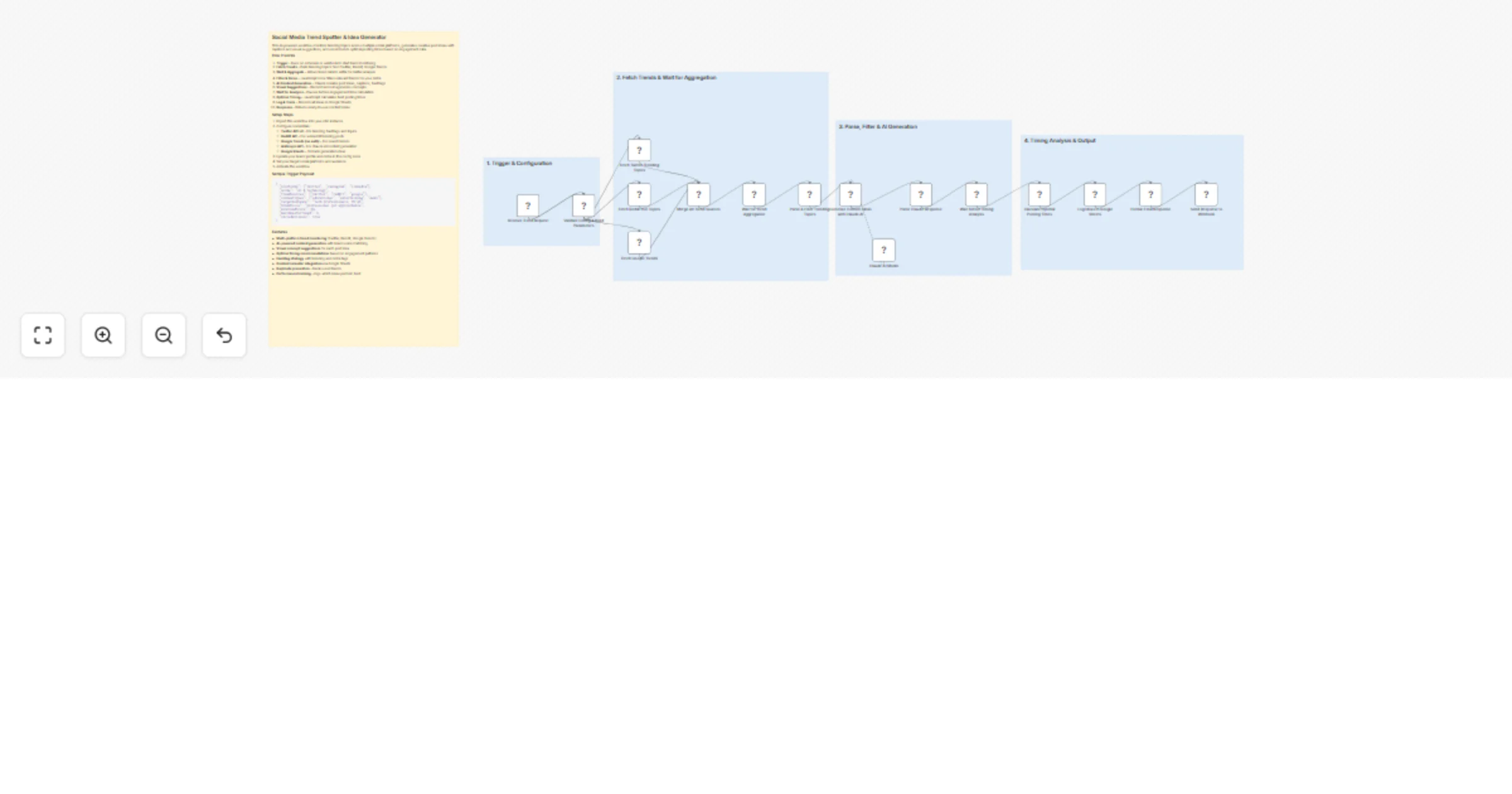
Workflow preview

Workflow preview
100%
Spot social media trends and generate post ideas with Claude and Google Sheets preview
Open on n8n.io

1. Workflow Overview

This AI powered workflow monitors trending topics across multiple social platforms, generates creative post ideas with captions and visual suggestions, and recommends optimal posting times based on...

Best for

  • Content Creation automation workflows
  • Multimodal AI automation workflows
  • advanced n8n builders looking for reusable templates

Tools used

n8n-nodes-base.stickynote, n8n-nodes-base.webhook, n8n-nodes-base.code, n8n-nodes-base.httprequest, n8n-nodes-base.merge, n8n-nodes-base.wait, @n8n/n8n-nodes-langchain.agent, @n8n/n8n-nodes-langchain.lmchatanthropic

Source and attribution

This workflow is cataloged by N8N Workflows and links back to its original n8n.io source page by Oneclick AI Squad.

Original n8n.io source

1.1 Workflow description

Title
Spot social media trends and generate post ideas with Claude and Google Sheets
Workflow name
Spot social media trends and generate post ideas with Claude and Google Sheets

This AI-powered workflow monitors trending topics across multiple social platforms, generates creative post ideas with captions and visual suggestions, and recommends optimal posting times based on engagement data.

How it works

  1. Trigger - Runs on schedule or webhook to start trend monitoring
  2. Fetch Trends - Pulls trending topics from Twitter, Reddit, Google Trends
  3. Wait & Aggregate - Allows trend data to settle for better analysis
  4. Filter & Parse - JavaScript code filters relevant trends for your niche
  5. AI Content Generation - Claude creates post ideas, captions, hashtags
  6. Visual Suggestions - Recommends image/video concepts
  7. Wait for Analysis - Pauses before engagement time calculation
  8. Optimal Timing - JavaScript calculates best posting times
  9. Log & Track - Records all ideas in Google Sheets
  10. Response - Returns ready-to-use content ideas

Setup Steps

  1. Import this workflow into your n8n instance
  2. Configure credentials:
  • Twitter API v2 - For trending hashtags and topics
  • Reddit API - For subreddit trending posts
  • Google Trends (no auth) - For search trends
  • Anthropic API - For Claude AI content generation
  • Google Sheets - To track generated ideas
  1. Update your brand profile and niche in the config node
  2. Set your target social platforms and audience
  3. Activate the workflow

Sample Trigger Payload

{
 "platforms": ["twitter", "instagram", "linkedin"],
 "niche": "AI & Technology",
 "trendSources": ["twitter", "reddit", "google"],
 "contentTypes": ["educational", "entertaining", "news"],
 "targetAudience": "tech professionals, 25-45",
 "brandVoice": "professional yet approachable",
 "minTrendScore": 60,
 "maxIdeasPerTrend": 3,
 "includeVisuals": true
}

Features

  • Multi-platform trend monitoring (Twitter, Reddit, Google Trends)
  • AI-powered content generation with brand voice matching
  • Visual concept suggestions for each post idea
  • Optimal timing recommendations based on engagement patterns
  • Hashtag strategy with trending and niche tags
  • Content calendar integration via Google Sheets
  • Duplicate prevention - tracks used trends
  • Performance tracking - logs which ideas perform best

1.2 Logical Blocks

This catalog entry is organized from the workflow JSON. The node-level section below shows the executable blocks available for review before importing the template.

2. Block-by-Block Analysis

Block 1 - Sticky Note - Documentation

Type / Role
n8n-nodes-base.stickyNote - stickyNote
Config choices
Version 1

Block 2 - Sticky Note - Section 1

Type / Role
n8n-nodes-base.stickyNote - stickyNote
Config choices
Version 1

Block 3 - Sticky Note - Section 2

Type / Role
n8n-nodes-base.stickyNote - stickyNote
Config choices
Version 1

Block 4 - Sticky Note - Section 3

Type / Role
n8n-nodes-base.stickyNote - stickyNote
Config choices
Version 1

Block 5 - Sticky Note - Section 4

Type / Role
n8n-nodes-base.stickyNote - stickyNote
Config choices
Version 1

Block 6 - Receive Trend Request

Type / Role
n8n-nodes-base.webhook - webhook
Config choices
Version 2

Block 7 - Validate Config & Build Parameters

Type / Role
n8n-nodes-base.code - code
Config choices
Version 2

Block 8 - Fetch Twitter Trending Topics

Type / Role
n8n-nodes-base.httpRequest - httpRequest
Config choices
Version 4.2

Block 9 - Fetch Reddit Hot Topics

Type / Role
n8n-nodes-base.httpRequest - httpRequest
Config choices
Version 4.2

Block 10 - Fetch Google Trends

Type / Role
n8n-nodes-base.httpRequest - httpRequest
Config choices
Version 4.2

Block 11 - Merge All Trend Sources

Type / Role
n8n-nodes-base.merge - merge
Config choices
Version 2.1

Block 12 - Wait for Trend Aggregation

Type / Role
n8n-nodes-base.wait - wait
Config choices
Version 1.1

Block 13 - Parse & Filter Trending Topics

Type / Role
n8n-nodes-base.code - code
Config choices
Version 2

Block 14 - Generate Content Ideas with Claude AI

Type / Role
@n8n/n8n-nodes-langchain.agent - agent
Config choices
Version 1.6

Block 15 - Claude AI Model

Type / Role
@n8n/n8n-nodes-langchain.lmChatAnthropic - lmChatAnthropic
Config choices
Version 1

Block 16 - Parse Claude Response

Type / Role
n8n-nodes-base.code - code
Config choices
Version 2

Block 17 - Wait Before Timing Analysis

Type / Role
n8n-nodes-base.wait - wait
Config choices
Version 1.1

Block 18 - Calculate Optimal Posting Times

Type / Role
n8n-nodes-base.code - code
Config choices
Version 2

Block 19 - Log Ideas to Google Sheets

Type / Role
n8n-nodes-base.googleSheets - googleSheets
Config choices
Version 4.5

Block 20 - Format Final Response

Type / Role
n8n-nodes-base.code - code
Config choices
Version 2

Block 21 - Send Response to Webhook

Type / Role
n8n-nodes-base.respondToWebhook - respondToWebhook
Config choices
Version 1

3. Summary Table

Workflow Spot social media trends and generate post ideas with Claude and Google Sheets
Complexity advanced
Nodes 21
Categories Content Creation, Multimodal AI
Author Oneclick AI Squad
Published 13 Apr 2026

4. Reproducing the Workflow from Scratch

  1. 1. Download the workflow JSON

    Use the JSON export at /data/workflows/15017/15017.json as the source template for this automation.

  2. 2. Import the template into n8n

    Open n8n, import the downloaded JSON, and review each node before activating the workflow.

  3. 3. Configure credentials and variables

    Replace placeholder credentials, API keys, webhook URLs, account IDs, and environment-specific values with your own settings.

  4. 4. Test with sample data

    Run the workflow manually or in a staging workspace, inspect node output, and confirm downstream systems receive the expected data.

  5. 5. Activate and monitor

    Enable the workflow only after testing, then monitor executions, errors, and rate limits during the first production runs.

5. General Notes & Resources

Review imported nodes carefully before activation. This catalog entry is intended to help you inspect the workflow structure, understand required services, and find related templates faster.

Node names, credentials, schedules, webhook paths, and external service limits may need adjustment for your workspace.

Frequently asked questions

What does Spot social media trends and generate post ideas with Claude and Google Sheets do?

This AI powered workflow monitors trending topics across multiple social platforms, generates creative post ideas with captions and visual suggestions, and recommends optimal posting times based on...

What do I need before importing this workflow?

Review the workflow JSON, configure any required credentials in n8n, and test the automation in a safe workspace before using it in production.

Can I customize this workflow?

Yes. Use the block-by-block analysis and the downloadable JSON to inspect each node, then adjust credentials, prompts, schedules, filters, or destinations for your Content Creation, Multimodal AI use case.