Snap & track nutrition: Telegram food photos → Gemini Vision AI → Google Sheets

Workflow preview

Workflow preview
100%
Snap & track nutrition: Telegram food photos → Gemini Vision AI → Google Sheets preview
Open on n8n.io

Important notice

This workflow is provided as-is. Please review and test before using in production.

1. Workflow Overview

️ Telegram Food Photo → Gemini Vision AI → Nutrition Data → Google Sheets + ️ Drive What this workflow does Snap and send a photo of your meal via Telegram Gemini Vision AI ana...

Best for

  • Personal Productivity automation workflows
  • AI Summarization automation workflows
  • intermediate n8n builders looking for reusable templates

Tools used

n8n-nodes-base.telegramtrigger, @n8n/n8n-nodes-langchain.agent, @n8n/n8n-nodes-langchain.lmchatgooglegemini, @n8n/n8n-nodes-langchain.googlegemini, n8n-nodes-base.telegram, n8n-nodes-base.googledrive, @n8n/n8n-nodes-langchain.memorybufferwindow, n8n-nodes-base.googlesheets

Source and attribution

This workflow is cataloged by N8N Workflows and links back to its original n8n.io source page by Anir Agram.

Original n8n.io source

1.1 Workflow description

Title
Snap & track nutrition: Telegram food photos → Gemini Vision AI → Google Sheets
Workflow name
Snap & track nutrition: Telegram food photos → Gemini Vision AI → Google Sheets

📸🍽️ Telegram Food Photo → 🤖 Gemini Vision AI → 📊 Nutrition Data → 📄 Google Sheets + 🗂️ Drive

What this workflow does

  • 📸 Snap and send a photo of your meal via Telegram
  • 🧠 Gemini Vision AI analyzes the image and estimates calories, protein, carbs, and fats
  • 🤖 AI Agent structures the data with meal name, description, and timestamp
  • 📄 Auto-logs nutrition data to Google Sheets for tracking
  • 🗂️ Saves original meal photos to Google Drive with timestamped filenames
  • 💬 Sends instant Telegram reply with full nutrition breakdown

Why it's useful

  • ⚡ Track nutrition in seconds—no manual entry or food databases
  • 📊 Build a complete meal history with photos and macros in one place
  • 🎯 AI estimates portion sizes and hidden ingredients (oils, sauces)
  • 🏋️ Perfect for fitness tracking, meal prep, or health monitoring
  • 📱 Works entirely through Telegram—no extra apps needed

How it works

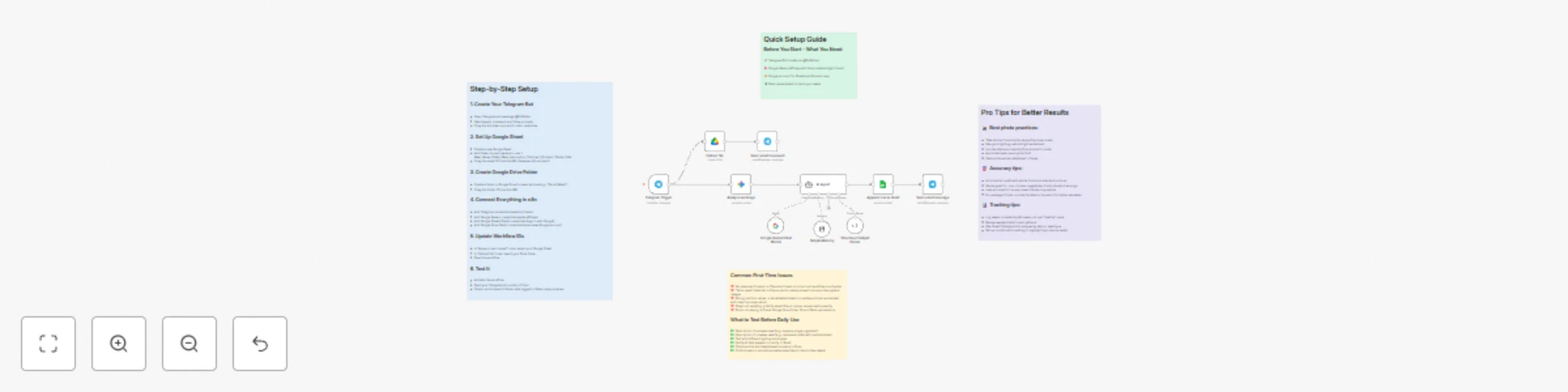
  • 📲 Telegram Trigger → receives meal photo
  • 🗂️ Google Drive → saves image with timestamp
  • 🔎 Gemini Vision → analyzes food, estimates portions and macros
  • 🤖 AI Agent → structures output (meal name, calories, protein, carbs, fats)
  • 📄 Google Sheets → appends row with all nutrition data
  • 💬 Telegram Reply → confirms with full breakdown

What you'll need

  • 🤖 Telegram Bot token
  • 🧠 Google Gemini API key (includes Vision capabilities)
  • 🔐 Google OAuth for Sheets + Drive
  • 📊 Google Sheet with columns: Meal_Name, Date, Meal_description, Calories, Proteins, Carbs, Fats

Setup steps

  • 🔗 Connect credentials: Telegram, Google Gemini, Google Sheets, Google Drive
  • 📄 Create Google Sheet with nutrition columns (see format above)
  • 🗂️ Create Google Drive folder for meal photos
  • 🧭 Update sheet ID and Drive folder ID in workflow
  • 🧪 Test: send a meal photo via Telegram and check Sheet + Drive

Customization ideas

  • 📈 Daily summary: add scheduled workflow to calculate daily totals
  • 🎯 Goal tracking: set IF conditions to alert when over/under calorie targets
  • 📊 Charts: connect to Data Studio/Looker for visual progress tracking
  • 🏃 Fitness integration: sync with MyFitnessPal or fitness apps

Who it's for

  • 🏋️ Fitness enthusiasts tracking macros without manual logging
  • 🥗 Meal preppers analyzing portion sizes and nutrition
  • 💪 Athletes monitoring calorie and protein intake
  • 🩺 Health-conscious individuals building meal history
  • 👨‍🍳 Nutritionists collecting client food data

Quick Setup Guide - Before You Start - What You Need:

  • 🔗 Telegram Bot (create via @BotFather)
  • 🧠 Google Gemini API key with Vision enabled (get it here)
  • 🔐 Google account for Sheets and Drive access
  • 📊 Basic spreadsheet to track your meals

Want help customizing?

📧 [email protected] 🔗 LinkedIn

1.2 Logical Blocks

This catalog entry is organized from the workflow JSON. The node-level section below shows the executable blocks available for review before importing the template.

2. Block-by-Block Analysis

Block 1 - Telegram Trigger

Type / Role
n8n-nodes-base.telegramTrigger - telegramTrigger
Config choices
Version 1.2

Block 2 - AI Agent

Type / Role
@n8n/n8n-nodes-langchain.agent - agent
Config choices
Version 2.2

Block 3 - Google Gemini Chat Model

Type / Role
@n8n/n8n-nodes-langchain.lmChatGoogleGemini - lmChatGoogleGemini
Config choices
Version 1

Block 4 - Analyze an image

Type / Role
@n8n/n8n-nodes-langchain.googleGemini - googleGemini
Config choices
Version 1

Block 5 - Send a text message

Type / Role
n8n-nodes-base.telegram - telegram
Config choices
Version 1.2

Block 6 - Upload file

Type / Role
n8n-nodes-base.googleDrive - googleDrive
Config choices
Version 3

Block 7 - Simple Memory

Type / Role
@n8n/n8n-nodes-langchain.memoryBufferWindow - memoryBufferWindow
Config choices
Version 1.3

Block 8 - Append row in sheet

Type / Role
n8n-nodes-base.googleSheets - googleSheets
Config choices
Version 4.7

Block 9 - Structured Output Parser

Type / Role
@n8n/n8n-nodes-langchain.outputParserStructured - outputParserStructured
Config choices
Version 1.3

Block 10 - Send a text message1

Type / Role
n8n-nodes-base.telegram - telegram
Config choices
Version 1.2

Block 11 - Sticky Note

Type / Role
n8n-nodes-base.stickyNote - stickyNote
Config choices
Version 1

Block 12 - Sticky Note1

Type / Role
n8n-nodes-base.stickyNote - stickyNote
Config choices
Version 1

Block 13 - Sticky Note2

Type / Role
n8n-nodes-base.stickyNote - stickyNote
Config choices
Version 1

Block 14 - Sticky Note3

Type / Role
n8n-nodes-base.stickyNote - stickyNote
Config choices
Version 1

3. Summary Table

Workflow Snap & track nutrition: Telegram food photos → Gemini Vision AI → Google Sheets
Complexity intermediate
Nodes 14
Categories Personal Productivity, AI Summarization
Author Anir Agram
Published 29 Oct 2025

4. Reproducing the Workflow from Scratch

  1. 1. Download the workflow JSON

    Use the JSON export at /data/workflows/10277/10277.json as the source template for this automation.

  2. 2. Import the template into n8n

    Open n8n, import the downloaded JSON, and review each node before activating the workflow.

  3. 3. Configure credentials and variables

    Replace placeholder credentials, API keys, webhook URLs, account IDs, and environment-specific values with your own settings.

  4. 4. Test with sample data

    Run the workflow manually or in a staging workspace, inspect node output, and confirm downstream systems receive the expected data.

  5. 5. Activate and monitor

    Enable the workflow only after testing, then monitor executions, errors, and rate limits during the first production runs.

5. General Notes & Resources

Review imported nodes carefully before activation. This catalog entry is intended to help you inspect the workflow structure, understand required services, and find related templates faster.

Node names, credentials, schedules, webhook paths, and external service limits may need adjustment for your workspace.

Frequently asked questions

What does Snap & track nutrition: Telegram food photos → Gemini Vision AI → Google Sheets do?

️ Telegram Food Photo → Gemini Vision AI → Nutrition Data → Google Sheets + ️ Drive What this workflow does Snap and send a photo of your meal via Telegram Gemini Vision AI ana...

What do I need before importing this workflow?

Review the workflow JSON, configure any required credentials in n8n, and test the automation in a safe workspace before using it in production.

Can I customize this workflow?

Yes. Use the block-by-block analysis and the downloadable JSON to inspect each node, then adjust credentials, prompts, schedules, filters, or destinations for your Personal Productivity, AI Summarization use case.