Block 1 - Daily Schedule (8 AM)
- Type / Role
- n8n-nodes-base.cron - cron
- Config choices
- Version 1


 Early Deal
This workflow is provided as-is. Please review and test before using in production.
This n8n workflow automates the process of sending a daily weather report for a specified city directly to your email inbox. It's a simple yet effective way to stay informed about the weather witho...
n8n-nodes-base.cron, n8n-nodes-base.httprequest, n8n-nodes-base.code, n8n-nodes-base.gmail, n8n-nodes-base.stickynote
This workflow is cataloged by N8N Workflows and links back to its original n8n.io source page by David Olusola.
Original n8n.io sourceThis n8n workflow automates the process of sending a daily weather report for a specified city directly to your email inbox. It's a simple yet effective way to stay informed about the weather without manually checking.
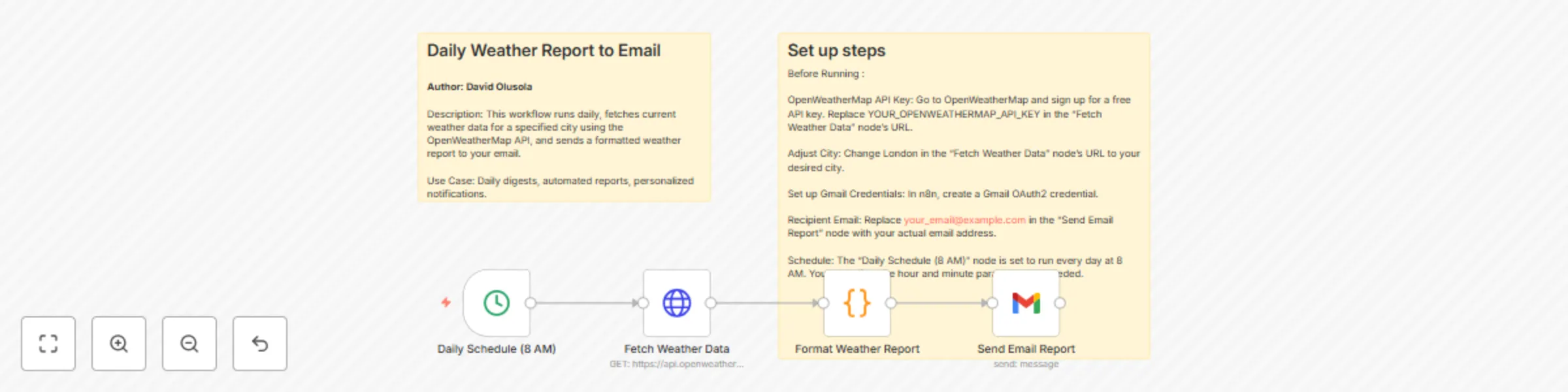
This workflow operates in four main steps:
Daily Schedule Trigger:
The workflow begins with a Cron node, which acts as a scheduler.
It's configured to trigger the workflow automatically at a specific time each day (e.g., every morning at 8:00 AM).
Fetch Weather Data:
Next, an HTTP Request node is used to interact with the OpenWeatherMap API.
This node constructs a URL to query the API for current weather conditions in a specified city (e.g., "London").
It includes parameters like units=metric (for Celsius temperatures) and your unique appid (API key) for authentication with OpenWeatherMap.
Format Weather Report:
A Code node receives the raw JSON weather data from the OpenWeatherMap API.
Inside this node, JavaScript code extracts relevant information such as city name, weather description, temperature (current and "feels like"), humidity, and wind speed.
It then formats this information into a human-readable text string, creating the actual weather report message.
Send Email Report:
Finally, a Gmail node takes the formatted weather report from the Code node.
It uses your configured Gmail credentials to send an email to your specified recipient address.
The email's subject line dynamically includes the city name, and the body contains the full formatted weather report.
To get this workflow up and running, follow these instructions:
Step 1: Get Your OpenWeatherMap API Key
Go to the OpenWeatherMap website.
Sign up for a free account if you don't already have one.
Once logged in, navigate to the "API keys" section of your profile.
Copy your unique API key. You will need this in Step 4.
Step 2: Create Gmail Credentials in n8n
In your n8n instance, click on Credentials in the left sidebar.
Click New Credential.
Search for and select "Gmail OAuth2 API" or "Gmail API" (OAuth2 is generally preferred).
Follow the on-screen instructions to connect your Gmail account. This usually involves clicking an "Authenticate with Google" button and granting n8n the necessary permissions. Save the credential.
Make note of the Credential Name (e.g., "My Gmail Account").
This catalog entry is organized from the workflow JSON. The node-level section below shows the executable blocks available for review before importing the template.
| Workflow | Send daily weather reports to email with OpenWeatherMap and Gmail |
|---|---|
| Complexity | intermediate |
| Nodes | 6 |
| Categories | Personal Productivity |
| Author | David Olusola |
| Published | 26 Jul 2025 |
Use the JSON export at /data/workflows/6465/6465.json as the source template for this automation.
Open n8n, import the downloaded JSON, and review each node before activating the workflow.
Replace placeholder credentials, API keys, webhook URLs, account IDs, and environment-specific values with your own settings.
Run the workflow manually or in a staging workspace, inspect node output, and confirm downstream systems receive the expected data.
Enable the workflow only after testing, then monitor executions, errors, and rate limits during the first production runs.
Review imported nodes carefully before activation. This catalog entry is intended to help you inspect the workflow structure, understand required services, and find related templates faster.
Node names, credentials, schedules, webhook paths, and external service limits may need adjustment for your workspace.
This n8n workflow automates the process of sending a daily weather report for a specified city directly to your email inbox. It's a simple yet effective way to stay informed about the weather witho...
Review the workflow JSON, configure any required credentials in n8n, and test the automation in a safe workspace before using it in production.
Yes. Use the block-by-block analysis and the downloadable JSON to inspect each node, then adjust credentials, prompts, schedules, filters, or destinations for your Personal Productivity use case.