Scrape high-engagement LinkedIn posts and auto-post with Gemini images

Workflow preview

Workflow preview
100%
Scrape high-engagement LinkedIn posts and auto-post with Gemini images preview
Open on n8n.io

1. Workflow Overview

Who's it for This workflow is ideal for: Content creators who want to replicate successful LinkedIn strategies Social media managers monitoring competitor content performance Marketing teams analyz...

Best for

  • Content Creation automation workflows
  • Multimodal AI automation workflows
  • advanced n8n builders looking for reusable templates

Tools used

@n8n/n8n-nodes-langchain.lmchatgooglegemini, n8n-nodes-base.scheduletrigger, n8n-nodes-base.googlesheets, n8n-nodes-base.splitinbatches, n8n-nodes-base.httprequest, n8n-nodes-base.wait, n8n-nodes-base.filter, n8n-nodes-base.googlesheetstrigger

Source and attribution

This workflow is cataloged by N8N Workflows and links back to its original n8n.io source page by Roshan Ramani.

Original n8n.io source

1.1 Workflow description

Title
Scrape high-engagement LinkedIn posts and auto-post with Gemini images
Workflow name
Scrape high-engagement LinkedIn posts and auto-post with Gemini images

Who's it for

This workflow is ideal for:

  • Content creators who want to replicate successful LinkedIn strategies
  • Social media managers monitoring competitor content performance
  • Marketing teams analyzing trending topics in their industry
  • Personal brands looking to create data-driven content
  • Agencies managing multiple LinkedIn accounts

What it does

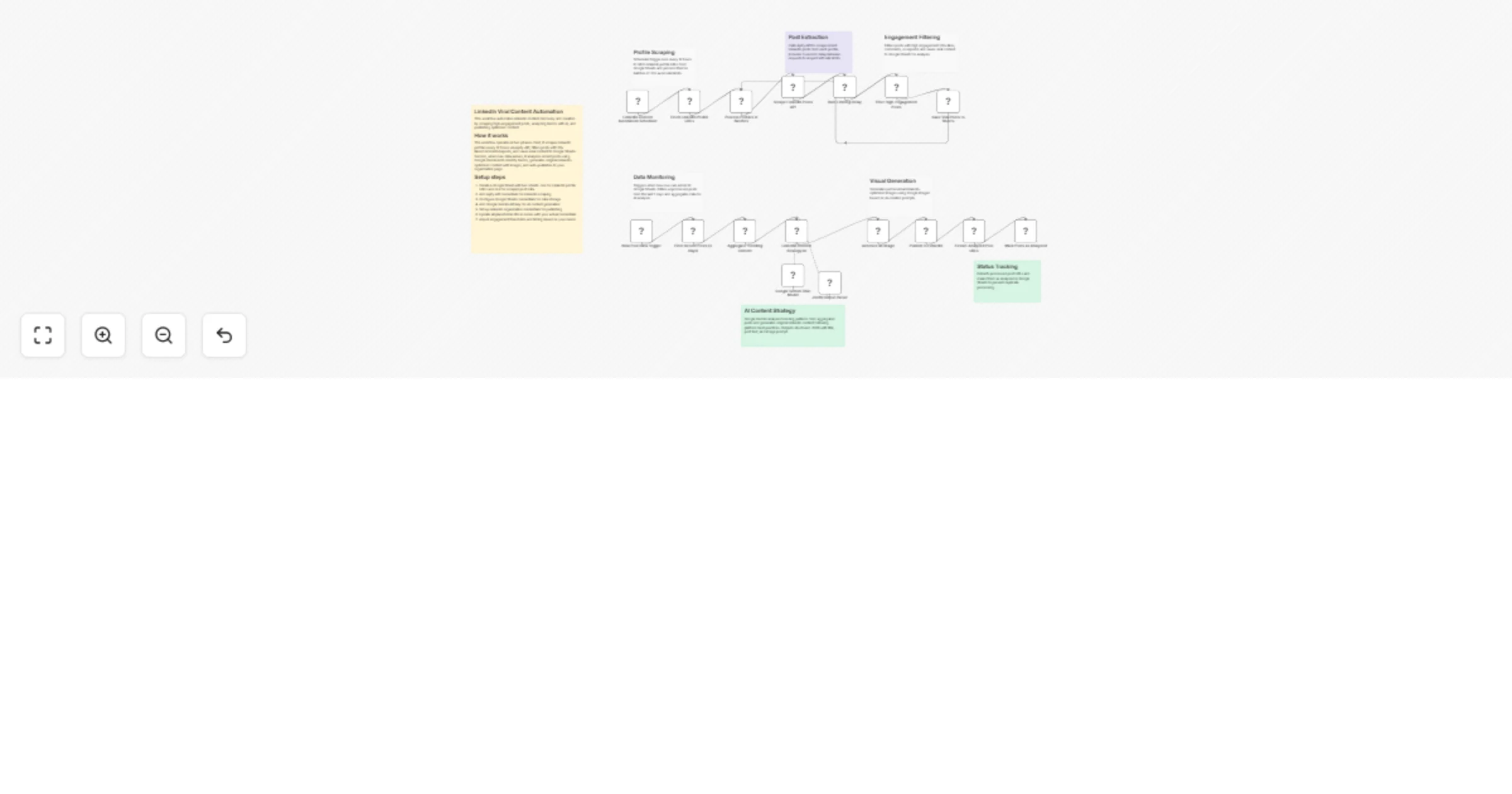
This comprehensive workflow automates the entire LinkedIn content lifecycle: it scrapes viral posts from target accounts, analyzes engagement patterns, identifies trending topics, generates original AI-powered content based on those trends, creates accompanying images, and automatically publishes to your LinkedIn profile or company page.

How it works

Phase 1: Data Collection (Runs every 12 hours)

  • Scheduler triggers the workflow twice daily
  • Fetches LinkedIn profile URLs from Google Sheets
  • Processes profiles in batches of 3 to respect API limits
  • Uses Apify API to scrape recent posts from each profile
  • Adds 3-second delays between requests to avoid rate limiting
  • Filters for high-engagement posts (20+ likes, comments, or reposts)
  • Saves viral posts to Google Sheets with full metadata

Phase 2: Content Generation (Triggered by new data)

  • Monitors Google Sheets for new viral posts every minute
  • Filters posts published within the last 3 days that haven't been analyzed
  • Aggregates trending content into a single dataset
  • Analyzes patterns using Google Gemini AI to identify:
  • Common themes and topics
  • Engagement triggers and hooks
  • Successful content structures
  • Trending hashtags and formats
  • Generates original LinkedIn post with proper formatting
  • Creates AI image prompt optimized for minimal text
  • Generates professional image using Google Imagen
  • Publishes complete post to your LinkedIn account
  • Marks analyzed posts as complete to prevent duplication

Setup steps

1. Configure Google Sheets

  • Create a new Google Sheet with two tabs:
  • Tab 1: "usernames & links" - Add LinkedIn profile URLs you want to monitor
  • Tab 2: "scrape data" - Leave empty (auto-populated by workflow)
  • Connect your Google Sheets credentials in both nodes
  • Replace all instances of YOUR_GOOGLE_SHEET_ID with your actual sheet ID
  • Replace SHEET_GID values with your actual sheet GIDs

2. Set up Apify API

  • Sign up for Apify account and get API token
  • Replace YOUR_APIFY_API_TOKEN in "Scrape LinkedIn Posts API" node
  • Note: Apify has free tier with limited requests

3. Configure Google Gemini credentials

  • Obtain Google PaLM API credentials
  • Add credentials to both "Google Gemini Chat Model" and "Generate an image" nodes

4. Set up LinkedIn publishing

  • Connect your LinkedIn credentials in "Publish to LinkedIn" node
  • If posting as organization, replace YOUR_LINKEDIN_ORGANIZATION_ID with your company page ID
  • If posting as individual, change "postAs" parameter to "person"

5. Configure scheduling

  • Default schedule: every 12 hours
  • Adjust "LinkedIn Content Automation Scheduler" trigger if needed
  • Consider your API rate limits when changing frequency

6. Test the workflow

  • Manually trigger Phase 1 to scrape posts
  • Verify data appears in Google Sheets "scrape data" tab
  • Wait for Phase 2 trigger or manually activate it
  • Check that content is generated and published correctly
  • Verify posts are marked as analyzed in Google Sheets

Requirements

  • Google Sheets API access (free)
  • Google Sheets Trigger OAuth2 (free)
  • Apify API token (free tier available, $49/month for more)
  • Google PaLM/Gemini API key (pay-per-use pricing)
  • LinkedIn OAuth credentials (free)

How to customize

Adjust scraping targets:

  • Add more LinkedIn profile URLs to your Google Sheets
  • Change batch size in "Process Profiles in Batches" (default: 3)
  • Modify post limit per profile in Apify API call (default: 1 post)

Modify engagement filters:

  • Edit "Filter High-Engagement Posts" node thresholds
  • Default: 20+ likes OR 20+ comments OR 20+ reposts
  • Adjust based on your niche's typical engagement rates
  • Add additional criteria like views or impressions

Customize content analysis window:

  • Change "Filter Recent Posts (3 Days)" to analyze different timeframes
  • Options: 24 hours for fast-moving trends, 7 days for broader patterns
  • Balance between recency and data volume

Refine AI content generation:

  • Edit system prompt in "LinkedIn Content Strategy AI" node
  • Adjust content length, tone, or style preferences
  • Add industry-specific guidelines
  • Include brand voice requirements
  • Modify hashtag strategy

Customize image generation:

  • Edit image prompt structure in AI prompt
  • Change visual style, colors, or composition
  • Adjust for brand guidelines
  • Modify dimensions or aspect ratios

Change posting schedule:

  • Adjust "LinkedIn Content Automation Scheduler" frequency
  • Consider optimal posting times for your audience
  • Balance between content quality and posting frequency
  • Coordinate with other marketing activities

Enhance data collection:

  • Increase posts per profile in Apify settings
  • Add more profile URLs to monitor
  • Implement competitor tracking
  • Track additional metrics like impressions or click-through rates

Add notifications:

  • Connect Slack/Email nodes after successful posts
  • Set up alerts for high-performing content
  • Create reports of analyzed trends
  • Monitor API usage and errors

1.2 Logical Blocks

This catalog entry is organized from the workflow JSON. The node-level section below shows the executable blocks available for review before importing the template.

2. Block-by-Block Analysis

Block 1 - Google Gemini Chat Model

Type / Role
@n8n/n8n-nodes-langchain.lmChatGoogleGemini - lmChatGoogleGemini
Config choices
Version 1

Block 2 - LinkedIn Content Automation Scheduler

Type / Role
n8n-nodes-base.scheduleTrigger - scheduleTrigger
Config choices
Version 1.2

Block 3 - Fetch LinkedIn Profile URLs

Type / Role
n8n-nodes-base.googleSheets - googleSheets
Config choices
Version 4.5

Block 4 - Process Profiles in Batches

Type / Role
n8n-nodes-base.splitInBatches - splitInBatches
Config choices
Version 3

Block 5 - Scrape LinkedIn Posts API

Type / Role
n8n-nodes-base.httpRequest - httpRequest
Config choices
Version 4.2

Block 6 - Rate Limiting Delay

Type / Role
n8n-nodes-base.wait - wait
Config choices
Version 1.1

Block 7 - Filter High-Engagement Posts

Type / Role
n8n-nodes-base.filter - filter
Config choices
Version 2.2

Block 8 - Save Viral Posts to Sheets

Type / Role
n8n-nodes-base.googleSheets - googleSheets
Config choices
Version 4.5

Block 9 - New Post Data Trigger

Type / Role
n8n-nodes-base.googleSheetsTrigger - googleSheetsTrigger
Config choices
Version 1

Block 10 - Filter Recent Posts (3 Days)

Type / Role
n8n-nodes-base.filter - filter
Config choices
Version 2.2

Block 11 - Aggregate Trending Content

Type / Role
n8n-nodes-base.aggregate - aggregate
Config choices
Version 1

Block 12 - LinkedIn Content Strategy AI

Type / Role
@n8n/n8n-nodes-langchain.agent - agent
Config choices
Version 2.2

Block 13 - JSON Output Parser

Type / Role
@n8n/n8n-nodes-langchain.outputParserStructured - outputParserStructured
Config choices
Version 1.3

Block 14 - Publish to LinkedIn

Type / Role
n8n-nodes-base.linkedIn - linkedIn
Config choices
Version 1

Block 15 - Extract Analyzed Post URLs

Type / Role
n8n-nodes-base.code - code
Config choices
Version 2

Block 16 - Mark Posts as Analyzed

Type / Role
n8n-nodes-base.googleSheets - googleSheets
Config choices
Version 4.7

Block 17 - Generate an image

Type / Role
@n8n/n8n-nodes-langchain.googleGemini - googleGemini
Config choices
Version 1.1

Block 18 - Sticky Note

Type / Role
n8n-nodes-base.stickyNote - stickyNote
Config choices
Version 1

Block 19 - Sticky Note2

Type / Role
n8n-nodes-base.stickyNote - stickyNote
Config choices
Version 1

Block 20 - Sticky Note3

Type / Role
n8n-nodes-base.stickyNote - stickyNote
Config choices
Version 1

Block 21 - Sticky Note4

Type / Role
n8n-nodes-base.stickyNote - stickyNote
Config choices
Version 1

Block 22 - Sticky Note5

Type / Role
n8n-nodes-base.stickyNote - stickyNote
Config choices
Version 1

Block 23 - Sticky Note6

Type / Role
n8n-nodes-base.stickyNote - stickyNote
Config choices
Version 1

Block 24 - Sticky Note7

Type / Role
n8n-nodes-base.stickyNote - stickyNote
Config choices
Version 1

Showing the first 24 of 25 workflow blocks. Download the JSON for the full node graph.

3. Summary Table

Workflow Scrape high-engagement LinkedIn posts and auto-post with Gemini images
Complexity advanced
Nodes 25
Categories Content Creation, Multimodal AI
Author Roshan Ramani
Published 21 Jan 2026

4. Reproducing the Workflow from Scratch

  1. 1. Download the workflow JSON

    Use the JSON export at /data/workflows/12865/12865.json as the source template for this automation.

  2. 2. Import the template into n8n

    Open n8n, import the downloaded JSON, and review each node before activating the workflow.

  3. 3. Configure credentials and variables

    Replace placeholder credentials, API keys, webhook URLs, account IDs, and environment-specific values with your own settings.

  4. 4. Test with sample data

    Run the workflow manually or in a staging workspace, inspect node output, and confirm downstream systems receive the expected data.

  5. 5. Activate and monitor

    Enable the workflow only after testing, then monitor executions, errors, and rate limits during the first production runs.

5. General Notes & Resources

Review imported nodes carefully before activation. This catalog entry is intended to help you inspect the workflow structure, understand required services, and find related templates faster.

Node names, credentials, schedules, webhook paths, and external service limits may need adjustment for your workspace.

Frequently asked questions

What does Scrape high-engagement LinkedIn posts and auto-post with Gemini images do?

Who's it for This workflow is ideal for: Content creators who want to replicate successful LinkedIn strategies Social media managers monitoring competitor content performance Marketing teams analyz...

What do I need before importing this workflow?

Review the workflow JSON, configure any required credentials in n8n, and test the automation in a safe workspace before using it in production.

Can I customize this workflow?

Yes. Use the block-by-block analysis and the downloadable JSON to inspect each node, then adjust credentials, prompts, schedules, filters, or destinations for your Content Creation, Multimodal AI use case.