Scan WhatsApp receipt photos and track expenses using Wati and GPT-4o

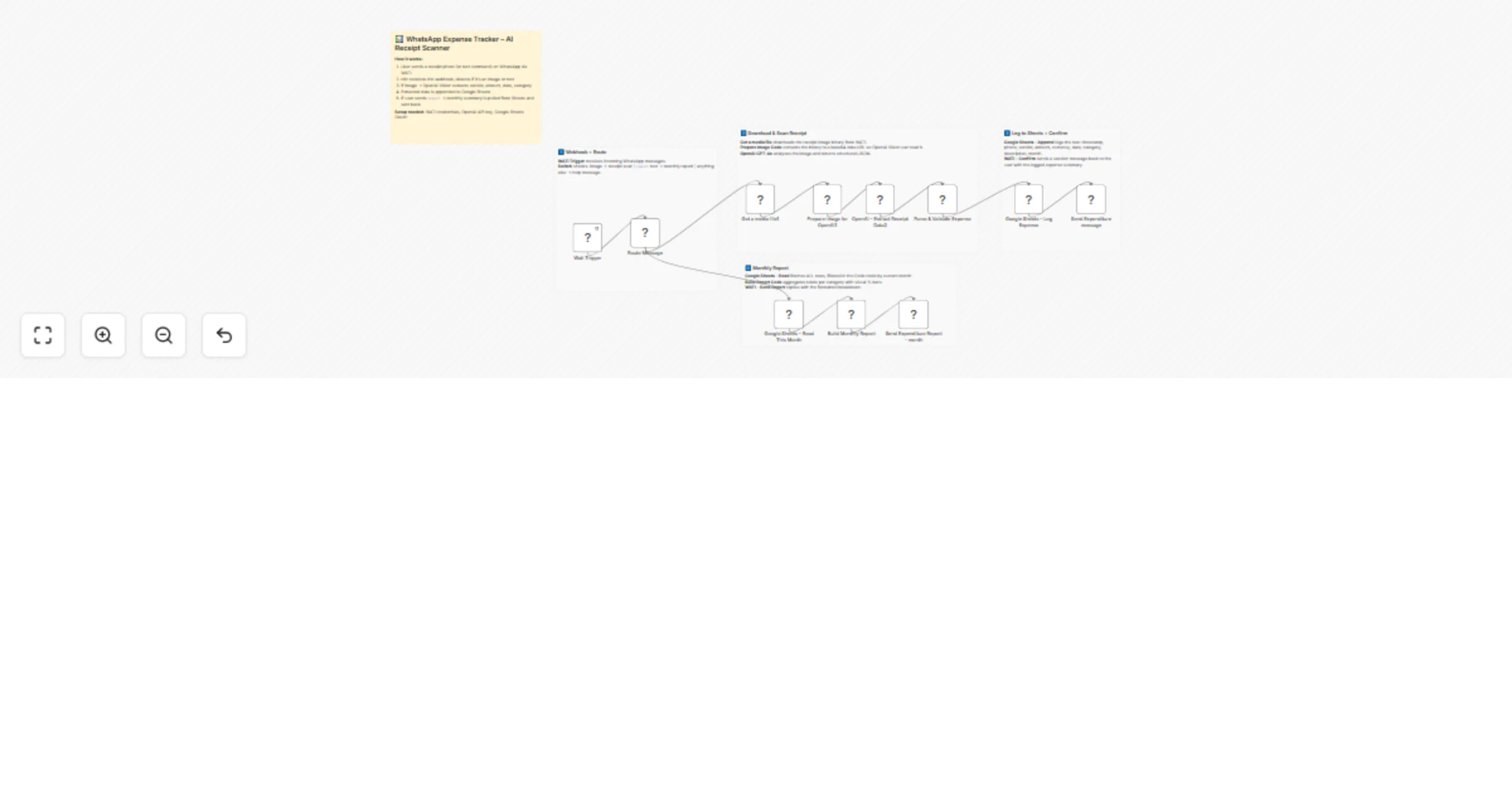
Workflow preview

Workflow preview
100%
Scan WhatsApp receipt photos and track expenses using Wati and GPT-4o preview
Open on n8n.io

1. Workflow Overview

Transform messy receipt photos into a structured, searchable expense database in seconds. This workflow automates the entire journey from a WhatsApp message to a live Google Sheets entry by combini...

Best for

  • Document Extraction automation workflows
  • AI Chatbot automation workflows
  • advanced n8n builders looking for reusable templates

Tools used

n8n-nodes-base.stickynote, n8n-nodes-base.switch, n8n-nodes-base.code, n8n-nodes-base.googlesheets, n8n-nodes-base.httprequest, n8n-nodes-wati.watitrigger, n8n-nodes-wati.wati

Source and attribution

This workflow is cataloged by N8N Workflows and links back to its original n8n.io source page by Jitesh Dugar.

Original n8n.io source

1.1 Workflow description

Title
Scan WhatsApp receipt photos and track expenses using Wati and GPT-4o
Workflow name
Scan WhatsApp receipt photos and track expenses using Wati and GPT-4o

Transform messy receipt photos into a structured, searchable expense database in seconds. This workflow automates the entire journey from a WhatsApp message to a live Google Sheets entry by combining WATI for communication, OpenAI Vision for extraction, and automated reporting logic.


🎯 What This Workflow Does

Turns a simple WhatsApp photo or text command into a professional expense management system:

  • πŸ“ Captures Receipt Assets Receives an image or text command via WATI Trigger from the user's phone.

  • 🚦 Smart Message Routing A Switch node detects the input type:

  • Image: Routes to the AI scanning branch for receipt processing.

  • Text ("report"): Routes to the reporting branch to generate monthly summaries.

  • πŸ‘οΈ Vision AI Analysis OpenAI GPT-4o "looks" at the receipt image to extract the merchant name, total amount, currency, and date.

  • ☁️ Base64 Data Processing A specialized Code node uses getBinaryDataBuffer to convert receipt images into a high-speed data URL, ensuring OpenAI always receives the actual image instead of a placeholder.

  • πŸ“Š Automated Logging & Reporting

  • Logging: Appends validated data to Google Sheets with automated month categorization.

  • Reporting: Aggregates totals by category and sends a visual dashboard back to WhatsApp.


✨ Key Features

  • Zero-Manual Entry: AI extracts 100% of the data from the photo, including currency codes and spending categories.
  • Visual Progress Reports: The workflow generates formatted WhatsApp reports with visual percentage bars (β–ˆβ–ˆβ–ˆβ–‘β–‘).
  • Automatic Month Tracking: Uses Luxon date expressions to derive "Month" names automatically from receipt dates.
  • Dual-Mode Trigger: Handles both new expense logging and historical data retrieval within a single WhatsApp chat.
  • Robust Error Handling: Includes logic to catch "filesystem" errors and ensure binary data is properly converted for the AI.

πŸ’Ό Perfect For

  • Small Business Owners: Tracking business expenses on the go without saving paper receipts.
  • Freelancers: Quickly logging billable expenses for client reimbursement.
  • Personal Finance Users: Maintaining a real-time budget directly from their primary messaging app.
  • Teams: Allowing multiple employees to "WhatsApp" their receipts to a central company sheet.

πŸ”§ What You'll Need

Required Integrations

  • WATI – To receive WhatsApp messages and send automated replies.

  • OpenAI API – GPT-4o Vision for image analysis and structured JSON extraction.

  • Google Sheets – To host the master expense database.

Optional Customizations

  • Currency Conversion: Add a node to convert all foreign expenses into your local currency automatically.
  • Budget Alerts: Set a threshold to notify you via WhatsApp if your monthly total exceeds a specific limit.

πŸš€ Quick Start

  1. Import Template – Copy the JSON and import it into your n8n instance.
  2. Set Credentials – Connect your WATI, OpenAI, and Google Sheets accounts.
  3. Configure Sheet – Ensure your Google Sheet has headers for:
  • timestamp
  • phone
  • vendor
  • amount
  • currency
  • date
  • category
  • month
  1. Test Scanning – Send a photo of a receipt to your WATI number.
  2. Request Report – Type report in WhatsApp to see your spending breakdown.

🎨 Customization Options

  • Category Mapping: Modify the OpenAI prompt to use categories specific to your tax filing needs (e.g., "Office Supplies," "Travel").
  • Filtering Logic: Adjust the Build Monthly Report code to show weekly instead of monthly summaries.
  • Multi-User Support: The workflow is already built to filter data based on the sender's phone number.

πŸ“ˆ Expected Results

  • 90% reduction in time spent on monthly expense reconciliation.
  • 100% accuracy in date and amount extraction using GPT-4o Vision.
  • Real-time visibility into spending habits without ever opening a spreadsheet.
  • Zero lost receipts by logging them the moment they are received.

πŸ† Use Cases

Business Travel

A consultant snaps photos of taxi and meal receipts during a trip; by the time they land, their expense sheet is already populated and categorized.

Personal Budgeting

A user types report at the end of the week to instantly see what percentage of their budget went to "Food" vs "Entertainment".

Subscription Management

Upload screenshots of digital invoices to track monthly software costs and recurring bills.


πŸ’‘ Pro Tips

  • Clear Lighting: For best AI extraction, ensure the receipt text is clear and not folded.
  • Keyword Commands: You can add more keywords like summary or last week by expanding the Route Message switch node.
  • JSON Validation: The Parse & Validate node ensures that even if the AI adds extra text, only the clean data is saved.

Ready to automate your expenses? Import this template and connect your WATI number to start scanning receipts today! ```

1.2 Logical Blocks

This catalog entry is organized from the workflow JSON. The node-level section below shows the executable blocks available for review before importing the template.

2. Block-by-Block Analysis

Block 1 - πŸ“‹ Flow Overview

Type / Role
n8n-nodes-base.stickyNote - stickyNote
Config choices
Version 1

Block 2 - Sticky – Receive & Route

Type / Role
n8n-nodes-base.stickyNote - stickyNote
Config choices
Version 1

Block 3 - Sticky – AI Scan

Type / Role
n8n-nodes-base.stickyNote - stickyNote
Config choices
Version 1

Block 4 - Sticky – Log & Confirm

Type / Role
n8n-nodes-base.stickyNote - stickyNote
Config choices
Version 1

Block 5 - Sticky – Report

Type / Role
n8n-nodes-base.stickyNote - stickyNote
Config choices
Version 1

Block 6 - Route Message

Type / Role
n8n-nodes-base.switch - switch
Config choices
Version 3

Block 7 - Parse & Validate Expense

Type / Role
n8n-nodes-base.code - code
Config choices
Version 2

Block 8 - Google Sheets – Log Expense

Type / Role
n8n-nodes-base.googleSheets - googleSheets
Config choices
Version 4.5

Block 9 - Google Sheets – Read This Month

Type / Role
n8n-nodes-base.googleSheets - googleSheets
Config choices
Version 4.5

Block 10 - Build Monthly Report

Type / Role
n8n-nodes-base.code - code
Config choices
Version 2

Block 11 - Prepare Image for OpenAI1

Type / Role
n8n-nodes-base.code - code
Config choices
Version 2

Block 12 - OpenAI – Extract Receipt Data2

Type / Role
n8n-nodes-base.httpRequest - httpRequest
Config choices
Version 4.2

Block 13 - Wati Trigger

Type / Role
n8n-nodes-wati.watiTrigger - watiTrigger
Config choices
Version 1

Block 14 - Get a media file1

Type / Role
n8n-nodes-wati.wati - wati
Config choices
Version 1

Block 15 - Send Expenditure message

Type / Role
n8n-nodes-wati.wati - wati
Config choices
Version 1

Block 16 - Send Expenditure Report - month

Type / Role
n8n-nodes-wati.wati - wati
Config choices
Version 1

3. Summary Table

Workflow Scan WhatsApp receipt photos and track expenses using Wati and GPT-4o
Complexity advanced
Nodes 16
Categories Document Extraction, AI Chatbot
Author Jitesh Dugar
Published 24 Feb 2026

4. Reproducing the Workflow from Scratch

  1. 1. Download the workflow JSON

    Use the JSON export at /data/workflows/13654/13654.json as the source template for this automation.

  2. 2. Import the template into n8n

    Open n8n, import the downloaded JSON, and review each node before activating the workflow.

  3. 3. Configure credentials and variables

    Replace placeholder credentials, API keys, webhook URLs, account IDs, and environment-specific values with your own settings.

  4. 4. Test with sample data

    Run the workflow manually or in a staging workspace, inspect node output, and confirm downstream systems receive the expected data.

  5. 5. Activate and monitor

    Enable the workflow only after testing, then monitor executions, errors, and rate limits during the first production runs.

5. General Notes & Resources

Review imported nodes carefully before activation. This catalog entry is intended to help you inspect the workflow structure, understand required services, and find related templates faster.

Node names, credentials, schedules, webhook paths, and external service limits may need adjustment for your workspace.

Frequently asked questions

What does Scan WhatsApp receipt photos and track expenses using Wati and GPT-4o do?

Transform messy receipt photos into a structured, searchable expense database in seconds. This workflow automates the entire journey from a WhatsApp message to a live Google Sheets entry by combini...

What do I need before importing this workflow?

Review the workflow JSON, configure any required credentials in n8n, and test the automation in a safe workspace before using it in production.

Can I customize this workflow?

Yes. Use the block-by-block analysis and the downloadable JSON to inspect each node, then adjust credentials, prompts, schedules, filters, or destinations for your Document Extraction, AI Chatbot use case.