Block 1 - Add entry to sheet
- Type / Role
- n8n-nodes-base.googleSheets - googleSheets
- Config choices
- Version 1


 Early Deal
This workflow is provided as-is. Please review and test before using in production.
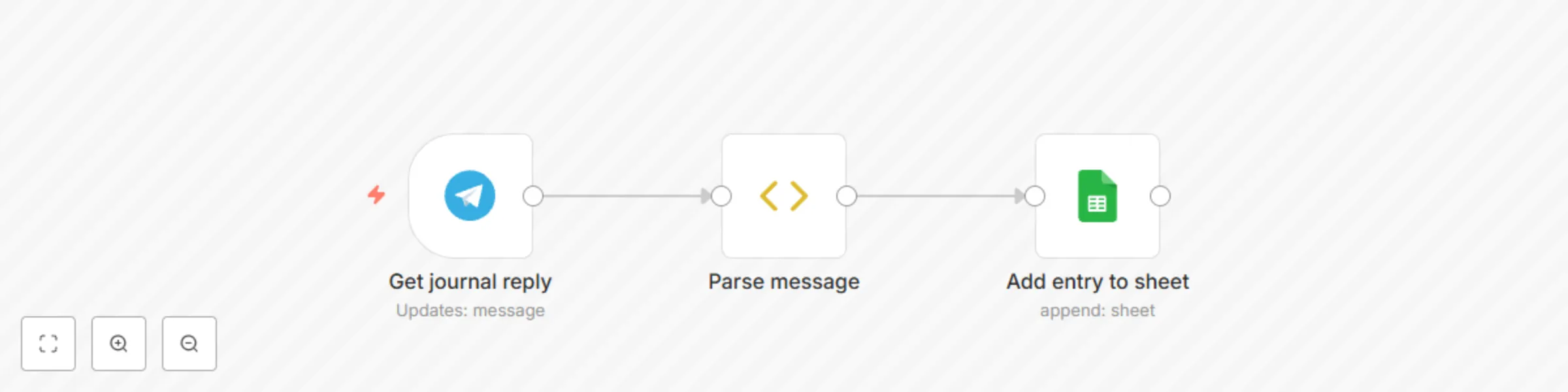
A goal for 2022 is to write 1 thing I do each day. Combined with this workflow you will get daily messages via Telegram and when you reply to them they will be save...
n8n-nodes-base.googlesheets, n8n-nodes-base.telegramtrigger, n8n-nodes-base.functionitem
This workflow is cataloged by N8N Workflows and links back to its original n8n.io source page by Nicholas Lewanowicz.
Original n8n.io sourceA goal for 2022 is to write 1 thing I do each day. Combined with this workflow you will get daily messages via Telegram and when you reply to them they will be saved in a Google Sheet.
Note: Make sure to configure your Telegram and Google Sheet credentials! You will also need to modify the functions to have your Telegram username and bot name.
This catalog entry is organized from the workflow JSON. The node-level section below shows the executable blocks available for review before importing the template.
| Workflow | Save Telegram daily messages to Google Sheets |
|---|---|
| Complexity | beginner |
| Nodes | 3 |
| Categories | Personal Productivity |
| Author | Nicholas Lewanowicz |
| Published | 08 Jan 2022 |
Use the JSON export at /data/workflows/1388/1388.json as the source template for this automation.
Open n8n, import the downloaded JSON, and review each node before activating the workflow.
Replace placeholder credentials, API keys, webhook URLs, account IDs, and environment-specific values with your own settings.
Run the workflow manually or in a staging workspace, inspect node output, and confirm downstream systems receive the expected data.
Enable the workflow only after testing, then monitor executions, errors, and rate limits during the first production runs.
Review imported nodes carefully before activation. This catalog entry is intended to help you inspect the workflow structure, understand required services, and find related templates faster.
Node names, credentials, schedules, webhook paths, and external service limits may need adjustment for your workspace.
A goal for 2022 is to write 1 thing I do each day. Combined with this workflow you will get daily messages via Telegram and when you reply to them they will be save...
Review the workflow JSON, configure any required credentials in n8n, and test the automation in a safe workspace before using it in production.
Yes. Use the block-by-block analysis and the downloadable JSON to inspect each node, then adjust credentials, prompts, schedules, filters, or destinations for your Personal Productivity use case.