Block 1 - When clicking ‘Execute workflow’
- Type / Role
- n8n-nodes-base.manualTrigger - manualTrigger
- Config choices
- Version 1


 Early Deal
This workflow is provided as-is. Please review and test before using in production.
This minimal utility workflow connects to the SAP Business One Service Layer API to verify login credentials and return the session ID. It's ideal for testing access or using as a sub workflow to r...
n8n-nodes-base.manualtrigger, n8n-nodes-base.set, n8n-nodes-base.httprequest
This workflow is cataloged by N8N Workflows and links back to its original n8n.io source page by Raquel Giugliano.
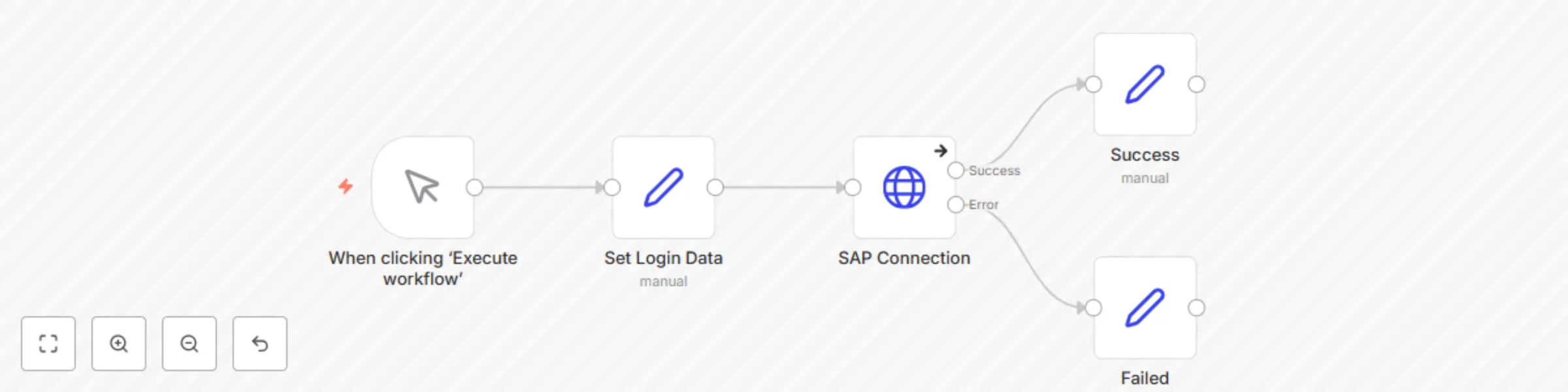
Original n8n.io sourceThis minimal utility workflow connects to the SAP Business One Service Layer API to verify login credentials and return the session ID. It's ideal for testing access or using as a sub-workflow to retrieve the B1SESSION token for other operations.
++⚙️ HOW IT WORKS:++ 🔹 1. Trigger Manually
The workflow is initiated using a Manual Trigger.
Ideal for testing or debugging credentials before automation.
🔹 2. Set SAP Login Data
The Set Login Data node defines four key input variables:
sap_url: Base URL of the SAP B1 Service Layer (e.g. https://sap-server:50000/b1s/v1/)
sap_username: SAP B1 username
sap_password: SAP B1 password
sap_companydb: SAP B1 Company DB name
🔹 3. Connect to SAP
A HTTP Request node performs a POST to the Login endpoint.
The body is structured as:
{ "UserName": "your_sap_username", "Password": "your_sap_password", "CompanyDB": "your_sap_companydb" }
If successful, the response contains a SessionId which is essential for authenticated requests.
🔹 4. Return Session or Error
The response is branched:
On success → the sessionID is extracted and returned.
On failure → the error message and status code are stored separately.
++🛠 SETUP STEPS:++ 1️⃣ Create SAP Service Layer Credentials Although this workflow uses manual inputs (via Set), it's best to define your connection details as environment variables for reuse:
SAP_URL=https://your-sap-host:50000/b1s/v1/ SAP_USER=your_sapuser SAP_PASSWORD=your_password SAP_COMPANY_DB=your_companyDB
Alternatively, update the Set Login Data node directly with your values.
2️⃣ Run the Workflow Click "Execute Workflow" in n8n.
Watch the response from SAP:
If successful: sessionID will be available in the Success node.
If failed: statusCode and errorMessage will be available in the Failed node.
++✅ USE CASES:++
🔄 Reusable Login Module Export this as a reusable sub-workflow for other SAP-integrated flows.
🔐 Credential Testing Tool Validate new environments, test credentials before deployment.
This catalog entry is organized from the workflow JSON. The node-level section below shows the executable blocks available for review before importing the template.
| Workflow | Sap service layer login |
|---|---|
| Complexity | intermediate |
| Nodes | 5 |
| Categories | Engineering |
| Author | Raquel Giugliano |
| Published | 14 Jun 2025 |
Use the JSON export at /data/workflows/4932/4932.json as the source template for this automation.
Open n8n, import the downloaded JSON, and review each node before activating the workflow.
Replace placeholder credentials, API keys, webhook URLs, account IDs, and environment-specific values with your own settings.
Run the workflow manually or in a staging workspace, inspect node output, and confirm downstream systems receive the expected data.
Enable the workflow only after testing, then monitor executions, errors, and rate limits during the first production runs.
Review imported nodes carefully before activation. This catalog entry is intended to help you inspect the workflow structure, understand required services, and find related templates faster.
Node names, credentials, schedules, webhook paths, and external service limits may need adjustment for your workspace.
This minimal utility workflow connects to the SAP Business One Service Layer API to verify login credentials and return the session ID. It's ideal for testing access or using as a sub workflow to r...
Review the workflow JSON, configure any required credentials in n8n, and test the automation in a safe workspace before using it in production.
Yes. Use the block-by-block analysis and the downloadable JSON to inspect each node, then adjust credentials, prompts, schedules, filters, or destinations for your Engineering use case.