Research assistant for WhatsApp using Twilio, Perplexity and Claude

Workflow preview

Workflow preview
100%
Research assistant for WhatsApp using Twilio, Perplexity and Claude preview
Open on n8n.io

Important notice

This workflow is provided as-is. Please review and test before using in production.

1. Workflow Overview

Build an AI Research Assistant for WhatsApp with Perplexity and Claude Ever wished you could get a deep, multi source research report on any topic, delivered directly to your WhatsApp chat in se...

Best for

  • Personal Productivity automation workflows
  • AI Chatbot automation workflows
  • intermediate n8n builders looking for reusable templates

Tools used

n8n-nodes-base.webhook, n8n-nodes-base.perplexity, @n8n/n8n-nodes-langchain.chainllm, n8n-nodes-base.twilio, @n8n/n8n-nodes-langchain.lmchatanthropic, n8n-nodes-base.stickynote

Source and attribution

This workflow is cataloged by N8N Workflows and links back to its original n8n.io source page by Harsh Maniya.

Original n8n.io source

1.1 Workflow description

Title
Research assistant for WhatsApp using Twilio, Perplexity and Claude
Workflow name
Research assistant for WhatsApp using Twilio, Perplexity and Claude

Build an AI Research Assistant for WhatsApp with Perplexity and Claude πŸ’‘

Ever wished you could get a deep, multi-source research report on any topic, delivered directly to your WhatsApp chat in seconds? This workflow transforms your WhatsApp into a powerful, on-demand research assistant, perfect for students, professionals, and curious minds.

Leveraging the deep research capabilities of Perplexity, the nuanced formatting skills of Anthropic's Claude, and the messaging power of Twilio, this workflow automates the entire process from query to polished answer. Ask it anything, and receive a well-structured, easy-to-read summary moments later.

What This Workflow Does πŸš€

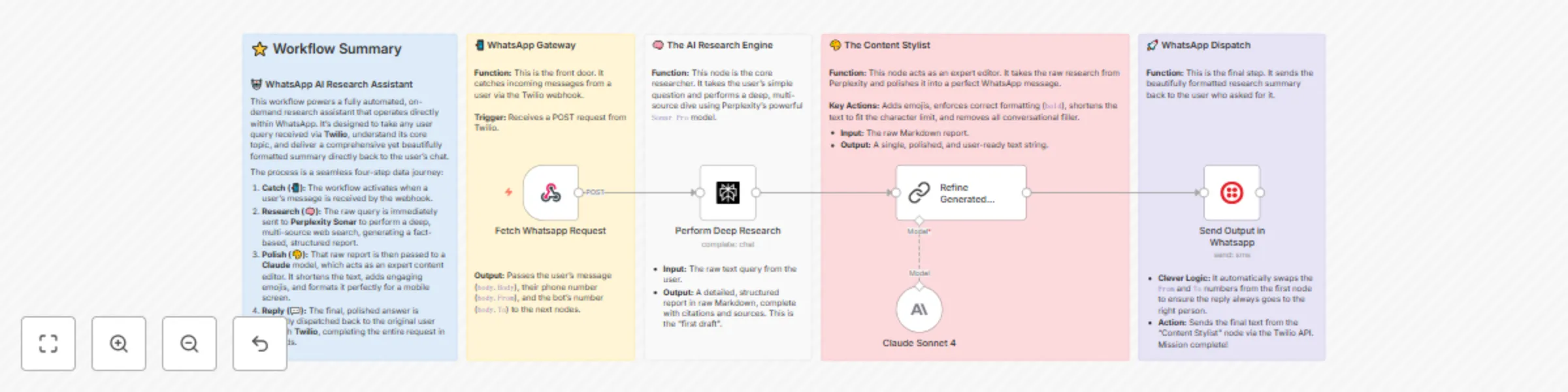
  • πŸ“² Listens for Incoming Queries: The workflow starts when a user sends a message to your configured Twilio WhatsApp number.
  • 🧠 Performs Deep Research: It takes the user's query and feeds it to the Perplexity node, which uses the sonar-pro model to conduct a comprehensive, multi-source analysis on the topic.
  • 🎨 Polishes the Content: The raw, detailed research report from Perplexity is then passed to an Anthropic Claude model. This crucial step refines the text, adds engaging emojis, ensures it's under the WhatsApp character limit, and formats it perfectly for mobile viewing.
  • πŸ’¬ Sends an Instant Reply: The final, beautifully formatted summary is sent directly back to the user's WhatsApp chat via Twilio, completing the entire request.

Nodes Used πŸ› οΈ

  • Webhook: To receive the initial message from Twilio and trigger the workflow.
  • Perplexity: To perform the AI-powered deep research on the user's query.
  • Anthropic (via LangChain): To connect to and use the Claude model for reformatting and polishing the content.
  • Twilio: To send the final, formatted message back to the user on WhatsApp.

How to Set Up This Workflow βš™οΈ

This workflow requires careful setup between n8n and Twilio to function correctly. Follow these steps closely.

1. Prerequisites βœ…

You will need accounts for the following services:

2. Configure Credentials πŸ”‘

In your n8n instance, add your API keys for Twilio, Perplexity, and Anthropic.

3. Set Up Your Twilio WhatsApp Number πŸ“±
  1. Log in to your Twilio account.
  2. Either purchase a phone number that is WhatsApp-enabled or use the free Twilio Sandbox for WhatsApp for testing.
  3. Follow Twilio's guide to connect your number or sandbox to the WhatsApp Business API.
4. Expose Your n8n Webhook URL 🌐

For Twilio to communicate with n8n, your n8n webhook URL must be publicly accessible.

  1. Open the Fetch Whatsapp Request (Webhook) node in the workflow.
  2. You will see two URLs: Test and Production. For this guide, we will use the Test URL.
  3. If you are running n8n locally or on a private server, you must expose this URL to the public internet. You can do this easily using n8n's built-in tunnel feature.
    • Start n8n from your computer's command line with the following command:
      n8n start --tunnel
      
    • After starting, n8n will provide you with a public "tunnel URL". It will look something like https://[subdomain].hooks.n8n.cloud/.
    • Copy this public tunnel URL.
    • Learn more about tunneling in the n8n docs.
5. Connect Twilio to Your n8n Webhook πŸ”—
  1. In your Twilio Console, navigate to the settings for the phone number (or sandbox) you configured in Step 3.
  2. Scroll down to the Messaging section.
  3. Find the field labeled "A MESSAGE COMES IN".
  4. Paste your n8n Test URL (or your public tunnel URL from the previous step) into this field.
  5. Ensure the dropdown next to it is set to HTTP POST.
  6. Click Save.
6. Activate and Test Your Workflow ▢️
  1. Go back to your n8n canvas.
  2. Click "Test workflow" in the top right corner. This will put your webhook in a "listening" state.
  3. Now, send a message from your personal WhatsApp to your configured Twilio WhatsApp number.
  4. You should see the workflow execute successfully in n8n and receive a formatted reply on WhatsApp!
  5. Once you've confirmed it works, save and activate the workflow to have it run permanently.

Further Reading πŸ“š

1.2 Logical Blocks

This catalog entry is organized from the workflow JSON. The node-level section below shows the executable blocks available for review before importing the template.

2. Block-by-Block Analysis

Block 1 - Fetch Whatsapp Request

Type / Role
n8n-nodes-base.webhook - webhook
Config choices
Version 2

Block 2 - Perform Deep Research

Type / Role
n8n-nodes-base.perplexity - perplexity
Config choices
Version 1

Block 3 - Refine Generated Output for Whatsapp

Type / Role
@n8n/n8n-nodes-langchain.chainLlm - chainLlm
Config choices
Version 1.7

Block 4 - Send Output in Whatsapp

Type / Role
n8n-nodes-base.twilio - twilio
Config choices
Version 1

Block 5 - Claude Sonnet 4

Type / Role
@n8n/n8n-nodes-langchain.lmChatAnthropic - lmChatAnthropic
Config choices
Version 1.3

Block 6 - Sticky Note

Type / Role
n8n-nodes-base.stickyNote - stickyNote
Config choices
Version 1

Block 7 - Sticky Note1

Type / Role
n8n-nodes-base.stickyNote - stickyNote
Config choices
Version 1

Block 8 - Sticky Note2

Type / Role
n8n-nodes-base.stickyNote - stickyNote
Config choices
Version 1

Block 9 - Sticky Note3

Type / Role
n8n-nodes-base.stickyNote - stickyNote
Config choices
Version 1

Block 10 - Sticky Note4

Type / Role
n8n-nodes-base.stickyNote - stickyNote
Config choices
Version 1

3. Summary Table

Workflow Research assistant for WhatsApp using Twilio, Perplexity and Claude
Complexity intermediate
Nodes 10
Categories Personal Productivity, AI Chatbot
Author Harsh Maniya
Published 03 Aug 2025

4. Reproducing the Workflow from Scratch

  1. 1. Download the workflow JSON

    Use the JSON export at /data/workflows/6926/6926.json as the source template for this automation.

  2. 2. Import the template into n8n

    Open n8n, import the downloaded JSON, and review each node before activating the workflow.

  3. 3. Configure credentials and variables

    Replace placeholder credentials, API keys, webhook URLs, account IDs, and environment-specific values with your own settings.

  4. 4. Test with sample data

    Run the workflow manually or in a staging workspace, inspect node output, and confirm downstream systems receive the expected data.

  5. 5. Activate and monitor

    Enable the workflow only after testing, then monitor executions, errors, and rate limits during the first production runs.

5. General Notes & Resources

Review imported nodes carefully before activation. This catalog entry is intended to help you inspect the workflow structure, understand required services, and find related templates faster.

Node names, credentials, schedules, webhook paths, and external service limits may need adjustment for your workspace.

Frequently asked questions

What does Research assistant for WhatsApp using Twilio, Perplexity and Claude do?

Build an AI Research Assistant for WhatsApp with Perplexity and Claude Ever wished you could get a deep, multi source research report on any topic, delivered directly to your WhatsApp chat in se...

What do I need before importing this workflow?

Review the workflow JSON, configure any required credentials in n8n, and test the automation in a safe workspace before using it in production.

Can I customize this workflow?

Yes. Use the block-by-block analysis and the downloadable JSON to inspect each node, then adjust credentials, prompts, schedules, filters, or destinations for your Personal Productivity, AI Chatbot use case.