Read palm lines and send AI reports via LINE, Gemini, Gmail and Calendar

Workflow preview

Workflow preview
100%
Read palm lines and send AI reports via LINE, Gemini, Gmail and Calendar preview
Open on n8n.io

1. Workflow Overview

Template description (paste this into the n8n Creator Dashboard) Who is this for This workflow is for anyone who wants to offer a fun, automated palm reading experience through LINE — Japan's domin...

Best for

  • Miscellaneous automation workflows
  • AI Chatbot automation workflows
  • advanced n8n builders looking for reusable templates

Tools used

n8n-nodes-base.stickynote, n8n-nodes-base.webhook, n8n-nodes-base.set, n8n-nodes-base.if, n8n-nodes-base.httprequest, @n8n/n8n-nodes-langchain.chainllm, @n8n/n8n-nodes-langchain.lmchatgooglegemini, n8n-nodes-base.gmail

Source and attribution

This workflow is cataloged by N8N Workflows and links back to its original n8n.io source page by Ryo Sayama.

Original n8n.io source

1.1 Workflow description

Title
Read palm lines and send AI reports via LINE, Gemini, Gmail and Calendar
Workflow name
Read palm lines and send AI reports via LINE, Gemini, Gmail and Calendar

Template description (paste this into the n8n Creator Dashboard)


Who is this for

This workflow is for anyone who wants to offer a fun, automated palm reading experience through LINE — Japan's dominant messaging app with over 90 million active users. It suits indie developers, wellness creators, fortune-telling services, or anyone curious about combining AI vision with multi-channel automation.

What this workflow does

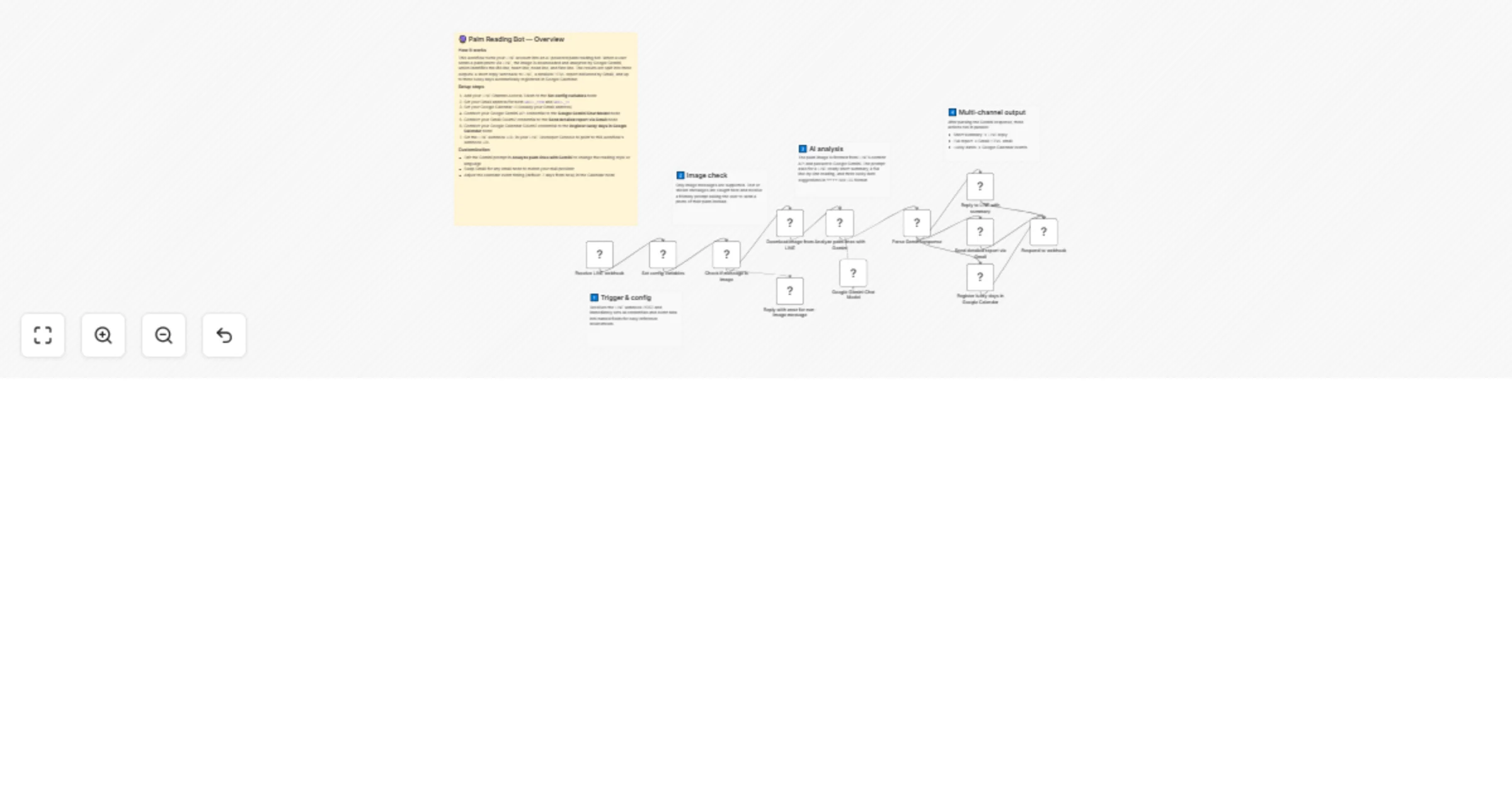
When a user sends a photo of their palm via LINE, the workflow springs into action across five tools:

  1. LINE Messaging API receives the image via webhook
  2. Google Gemini analyzes the palm and produces three outputs: a short LINE-ready summary (under 100 characters), a full reading covering the life line, heart line, head line, and fate line, and three lucky day suggestions with reasons
  3. LINE reply sends the short summary back to the user instantly
  4. Gmail delivers a formatted HTML report with the complete reading to a specified address
  5. Google Calendar registers the three lucky days as calendar events so the user never forgets them

Non-image messages (text, stickers) are caught early and trigger a friendly prompt asking the user to send a palm photo instead.

How to set up

  1. Open the Set config variables node and fill in your LINE_CHANNEL_ACCESS_TOKEN, GMAIL_FROM, GMAIL_TO, and GOOGLE_CALENDAR_ID
  2. Connect your Google Gemini API credential to the Google Gemini Chat Model node
  3. Connect your Gmail OAuth2 credential to the Gmail node
  4. Connect your Google Calendar OAuth2 credential to the Calendar node
  5. Activate the workflow and copy the webhook URL
  6. Paste the webhook URL into your LINE Developer Console under the Messaging API channel settings

Requirements

  • LINE Developer account and a Messaging API channel (free)
  • Google Gemini API key (free tier available at Google AI Studio)
  • Gmail account with OAuth2 set up in n8n
  • Google Calendar with OAuth2 set up in n8n

How to customize

  • Change the reading language: edit the prompt in the Analyze palm lines with Gemini node — swap English for Japanese, Spanish, or any language Gemini supports
  • Adjust the report destination: update GMAIL_TO in the config node to send the report to the user's own address (you could collect it via a prior LINE conversation)
  • Change lucky day timing: the Calendar node currently schedules events starting 7 days from now — adjust the $now.plus() expression to fit your use case
  • Extend the AI prompt: add astrology, tarot, or numerology sections to the Gemini prompt for a richer reading experience

1.2 Logical Blocks

This catalog entry is organized from the workflow JSON. The node-level section below shows the executable blocks available for review before importing the template.

2. Block-by-Block Analysis

Block 1 - Sticky Note — Overview

Type / Role
n8n-nodes-base.stickyNote - stickyNote
Config choices
Version 1

Block 2 - Sticky Note — Trigger section

Type / Role
n8n-nodes-base.stickyNote - stickyNote
Config choices
Version 1

Block 3 - Sticky Note — Image check section

Type / Role
n8n-nodes-base.stickyNote - stickyNote
Config choices
Version 1

Block 4 - Sticky Note — AI analysis section

Type / Role
n8n-nodes-base.stickyNote - stickyNote
Config choices
Version 1

Block 5 - Sticky Note — Output section

Type / Role
n8n-nodes-base.stickyNote - stickyNote
Config choices
Version 1

Block 6 - Receive LINE webhook

Type / Role
n8n-nodes-base.webhook - webhook
Config choices
Version 2

Block 7 - Set config variables

Type / Role
n8n-nodes-base.set - set
Config choices
Version 3.4

Block 8 - Check if message is image

Type / Role
n8n-nodes-base.if - if
Config choices
Version 2.2

Block 9 - Download image from LINE

Type / Role
n8n-nodes-base.httpRequest - httpRequest
Config choices
Version 4.2

Block 10 - Analyze palm lines with Gemini

Type / Role
@n8n/n8n-nodes-langchain.chainLlm - chainLlm
Config choices
Version 1.4

Block 11 - Google Gemini Chat Model

Type / Role
@n8n/n8n-nodes-langchain.lmChatGoogleGemini - lmChatGoogleGemini
Config choices
Version 1

Block 12 - Parse Gemini response

Type / Role
n8n-nodes-base.set - set
Config choices
Version 3.4

Block 13 - Reply to LINE with summary

Type / Role
n8n-nodes-base.httpRequest - httpRequest
Config choices
Version 4.2

Block 14 - Send detailed report via Gmail

Type / Role
n8n-nodes-base.gmail - gmail
Config choices
Version 2.1

Block 15 - Register lucky days in Google Calendar

Type / Role
n8n-nodes-base.googleCalendar - googleCalendar
Config choices
Version 1.3

Block 16 - Reply with error for non-image message

Type / Role
n8n-nodes-base.httpRequest - httpRequest
Config choices
Version 4.2

Block 17 - Respond to webhook

Type / Role
n8n-nodes-base.respondToWebhook - respondToWebhook
Config choices
Version 1.1

3. Summary Table

Workflow Read palm lines and send AI reports via LINE, Gemini, Gmail and Calendar
Complexity advanced
Nodes 17
Categories Miscellaneous, AI Chatbot
Author Ryo Sayama
Published 24 Mar 2026

4. Reproducing the Workflow from Scratch

  1. 1. Download the workflow JSON

    Use the JSON export at /data/workflows/14288/14288.json as the source template for this automation.

  2. 2. Import the template into n8n

    Open n8n, import the downloaded JSON, and review each node before activating the workflow.

  3. 3. Configure credentials and variables

    Replace placeholder credentials, API keys, webhook URLs, account IDs, and environment-specific values with your own settings.

  4. 4. Test with sample data

    Run the workflow manually or in a staging workspace, inspect node output, and confirm downstream systems receive the expected data.

  5. 5. Activate and monitor

    Enable the workflow only after testing, then monitor executions, errors, and rate limits during the first production runs.

5. General Notes & Resources

Review imported nodes carefully before activation. This catalog entry is intended to help you inspect the workflow structure, understand required services, and find related templates faster.

Node names, credentials, schedules, webhook paths, and external service limits may need adjustment for your workspace.

Frequently asked questions

What does Read palm lines and send AI reports via LINE, Gemini, Gmail and Calendar do?

Template description (paste this into the n8n Creator Dashboard) Who is this for This workflow is for anyone who wants to offer a fun, automated palm reading experience through LINE — Japan's domin...

What do I need before importing this workflow?

Review the workflow JSON, configure any required credentials in n8n, and test the automation in a safe workspace before using it in production.

Can I customize this workflow?

Yes. Use the block-by-block analysis and the downloadable JSON to inspect each node, then adjust credentials, prompts, schedules, filters, or destinations for your Miscellaneous, AI Chatbot use case.