Qr code generator via webhook

Workflow preview

Workflow preview
100%
Qr code generator via webhook preview
Open on n8n.io

Important notice

This workflow is provided as-is. Please review and test before using in production.

1. Workflow Overview

This n8n template allows you to instantly generate QR codes from any text or URL by simply sending a webhook request. It's a versatile tool for creating dynamic QR codes for various purposes, from ...

Best for

  • Content Creation automation workflows
  • intermediate n8n builders looking for reusable templates

Tools used

n8n-nodes-base.stickynote, n8n-nodes-base.httprequest, n8n-nodes-base.webhook, n8n-nodes-base.respondtowebhook

Source and attribution

This workflow is cataloged by N8N Workflows and links back to its original n8n.io source page by ist00dent.

Original n8n.io source

1.1 Workflow description

Title
Qr code generator via webhook
Workflow name
Qr code generator via webhook

This n8n template allows you to instantly generate QR codes from any text or URL by simply sending a webhook request. It's a versatile tool for creating dynamic QR codes for various purposes, from marketing campaigns to event registrations, directly integrated into your automated workflows.


๐Ÿ”ง How it works

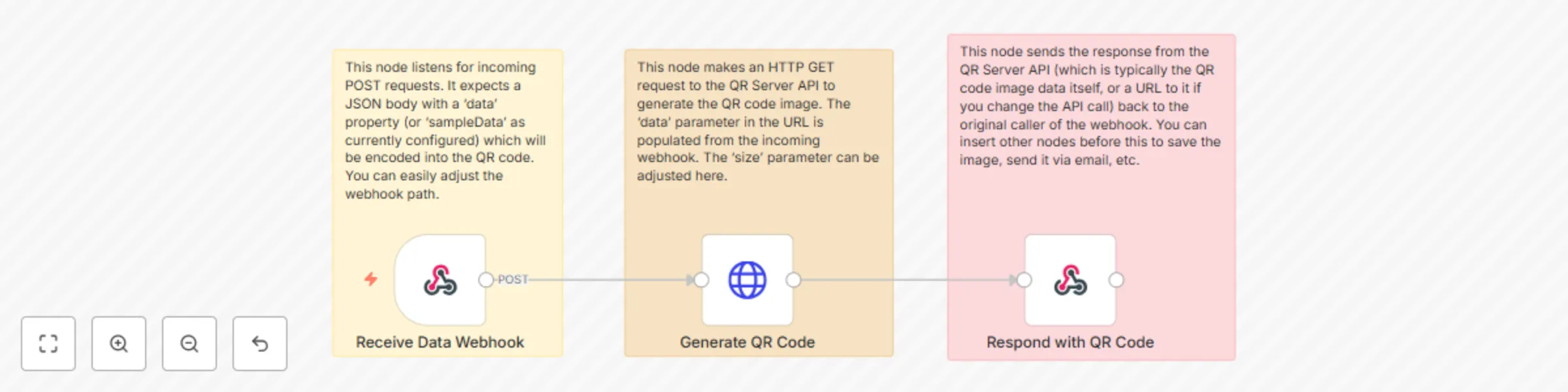
  • Receive Data Webhook: This node acts as the entry point for the workflow. It listens for incoming POST requests and expects a JSON body with a data property containing the text or URL you want to encode into the QR code.
  • Generate QR Code: This node makes an HTTP GET request to the QR Server API (api.qrserver.com) to generate the QR code image. The content from your webhook is passed as the data parameter to the API.
  • Respond with QR Code: This node sends the response from the QR Server API back to the service that initiated the webhook. The QR Server API directly returns the image data, so your webhook response will be the QR code image itself.

๐Ÿ‘ค Who is it for?

This workflow is ideal for:

  • Marketers: Generate QR codes for product links, event registrations, or promotional materials on the fly.
  • Developers: Integrate QR code generation into applications, websites, or internal tools.
  • Event Organizers: Create dynamic QR codes for ticketing, information access, or check-ins.
  • Businesses: Streamline processes requiring physical-to-digital transitions, like menu access or contact sharing.
  • Automation Enthusiasts: Add QR code generation capabilities to any workflow.

๐Ÿ“‘ Data Structure

When you trigger the webhook, send a POST request with a JSON body structured as follows:

{
  "data": "https://www.yourwebsite.com/your-specific-page-or-text-to-encode"
}

The workflow will return the QR code image directly in the response.


โš™๏ธ Setup Instructions

  • Import Workflow: In your n8n editor, click "Import from JSON" and paste the provided workflow JSON.
  • Configure Webhook Path:
    • Double-click the Receive Data Webhook node.
    • In the 'Path' field, set a unique and descriptive path (e.g., /generate-qr).
  • Customize QR Code (Optional):
    • Double-click the Generate QR Code node.
    • You can adjust the size parameter in the URL (e.g., size=200x200 for a larger QR code) or add other parameters supported by the QR Server API (e.g., bgcolor, color, qzone).
  • Activate Workflow: Save and activate the workflow.

๐Ÿ“ Tips

  • Handling the Image Output: Since the QR Server API directly returns the image, the webhook response will be the image data. Depending on your use case, you might want to:
    • Save to File/Cloud: Insert a node (e.g., Write Binary File, Amazon S3, Google Drive) after Generate QR Code to save the image to a file system or cloud storage.
    • Embed in HTML/Email: If you're building an HTML response or sending an email, you might need to convert the image data to a Base64 string or provide a URL to a saved image.
  • Error Handling: Enhance workflow robustness by adding an Error Trigger node. This allows you to catch any issues during QR code generation and set up notifications or logging.
  • Dynamic Size/Color: You can extend the Receive Data Webhook to accept parameters for size, color, or bgcolor in the incoming JSON. Then, dynamically pass these to the url of the Generate QR Code node to create highly customizable QR codes.
  • Input Validation: For more advanced use cases, you could add a Function node after the webhook to validate the incoming data to ensure it's in a valid format (e.g., a URL).

1.2 Logical Blocks

This catalog entry is organized from the workflow JSON. The node-level section below shows the executable blocks available for review before importing the template.

2. Block-by-Block Analysis

Block 1 - Note for Webhook Trigger

Type / Role
n8n-nodes-base.stickyNote - stickyNote
Config choices
Version 1

Block 2 - Note for QR Code Generation

Type / Role
n8n-nodes-base.stickyNote - stickyNote
Config choices
Version 1

Block 3 - Note for Webhook Response

Type / Role
n8n-nodes-base.stickyNote - stickyNote
Config choices
Version 1

Block 4 - Generate QR Code

Type / Role
n8n-nodes-base.httpRequest - httpRequest
Config choices
Version 4.2

Block 5 - Receive Data Webhook

Type / Role
n8n-nodes-base.webhook - webhook
Config choices
Version 2

Block 6 - Respond with QR Code

Type / Role
n8n-nodes-base.respondToWebhook - respondToWebhook
Config choices
Version 1.2

3. Summary Table

Workflow Qr code generator via webhook
Complexity intermediate
Nodes 6
Categories Content Creation
Author ist00dent
Published 02 Jun 2025

4. Reproducing the Workflow from Scratch

  1. 1. Download the workflow JSON

    Use the JSON export at /data/workflows/4596/4596.json as the source template for this automation.

  2. 2. Import the template into n8n

    Open n8n, import the downloaded JSON, and review each node before activating the workflow.

  3. 3. Configure credentials and variables

    Replace placeholder credentials, API keys, webhook URLs, account IDs, and environment-specific values with your own settings.

  4. 4. Test with sample data

    Run the workflow manually or in a staging workspace, inspect node output, and confirm downstream systems receive the expected data.

  5. 5. Activate and monitor

    Enable the workflow only after testing, then monitor executions, errors, and rate limits during the first production runs.

5. General Notes & Resources

Review imported nodes carefully before activation. This catalog entry is intended to help you inspect the workflow structure, understand required services, and find related templates faster.

Node names, credentials, schedules, webhook paths, and external service limits may need adjustment for your workspace.

Frequently asked questions

What does Qr code generator via webhook do?

This n8n template allows you to instantly generate QR codes from any text or URL by simply sending a webhook request. It's a versatile tool for creating dynamic QR codes for various purposes, from ...

What do I need before importing this workflow?

Review the workflow JSON, configure any required credentials in n8n, and test the automation in a safe workspace before using it in production.

Can I customize this workflow?

Yes. Use the block-by-block analysis and the downloadable JSON to inspect each node, then adjust credentials, prompts, schedules, filters, or destinations for your Content Creation use case.