Publish SEO blogs to WordPress with GPT-4.1, DALL-E, Gemini, and Google Sheets

Workflow preview

Workflow preview
100%
Publish SEO blogs to WordPress with GPT-4.1, DALL-E, Gemini, and Google Sheets preview
Open on n8n.io

1. Workflow Overview

Automatically publish blog content to WordPress with AI generated branded images, internal linking, and client reporting using Google Sheets, OpenAI, and Gemini What this workflow does This workflo...

Best for

  • Content Creation automation workflows
  • Multimodal AI automation workflows
  • advanced n8n builders looking for reusable templates

Tools used

n8n-nodes-base.executeworkflowtrigger, n8n-nodes-base.stickynote, n8n-nodes-base.googlesheets, n8n-nodes-base.set, n8n-nodes-base.filter, n8n-nodes-base.aggregate, @n8n/n8n-nodes-langchain.agent, @n8n/n8n-nodes-langchain.lmchatgooglegemini

Source and attribution

This workflow is cataloged by N8N Workflows and links back to its original n8n.io source page by isaWOW.

Original n8n.io source

1.1 Workflow description

Title
Publish SEO blogs to WordPress with GPT-4.1, DALL-E, Gemini, and Google Sheets
Workflow name
Publish SEO blogs to WordPress with GPT-4.1, DALL-E, Gemini, and Google Sheets

Automatically publish blog content to WordPress with AI-generated branded images, internal linking, and client reporting using Google Sheets, OpenAI, and Gemini

What this workflow does

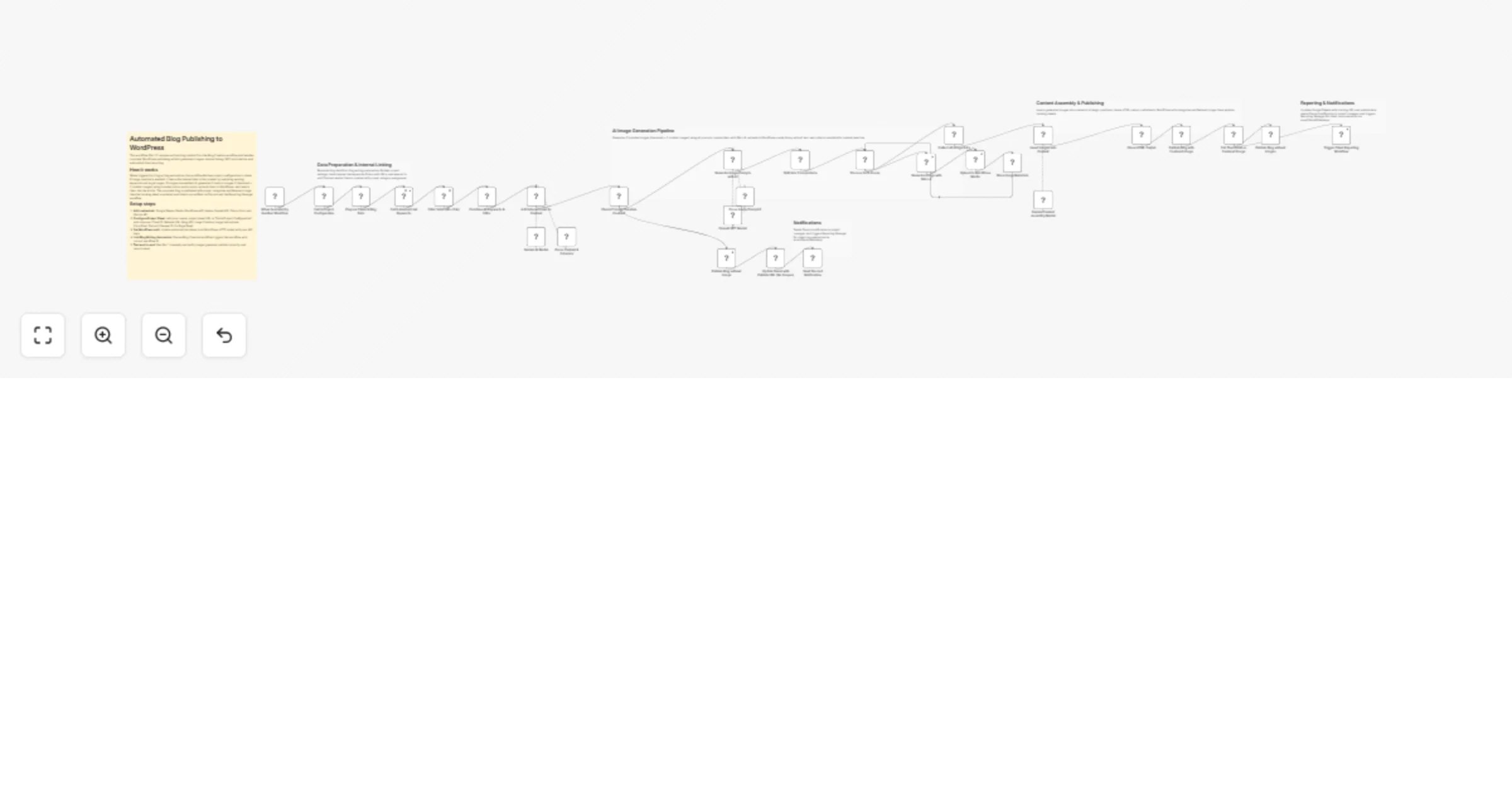
This workflow receives written blog content from your content creation automation and handles the complete WordPress publishing process. It adds internal links to your content based on target keywords, generates 3 AI-powered branded images (thumbnail + 2 content images), uploads them to WordPress, inserts them into your article, publishes the complete blog with proper categories, updates tracking sheets, and notifies clients automatically.

Perfect for agencies managing multiple client blogs who want to eliminate manual publishing tasks while maintaining brand consistency and SEO optimization.

Key features

Intelligent internal linking: Automatically analyzes your target keywords and adds up to 3 natural anchor links within the content to improve site SEO and user navigation

AI image generation: Creates 3 professional branded images using DALL-E based on your blog topic and brand colors - one thumbnail with overlay text and two supporting content images

Automated WordPress publishing: Publishes blogs with proper categories, sets featured images, and handles all WordPress REST API interactions without manual intervention

Multi-client management: Processes different projects based on individual client settings including image preferences, brand colors, and reporting requirements

Tracking and reporting: Updates Google Sheets with live URLs and publish dates, sends Discord notifications to project managers, and triggers client reporting workflows

How it works

  1. Receives content from writing automation: Triggered by your blog content creation workflow with title, body content, focus keyword, and client details

  2. Fetches project configuration: Loads client-specific settings from Google Sheets including website URL, WordPress API credentials, image creation preferences, and brand guidelines

  3. Adds internal links: Retrieves target keywords and URLs from project sheets, filters valid links, and uses Gemini AI to intelligently insert 3 contextual anchor links

  4. Generates branded images (if enabled): Uses OpenAI GPT to create detailed image prompts based on blog topic and brand colors, then generates 3 images with DALL-E (thumbnail with text overlay + 2 content images)

  5. Uploads to WordPress media library: Processes each image through a loop, uploads to WordPress, stores metadata including URLs and alt text

  6. Inserts images into content: Uses Gemini AI to intelligently place images at strategic positions within the article while preserving existing HTML structure and anchor links

  7. Publishes to WordPress: Creates the blog post with proper title, content, categories, and sets the thumbnail as featured image via REST API

  8. Updates tracking sheets: Records the live blog URL and publish date in Google Sheets for project management

  9. Sends notifications: Triggers Discord alerts for project managers and executes the Reporting Manager workflow for client communication via email, Slack, or WhatsApp

Setup requirements

Tools you'll need:

  • Active n8n instance (self-hosted or n8n Cloud)
  • Google Sheets with OAuth access for project management
  • WordPress site with REST API enabled and proper authentication
  • OpenAI API key (for DALL-E image generation)
  • Google Gemini API key (for content processing)
  • Discord bot (optional, for team notifications)
  • Blog Content Creation workflow (Part 1 - sold separately or built independently)

Estimated setup time: 30-40 minutes

Configuration steps

  1. Add credentials in n8n:
  • Google Sheets OAuth API
  • OpenAI API (for DALL-E image generation)
  • Google Gemini API (for AI content processing)
  • Discord Bot API (for notifications)
  • WordPress credentials (API tokens)
  1. Set up Project Central Sheet: Create a master Google Sheet with these columns:
  • Client ID
  • Website URL
  • Blog API (WordPress auth token)
  • GMB Name (business name)
  • Image Creation (Yes/No)
  • Image Instructions (specific image guidelines)
  • Color and Font (brand colors in hex format)
  • Discord Channel ID
  • Project Manager Discord ID
  • On Page Sheet (URL to client's tracking sheet)
  • Project Information Sheet (URL to internal linking keywords sheet)
  • Categories (WordPress category IDs)

Update the sheet URL in the "Fetch Project Configuration" node

  1. Create client-specific sheets: For each client, maintain two sheets:

Sheet 1: TGT Keywords (for internal linking)

  • Keywords column: Target keywords to link
  • Target Pages column: Full URLs to link to

Sheet 2: Content Requirement & Posting (for tracking)

  • row_number: Unique identifier
  • Focus Keyword: Target SEO keyword
  • Content Topic: Blog title
  • Publish URLs: Live blog URL (auto-filled)
  • Published Date: Publish date (auto-filled)
  1. Configure WordPress authentication:
  • Enable REST API on your WordPress site
  • Generate API authentication tokens
  • Update authorization values in these nodes:
  • "Upload to WordPress Media"
  • "Publish Blog with Featured Image"
  • "Set Thumbnail as Featured Image"
  • "Publish Blog without Images"
  1. Connect to Blog Creation workflow:
  • Ensure your Blog Content Creation workflow (Part 1) triggers this workflow
  • The trigger should pass these workflow inputs:
  • Client ID
  • Blog S.NO. (row number)
  • Blog Title
  • Content (HTML formatted)
  • OnPage SEO (tracking sheet URL)
  • Focus Keyword
  1. Set up Reporting Manager (optional):
  • Create or connect your client reporting workflow
  • Update the workflow ID in "Trigger Client Reporting Workflow" node
  • This sends automated reports to clients via email, Slack, or WhatsApp
  1. Test the workflow:
  • Run your Blog Creation workflow manually with test data
  • Verify images generate correctly with brand colors
  • Check WordPress post publishes with featured image
  • Confirm tracking sheet updates
  • Test Discord notification delivery

Use cases

Marketing agencies: Manage blog publishing for 10+ clients with different brand guidelines and WordPress sites from a single automation

Content teams: Eliminate 2-3 hours of manual work per blog by automating image creation, internal linking, and WordPress publishing

SEO specialists: Ensure consistent internal linking and proper category assignment across all published content

Freelance writers: Offer end-to-end blog services including branded image creation and WordPress publishing without manual intervention

SaaS companies: Maintain consistent blog publishing schedule across multiple product blogs with automated tracking and reporting

Customization options

Modify image generation:

  • Edit the "Generate Image Prompts with AI" node to change image style, dimensions, or prompt instructions
  • Change DALL-E model or image size in "Generate Image with DALL-E" node

Adjust internal linking:

  • Modify the "Add Internal Links to Content" agent prompt to change linking strategy (more/fewer links, different placement rules)

Change notification channels:

  • Replace Discord with Slack, email, or webhook notifications
  • Add multiple notification channels in parallel

WordPress customization:

  • Add custom fields, tags, or metadata to published posts
  • Integrate with WordPress plugins via REST API extensions

Troubleshooting

Images not generating: Check OpenAI API key validity and account credits. Verify image prompt node receives content properly.

WordPress publish fails: Confirm REST API is enabled, authentication tokens are correct, and site URL is properly formatted with trailing slash.

Internal links not appearing: Ensure "TGT Keywords" sheet has valid URLs starting with "http" and filter node is working correctly.

Tracking sheet not updating: Verify Google Sheets OAuth connection and that row_number matches between sheets.

Discord notification fails: Check Discord bot permissions and channel ID accuracy.

Resources

Important notes

  • This workflow is specifically for blog publishing. To use it correctly, you must first have a Blog Content Creation workflow that generates the blog title, content, and required metadata.
  • I have already shared a Blog Writing Automation workflow, which you can use directly for content creation before running this publishing workflow.
  • Make sure the content creation workflow runs before this publishing workflow, as this setup depends on the generated output.

Support

Need help or custom development?

📧 Email: [email protected] 🌐 Website: https://isawow.com/


1.2 Logical Blocks

This catalog entry is organized from the workflow JSON. The node-level section below shows the executable blocks available for review before importing the template.

2. Block-by-Block Analysis

Block 1 - When Executed by Another Workflow

Type / Role
n8n-nodes-base.executeWorkflowTrigger - executeWorkflowTrigger
Config choices
Version 1.1

Block 2 - Sticky Note2

Type / Role
n8n-nodes-base.stickyNote - stickyNote
Config choices
Version 1

Block 3 - Fetch Project Configuration

Type / Role
n8n-nodes-base.googleSheets - googleSheets
Config choices
Version 4.7

Block 4 - Prepare Client & Blog Data

Type / Role
n8n-nodes-base.set - set
Config choices
Version 3.4

Block 5 - Fetch Internal Link Keywords

Type / Role
n8n-nodes-base.googleSheets - googleSheets
Config choices
Version 4.7

Block 6 - Filter Valid URLs Only

Type / Role
n8n-nodes-base.filter - filter
Config choices
Version 2.2

Block 7 - Combine All Keywords & URLs

Type / Role
n8n-nodes-base.aggregate - aggregate
Config choices
Version 1

Block 8 - Add Internal Links to Content

Type / Role
@n8n/n8n-nodes-langchain.agent - agent
Config choices
Version 2.2

Block 9 - Gemini AI Model

Type / Role
@n8n/n8n-nodes-langchain.lmChatGoogleGemini - lmChatGoogleGemini
Config choices
Version 1

Block 10 - Parse Content & Category

Type / Role
@n8n/n8n-nodes-langchain.outputParserStructured - outputParserStructured
Config choices
Version 1.3

Block 11 - Check If Image Creation Enabled

Type / Role
n8n-nodes-base.if - if
Config choices
Version 2.2

Block 12 - Generate Image Prompts with AI

Type / Role
@n8n/n8n-nodes-langchain.agent - agent
Config choices
Version 2

Block 13 - OpenAI GPT Model

Type / Role
@n8n/n8n-nodes-langchain.lmChatOpenAi - lmChatOpenAi
Config choices
Version 1.2

Block 14 - Process Each Image

Type / Role
n8n-nodes-base.splitInBatches - splitInBatches
Config choices
Version 3

Block 15 - Parse Image Prompts1

Type / Role
@n8n/n8n-nodes-langchain.outputParserStructured - outputParserStructured
Config choices
Version 1.3

Block 16 - Split into 3 Image Items

Type / Role
n8n-nodes-base.code - code
Config choices
Version 2

Block 17 - Generate Image with DALL-E

Type / Role
@n8n/n8n-nodes-langchain.openAi - openAi
Config choices
Version 1.8

Block 18 - Upload to WordPress Media

Type / Role
n8n-nodes-base.httpRequest - httpRequest
Config choices
Version 4.2

Block 19 - Store Image Metadata

Type / Role
n8n-nodes-base.set - set
Config choices
Version 3.4

Block 20 - Collect All Image Data

Type / Role
n8n-nodes-base.aggregate - aggregate
Config choices
Version 1

Block 21 - Insert Images into Content

Type / Role
@n8n/n8n-nodes-langchain.agent - agent
Config choices
Version 2.2

Block 22 - Gemini Content Assembly Model

Type / Role
@n8n/n8n-nodes-langchain.lmChatGoogleGemini - lmChatGoogleGemini
Config choices
Version 1

Block 23 - Clean HTML Output

Type / Role
n8n-nodes-base.code - code
Config choices
Version 2

Block 24 - Publish Blog with Featured Image

Type / Role
n8n-nodes-base.httpRequest - httpRequest
Config choices
Version 4.2

Showing the first 24 of 35 workflow blocks. Download the JSON for the full node graph.

3. Summary Table

Workflow Publish SEO blogs to WordPress with GPT-4.1, DALL-E, Gemini, and Google Sheets
Complexity advanced
Nodes 35
Categories Content Creation, Multimodal AI
Author isaWOW
Published 30 Jan 2026

4. Reproducing the Workflow from Scratch

  1. 1. Download the workflow JSON

    Use the JSON export at /data/workflows/13113/13113.json as the source template for this automation.

  2. 2. Import the template into n8n

    Open n8n, import the downloaded JSON, and review each node before activating the workflow.

  3. 3. Configure credentials and variables

    Replace placeholder credentials, API keys, webhook URLs, account IDs, and environment-specific values with your own settings.

  4. 4. Test with sample data

    Run the workflow manually or in a staging workspace, inspect node output, and confirm downstream systems receive the expected data.

  5. 5. Activate and monitor

    Enable the workflow only after testing, then monitor executions, errors, and rate limits during the first production runs.

5. General Notes & Resources

Review imported nodes carefully before activation. This catalog entry is intended to help you inspect the workflow structure, understand required services, and find related templates faster.

Node names, credentials, schedules, webhook paths, and external service limits may need adjustment for your workspace.

Frequently asked questions

What does Publish SEO blogs to WordPress with GPT-4.1, DALL-E, Gemini, and Google Sheets do?

Automatically publish blog content to WordPress with AI generated branded images, internal linking, and client reporting using Google Sheets, OpenAI, and Gemini What this workflow does This workflo...

What do I need before importing this workflow?

Review the workflow JSON, configure any required credentials in n8n, and test the automation in a safe workspace before using it in production.

Can I customize this workflow?

Yes. Use the block-by-block analysis and the downloadable JSON to inspect each node, then adjust credentials, prompts, schedules, filters, or destinations for your Content Creation, Multimodal AI use case.