Post AI videos to YouTube with Fal AI Veo3.1, Google Sheets, and YouTube API

Workflow preview

Workflow preview
100%
Post AI videos to YouTube with Fal AI Veo3.1, Google Sheets, and YouTube API preview
Open on n8n.io

1. Workflow Overview

What It Is An automated workflow for creating Veo3.1 videos and posting them to YouTube . The workflow consists of three main phases: 1. Create Veo3.1 Video 2. Wait for Video Processing 3. Post on ...

Best for

  • Content Creation automation workflows
  • Multimodal AI automation workflows
  • advanced n8n builders looking for reusable templates

Tools used

n8n-nodes-base.googlesheets, n8n-nodes-base.formtrigger, n8n-nodes-base.wait, n8n-nodes-base.youtube, n8n-nodes-base.stickynote, n8n-nodes-base.httprequest, @n8n/n8n-nodes-langchain.chainllm, @n8n/n8n-nodes-langchain.agent

Source and attribution

This workflow is cataloged by N8N Workflows and links back to its original n8n.io source page by Ari Nakos.

Original n8n.io source

1.1 Workflow description

Title
Post AI videos to YouTube with Fal AI Veo3.1, Google Sheets, and YouTube API
Workflow name
Post AI videos to YouTube with Fal AI Veo3.1, Google Sheets, and YouTube API

What It Is

An automated workflow for creating Veo3.1 videos and posting them to YouTube.

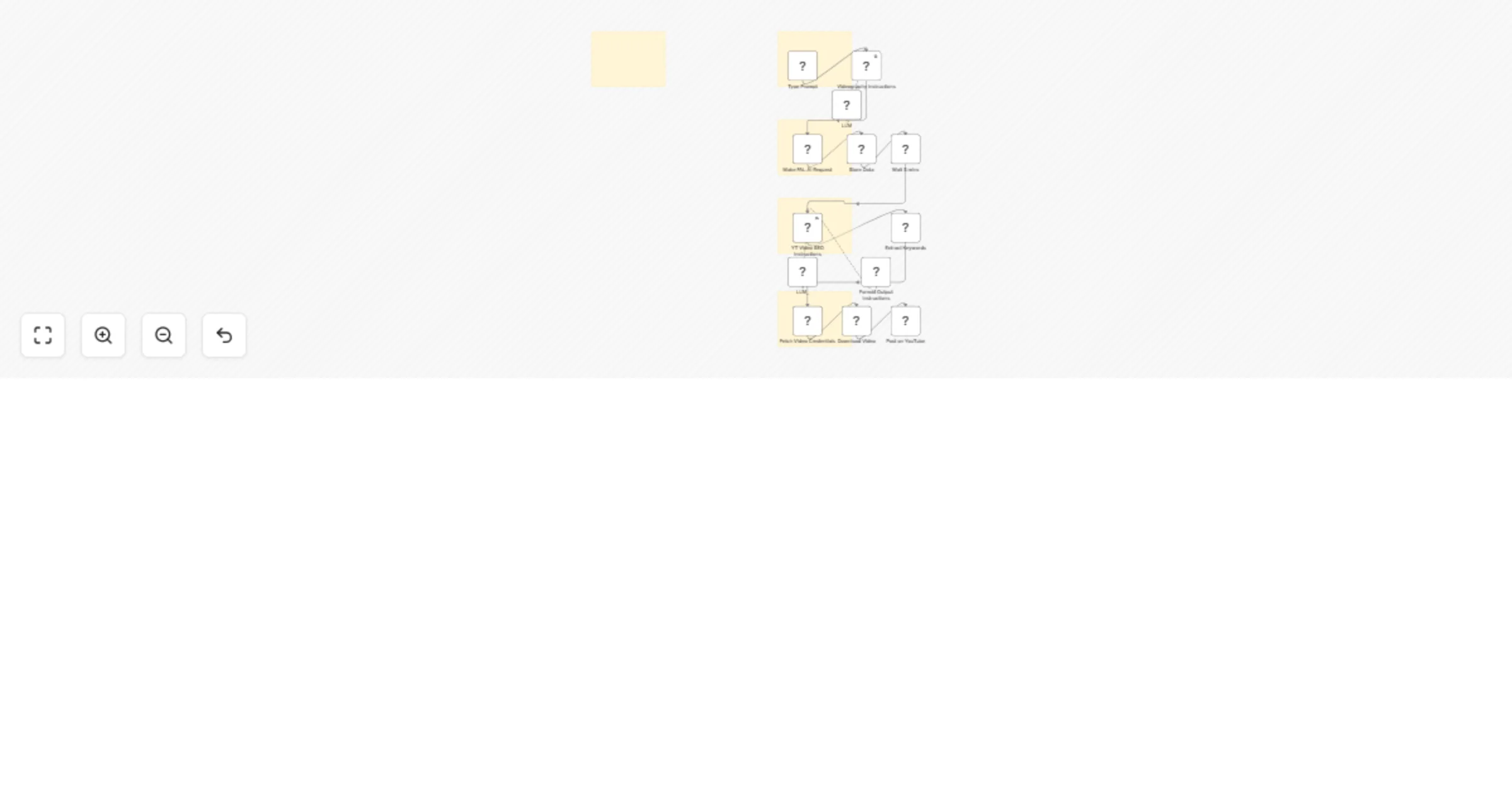
The workflow consists of three main phases:

  1. Create Veo3.1 Video
  2. Wait for Video Processing
  3. Post on YouTube

Create Veo3.1 Video

This phase handles initial video creation based on user input.

Type Prompt

A form trigger collects the user’s inputs:

  • Prompt: A simple scenario for the video.
  • Aspect Ratio: e.g., 16:9, 9:16, 1:1
  • Videography (AI Refinement): An LLM refines the user’s prompt into a detailed "script-to-screen" format suitable for video generation.

Make FAL.AI Request

  • Sends the refined prompt to the Fal.ai Veo 3.1 model via HTTP request.
  • Video duration is fixed at 8 seconds.

Store Data

Stores video request details in a Google Sheet, including:

  • Request date
  • Refined prompt
  • Fal.ai request URL

Wait for Video Processing

  • The workflow pauses for 5 minutes.
  • Veo videos typically require 3–5 minutes to finish processing.

Post on YouTube

This phase generates YouTube-optimized metadata and uploads the final video.

YT Video SEO

An LLM (acting as a YouTube SEO + viral strategist) generates:

  • Video Title: Under 6 words
  • Video Description: Detailed and optimized
  • Video Tags: Relevant tags for discoverability

It follows virality best practices and YouTube’s tag rules.

Structured Output

  • Parses structured JSON returned by the AI agent.

Get Keywords

  • Extracts and formats tags into a comma-separated list suitable for YouTube.

Fetch Video Credentials

  • Retrieves the final video URL and metadata from Fal.ai.

Download Video

  • Downloads the generated video file.

Post on YouTube

  • Uploads the video with the generated title, description, tags, and category.

Setup

To run this workflow, configure the following credentials in n8n:

OpenRouter

  • Generate an API key from your OpenRouter account.

Google Sheets

  • Uses OAuth 2.0
  • Authenticate with your Google account.

YouTube Data API

  • Configure credentials that allow n8n to post videos to YouTube.

1.2 Logical Blocks

This catalog entry is organized from the workflow JSON. The node-level section below shows the executable blocks available for review before importing the template.

2. Block-by-Block Analysis

Block 1 - Store Data

Type / Role
n8n-nodes-base.googleSheets - googleSheets
Config choices
Version 4.5

Block 2 - Type Prompt

Type / Role
n8n-nodes-base.formTrigger - formTrigger
Config choices
Version 2.2

Block 3 - Wait 5 mins

Type / Role
n8n-nodes-base.wait - wait
Config choices
Version 1.1

Block 4 - Post on YouTube

Type / Role
n8n-nodes-base.youTube - youTube
Config choices
Version 1

Block 5 - Sticky Note1

Type / Role
n8n-nodes-base.stickyNote - stickyNote
Config choices
Version 1

Block 6 - Fetch Video Credentials

Type / Role
n8n-nodes-base.httpRequest - httpRequest
Config choices
Version 4.2

Block 7 - Download Video

Type / Role
n8n-nodes-base.httpRequest - httpRequest
Config choices
Version 4.2

Block 8 - Make FAL.AI Request

Type / Role
n8n-nodes-base.httpRequest - httpRequest
Config choices
Version 4

Block 9 - Videography Instructions

Type / Role
@n8n/n8n-nodes-langchain.chainLlm - chainLlm
Config choices
Version 1.6

Block 10 - YT Video SEO Instructions

Type / Role
@n8n/n8n-nodes-langchain.agent - agent
Config choices
Version 1.9

Block 11 - LLM

Type / Role
@n8n/n8n-nodes-langchain.lmChatOpenRouter - lmChatOpenRouter
Config choices
Version 1

Block 12 - LLM_

Type / Role
@n8n/n8n-nodes-langchain.lmChatOpenRouter - lmChatOpenRouter
Config choices
Version 1

Block 13 - Format Output Instructions

Type / Role
@n8n/n8n-nodes-langchain.outputParserStructured - outputParserStructured
Config choices
Version 1.2

Block 14 - Extract Keywords

Type / Role
n8n-nodes-base.code - code
Config choices
Version 2

Block 15 - Sticky Note

Type / Role
n8n-nodes-base.stickyNote - stickyNote
Config choices
Version 1

Block 16 - Sticky Note2

Type / Role
n8n-nodes-base.stickyNote - stickyNote
Config choices
Version 1

Block 17 - Sticky Note3

Type / Role
n8n-nodes-base.stickyNote - stickyNote
Config choices
Version 1

Block 18 - Sticky Note4

Type / Role
n8n-nodes-base.stickyNote - stickyNote
Config choices
Version 1

3. Summary Table

Workflow Post AI videos to YouTube with Fal AI Veo3.1, Google Sheets, and YouTube API
Complexity advanced
Nodes 18
Categories Content Creation, Multimodal AI
Author Ari Nakos
Published 14 Nov 2025

4. Reproducing the Workflow from Scratch

  1. 1. Download the workflow JSON

    Use the JSON export at /data/workflows/10807/10807.json as the source template for this automation.

  2. 2. Import the template into n8n

    Open n8n, import the downloaded JSON, and review each node before activating the workflow.

  3. 3. Configure credentials and variables

    Replace placeholder credentials, API keys, webhook URLs, account IDs, and environment-specific values with your own settings.

  4. 4. Test with sample data

    Run the workflow manually or in a staging workspace, inspect node output, and confirm downstream systems receive the expected data.

  5. 5. Activate and monitor

    Enable the workflow only after testing, then monitor executions, errors, and rate limits during the first production runs.

5. General Notes & Resources

Review imported nodes carefully before activation. This catalog entry is intended to help you inspect the workflow structure, understand required services, and find related templates faster.

Node names, credentials, schedules, webhook paths, and external service limits may need adjustment for your workspace.

Frequently asked questions

What does Post AI videos to YouTube with Fal AI Veo3.1, Google Sheets, and YouTube API do?

What It Is An automated workflow for creating Veo3.1 videos and posting them to YouTube . The workflow consists of three main phases: 1. Create Veo3.1 Video 2. Wait for Video Processing 3. Post on ...

What do I need before importing this workflow?

Review the workflow JSON, configure any required credentials in n8n, and test the automation in a safe workspace before using it in production.

Can I customize this workflow?

Yes. Use the block-by-block analysis and the downloadable JSON to inspect each node, then adjust credentials, prompts, schedules, filters, or destinations for your Content Creation, Multimodal AI use case.