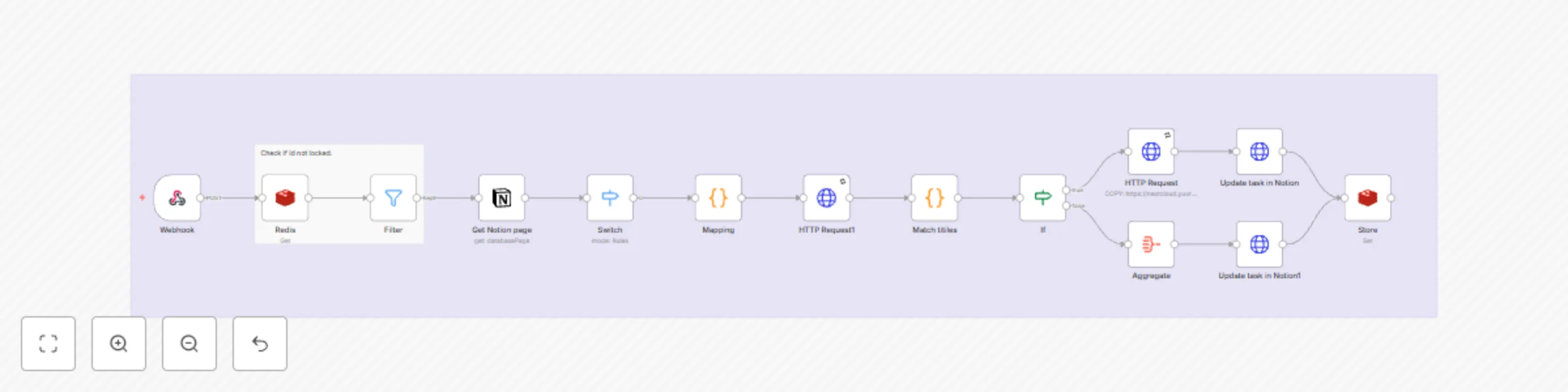
Notion to OneNote for note taking.

Workflow preview

Workflow preview
100%
Notion to OneNote for note taking. preview
Open on n8n.io

Important notice

This workflow is provided as-is. Please review and test before using in production.

1. Workflow Overview

Purpose This solution enables you to manage all your Notion and Todoist tasks from different workspaces as well as your calendar events in a single place. This is 2 way sync with partial support fo...

Best for

  • Personal Productivity automation workflows
  • advanced n8n builders looking for reusable templates

Tools used

n8n-nodes-base.stickynote, n8n-nodes-base.redis, n8n-nodes-base.filter, n8n-nodes-base.switch, n8n-nodes-base.code, n8n-nodes-base.httprequest, n8n-nodes-base.webhook, n8n-nodes-base.notion

Source and attribution

This workflow is cataloged by N8N Workflows and links back to its original n8n.io source page by Yuvraj Singh.

Original n8n.io source

1.1 Workflow description

Title
Notion to OneNote for note taking.
Workflow name
Notion to OneNote for note taking.

Purpose

This solution enables you to manage all your Notion and Todoist tasks from different workspaces as well as your calendar events in a single place. This is 2 way sync with partial support for recurring

How it works

  • The realtime sync consists of two workflows, both triggered by a registered webhook from either Notion or Todoist.
  • To avoid overwrites by lately arriving webhook calls, every time the current task is retrieved from both sides.
  • Redis is used to prevent from endless loops, since an update in one system triggers another webhook call again. Using the ID of the task, the trigger is being locked down for 80 seconds.
  • Depending on the detected changes, the other side is updated accordingly .Generally Notion is treaded as the main source. Using an "Obsolete" Status, it is guaranteed, that tasks never get deleted entirely by accident.
  • The Todoist ID is stored in the Notion task, so they stay linked together
  • An additional full sync workflow daily fixes inconsistencies, if any of them occurred, since webhooks cannot be trusted entirely.
  • Since Todoist requires a more complex setup, a tiny workflow helps with activating the webhook.
  • Another tiny workflow helps generating a global config, which is used by all workflows for mapping purposes.

Mapping (Notion >> Todoist)

  • Name: Task Name
  • Priority: Priority (1: do first, 2: urgent, 3: important, 4: unset)
  • Due: Date
  • Status: Section (Done: completed, Obsolete: deleted)
  • <page_link>: Description (read-only)
  • Todoist ID: <task_id>

Current limitations

  • Changes on the same task cannot be made simultaneously in both systems within a 15-20 second time frame.
  • Subtasks are not linked automatically to their parent yet.
  • Tasks names do not support URL’s yet.

Credentials

Follow the video:

  • Setup credentials for Notion (access token), Todoist (access token) and Redis.

Todoist

Notion

  • Follow this video to get Notion Integration Secret.

Redis

  • Follow this video to get Redis

Setup

The setup involves quite a lot of steps, yet many of them can be automated for business internal purposes.

Just follow the video or do the following steps:

  • Setup credentials for Notion (access token), Todoist (access token) and Redis - you can also create empty credentials and populate these later during further setup
  • Clone this workflow by clicking the "Use workflow" button and then choosing your n8n instance - otherwise you need to map the credentials of many nodes.
  • Follow the instructions described within the bundle of sticky notes on the top left of the workflow

How to use

  • You can apply changes (create, update, delete) to tasks both in Notion and Todoist which then get synced over within a couple of seconds (this is handled by the differential realtime sync)
  • The daily running full sync, resolves possible discrepancies in Todoist.

This workflow incorporates ideas and techniques inspired by Mario (https://n8n.io/creators/octionic/) whose expertise with specific nodes helped shape parts of this automation. Significant enhancements and customizations have been made to deliver a unique and improved solution.

1.2 Logical Blocks

This catalog entry is organized from the workflow JSON. The node-level section below shows the executable blocks available for review before importing the template.

2. Block-by-Block Analysis

Block 1 - Sticky Note

Type / Role
n8n-nodes-base.stickyNote - stickyNote
Config choices
Version 1

Block 2 - Sticky Note1

Type / Role
n8n-nodes-base.stickyNote - stickyNote
Config choices
Version 1

Block 3 - Redis

Type / Role
n8n-nodes-base.redis - redis
Config choices
Version 1

Block 4 - Filter

Type / Role
n8n-nodes-base.filter - filter
Config choices
Version 2.2

Block 5 - Switch

Type / Role
n8n-nodes-base.switch - switch
Config choices
Version 3.2

Block 6 - Mapping

Type / Role
n8n-nodes-base.code - code
Config choices
Version 2

Block 7 - Update task in Notion

Type / Role
n8n-nodes-base.httpRequest - httpRequest
Config choices
Version 4.2

Block 8 - Store

Type / Role
n8n-nodes-base.redis - redis
Config choices
Version 1

Block 9 - HTTP Request

Type / Role
n8n-nodes-base.httpRequest - httpRequest
Config choices
Version 4.2

Block 10 - Webhook

Type / Role
n8n-nodes-base.webhook - webhook
Config choices
Version 2

Block 11 - Get Notion page

Type / Role
n8n-nodes-base.notion - notion
Config choices
Version 2.2

Block 12 - HTTP Request1

Type / Role
n8n-nodes-base.httpRequest - httpRequest
Config choices
Version 4.2

Block 13 - If

Type / Role
n8n-nodes-base.if - if
Config choices
Version 2.2

Block 14 - Match titiles

Type / Role
n8n-nodes-base.code - code
Config choices
Version 2

Block 15 - Aggregate

Type / Role
n8n-nodes-base.aggregate - aggregate
Config choices
Version 1

Block 16 - Update task in Notion1

Type / Role
n8n-nodes-base.httpRequest - httpRequest
Config choices
Version 4.2

3. Summary Table

Workflow Notion to OneNote for note taking.
Complexity advanced
Nodes 16
Categories Personal Productivity
Author Yuvraj Singh
Published 21 Nov 2025

4. Reproducing the Workflow from Scratch

  1. 1. Download the workflow JSON

    Use the JSON export at /data/workflows/11088/11088.json as the source template for this automation.

  2. 2. Import the template into n8n

    Open n8n, import the downloaded JSON, and review each node before activating the workflow.

  3. 3. Configure credentials and variables

    Replace placeholder credentials, API keys, webhook URLs, account IDs, and environment-specific values with your own settings.

  4. 4. Test with sample data

    Run the workflow manually or in a staging workspace, inspect node output, and confirm downstream systems receive the expected data.

  5. 5. Activate and monitor

    Enable the workflow only after testing, then monitor executions, errors, and rate limits during the first production runs.

5. General Notes & Resources

Review imported nodes carefully before activation. This catalog entry is intended to help you inspect the workflow structure, understand required services, and find related templates faster.

Node names, credentials, schedules, webhook paths, and external service limits may need adjustment for your workspace.

Frequently asked questions

What does Notion to OneNote for note taking. do?

Purpose This solution enables you to manage all your Notion and Todoist tasks from different workspaces as well as your calendar events in a single place. This is 2 way sync with partial support fo...

What do I need before importing this workflow?

Review the workflow JSON, configure any required credentials in n8n, and test the automation in a safe workspace before using it in production.

Can I customize this workflow?

Yes. Use the block-by-block analysis and the downloadable JSON to inspect each node, then adjust credentials, prompts, schedules, filters, or destinations for your Personal Productivity use case.