Natural language to SQL converter for Google Sheets with GPT-4o

Workflow preview

Workflow preview
100%
Natural language to SQL converter for Google Sheets with GPT-4o preview
Open on n8n.io

Important notice

This workflow is provided as-is. Please review and test before using in production.

1. Workflow Overview

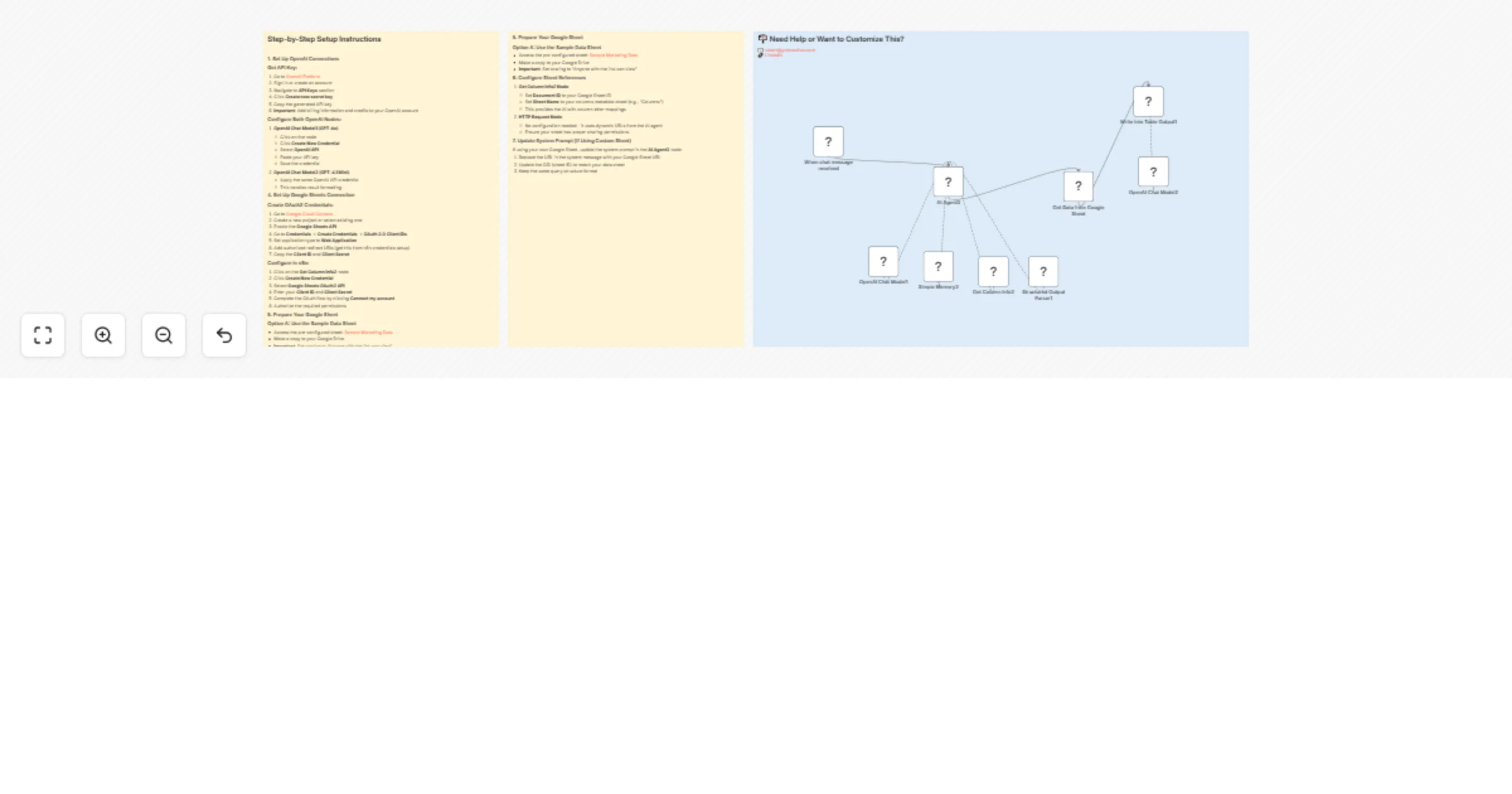
This n8n workflow template creates an intelligent data analysis system that converts natural language questions into Google Sheets SQL queries using OpenAI's GPT 4o model. The system generates prop...

Best for

  • Document Extraction automation workflows
  • Multimodal AI automation workflows
  • intermediate n8n builders looking for reusable templates

Tools used

@n8n/n8n-nodes-langchain.agent, n8n-nodes-base.googlesheetstool, @n8n/n8n-nodes-langchain.memorybufferwindow, @n8n/n8n-nodes-langchain.lmchatopenai, n8n-nodes-base.stickynote, @n8n/n8n-nodes-langchain.outputparserstructured, @n8n/n8n-nodes-langchain.chattrigger, n8n-nodes-base.httprequest

Source and attribution

This workflow is cataloged by N8N Workflows and links back to its original n8n.io source page by Robert Breen.

Original n8n.io source

1.1 Workflow description

Title
Natural language to SQL converter for Google Sheets with GPT-4o
Workflow name
Natural language to SQL converter for Google Sheets with GPT-4o

This n8n workflow template creates an intelligent data analysis system that converts natural language questions into Google Sheets SQL queries using OpenAI's GPT-4o model. The system generates proper Google Sheets query URLs and executes them via HTTP requests for efficient data retrieval.

What This Workflow Does

  • Natural Language to SQL: Converts user questions into Google Sheets SQL syntax
  • Direct HTTP Queries: Bypasses API limits by using Google Sheets' built-in query functionality
  • Column Letter Mapping: Automatically maps column names to their corresponding letters (A, B, C, etc.)
  • Structured Query Generation: Outputs properly formatted Google Sheets query URLs
  • Real-time Data Access: Retrieves live data directly from Google Sheets
  • Memory Management: Maintains conversation context for follow-up questions

Tools Used

  • OpenAI Chat Model (GPT-4o) - SQL query generation and natural language understanding
  • OpenAI Chat Model (GPT-4.1 Mini) - Result formatting and table output
  • Google Sheets Tool - Column metadata extraction and schema understanding
  • HTTP Request Node - Direct data retrieval via Google Sheets query API
  • Structured Output Parser - Formats AI responses into executable queries
  • Memory Buffer Window - Conversation history management
  • Chat Trigger - Webhook-based conversation interface

Step-by-Step Setup Instructions

1. Prerequisites

Before starting, ensure you have:

  • An n8n instance (cloud or self-hosted)
  • An OpenAI account with API access and billing setup
  • A Google account with access to Google Sheets
  • The target Google Sheet must be publicly accessible or shareable via link

2. Import the Workflow

  1. Copy the workflow JSON provided
  2. In your n8n instance, go to WorkflowsImport from JSON
  3. Paste the JSON and click Import
  4. Save with a descriptive name like "Google Sheets SQL Query Generator"

3. Set Up OpenAI Connections

Get API Key:
  1. Go to OpenAI Platform
  2. Sign in or create an account
  3. Navigate to API Keys section
  4. Click Create new secret key
  5. Copy the generated API key
  6. Important: Add billing information and credits to your OpenAI account
Configure Both OpenAI Nodes:
  1. OpenAI Chat Model1 (GPT-4o):

    • Click on the node
    • Click Create New Credential
    • Select OpenAI API
    • Paste your API key
    • Save the credential
  2. OpenAI Chat Model2 (GPT-4.1 Mini):

    • Apply the same OpenAI API credential
    • This handles result formatting

4. Set Up Google Sheets Connection

Create OAuth2 Credentials:
  1. Go to Google Cloud Console
  2. Create a new project or select existing one
  3. Enable the Google Sheets API
  4. Go to CredentialsCreate CredentialsOAuth 2.0 Client IDs
  5. Set application type to Web Application
  6. Add authorized redirect URIs (get this from n8n credentials setup)
  7. Copy the Client ID and Client Secret
Configure in n8n:
  1. Click on the Get Column Info2 node
  2. Click Create New Credential
  3. Select Google Sheets OAuth2 API
  4. Enter your Client ID and Client Secret
  5. Complete the OAuth flow by clicking Connect my account
  6. Authorize the required permissions

5. Prepare Your Google Sheet

Option A: Use the Sample Data Sheet
  • Access the pre-configured sheet: Sample Marketing Data
  • Make a copy to your Google Drive
  • Important: Set sharing to "Anyone with the link can view"
  1. Critical: Set sharing to "Anyone with the link can view" for HTTP access
  2. Copy the Sheet ID from the URL
  3. Update the Get Column Info2 node with your Sheet ID and column metadata sheet

6. Configure Sheet References

  1. Get Column Info2 Node:

    • Set Document ID to your Google Sheet ID
    • Set Sheet Name to your columns metadata sheet (e.g., "Columns")
    • This provides the AI with column letter mappings
  2. HTTP Request Node:

    • No configuration needed - it uses dynamic URLs from the AI agent
    • Ensure your sheet has proper sharing permissions

7. Update System Prompt (If Using Custom Sheet)

If using your own Google Sheet, update the system prompt in the AI Agent3 node:

  1. Replace the URL in the system message with your Google Sheet URL
  2. Update the GID (sheet ID) to match your data sheet
  3. Keep the same query structure format

Contact Information

Robert Ynteractive

For support, customization, or questions about this template:

Need help implementing this workflow, want to add security features, or require custom modifications? Reach out for professional n8n automation services and AI integration support.

1.2 Logical Blocks

This catalog entry is organized from the workflow JSON. The node-level section below shows the executable blocks available for review before importing the template.

2. Block-by-Block Analysis

Block 1 - AI Agent3

Type / Role
@n8n/n8n-nodes-langchain.agent - agent
Config choices
Version 2.2

Block 2 - Get Column Info2

Type / Role
n8n-nodes-base.googleSheetsTool - googleSheetsTool
Config choices
Version 4.7

Block 3 - Simple Memory2

Type / Role
@n8n/n8n-nodes-langchain.memoryBufferWindow - memoryBufferWindow
Config choices
Version 1.3

Block 4 - OpenAI Chat Model1

Type / Role
@n8n/n8n-nodes-langchain.lmChatOpenAi - lmChatOpenAi
Config choices
Version 1.2

Block 5 - Sticky Note5

Type / Role
n8n-nodes-base.stickyNote - stickyNote
Config choices
Version 1

Block 6 - Structured Output Parser1

Type / Role
@n8n/n8n-nodes-langchain.outputParserStructured - outputParserStructured
Config choices
Version 1.3

Block 7 - OpenAI Chat Model2

Type / Role
@n8n/n8n-nodes-langchain.lmChatOpenAi - lmChatOpenAi
Config choices
Version 1.2

Block 8 - When chat message received

Type / Role
@n8n/n8n-nodes-langchain.chatTrigger - chatTrigger
Config choices
Version 1.3

Block 9 - Get Data from Google Sheet

Type / Role
n8n-nodes-base.httpRequest - httpRequest
Config choices
Version 4.2

Block 10 - Write into Table Output1

Type / Role
@n8n/n8n-nodes-langchain.agent - agent
Config choices
Version 2.2

Block 11 - Sticky Note12

Type / Role
n8n-nodes-base.stickyNote - stickyNote
Config choices
Version 1

Block 12 - Sticky Note13

Type / Role
n8n-nodes-base.stickyNote - stickyNote
Config choices
Version 1

3. Summary Table

Workflow Natural language to SQL converter for Google Sheets with GPT-4o
Complexity intermediate
Nodes 12
Categories Document Extraction, Multimodal AI
Author Robert Breen
Published 15 Aug 2025

4. Reproducing the Workflow from Scratch

  1. 1. Download the workflow JSON

    Use the JSON export at /data/workflows/7451/7451.json as the source template for this automation.

  2. 2. Import the template into n8n

    Open n8n, import the downloaded JSON, and review each node before activating the workflow.

  3. 3. Configure credentials and variables

    Replace placeholder credentials, API keys, webhook URLs, account IDs, and environment-specific values with your own settings.

  4. 4. Test with sample data

    Run the workflow manually or in a staging workspace, inspect node output, and confirm downstream systems receive the expected data.

  5. 5. Activate and monitor

    Enable the workflow only after testing, then monitor executions, errors, and rate limits during the first production runs.

5. General Notes & Resources

Review imported nodes carefully before activation. This catalog entry is intended to help you inspect the workflow structure, understand required services, and find related templates faster.

Node names, credentials, schedules, webhook paths, and external service limits may need adjustment for your workspace.

Frequently asked questions

What does Natural language to SQL converter for Google Sheets with GPT-4o do?

This n8n workflow template creates an intelligent data analysis system that converts natural language questions into Google Sheets SQL queries using OpenAI's GPT 4o model. The system generates prop...

What do I need before importing this workflow?

Review the workflow JSON, configure any required credentials in n8n, and test the automation in a safe workspace before using it in production.

Can I customize this workflow?

Yes. Use the block-by-block analysis and the downloadable JSON to inspect each node, then adjust credentials, prompts, schedules, filters, or destinations for your Document Extraction, Multimodal AI use case.