Natural language Google Sheets data analysis with Gemini AI

Workflow preview

Workflow preview
100%
Natural language Google Sheets data analysis with Gemini AI preview
Open on n8n.io

Important notice

This workflow is provided as-is. Please review and test before using in production.

1. Workflow Overview

This n8n workflow template creates an efficient data analysis system that uses Google Gemini AI to interpret user questions about spreadsheet data and processes them through a specialized sub workf...

Best for

  • Document Extraction automation workflows
  • Multimodal AI automation workflows
  • advanced n8n builders looking for reusable templates

Tools used

n8n-nodes-base.stickynote, @n8n/n8n-nodes-langchain.lmchatgooglegemini, n8n-nodes-base.googlesheetstool, n8n-nodes-base.executeworkflowtrigger, @n8n/n8n-nodes-langchain.outputparserstructured, @n8n/n8n-nodes-langchain.memorybufferwindow, @n8n/n8n-nodes-langchain.agent, n8n-nodes-base.executeworkflow

Source and attribution

This workflow is cataloged by N8N Workflows and links back to its original n8n.io source page by Robert Breen.

Original n8n.io source

1.1 Workflow description

Title
Natural language Google Sheets data analysis with Gemini AI
Workflow name
Natural language Google Sheets data analysis with Gemini AI

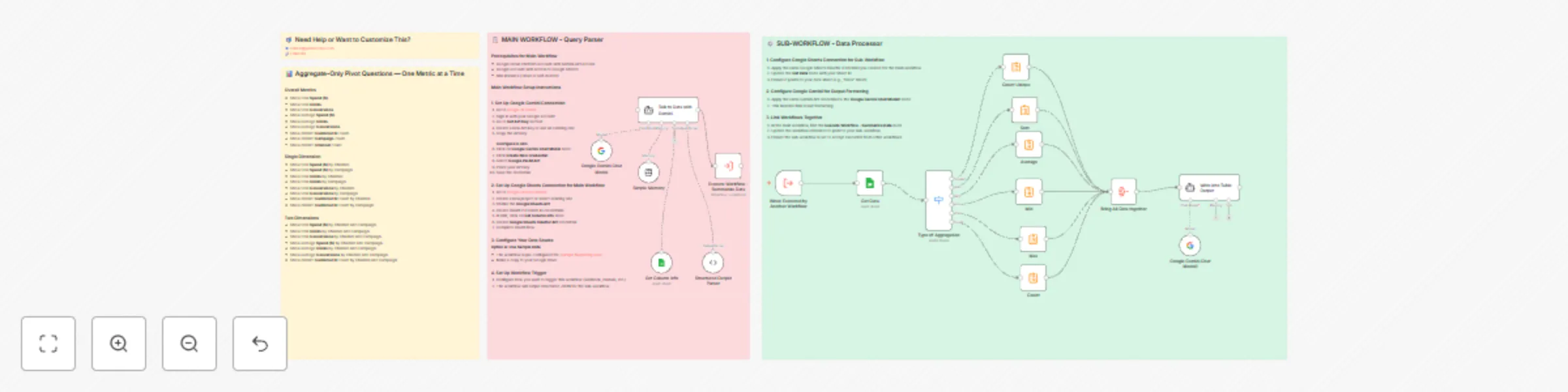
This n8n workflow template creates an efficient data analysis system that uses Google Gemini AI to interpret user questions about spreadsheet data and processes them through a specialized sub-workflow for optimized token usage and faster responses.

What This Workflow Does

  • Smart Query Parsing: Uses Gemini AI to understand natural language questions about your data
  • Efficient Processing: Routes calculations through a dedicated sub-workflow to minimize token consumption
  • Structured Output: Automatically identifies the column, aggregation type, and grouping levels from user queries
  • Multiple Aggregation Types: Supports sum, average, count, count distinct, min, and max operations
  • Flexible Grouping: Can aggregate data by single or multiple dimensions
  • Token Optimization: Processes large datasets without overwhelming AI context limits

Tools Used

  • Google Gemini Chat Model - Natural language query understanding and response formatting
  • Google Sheets Tool - Data access and column metadata extraction
  • Execute Workflow - Sub-workflow processing for data calculations
  • Structured Output Parser - Converts AI responses to actionable parameters
  • Memory Buffer Window - Basic conversation context management
  • Switch Node - Routes to appropriate aggregation method
  • Summarize Nodes - Performs various data aggregations

πŸ“‹ MAIN WORKFLOW - Query Parser

What This Workflow Does

The main workflow receives natural language questions from users and converts them into structured parameters that the sub-workflow can process. It uses Google Gemini AI to understand the intent and extract the necessary information.

Prerequisites for Main Workflow

  • Google Cloud Platform account with Gemini API access
  • Google account with access to Google Sheets
  • n8n instance (cloud or self-hosted)

Main Workflow Setup Instructions

1. Import the Main Workflow
  1. Copy the main workflow JSON provided
  2. In your n8n instance, go to Workflows β†’ Import from JSON
  3. Paste the JSON and click Import
  4. Save with name: "Gemini Data Query Parser"
2. Set Up Google Gemini Connection
  1. Go to Google AI Studio
  2. Sign in with your Google account
  3. Go to Get API Key section
  4. Create a new API key or use an existing one
  5. Copy the API key

Configure in n8n:

  1. Click on Google Gemini Chat Model node
  2. Click Create New Credential
  3. Select Google PaLM API
  4. Paste your API key
  5. Save the credential
3. Set Up Google Sheets Connection for Main Workflow
  1. Go to Google Cloud Console
  2. Create a new project or select existing one
  3. Enable the Google Sheets API
  4. Create OAuth 2.0 Client ID credentials
  5. In n8n, click on Get Column Info node
  6. Create Google Sheets OAuth2 API credential
  7. Complete OAuth flow
4. Configure Your Data Source

Option A: Use Sample Data

Option B: Use Your Own Sheet

  1. Update Get Column Info node with your Sheet ID
  2. Ensure you have a "Columns" sheet for metadata
  3. Update sheet references as needed
5. Set Up Workflow Trigger
  1. Configure how you want to trigger this workflow (webhook, manual, etc.)
  2. The workflow will output structured JSON for the sub-workflow

βš™οΈ SUB-WORKFLOW - Data Processor

What This Workflow Does

The sub-workflow receives structured parameters from the main workflow and performs the actual data calculations. It handles fetching data, routing to appropriate aggregation methods, and formatting results.

Sub-Workflow Setup Instructions

1. Import the Sub-Workflow
  1. Create a new workflow in n8n
  2. Copy the sub-workflow JSON (embedded in the Execute Workflow node)
  3. Import as a separate workflow
  4. Save with name: "Data Processing Sub-Workflow"
2. Configure Google Sheets Connection for Sub-Workflow
  1. Apply the same Google Sheets OAuth2 credential you created for the main workflow
  2. Update the Get Data node with your Sheet ID
  3. Ensure it points to your data sheet (e.g., "Data" sheet)
3. Configure Google Gemini for Output Formatting
  1. Apply the same Gemini API credential to the Google Gemini Chat Model1 node
  2. This handles final result formatting
4. Link Workflows Together
  1. In the main workflow, find the Execute Workflow - Summarize Data node
  2. Update the workflow reference to point to your sub-workflow
  3. Ensure the sub-workflow is set to accept execution from other workflows

Sub-Workflow Components

  • When Executed by Another Workflow: Trigger that receives parameters
  • Get Data: Fetches all data from Google Sheets
  • Type of Aggregation: Switch node that routes based on aggregation type
  • Multiple Summarize Nodes: Handle different aggregation types (sum, avg, count, etc.)
  • Bring All Data Together: Combines results from different aggregation paths
  • Write into Table Output: Formats final results using Gemini AI

Example Usage

Once both workflows are set up, you can ask questions like:

Overall Metrics:

  • "Show total Spend ($)"
  • "Show total Clicks"
  • "Show average Conversions"

Single Dimension:

  • "Show total Spend ($) by Channel"
  • "Show total Clicks by Campaign"

Two Dimensions:

  • "Show total Spend ($) by Channel and Campaign"
  • "Show average Clicks by Channel and Campaign"

Data Flow Between Workflows

  1. Main Workflow: User question β†’ Gemini AI β†’ Structured JSON output
  2. Sub-Workflow: Receives JSON β†’ Fetches data β†’ Performs calculations β†’ Returns formatted table

Contact Information

For support, customization, or questions about this template:

Need help implementing these workflows, want to remove limitations, or require custom modifications? Reach out for professional n8n automation services and AI integration support.

1.2 Logical Blocks

This catalog entry is organized from the workflow JSON. The node-level section below shows the executable blocks available for review before importing the template.

2. Block-by-Block Analysis

Block 1 - Sticky Note

Type / Role
n8n-nodes-base.stickyNote - stickyNote
Config choices
Version 1

Block 2 - Google Gemini Chat Model

Type / Role
@n8n/n8n-nodes-langchain.lmChatGoogleGemini - lmChatGoogleGemini
Config choices
Version 1

Block 3 - Get Column Info

Type / Role
n8n-nodes-base.googleSheetsTool - googleSheetsTool
Config choices
Version 4.7

Block 4 - When Executed by Another Workflow

Type / Role
n8n-nodes-base.executeWorkflowTrigger - executeWorkflowTrigger
Config choices
Version 1.1

Block 5 - Structured Output Parser

Type / Role
@n8n/n8n-nodes-langchain.outputParserStructured - outputParserStructured
Config choices
Version 1.3

Block 6 - Google Gemini Chat Model1

Type / Role
@n8n/n8n-nodes-langchain.lmChatGoogleGemini - lmChatGoogleGemini
Config choices
Version 1

Block 7 - Simple Memory

Type / Role
@n8n/n8n-nodes-langchain.memoryBufferWindow - memoryBufferWindow
Config choices
Version 1.3

Block 8 - Sticky Note1

Type / Role
n8n-nodes-base.stickyNote - stickyNote
Config choices
Version 1

Block 9 - Sticky Note3

Type / Role
n8n-nodes-base.stickyNote - stickyNote
Config choices
Version 1

Block 10 - Sticky Note4

Type / Role
n8n-nodes-base.stickyNote - stickyNote
Config choices
Version 1

Block 11 - Talk to Data with Gemini

Type / Role
@n8n/n8n-nodes-langchain.agent - agent
Config choices
Version 2.2

Block 12 - Execute Workflow - Summarize Data

Type / Role
n8n-nodes-base.executeWorkflow - executeWorkflow
Config choices
Version 1.2

Block 13 - Get Data

Type / Role
n8n-nodes-base.googleSheets - googleSheets
Config choices
Version 4.7

Block 14 - Type of Aggregation

Type / Role
n8n-nodes-base.switch - switch
Config choices
Version 3.2

Block 15 - Bring All Data together

Type / Role
n8n-nodes-base.aggregate - aggregate
Config choices
Version 1

Block 16 - Count Unique

Type / Role
n8n-nodes-base.summarize - summarize
Config choices
Version 1.1

Block 17 - Sum

Type / Role
n8n-nodes-base.summarize - summarize
Config choices
Version 1.1

Block 18 - Average

Type / Role
n8n-nodes-base.summarize - summarize
Config choices
Version 1.1

Block 19 - Min

Type / Role
n8n-nodes-base.summarize - summarize
Config choices
Version 1.1

Block 20 - Max

Type / Role
n8n-nodes-base.summarize - summarize
Config choices
Version 1.1

Block 21 - Count

Type / Role
n8n-nodes-base.summarize - summarize
Config choices
Version 1.1

Block 22 - Write into Table Output

Type / Role
@n8n/n8n-nodes-langchain.agent - agent
Config choices
Version 2.2

3. Summary Table

Workflow Natural language Google Sheets data analysis with Gemini AI
Complexity advanced
Nodes 22
Categories Document Extraction, Multimodal AI
Author Robert Breen
Published 15 Aug 2025

4. Reproducing the Workflow from Scratch

  1. 1. Download the workflow JSON

    Use the JSON export at /data/workflows/7450/7450.json as the source template for this automation.

  2. 2. Import the template into n8n

    Open n8n, import the downloaded JSON, and review each node before activating the workflow.

  3. 3. Configure credentials and variables

    Replace placeholder credentials, API keys, webhook URLs, account IDs, and environment-specific values with your own settings.

  4. 4. Test with sample data

    Run the workflow manually or in a staging workspace, inspect node output, and confirm downstream systems receive the expected data.

  5. 5. Activate and monitor

    Enable the workflow only after testing, then monitor executions, errors, and rate limits during the first production runs.

5. General Notes & Resources

Review imported nodes carefully before activation. This catalog entry is intended to help you inspect the workflow structure, understand required services, and find related templates faster.

Node names, credentials, schedules, webhook paths, and external service limits may need adjustment for your workspace.

Frequently asked questions

What does Natural language Google Sheets data analysis with Gemini AI do?

This n8n workflow template creates an efficient data analysis system that uses Google Gemini AI to interpret user questions about spreadsheet data and processes them through a specialized sub workf...

What do I need before importing this workflow?

Review the workflow JSON, configure any required credentials in n8n, and test the automation in a safe workspace before using it in production.

Can I customize this workflow?

Yes. Use the block-by-block analysis and the downloadable JSON to inspect each node, then adjust credentials, prompts, schedules, filters, or destinations for your Document Extraction, Multimodal AI use case.