Ingest Excel data into Oracle and chat with it using Select AI and Azure OpenAI

Workflow preview

Workflow preview
100%
Ingest Excel data into Oracle and chat with it using Select AI and Azure OpenAI preview
Open on n8n.io

1. Workflow Overview

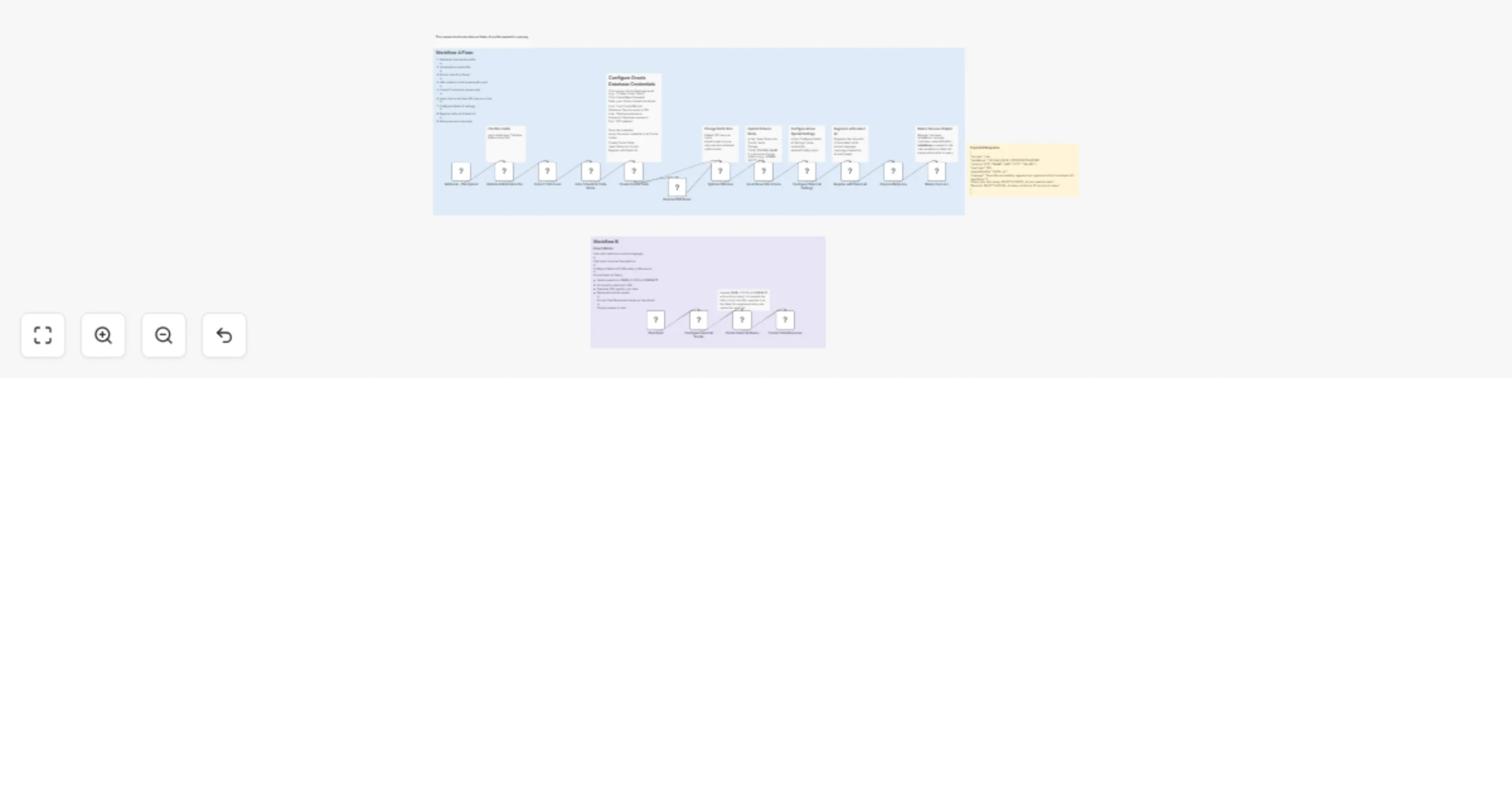
Overview This n8n workflow template enables querying Excel data stored in an Oracle Database using natural language powered by Oracle Select AI . The solution consists of two workflows : Workflow A...

Best for

  • Document Extraction automation workflows
  • AI RAG automation workflows
  • advanced n8n builders looking for reusable templates

Tools used

n8n-nodes-base.webhook, n8n-nodes-base.code, n8n-nodes-base.extractfromfile, n8n-nodes-base.oracledatabase, n8n-nodes-base.splitinbatches, n8n-nodes-base.set, n8n-nodes-base.respondtowebhook, @n8n/n8n-nodes-langchain.chattrigger

Source and attribution

This workflow is cataloged by N8N Workflows and links back to its original n8n.io source page by Saumil Diwaker.

Original n8n.io source

1.1 Workflow description

Title
Ingest Excel data into Oracle and chat with it using Select AI and Azure OpenAI
Workflow name
Ingest Excel data into Oracle and chat with it using Select AI and Azure OpenAI

Overview

This n8n workflow template enables querying Excel data stored in an Oracle Database using natural language powered by Oracle Select AI.

The solution consists of two workflows:

  • Workflow A uploads an Excel file, creates a table in Oracle Database, inserts the data, and registers the table with Oracle Select AI.
  • Workflow B provides a chat interface that allows users to query the uploaded data using natural language.

User questions are translated into SQL by Oracle Select AI, executed directly in the database, and returned as query results.

Features

  • Natural language queries – Ask questions in plain English
  • AI-powered SQL generation – Automatically converts questions to SQL using Oracle Select AI
  • Real-time responses – Queries run directly on Oracle Database
  • Secure by design – Data never leaves Oracle Database
  • Chat UI support – Built-in chat interface when the workflow is public
  • API-ready – Can be used as a REST API endpoint

Prerequisites

Oracle Database

  • Oracle Database 23ai or later (required for Select AI)
  • Database user with the following privileges:
  • CREATE TABLE
  • INSERT
  • EXECUTE on DBMS_CLOUD_AI

Oracle Select AI supports the following AI providers:

  • OCI Generative AI
  • OpenAI
  • Azure OpenAI (used in this template)
  • Google Gemini

Azure OpenAI

  • Active Azure OpenAI resource
  • Deployed GPT model (for example: gpt-4, gpt-4o-mini)
  • Azure resource name and deployment name

Oracle Credential for Azure OpenAI

Create an Oracle credential to securely store the Azure OpenAI API key:

BEGIN
 DBMS_CLOUD.CREATE_CREDENTIAL(
 credential_name => 'AZURE_OPENAI_CRED',
 username => 'azure_openai',
 password => 'YOUR_AZURE_OPENAI_API_KEY'
 );
END;
/

Select AI Configuration

In Workflow A, update the Select AI configuration node with your environment details:

{
 "profile_name": "EXCEL_AI",
 "provider": "azure",
 "azure_resource_name": "YOUR_RESOURCE_NAME",
 "azure_deployment_name": "YOUR_MODEL_DEPLOYMENT",
 "credential_name": "AZURE_OPENAI_CRED",
 "table_name": "AUTO_GENERATED"
}

Note: The table name is generated automatically during upload and should not be modified manually.

Usage

Upload Excel File (Workflow A)

Upload an Excel file using the webhook endpoint:

curl -X POST \
 -F "[email protected]" \
 https://your-n8n-instance.com/webhook/upload-excel

Expected Response

{
 "success": true,
 "tableName": "UPLOAD_EXCEL_20260209123456789",
 "columns": ["ID", "NAME", "AGE", "CITY", "SALARY"],
 "rowCount": 150,
 "selectAIProfile": "EXCEL_AI",
 "message": "Excel file successfully ingested and registered with Oracle Select AI",
 "nextSteps": [
 "Query your data using: SELECT AI EXCEL_AI <your question>",
 "Example: SELECT AI EXCEL_AI show me the top 10 records by salary"
 ]
}

The returned tableName is used internally by Workflow B to scope chat queries to the correct dataset.

Query Your Data with Select AI (Workflow B)

After the Excel file is uploaded and registered, you can query the data using natural language through Workflow B.

Example Select AI Queries

After uploading an Excel file, you can query the data using natural language.

Examples:

  • Show me the top 10 records by salary from EXCEL_UPLOAD_COMPANY_TABLE
  • EXCEL_AI count records grouped by city EXCEL_UPLOAD_TRAVEL_TABLE
  • What is the average salary per department from EXCEL_UPLOAD_DEPT_TABLE

Workflow B must be used together with Workflow A and must be configured with the same:

  • Oracle Database
  • Select AI profile name
  • Azure OpenAI configuration

References

Oracle Select AI Documentation https://docs.oracle.com/en-us/iaas/autonomous-database-serverless/doc/select-ai-examples.html

Azure OpenAI Documentation https://learn.microsoft.com/azure/ai-services/openai/

Oracle LiveLabs – Select AI Workshop https://livelabs.oracle.com/ords/r/dbpm/livelabs/run-workshop?p210_wid=3831

1.2 Logical Blocks

This catalog entry is organized from the workflow JSON. The node-level section below shows the executable blocks available for review before importing the template.

2. Block-by-Block Analysis

Block 1 - Webhook - File Upload

Type / Role
n8n-nodes-base.webhook - webhook
Config choices
Version 1.1

Block 2 - Validate & Normalize File

Type / Role
n8n-nodes-base.code - code
Config choices
Version 2

Block 3 - Extract from Excel

Type / Role
n8n-nodes-base.extractFromFile - extractFromFile
Config choices
Version 1

Block 4 - Infer Schema & Table Name

Type / Role
n8n-nodes-base.code - code
Config choices
Version 2

Block 5 - Create Oracle Table

Type / Role
n8n-nodes-base.oracleDatabase - oracleDatabase
Config choices
Version 1

Block 6 - Restore Data Rows

Type / Role
n8n-nodes-base.code - code
Config choices
Version 2

Block 7 - Split into Batches

Type / Role
n8n-nodes-base.splitInBatches - splitInBatches
Config choices
Version 3

Block 8 - Insert Rows into Oracle

Type / Role
n8n-nodes-base.oracleDatabase - oracleDatabase
Config choices
Version 1

Block 9 - Configure Select AI Settings

Type / Role
n8n-nodes-base.set - set
Config choices
Version 3.4

Block 10 - Register with Select AI

Type / Role
n8n-nodes-base.oracleDatabase - oracleDatabase
Config choices
Version 1

Block 11 - Prepare Response

Type / Role
n8n-nodes-base.code - code
Config choices
Version 2

Block 12 - Return Success

Type / Role
n8n-nodes-base.respondToWebhook - respondToWebhook
Config choices
Version 1

Block 13 - Chat Input

Type / Role
@n8n/n8n-nodes-langchain.chatTrigger - chatTrigger
Config choices
Version 1

Block 14 - Configure Select AI Profile

Type / Role
n8n-nodes-base.set - set
Config choices
Version 3.4

Block 15 - Oracle Select AI Query

Type / Role
n8n-nodes-base.oracleDatabase - oracleDatabase
Config choices
Version 1

Block 16 - Format Chat Response

Type / Role
n8n-nodes-base.code - code
Config choices
Version 2

Block 17 - Sticky Note1

Type / Role
n8n-nodes-base.stickyNote - stickyNote
Config choices
Version 1

Block 18 - Sticky Note2

Type / Role
n8n-nodes-base.stickyNote - stickyNote
Config choices
Version 1

Block 19 - Sticky Note3

Type / Role
n8n-nodes-base.stickyNote - stickyNote
Config choices
Version 1

Block 20 - Sticky Note4

Type / Role
n8n-nodes-base.stickyNote - stickyNote
Config choices
Version 1

Block 21 - Sticky Note5

Type / Role
n8n-nodes-base.stickyNote - stickyNote
Config choices
Version 1

Block 22 - Sticky Note6

Type / Role
n8n-nodes-base.stickyNote - stickyNote
Config choices
Version 1

Block 23 - Sticky Note7

Type / Role
n8n-nodes-base.stickyNote - stickyNote
Config choices
Version 1

Block 24 - Sticky Note8

Type / Role
n8n-nodes-base.stickyNote - stickyNote
Config choices
Version 1

Showing the first 24 of 28 workflow blocks. Download the JSON for the full node graph.

3. Summary Table

Workflow Ingest Excel data into Oracle and chat with it using Select AI and Azure OpenAI
Complexity advanced
Nodes 28
Categories Document Extraction, AI RAG
Author Saumil Diwaker
Published 09 Feb 2026

4. Reproducing the Workflow from Scratch

  1. 1. Download the workflow JSON

    Use the JSON export at /data/workflows/13264/13264.json as the source template for this automation.

  2. 2. Import the template into n8n

    Open n8n, import the downloaded JSON, and review each node before activating the workflow.

  3. 3. Configure credentials and variables

    Replace placeholder credentials, API keys, webhook URLs, account IDs, and environment-specific values with your own settings.

  4. 4. Test with sample data

    Run the workflow manually or in a staging workspace, inspect node output, and confirm downstream systems receive the expected data.

  5. 5. Activate and monitor

    Enable the workflow only after testing, then monitor executions, errors, and rate limits during the first production runs.

5. General Notes & Resources

Review imported nodes carefully before activation. This catalog entry is intended to help you inspect the workflow structure, understand required services, and find related templates faster.

Node names, credentials, schedules, webhook paths, and external service limits may need adjustment for your workspace.

Frequently asked questions

What does Ingest Excel data into Oracle and chat with it using Select AI and Azure OpenAI do?

Overview This n8n workflow template enables querying Excel data stored in an Oracle Database using natural language powered by Oracle Select AI . The solution consists of two workflows : Workflow A...

What do I need before importing this workflow?

Review the workflow JSON, configure any required credentials in n8n, and test the automation in a safe workspace before using it in production.

Can I customize this workflow?

Yes. Use the block-by-block analysis and the downloadable JSON to inspect each node, then adjust credentials, prompts, schedules, filters, or destinations for your Document Extraction, AI RAG use case.