Block 1 - On clicking 'execute'
- Type / Role
- n8n-nodes-base.manualTrigger - manualTrigger
- Config choices
- Version 1


 Early Deal
This workflow is provided as-is. Please review and test before using in production.
I'm currently trialing a 4 day work week for all staff at my company, and one of the major impacts on productivity is interruptions. As such, I opted to use N8N to create a workflow to monitor my G...
n8n-nodes-base.manualtrigger, n8n-nodes-base.googlecalendar, n8n-nodes-base.httprequest, n8n-nodes-base.switch, n8n-nodes-base.googlecalendartrigger, n8n-nodes-base.slack, n8n-nodes-base.function
This workflow is cataloged by N8N Workflows and links back to its original n8n.io source page by TheUnknownEntity.
Original n8n.io sourceI'm currently trialing a 4 day work week for all staff at my company, and one of the major impacts on productivity is interruptions.
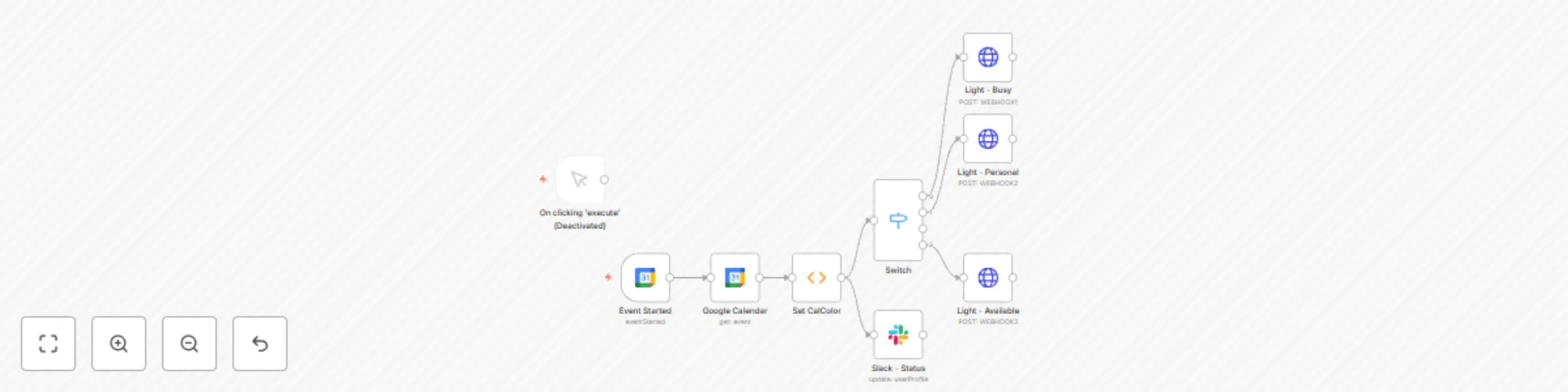
As such, I opted to use N8N to create a workflow to monitor my Google Calendar and when an event starts, to update my Slack status with an emote and the title of the calendar task. Additionally I opted to include to change the colour of Philips Hue lamp located in my living room where my wife is currently working so she know's if she can interrupt me or not.
My calendar is built on the theory behind the Diary Detox system and as such the Slack Status reflect the colours involved. This was achieved using the emote aliases for the relevant colour circles.
The Philips Hue lamp status is changed via the local API with Home Assistant. This is a very similiar process to controlling it with something like the Streamdeck, but the workflow calls the Webhook instead of the Streamdeck. This process can be found in lots of Youtube videos such as this.
This gives my wife a very quick and easy way to know if she can interrupt me in my office (when the lights are Green or Blue) or when I'm busy (Red).
Please Note: The above images are not intended to be an incentive to create your own Squid Games.
Additionally, when integrating Slack with N8N, there are 2 x APIs which can be used. Typically the Bot User OAuth Token is used, however in order for your Status to be updated, the User OAuth Token must be used with the users.profile:read and users.profile:write permissions enabled.
For clarity, I have removed the Webhooks from the Workflow as this would allow any person to control my lights. These can be inserted in the HTTP Request nodes. Each node responds to a different automation within the Home Assistant infrastructure.
Acknowledgement: I would also credit Jon (Discord) aka 8668 (Workflows) for writing the Function node which turns the ColorID into a named variable.
This catalog entry is organized from the workflow JSON. The node-level section below shows the executable blocks available for review before importing the template.
| Workflow | Google Calendar to Slack Status and Philips Hue |
|---|---|
| Complexity | intermediate |
| Nodes | 9 |
| Categories | Personal Productivity |
| Author | TheUnknownEntity |
| Published | 01 Feb 2022 |
Use the JSON export at /data/workflows/1420/1420.json as the source template for this automation.
Open n8n, import the downloaded JSON, and review each node before activating the workflow.
Replace placeholder credentials, API keys, webhook URLs, account IDs, and environment-specific values with your own settings.
Run the workflow manually or in a staging workspace, inspect node output, and confirm downstream systems receive the expected data.
Enable the workflow only after testing, then monitor executions, errors, and rate limits during the first production runs.
Review imported nodes carefully before activation. This catalog entry is intended to help you inspect the workflow structure, understand required services, and find related templates faster.
Node names, credentials, schedules, webhook paths, and external service limits may need adjustment for your workspace.
I'm currently trialing a 4 day work week for all staff at my company, and one of the major impacts on productivity is interruptions. As such, I opted to use N8N to create a workflow to monitor my G...
Review the workflow JSON, configure any required credentials in n8n, and test the automation in a safe workspace before using it in production.
Yes. Use the block-by-block analysis and the downloadable JSON to inspect each node, then adjust credentials, prompts, schedules, filters, or destinations for your Personal Productivity use case.