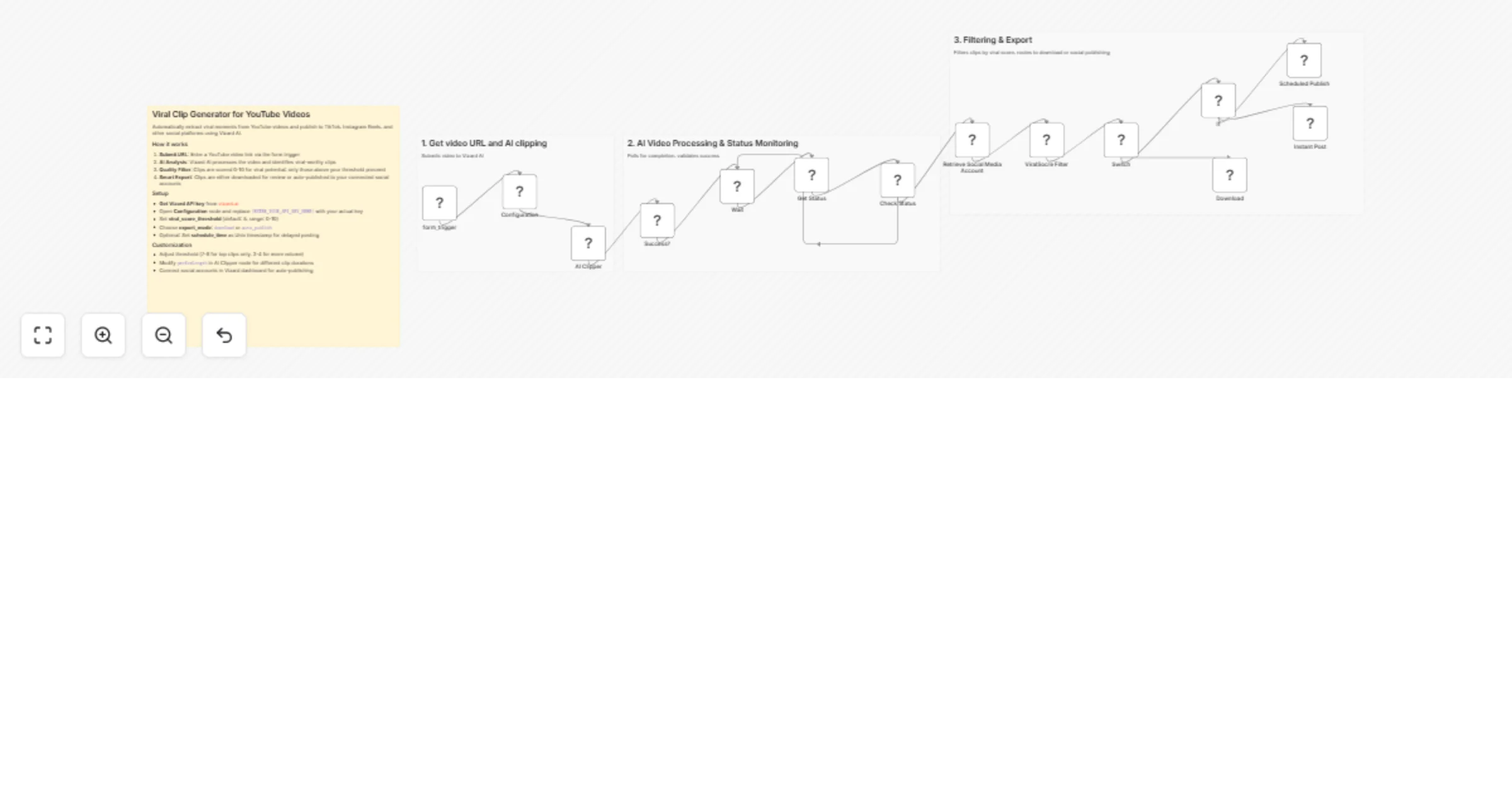
Generate TikTok and Instagram reel clips from YouTube videos with Vizard AI

Workflow preview

Workflow preview
100%
Generate TikTok and Instagram reel clips from YouTube videos with Vizard AI preview
Open on n8n.io

1. Workflow Overview

What This Workflow Does Automatically extract viral moments from YouTube videos and publish to social media platforms. Quick Start Guide 1. Configure Settings Open the Configuration node and fill i...

Best for

  • Content Creation automation workflows
  • Multimodal AI automation workflows
  • advanced n8n builders looking for reusable templates

Tools used

n8n-nodes-base.formtrigger, n8n-nodes-base.httprequest, n8n-nodes-base.wait, n8n-nodes-base.switch, n8n-nodes-base.if, n8n-nodes-base.set, n8n-nodes-base.code, n8n-nodes-base.stickynote

Source and attribution

This workflow is cataloged by N8N Workflows and links back to its original n8n.io source page by Vizard.ai.

Original n8n.io source

1.1 Workflow description

Title
Generate TikTok and Instagram reel clips from YouTube videos with Vizard AI
Workflow name
Generate TikTok and Instagram reel clips from YouTube videos with Vizard AI

What This Workflow Does

Automatically extract viral moments from YouTube videos and publish to social media platforms.

Quick Start Guide

1. Configure Settings

Open the Configuration node and fill in:

  • Vizard AI API Key (required)
  • Scheduled Publish Time (optional, Unix timestamp format e.g., 1767605047792)
  • Viral Score Threshold (0-10, filters clips by viral potential)
  • Export Mode settings (auto_publish or download)

2. Execute & Submit

Click Execute Workflow, enter the YouTube video URL in the form, and submit to start the automation.

How It Works

The workflow follows these steps:

  1. Form Submission - You provide a YouTube video URL
  2. AI Processing - Vizard AI analyzes the video and extracts potential viral clips
  3. Viral Scoring - Each clip receives a viral potential score (0-10)
  4. Filtering - Only clips above your threshold score proceed
  5. Publishing Decision - Based on your settings, clips are either:
  • Scheduled for future posting at your specified time
  • Posted immediately to social media
  • Downloaded for manual review

Prerequisites

Before using this workflow:

  • Vizard AI account with API key (get from vizard.ai)
  • Social media account credentials (if using auto_publish mode)
  • Active n8n instance

Configuration Parameters

vizard_api_key (required) Your Vizard AI API key for video processing

viral_score_threshold (default: 5) Minimum score for clips to be published (range: 0-10). Lower values allow more clips through, higher values are more selective.

export_mode (required) Choose auto_publish or download

schedule_time (optional) Unix timestamp for scheduled publishing (e.g., 1767605047792). Leave empty for instant posting. You can convert dates to timestamps at epochconverter.com

Tips for Best Results

💡 Default threshold of 5 is moderate - increase to 7-8 for only top-quality clips, or lower to 3-4 for more volume

💡 Test with download mode first before enabling auto_publish

💡 Use scheduled publishing during peak engagement hours

💡 Longer videos (10+ minutes) typically generate more clip options

💡 To get Unix timestamp: visit epochconverter.com or use new Date('2025-01-15 14:00').getTime() in browser console

Troubleshooting

Workflow stuck at "Wait" node? Check your Vizard API key is valid and has available credits

No clips generated? Try lowering the viral_score_threshold to 3-4 or use a different video with more dynamic content

Publishing failed? Verify social media credentials are properly configured in the workflow

Wrong publish time? Double-check your Unix timestamp is in milliseconds (13 digits), not seconds (10 digits)

Use Cases

  • Extract podcast highlights for social promotion
  • Create short-form content from tutorials and webinars
  • Generate product demo snippets from full videos
  • Repurpose long-form content for TikTok, Instagram Reels, YouTube Shorts

1.2 Logical Blocks

This catalog entry is organized from the workflow JSON. The node-level section below shows the executable blocks available for review before importing the template.

2. Block-by-Block Analysis

Block 1 - form_trigger

Type / Role
n8n-nodes-base.formTrigger - formTrigger
Config choices
Version 2.2

Block 2 - Get Status

Type / Role
n8n-nodes-base.httpRequest - httpRequest
Config choices
Version 4.2

Block 3 - Wait

Type / Role
n8n-nodes-base.wait - wait
Config choices
Version 1.1

Block 4 - Check Status

Type / Role
n8n-nodes-base.switch - switch
Config choices
Version 3.3

Block 5 - AI Clipper

Type / Role
n8n-nodes-base.httpRequest - httpRequest
Config choices
Version 4.2

Block 6 - Success?

Type / Role
n8n-nodes-base.if - if
Config choices
Version 2.2

Block 7 - Configuration

Type / Role
n8n-nodes-base.set - set
Config choices
Version 3.4

Block 8 - Retrieve Social Media Account

Type / Role
n8n-nodes-base.httpRequest - httpRequest
Config choices
Version 4.3

Block 9 - ViralSocre Filter

Type / Role
n8n-nodes-base.code - code
Config choices
Version 2

Block 10 - Switch

Type / Role
n8n-nodes-base.switch - switch
Config choices
Version 3.4

Block 11 - Download

Type / Role
n8n-nodes-base.httpRequest - httpRequest
Config choices
Version 4.3

Block 12 - If

Type / Role
n8n-nodes-base.if - if
Config choices
Version 2.3

Block 13 - Scheduled Publish

Type / Role
n8n-nodes-base.httpRequest - httpRequest
Config choices
Version 4.3

Block 14 - Instant Post

Type / Role
n8n-nodes-base.httpRequest - httpRequest
Config choices
Version 4.3

Block 15 - Main Overview

Type / Role
n8n-nodes-base.stickyNote - stickyNote
Config choices
Version 1

Block 16 - Processing Section

Type / Role
n8n-nodes-base.stickyNote - stickyNote
Config choices
Version 1

Block 17 - Export Section

Type / Role
n8n-nodes-base.stickyNote - stickyNote
Config choices
Version 1

Block 18 - Processing Section1

Type / Role
n8n-nodes-base.stickyNote - stickyNote
Config choices
Version 1

3. Summary Table

Workflow Generate TikTok and Instagram reel clips from YouTube videos with Vizard AI
Complexity advanced
Nodes 18
Categories Content Creation, Multimodal AI
Author Vizard.ai
Published 14 Mar 2026

4. Reproducing the Workflow from Scratch

  1. 1. Download the workflow JSON

    Use the JSON export at /data/workflows/14031/14031.json as the source template for this automation.

  2. 2. Import the template into n8n

    Open n8n, import the downloaded JSON, and review each node before activating the workflow.

  3. 3. Configure credentials and variables

    Replace placeholder credentials, API keys, webhook URLs, account IDs, and environment-specific values with your own settings.

  4. 4. Test with sample data

    Run the workflow manually or in a staging workspace, inspect node output, and confirm downstream systems receive the expected data.

  5. 5. Activate and monitor

    Enable the workflow only after testing, then monitor executions, errors, and rate limits during the first production runs.

5. General Notes & Resources

Review imported nodes carefully before activation. This catalog entry is intended to help you inspect the workflow structure, understand required services, and find related templates faster.

Node names, credentials, schedules, webhook paths, and external service limits may need adjustment for your workspace.

Frequently asked questions

What does Generate TikTok and Instagram reel clips from YouTube videos with Vizard AI do?

What This Workflow Does Automatically extract viral moments from YouTube videos and publish to social media platforms. Quick Start Guide 1. Configure Settings Open the Configuration node and fill i...

What do I need before importing this workflow?

Review the workflow JSON, configure any required credentials in n8n, and test the automation in a safe workspace before using it in production.

Can I customize this workflow?

Yes. Use the block-by-block analysis and the downloadable JSON to inspect each node, then adjust credentials, prompts, schedules, filters, or destinations for your Content Creation, Multimodal AI use case.