Generate social content pillars, calendars and posts using Google Sheets and OpenAI

Workflow preview

Workflow preview
100%
Generate social content pillars, calendars and posts using Google Sheets and OpenAI preview
Open on n8n.io

Important notice

This workflow is provided as-is. Please review and test before using in production.

1. Workflow Overview

How it works This workflow turns a single planning row in Google Sheets into a fully structured content engine. It generates weighted content pillars, builds a rule based posting calendar, and then...

Best for

  • Content Creation automation workflows
  • Multimodal AI automation workflows
  • advanced n8n builders looking for reusable templates

Tools used

n8n-nodes-base.googlesheetstrigger, n8n-nodes-base.googlesheets, n8n-nodes-base.switch, n8n-nodes-base.splitinbatches, n8n-nodes-base.wait, @n8n/n8n-nodes-langchain.openai, n8n-nodes-base.code, n8n-nodes-base.stickynote

Source and attribution

This workflow is cataloged by N8N Workflows and links back to its original n8n.io source page by Avkash Kakdiya.

Original n8n.io source

1.1 Workflow description

Title
Generate social content pillars, calendars and posts using Google Sheets and OpenAI
Workflow name
Generate social content pillars, calendars and posts using Google Sheets and OpenAI

How it works

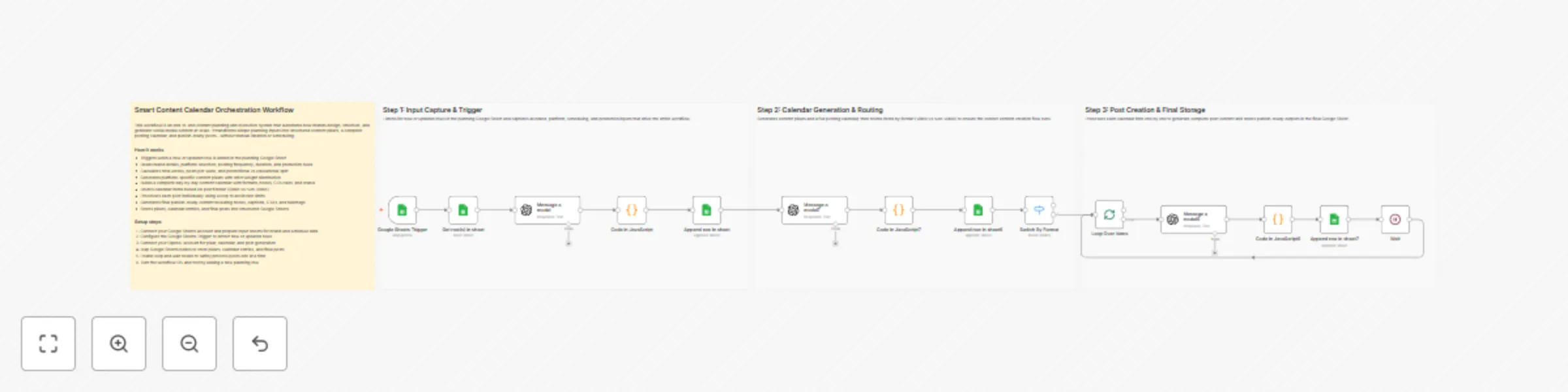
This workflow turns a single planning row in Google Sheets into a fully structured content engine. It generates weighted content pillars, builds a rule-based posting calendar, and then creates publish-ready social posts using AI. The workflow strictly controls format routing, CTA rules, and execution order. All outputs are written back to Google Sheets for easy review and execution.

Step-by-step

  • Step 1: Input capture & pillar generation

    • Google Sheets Trigger – Detects new or updated planning rows.
    • Get row(s) in sheet – Fetches brand, platform, scheduling, and promotion inputs.
    • Message a model – Calculates calendar metrics and generates platform-specific content pillars.
    • Code in JavaScript – Validates AI output and enforces 100% weight distribution.
    • Append row in sheet – Stores finalized content pillars in the pillars sheet.
  • Step 2: Calendar generation & routing

    • Message a model7 – Generates a full day-by-day content calendar from the pillars.
    • Code in JavaScript7 – Normalizes calendar data into a sheet-compatible structure.
    • Append row in sheet6 – Saves calendar entries with dates, formats, CTAs, and status.
    • Switch By Format – Routes items based on Video vs Non-Video formats.
  • Step 3: Post creation & final storage

    • Loop Over Items – Processes each calendar entry one at a time.
    • Message a model6 – Creates complete hooks, captions, CTAs, and hashtags.
    • Code in JavaScript6 – Formats AI output for final storage.
    • Append row in sheet7 – Stores publish-ready posts in the final sheet.
    • Wait – Controls pacing to avoid API rate limits.

Why use this?

  • Eliminates manual content planning and ideation.
  • Enforces strategic content mix and CTA discipline.
  • Produces platform-ready posts automatically.
  • Keeps all planning, calendars, and content in Google Sheets.
  • Scales content operations without extra overhead.

1.2 Logical Blocks

This catalog entry is organized from the workflow JSON. The node-level section below shows the executable blocks available for review before importing the template.

2. Block-by-Block Analysis

Block 1 - Google Sheets Trigger

Type / Role
n8n-nodes-base.googleSheetsTrigger - googleSheetsTrigger
Config choices
Version 1

Block 2 - Get row(s) in sheet

Type / Role
n8n-nodes-base.googleSheets - googleSheets
Config choices
Version 4.7

Block 3 - Append row in sheet

Type / Role
n8n-nodes-base.googleSheets - googleSheets
Config choices
Version 4.7

Block 4 - Append row in sheet6

Type / Role
n8n-nodes-base.googleSheets - googleSheets
Config choices
Version 4.7

Block 5 - Switch By Format

Type / Role
n8n-nodes-base.switch - switch
Config choices
Version 3.4

Block 6 - Append row in sheet7

Type / Role
n8n-nodes-base.googleSheets - googleSheets
Config choices
Version 4.7

Block 7 - Loop Over Items

Type / Role
n8n-nodes-base.splitInBatches - splitInBatches
Config choices
Version 3

Block 8 - Wait

Type / Role
n8n-nodes-base.wait - wait
Config choices
Version 1.1

Block 9 - Message a model

Type / Role
@n8n/n8n-nodes-langchain.openAi - openAi
Config choices
Version 2.1

Block 10 - Message a model6

Type / Role
@n8n/n8n-nodes-langchain.openAi - openAi
Config choices
Version 2.1

Block 11 - Code in JavaScript

Type / Role
n8n-nodes-base.code - code
Config choices
Version 2

Block 12 - Code in JavaScript6

Type / Role
n8n-nodes-base.code - code
Config choices
Version 2

Block 13 - Message a model7

Type / Role
@n8n/n8n-nodes-langchain.openAi - openAi
Config choices
Version 2.1

Block 14 - Code in JavaScript7

Type / Role
n8n-nodes-base.code - code
Config choices
Version 2

Block 15 - Sticky Note4

Type / Role
n8n-nodes-base.stickyNote - stickyNote
Config choices
Version 1

Block 16 - Sticky Note5

Type / Role
n8n-nodes-base.stickyNote - stickyNote
Config choices
Version 1

Block 17 - Sticky Note6

Type / Role
n8n-nodes-base.stickyNote - stickyNote
Config choices
Version 1

Block 18 - Sticky Note7

Type / Role
n8n-nodes-base.stickyNote - stickyNote
Config choices
Version 1

3. Summary Table

Workflow Generate social content pillars, calendars and posts using Google Sheets and OpenAI
Complexity advanced
Nodes 18
Categories Content Creation, Multimodal AI
Author Avkash Kakdiya
Published 30 Dec 2025

4. Reproducing the Workflow from Scratch

  1. 1. Download the workflow JSON

    Use the JSON export at /data/workflows/12294/12294.json as the source template for this automation.

  2. 2. Import the template into n8n

    Open n8n, import the downloaded JSON, and review each node before activating the workflow.

  3. 3. Configure credentials and variables

    Replace placeholder credentials, API keys, webhook URLs, account IDs, and environment-specific values with your own settings.

  4. 4. Test with sample data

    Run the workflow manually or in a staging workspace, inspect node output, and confirm downstream systems receive the expected data.

  5. 5. Activate and monitor

    Enable the workflow only after testing, then monitor executions, errors, and rate limits during the first production runs.

5. General Notes & Resources

Review imported nodes carefully before activation. This catalog entry is intended to help you inspect the workflow structure, understand required services, and find related templates faster.

Node names, credentials, schedules, webhook paths, and external service limits may need adjustment for your workspace.

Frequently asked questions

What does Generate social content pillars, calendars and posts using Google Sheets and OpenAI do?

How it works This workflow turns a single planning row in Google Sheets into a fully structured content engine. It generates weighted content pillars, builds a rule based posting calendar, and then...

What do I need before importing this workflow?

Review the workflow JSON, configure any required credentials in n8n, and test the automation in a safe workspace before using it in production.

Can I customize this workflow?

Yes. Use the block-by-block analysis and the downloadable JSON to inspect each node, then adjust credentials, prompts, schedules, filters, or destinations for your Content Creation, Multimodal AI use case.