Generate product and marketing images using Riverflow 2.0 on Replicate

Workflow preview

Workflow preview
100%
Generate product and marketing images using Riverflow 2.0 on Replicate preview
Open on n8n.io

1. Workflow Overview

How it works This workflow is designed to take user inputs in order to generate an image using the Riverflow 2.0 model through the Replicate API . It can handle both ima...

Best for

  • Content Creation automation workflows
  • Multimodal AI automation workflows
  • advanced n8n builders looking for reusable templates

Tools used

n8n-nodes-base.formtrigger, n8n-nodes-base.stickynote, n8n-nodes-base.code, n8n-nodes-base.executeworkflow, n8n-nodes-base.wait, n8n-nodes-base.datatable, n8n-nodes-base.if, n8n-nodes-base.httprequest

Source and attribution

This workflow is cataloged by N8N Workflows and links back to its original n8n.io source page by Joel Sage.

Original n8n.io source

1.1 Workflow description

Title
Generate product and marketing images using Riverflow 2.0 on Replicate
Workflow name
Generate product and marketing images using Riverflow 2.0 on Replicate

How it works

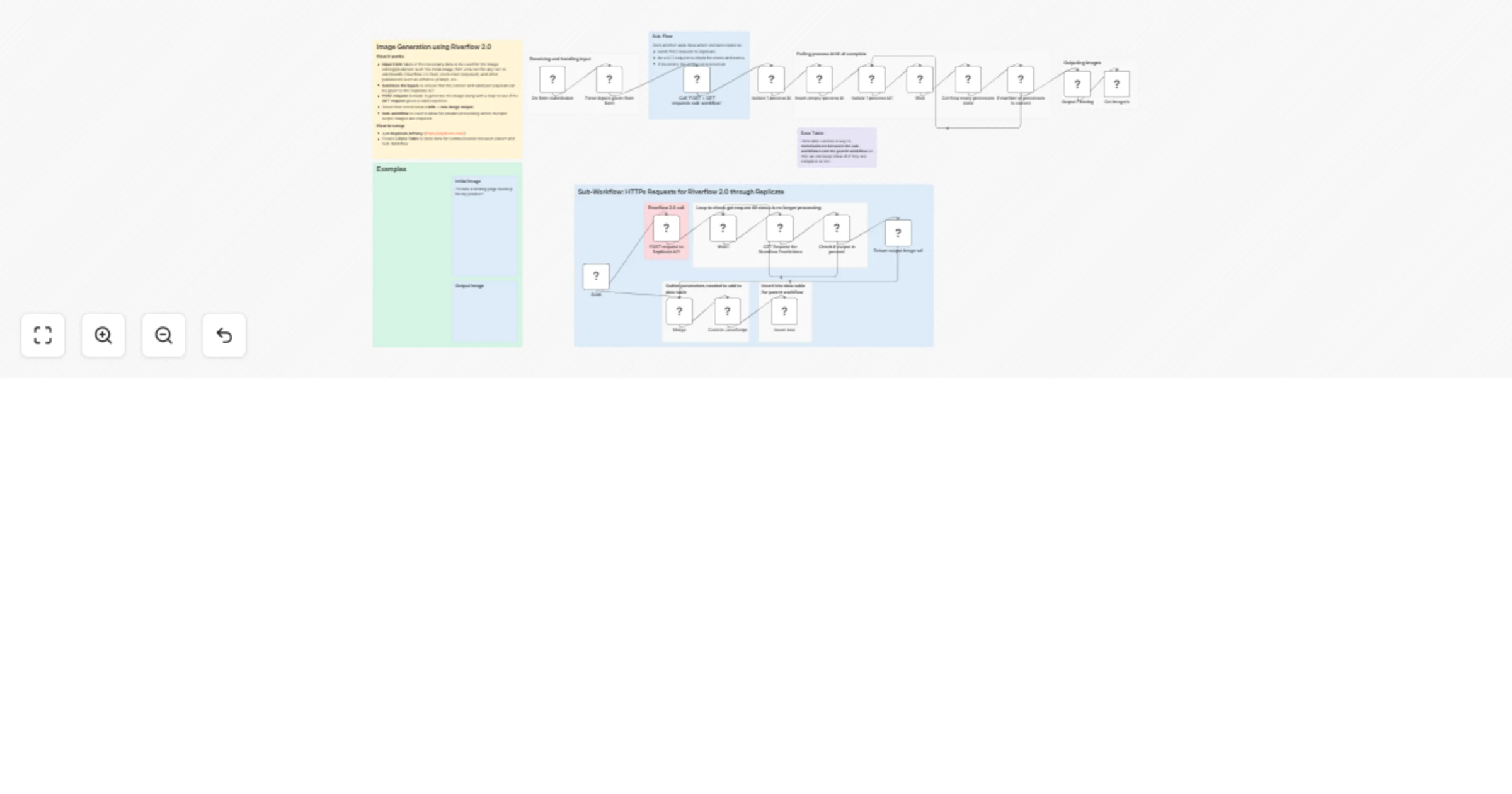
This workflow is designed to take user inputs in order to generate an image using the Riverflow 2.0 model through the Replicate API. It can handle both image generation as well as image editing. Additionally, for specific text modifications, the source text and font can be provided to help guide the model. Here is a high-level overview of how this workflow operates:

  1. An initial input form acts as the trigger for this workflow. It takes in all the parameters required by Riverflow 2.0, including:
  • Model
  • Font URLs + Texts
  • Resolution
  • Initial Image
  • Instruction (Required)
  • Aspect Ratio
  • Transparency
  • Enhance Prompt
  • Max Iterations
  • Safety Checker
  • Super Resolution References
  • Number of Outputs
  1. These inputs are then sanitized using a script and passed into a sub-workflow that handles the HTTP requests.
  2. Sub-Workflow: This workflow takes all the given parameters and makes a POST request to start the Riverflow 2.0 generation, followed by a looped GET request to check once the status is complete. The outputs are then stored in a data table, which is very important.
  • This is done in a sub-workflow so that images can be generated in parallel when multiple outputs are required.
  • The data table allows communication between the parent workflow and the parallel-running sub-workflows.
  1. In the parent workflow, we poll the data table to check if outputs from the sub-workflow have been generated. This is done using a loop and querying the data table to see if the outputs have been inserted.
  2. Once we have the outputs (as URLs), the raw image is also provided so that the image can be viewed or downloaded directly from the workflow (the URLs are also given if they need to be used).

Setup

  • This workflow requires a Replicate API key, which can be obtained from https://replicate.com/.
  • Additionally, a n8n data table is needed to store outputs from parallel processes.

Ideal for

  • E-commerce Brands: Riverflow 2.0 is heavily used for product and packaging designs and images and was developed by Sourceful. Using this workflow will help brands create images for e-commerce purposes.
  • Marketers: Teams can generate multiple creative variations in parallel for paid ads, social media, email campaigns, and A/B testing. Instead of manually editing assets, marketers can automate background changes, color variations, and creative iterations to rapidly test and scale winning campaigns.
  • Design and Creative Teams: Creative teams can use this workflow to quickly prototype visual concepts, enhance product renders, upscale images, and generate multiple design directions in minutes. It reduces repetitive production work and allows designers to focus on higher-level creative decisions.

Customization

  • Connect to External Systems: Outputs from this workflow can be passed to an external database or system such as Shopify or Google Drive.
  • Post-processing Automation: This workflow can be extended into a larger image automation pipeline. Generated assets can automatically undergo resizing, background removal, format conversion, watermarking, compression optimization, or thumbnail generation, ensuring images are production-ready without manual intervention.
  • Ad Monitoring and Reports: Generated images can feed directly into marketing workflows (e.g., paid ads or social campaigns). Performance metrics such as CPM, CTR, and conversion rate can be tracked and logged, enabling teams to measure creative effectiveness and iterate on prompts or variations based on real performance data.

More Infomation about Riverflow 2.0: www.riverflow.ai

1.2 Logical Blocks

This catalog entry is organized from the workflow JSON. The node-level section below shows the executable blocks available for review before importing the template.

2. Block-by-Block Analysis

Block 1 - On form submission

Type / Role
n8n-nodes-base.formTrigger - formTrigger
Config choices
Version 2.5

Block 2 - Sticky Note

Type / Role
n8n-nodes-base.stickyNote - stickyNote
Config choices
Version 1

Block 3 - Parse inputs given from form

Type / Role
n8n-nodes-base.code - code
Config choices
Version 2

Block 4 - Sticky Note1

Type / Role
n8n-nodes-base.stickyNote - stickyNote
Config choices
Version 1

Block 5 - Sticky Note5

Type / Role
n8n-nodes-base.stickyNote - stickyNote
Config choices
Version 1

Block 6 - Sticky Note6

Type / Role
n8n-nodes-base.stickyNote - stickyNote
Config choices
Version 1

Block 7 - Sticky Note7

Type / Role
n8n-nodes-base.stickyNote - stickyNote
Config choices
Version 1

Block 8 - Sticky Note8

Type / Role
n8n-nodes-base.stickyNote - stickyNote
Config choices
Version 1

Block 9 - Sticky Note9

Type / Role
n8n-nodes-base.stickyNote - stickyNote
Config choices
Version 1

Block 10 - Sticky Note2

Type / Role
n8n-nodes-base.stickyNote - stickyNote
Config choices
Version 1

Block 11 - Call 'POST + GET requests sub-workflow'

Type / Role
n8n-nodes-base.executeWorkflow - executeWorkflow
Config choices
Version 1.3

Block 12 - Wait

Type / Role
n8n-nodes-base.wait - wait
Config choices
Version 1.1

Block 13 - Sticky Note3

Type / Role
n8n-nodes-base.stickyNote - stickyNote
Config choices
Version 1

Block 14 - Sticky Note4

Type / Role
n8n-nodes-base.stickyNote - stickyNote
Config choices
Version 1

Block 15 - Sticky Note10

Type / Role
n8n-nodes-base.stickyNote - stickyNote
Config choices
Version 1

Block 16 - Isolate 1 process id

Type / Role
n8n-nodes-base.code - code
Config choices
Version 2

Block 17 - Isolate 1 process id1

Type / Role
n8n-nodes-base.code - code
Config choices
Version 2

Block 18 - Insert empty process id

Type / Role
n8n-nodes-base.dataTable - dataTable
Config choices
Version 1.1

Block 19 - If number of processes is correct

Type / Role
n8n-nodes-base.if - if
Config choices
Version 2.3

Block 20 - Output Filtering

Type / Role
n8n-nodes-base.code - code
Config choices
Version 2

Block 21 - Get how many processes done

Type / Role
n8n-nodes-base.dataTable - dataTable
Config choices
Version 1.1

Block 22 - Get image/s

Type / Role
n8n-nodes-base.httpRequest - httpRequest
Config choices
Version 4.4

Block 23 - Return output image url

Type / Role
n8n-nodes-base.set - set
Config choices
Version 3.4

Block 24 - GET Request for Riverflow Predictions

Type / Role
n8n-nodes-base.httpRequest - httpRequest
Config choices
Version 4.4

Showing the first 24 of 36 workflow blocks. Download the JSON for the full node graph.

3. Summary Table

Workflow Generate product and marketing images using Riverflow 2.0 on Replicate
Complexity advanced
Nodes 36
Categories Content Creation, Multimodal AI
Author Joel Sage
Published 11 Feb 2026

4. Reproducing the Workflow from Scratch

  1. 1. Download the workflow JSON

    Use the JSON export at /data/workflows/13303/13303.json as the source template for this automation.

  2. 2. Import the template into n8n

    Open n8n, import the downloaded JSON, and review each node before activating the workflow.

  3. 3. Configure credentials and variables

    Replace placeholder credentials, API keys, webhook URLs, account IDs, and environment-specific values with your own settings.

  4. 4. Test with sample data

    Run the workflow manually or in a staging workspace, inspect node output, and confirm downstream systems receive the expected data.

  5. 5. Activate and monitor

    Enable the workflow only after testing, then monitor executions, errors, and rate limits during the first production runs.

5. General Notes & Resources

Review imported nodes carefully before activation. This catalog entry is intended to help you inspect the workflow structure, understand required services, and find related templates faster.

Node names, credentials, schedules, webhook paths, and external service limits may need adjustment for your workspace.

Frequently asked questions

What does Generate product and marketing images using Riverflow 2.0 on Replicate do?

How it works This workflow is designed to take user inputs in order to generate an image using the Riverflow 2.0 model through the Replicate API . It can handle both ima...

What do I need before importing this workflow?

Review the workflow JSON, configure any required credentials in n8n, and test the automation in a safe workspace before using it in production.

Can I customize this workflow?

Yes. Use the block-by-block analysis and the downloadable JSON to inspect each node, then adjust credentials, prompts, schedules, filters, or destinations for your Content Creation, Multimodal AI use case.