Block 1 - Generate an image
- Type / Role
- @n8n/n8n-nodes-langchain.openAi - openAi
- Config choices
- Version 1.8


 Early Deal
This workflow is provided as-is. Please review and test before using in production.
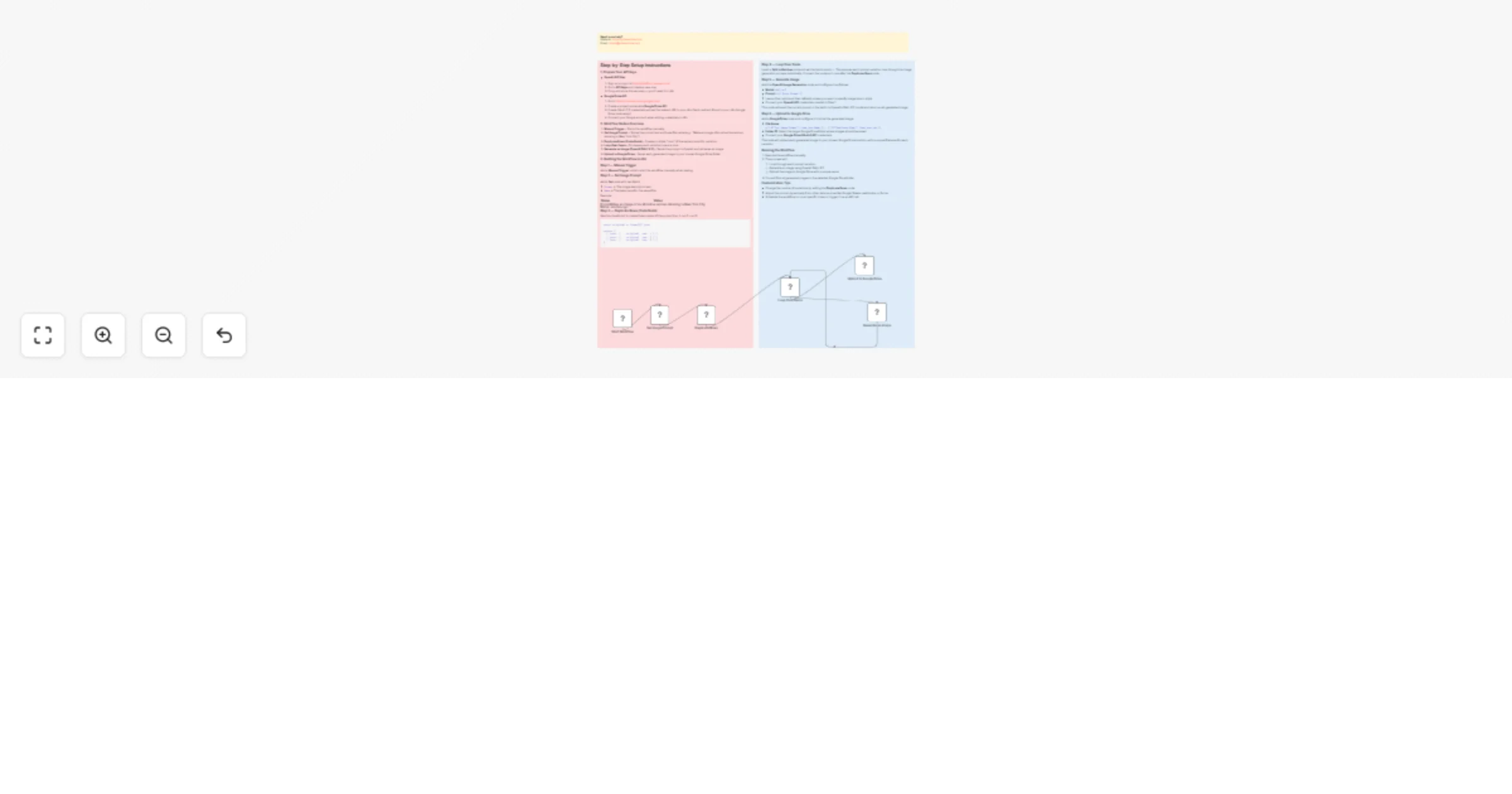
n8n Workflow: OpenAI DALL·E 2 Image Generation & Google Drive Upload Description This n8n workflow automates the process of generating multiple AI created images from a single prompt using OpenAI's...
@n8n/n8n-nodes-langchain.openai, n8n-nodes-base.splitinbatches, n8n-nodes-base.manualtrigger, n8n-nodes-base.set, n8n-nodes-base.googledrive, n8n-nodes-base.code, n8n-nodes-base.stickynote
This workflow is cataloged by N8N Workflows and links back to its original n8n.io source page by Robert Breen.
Original n8n.io sourceThis n8n workflow automates the process of generating multiple AI-created images from a single prompt using OpenAI's DALL·E 2, then uploads the results directly to a Google Drive folder. It includes a loop to produce several image variations for the same prompt, making it ideal for creative projects, marketing materials, or content experimentation.
OpenAI API Key
Google Drive API
Add a Manual Trigger node to start the workflow manually when testing.
Add a Set node with two fields:
Prompt → The image description text. Name → The base name for the saved file.Example:
| Name | Value |
|---|---|
| Prompt | Make an image of an attractive woman standing in New York City |
| Name | woman-nyc |
Use this JavaScript to create three copies of the prompt (run 1, run 2, run 3):
const original = items[0].json;

return [
  { json: { ...original, run: 1 } },
  { json: { ...original, run: 2 } },
  { json: { ...original, run: 3 } },
];

#### Step 4 — Loop Over Items
Insert a **Split in Batches** node and set the batch size to `1`. This ensures each prompt variation runs through the image generation process individually. Connect this node so it runs after the **Duplicate Rows** node.

#### Step 5 — Generate Image
Add the **OpenAI Image Generation** node and configure it as follows:
- **Model**: `dall-e-2`
- **Prompt**: `={{ $json.Prompt }}`
- Leave other options at their defaults unless you want to specify image size or style.
- Connect your **OpenAI API** credentials created in Step 1.

This node will send the current prompt in the batch to OpenAI's DALL·E 2 model and return an AI-generated image.

#### Step 6 — Upload to Google Drive
Add a **Google Drive** node and configure it to store the generated image:
- **File Name**:
  `={{ $('Set Image Prompt').item.json.Name }} - {{ $('Duplicate Rows').item.json.run }}`
- **Folder ID**: Select the target Google Drive folder where images should be saved.
- Connect your **Google Drive OAuth2 API** credentials.

The node will upload each generated image to your chosen Google Drive location, with a unique filename for each variation.

---

### Running the Workflow
1. Execute the workflow manually.
2. The process will:
   - Loop through each prompt variation.
   - Generate an image using OpenAI DALL·E 2.
   - Upload the image to Google Drive with a unique name.
3. You will find all generated images in the selected Google Drive folder.

---

### Customization Tips
- Change the number of variations by editing the **Duplicate Rows** code.
- Adjust the prompt dynamically from other data sources like Google Sheets, webhooks, or forms.
- Schedule the workflow to run at specific times or trigger it via an API call.

---

**Created by Robert A. – Ynteractive**
Website: https://ynteractive.com
Email: [email protected]
This catalog entry is organized from the workflow JSON. The node-level section below shows the executable blocks available for review before importing the template.
| Workflow | Generate multiple AI images with DALL·E 2 and upload to Google Drive |
|---|---|
| Complexity | intermediate |
| Nodes | 9 |
| Categories | Content Creation, Multimodal AI |
| Author | Robert Breen |
| Published | 10 Aug 2025 |
Use the JSON export at /data/workflows/7222/7222.json as the source template for this automation.
Open n8n, import the downloaded JSON, and review each node before activating the workflow.
Replace placeholder credentials, API keys, webhook URLs, account IDs, and environment-specific values with your own settings.
Run the workflow manually or in a staging workspace, inspect node output, and confirm downstream systems receive the expected data.
Enable the workflow only after testing, then monitor executions, errors, and rate limits during the first production runs.
Review imported nodes carefully before activation. This catalog entry is intended to help you inspect the workflow structure, understand required services, and find related templates faster.
Node names, credentials, schedules, webhook paths, and external service limits may need adjustment for your workspace.
n8n Workflow: OpenAI DALL·E 2 Image Generation & Google Drive Upload Description This n8n workflow automates the process of generating multiple AI created images from a single prompt using OpenAI's...
Review the workflow JSON, configure any required credentials in n8n, and test the automation in a safe workspace before using it in production.
Yes. Use the block-by-block analysis and the downloadable JSON to inspect each node, then adjust credentials, prompts, schedules, filters, or destinations for your Content Creation, Multimodal AI use case.