Block 1 - Section — Input and Split
- Type / Role
- n8n-nodes-base.stickyNote - stickyNote
- Config choices
- Version 1


 Early Deal
Paste any video URL into the form, choose your target languages, and this workflow handles everything else. It sends the video to WayinVideo AI, which automatically generat...
n8n-nodes-base.stickynote, n8n-nodes-base.formtrigger, n8n-nodes-base.code, n8n-nodes-base.httprequest, n8n-nodes-base.if, n8n-nodes-base.wait, n8n-nodes-base.googledrive
This workflow is cataloged by N8N Workflows and links back to its original n8n.io source page by isaWOW.
Original n8n.io sourcePaste any video URL into the form, choose your target languages, and this workflow handles everything else. It sends the video to WayinVideo AI, which automatically generates short vertical clips with translated subtitles in every language you selected. Each clip is downloaded and saved directly to your Google Drive folder — ready to post on TikTok, Instagram Reels, or YouTube Shorts. Built for content agencies, social media managers, and global brands who want to repurpose videos across multiple languages at scale — without editing a single frame.
Estimated Setup Time: 10–15 minutes
Get your WayinVideo API key Log in at WayinVideo, go to your account settings or developer section, and copy your API key.
Paste the API key into node "3. WayinVideo — Submit Clipping Task"
Open this node, find the Authorization header, and replace YOUR_WAYINVIDEO_API_KEY with your actual key.
Paste the API key into node "5. WayinVideo — Get Clips Result"
Open this node, find the same Authorization header, and replace YOUR_WAYINVIDEO_API_KEY again.
> ⚠️ This key appears in 2 nodes — you must replace it in both "3. WayinVideo — Submit Clipping Task" and "5. WayinVideo — Get Clips Result" or the workflow will fail.
Connect your Google account Open node "10. Google Drive — Upload Clip". Click the credential field and connect your Google account via OAuth2. Follow the on-screen prompts to authorise n8n.
Set your Google Drive folder ID
In node "10. Google Drive — Upload Clip", find the folderId field. Replace YOUR_GDRIVE_FOLDER_ID with your actual folder ID.
To find it: open your target Google Drive folder in a browser — the folder ID is the string of letters and numbers at the end of the URL after /folders/.
Activate the workflow Toggle the workflow to Active. Open the form URL generated by node "1. Form — Video URL + Languages" and submit a test video with one or two language codes to confirm everything works end to end.
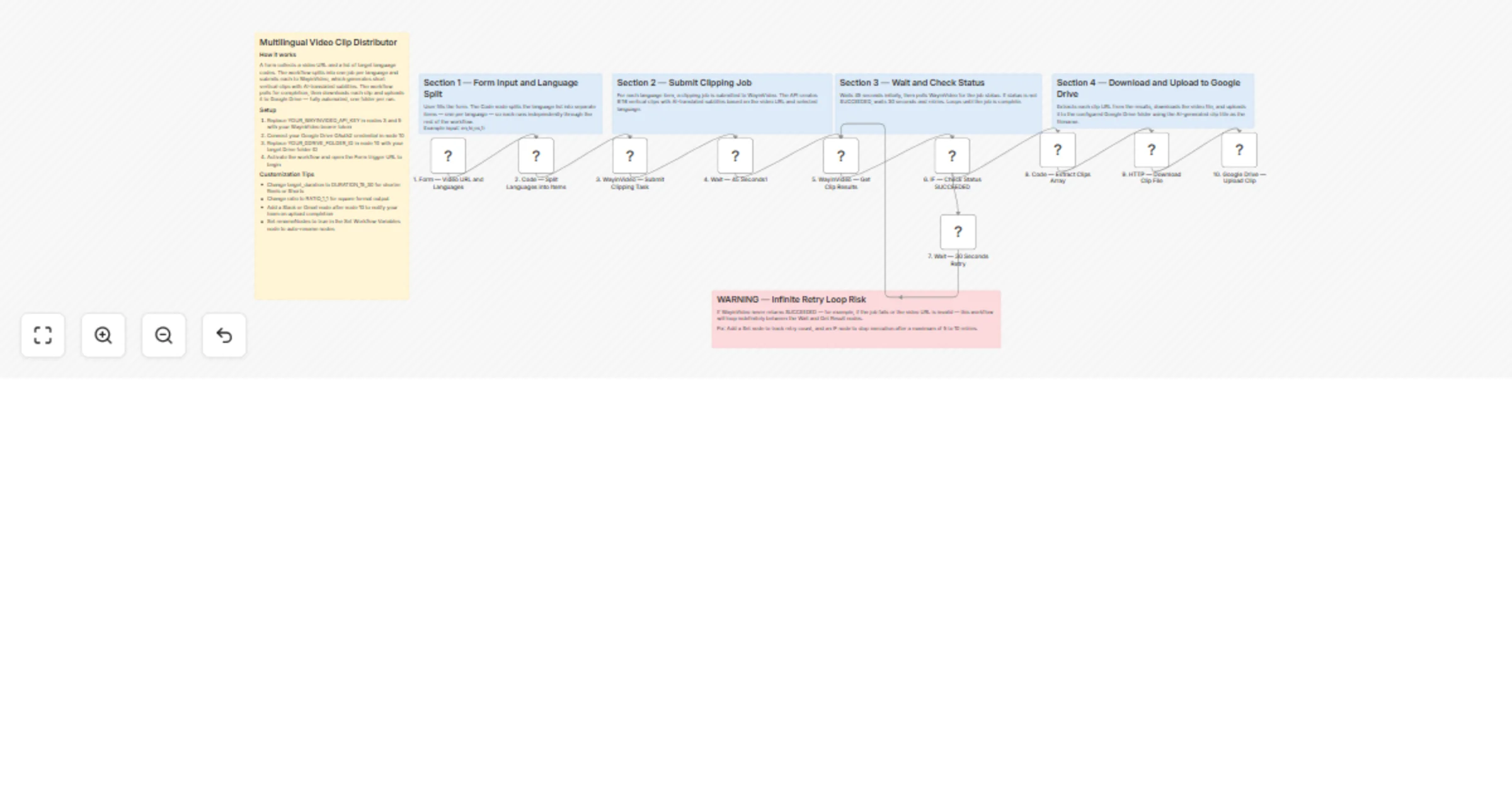
Step 1 — Form Trigger (Web Form)
The workflow starts when someone fills out the web form. They enter four things: the video URL, the brand or project name, the target languages as comma-separated codes (e.g. en,hi,es,fr), and the number of clips to generate per language. This form is hosted by n8n and can be shared with anyone on your team — no technical knowledge required.
Step 2 — Split by Language (Code)
The language codes entered in the form are split into individual items — one per language. So if you entered en,hi,es, the workflow creates three separate jobs. Each job carries the video URL, brand name, target language, and clip count. From this point, every language runs through the same steps independently.
Step 3 — Submit to WayinVideo AI For each language, the video URL and settings are sent to the WayinVideo API. The request includes clip duration (30–60 seconds), HD 720p resolution, 9:16 vertical ratio for social media, AI reframing enabled, and captions set to display translated text in the target language. WayinVideo processes the video and returns a task ID used to track that specific job.
Step 4 — Wait 45 Seconds The workflow pauses for 45 seconds to give WayinVideo time to process the video before the first status check. This prevents unnecessary requests being sent too early when results are not yet available.
Step 5 — Poll for Results The workflow calls the WayinVideo results endpoint using the task ID from Step 3. It checks: "Are the clips ready?" and receives either a completed clips array or a status that indicates processing is still in progress.
Step 6 — Check: Status SUCCEEDED? (YES / NO branch)
SUCCEEDED, the workflow moves forward to extract and process each clip.> ⚠️ Infinite Loop Risk: If WayinVideo never returns a SUCCEEDED status — due to an invalid video URL, a private video, or an API error — this loop will run forever. Consider adding a retry counter to stop the loop after a set number of attempts and send an error alert instead.
Step 7 — Wait 30 Seconds (Retry) When clips are not ready yet, the workflow pauses for 30 seconds before polling again. This gap prevents hitting WayinVideo's API rate limits during the retry loop.
Step 8 — Extract Each Clip (Code) Once the status is SUCCEEDED, a code step reads the clips data and splits it into individual items — one per clip. Each item includes the clip title, export download link, AI score, tags, description, and start/end timestamps in milliseconds.
Step 9 — Download Each Clip File For each clip, the workflow fetches the video file from WayinVideo's export link and downloads the binary file into n8n's memory, ready to be saved.
Step 10 — Upload to Google Drive Each downloaded clip file is uploaded to your Google Drive folder. The file is named using the AI-generated clip title from Step 8, so every clip arrives in Drive with a clean, descriptive, ready-to-use filename.
The final result is a Google Drive folder containing all short clips — organised by AI-generated titles — in every language you requested, ready to publish.
✅ Multilingual in one run — Enter multiple language codes and the workflow generates a full clip set per language automatically — no need to run it separately for each language ✅ Translated captions baked in — Subtitles are translated and embedded at the WayinVideo stage — clips arrive ready to post with no extra editing ✅ 9:16 vertical format — Every clip is automatically reframed for TikTok, Instagram Reels, and YouTube Shorts — no manual cropping required ✅ AI clip scoring — WayinVideo ranks clips by engagement potential, so you always get the most shareable moments first ✅ Auto-retry polling — The workflow keeps checking until clips are ready — you don't need to monitor or manually re-run anything ✅ Smart file naming — Each clip in Drive is named using its AI-generated title, not a random ID — your folder stays organised and client-ready ✅ Batch processing — Multiple clips per language are all downloaded and uploaded in a single run ✅ Team-friendly form input — Anyone on your team can submit a video job through the web form — no access to n8n needed
Generate shorter clips for TikTok
In node "3. WayinVideo — Submit Clipping Task", change target_duration from DURATION_30_60 to DURATION_15_30 to generate 15–30 second clips better suited for TikTok's shorter format.
Switch to square format for Twitter/LinkedIn
In the same Submit node, change ratio from RATIO_9_16 to RATIO_1_1 to produce square clips optimised for Twitter and LinkedIn feeds.
Add Slack or email notifications Insert a Slack or Gmail node after "10. Google Drive — Upload Clip" to automatically ping your team with a message and the Drive folder link every time a new batch of clips is saved.
Log clip metadata to Google Sheets After the upload step, add a Google Sheets "Append Row" node to record each clip's title, score, tags, language, and Drive link in a spreadsheet — useful for content calendars and client reporting.
Sort clips into language-specific subfolders
Pass the target_lang value from Step 2 into the folder selection in "10. Google Drive — Upload Clip" to automatically save each language's clips into its own subfolder (e.g. /clips/hi/, /clips/es/).
Add a retry limit to prevent infinite loops Add a Set node before the retry wait to track a counter. Add a second IF node to check if the counter exceeds 8–10 attempts — if it does, route to a Gmail or Slack node to send an error alert and stop the loop.
API key not working:
YOUR_WAYINVIDEO_API_KEY in both node "3. WayinVideo — Submit Clipping Task" and node "5. WayinVideo — Get Clips Result"Workflow stuck in the polling loop:
Wrong language codes entered:
en, hi, es, fr, pt, ar, de, ja, zh, ko, ru, iden,hi,es) or with spaces after commas — the workflow trims them automaticallyGoogle Drive upload failing:
1BxiMVs0XRA5nFMdKvBdBZjgmUUqptlbs), not the full URLForm not triggering the workflow:
Need help setting this up or want a custom version built for your team or agency?
📧 Email:[email protected] 🌐 Website:https://isawow.com
This catalog entry is organized from the workflow JSON. The node-level section below shows the executable blocks available for review before importing the template.
| Workflow | Generate multilingual AI video clips using WayinVideo and Google Drive |
|---|---|
| Complexity | advanced |
| Nodes | 16 |
| Categories | Content Creation, Multimodal AI |
| Author | isaWOW |
| Published | 04 Apr 2026 |
Use the JSON export at /data/workflows/14707/14707.json as the source template for this automation.
Open n8n, import the downloaded JSON, and review each node before activating the workflow.
Replace placeholder credentials, API keys, webhook URLs, account IDs, and environment-specific values with your own settings.
Run the workflow manually or in a staging workspace, inspect node output, and confirm downstream systems receive the expected data.
Enable the workflow only after testing, then monitor executions, errors, and rate limits during the first production runs.
Review imported nodes carefully before activation. This catalog entry is intended to help you inspect the workflow structure, understand required services, and find related templates faster.
Node names, credentials, schedules, webhook paths, and external service limits may need adjustment for your workspace.
Paste any video URL into the form, choose your target languages, and this workflow handles everything else. It sends the video to WayinVideo AI, which automatically generat...
Review the workflow JSON, configure any required credentials in n8n, and test the automation in a safe workspace before using it in production.
Yes. Use the block-by-block analysis and the downloadable JSON to inspect each node, then adjust credentials, prompts, schedules, filters, or destinations for your Content Creation, Multimodal AI use case.