Block 1 - Google Drive Trigger
- Type / Role
- n8n-nodes-base.googleDriveTrigger - googleDriveTrigger
- Config choices
- Version 1


 Early Deal
This workflow is provided as-is. Please review and test before using in production.
Automate Drafts From Google Drive This workflow automates the end to end process of extracting and summarizing information from PDFs stored in a specific Google Drive folder. When a new PDF or any ...
n8n-nodes-base.googledrivetrigger, n8n-nodes-base.extractfromfile, @n8n/n8n-nodes-langchain.informationextractor, @n8n/n8n-nodes-langchain.lmchatopenai, n8n-nodes-base.googledocs, n8n-nodes-base.code, n8n-nodes-base.stickynote, @n8n/n8n-nodes-langchain.openai
This workflow is cataloged by N8N Workflows and links back to its original n8n.io source page by Michael Gullo.
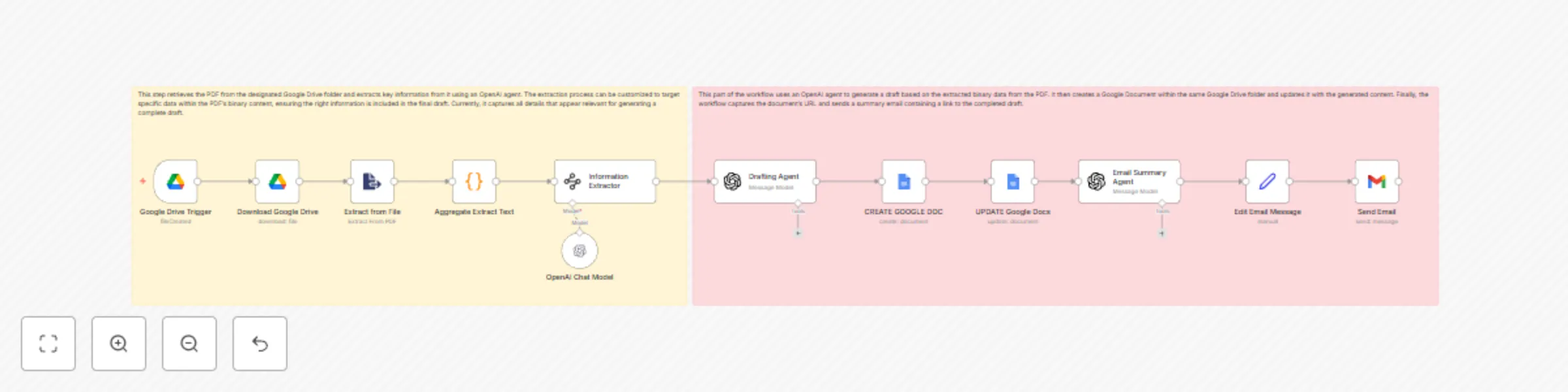
Original n8n.io sourceThis workflow automates the end-to-end process of extracting and summarizing information from PDFs stored in a specific Google Drive folder. When a new PDF or any binary data is added, the workflow is triggered and begins by downloading and processing the PDF to extract all available text. If multiple PDFs are detected, their content is aggregated into a single, combined dataset. This automation eliminates the time consuming task of manually reading, taking notes, and drafting documents. By removing this burden, users can focus on more meaningful tasks while the workflow handles the repetitive, tedious work.
The extracted content is then passed through an AI-powered information extractor that identifies key details such as names, dates, addresses, and any other structured data points the user wants to extract from the PDF. This step is highly customizable, allowing the user to define exactly what type of information should be extracted. While the workflow is designed to extract all available content from the PDF, specifying additional structured data points ensures that critical details are accurately captured. A second OpenAI Node uses the extracted information to draft a professional, formal summary suitable for documentation. This is the most important part of the workflow and can be fully customized to meet the user's specific needs. By editing the prompts, users can tailor the workflow to generate a wide variety of draft formats based on the extracted content.
The workflow then generates a new Google Document containing the full draft and composes an email summarizing the key points in 3 to 5 bullet points. This email is automatically sent to the designated recipient along with a direct link to the Google Doc. This solution is ideal for insurance, legal, or administrative use cases where timely, accurate extraction and reporting from incoming PDFs is essential.
How To Use The Workflow Step 1 - Place any binary data (e.g., PDF files) into the designated Google Drive folder.
Step 2 - The workflow will automatically download each PDF, extract the text, and if multiple PDFs are present combine them into a single dataset for analysis.
Step 3 - The OpenAI Draft Agent will analyze the extracted information, generate a formal draft, and create a Google Document. This document will be updated with the draft content and saved back into the same Google Drive folder.
Step 4 - An email will be sent to the designated recipient(s), including a summary of the draft and key extracted information, along with a link to view the Google Document.
Need Help? Have Questions? For consulting and support, or if you have questions, please feel free to connect with me on LinkedIn or email [email protected].
This catalog entry is organized from the workflow JSON. The node-level section below shows the executable blocks available for review before importing the template.
| Workflow | Generate document drafts from PDFs using Google Drive, GPT-4 & notifications |
|---|---|
| Complexity | intermediate |
| Nodes | 14 |
| Categories | Document Extraction, AI Summarization |
| Author | Michael Gullo |
| Published | 28 Jun 2025 |
Use the JSON export at /data/workflows/5441/5441.json as the source template for this automation.
Open n8n, import the downloaded JSON, and review each node before activating the workflow.
Replace placeholder credentials, API keys, webhook URLs, account IDs, and environment-specific values with your own settings.
Run the workflow manually or in a staging workspace, inspect node output, and confirm downstream systems receive the expected data.
Enable the workflow only after testing, then monitor executions, errors, and rate limits during the first production runs.
Review imported nodes carefully before activation. This catalog entry is intended to help you inspect the workflow structure, understand required services, and find related templates faster.
Node names, credentials, schedules, webhook paths, and external service limits may need adjustment for your workspace.
Automate Drafts From Google Drive This workflow automates the end to end process of extracting and summarizing information from PDFs stored in a specific Google Drive folder. When a new PDF or any ...
Review the workflow JSON, configure any required credentials in n8n, and test the automation in a safe workspace before using it in production.
Yes. Use the block-by-block analysis and the downloadable JSON to inspect each node, then adjust credentials, prompts, schedules, filters, or destinations for your Document Extraction, AI Summarization use case.